5 Best Security and Network-Testing Apps for Android (Rooted and Not)

The useful security apps for Android are not the ones with “hack” in the title. They are a network scanner, a Wi-Fi analyser, an authenticator, a password manager with a breach report, and a malware scanner with a published detection record. All five run on a stock, non-rooted phone, and all five are pointed at equipment you own.
This page used to be a list of “hacking apps”. Most of what circulated under that name did one of three things: nothing at all behind a progress bar, something useful in a laboratory and unlawful on a neighbour’s network, or something quietly harmful to the person who installed it. The list below is the version that survives contact with the law and with a modern phone.
The question that comes before the app list
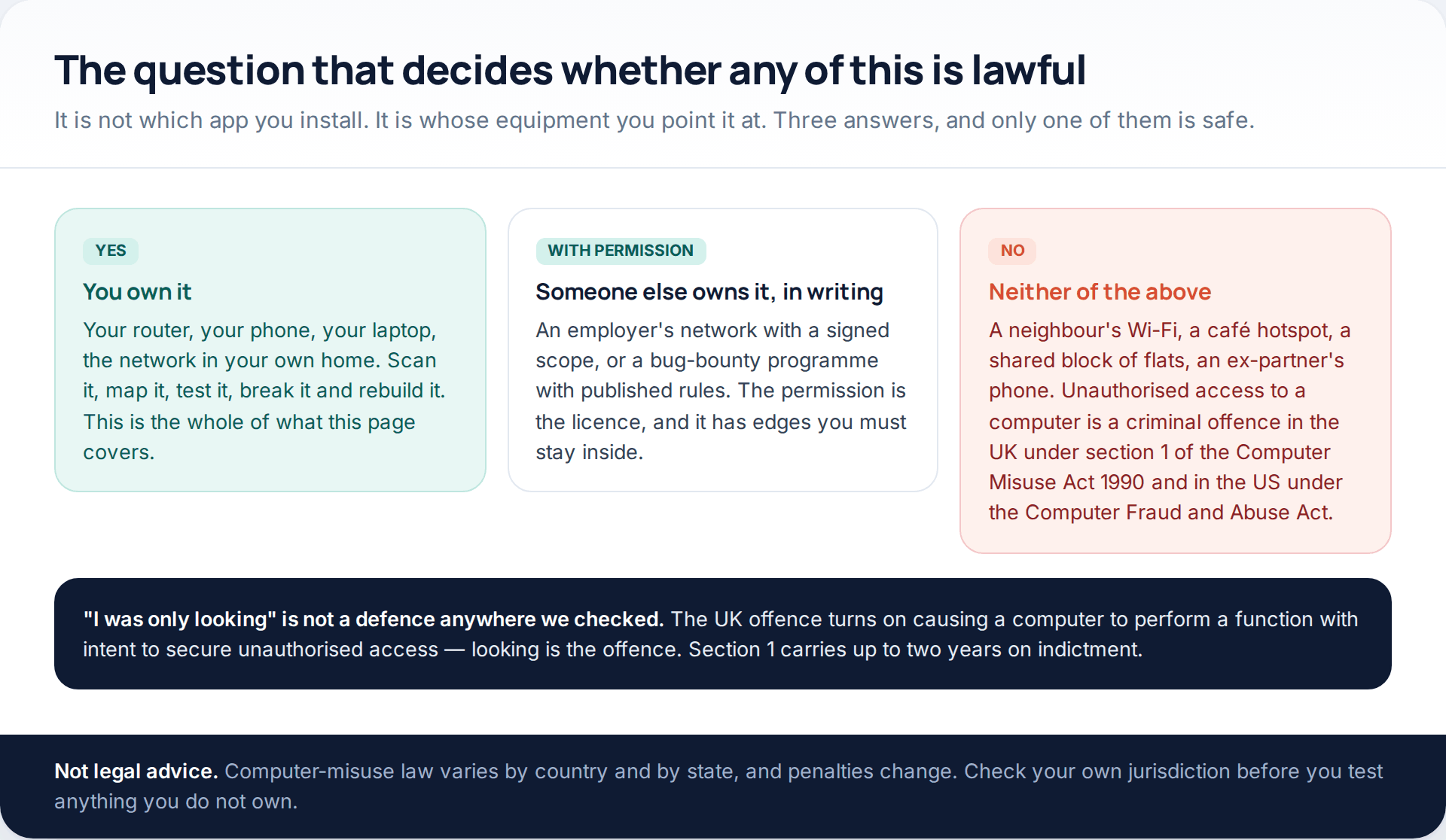
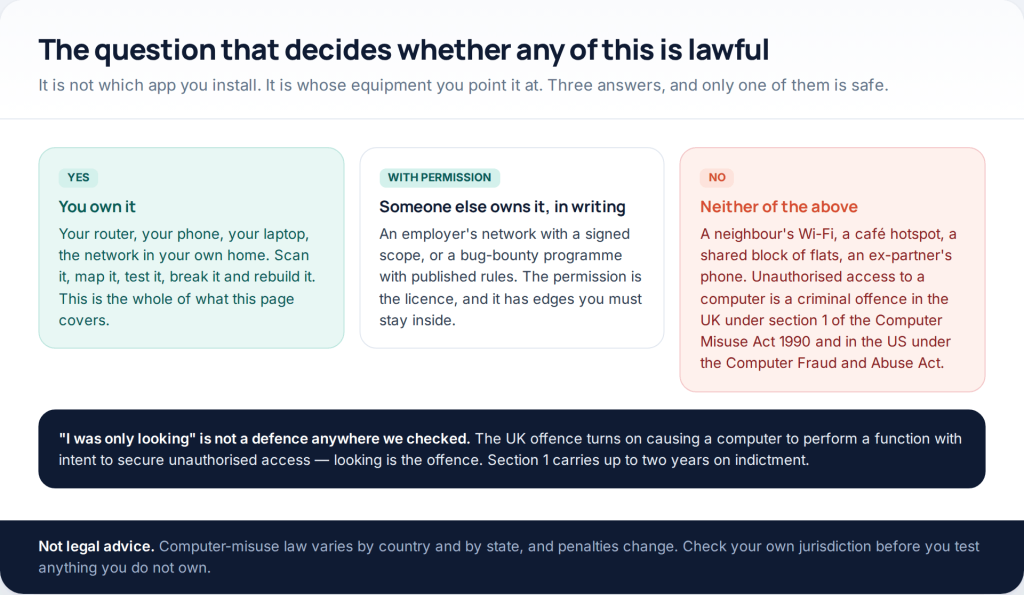
Nothing on this page is dangerous to own. Several items become a criminal matter the moment you aim them somewhere you have no standing. In the UK, section 1 of the Computer Misuse Act 1990 makes it an offence to cause a computer to perform any function with intent to secure unauthorised access to programs or data, carrying up to two years’ imprisonment on indictment. The United States has its own version in the Computer Fraud and Abuse Act, and most other countries have an equivalent.
Read that offence carefully, because people misread it constantly. There is no requirement that you took anything or caused loss. Causing the lookup is the offence, and none of it becomes acceptable because the network was poorly secured. So the whole of this page assumes one of two situations: the hardware is yours, or you hold written permission with a defined scope.
The five apps, and what each one is actually for
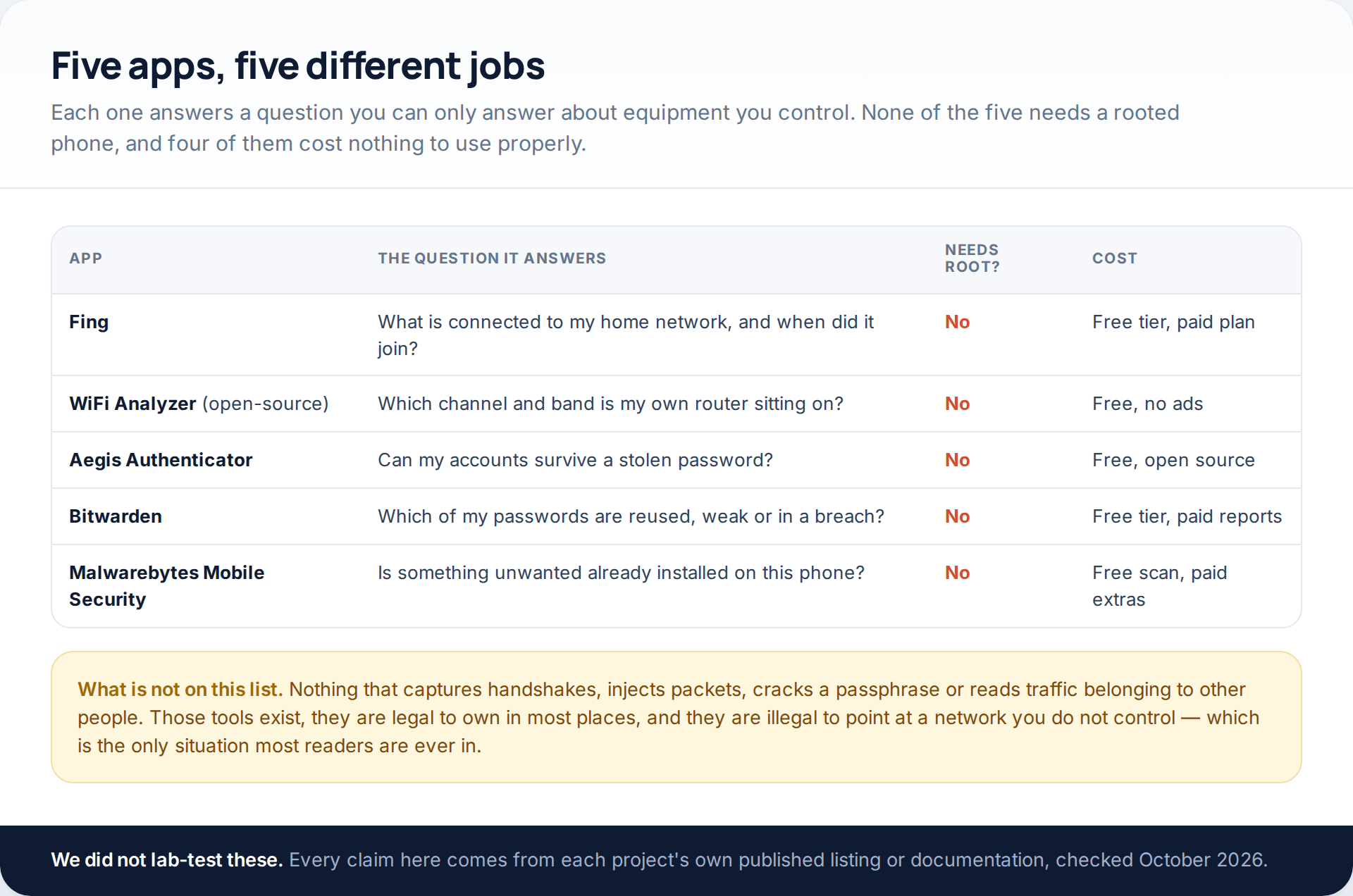
We have not lab-tested these. Everything below comes from each project’s own listing or documentation, read in October 2026, plus one independent test we quote and attribute.
1. Fing — what is on my network, and when did it arrive?
Fing is a network scanner. Point it at the Wi-Fi you are joined to and it enumerates the devices that answer, guessing each one’s manufacturer from its hardware address. Fing Limited’s own Play listing describes discovering and identifying the devices connected to your Wi-Fi, running download, upload and latency tests, and offering port scanning, ping, traceroute and DNS lookup, with security alerts by notification and email.
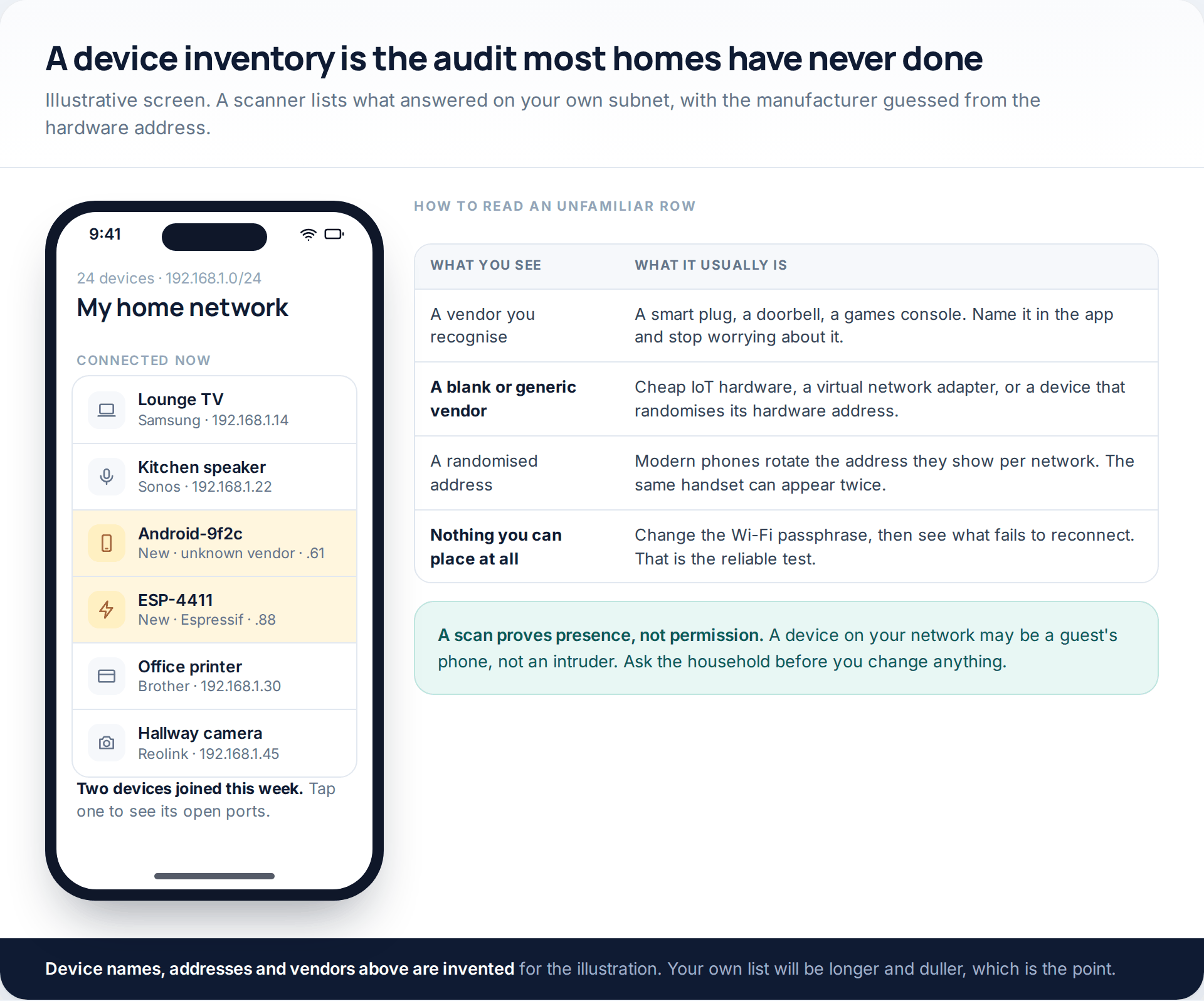
The value is not the first scan but the second. Name every device you recognise on day one, and from then on an unlabelled row stands out in seconds. Two caveats: modern phones randomise the hardware address they present per network, so one handset can appear as two entries across weeks, and the deeper monitoring features are tied to a paid plan or Fing’s own hardware.
2. WiFi Analyzer (open-source) — channels, bands and dead rooms
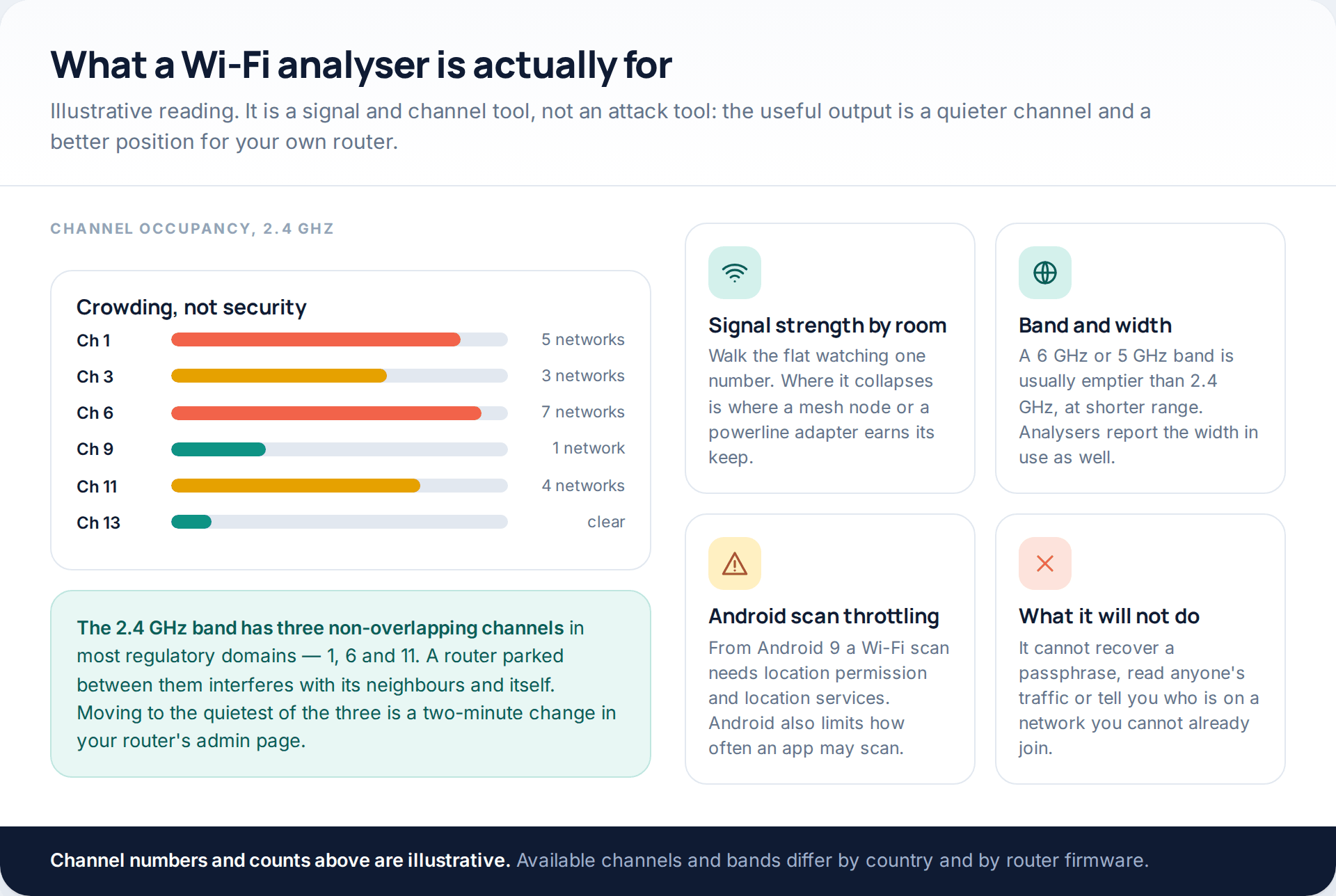
VREM Software Development’s WiFi Analyzer graphs the access points around you and rates channels. Its listing states support for the 2.4, 5 and 6 GHz bands, HT and VHT width detection, a vendor lookup, no ads and no data collection, and notes that it does not require internet access.
What it is for: finding the least crowded of the three non-overlapping 2.4 GHz channels for your own router, and walking the house watching signal strength collapse so you know where a mesh node belongs. What it is not for is anything to do with passphrases or other people’s traffic — an analyser reads the beacons every access point broadcasts publicly, and that is all. One practical note the listing makes explicitly: from Android 9 a Wi-Fi scan requires location permission and location services switched on, because Android introduced scan throttling. That is the platform, not the app.
3. Aegis Authenticator — the one that prevents the most damage
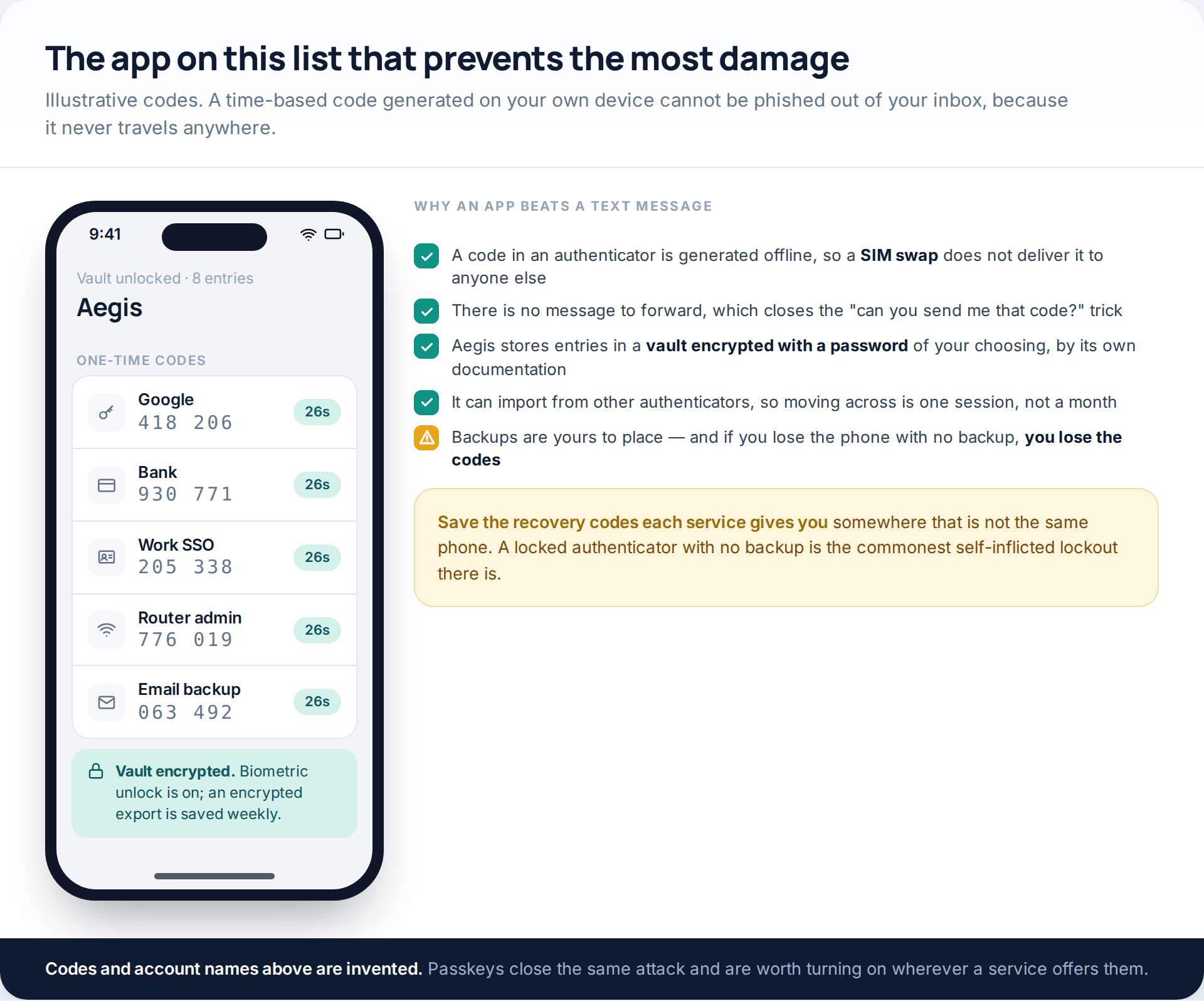
If you install one app from this page, install this one. Aegis is a free, GPLv3-licensed authenticator from Beem Development that generates HOTP and TOTP codes. Its documentation describes storing tokens in a vault that is encrypted with strong cryptography when you set a password, biometric unlock where the hardware supports it, automatic backups to a location you choose, and imports from other authenticator apps.
The reason it matters more than any scanner: a code generated on your device is never delivered anywhere. It cannot be read out of a hijacked inbox, it cannot be forwarded by a friendly-sounding message, and a SIM swap does not route it to anyone. Text-message codes fail all three of those tests. Where a service offers a passkey instead, take the passkey — same protection, less to carry.
The limit is worth planning for: if the phone is lost and you never made a backup or saved each service’s recovery codes, you are locked out of your own accounts.
4. Bitwarden — the report, not the autofill
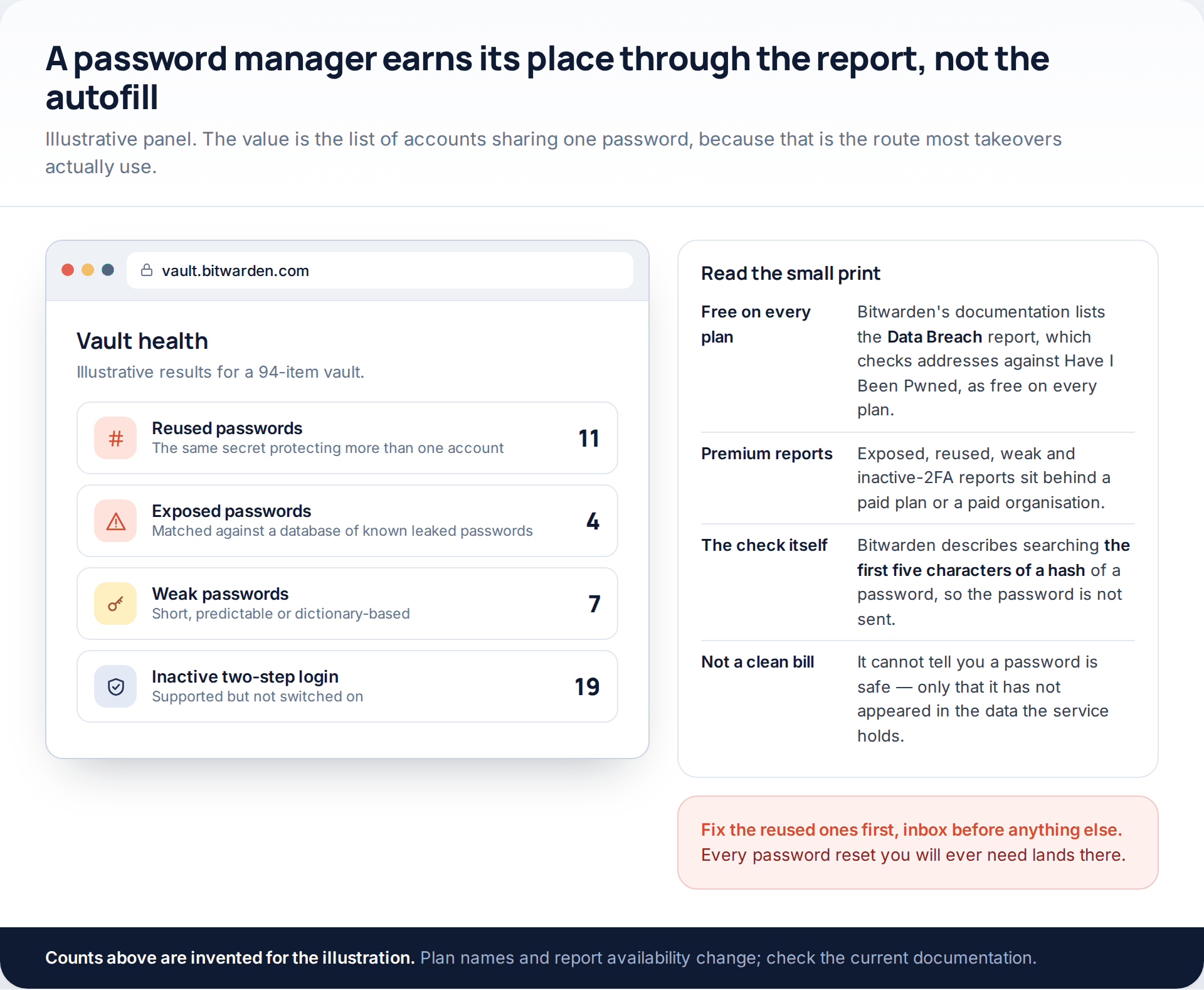
Any password manager will fill in forms. The reason to pick one with reporting is that password reuse, not password weakness, is what actually loses accounts: an unrelated site is breached, and the same address and password are tried everywhere else within hours.
Bitwarden’s own help documentation sets out which reports exist and where they sit. The Data Breach report, which uses Have I Been Pwned to show which breaches an address appears in, is listed as free for all users. The Exposed, Reused, Weak, Unsecured websites and Inactive 2FA reports are listed as requiring Premium, which includes members of paid organisations. For exposed passwords, Bitwarden describes searching the first five characters of a hash of each password against a database of known leaked passwords, so the password itself is not transmitted.
Work the output in order: email account, then anything holding money, then everything else. Unique matters more than complicated, because reuse is the mechanism and length is only a tiebreak.
5. Malwarebytes Mobile Security — a scanner with a measured record
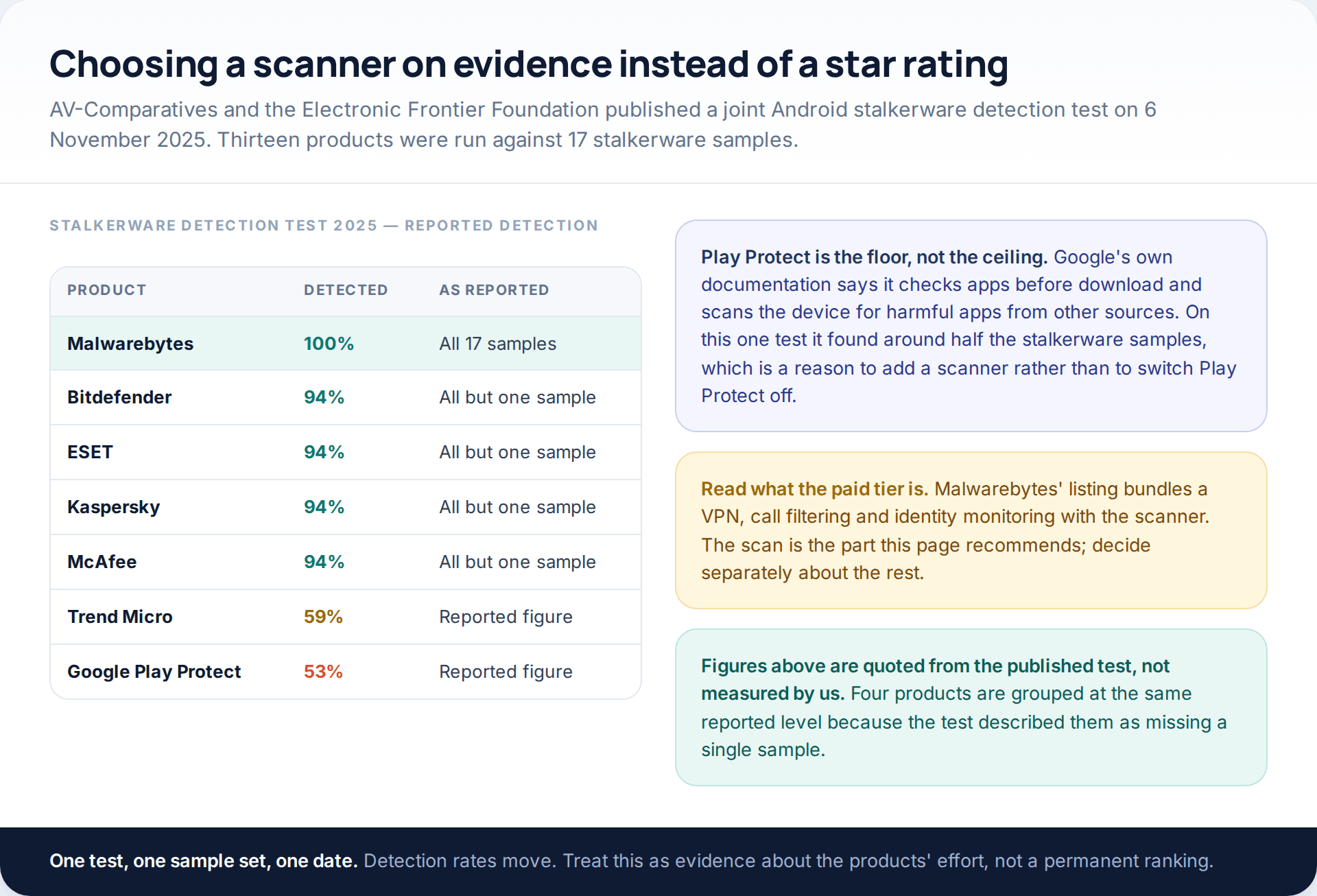
Scanner recommendations are usually asserted. This one has a number behind it. On 6 November 2025, AV-Comparatives published a stalkerware detection test run jointly with the Electronic Frontier Foundation, covering thirteen mobile security products against 17 stalkerware samples. As reported, Malwarebytes detected 100% of them; ESET, Bitdefender, McAfee and Kaspersky each detected all but one sample; Trend Micro was reported at 59%, and Google Play Protect at 53%.
Two readings follow. A dedicated scanner adds something real on top of Play Protect, which Google’s own documentation describes as checking apps before download and scanning the device for harmful apps from other sources — and Play Protect is still the floor you leave switched on, not something to replace. Any of the top five in that test is a defensible choice; Malwarebytes is the one that scored highest on the sample set published.
Read the product page before you subscribe, though. Malwarebytes’ listing bundles a VPN, scam call filtering and identity monitoring alongside the scanner, with a free trial of the paid features. The scan is what this page is recommending. Decide about the rest separately, and if an app’s permission list surprises you, our walkthrough on checking app permissions explains what each one actually grants.
If you are learning rather than auditing: Termux
Termux deserves a mention without a place in the five, because it is a learning environment rather than a security tool. The project describes it as an Android terminal application and Linux environment that works with no rooting or setup required — a real shell with a package manager, which is a genuinely good way to learn command-line tools on hardware you already carry.
Install it from the project’s own sources. Termux’s repository states that a Play Store build exists for Android 11 and above with extensive adjustments made to pass policy requirements, that it is under development with missing functionality and bugs, and that most users who can should use the F-Droid or GitHub build instead. That is the maintainers’ own guidance, not ours.
The same rule applies as everywhere else here: a shell on your phone lets you practise against your own machines and against systems that invite testing, and changes nothing about who owns the network next door.
Rooted or not: the trade, honestly
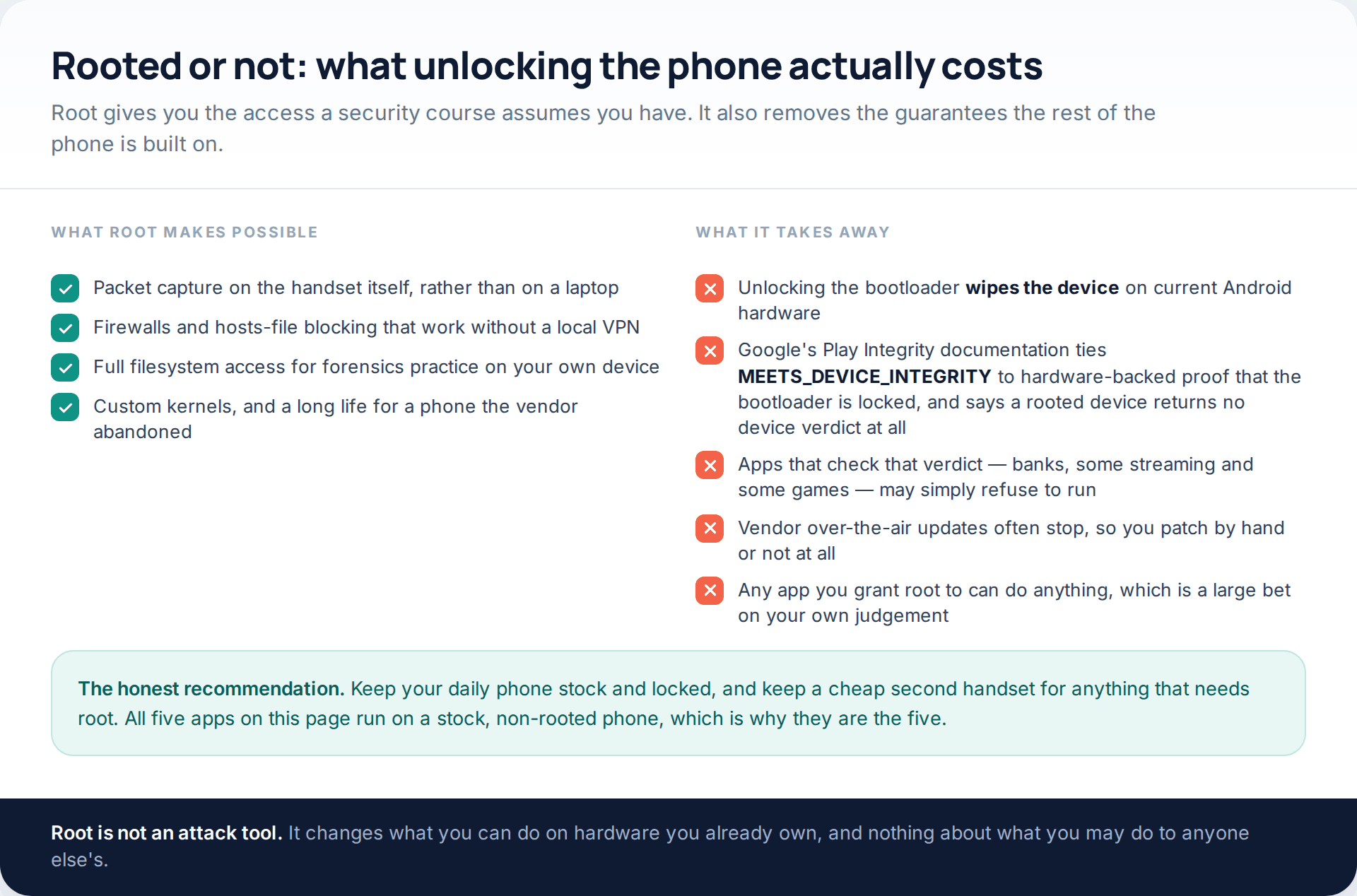
The old version of this page split its list into rooted and non-rooted, as though root were the price of admission to real tools. It is not. All five apps above run on a stock phone. Root changes what is possible on the handset itself — on-device packet capture, firewalls without a local VPN, full filesystem access for practice — and nothing at all about what you may do to anyone else.
What it costs is concrete. Unlocking the bootloader wipes current Android hardware. Google’s Play Integrity documentation ties the MEETS_DEVICE_INTEGRITY verdict to hardware-backed proof that the bootloader is locked and a certified manufacturer image is loaded, and states that a device showing signs of system compromise such as being rooted returns no device-recognition verdict at all. Apps that check that verdict — banking apps, some streaming services, some games — may refuse to run. Vendor updates often stop. And any app you grant root to inherits the whole device.
The sensible shape, if you want both: a stock, locked, patched daily phone, and a cheap second handset for the rooted experiments.
A worked thirty-minute audit
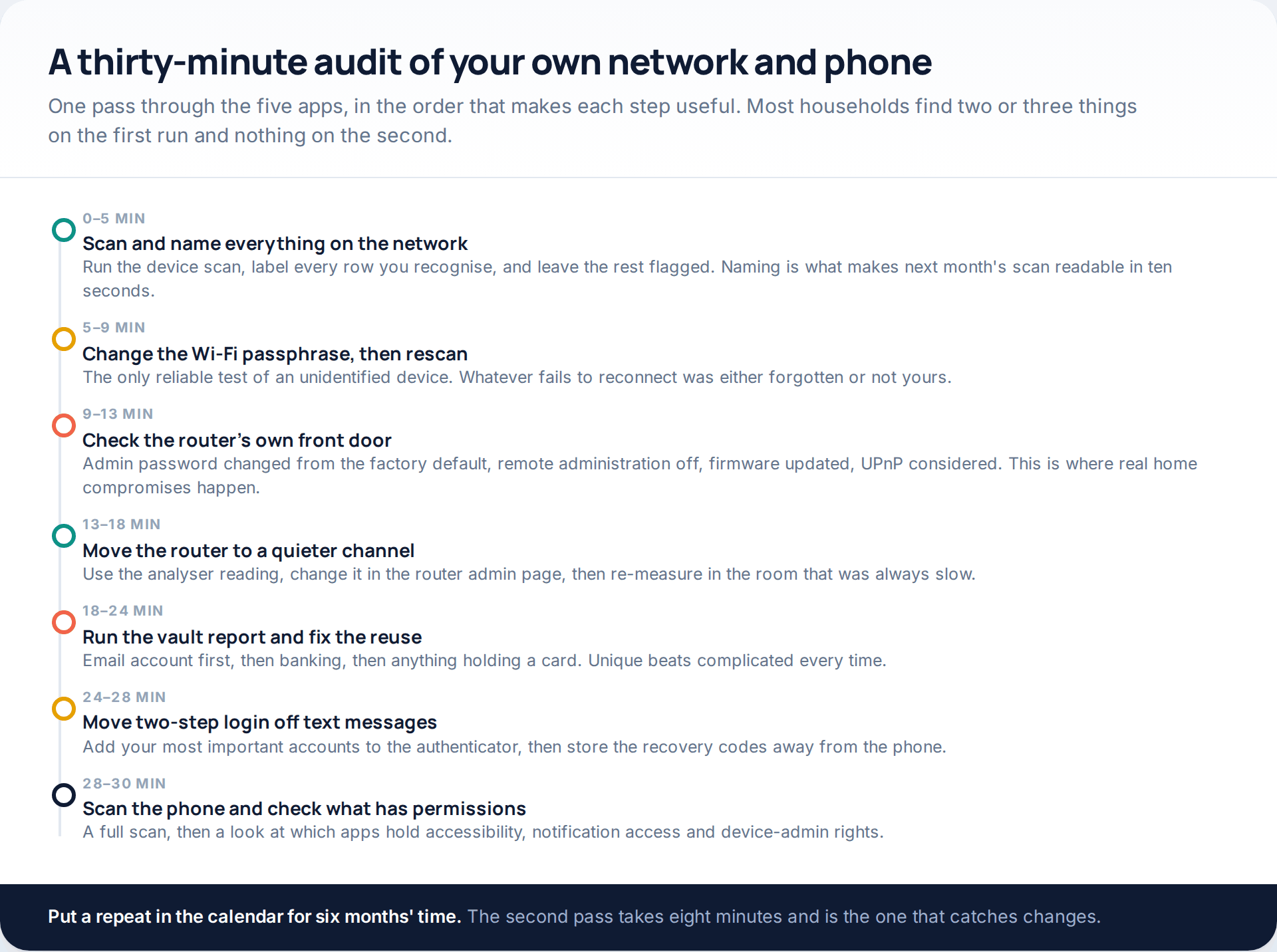
The step people skip is the third one. Home compromises overwhelmingly involve the router’s own front door — a factory default admin password, remote administration left enabled, firmware three years stale — rather than anything clever on the wireless side. Fixing that is free and takes four minutes, and no app on this page will do it for you.
The step people find most useful is the second: change the Wi-Fi passphrase, then rescan. An unidentified device that reconnects immediately belongs to someone in the household who knows the new passphrase. One that never comes back was either a forgotten gadget or someone else’s. It is the only clean test available to a home user, and it beats staring at a hardware address.
What none of these apps can do
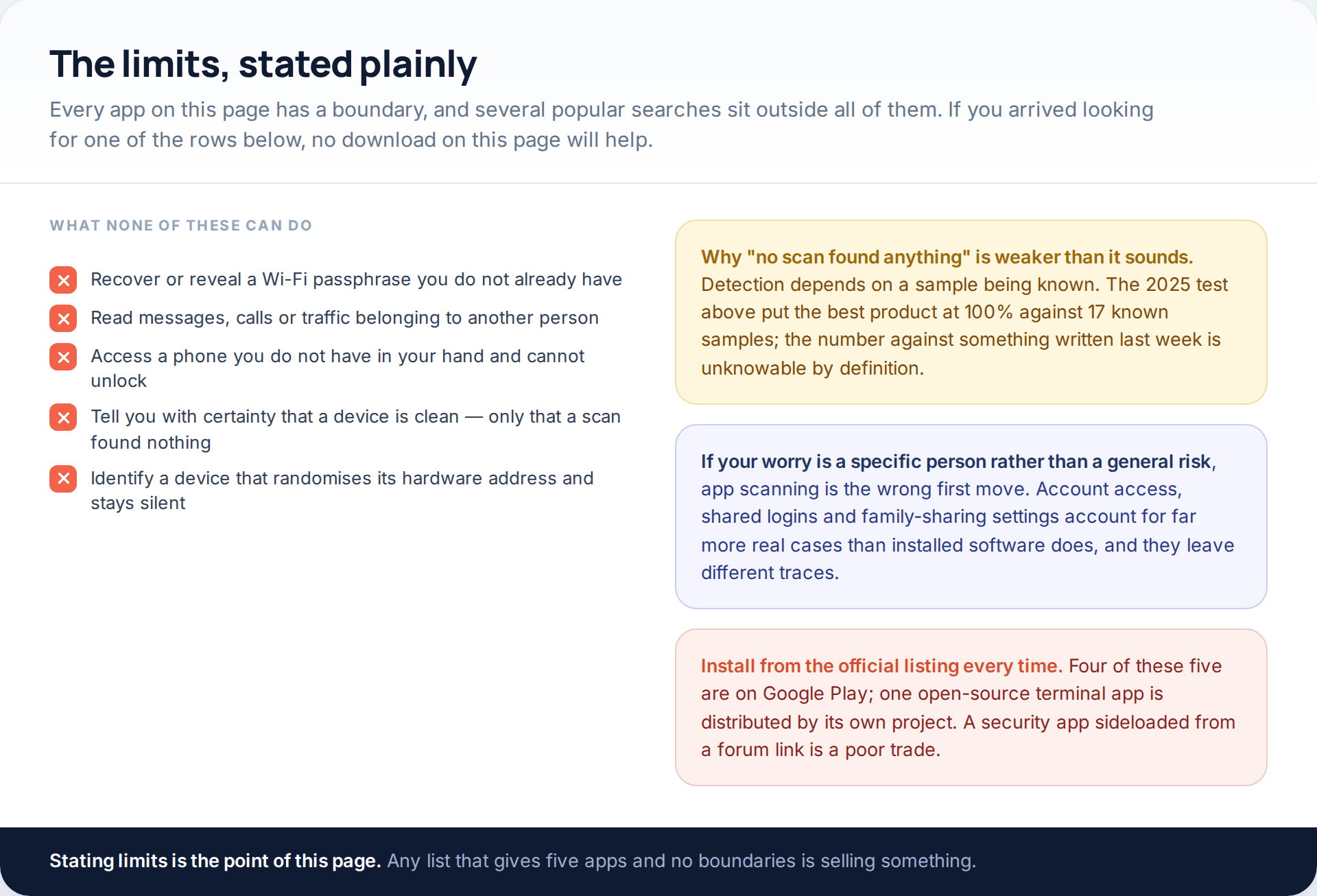
A scan that finds nothing is weaker evidence than it feels. Detection depends on a sample being known to the product, which is why the test quoted above is a measurement against 17 known samples rather than a statement about anything written last week.
More importantly, if your concern is a particular person rather than a general risk, installed software is usually the wrong thing to look for. Account access — a shared login, a password someone remembers, a family-sharing arrangement nobody revisited — accounts for far more real cases than an installed app, and it leaves completely different traces. And if you have found an app you cannot explain, the question of whether it is monitoring software at all is covered in our guide to what free monitoring apps really do.
How this page was put together
Each app’s capabilities, pricing structure and platform requirements were read from its own official listing or documentation in October 2026: Fing Limited’s Play listing, VREM Software Development’s listing for WiFi Analyzer, Beem Development’s description of Aegis Authenticator, Bitwarden’s own help pages on vault health reports, Malwarebytes’ Play listing, and the Termux project’s repository and website. The root section quotes Google’s Play Integrity verdict documentation directly. The legal framing cites section 1 of the Computer Misuse Act 1990 as published.
The detection figures come from one source and one source only: the Android stalkerware detection test AV-Comparatives published with the Electronic Frontier Foundation on 6 November 2025, covering 17 samples across thirteen products. We have not independently tested any product on this page, we have measured nothing ourselves, and we have no commercial relationship with any of the five. Screens, device names, addresses and counts in the illustrations are invented and labelled as such.
What we deliberately left out: anything that captures or replays wireless traffic, anything that tests passphrases, and every app whose primary purpose only makes sense when aimed at hardware belonging to someone else. If you are here because you think something is already installed on a phone, start instead with our guide to detecting monitoring software, which works through the traces rather than the tools.
Common questions
Are these security apps for Android legal to install?
Yes. All five are ordinary apps, four of them on Google Play. What determines legality is where you point them. Scanning your own network is unremarkable; scanning a network you have no permission to touch is an offence under computer-misuse law in the UK, the US and most other countries.
Do I need to root my phone for any of them?
No. Every app listed here runs on a stock, locked Android phone. Root enables different things — on-device packet capture, system-level firewalls — at the cost of a wiped device, failed Play Integrity verdicts and, often, vendor updates.
Will an app on this page tell me a Wi-Fi password?
No, and nothing legitimate will. An analyser reads the beacons access points broadcast publicly; a scanner lists devices on a network you have already joined. Tools that attack passphrases exist, they are lawful only against your own equipment, and we have deliberately not covered them.
Is Google Play Protect enough on its own?
Leave it on, but in the November 2025 AV-Comparatives and EFF stalkerware test it was reported at 53% against 17 samples, where the best product reached 100%. Adding a dedicated scanner is a reasonable response to that gap.
How do I know if a device on my network is an intruder?
Change the Wi-Fi passphrase and rescan. Anything that reconnects belongs to someone who was told the new one. Anything that never returns was either a forgotten gadget or not yours. Hardware addresses alone cannot settle it, partly because phones now randomise them per network.
Can I use a network scanner at work, or in a café?
At work, only with your employer’s written authorisation and a defined scope — an IT department’s permission is not implied by your employment. On a café or hotel network, no: you have permission to use the connection, not to probe the infrastructure or other guests’ devices.
What should I run if I think a specific person has access to my phone?
Start with accounts rather than apps. Review which devices are signed in to your Google or Apple account, which recovery phone numbers and email addresses are listed, and which apps hold accessibility or notification access. Then scan. In that order, the answer usually appears before the scan finishes.
Using a monitoring app for this? GuestSpy is parental monitoring for Android that stays visible on the child's phone and runs from any browser. If it fits your family, see the App & website blocking feature.
Related guides
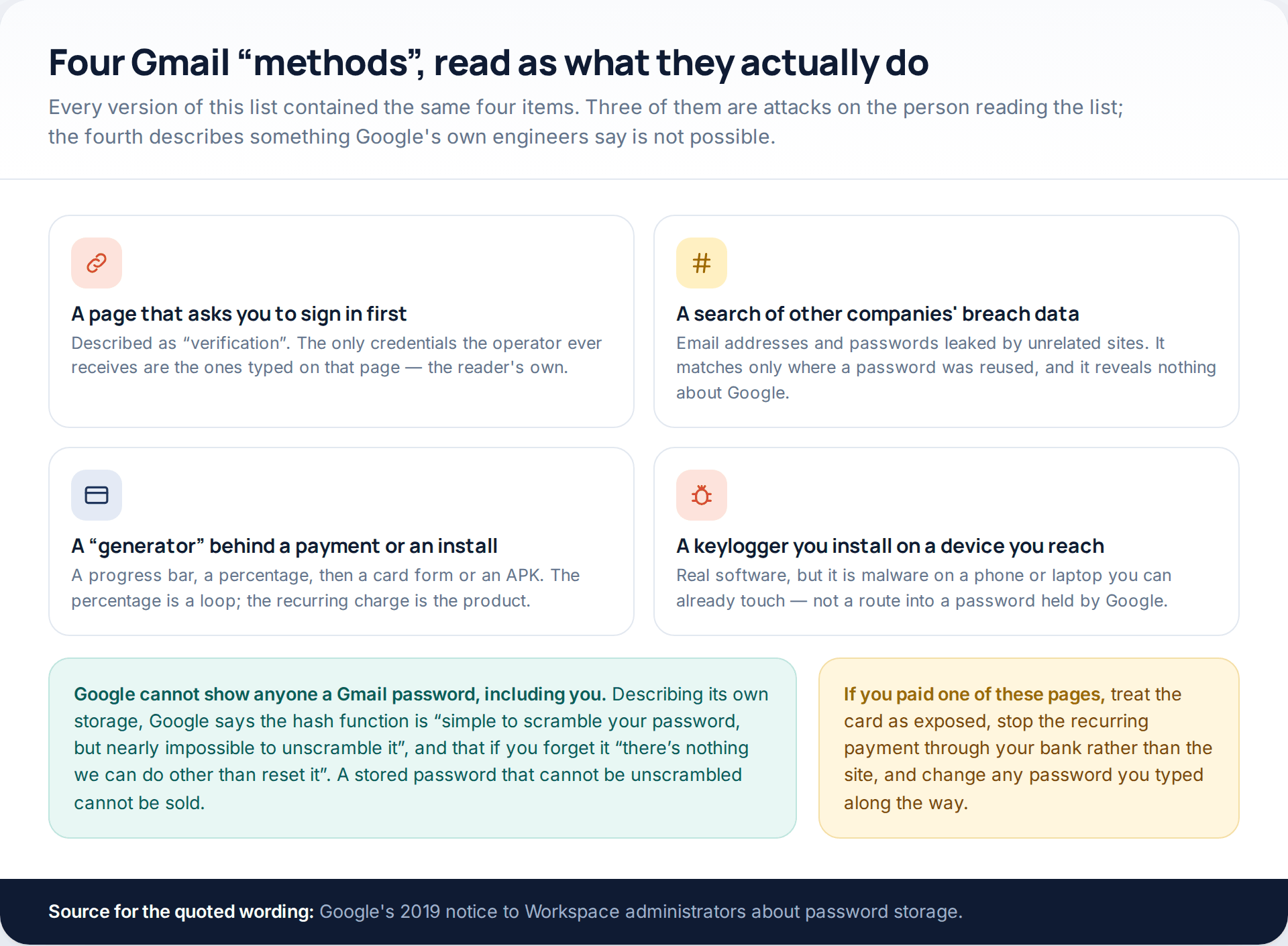
Gmail Password Compromised? Four Recovery Routes Google Accepts
If your Gmail password was hacked, there are four routes back and the one that is open to you depends…
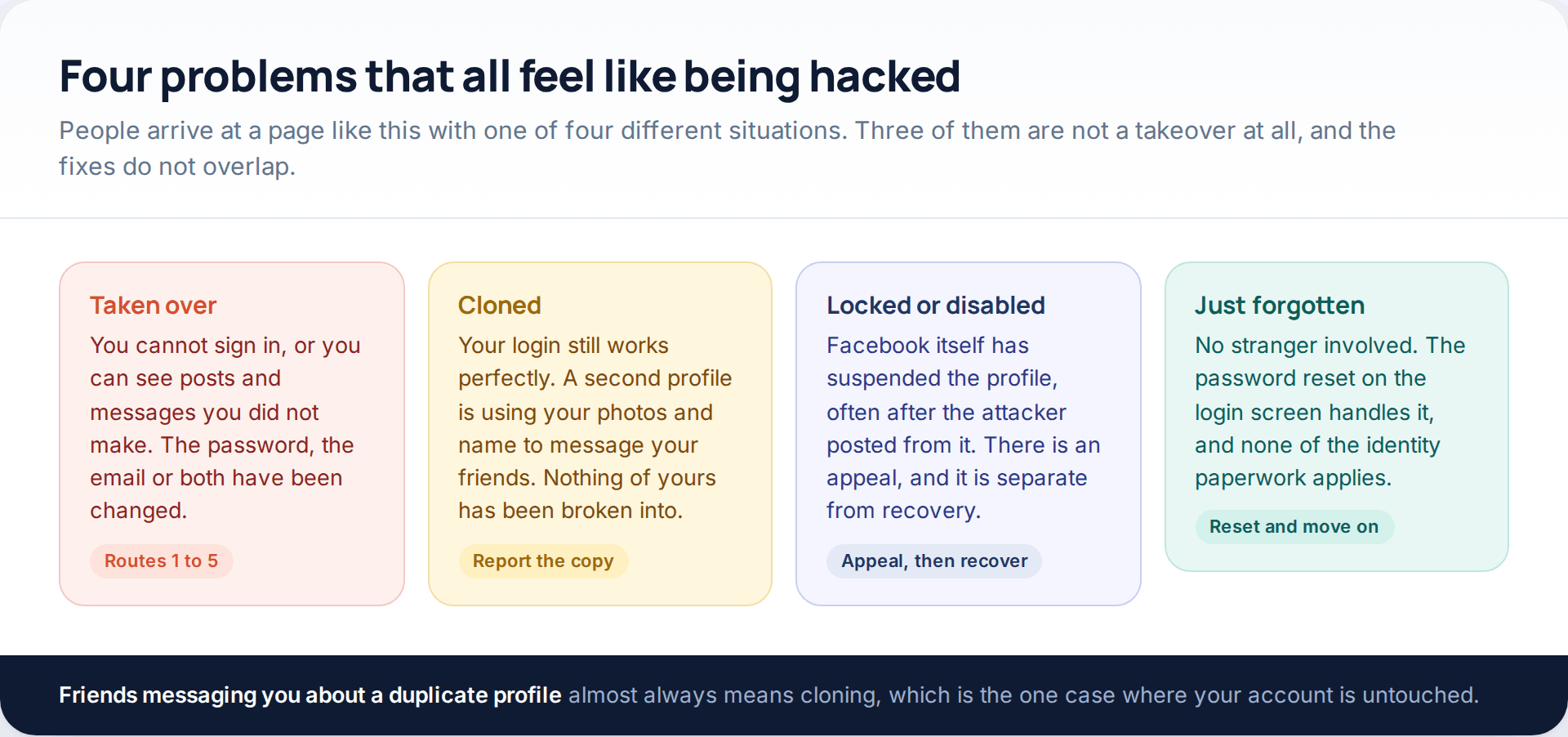
Facebook Account Hacked? Every Free Route Back In
If your Facebook account was hacked, five routes lead back in and all of them are free: a device of…
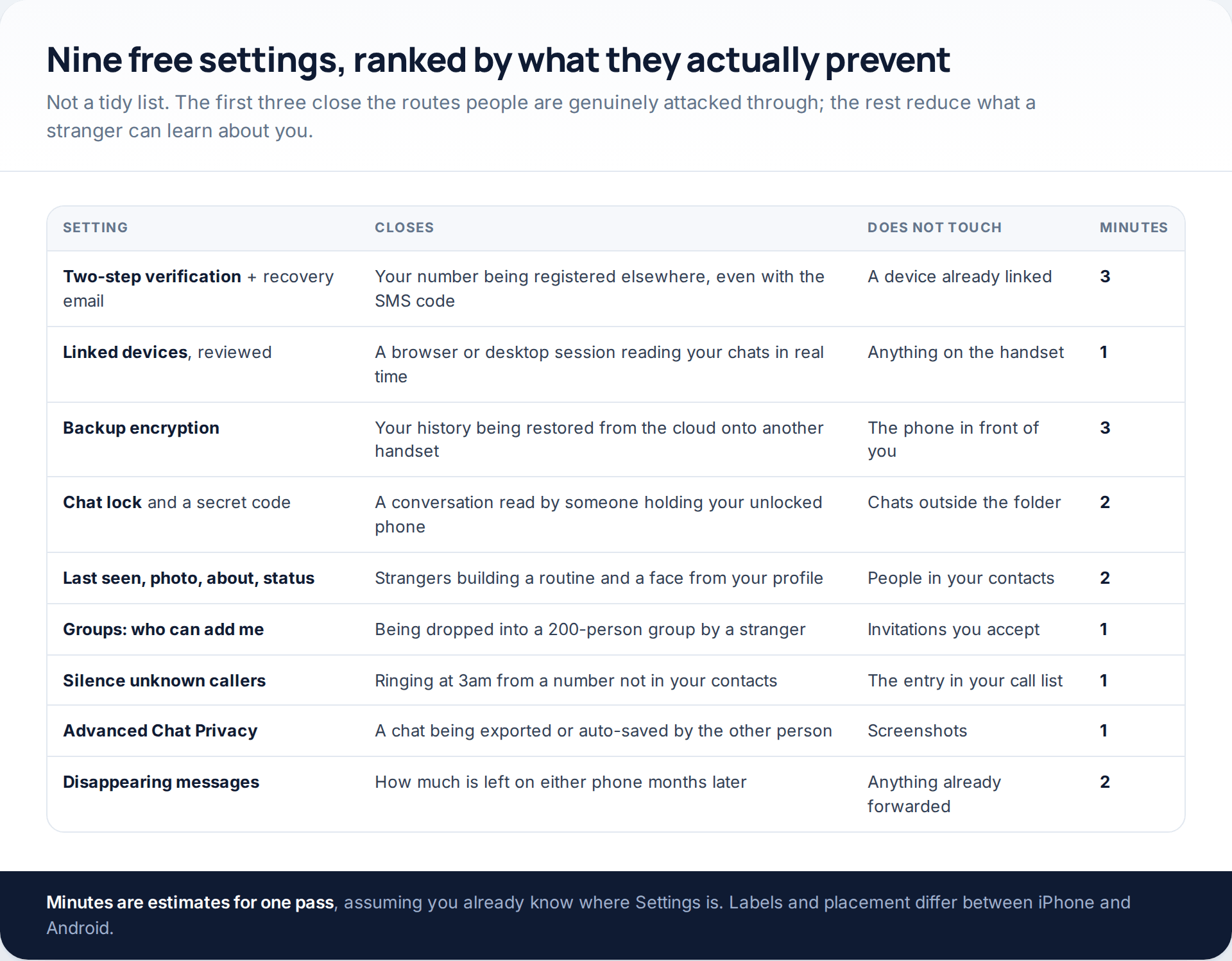
WhatsApp Privacy Settings That Cost Nothing and Stop Most Attacks
The WhatsApp privacy settings that matter are free, built in, and take about a quarter of an hour in total.…
Monitoring your child can see.
Location, screen-time budgets, routines, app and website blocking and the alerts that matter, run from any browser and visible on the phone. Pair an Android phone in about fifteen minutes.