Gmail Password Compromised? Four Recovery Routes Google Accepts
 By GuestSpy Editor · Founder and editorPublished February 21, 2022Updated October 5, 202612 min read
If your Gmail password was hacked, there are four routes back and the one that is open to you depends on what the attacker changed first. A recovery email or phone that is still yours. A device still signed in. A saved backup code or a security key. Or the full recovery form, judged on where you are and what you are using.
This page used to be a list of four ways to break into a Gmail account. It is now about getting one back, because that is why people search for it — and because none of those four ways did what the heading said. The next section takes them apart, briefly, then the rest of the page is recovery.
Why “four ways to hack a Gmail password” was never real
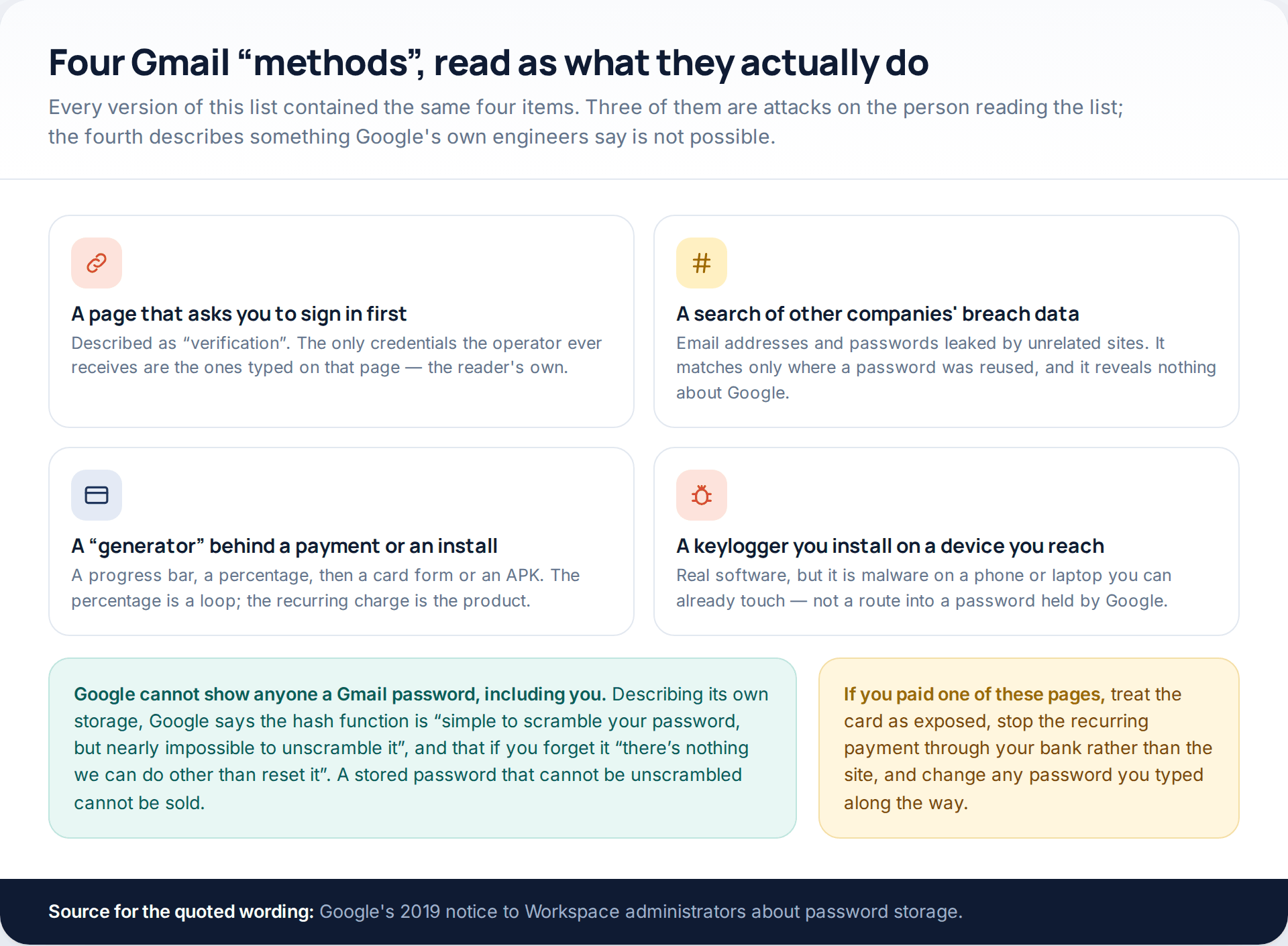
It is worth sixty seconds, because the reason the list cannot work is also the reason recovery takes the shape it does. Google does not hold your password in a form anyone can read. Describing its own storage in a 2019 notice to Workspace administrators, Google wrote that its hash function makes it “simple to scramble your password, but nearly impossible to unscramble it”, and that when a customer forgets a password “there’s nothing we can do other than reset it”. If Google cannot read it, nobody can buy it from Google.
What the four items really were: a sign-in page that collects the visitor’s own credentials; a search across passwords leaked by other companies, which only ever matched people who reused one; a payment or install loop dressed up as a generator; and a keylogger, which is real software but is malware installed on a device the installer can already touch.
If you paid one of those sites, stop the recurring payment through your bank rather than through the site, and change every password you typed on the way through — including, if it was the same one, the Google password you are now trying to recover.
Route one: the recovery form, and how it is actually judged
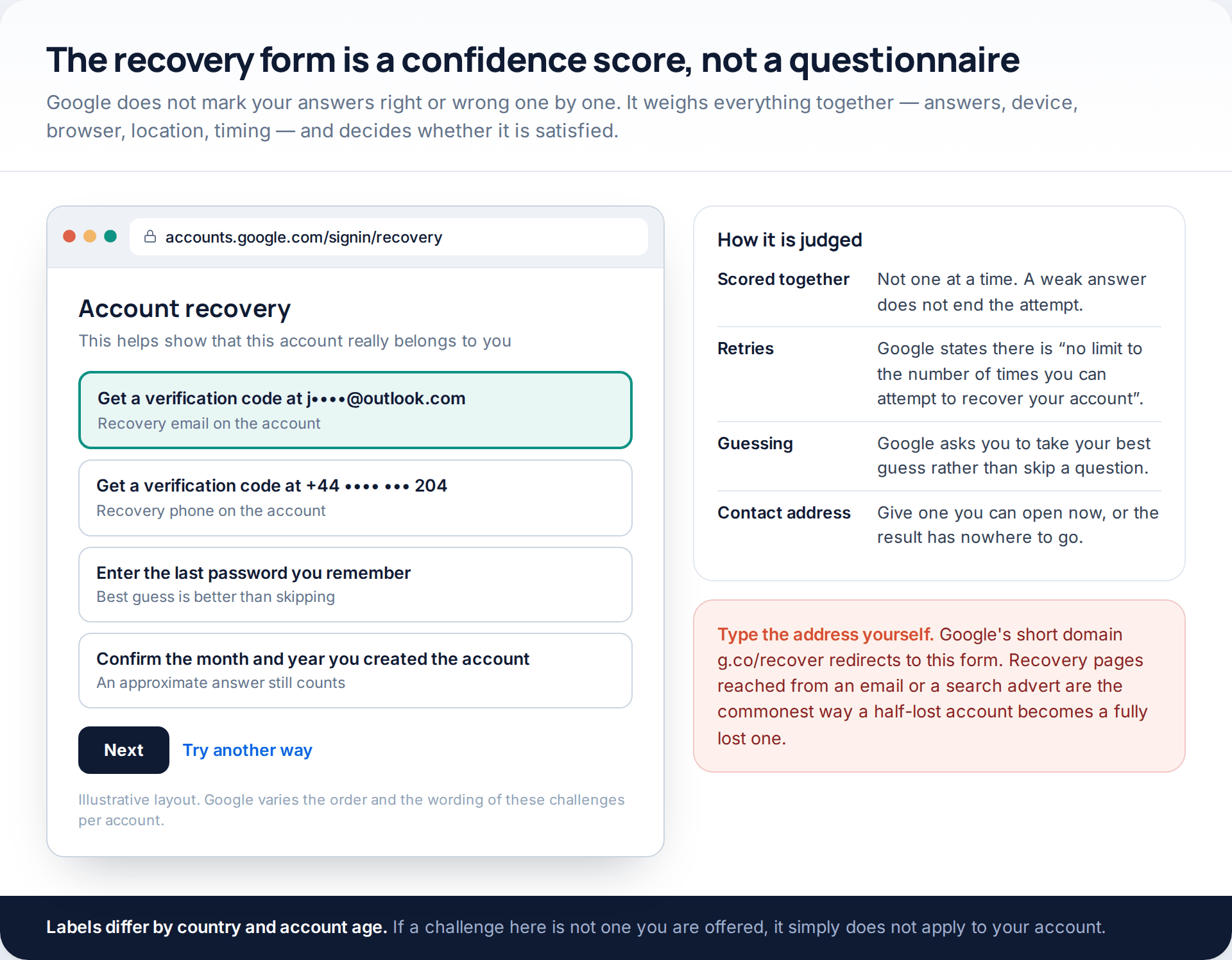
Everything starts in the same place. Google’s recovery form sits at accounts.google.com/signin/recovery, and Google’s own short domain gets you there in fewer keystrokes: g.co/recover redirects to it. Type whichever you prefer into the address bar yourself. Recovery pages arriving by email, message or sponsored search result are a standard second attack on people who have just lost an account.
The form is widely misread. It is not a questionnaire with a pass mark per question — it is a single decision, taken across every signal at once. That is why Google says on its tips page that you should answer as many questions as possible and “take your best guess rather than moving on”, and why it states elsewhere that wrong guesses will not kick you out, because there is “no limit to the number of times you can attempt to recover your account”.
Two consequences follow. A vague answer helps more than a skipped one, and a failed attempt costs you nothing — change one thing and go again.
Route two: the “Try another way” ladder
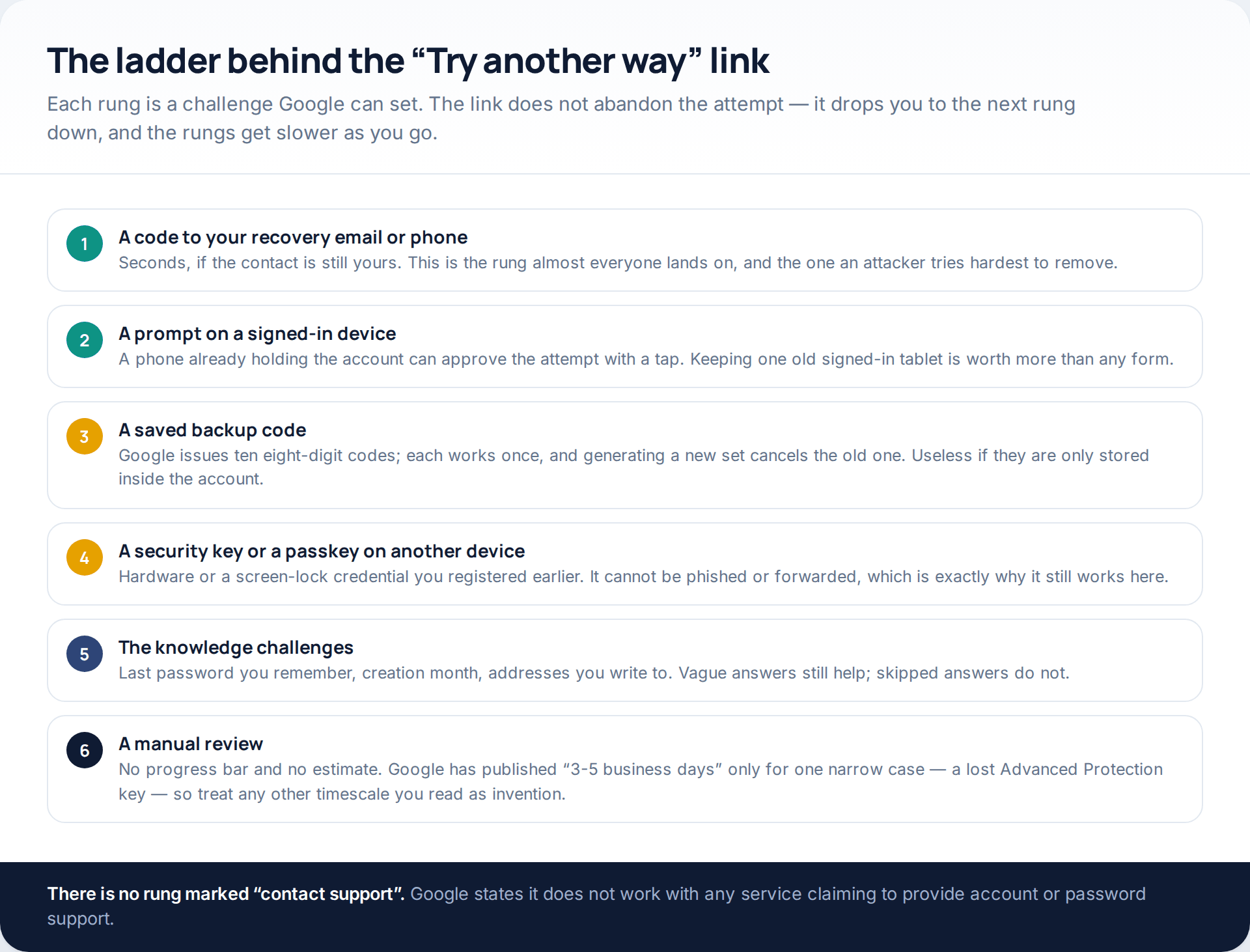
The small blue Try another way link under a challenge is the most useful control on the page, and the one people treat as a failure. It is not. It asks Google for a different challenge, and the set it can draw on is a ladder: codes to your recovery contacts, a prompt on a signed-in device, a saved backup code, a registered security key or passkey, then the knowledge challenges, then a human review.
Work down it deliberately rather than clicking past things. The rung most people miss is the second one: a phone, tablet or work laptop that is still signed in can approve the attempt with a tap. If you have one, do not sign it out as a precaution before you have used it.
There is no rung marked “talk to someone”. Google states that it does not work with any service claiming to provide account or password support — which covers the phone numbers and chat windows that rank for this search.
Backup codes, and why most people have none
When 2-Step Verification is switched on, Google issues a set of ten eight-digit backup codes. Each one works once, and generating a new set makes the old set inactive. They are the fastest rung on the ladder after the recovery contacts — and almost nobody has them, because the natural place to save them felt like the account itself.
Route three: recovering from a device and a place Google recognises
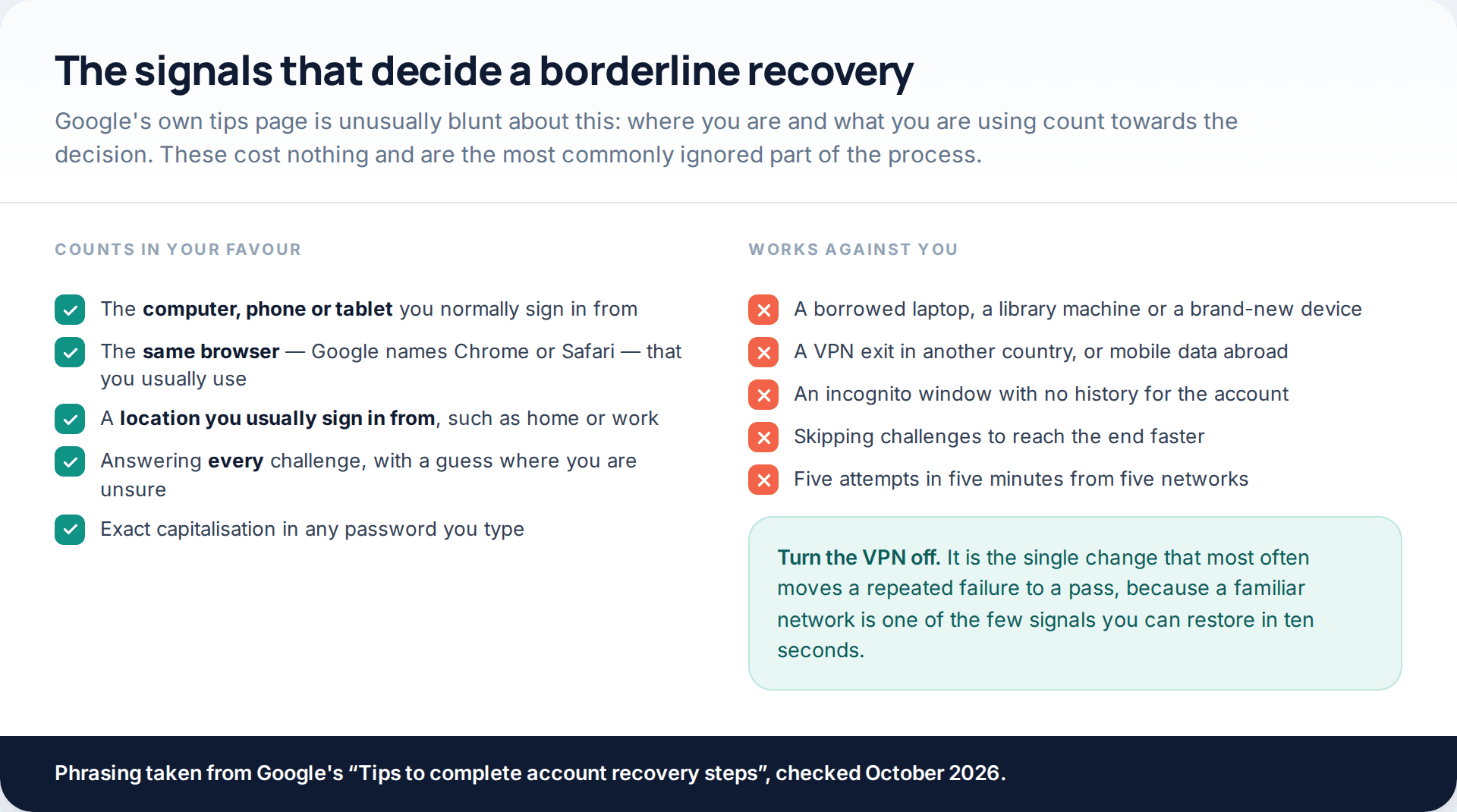
Google’s tips page is unusually direct about this. It asks you to use “a computer, phone, or tablet where you frequently sign in”, to “use the same browser (like Chrome or Safari) that you usually do”, and to “be in a location where you usually sign in, like at home or at work”.
Read that as a scoring system, because that is what it is. Recovery attempted from your own laptop at home, on your home broadband, in the browser that holds years of history for the account, starts well ahead of the same answers typed into a borrowed machine in an internet café. If you normally use a VPN, turn it off for this; an exit node in another country is one of the few signals you can fix in ten seconds.
The corollary matters too. Abroad, on a new phone, with the recovery contacts replaced, you are asking Google to accept the weakest evidence available. Waiting until you are home is often the faster route.
Route four: when the attacker changed 2-Step Verification
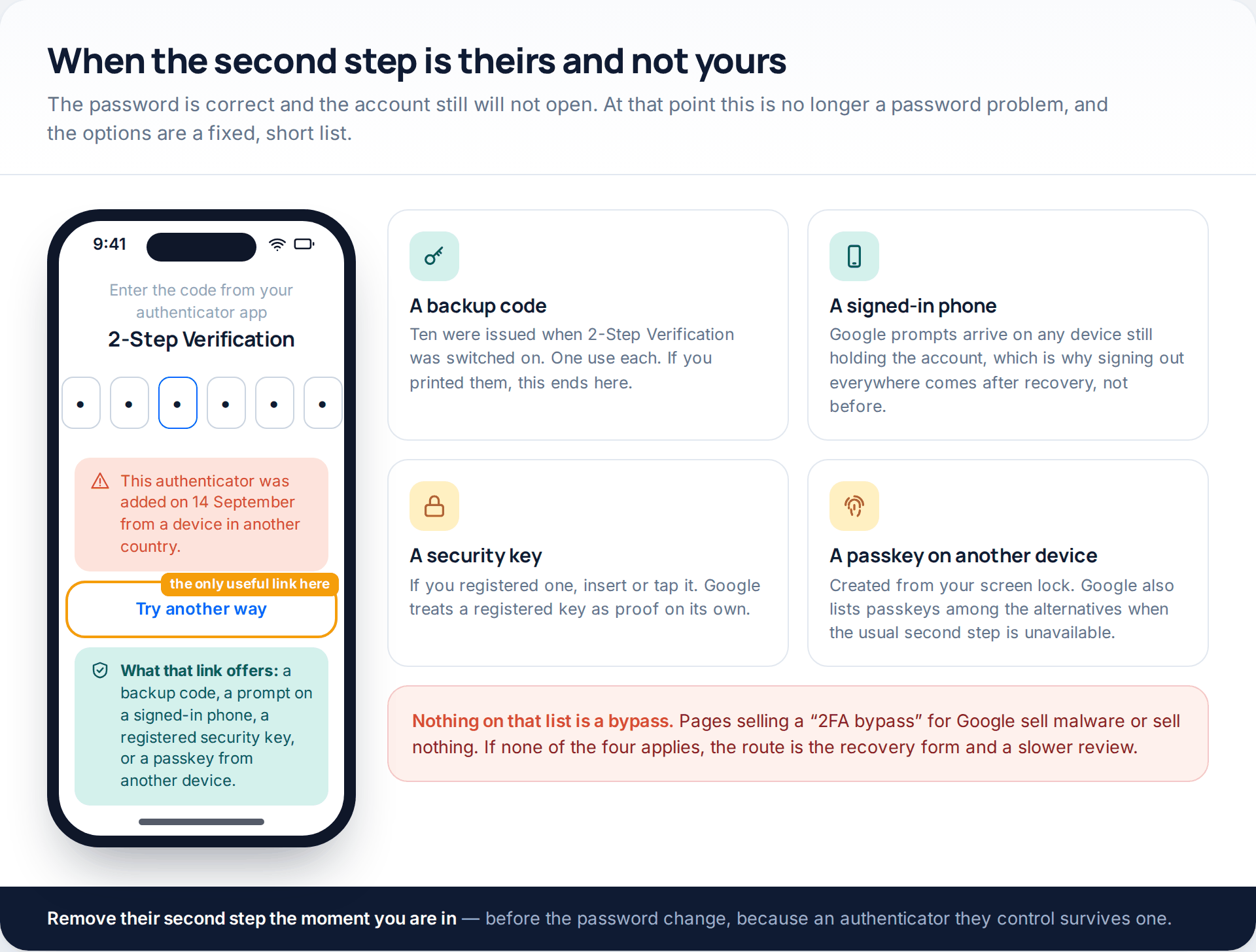
This is the nastiest variation, and an increasingly common one: the password is right, and a code prompt appears for an authenticator the attacker added. Four alternatives exist, and that is the whole list.
A backup code, if 2-Step Verification was yours originally and you kept them. A Google prompt on a device still signed in to the account. A security key you registered. Or a passkey created on another of your devices — Google lists passkeys among the alternatives when the usual second step is unavailable, and because a passkey is bound to a device and a screen lock, it cannot be phished out of you or forwarded in a message.
If none of the four applies, the route is the recovery form and a slower review. Nothing else exists. Pages selling a bypass for Google’s second step are selling malware or selling nothing, and several of them ask for the code that would hand over the account outright.
The seven-day rule on changed recovery details
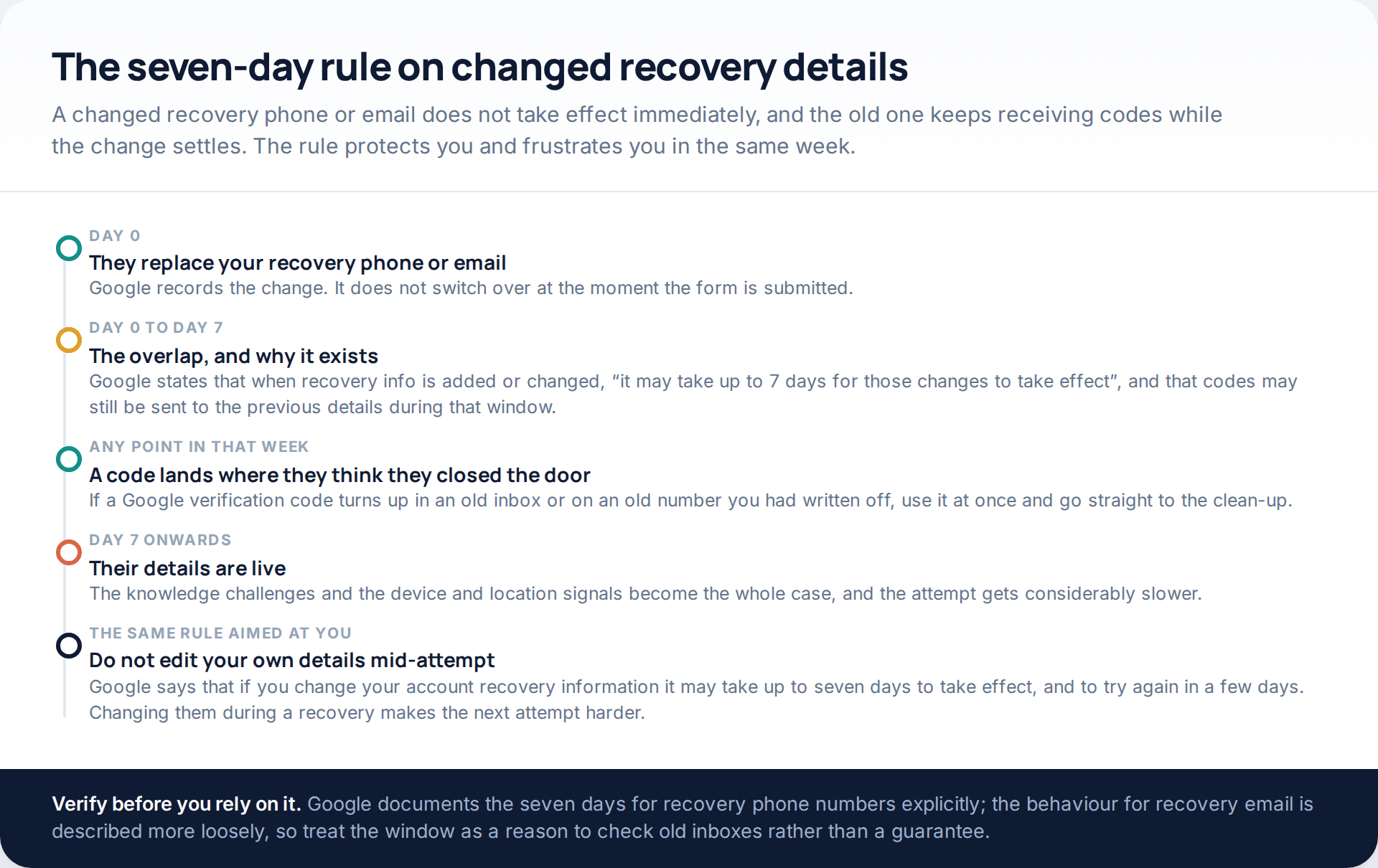
Here is the detail that turns a hopeless case into a winnable one, and it is in Google’s own documentation rather than anywhere obvious in the interface. When a recovery phone number is added or changed, Google says “it may take up to 7 days for those changes to take effect”, and that codes may continue to go to the previous information during that period.
So if an attacker swapped your recovery details yesterday, an old inbox or an old number you had written off may still receive a Google verification code. Check them. If one arrives, use it immediately and then work straight through the clean-up below, because the window closes.
The same rule points the other way. Google’s recovery page says that if you change your account recovery information, “it may take up to 7 days for those changes to take effect” and suggests trying again in a few days — so changing your own recovery details in the middle of a recovery attempt makes the next attempt harder, not easier. Leave them alone until you are back in.
We would soften one part of this: Google documents the seven days explicitly for recovery phone numbers, and describes the behaviour for recovery email less precisely. Treat it as a strong reason to check old inboxes rather than a promise about them.
Four things people still expect from Google that are not there
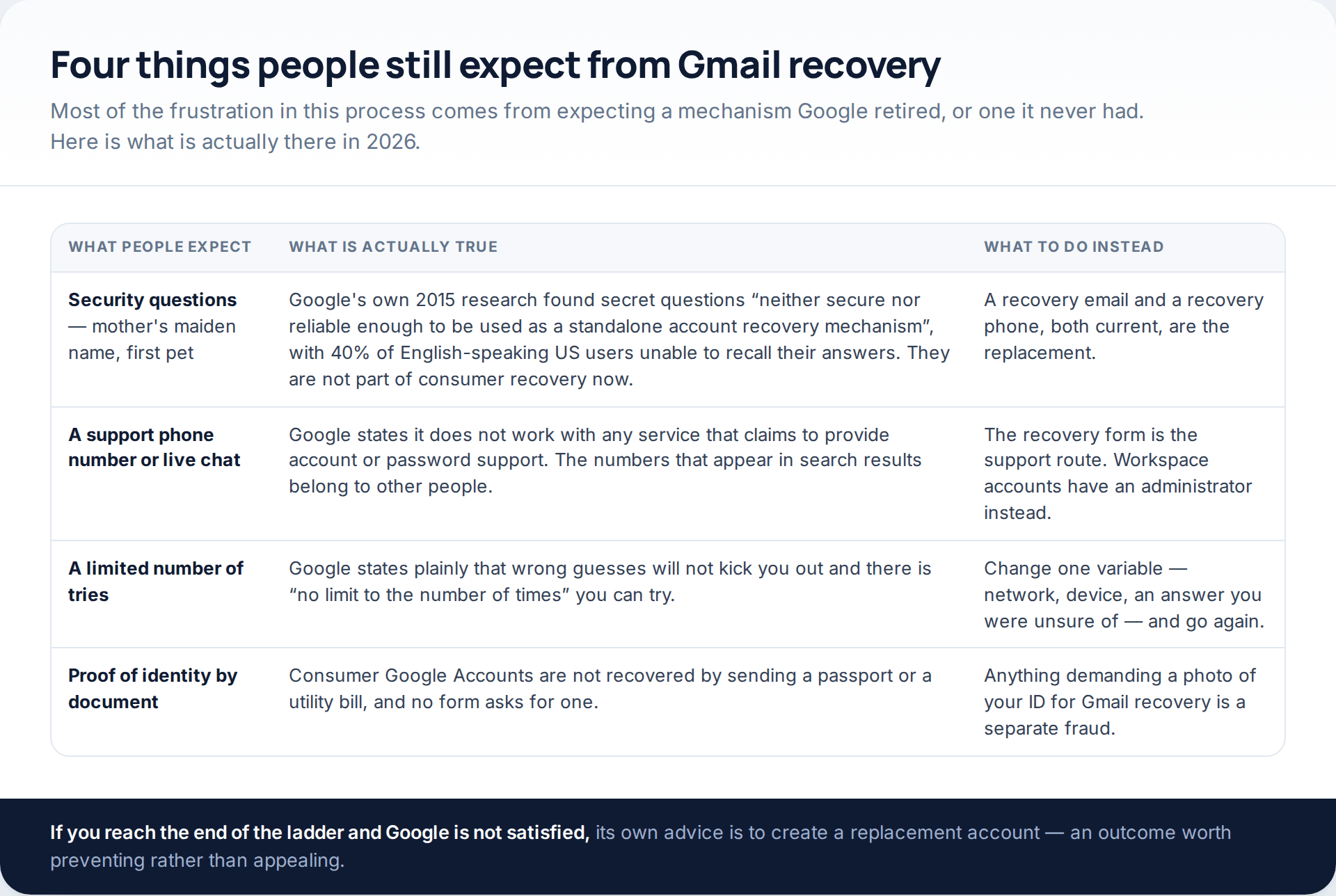
Security questions deserve a sentence of their own, because people still look for them. Google ran the research that killed them: a 2015 study of hundreds of millions of secret answers concluded they were “neither secure nor reliable enough to be used as a standalone account recovery mechanism”, finding, among other things, that 40% of English-speaking users in the United States could not recall their own answers when it mattered. They are gone from consumer recovery, and a recovery phone and recovery email took their place.
Once you are back in: the order the clean-up has to happen in
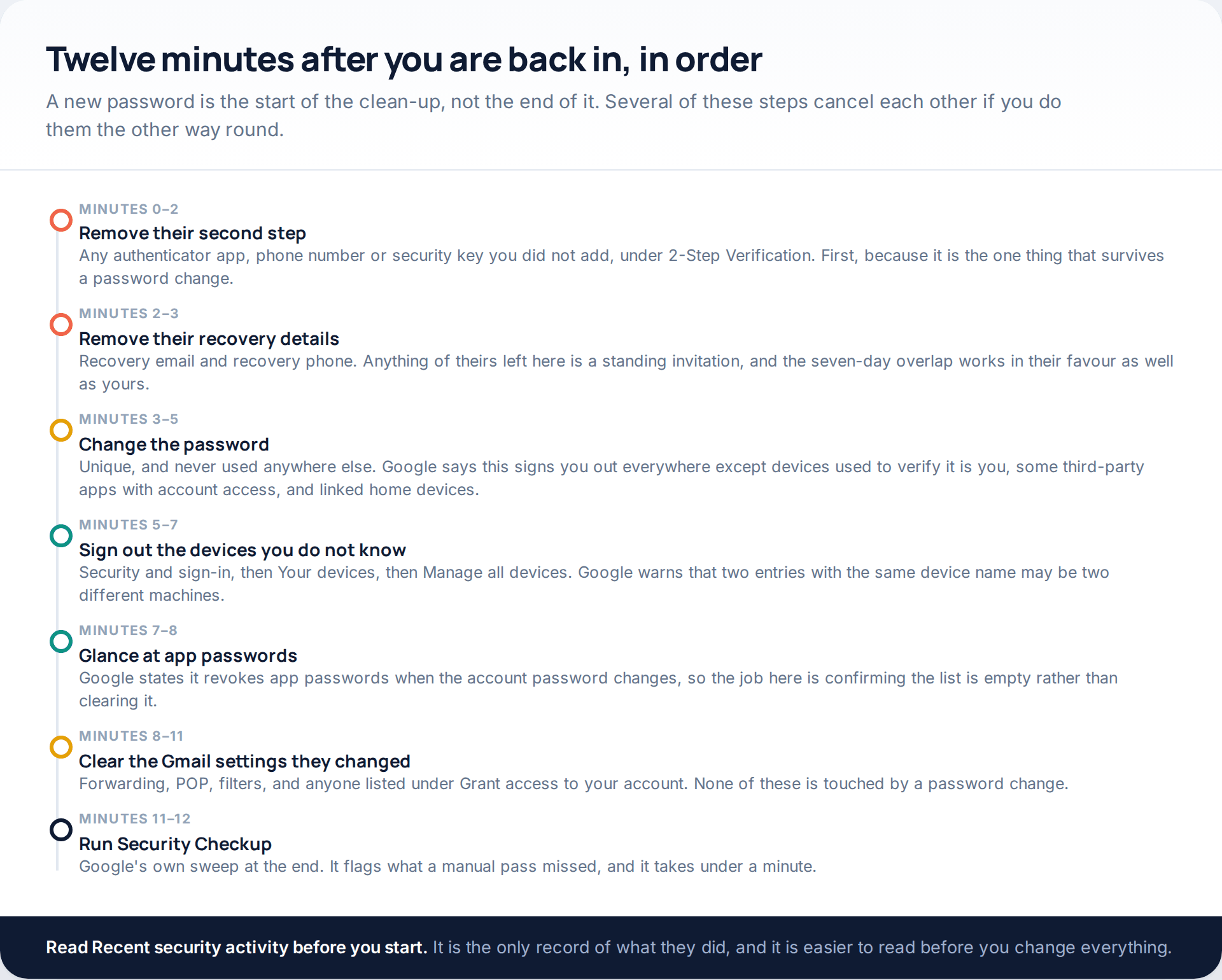
Before you change anything, read Recent security activity in the Google Account. It is the only record of what was done while the account was not yours, and it is far easier to interpret before you start resetting things.
Then work down in order. Their second step comes out first, because an authenticator they control survives a password change. Their recovery details come out next, for the same reason the seven-day rule helped you — it helps them too. Only then the password, which Google says signs you out “everywhere except” devices used to verify it is you, some third-party apps you have given account access, and linked home devices. Then devices, under Security and sign-in, Your devices, Manage all devices, where Google warns that two entries with the same device name may be two different machines.
App passwords are the one item that looks worse than it is: Google states it revokes them when the account password changes, so the job there is confirming the list is empty rather than clearing it out.
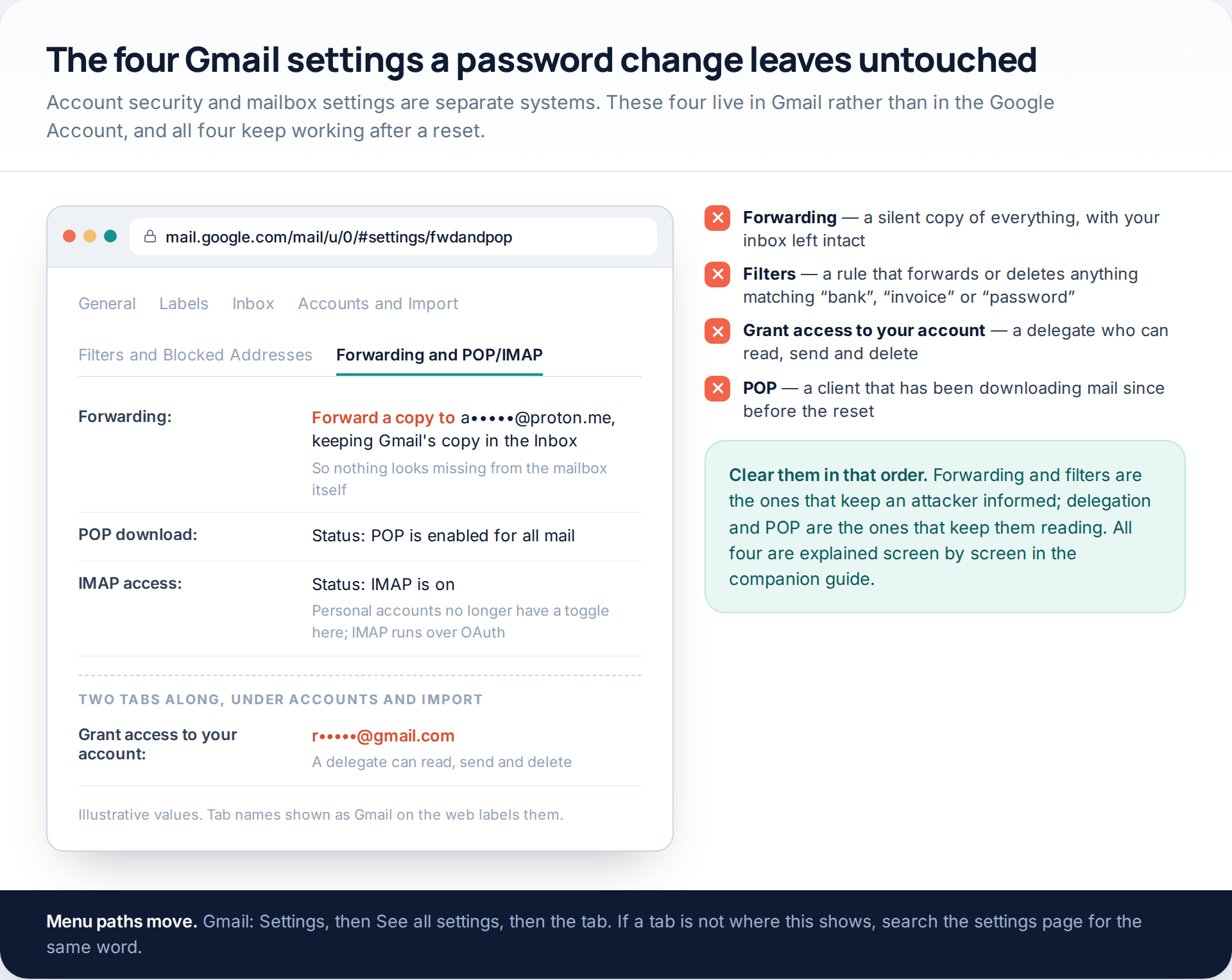
The last group is the one most clean-ups miss, because it lives in Gmail rather than in the Google Account: forwarding, POP and IMAP, filters, and anyone listed under Grant access to your account. A password change does not disturb any of them. A forwarding rule that keeps Gmail’s own copy in the inbox is invisible from the mailbox itself, which is exactly why it is used. If you want each of those walked through screen by screen, with the reason each one exists, we have done that in the companion piece on access to a Gmail account that does not need the password.
Finish with Google’s own Security Checkup, which sweeps up what a manual pass misses, and then change the password anywhere that address was the username — the Gmail password being reused elsewhere is how one breach becomes five.
While the review is open
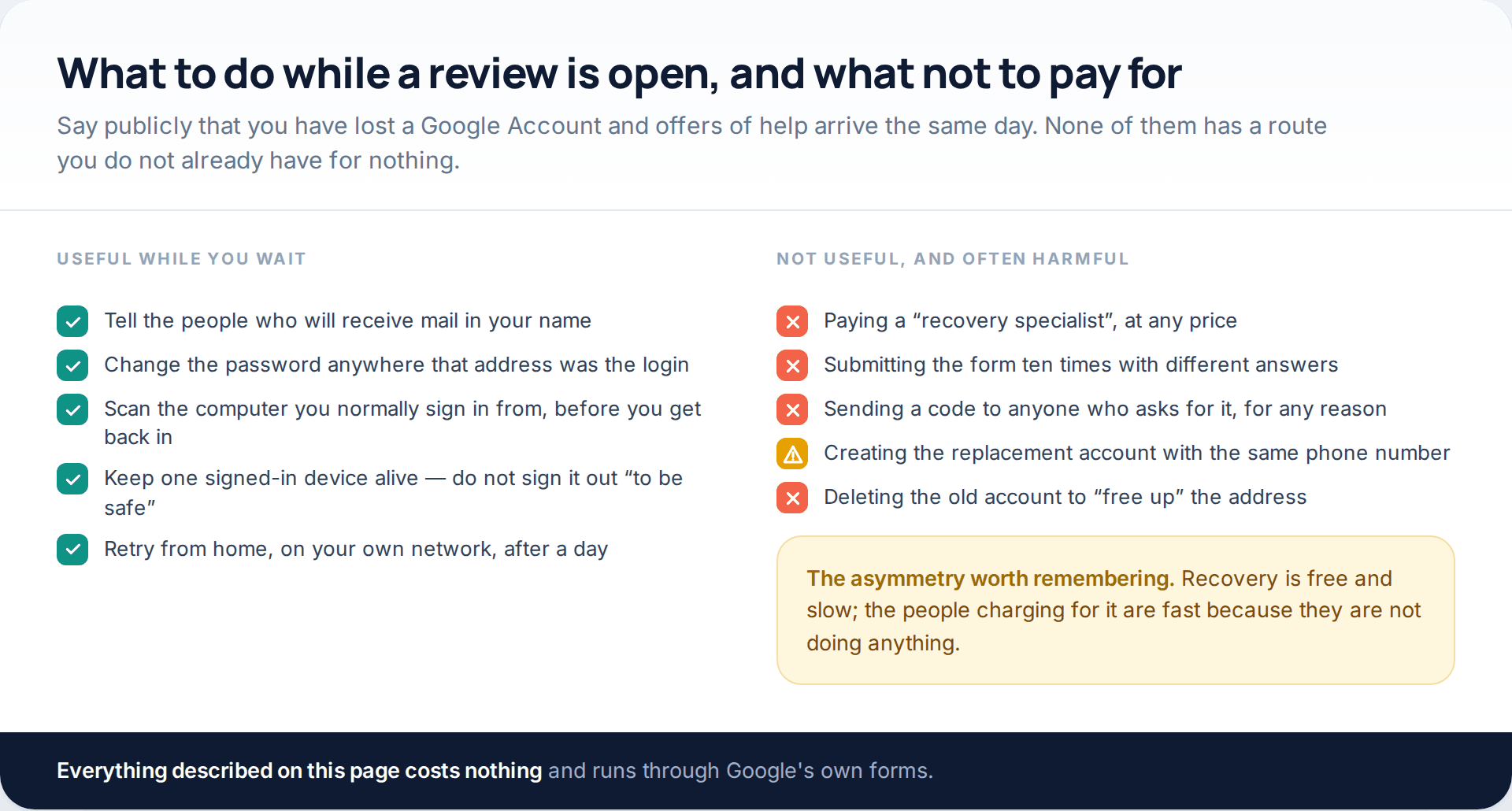
There is no queue position to check. What you can do is limit the damage: warn the people who will receive mail in your name, change the password anywhere that address was the login, and scan the computer you normally sign in from — if malware took the account once, it will take it again the moment you recover it. Our guide to checking a device for spyware covers that scan.
How this page was put together
Every menu path, label and figure here was checked against Google’s own help pages in October 2026: account recovery, “Tips to complete account recovery steps”, the recovery options page that documents the seven-day rule, 2-Step Verification troubleshooting, backup codes, app passwords, and the change-password page that lists the sign-out exceptions. The password-storage quotes come from Google’s 2019 notice to Workspace administrators; the security-questions finding from its own 2015 research post.
Google renames these screens regularly — the panel that was “Security” is labelled “Security and sign-in” in current help pages, and both wordings are still in circulation — so if a setting is not where we describe it, search the settings page for the same word rather than assuming it has gone. We have given no recovery timescale beyond the one narrow case Google publishes, because every other number quoted for this is a guess. We did not test recovery on a real compromised account, and we have named no paid recovery service, because every route that works is free.
If the problem turns out not to be the password at all — mail still arriving somewhere it should not, after a successful reset — that is a different shape of problem, and we have written it up separately in how to secure an account after someone else has been in it.
Common questions
How long does Google take to recover an account?
Minutes, if a recovery contact or a signed-in device is still yours. Through the full form with a manual review, Google publishes no timescale at all — the only figure it gives, “3-5 business days”, is for one narrow case involving a lost Advanced Protection security key. Treat other numbers you read as invented.
Can I recover a Gmail account with no phone number and no recovery email?
Sometimes. The ladder still has the knowledge challenges and the device and location signals, so attempt it from the machine and network you always used. If Google is not satisfied, its own guidance is to create a replacement account, which is the honest answer rather than the reassuring one.
Google keeps saying it can’t verify the account is mine. What now?
Change one variable and try again — there is no attempt limit. Go home, turn off the VPN, use the usual browser, and answer every challenge including the ones you are unsure of. Repeating the identical attempt from the same unfamiliar device will keep producing the identical result.
Someone changed my recovery phone. Is it over?
Not necessarily, and speed matters. Google says a changed recovery phone number can take up to seven days to take effect, and codes may still reach the previous number in that window. Check the old number and any old inbox now.
Is there any app or service that recovers a Google Account?
No. Google states that it does not work with any service claiming to provide account or password support. Every working route is one of Google’s own forms, and every one of them is free.
Will a passkey stop this happening again?
It closes the routes that depend on something you can type or forward, because a passkey lives on a device behind a screen lock and never travels. Keep a recovery email and recovery phone current alongside it, and save the backup codes somewhere that is not the account.
Using a monitoring app for this? GuestSpy is parental monitoring for Android that stays visible on the child's phone and runs from any browser. If it fits your family, see what the app does.
Related guides
5 Best Security and Network-Testing Apps for Android (Rooted and Not)
The useful security apps for Android are not the ones with “hack” in the title. They are a network scanner,…
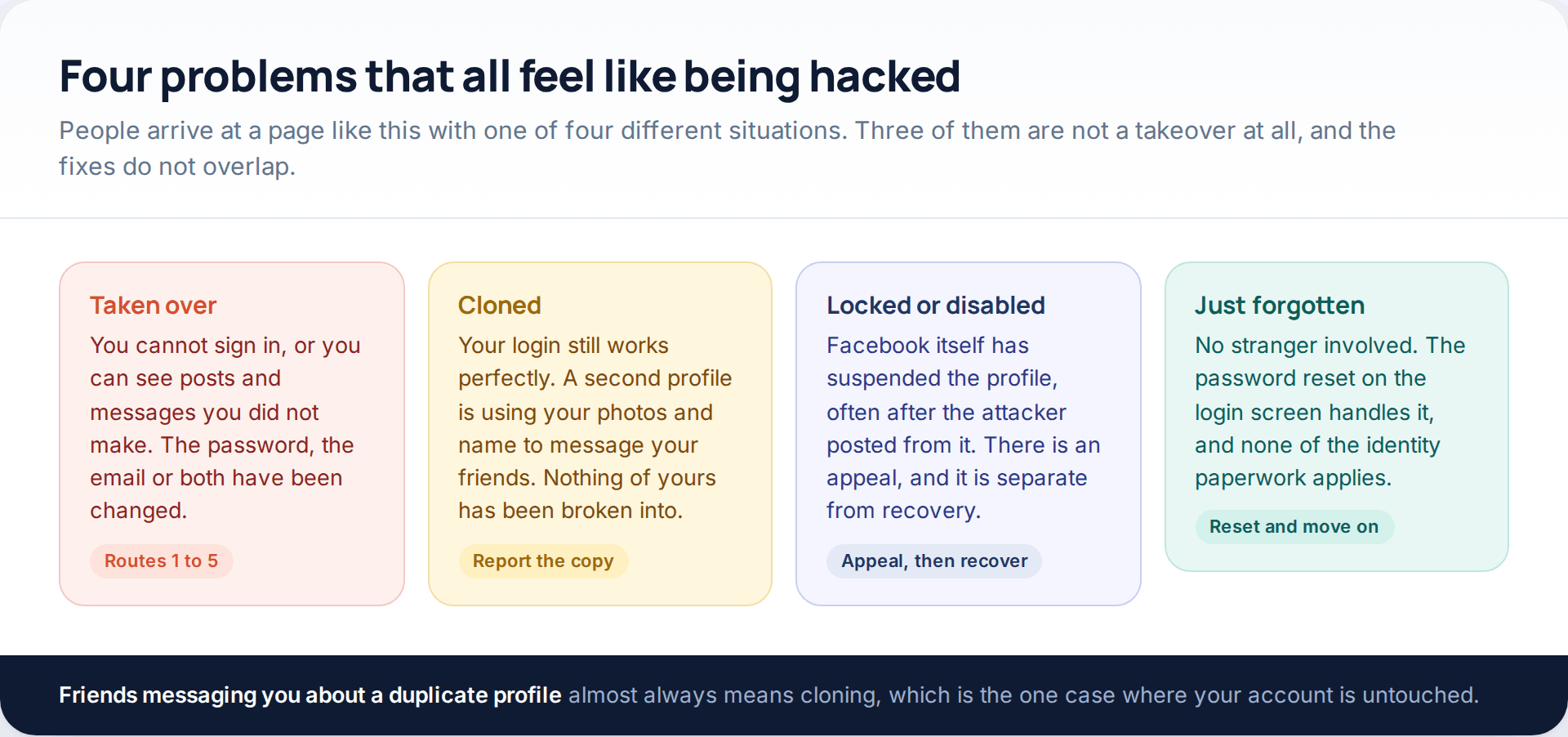
Facebook Account Hacked? Every Free Route Back In
If your Facebook account was hacked, five routes lead back in and all of them are free: a device of…
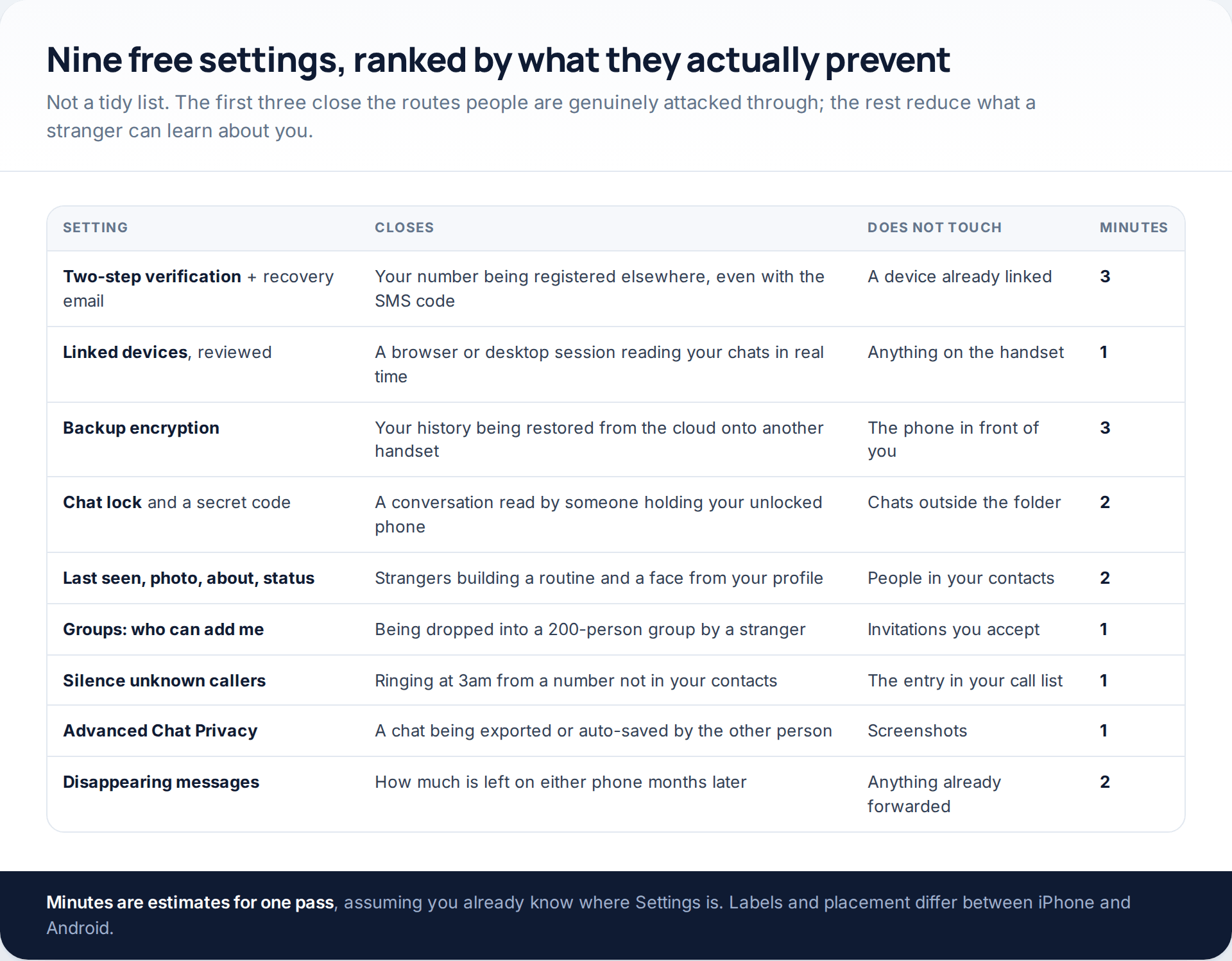
WhatsApp Privacy Settings That Cost Nothing and Stop Most Attacks
The WhatsApp privacy settings that matter are free, built in, and take about a quarter of an hour in total.…
Monitoring your child can see.
Location, screen-time budgets, routines, app and website blocking and the alerts that matter, run from any browser and visible on the phone. Pair an Android phone in about fifteen minutes.