Monitoring a Child’s iPhone Openly: Screen Time, Family Sharing and the Limits

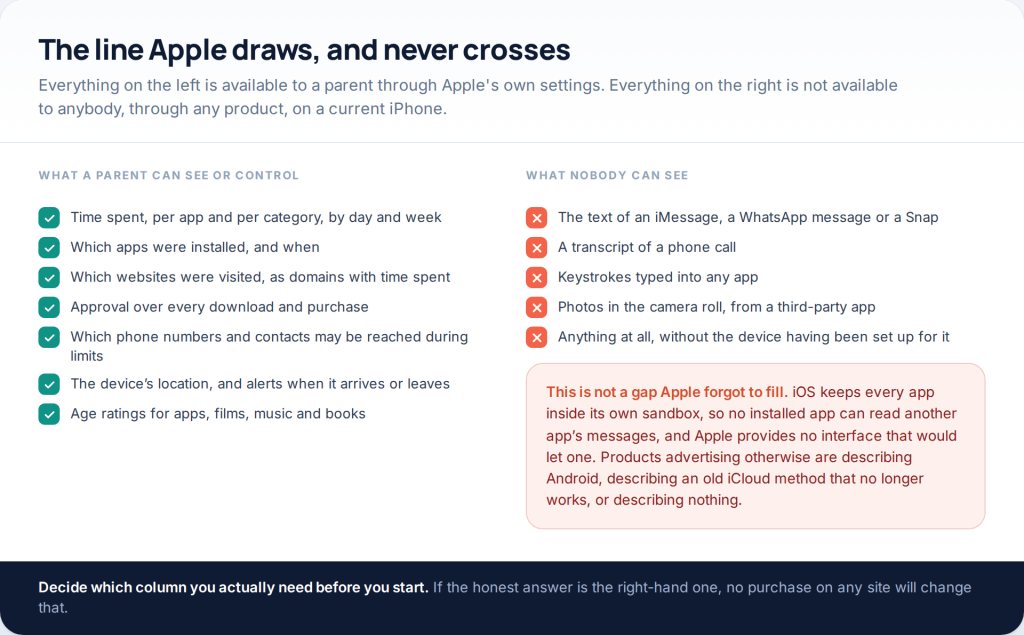
Apple’s monitor iPhone parental controls are better than their reputation and narrower than most advertising implies. Through Family Sharing and Screen Time you can set time limits, approve every download, decide who can be reached, filter content and see where the phone is. You cannot see the contents of a message — not through Apple, not through any app, not at any price.
This page used to promise covert access to somebody else’s iPhone. It now covers the version that exists: a parent, a child, that child’s own device, and controls the child can see. The next section explains what the old promise actually rested on and why it no longer works, because the honest answer saves people a subscription.
What “iPhone monitoring” has ever actually meant
The remote version worked, years ago, by signing in to the target’s iCloud account and reading what their backups contained. That route needed the Apple Account password, and it now also needs a two-factor code generated on a device the person is holding — and the sign-in itself raises an approval prompt and a notification on their existing devices. Apple’s move to two-factor authentication across accounts is what closed it.
The second mechanism is installing something on the handset, which needs the phone unlocked in your hands and the passcode. On iOS there is no App Store app that can read another app’s messages, so what gets sold under this heading is a configuration profile or a jailbreak, both of which are visible in Settings to anyone who looks.
The third is proper supervision — the mechanism schools and employers use, which enrols the device, appears under device management in Settings, and still shows nobody the contents of a chat.
What Apple shows, and what nobody shows
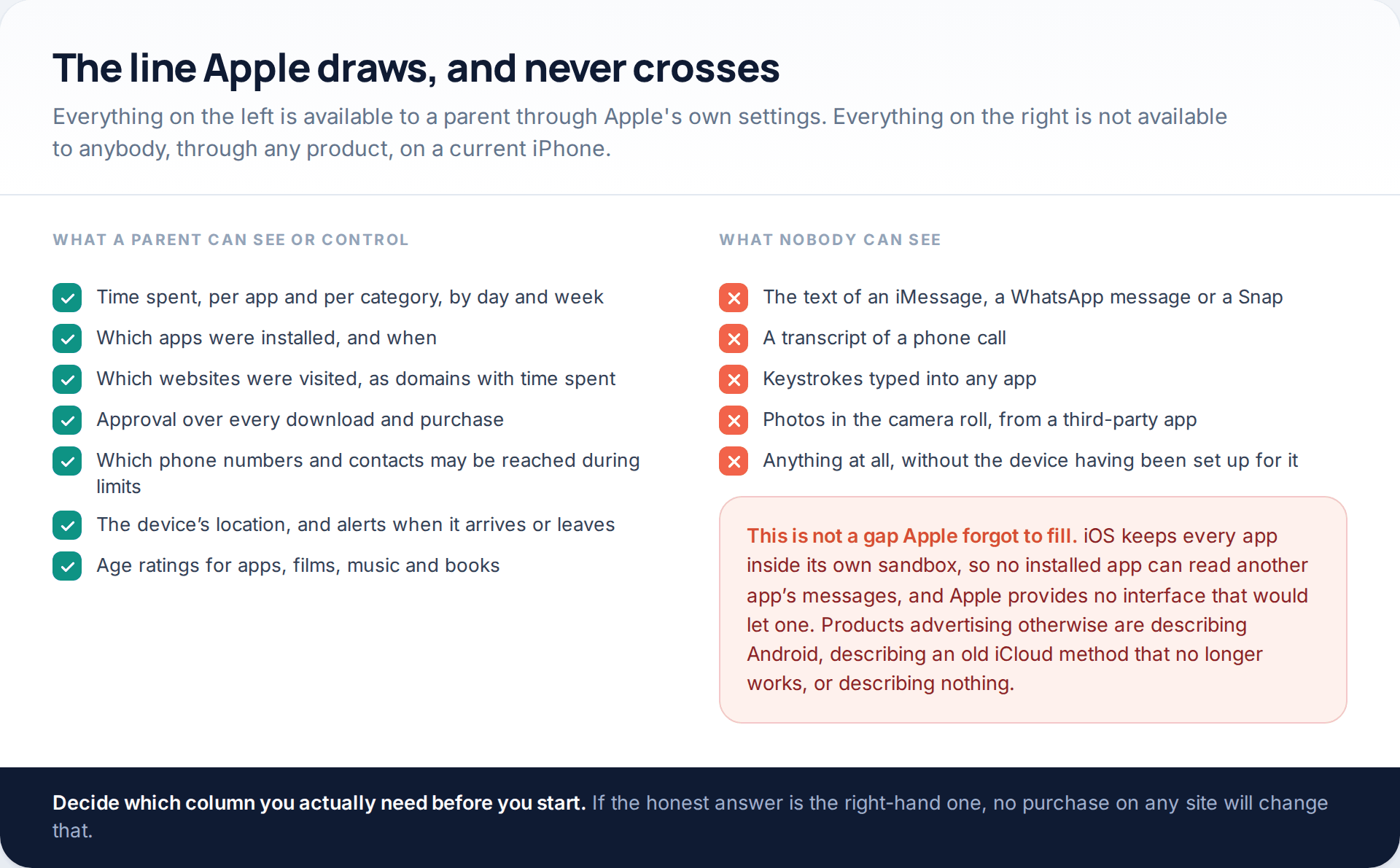
On the left: time spent per app and per category, which apps were installed, which domains were visited and for how long, approval over every download, control over who can be reached during limits, the device’s location with arrival and departure alerts, and age ratings across apps, films, music and books. That is a substantial amount, and it is free.
On the right: the text of any message, a transcript of any call, keystrokes, and the camera roll. This is not an oversight. iOS keeps each app inside its own sandbox, so no installed app can read another app’s data, and Apple provides no interface that would allow it. Products that claim otherwise are describing Android, describing the old iCloud method, or describing nothing at all.
Apple’s own tools never show message content. It is worth repeating because so much marketing is built on the implication that they might.
Setting it up: Family Sharing and a Child Account
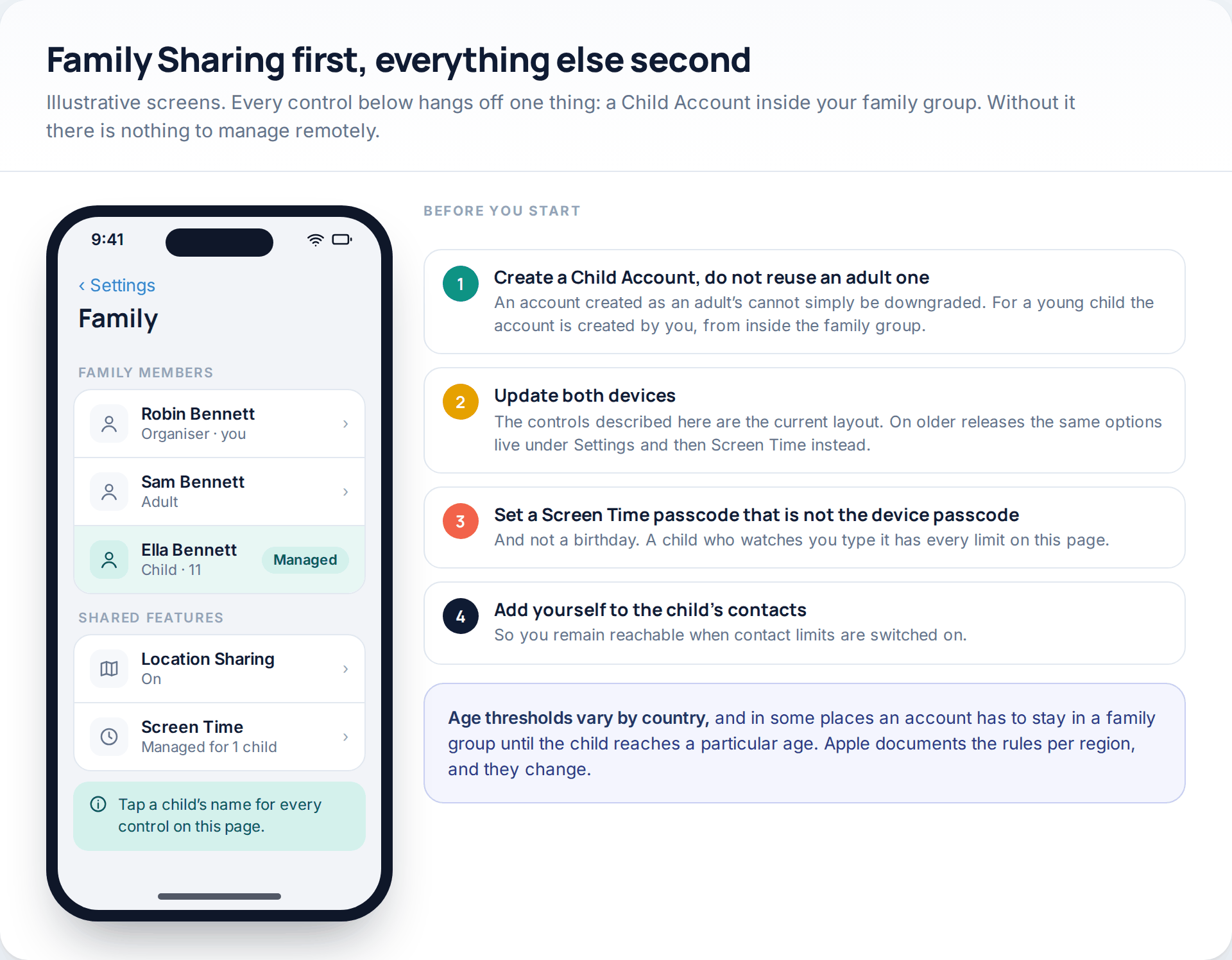
Nothing here works without Family Sharing and a Child Account for the child. An account created as an adult’s cannot simply be reclassified, so for a younger child the account is created by you from inside the family group. Once it exists, the controls live under Settings, then Family, then the child’s name, and almost everything described below is reached from there.
Four things to do before you start. Update both devices, because the current layout differs from older releases — on those, the same options sit under Settings and then Screen Time. Set a Screen Time passcode that is not the device passcode and not a birthday; a passcode watched once removes every limit on this page. Add yourself to the child’s contacts, so you stay reachable when contact limits are on. And check the age rules for your country: Apple applies different thresholds by region, and in some places an account has to remain in a family group until a particular age.
Time: allowances, schedules and the report
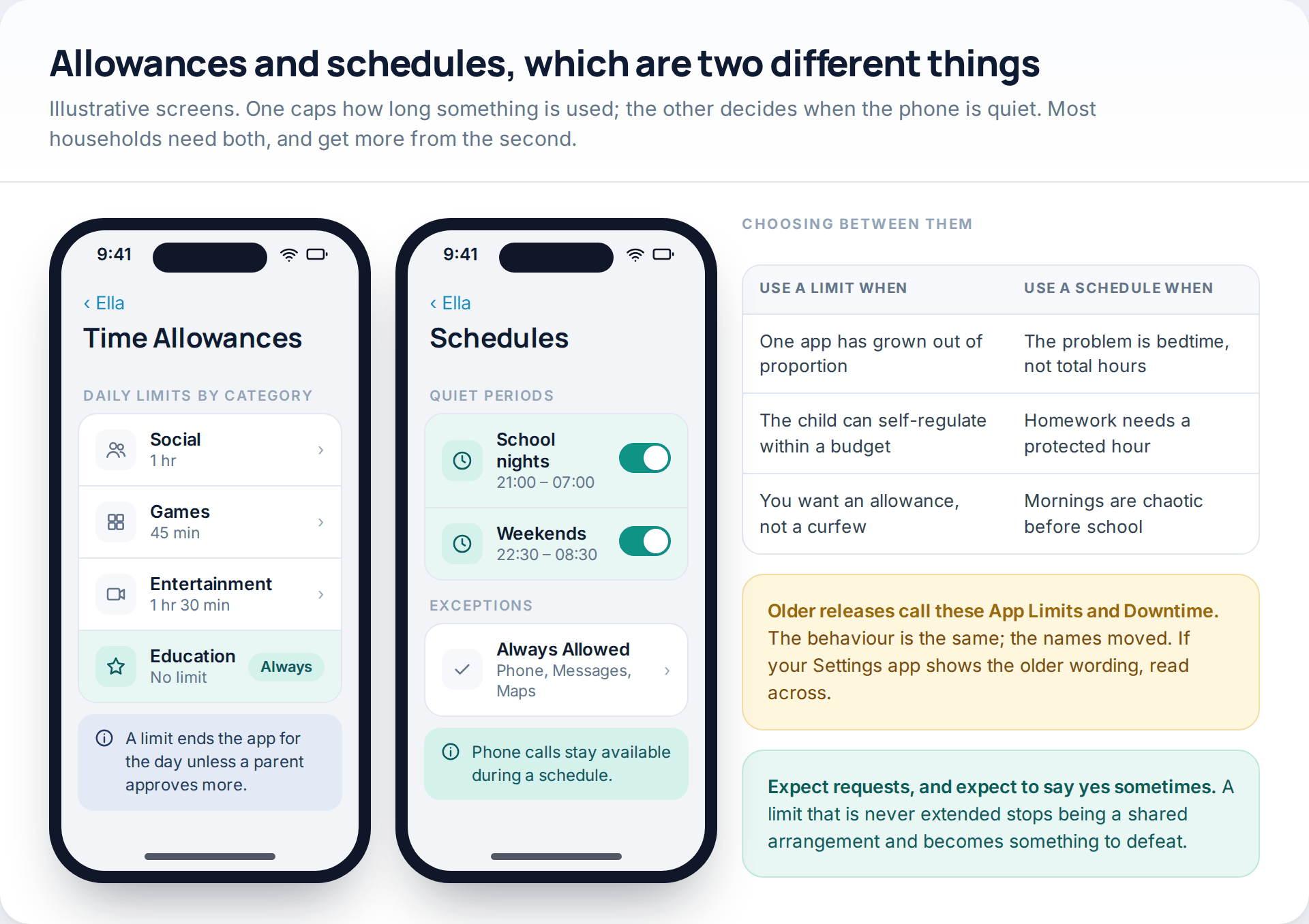
Two different tools get confused constantly. Time Allowances cap daily use of a category or an app — an hour of social, forty-five minutes of games. Screen Time Schedule makes the phone quiet between set times, which is the bedtime and homework tool. Older releases call these App Limits and Downtime; the behaviour is unchanged.
Schedules tend to do more real work than allowances, because the complaint in most households is about when rather than how much. Check the Always Allowed list while you are there: phone calls remain available during a schedule, and that exception is the one parents are surprised by.
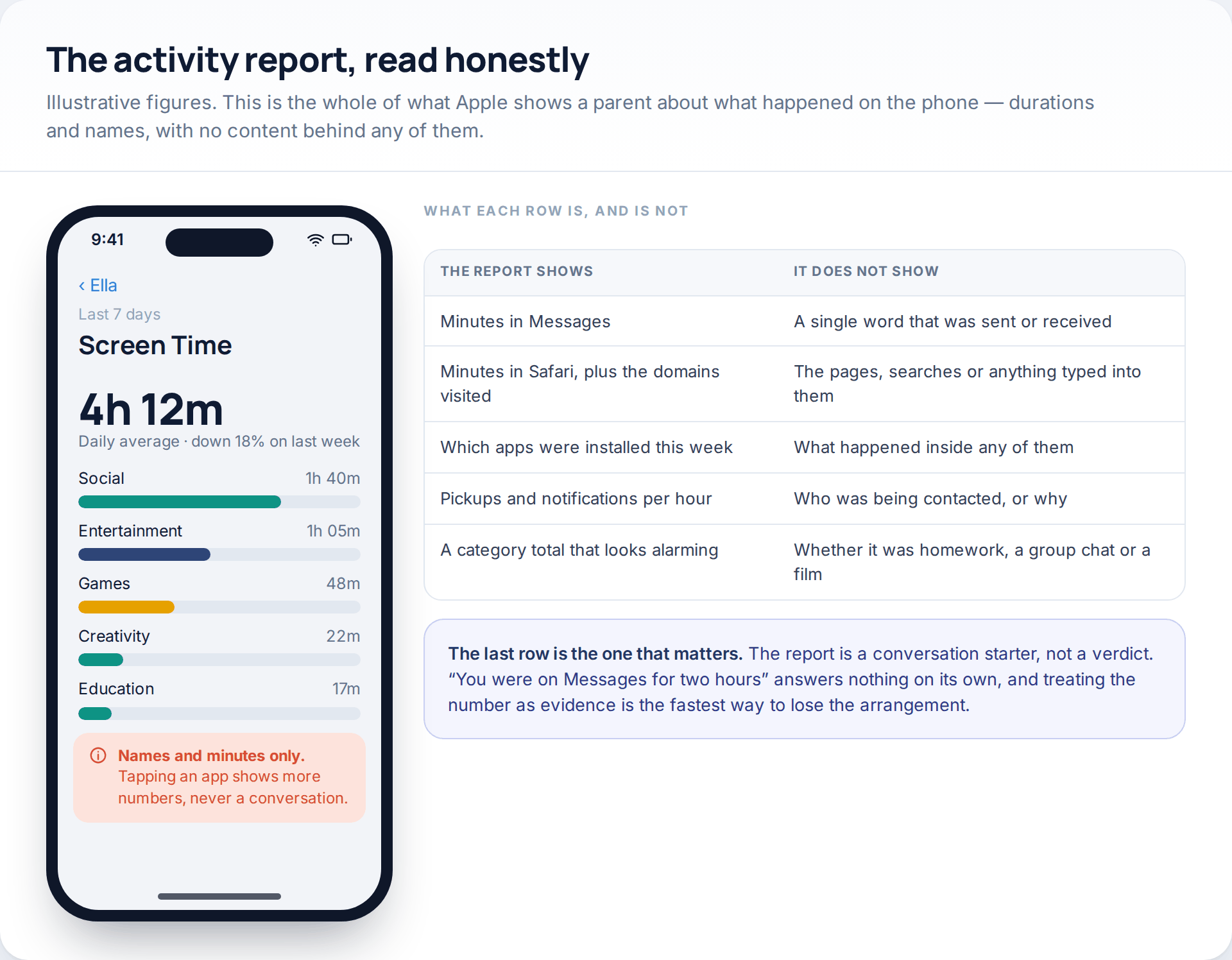
The report shows durations and names: minutes in Messages, minutes in Safari with the domains visited, which apps were installed this week, pickups and notifications per hour. It does not show a single word of a conversation, a search, or what happened inside any app.
Which makes it a conversation starter rather than a verdict. “You were on Messages for two hours” answers nothing by itself — it could be homework coordination, a group chat or a falling-out. Treating the number as evidence is the quickest way to end the arrangement. Our guide to setting up Apple Screen Time covers the configuration in more depth.
Approvals, downloads and who can be reached
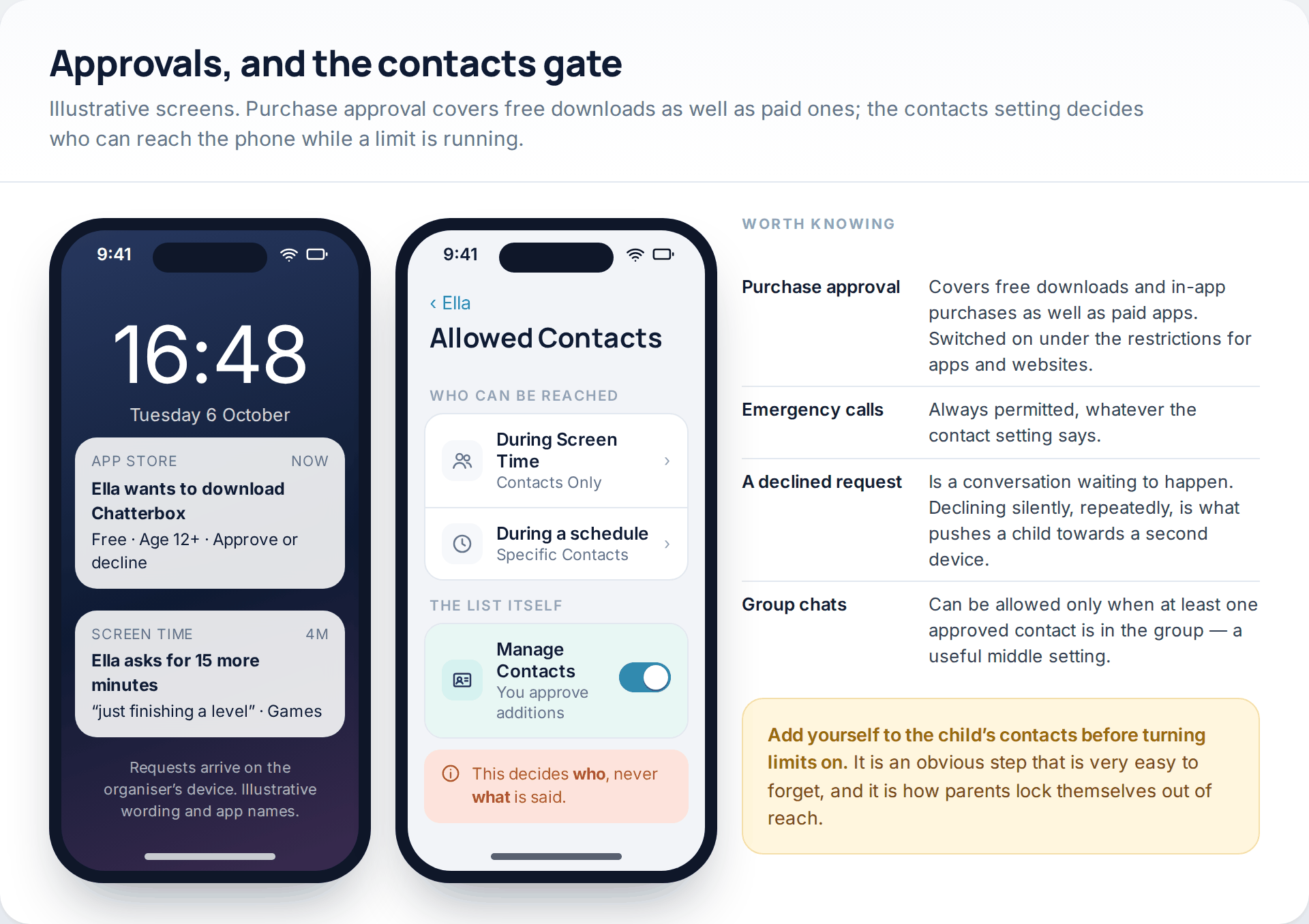
Purchase approval — switched on under the restrictions for apps and websites — sends every download to you for a decision, free apps included. In practice this is the single most useful control for a younger child, because it turns app installation into a conversation rather than an event you discover later.
Allowed Contacts decides who can call and message during Screen Time and during a schedule: contacts only, contacts plus groups containing at least one contact, or everyone. You can also take over the contact list itself, so additions need your approval. Emergency calls are always permitted whatever you choose.
And to be explicit, because the setting’s position in the menu misleads people: this controls who can be reached and never what is said. Apple provides no parent-facing view of message content at any age.
Communication Safety and content restrictions
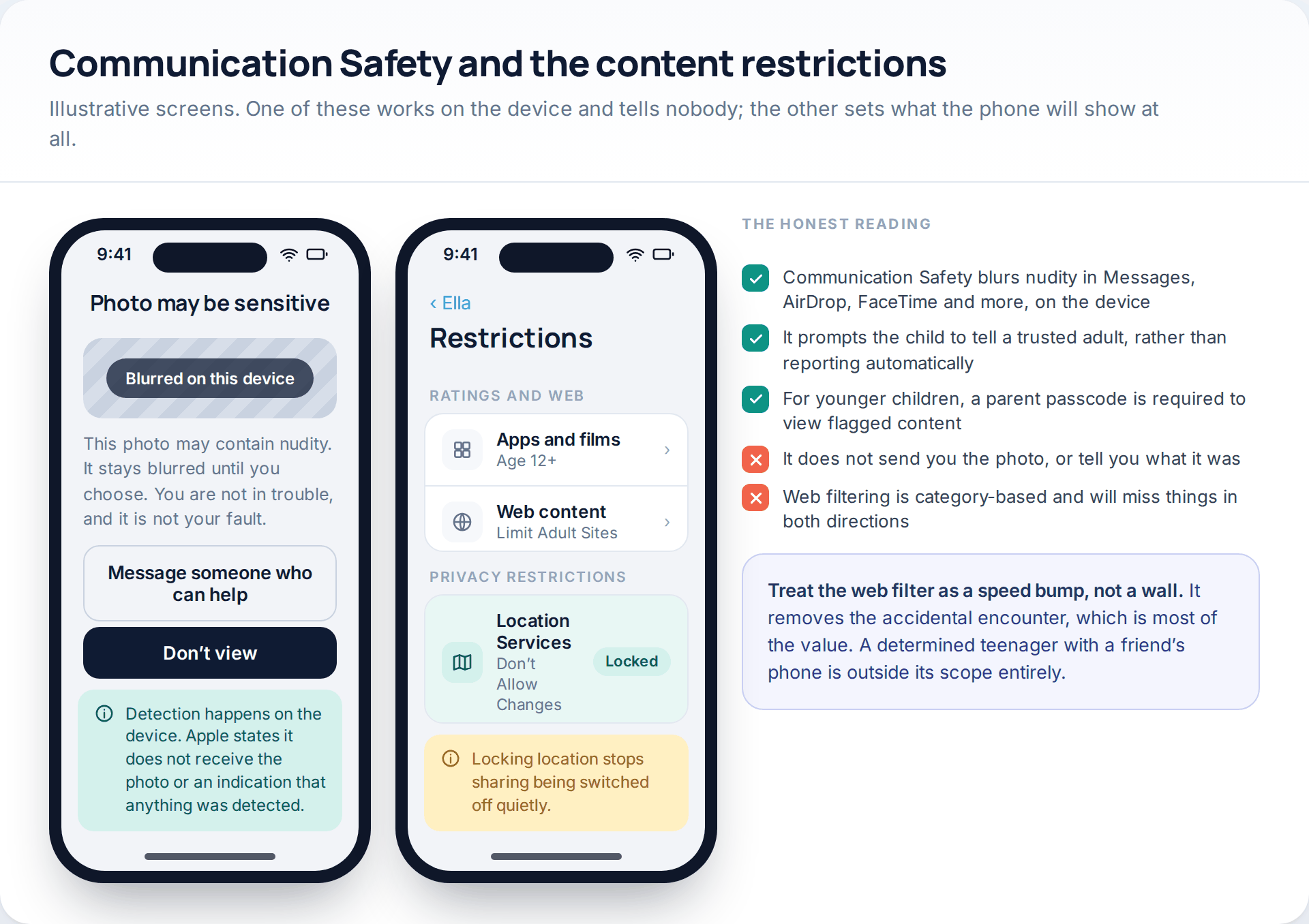
Communication Safety uses on-device analysis to blur photos and videos that appear to contain nudity, across Messages, AirDrop, FaceTime, shared albums and content shared into other apps. Apple states the analysis happens on the device and that it does not receive the content or any indication that something was detected. The child sees a blurred image, an explanation that they are not in trouble, and a prompt to tell an adult they trust. For younger children, viewing flagged content requires a parent’s passcode.
It is worth understanding what that design means: it is a safety feature, not a reporting feature. You are not sent the image and you are not told what it was. If you want to know, the route is the child telling you, which is what the prompt is built to encourage.
Content Restrictions handle the rest — age ratings for apps, films, music, podcasts and news, plus web filtering set to limit adult websites or to allow only approved sites. Under privacy restrictions you can also lock Location Services so sharing cannot be switched off quietly. That last one works, and it should be explained rather than discovered.
Location, in the open
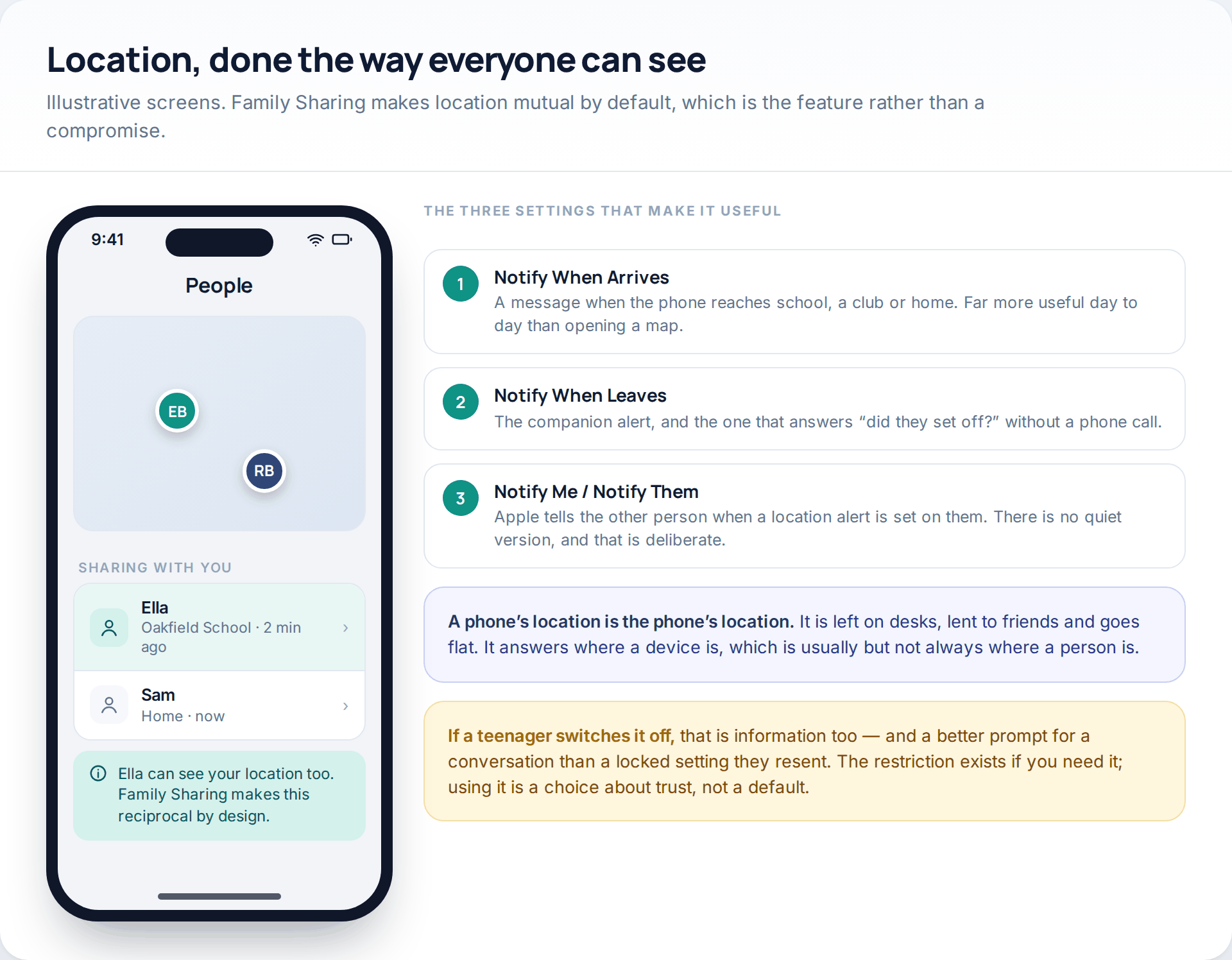
Family Sharing turns on location sharing between members, and the child can see the parent’s location as readily as the parent sees theirs. Reciprocity is the point: an arrangement where only one person is visible is the one that gets resented and switched off.
The useful part is not the map but the alerts. Notify When Arrives and Notify When Leaves answer the actual questions — did they get to school, have they set off — without anyone staring at a screen. Apple tells the other person when a location notification is set on them; there is no quiet version, by design.
Remember what a location is. It is where the phone is, which is usually but not always where the child is, and it is affected by a flat battery, a desk drawer and a lent handset. Treat a missing dot as a prompt to call rather than a conclusion.
Where a third-party app fits
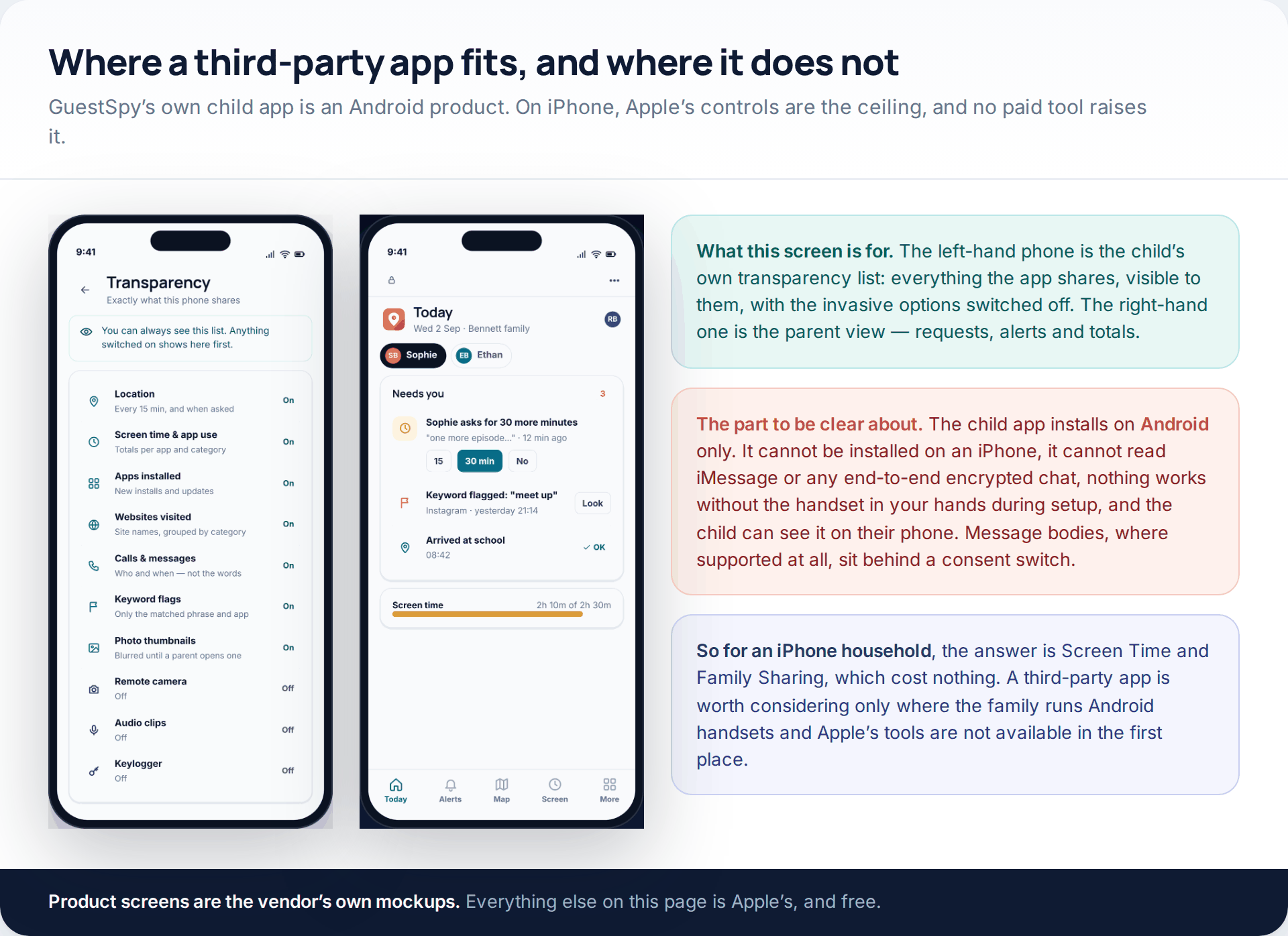
Our own product is relevant here mainly as a boundary. GuestSpy’s child app installs on Android only — it cannot be put on an iPhone, it cannot read iMessage or any end-to-end encrypted chat, it does nothing without the handset in your hands during setup, and it is visible to the child on their own phone, with a transparency screen listing exactly what is shared. Message bodies, where they are supported at all, sit behind a consent switch rather than being on by default. For an iPhone household, Screen Time and Family Sharing are the answer and they cost nothing; you can see the shape of the Android equivalent on our screen time page if the family runs mixed devices.
That is the whole of the product pitch, because anything more would contradict the rest of this page. If a service tells you it monitors an iPhone remotely with nothing installed and no account access, it is describing something that does not exist.
The gaps to plan around
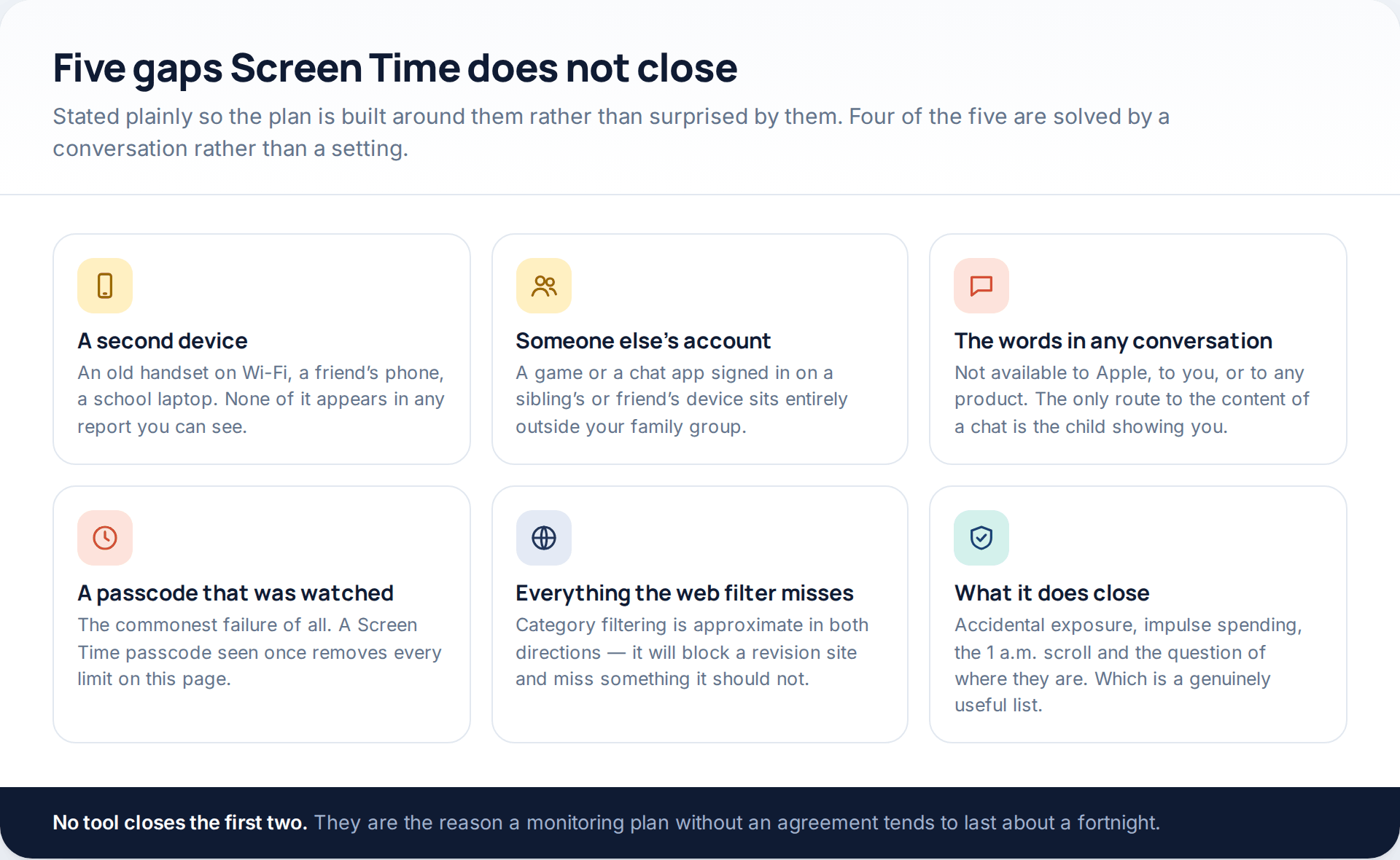
An old handset on Wi-Fi, a friend’s phone, a school laptop: none of it appears in any report you can see, and no product changes that. Nor does a game or chat app signed in on somebody else’s device. The content of conversations is unavailable to everyone. And a Screen Time passcode seen once over a shoulder removes every limit here, which is the commonest failure by a distance.
What the controls do close is worth saying too: accidental exposure to adult content, impulse spending, the one-in-the-morning scroll, and the question of whether a child arrived where they said. That is a genuinely useful list, and it is most of what parents of younger children actually want.
Making it last
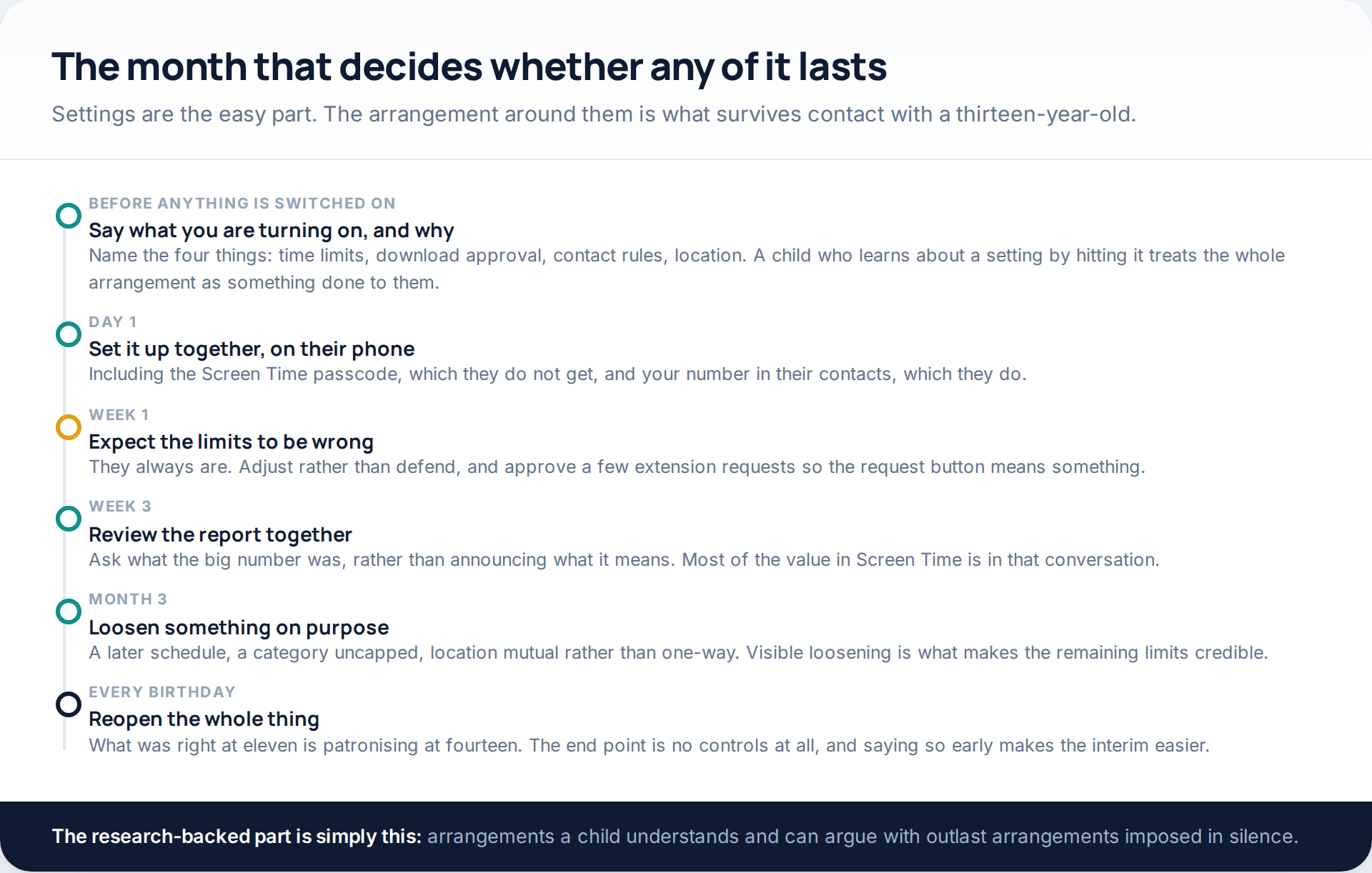
Tell them before you switch anything on, and name the four things: time limits, download approval, contact rules, location. Set it up together on their phone. Expect the limits to be wrong in week one and adjust rather than defend them. Review the report together rather than announcing conclusions from it. And loosen something deliberately at around three months — visible loosening is what makes the remaining limits credible.
Then reopen the whole arrangement at every birthday. What is right at eleven is patronising at fourteen, and the end point is no controls at all. Saying that out loud at the start makes the intervening years considerably easier. Our guide on monitoring a teenager respectfully goes further into where the line moves with age.
How this page was put together
The menu paths, labels and feature behaviour here were checked in October 2026 against Apple’s current support documentation on parental controls, Family Sharing, Communication Safety and Find My, and against the current Settings layout. Apple reorganised these screens recently: the controls for a child now sit under Settings, then Family, then the child’s name, and several features were renamed — what older guides call App Limits and Downtime appear as Time Allowances and Screen Time Schedule, and Ask to Buy is now presented as a purchase-approval requirement. Both sets of wording remain in circulation, so if a label here does not match your device, look for the option that does the same job rather than assuming it has gone.
We have given no figures on screen-time averages, on how many families use these tools, or on outcomes. Reliable comparable numbers do not exist, the ones quoted most often come from vendor surveys, and a parenting decision is not improved by a statistic with no method behind it. We did not test any third-party iPhone monitoring product, because the central claim of that category — remote access with nothing installed and no account credentials — describes something iOS does not permit.
The claim that no third-party app can read iMessage is a statement about how iOS works rather than a review finding: apps are sandboxed from one another, iMessage is end-to-end encrypted, and Apple publishes no interface that would expose message content to another app. If that changes, this page will change with it.
Common questions
Can I read my child’s iMessages from my own iPhone?
Only if their messages are signed in to a device you have, which is a shared-account arrangement rather than a monitoring feature and which they can see. Apple provides no parental control that shows message content, and no third-party app can read iMessage on iOS.
Can an iPhone be monitored remotely without touching it?
No. Every control described here requires Family Sharing and a Child Account set up with the device in hand at least once. The old iCloud-credentials method needed the password plus a two-factor code and triggered notifications on the person’s devices, and it is not a route a parent should be relying on.
Will my child know the controls are on?
Yes, and that is deliberate. Limits appear when they are reached, approval requests are made by the child, location sharing is visible in Find My, and Apple notifies people when a location alert is set on them. There is no concealed option.
Does Communication Safety tell me what my child was sent?
No. It blurs the image on their device, explains the situation to them and encourages them to tell an adult. Apple states the detection happens on the device and that the content is not sent to Apple, and it is not sent to you either.
What happens when they turn thirteen, or eighteen?
Thresholds vary by country. Some controls become unavailable as the child ages, some accounts must stay in a family group until a set age, and parental controls must usually be removed before a teenager can leave the group. Apple documents the rules per region.
My teenager found the Screen Time passcode. What now?
Change it to something they have not watched you type, and treat the incident as the signal it is — at that age an arrangement they have agreed to tends to outperform one they are trying to defeat.
Do I need a paid app on top of Screen Time?
On iPhone, no — nothing paid can exceed what Apple allows, and the common claims to the contrary are describing Android. On Android the picture is different, which is where a third-party app has a genuine role.
Using a monitoring app for this? GuestSpy is parental monitoring for Android that stays visible on the child's phone and runs from any browser. If it fits your family, see the Screen time & budgets feature.
Related guides
7 Best Free Hidden Spy Apps for Android (100% Undetectable)
Spying app makes our life easier as we don’t have to worry about our kids and online safety constantly. There…

How to Spy on Text Messages Without Installing Software
Are you wondering how to spy on text messages without installing software on the target phone? If yes, let us…
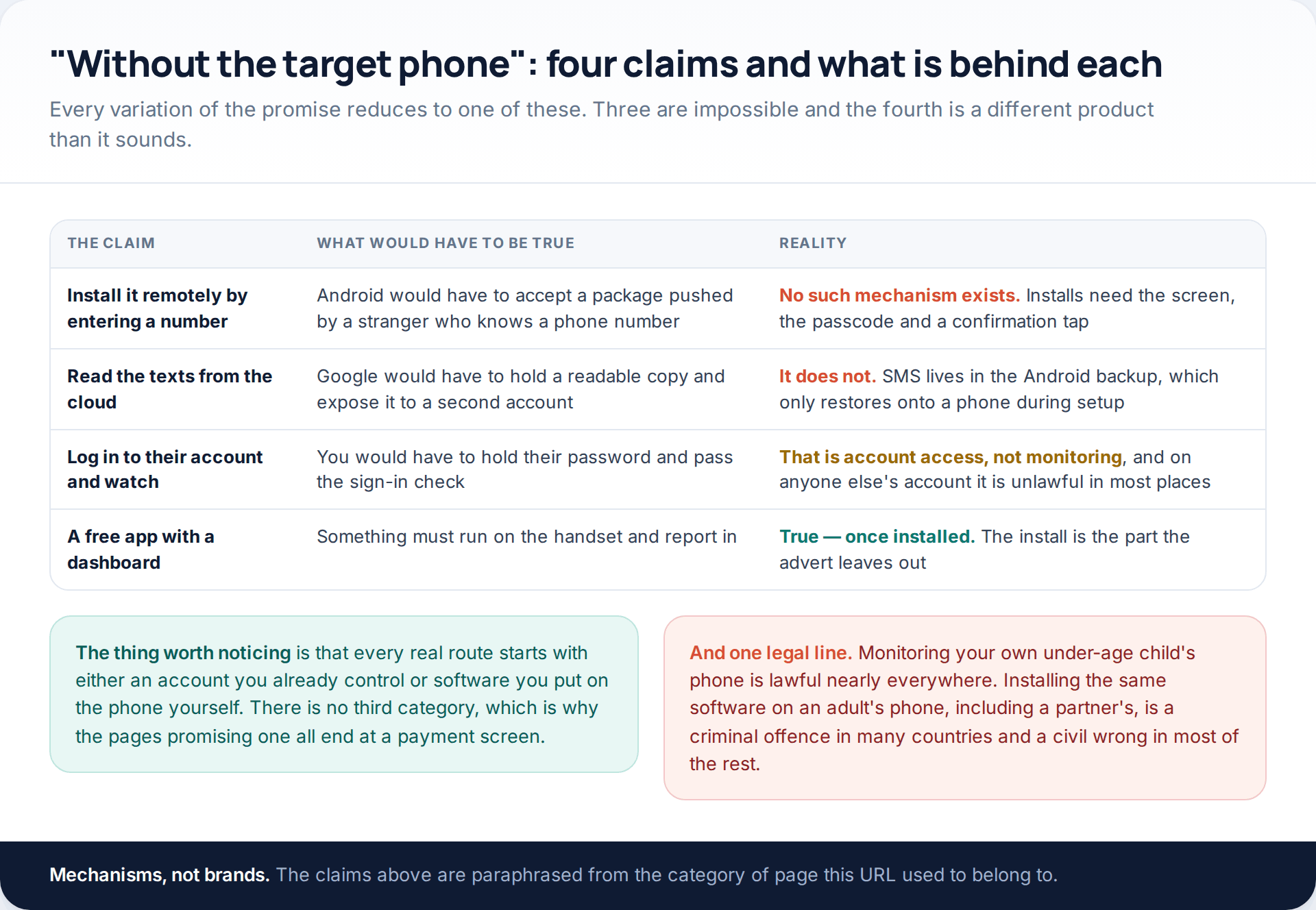
Free Monitoring Apps for Android: What Each One Can and Cannot Do
Free monitoring apps for Android are real, but none of them installs from a distance. Android has no mechanism for…
Monitoring your child can see.
Location, screen-time budgets, routines, app and website blocking and the alerts that matter, run from any browser and visible on the phone. Pair an Android phone in about fifteen minutes.