Fourteen tools, and what each one will not do
This is the complete list of what GuestSpy can do on an Android phone, sorted by how often a family reaches for it. Each entry says which build it needs, which Android permission it depends on, whether the child has to accept it, and where its edges are. If a tool is not on this page, the app does not do it.
Child app on Android 9 or newer · Parent panel in any browser · Off until a rule is switched on
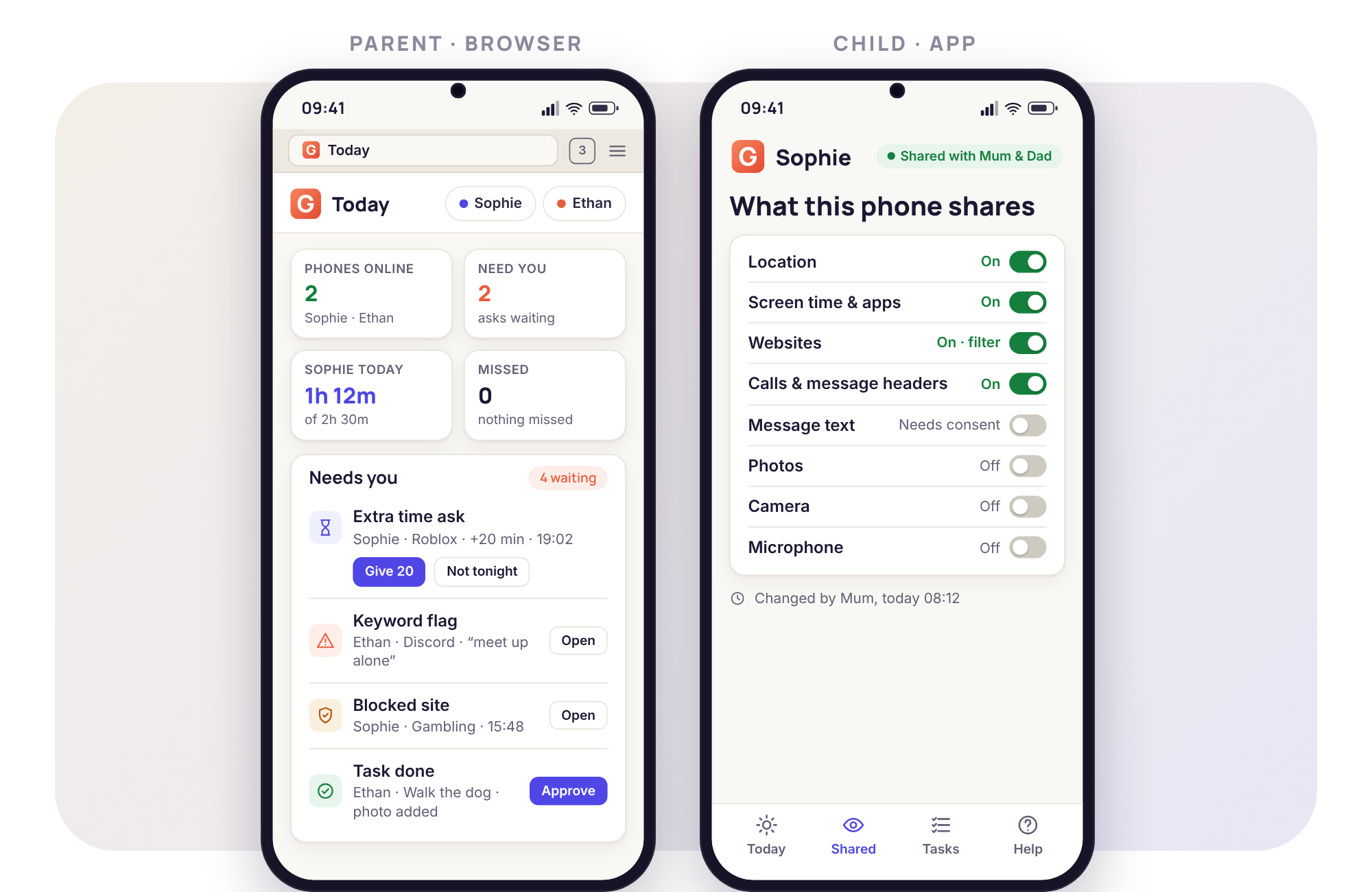
The whole product in one table
"Build" is where the child app comes from. "Permission" is the Android permission the tool needs. "Consent switch" means the person holding the phone has to accept it before anything is shared. "Free" means it is part of the core that never costs anything.
| Feature | Build | Permission needed | Consent switch | Free |
|---|---|---|---|---|
| Location and Places | Play or direct | Location, allow all the time | No | Core |
| Screen-time budgets | Play or direct | Usage access | No | Core |
| Routines and bedtime | Play or direct | Device admin, display over apps | No | Core |
| App and website blocking | Play or direct | Usage access, accessibility for the filter | No | Core |
| Messages and social | Headers: Play or direct · Bodies: direct | Notification access; SMS for bodies | Bodies only | Headers core · Bodies earned |
| Calls and call recording | Log: Play or direct · Recording: direct | Call log; microphone for recording | Recording only | Log core · Recording earned |
| Alerts and keywords | Play or direct | Notification access | No | Core |
| Wi-Fi and email | Wi-Fi: Play or direct · Email: direct | Location; notification access for email | Email only | Wi-Fi core · Email earned |
| Photos, videos and recordings | Direct only | Photos and media | Yes | Earned |
| Activity reports | Play or direct | None beyond the above | No | Core |
| Tasks and rewards | Play or direct | Camera, for photo proof | No | Core |
| Remote camera | Direct only | Camera | Yes | Earned |
| Ambient audio | Direct only | Microphone | Yes | Earned |
| Web panel and remote actions | Any browser | Device admin, for Lock now | No | Core |
"Earned" tools are unlocked with a parent task, such as a feedback survey or a bug report, never with a payment. Every account has 10 days of full access to try them before any task is needed.
Everyday: the four you will touch most weeks
These are the tools that shape a school day. Each runs on the phone itself, so a lost signal does not stop a budget counting or a bedtime arriving.
Location and Places
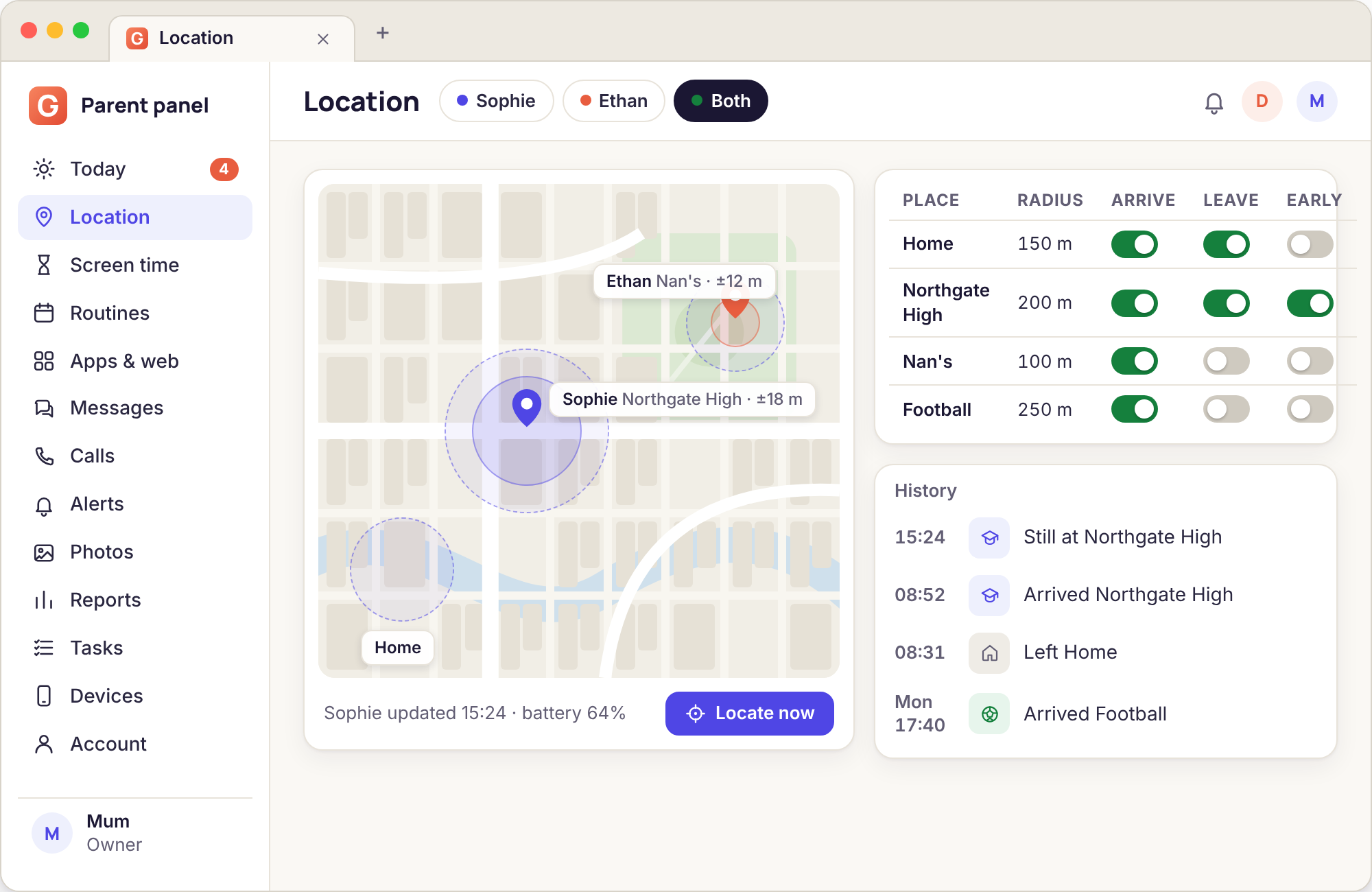
The map opens on the phone's most recent fix, drawn with a ring showing how far out it could be and the battery percentage beside it. Outdoors that ring is a few metres; inside a sports hall it can widen to fifty. History is kept for 30 days and then gone. The part most parents end up using is Places: a named circle around Home, School, Nan's or Football, each with an arrive alert, a leave alert and a left-early alert that takes a time, such as "before 15:10". Once the Places exist, the map is something you look at only when an alert gives you a reason to.
"Locate now" sends a single request for a fresh position. The phone answers when it has a connection and shows a line on its own screen saying it was asked. What it cannot do is stream: there is no live dot creeping along a road, and we are not going to add one. It also cannot invent a position for a phone that is off, flat or in a basement, so the panel shows the age of the last fix rather than pretending it is current.
- Accuracy radius and battery level on every fix
- Arrive, leave and left-early alerts per saved Place
- History deleted on a rolling 30-day basis
Full page: location tracking and Places
Screen-time budgets
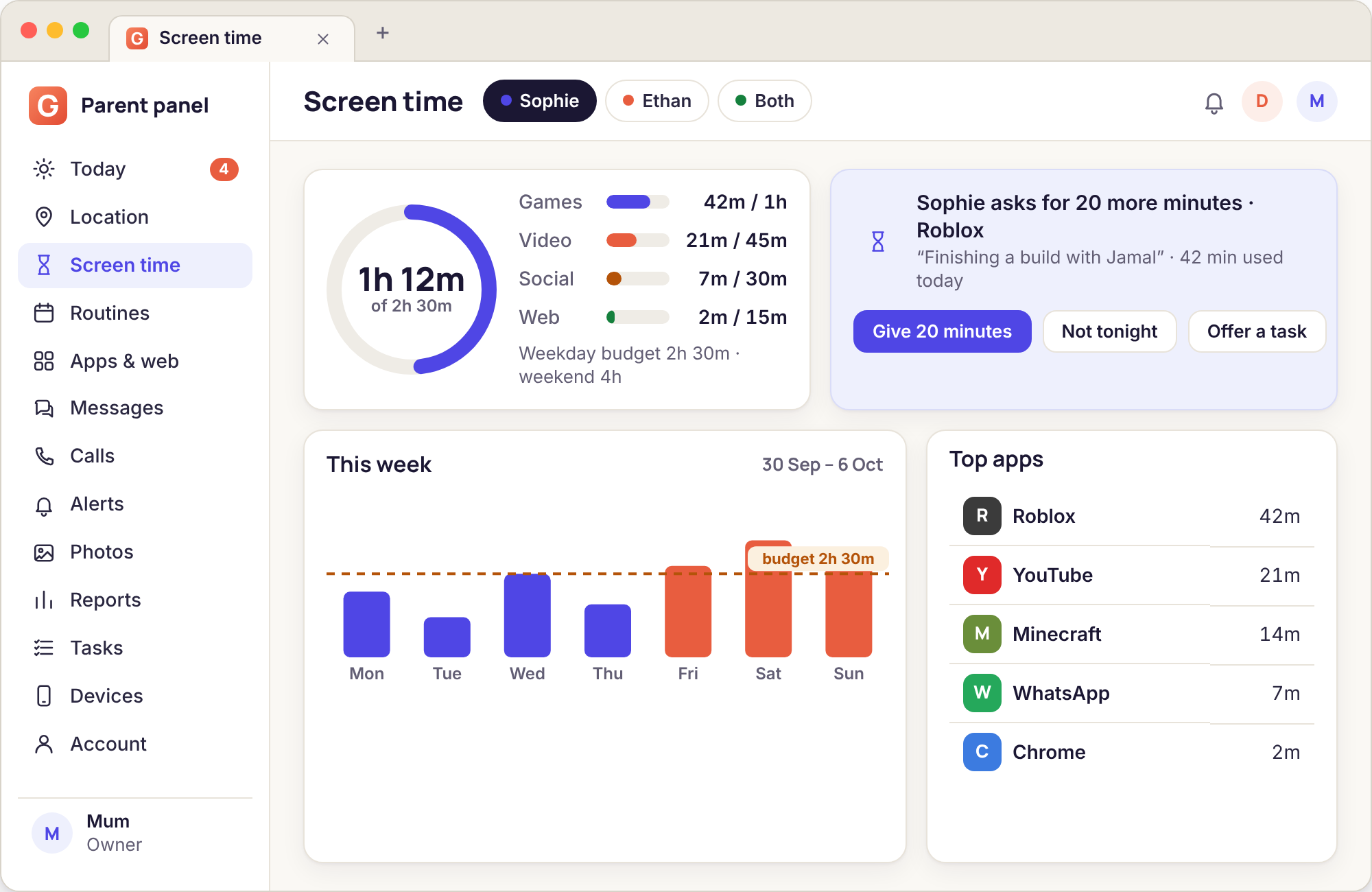
A budget is a number of minutes per day, set separately for weekdays and weekends, and divided across four lines: games, video, social and web. You can give video forty minutes and games twenty, or lump them together. The phone counts the minutes locally and enforces the limit locally, which is why a budget keeps working on a bus through a tunnel and why the count on the child's screen always matches the count on yours. Ten minutes before the budget ends, the child gets a wind-down warning so they can finish what they are doing rather than being cut off mid-sentence.
When the minutes are spent, limited apps stop opening, while Phone, Messages and Maps carry on. The child's app offers "Ask for more time" with a reason, which arrives in your Needs you list with three replies: Give 20 minutes, Not tonight, Offer a task. The budget cannot see inside an app, so it does not know whether an hour on YouTube was a documentary or something sillier; it measures time, not quality. It also cannot count time on a laptop or a games console.
- Separate weekday and weekend allowances
- Counted and enforced on the phone, works offline
- Ask-for-more with a reason, answered from the panel
Full page: screen time budgets
Routines and bedtime
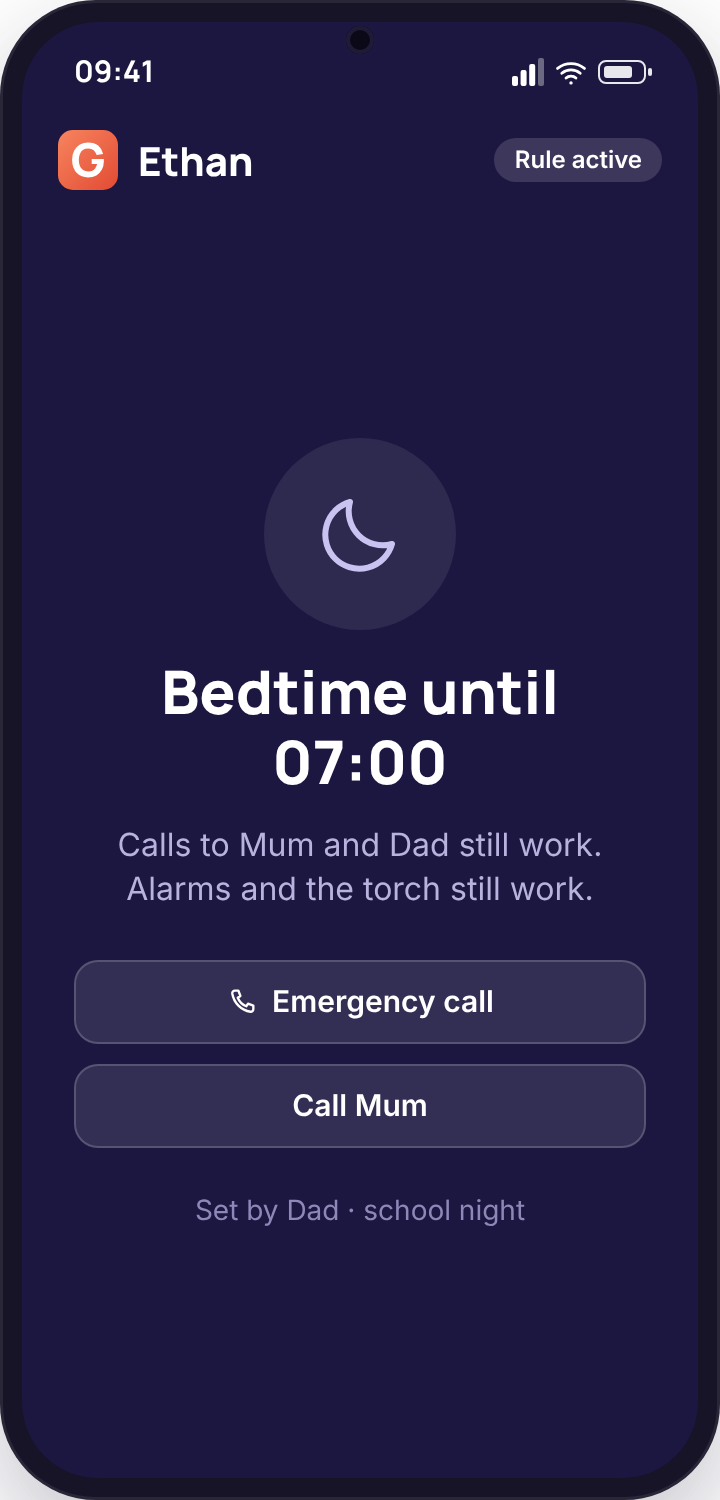
A routine is a window of time during which the phone behaves differently. Four come ready to switch on: Bedtime, School hours, Homework hour and Dinner pause. Bedtime locks the phone fully, with a lock screen that names the routine and lists the numbers that still connect. School hours and Homework hour pause the budgeted apps and leave the essentials alone. Dinner pause is a short lock, typically forty-five minutes, that ends on its own. Each has its own days and times, so Bedtime can be 21:00 on a school night and 22:30 on a Saturday.
Calls to the parents on the account and to emergency numbers go through during every routine, with no exception and no setting that changes it. The child can see tonight's bedtime in their app from the moment the phone wakes up, which removes the element of ambush that makes bedtime locks unpopular. A routine cannot tell whether the child is actually in bed, and it cannot stop a child picking up a sibling's phone; it governs one device, honestly, and nothing more.
- Bedtime, School hours, Homework hour and Dinner pause ready to use
- Parents and emergency numbers always reachable
- Tonight's bedtime shown in the child's app all day
Full page: routines and bedtime
App and website blocking
The Apps page lists what is installed on the phone and gives each entry one of three states: allow, limit or block. Limit means the app counts against the budget; block means it will not open. Phone, Messages, Maps, Camera and Settings are protected and cannot be blocked, by design, so there is no way to leave a child unable to call home. "Ask me first" holds any new install until you approve it from the panel, and anything installed from outside Google Play is flagged so you can ask where it came from.
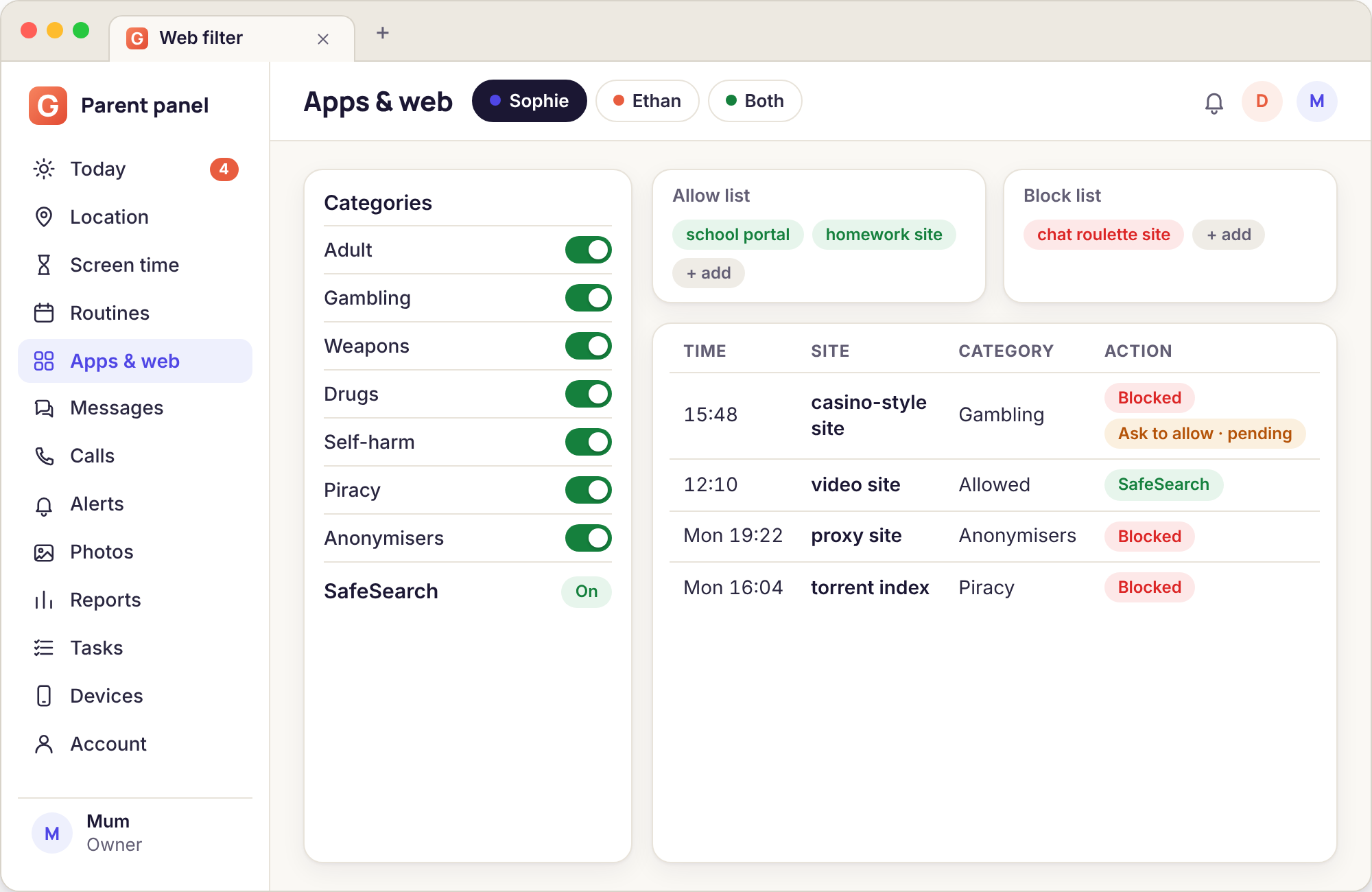
The website filter runs on the phone, not on your home router, so it works on mobile data and on the Wi-Fi at a friend's house. It blocks by category, adult, gambling, weapons, drugs, self-harm, piracy and anonymisers, forces SafeSearch on Google, Bing and YouTube, and takes your own allow and block lists. A blocked page is not a dead end: it shows the category and an "Ask to allow" button that sends you the address and a reason. The filter cannot see inside apps that are not browsers, and it cannot stop a determined teenager using a different device.
- Allow, limit or block for every app; essentials protected
- Category filter plus SafeSearch, enforced on the phone
- Blocked-site log and "Ask to allow" from the blocked page
Full page: app and website blocking
Contact: who is reaching your child, and when
These tools answer questions about people rather than about time. By default they show the shape of contact, not its content, and that default is deliberate.
Messages and social
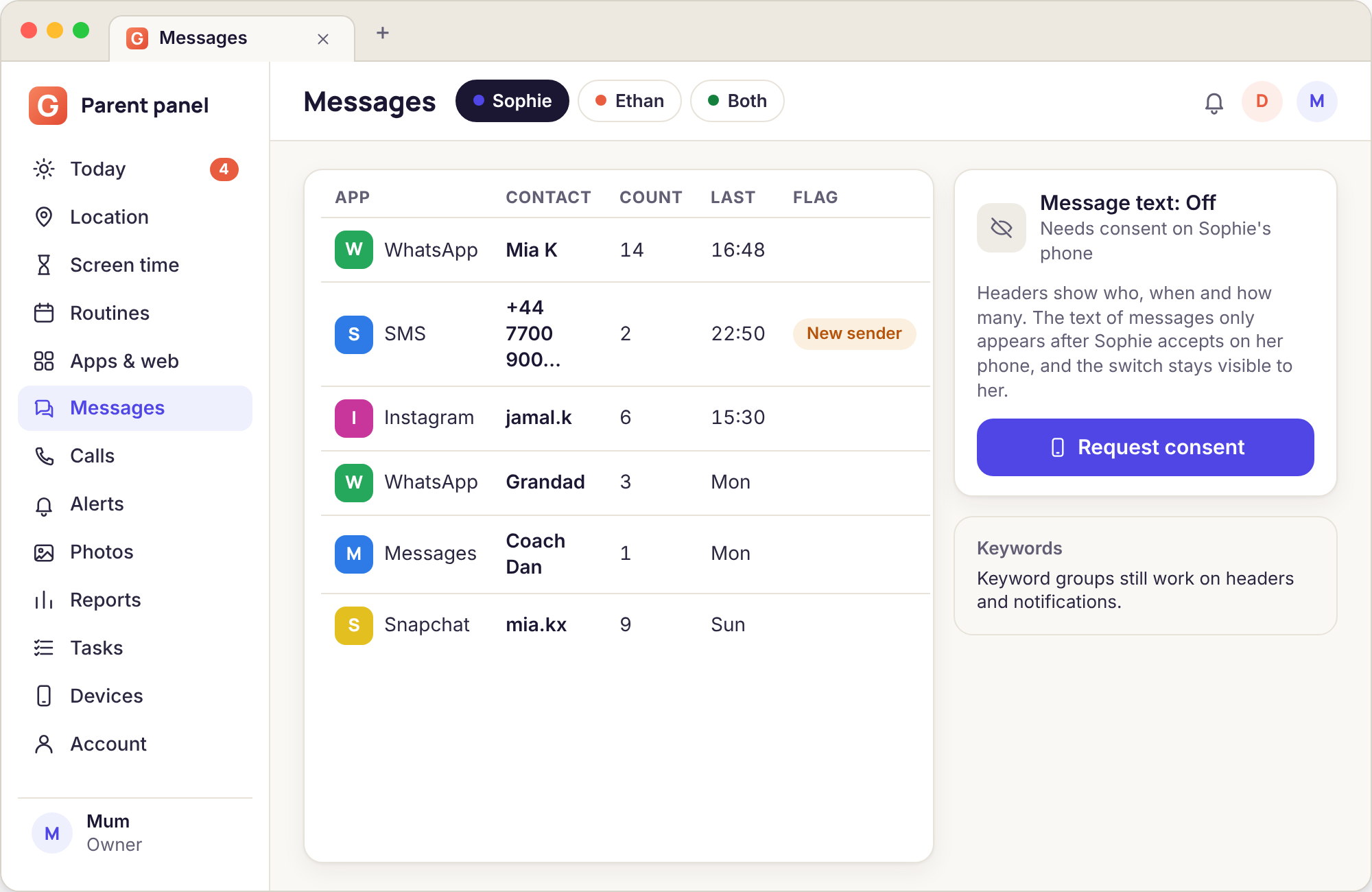
The Messages page is a list of headers: the contact or number, the app, the time and how many. It covers SMS and the notification lines from WhatsApp, Instagram, Snapchat, Messenger, TikTok and Discord. An unknown number or a sender the panel has not seen before is flagged, and that flag is the single most useful thing on the page, because it is the one event that is hard to notice any other way. Volume is shown per contact and per hour, so a chat that lights up at 01:00 stands out without anyone reading it.
Message bodies are a separate switch. It needs the direct-download build, and the person holding the phone must accept it on the phone before a single word is stored. Even then, what you get from encrypted apps is the notification preview Android shows, not the conversation, and a muted chat shows nothing at all. Any product that claims more is describing a rooted phone. The headers tier works on every phone the app supports; the bodies tier works where the app and the child permit it.
- Contact, app, time and count for SMS and six social apps
- Unknown-number and new-sender flags
- Bodies only with the consent switch, direct build
Full page: text messages and social
Calls and call recording
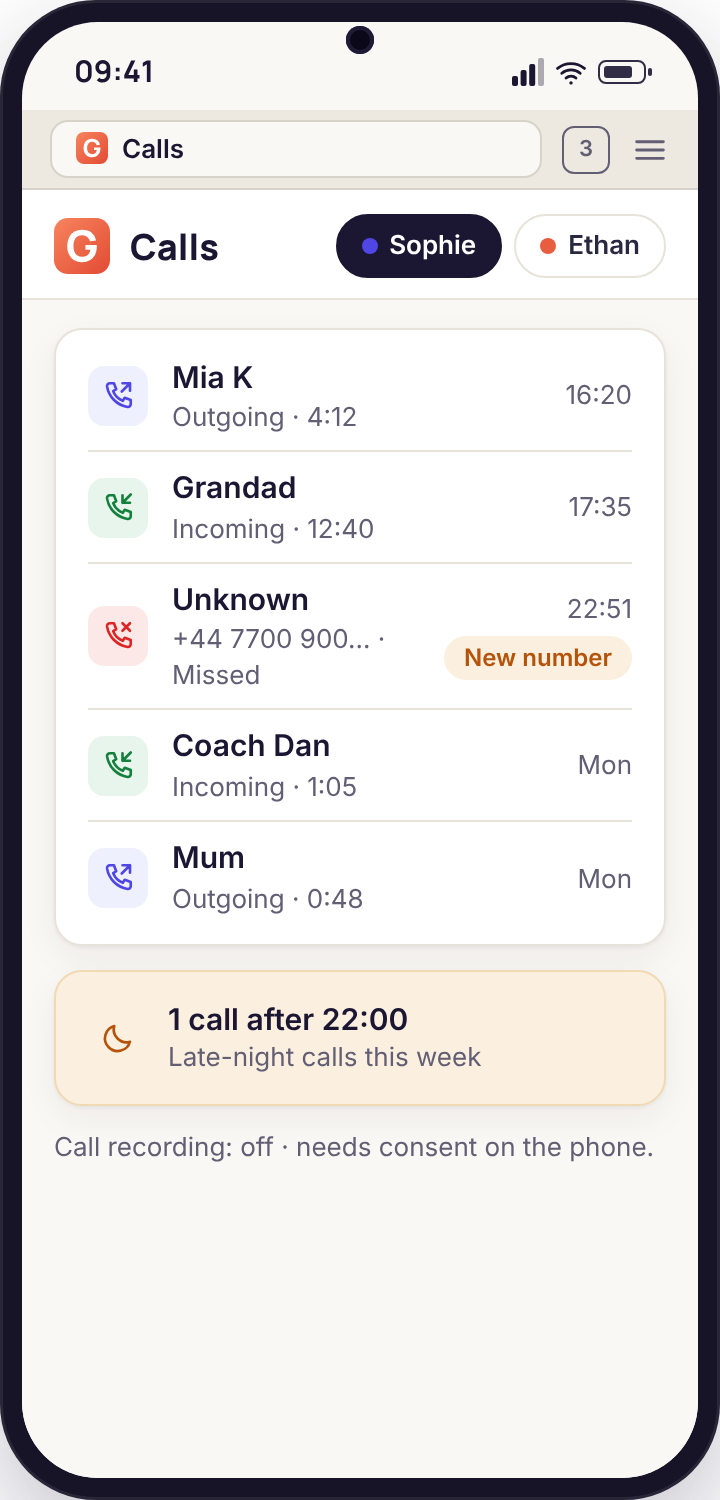
The call log mirrors what the phone itself keeps: contact name where there is one, number, incoming or outgoing or missed, duration and time. Unknown numbers are flagged in the same way as messages, and a late-night total adds up calls between 23:00 and 06:00 so that a pattern is visible at a glance. The log needs only the call-log permission and is part of the free core.
Call recording is a different animal and we describe it carefully. It needs the direct build and the recording consent switch accepted on the phone, and it depends entirely on whether the Android version and the manufacturer allow a third-party app to capture call audio. Many phones sold since 2020 refuse outright, and on those GuestSpy will tell you so rather than failing quietly. Where it does work, each recording is listed with its call and expires with the rest of the flagged media after 14 days. Treat it as a tool that might be available, not one to plan around.
- Names, numbers, direction, duration, time
- Unknown-number flags and a late-night total
- Recording where the phone permits it, announced on the phone
Full page: call monitoring
Alerts and keywords
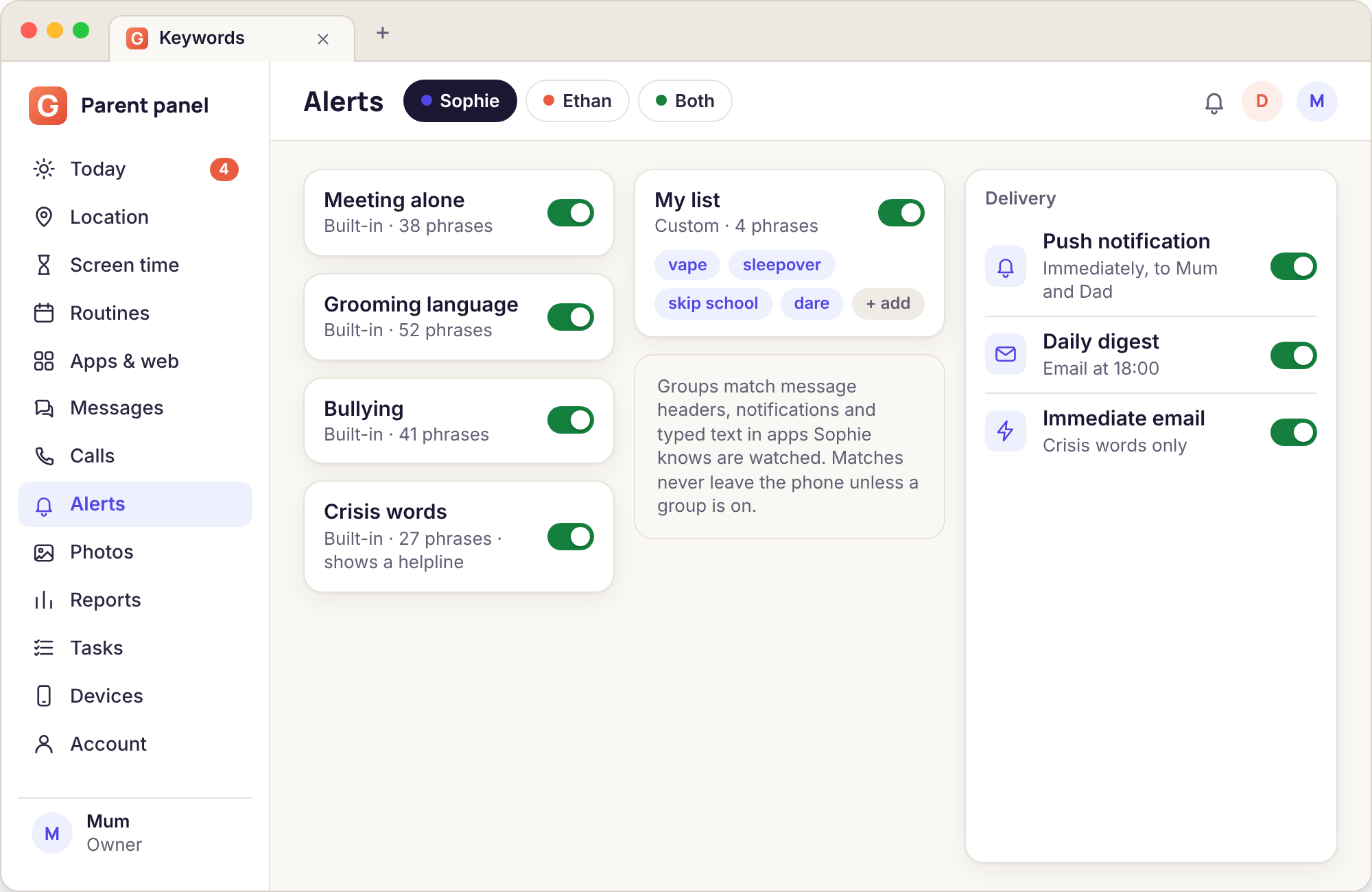
Alerts are rules written as sentences. "Arrives at School after 08:50." "Leaves Home after 22:00." "Screen time passes 150% of budget." "A new sender appears on Snapchat." You pick the condition, the child, and how you want to hear about it: a push notification, a line in the daily email digest, or an immediate email. Every alert that fires goes into a history with a "handled by" field, so two parents never chase the same thing.
Keyword groups watch the notification lines the phone already shows. Four are built in and maintained by us: meeting alone, grooming language, bullying and crisis words. The crisis group does something extra: when it matches, the child's phone shows a helpline at the same moment your alert is raised. You can add your own lists, for a name you are worried about or a slang term we have not caught up with. Because this works on notifications, it catches what arrives rather than what is typed; there is no keylogger and there will not be one. A muted chat produces no notification and therefore no match.
- Rules written in plain sentences, per child
- Four maintained keyword groups plus your own
- Push, daily digest or immediate email, with handled-by
Full page: alerts and keyword flags
Wi-Fi and email
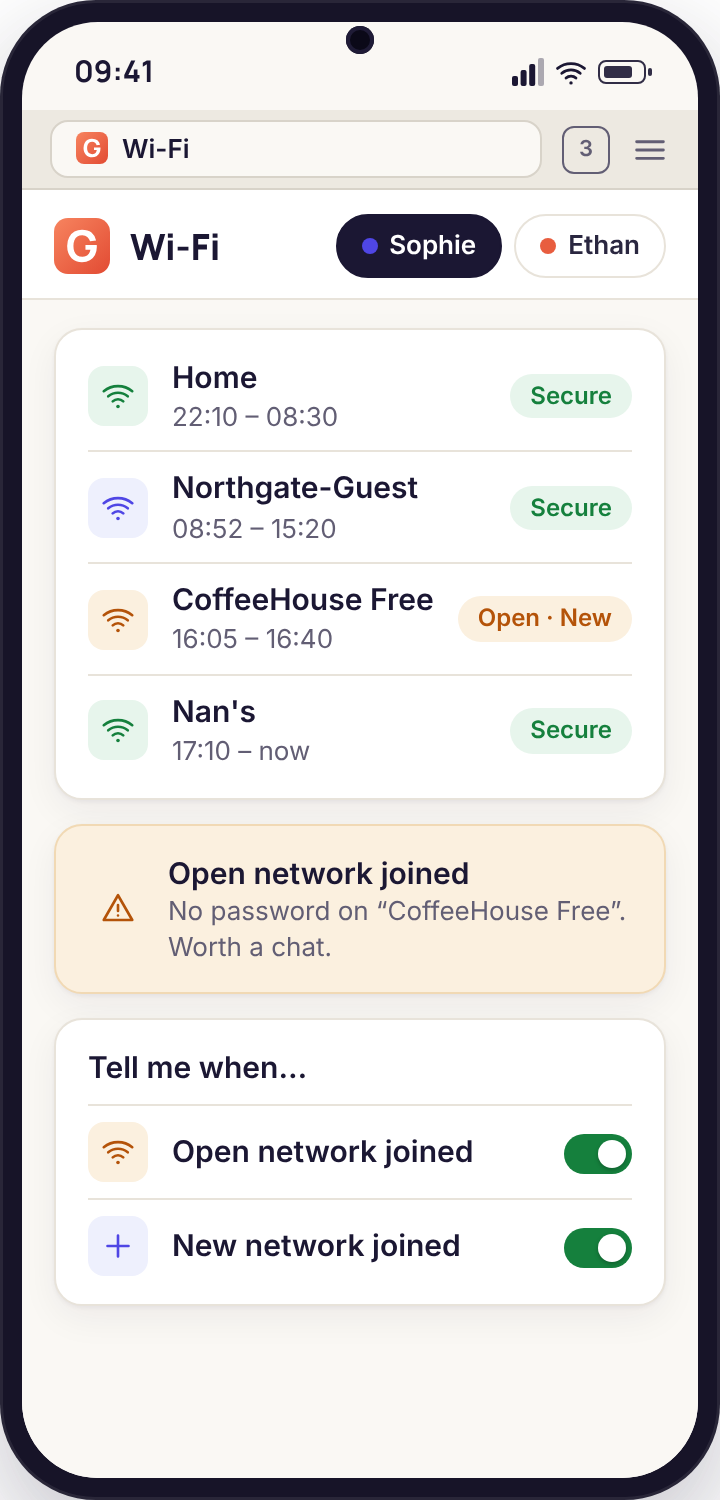
Wi-Fi history records each network the phone joins, with join and leave times, and flags two things: a network the phone has never joined before, and an open network with no password. The first is a quiet way of knowing the phone spent an evening somewhere new. The second is a prompt for a conversation about public hotspots. Because a phone sits on a network for hours while GPS drifts around indoors, the Wi-Fi list is often a steadier record of where a phone settled than the map is.
Email is header-only: the sender and subject line of each message, taken from the mail app's notification, with no body and no attachment. It needs the direct build and a consent switch, and it is the tool fewest families turn on, because most children under sixteen barely use email. It exists for the cases where a school or a stranger uses it, and it can only see mail apps that post notifications. It cannot log in to any account and cannot read mail the phone has not been told about.
- Join and leave times, new-network and open-network flags
- Email sender and subject only, never the body
- Email needs the direct build and the consent switch
Full page: Wi-Fi and email monitoring
Review: the things you look at once a week
Nothing in this tier interrupts you. It accumulates quietly and waits for a Sunday morning and a cup of tea.
Photos, videos and recordings
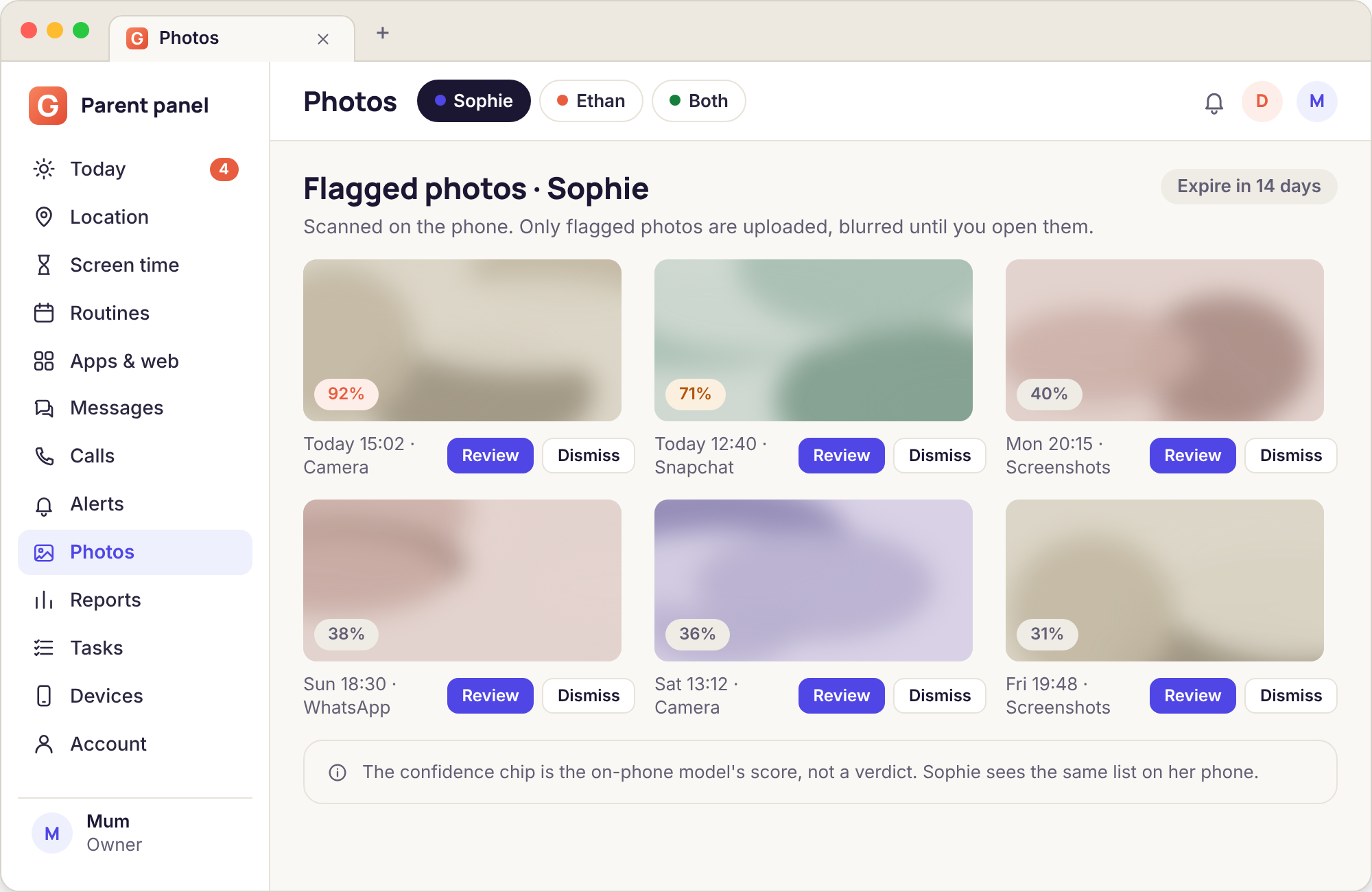
Photo review does not upload the camera roll. The phone scans new photos on the device and sends only the ones it flags, each with a confidence score so you can see how sure the model was. A flagged image at 93% is worth a look; one at 41% is probably a beach. Nothing else leaves the phone, which matters for both privacy and data allowance. Videos are not uploaded at all: the panel shows an index of time, length and size, which is enough to notice that a child filmed forty clips at a party without anyone watching them.
Voice recordings made with the phone's recorder app appear in a similar index. All three need the direct build and the media consent switch accepted on the phone, and all three expire after 14 days whether or not you looked. This tool cannot see photos inside Snapchat or Instagram that were never saved to the device, and it cannot recover anything deleted before the scan ran. It also makes mistakes, which is why the score is shown rather than hidden.
- Scanned on the phone; only flagged photos uploaded, with a score
- Video and recording index, not a feed
- Everything deleted after 14 days
Full page: photos, videos and recordings
Activity reports
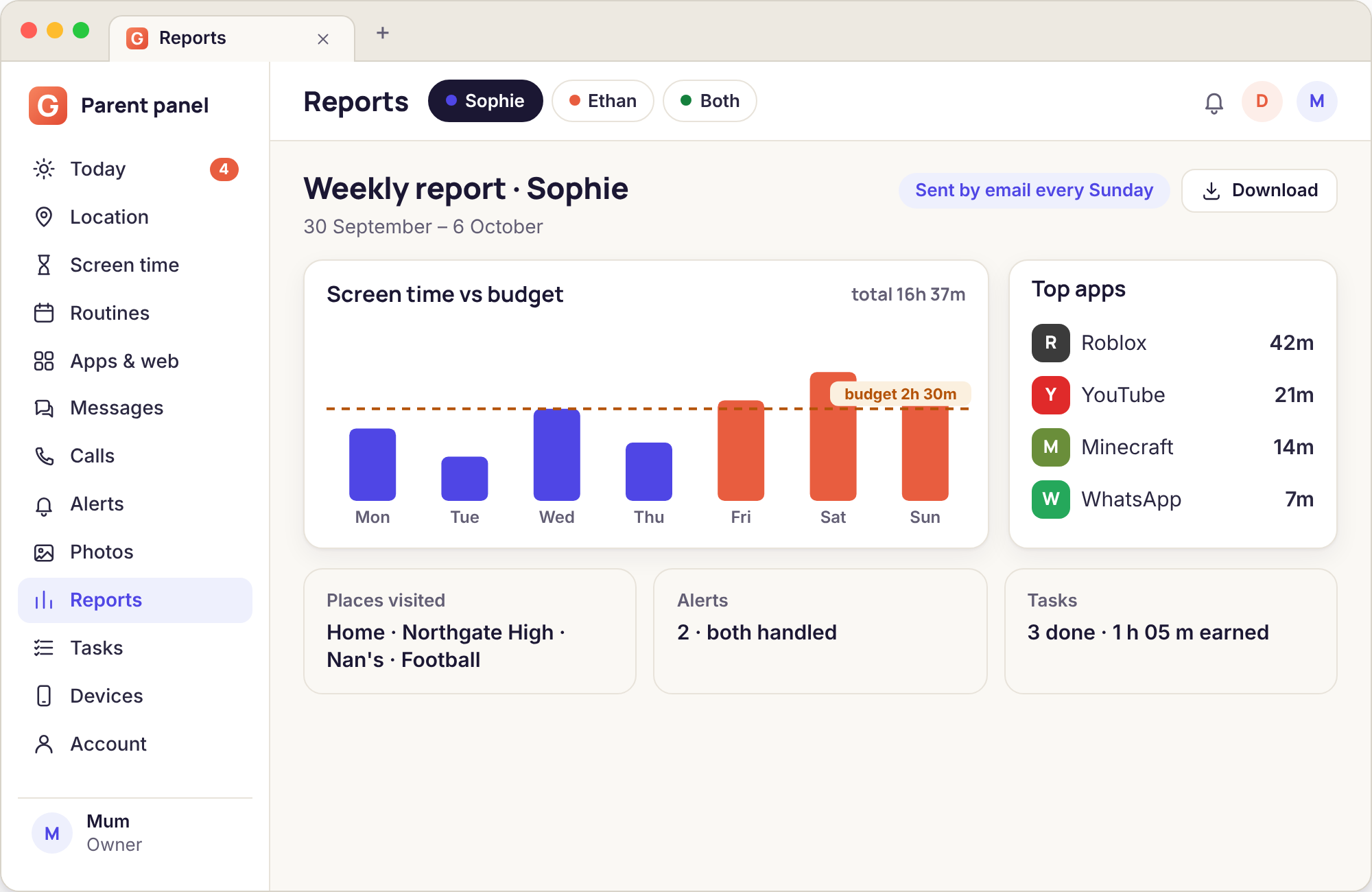
The weekly report arrives by email on Sunday, one per child. It shows screen time against budget for each day as a bar, the top apps by minutes, the places visited and how long at each, alerts raised and who handled them, and tasks completed. It is designed to be read in under a minute, and for most families it becomes the main point of contact with the product: a glance rather than a daily check. The same reports are kept under Reports in the panel, so you can put two weeks side by side when something has changed.
For the first week after pairing, the report is the most valuable thing in the account, because it tells you what the real numbers are before you set any limit. A budget chosen after seeing that Tuesday was two hours and twenty minutes is a budget a child will believe in. The report can only count what the phone counted; if usage access was switched off on Wednesday, Wednesday will be blank and the report will say so rather than estimating.
- Screen time, top apps, places, alerts, tasks, per child
- Emailed on Sunday and kept in the panel
- Gaps shown as gaps, never estimated
Full page: activity reports
Tasks and rewards
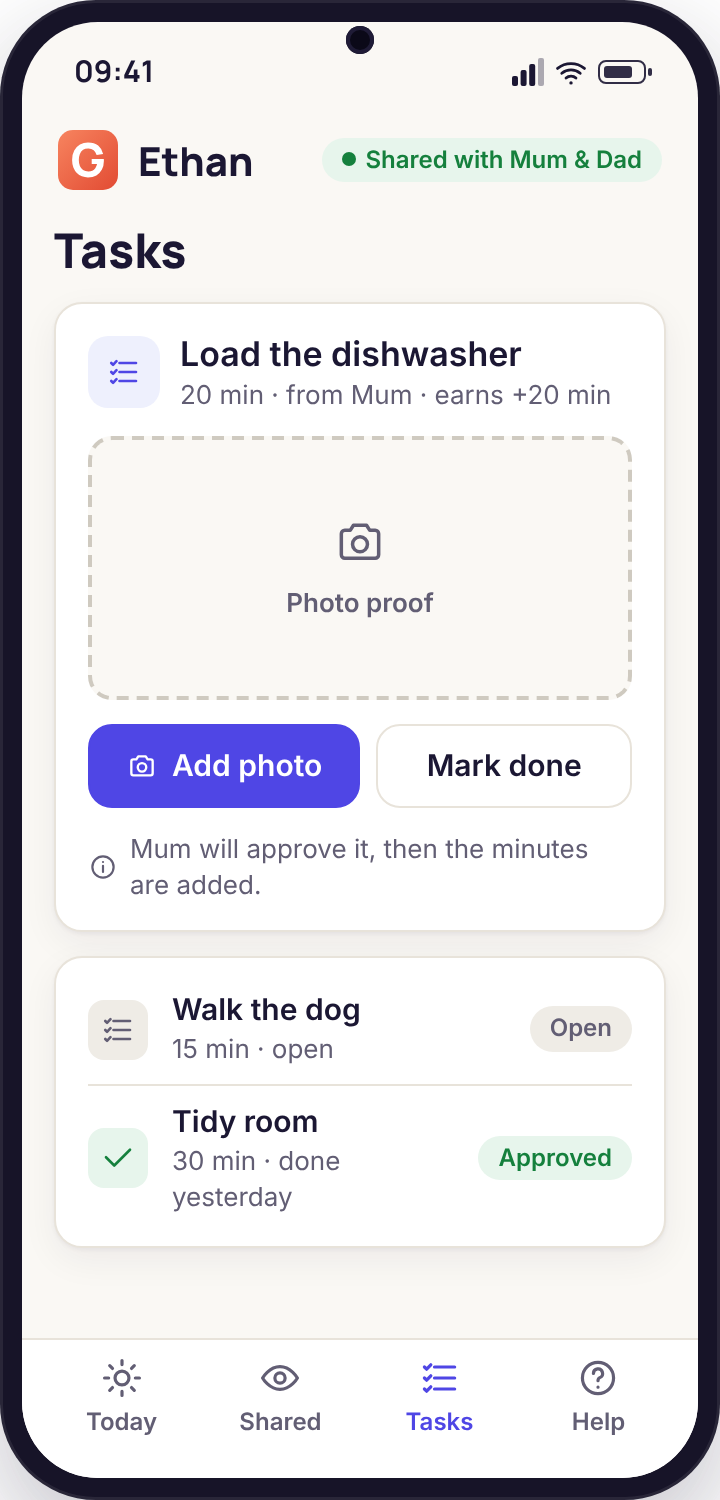
Tasks work in two directions. For children, a task is a chore with a price in minutes: "Load the dishwasher · 20 min". You set the list, the child picks one from their app, takes a photo as proof, and the minutes land in their budget once you approve it from the Needs you list. It turns the extra-time ask from a plea into a trade, and it gives a child a way to earn an evening's screen time without an argument. Families tell us the chores list becomes the thing children open the app for.
For parents, tasks are how the app stays free. Every account starts with 10 days of full access. The core never expires. Extra access days and the advanced tools are earned by doing small things for us: a feedback survey, a bug report with a screenshot, a vote on what to build next, checking a translation, telling another parent. There is no card, no subscription and no paid tier, and we will never offer a task that asks you to write an app-store review. What tasks cannot do is make a child do chores they do not want to; the price has to be one they think is fair.
- Chores with photo proof, minutes credited on approval
- Parent tasks earn access days and advanced tools
- No card, no subscription, never a review task
Full page: tasks and rewards
On request: one photo, one clip, always announced
Two tools that exist for the afternoon when the phone has gone quiet and nobody is answering. They are built so they cannot become anything else.
Remote camera
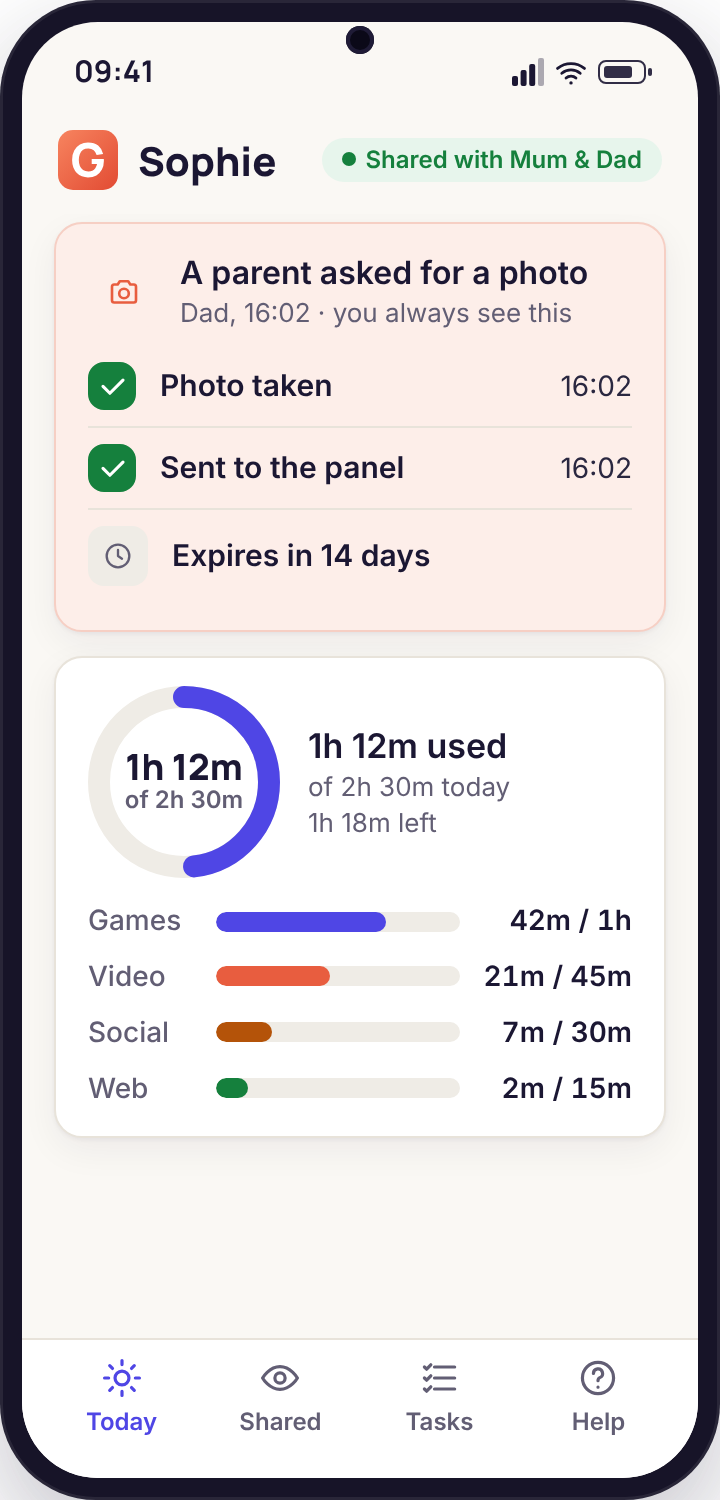
Press "Take a photo" on the Devices page and the phone takes one picture, from the front or rear camera as you chose, and sends it to the panel. At the same moment, the phone shows a notice: "A parent asked for a photo", with the name of the parent who asked. The notice cannot be suppressed from the panel. The feature needs the direct build, the camera permission, and the camera consent switch accepted on the phone, and it is off until all three are in place.
The use case we built it for is narrow: a phone that has stopped responding to calls and messages, where one picture of the surroundings would answer "are they where they said". It is not a live feed and cannot be made into one; each press is one photo, logged with who pressed it and when. It will not work if the phone is locked by a routine, because the camera is not available to any app at that point, and it will not work with the screen face down on a desk, which is where phones usually are. Like every flagged image, the photo expires after 14 days.
- Single photo on request, logged with who asked
- Notice on the phone every time, no exceptions
- Consent switch on the phone, direct build only
Full page: remote camera
Ambient audio
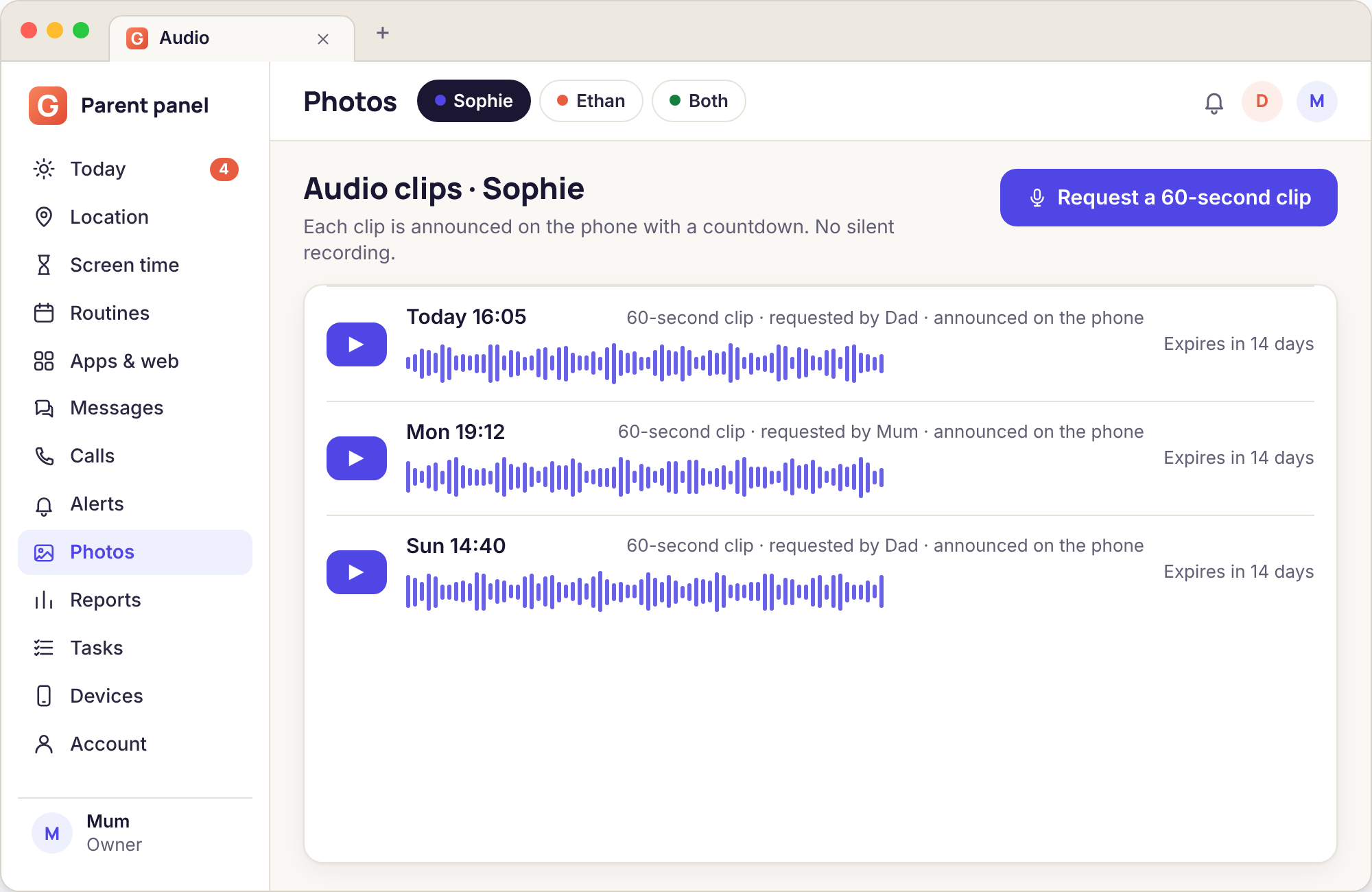
Ambient audio records one clip of up to sixty seconds from the phone's microphone and sends it to the panel. The phone shows "Recording a 60-second clip, requested by Dad" for the duration, and the clip appears in the panel with the time and who asked. It needs the direct build, the microphone permission, and the audio consent switch accepted on the phone. Clips expire with the rest of the flagged media after 14 days.
We want to be plain about what this is not. It is not always-on listening, there is no way to leave it running, and there is no way to hide the notice. A sixty-second clip from a phone in a pocket is usually sixty seconds of fabric; it is a tool for a specific worrying afternoon, not for finding out what a teenager says about you. Many families never accept the consent switch, and that is the outcome we expect. If a vendor offers you continuous audio from a child's phone with no notice, what they are describing is surveillance software with a different label on it.
- One clip of up to 60 seconds, on request only
- Announced on the phone while it records
- Expires after 14 days; cannot be scheduled or looped
Full page: ambient audio
The panel that runs all of this, with its remote actions, two-parent accounts and security settings, has its own page: the web panel. Lock now, Ring loudly, Locate now, Re-send rules and Unpair all queue while a phone is offline and all appear on the phone when they land.
Google Play, or the direct download
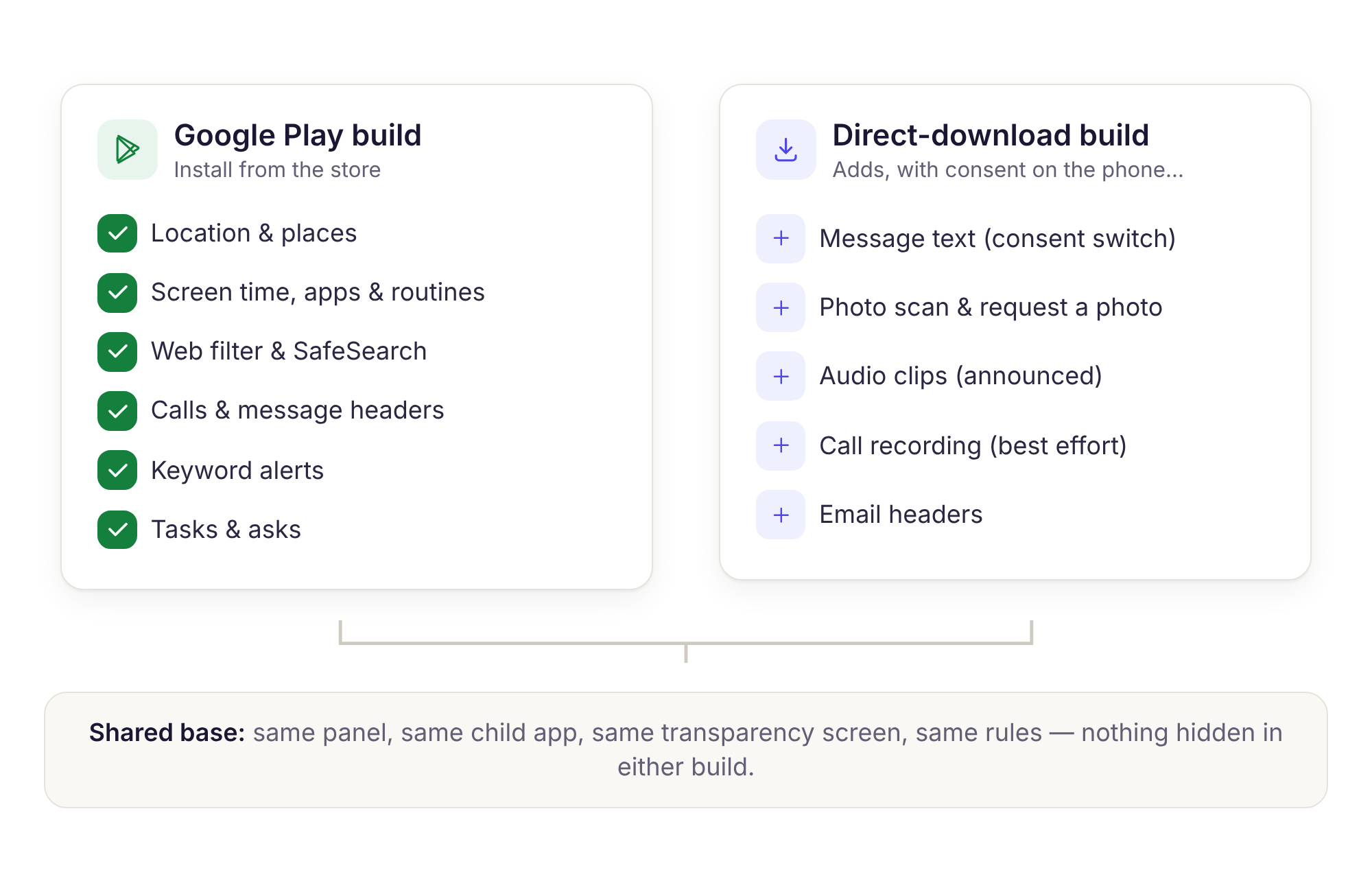
Google Play's policy for apps in this category rules out message bodies, call recording, photo scanning, the remote camera and audio capture. We did not want to pretend those tools do not exist, and we did not want to leave the Play store, so there are two builds of the child app. They pair the same way, they use the same panel, and the rules you set are the same in both.
The Google Play build is the right choice for most families. It carries the everyday set, the contact headers, alerts, reports and tasks. It updates itself, it passes Play's review on each release, and it asks for fewer permissions. The direct build is for a family that has a reason to need one of the sensitive tools, and it still unlocks none of them until the child accepts the switch on the phone. Moving between the builds does not lose pairing or history.
| What differs | Google Play | Direct (APK) |
|---|---|---|
| Everyday, contact headers, alerts, reports, tasks | Yes | Yes |
| Message bodies, call recording, email headers | No | Consent switch |
| Photo review, camera, audio | No | Consent switch |
| How it updates | Store, automatic | Prompt in the panel |
| Install from | Google Play | Our site, with an Android warning |
What each Android permission unlocks, and what it does not
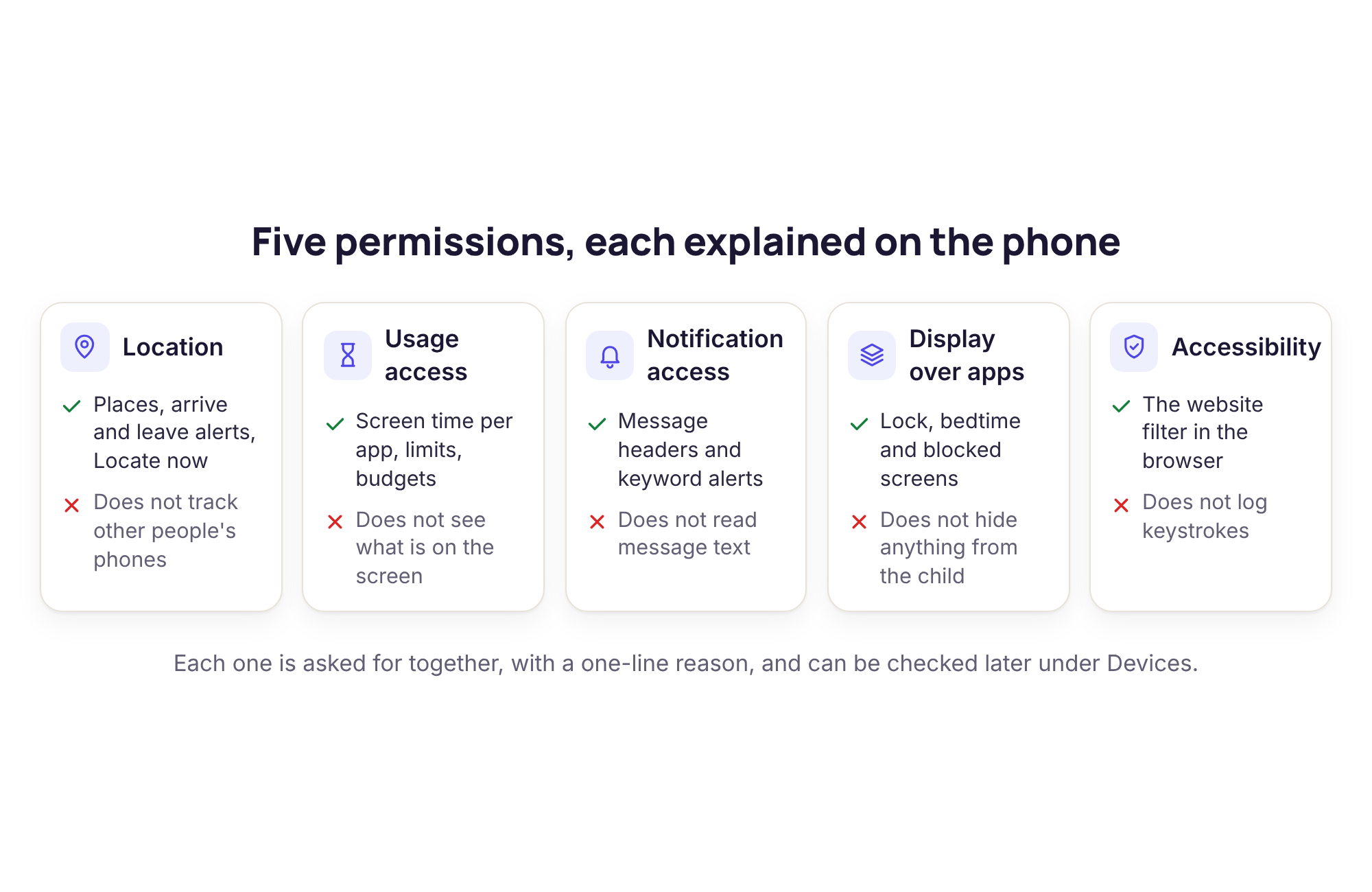
The child app asks for each permission in turn during pairing and says in one sentence why. Here is the longer version, so there are no surprises when the phone asks.
Location, "Allow all the time"
Needed for the map, the Places alerts and the Wi-Fi history. It must be the "all the time" option, not "only while using", or Places cannot fire while the app is in the background. Some phones reset this after a system update, and the panel flags a phone whose location has gone stale.
Usage access
Lets the app see which app is in the foreground and for how long. It powers budgets, app limits and the top-apps list in the report. It does not see what is on the screen, only which app owns it.
Notification access
Lets the app read the notifications the phone shows. This is where message headers, the keyword groups, new-sender flags and email subject lines come from. It sees what the notification shows and nothing more, so a muted chat is invisible.
Device admin and display over other apps
Needed for Lock now, the Bedtime lock screen and the blocked-page overlay. Device admin also means Android warns before the app is uninstalled, though the app does not resist removal and the panel reports it when it happens.
Accessibility
Used by the website filter to see the address a browser is loading and to show the blocked page. It is not used to read typed text, and the app has no keystroke logging. Android shows a strong warning for this permission, which is appropriate.
Call log and SMS
Call log unlocks the call history. SMS, direct build only, unlocks text bodies once the consent switch is accepted. Neither is requested by the Google Play build beyond the call log.
Camera and microphone
Camera is used for task photo proof in both builds, and for the remote camera in the direct build with consent. Microphone is used only for ambient audio and call recording, direct build, with consent. Neither can run without the on-screen notice.
Photos and media
Direct build only. Allows the on-device scan that flags photos and indexes videos and recordings. Off until the media consent switch is accepted on the phone; declining it leaves every other feature untouched.
Five things you will not find here, on purpose
Every one of these has been requested, and every one has been turned down. We would rather lose the sale than ship them.
The most frequent request is a hidden mode: an option to remove the icon and silence the notices so the child does not know the app is there. We will not add it. A monitoring app that hides from the person carrying the phone is built for a purpose that is not parenting, and the moment such a mode exists, every promise on this page about transparency becomes conditional. The icon stays, the Transparency screen stays, and the notices stay.
The second is a keylogger, a record of everything typed. The keyword groups do the useful part of that job on notification lines, without storing passwords, private diary entries or messages that were typed and deleted. A transcript of a child's keystrokes is a privacy cost out of all proportion to what it catches, and it is also the first thing an abuser asks for in a product like this.
The third is a live camera or microphone feed. The remote camera takes one photo on request and the audio tool records one 60-second clip on request, each announced on the phone. A stream would turn a phone into a bug, and no amount of consent language changes what that is.
The fourth is reading inside end-to-end encrypted chats. Android does not allow it on an unrooted phone, and any product claiming otherwise is either reading notification previews and calling it something else, or asking you to root the device, which breaks its security for everything else it does. We show the notification lines and we say that is what they are.
The fifth is covert use of any kind: monitoring an adult, a partner, an employee or a stranger. The pairing flow needs the phone in hand, the sensitive switches need acceptance on the phone, and the terms close the account of anyone who tries. The acceptable use policy is short and it means what it says.
- No hidden mode or icon removal, ever
- No keystroke logging
- No live camera or microphone stream
- No claim to read encrypted chats
- No use on anyone but your own minor child
Which tools suit which age
A rough map, built from how families tell us they use the product. Your child is not an average, so treat it as a starting point rather than a prescription.
Structure, not surveillance
Usually a tablet or a hand-me-down phone without a SIM. The tools that help are the ones that shape the day: a short budget heavy on video and games, a firm bedtime, the website filter with SafeSearch, and "Ask me first" for installs so every new app is a conversation. Contact tools rarely earn their place because the contacts are family.
- Budget: 45 to 60 minutes, weekends a little more
- Routines: Bedtime and Dinner pause
- Filter on, SafeSearch on, "Ask me first" on
- Location only if the device leaves the house
The group-chat years
A first real phone and a first real group chat, often in the same month. Keep the budget and bedtime, add Places with an arrive alert for School, and switch on message headers with the new-sender flag. The built-in keyword groups are most useful at this age. Message bodies are rarely turned on by the families we hear from, and rarely missed.
- Budget: 90 to 120 minutes on school days
- Routines: Bedtime, School hours, Homework hour
- Places: Home, School, one or two regulars
- Headers on, keyword groups on, bodies off
Fewer rules, better conversations
By now the aim is a safety net rather than a fence. Location with a left-early alert, a bedtime that moves later each year, the crisis keyword group, and little else. The Sunday report becomes the main contact. Agree with the teenager which switches stay off, and keep to it; the camera and audio tools are the obvious candidates.
- Budget: optional, or weekends only
- Routines: Bedtime, later than you would like
- Crisis group on, other groups by agreement
- Advanced tools off unless both of you say otherwise
Setting this up is the same fifteen-minute pairing as everything else, done once with your child in the room; every tool on this page switches on from the panel afterwards. The download page covers pairing step by step.
Feature questions, answered briefly
The practical ones that come up once a family has read the list above. General questions about cost, legality and setup are on the FAQ.
Can I use some features from the Google Play build and some from the direct build?
Only one build can be installed on a phone at a time, so a feature that needs the direct build means installing it instead of the Play version. Pairing and every rule carry across, and you can go back to the Play build later the same way. Nothing in the direct build is switched on by the install itself.
If my child declines a consent switch, does anything else stop working?
No. Each switch covers one tool only. Declining photo scanning leaves location, budgets, routines, blocking, headers, alerts and reports exactly as they were. The panel shows the switch as declined, with the time, and you can ask again later; the phone has to accept it again.
Does the website filter work inside apps like TikTok or Instagram?
No. The filter sees addresses loaded by browsers, including the in-app browser that opens when you tap a link. It does not see content inside the app itself. For those apps the useful tools are the app limit, which counts time, and notification-based headers and keywords, which watch what arrives.
What does "Locate now" show my child?
A line on the Transparency screen’s activity list saying the location was requested, with the time and the parent’s name. It is one fresh fix, not a stream, and the phone replies as soon as it has a connection. A phone that is off or flat replies when it next wakes.
Can the budget tell a maths app from a game?
Only by category. Each app is assigned to games, video, social or web, and you can move an app between lines or set it to allow so it never counts. The budget measures minutes in the foreground; it cannot judge what was on the screen.
Why does call recording say "not available" on my child’s phone?
Because that phone’s Android version or manufacturer blocks third-party call recording, which is the case on many models sold since 2020. The app checks and reports it rather than failing quietly. The call log itself, with names, numbers and durations, works regardless.
Do the keyword groups read messages my child sends?
They read notification lines, which are messages that arrive, not messages that are typed. There is no keylogger. The groups match on what the phone shows in its notification shade, and a chat the child has muted shows nothing to match.
How quickly does a rule change reach the phone?
Within seconds when the phone is online, and the change appears on the child’s Transparency screen as soon as it lands. Offline, the change queues and applies when the phone reconnects. Rules already on the phone keep being enforced without any connection, because the enforcement happens locally.
Switch on the two tools you need and ignore the other twelve
The fastest way to find out which two is to pair a phone, turn on location and a bedtime, and read the first Sunday report with your child.
Android child app · Runs in any browser · Visible on the phone