Install the app and pair it, sitting next to your child
Setting up takes about fifteen minutes when you do it together: a free account in your browser, the app on their Android phone, a six-digit code, and a short walk through the permission screens with both of you looking at the same phone. This page is every one of those screens, in order, with the honest bits included.
Android 9 or newer on the child's phone · Nothing to install on yours · Nothing is monitored until you switch a rule on
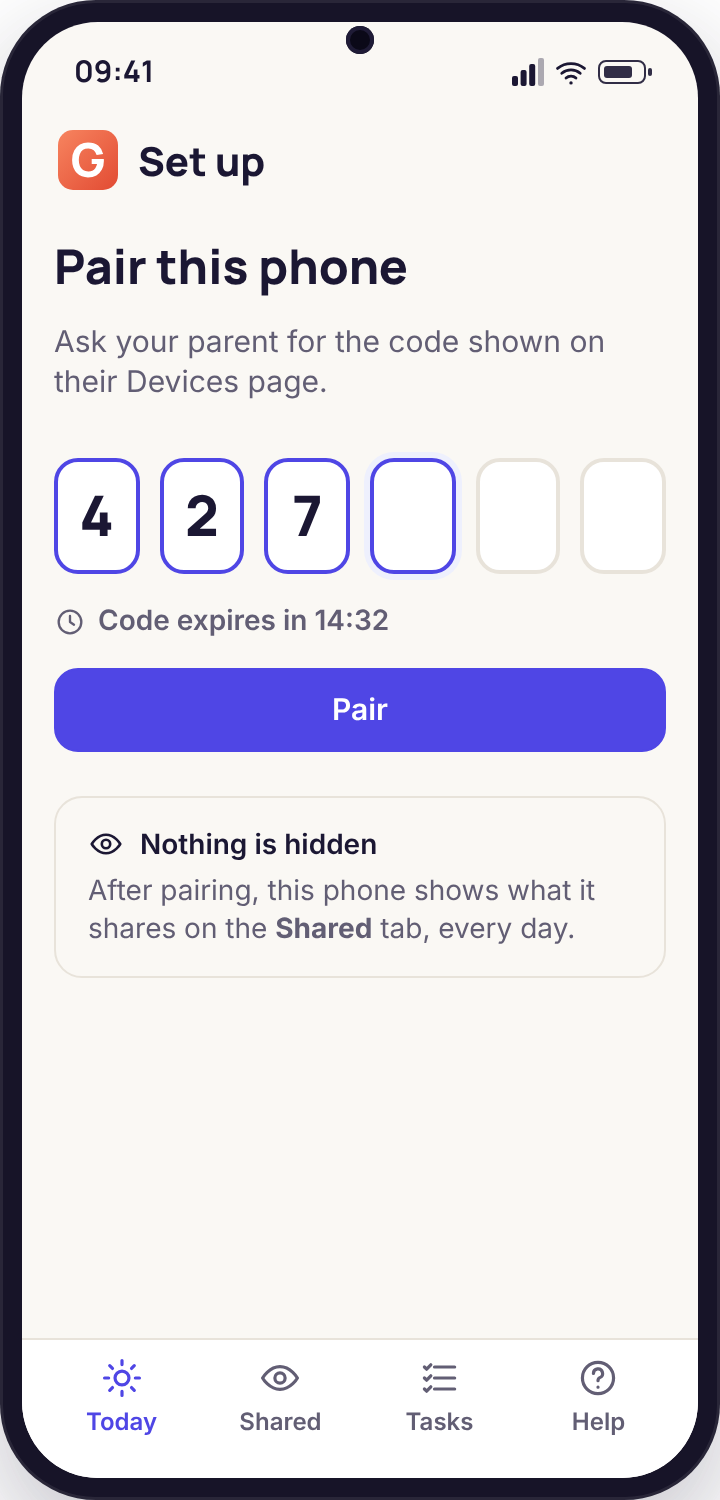
What you need on the table before you begin
Almost nothing, but the two things parents most often lack are the child and the quarter of an hour. Gather these first and the whole thing runs in one sitting instead of three.
| You need | Required? | Why it matters |
|---|---|---|
| A child's phone or tablet on Android 9 or newer | Yes | Check under Settings, About phone, Android version. Anything from 2018 onwards usually qualifies. An iPhone will not work; the child app does not exist for iOS yet. |
| A browser for you | Yes | Laptop, tablet or your own phone, Android or iPhone. The parent side is a website, so there is no second app to find and nothing to update on your side. |
| The child, in the room | Yes | Several permission screens, and every consent switch, can only be accepted on the phone by the person holding it. It is also simply the right way to begin. |
| About fifteen minutes | Yes | Two or three minutes in the browser, the rest on the phone. Starting at 19:00 on a school night and finishing before 19:20 is normal. |
| The phone's screen-lock PIN | Yes | Android asks for it when a device-admin permission is granted. If the child set the PIN, they will need to type it, which is one more reason to do this together. |
| Wi-Fi or mobile data on the phone | Yes | Only for the download and the pairing handshake. Rules are enforced offline afterwards. |
| A Google account on the phone | Optional | Needed for the Google Play build. The direct-download build installs from the browser without one. |
| A card, a subscription, a licence key | No | There is nothing to buy. Every account starts with 10 days of full access and the core stays free. |
One thing worth deciding before you open the panel is which build you are going to install, because it changes what you tap on the phone. The Google Play build is the simpler one and covers what most families want for a first month: location and Places, screen-time budgets, routines, app limits, the website filter, alerts and the Sunday report. The direct-download build adds the tools Google Play does not permit in this category, such as message bodies and the call log, and it needs an extra setting on the phone to install. The section on which build to choose lays out the difference without hype; if you are not sure, start with Google Play. You can switch later without losing your account, rules or history.
It also helps to have a one-sentence answer ready for the question your child will ask, which is some version of "what will you be able to see?" The honest answer on the day you pair is: nothing yet, because no rule is on, and then only what we switch on together and what the Transparency screen on your phone lists. Having that sentence ready turns the setup from something done to a child into something done with one.
From an empty browser tab to a paired phone
Each step is a single screen. The screenshots are what you will see; the words are what they mean and where people get stuck.
Create your account in a browser
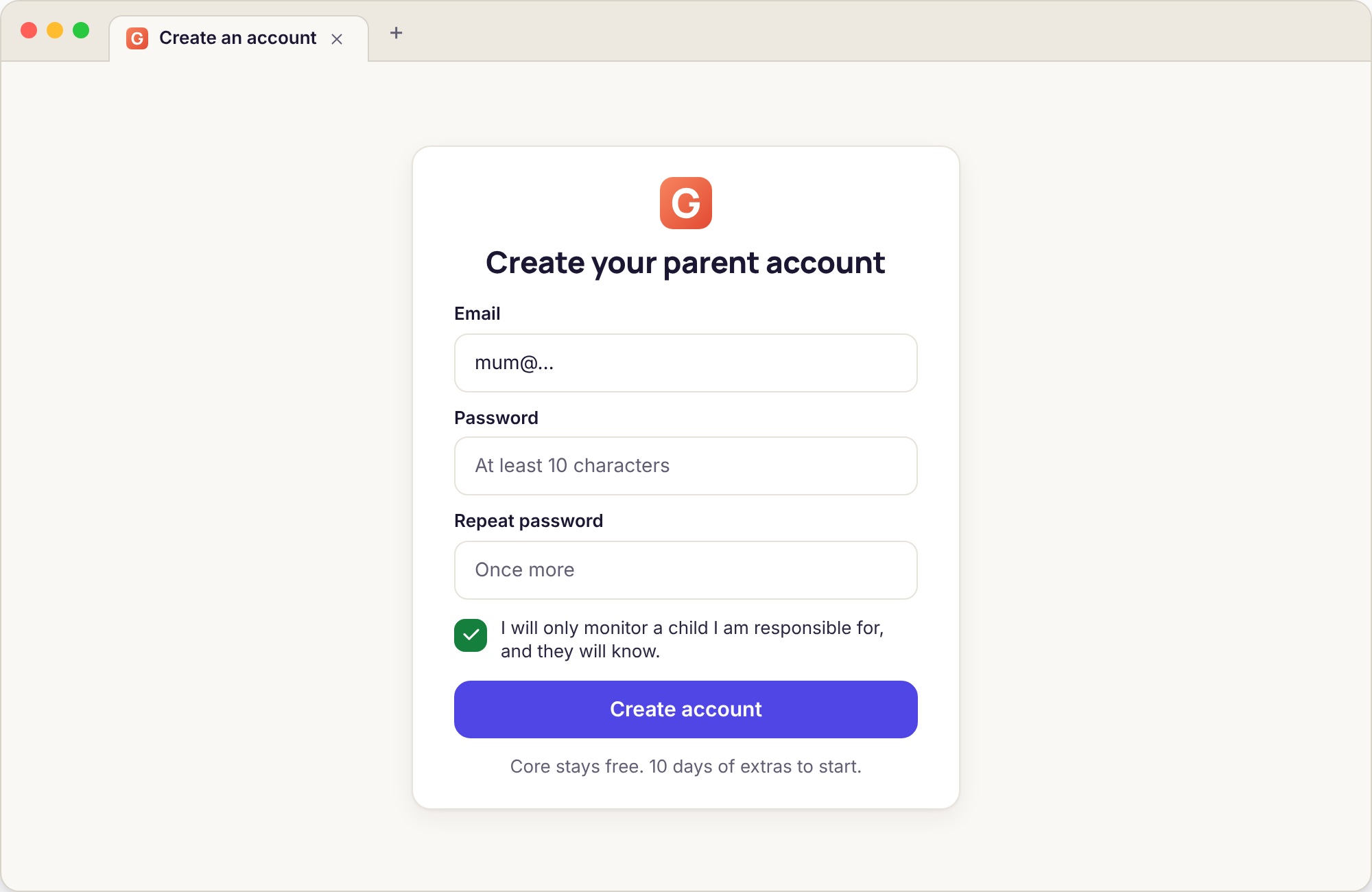
Open the sign-up page on whatever you have to hand, a laptop at the kitchen table or your own phone. It asks for an email address and a password and nothing else. There is no card field and no phone-number field, because nothing is billed and nothing is texted. The one thing you must tick is a short sentence agreeing that you will only monitor a child you are responsible for and that the child will know. The panel opens the moment you press the button; the confirmation email that arrives in the background only matters later, for password resets.
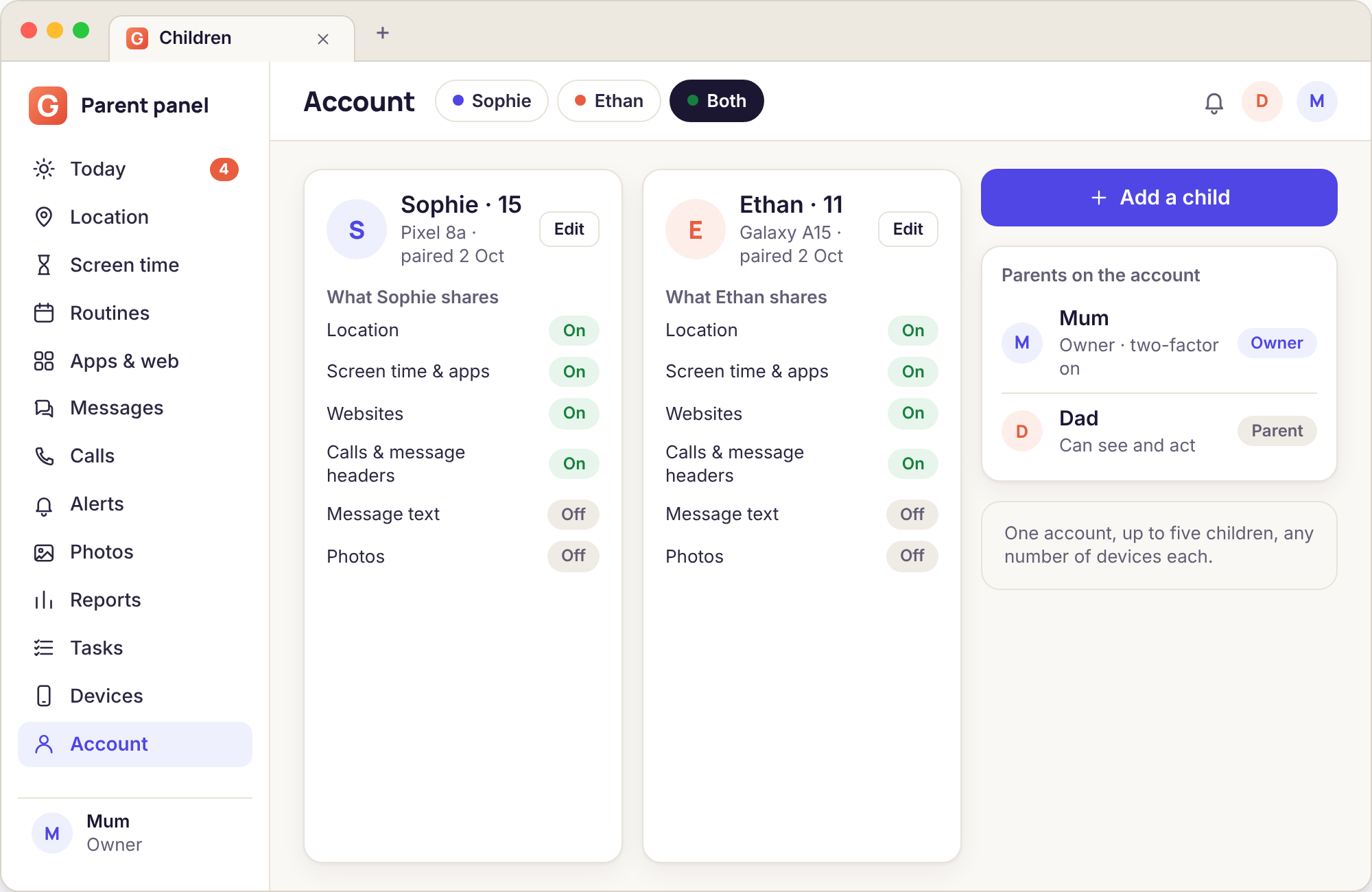
While you are in there, turn on two-factor authentication under Security if you have an authenticator app. It takes a minute now and is a nuisance to come back for. If a second parent will use the panel, add them under Account as well; they get their own login and every action they take is recorded under their name, so neither of you ends up answering the same request twice.
Add your child
A new account is deliberately empty: no children, no devices, no rules. Press Add a child and type a first name. The year of birth is optional, but it lets the routines suggest a bedtime that suits a nine-year-old rather than a fifteen-year-old, and it sets the tone of the default website filter. Nothing here is visible to the child yet, because nothing is on their phone yet.
If you have more than one child, add them all now or add them later; it makes no difference, and each child gets their own rules, their own Places and their own line in the Sunday report. One point that saves confusion: rules belong to the child, not to the device. When Ethan's tablet and the old handset he uses for music are both paired to "Ethan", a bedtime set once applies to both. You can narrow a rule to a single device afterwards if you need to, but the default is the one most families want.
When you press Save, the panel takes you to the Devices page for that child, which is where the next step begins.
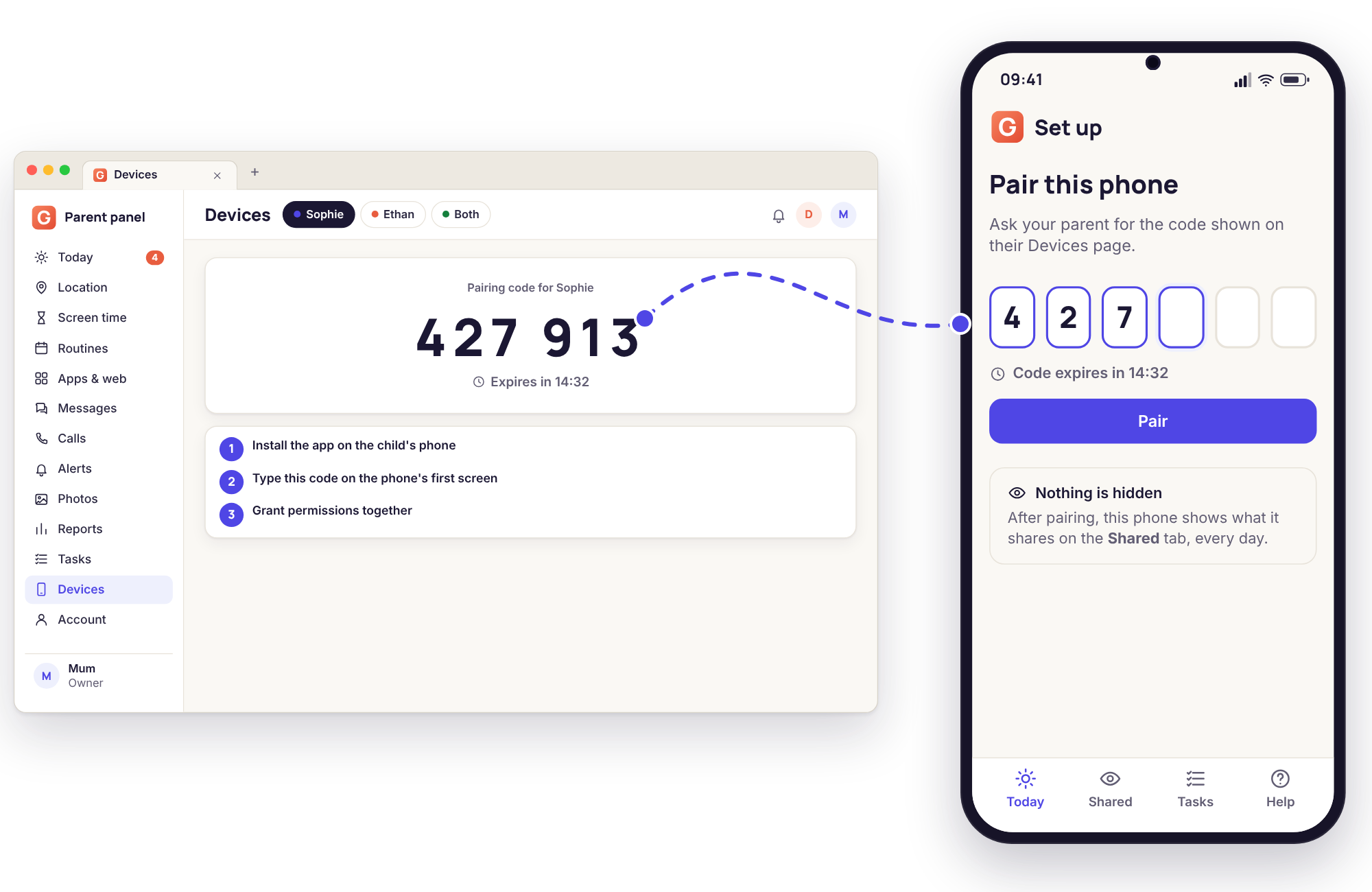
Install the app on the child's phone
Now pick up the child's phone, with the child. For the Google Play build, open the Play Store, search for the app by name, and install it the way you would install anything else; it updates itself from then on. For the direct-download build, open the browser on the phone and go to the direct link from your Devices page, which downloads an APK file. Android will stop and say the browser is not allowed to install unknown apps. That is normal and expected; tap Settings on that prompt, switch on Allow from this source, and go back to the download notification to finish. The build section below has the exact path for the common phone brands.
Either way, the icon that lands on the home screen is the app's own, with its own name. It is not disguised as a calculator or a system service, and it will not vanish from the app list. The first time your child opens it, the screen explains in a few lines what it is for, and asks for the code.
Pair with the six-digit code
Back on your browser, the Devices page for the child shows a six-digit code in large type and a countdown. The code is good for fifteen minutes; after that the page quietly makes a new one, so an expired code is never a problem, only a reason to glance back at the screen. Type the six digits into the app on the phone. Within a few seconds the phone says which family it has joined, and your Devices page changes from the code to a device line with the phone's name, Android version and battery.
The code is the only credential the phone ever holds. It does not know your password and cannot sign in to your panel. If a child ever factory-resets the phone, they would need a fresh code from your Devices page to pair it again, which is exactly how it should be. If the phone shows "code not recognised", the usual reasons are a typo, a code copied from the wrong child's Devices page, or a phone with no connection at that moment; all three are covered under when pairing does not take.
Grant the permissions, one screen at a time
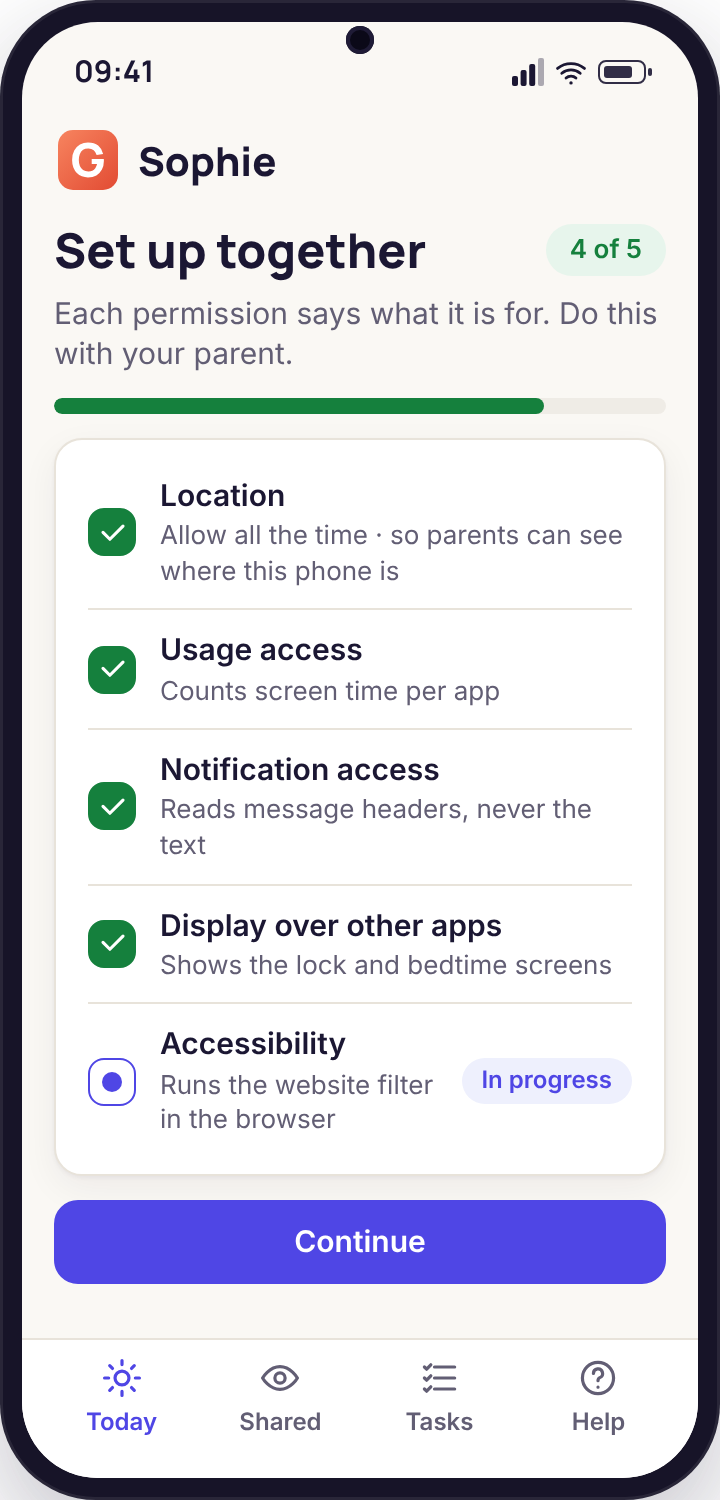
After pairing, the app walks through the Android permissions it needs, with a plain sentence beside each one saying what it unlocks. It asks for them one at a time, in order, and most take you into the phone's own Settings and back. Location wants Allow all the time, not While using, or the map goes stale as soon as the screen turns off. Usage access is what counts screen time. Notification access is what lets keyword alerts read the notification lines the phone already shows. Display over other apps is what draws the wind-down warning and the blocked page. Device admin is what makes Lock now possible.
Skip any you do not want; the app does not nag and does not switch anything on by itself. It simply lists what is not granted, and the panel shows the same list under Device health, so you know which features will stay dark. On a first evening, granting location, usage access and display over other apps is enough for the rules most families start with. The rest can wait for a second conversation.
Agree the first rule, together, and stop there
A paired phone with no rule is a phone that reports nothing and blocks nothing. The last step is choosing one rule with your child, in the panel, while they watch. For a younger child it is usually a bedtime; for a teenager it is more often a weekday screen-time budget with a bigger allowance at weekends. Set it, and the child's Today screen on the phone updates straight away: tonight's bedtime, or minutes left, in their own app, so they are looking at the same number you are.
Then close the laptop. The temptation on the first evening is to switch on everything you have read about. Resist it. A phone that acquires ten rules in one night feels like a punishment and generates a week of arguments; a phone that acquires one agreed rule and keeps it feels fair. The first-week plan below adds the others at a pace that lets each one settle. Nothing else is counted or filtered until you decide it should be.
What each Android permission unlocks, and what it does not
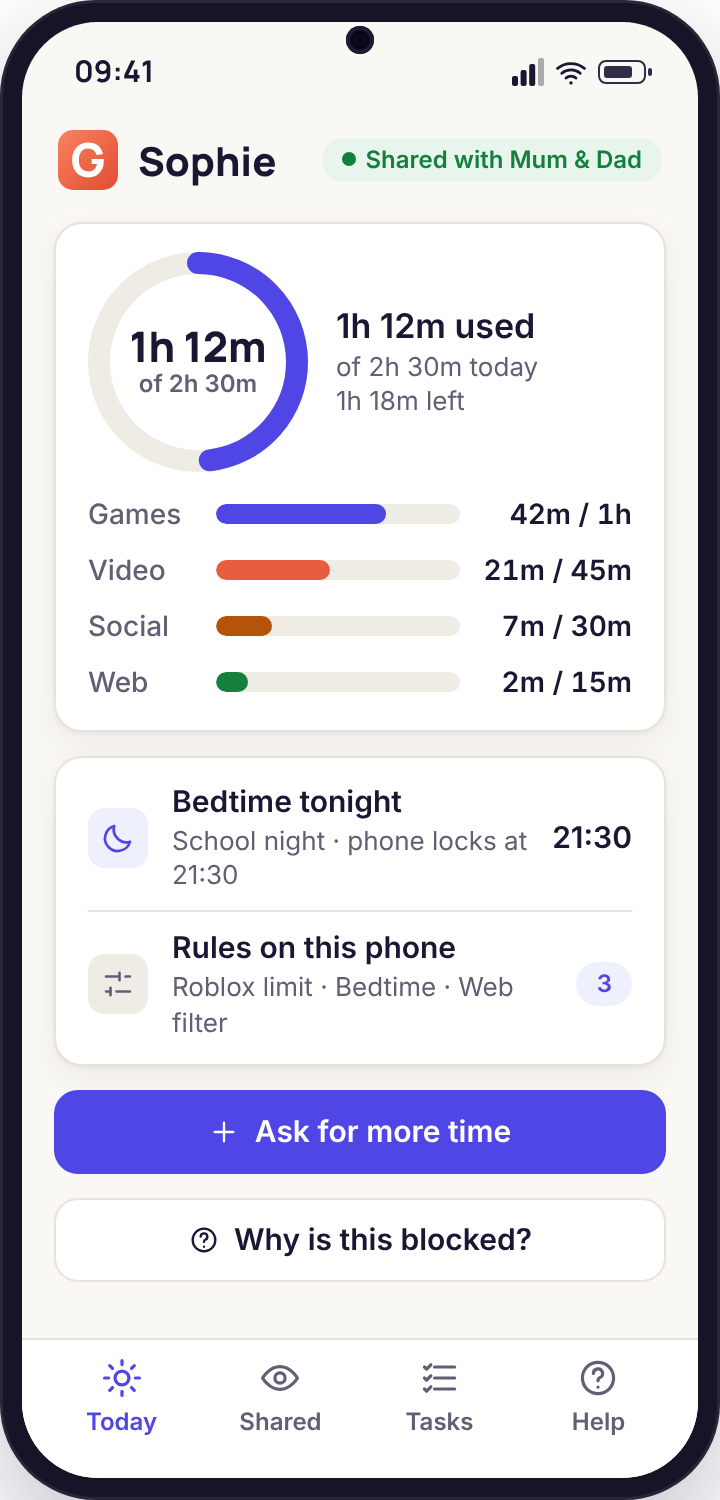
Android is strict about what an app can see, and that strictness is your friend. Every permission below is optional, is explained on the phone before it is asked for, and shows on the child's Transparency screen as on or off.
Location, set to Allow all the time
Path: Settings, Apps, the app, Permissions, Location, Allow all the time. On Android 12 and later also switch on Use precise location. Unlocks: the live map with its accuracy radius, the 30-day history, Places with arrive, leave and left-early alerts, and Locate now. Does not: record anything while the app is unpaired, and does not give the panel a live feed; the phone reports a position on a schedule and on request, and each request shows on the phone.
Usage access
Path: Settings, Apps, Special app access, Usage access, the app, Permit. On Samsung it sits under Settings, Apps, three-dot menu, Special access. Unlocks: screen-time counting per app and per category, the daily budget, app limits, and the top-apps line in the Sunday report. Does not: show what is on the screen or what is typed. It is a tally of which app was in front and for how long, nothing more.
Notification access
Path: Settings, Notifications, Device and app notifications (or Notification access), the app, Allow. Unlocks: the message headers for SMS and for WhatsApp, Instagram, Snapchat, Messenger, TikTok and Discord, the new-sender flags, and the built-in keyword groups. Does not: open the apps or read chat history. It sees the same notification lines your child sees drop down from the top of the screen, which is also why an app set to silent notifications produces nothing.
Display over other apps
Path: Settings, Apps, Special app access, Display over other apps, the app, Allow. Unlocks: the wind-down warning ten minutes before a budget ends, the calm bedtime screen, the blocked page with its Ask to allow button, and the lock screen with your message on it. Does not: let the app see what is underneath. It can draw on top of the screen; it cannot read it.
Device admin
Path: the app asks directly, and Android shows a system page listing exactly what admin apps may do; tap Activate and enter the phone's PIN. Unlocks: Lock now, and the routine locks for Bedtime and School hours. Does not: stop the phone being switched off, survive a factory reset, or prevent the app being removed. A child can deactivate it in Settings; if they do, the panel shows the time it happened rather than fighting back.
Unrestricted battery
Path: Settings, Apps, the app, Battery, Unrestricted. Some brands call it Don't optimise or put it under a Device care menu. Unlocks: nothing new, but without it Android may freeze the app overnight, which is the most common reason a map shows yesterday's position at breakfast. Does not: noticeably change battery life; the app's own draw is small, and the location schedule is what you set under Places.
Local VPN for the website filter
Path: the app asks when you first switch the website filter on; Android shows a connection request and a key icon appears in the status bar while it runs. Unlocks: the category filter, SafeSearch on Google, Bing and YouTube, the allow and block lists and the blocked-site log, all on the phone, so they work on mobile data as well as Wi-Fi. Does not: send browsing to our servers. The filter decides on the phone and only the blocked-site log leaves it.
The direct-build extras: SMS, call log, phone, media, camera, microphone
Path: each is a standard Android prompt, asked only by the direct-download build and only when the matching consent switch is accepted on the phone. Unlocks: message bodies, the call log with names and durations, best-effort call recording, on-phone photo scanning, the single-photo remote camera and the 60-second ambient clip. Does not: turn on by itself, run before consent, or hide. Every use of the camera or microphone shows a notice on the phone as it happens.
Android updates sometimes quietly downgrade a permission, most often location from Allow all the time to While using. The panel shows an amber dot on the device line the same evening, and the app on the phone shows the same thing on its Transparency screen, so neither of you is left guessing why the map stopped.
Why "Allow all the time" is the setting, and what it means for your child
Android offers three answers when an app asks for location: Allow only while using the app, Allow all the time, and Don't allow. "While using" sounds like the cautious choice, and for a maps app it is. For a parental tool it is the one that breaks everything, because the app is not open on the child's screen when you want to know they reached school; it is in the background, and under "While using" the background is exactly where Android stops it looking. The map in your panel then shows the last position it had, which was wherever the phone was the last time the app was opened, with a timestamp that drifts further into the past every hour.
So the setting is Allow all the time, and on Android 12 or later, with Use precise location switched on as well, since the coarse option only places the phone within a couple of kilometres. On Android 10 and 11 the choice appears in the first prompt. On Android 12 and later it is a two-step prompt: the first offers While using, and the "all the time" option lives in Settings afterwards, which is why the app's walkthrough sends you there with a one-line instruction instead of hoping you find it.
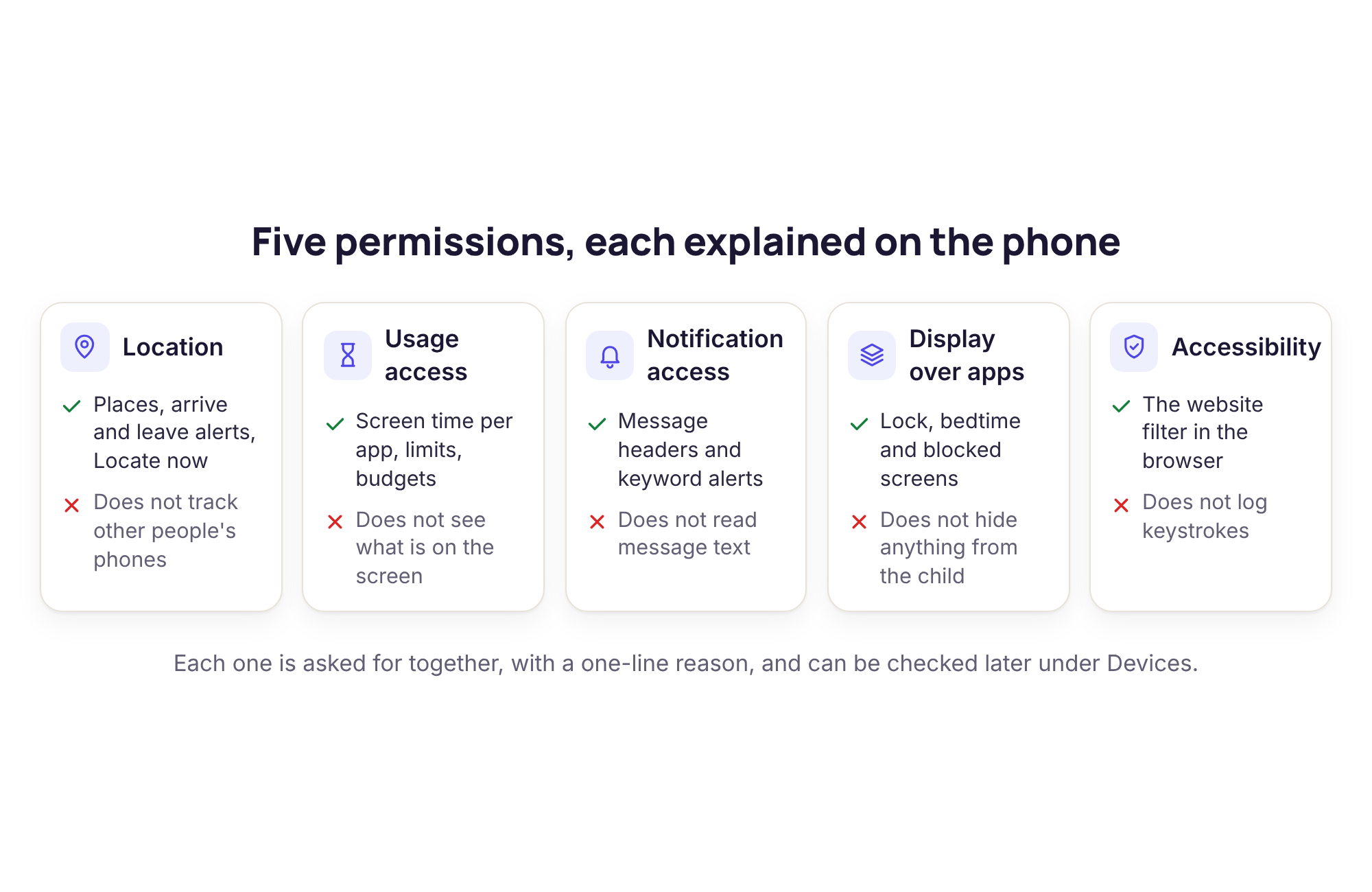
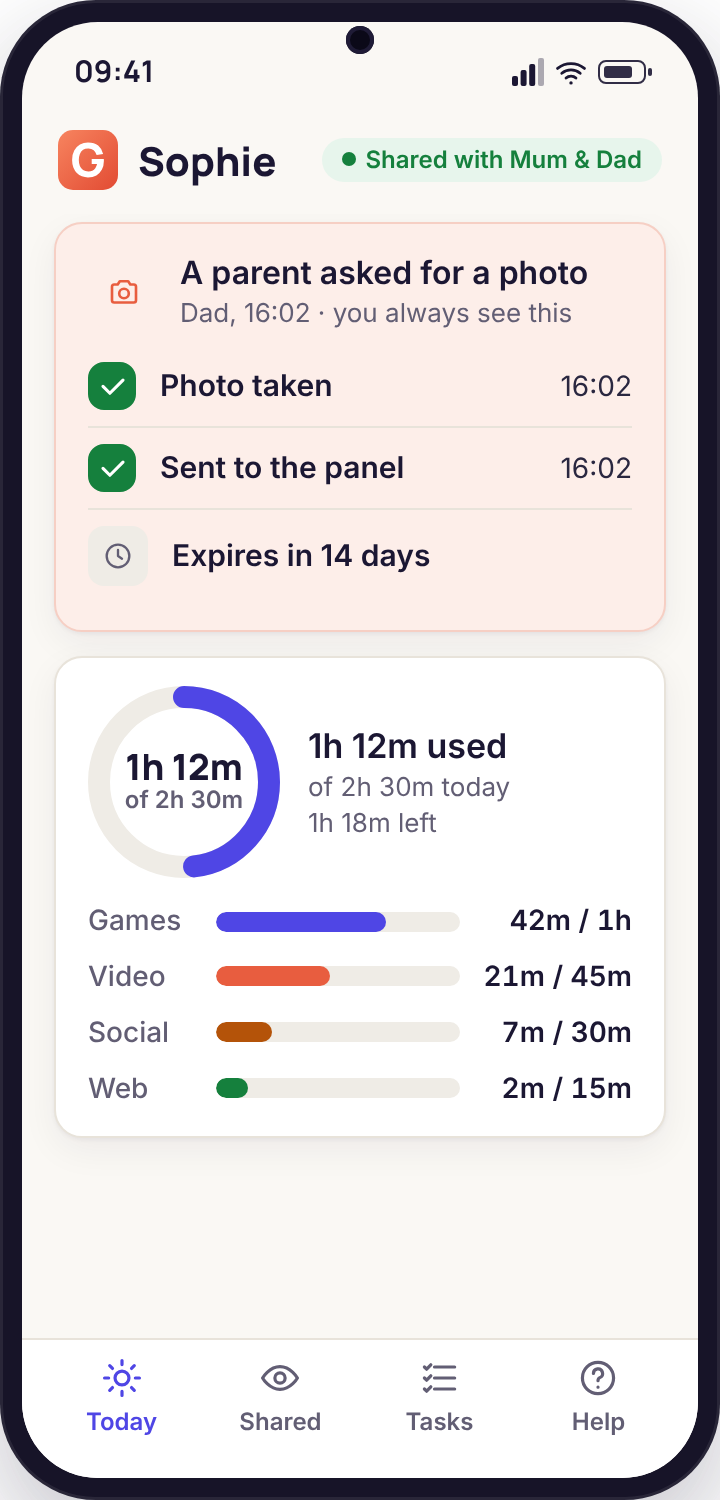
Your child's view of this is on the screen pictured here. Their app shows location sharing as on, which Places are saved, what alerts are attached to each, and a line for every Locate now request with the time and which parent sent it. There is no version of location sharing that is hidden from them. If they switch the permission off in Settings, nothing stops them; the panel shows the change and the time, and the conversation that follows is a better outcome than an app that wrestles a teenager for control of their own phone.
What this setting cannot do is make a phone report from a place with no signal, or from inside a bag in a basement classroom, or when the battery has gone flat. The location and Places page explains how to read a stale position and what the accuracy radius is telling you.
The Google Play build or the direct download
Two builds of the same app. One comes from the Play Store and updates itself. The other installs from a file and can do more, because Google Play does not allow some of it in this category. Here is the difference, plainly.
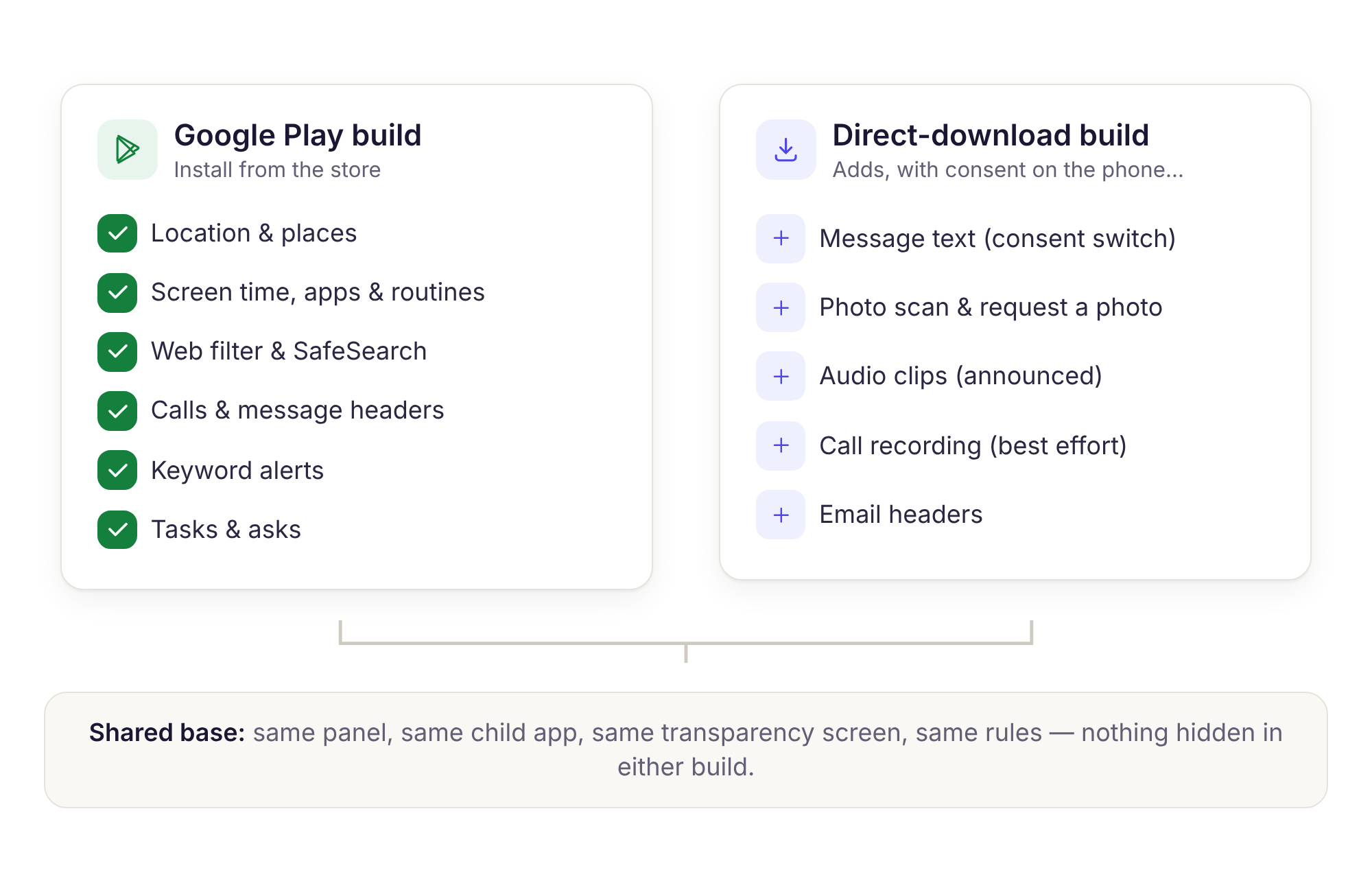
| What | Google Play build | Direct download (APK) |
|---|---|---|
| Location, Places, 30-day history, Locate now | Yes | Yes |
| Screen-time budgets, routines, app limits and blocking | Yes | Yes |
| Website filter, SafeSearch, blocked-site log | Yes | Yes |
| Message and social headers, new-sender flags, keyword alerts | Yes | Yes |
| Tasks and rewards, Sunday report | Yes | Yes |
| SMS bodies and the call log | No | With consent switch |
| Call recording | No | Best effort, blocked on many recent phones |
| Photo and video review, flagged items only | No | With consent switch |
| Remote camera (one photo) and ambient audio (one 60-second clip) | No | With consent switch, announced on the phone |
| Email subject and sender lines | No | With consent switch |
| Updates itself | Automatic | The app tells you; you tap to install |
| Needs "install unknown apps" allowed for the browser | No | Yes, once |
Installing the direct build without the scary bit
Android blocks installs from anywhere but the Play Store until you say otherwise, and it says so with a prompt that reads as though something has gone wrong. Nothing has. On the child's phone, open the direct link in the browser; when the download finishes and you tap it, Android shows "For your security, your phone is not allowed to install unknown apps from this source." Tap Settings on that prompt, switch on Allow from this source for the browser, press back, and tap Install. The setting lives under Settings, Apps, Special app access, Install unknown apps, and you can switch it off again for the browser straight after; the app that is already installed stays.
Google Play Protect may then ask whether to scan the app. Let it. It may also, on some phones, show a warning that the app requests sensitive permissions; that warning is accurate, since the direct build does, and it is why those permissions each sit behind a consent switch on the phone. Updates arrive as a notice inside the app with a one-tap install, not silently.
Switching builds later is a matter of uninstalling one and installing the other, then pairing again with a fresh code from the Devices page. Your account, rules, Places and history stay exactly as they were; only the phone side changes.
Get the child app
Both buttons go to the child's side. Open them on the child's phone, or send the link to it from your own.
If the buttons bring you back to this page, the store links have not been set up yet on this site. Use the links from the Devices page in your panel instead; those always point to the current build.
Pairing is a conversation with a phone in the middle of it
There is a practical reason to set this up with your child beside you and a better reason underneath it. The practical one is that Android will not let you finish otherwise. The device-admin prompt needs the phone's PIN. The consent switches for the sensitive tools, if you ever use them, can only be accepted on the phone by the person holding it, and the panel can do no more than ask. A parent who pairs a phone without telling the child ends up with a half-working app and a child who finds the icon within a day, because the icon is right there on the home screen with the app's own name under it.
The better reason is the Transparency screen. The app opens to it. It lists every category of information the phone can share with you, location, screen time, app usage, message headers and the rest, and beside each one a plain on or off. When you sit together and grant location, your child watches the location line turn on. When you leave message bodies alone, they can see it is off and that it stays off. Every remote action, a lock, a ring, a locate, a rule change, appears on the phone as it happens and in the app's activity list afterwards, with the parent's name against it. The screen is not a summary written for children; it is the same list of categories the panel has, and it never disagrees with the panel.
In practice, pairing together takes a shape like this. Tuesday, 19:05. You open the panel on the laptop, Ethan has his tablet. You read the pairing code aloud; he types it. The permissions walk-through starts and you read each sentence together before tapping. At location, he asks whether you will see where he is at Josh's house; the honest answer is yes, that is the point, and he will see every time you ask. At notification access, he asks whether you can read his Discord messages; the honest answer is that you will see who messaged and when, not what they said, and that the Transparency screen will say "message bodies: off" for as long as that is true. You set a bedtime of 21:00 on school nights. He checks his own Today screen and sees the same bedtime. Twelve minutes, no slammed doors.
We do not build a hidden mode and we are not going to. A child who knows the app is there can argue with you about a rule, which is a healthier outcome than a child who discovers surveillance. It also means the app does not resist removal: if a child uninstalls it or switches a permission off, the panel shows the time, and what happens next happens in your house, not in software.
Seven days, one new thing a day, and a Sunday email
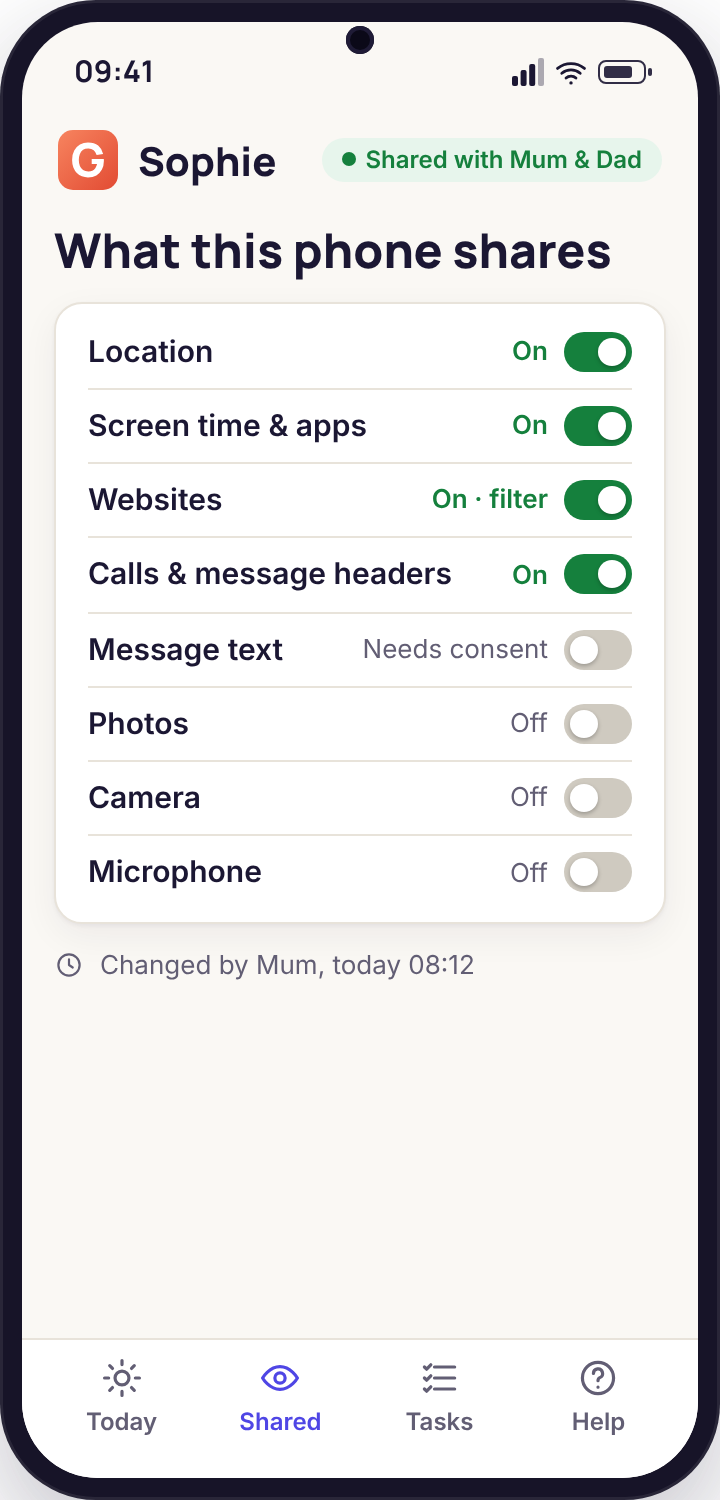
Rules that arrive one at a time get kept. This is the pace that works in most houses, with the panel screen you will be looking at each evening.
Pair, grant three permissions, agree one rule
Location, usage access and display over other apps are enough for tonight. Set the one rule you agreed, usually a bedtime, and leave everything else off. Check the Devices page once before bed to see the phone's last-seen time ticking over, which tells you the pairing held.
Save Home and School, nothing else yet
Open Location and save two Places from the map. Attach an arrive alert to School for the morning and a leave alert for the afternoon. Tomorrow you will learn what time your child actually gets in, which is often not the time you assumed, and the left-early alert will sit unused for months, which is what you want.
Set the weekday screen-time budget
Look at yesterday's screen-time tally first; the panel has two days of it now. Set a weekday budget a little below what you saw rather than half of it, split across games, video, social and web. Tell your child the number. The first "ask for more time" request will probably land in your Needs you list within 48 hours; answer it from the three buttons and notice how little drama that involves.
Switch on "ask me first" for new installs
On the Apps page, turn on the switch that routes new installs to you before they can open, and flag installs from outside Google Play. Leave the existing apps alone unless one is obviously a problem. Blocking a game a child has had for a year on day four is how a good start turns into a bad week.
Turn on the category filter and SafeSearch
Switch the filter on with the default categories for your child's age; the phone will ask to allow the local VPN connection, which is the filter running on the phone itself. Show your child the blocked page and the Ask to allow button on it, so the first time they meet it they know what to do rather than assuming the Wi-Fi is broken.
Choose how you want to hear about things
Open Alerts and pick one delivery for the built-in keyword groups, usually the daily email digest rather than immediate push, which is noisier than most parents expect. Write one alert rule as a sentence, something like "leaves School before 15:20", and leave it at that. A rule you wrote because something actually worries you will be kept; ten written on a whim will be muted.
Read the first weekly report with your child
The Sunday email shows screen time against budget, top apps, places visited, alerts raised and tasks done. Read it together. Where the budget was wrong, change it; where a Place has the wrong radius, fix it. Then decide, together, whether there is a second rule worth adding next week. Most weeks the honest answer is no, and the panel's Needs you list will be empty more days than not.
Doing it this way means your child meets each rule on its own, understands why it is there, and sees it in their own app before it is enforced. It also means you learn the panel one screen at a time instead of all at once. The screen-time page and the routines page both have starting numbers by age if you want a second opinion on the budget.
Six things that go wrong on the first night, and the fix for each
Nearly every setup problem is one of these. None of them needs a reinstall, and none of them is a sign the phone is unsupported.
"Code not recognised" after typing it correctly
The code on your screen expired while you were installing the app. Codes live for fifteen minutes and the Devices page issues a fresh one when it does, but the phone was trying the old one.
Fix: look back at the Devices page, read out the current code, and type that. If you have two children, check you are on the right child's page; each has its own code.
The app installed but never asks for a code
The phone had no connection when the app first opened, so it could not reach the pairing service and is waiting on an earlier screen.
Fix: connect to Wi-Fi or switch mobile data on, close the app fully and reopen it. The pairing screen appears as soon as it can reach us. Rules work offline afterwards; only the handshake needs a connection.
The direct download stops with "not allowed to install unknown apps"
Android blocks installs from a browser until you allow that browser as a source. The prompt is standard and appears for any app outside the Play Store.
Fix: tap Settings on the prompt, switch on Allow from this source, press back, then tap Install. You can switch it off again afterwards under Settings, Apps, Special app access, Install unknown apps.
Paired, but the map shows "last seen" hours ago
Location is set to While using instead of Allow all the time, or the phone's battery saver has frozen the app in the background. Both are common after an Android update.
Fix: on the phone, Settings, Apps, the app, Permissions, Location, Allow all the time; then Battery, Unrestricted. Press Locate now in the panel and the pin should refresh within a minute.
Screen time shows zero minutes all day
Usage access was skipped during the walk-through or revoked later. Without it the phone cannot tally which app was in front.
Fix: open the app on the phone; the Transparency screen shows usage access as off with a button that opens the right Settings page. Grant it and the count starts from that moment; it cannot backfill the hours before.
Keyword alerts and message headers never appear
Notification access is off, or the messaging app has its notifications silenced on the phone, so there are no notification lines for the app to read.
Fix: grant Notification access under Settings, Notifications, Device and app notifications. Then check the chat app's own notifications are on. Headers from WhatsApp, Instagram, Snapchat, Messenger, TikTok and Discord all depend on this one setting.
Anything not on this list is worth an email to [email protected] with the phone model and Android version from Settings, About phone. A bug report with a screenshot also counts as one of the small tasks that earn access days, which is one of the few times a problem pays for itself.
Look at a paired family first
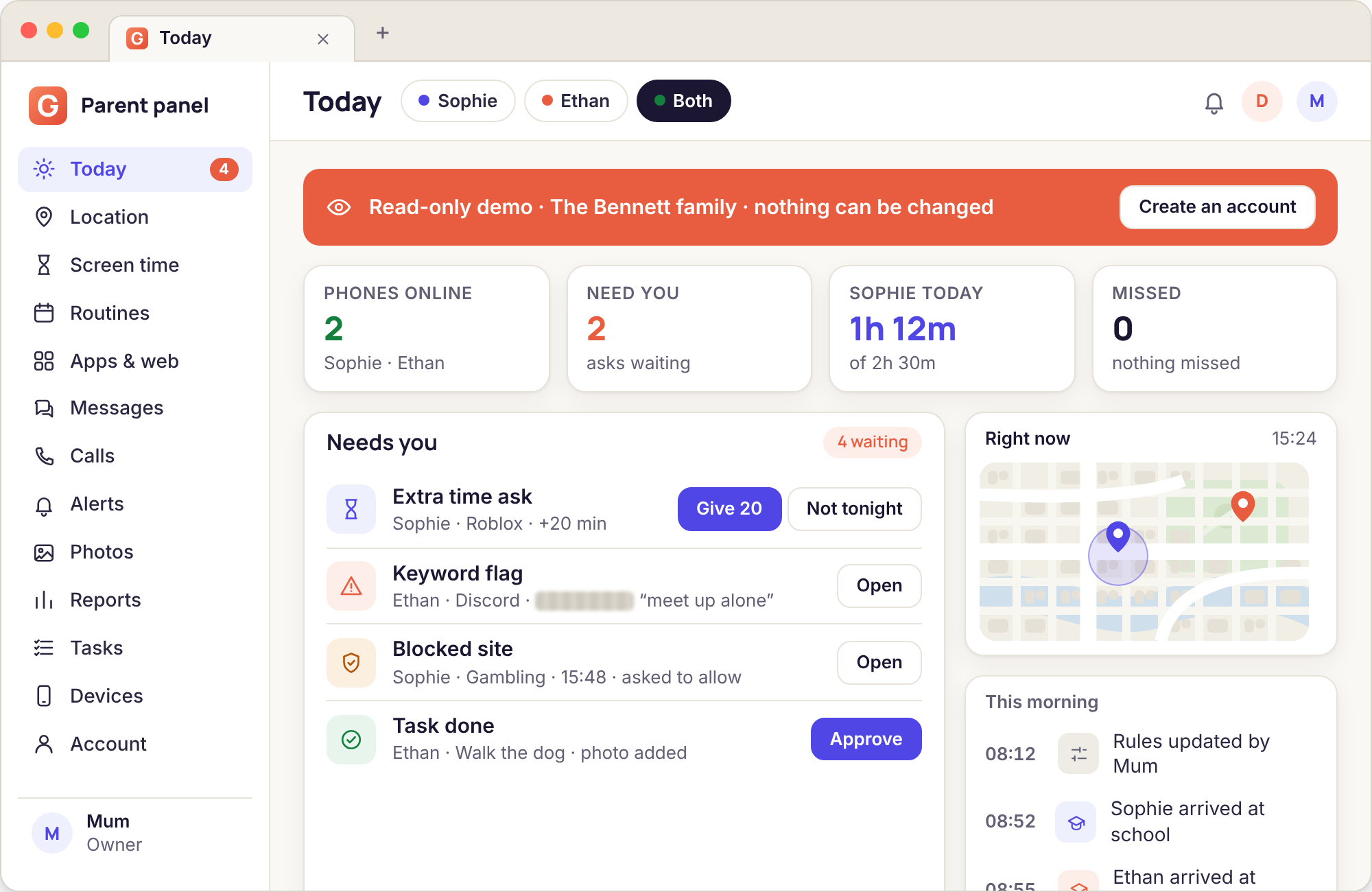
If you would rather see the finished arrangement before you touch your child's phone, the read-only demo opens the panel for the Bennett family, Sophie, 15, and Ethan, 11, with a realistic week already in it. Both of their devices are paired, their permissions are granted, and the Devices page shows exactly what yours will show after the sixth step above: last-seen times, battery, a row of permission dots and the remote actions. Press any of them and watch the action queue; nothing is sent, because there is no real phone on the other end.
The demo answers the question this page cannot, which is what the panel feels like on a Wednesday evening once setup is a memory. It needs no account and resets when you close the tab.
What parents ask on the first evening
Can I set it up without my child there?
Not completely. The account, the child and the pairing code are all on your side, but the device-admin prompt wants the phone's PIN, and any consent switch can only be accepted on the phone by the person holding it. More to the point, the app has a visible icon and opens to a screen that lists what it shares, so a child finds it within a day. Doing the fifteen minutes together is both the only way to finish and the right way to start.
Does my child need their own Google account?
Only for the Google Play build, because the Play Store needs an account to install anything. The direct-download build installs from the browser and needs no account at all. The app itself never asks for a Google login; it joins your family with the six-digit code and nothing else.
What happens if the pairing code expires while I am still installing?
Nothing bad. The Devices page makes a new code when the old one runs out, and the phone simply says the one you typed was not recognised. Look back at the panel, read out the current six digits, and type those instead. Codes are single-use and tied to one child, so a used or expired one can never pair a stranger's phone to your account.
Can I pair two phones to one child, or one phone to two parents?
Both. A child can have as many devices as they use, each paired with its own code, and rules set for the child apply to all of them unless you narrow one. A second parent is added under Account in the panel rather than on the phone; the phone belongs to one family account, and both parents see it there with their actions recorded by name.
Will the app slow the phone down or drain the battery?
Not noticeably. The app's own work is small: a position on a schedule, a tally of which app is in front, and the notification lines Android already shows. The one setting that matters is Unrestricted battery, which stops Android freezing the app overnight; that is about reliability, not consumption. Switching location to report more often, under Places, is the only thing that costs real battery, and the default is modest.
Can I move from the Google Play build to the direct download later?
Yes, in a few minutes. Uninstall the Play build on the phone, install the direct build from the link on your Devices page, allow the browser as an install source when Android asks, and pair again with a fresh code. Your account, children, rules, Places and history are untouched; only the app on the phone changes. The extra tools in the direct build stay off until a consent switch is accepted on the phone.
What if my child removes the app or turns a permission off?
The phone stops reporting whatever was removed, and the panel shows the change with the time it happened. The app does not reinstall itself, does not switch permissions back on and does not hide. We built it that way on purpose; a child who can remove it is a child you can talk to about why it is there, which is the only version of this that works for more than a week.
Is anything collected before I set a rule?
A freshly paired phone reports its last-seen time and battery so the Devices page can show the pairing held, and that is all. No location history, no screen-time tally, no headers and no filter until you switch the matching rule on and the matching permission is granted. The Transparency screen on the phone shows every category as off until then, and it will agree with your panel.
Once the phone is paired, the places you will spend most of your time are the web panel, tasks and rewards and app and website blocking.
Fifteen minutes tonight, with the phone between you
Create a free account in your browser, install the app on their Android phone, type in the six-digit code and agree one rule. No card, nothing hidden, and nothing switched on until you both say so.
Android child app · Runs in any browser · Visible on the phone