Track an Android Phone From Another Android Phone: Three Family-Safe Methods

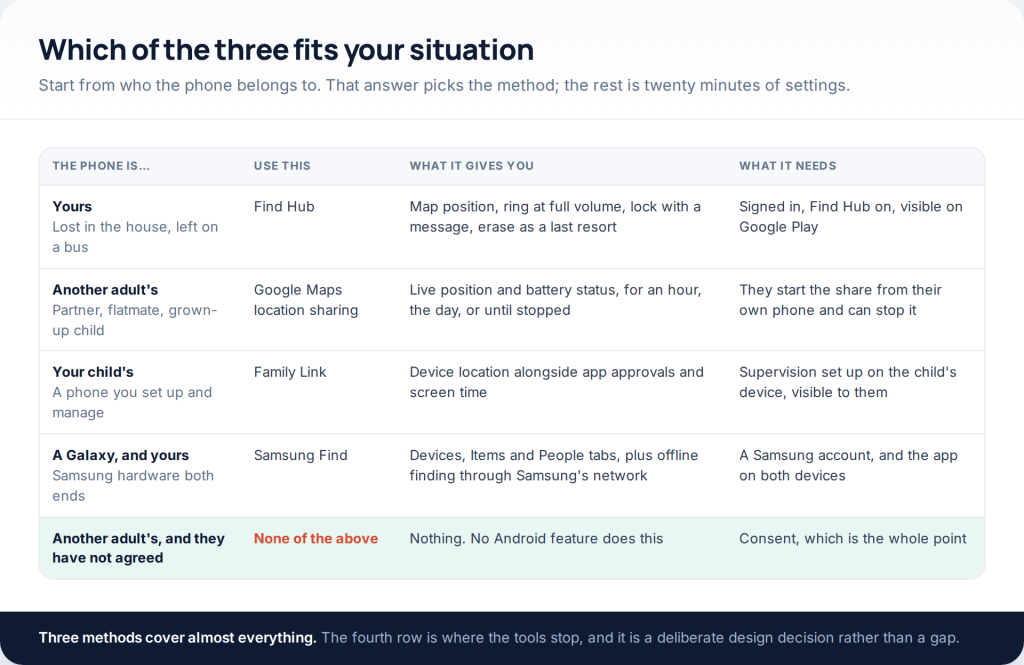
To track an Android phone from another Android phone, you need one of three things arranged in advance. Find Hub covers devices on your own Google Account. Google Maps location sharing covers another adult who switched it on from their side. Family Link covers a child’s phone you set up and manage. Everything else — number lookups, IMEI tools, hidden apps — either does not work or is not lawful to use on an adult.
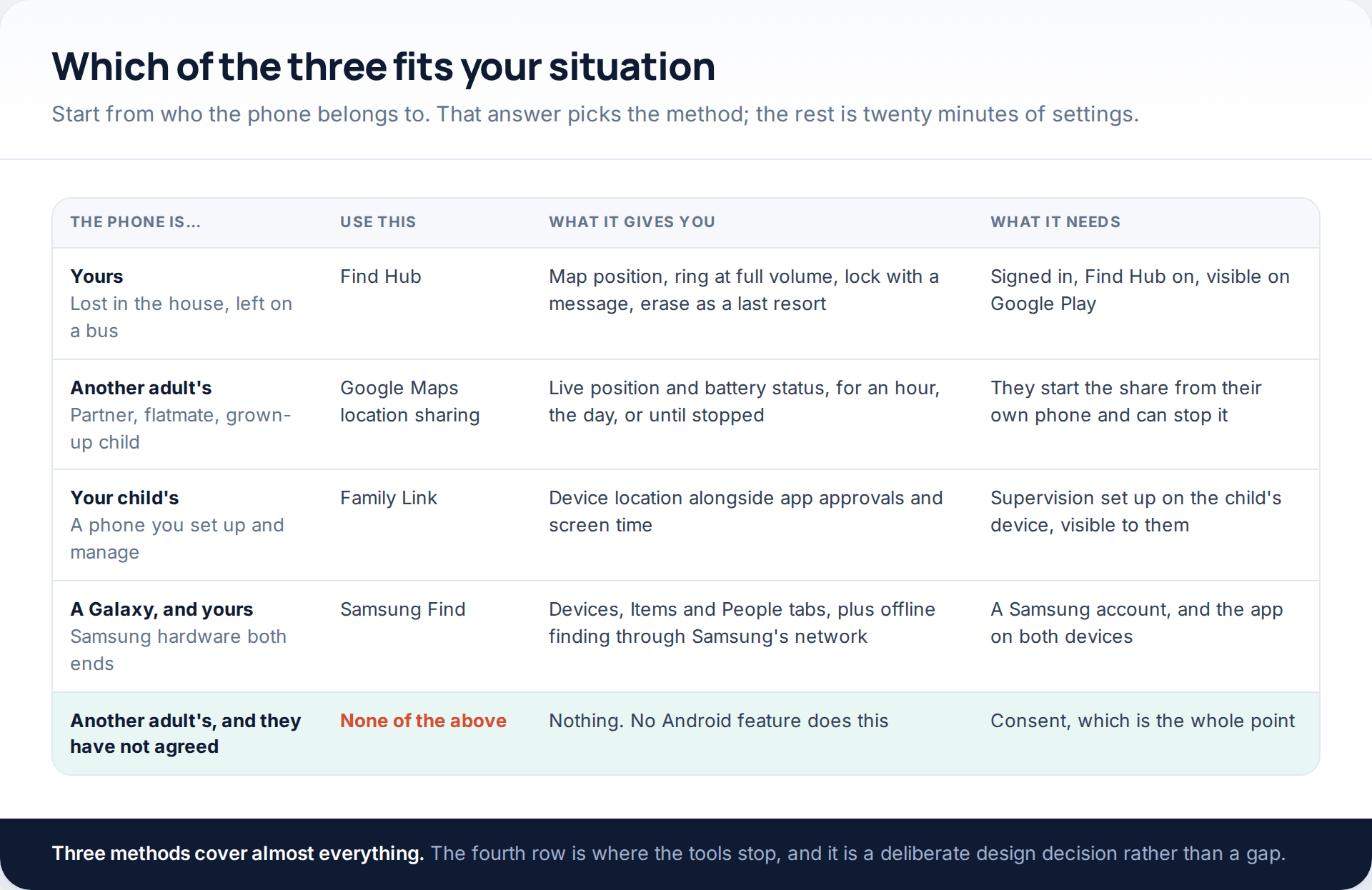
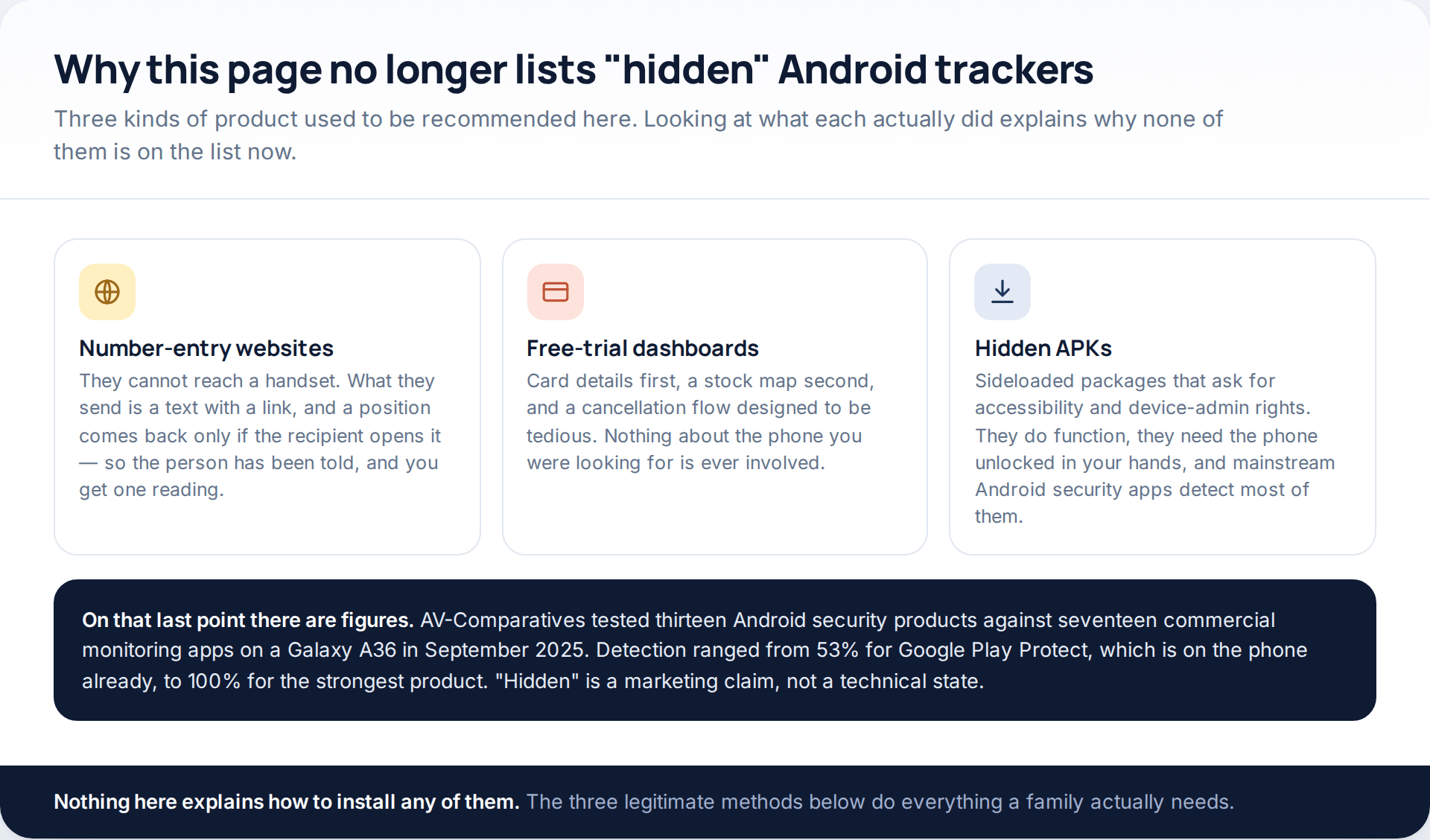
What this page used to say. It listed “hidden” trackers, which came in three flavours: websites that take a phone number and text it a link, free-trial dashboards that take card details and show a stock map, and sideloaded packages that ask for accessibility and device-administrator rights. The first two return nothing. The third needs the phone unlocked in your hands, and using it on an adult who has not agreed is a criminal offence in a great many places.
First question: whose phone is it?
That answer picks the method, and it also settles whether there is a method at all. Three situations are straightforward: a device on your own account, another adult who has agreed, or a child you are responsible for. A fourth — another adult who has not agreed — has no answer on Android, and that is deliberate. Crown Prosecution Service guidance in England and Wales lists GPS tracking devices fitted to phones and vehicles among examples of controlling or coercive behaviour; several US and Australian states criminalise using a tracking device on a person outright.
Method 1 · Find Hub, for devices on your own account
Google renamed Find My Device to Find Hub during 2025, which is the main reason older walkthroughs send people hunting for an icon that is no longer there. It is the same service with a People tab added, and it runs both as an app and in a browser at android.com/find.
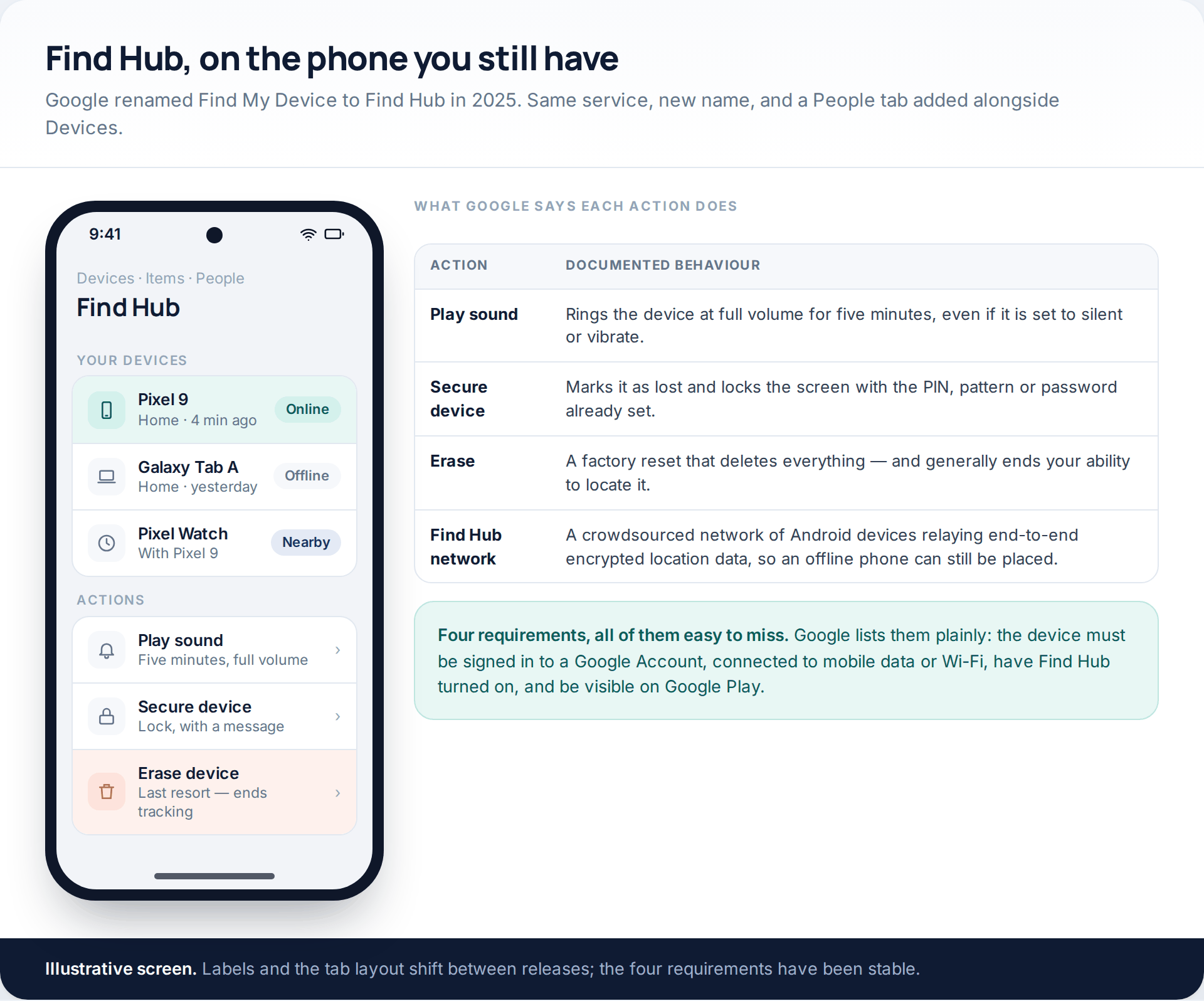
Google’s documentation sets out the preconditions plainly: the device must be signed in to a Google Account, connected to mobile data or Wi-Fi, have Find Hub turned on and be visible on Google Play. It also describes the actions precisely — Play sound rings the device at full volume for five minutes even when set to silent or vibrate, and Mark as lost locks the screen with the PIN, pattern or password already in place.
The part worth switching on before you need it is network finding. Find Hub runs a crowdsourced network of Android devices that relay end-to-end encrypted location data, so a handset that is offline can sometimes still be placed when another Android phone passes nearby. The lost-phone procedure in full, including when to lock rather than erase, is in our complete guide to GPS tracking for families.
Galaxy phones: Samsung Find as well, not instead
Samsung’s own service keeps Devices, Items and People tabs and has its own offline-finding network for Galaxy hardware. It needs a Samsung account, the “Allow this phone to be found” setting enabled, and the app present on both devices. Samsung’s support pages also note a cap on the size of a family group and a minimum One UI version for the family features, so check the version before planning around it. Running both Find Hub and Samsung Find on a Galaxy is normal and costs nothing.
Method 2 · Google Maps sharing, for another adult
This is the right method for a partner, a flatmate, a grown-up child or an elderly parent — anyone who can set it up themselves and can switch it off themselves.
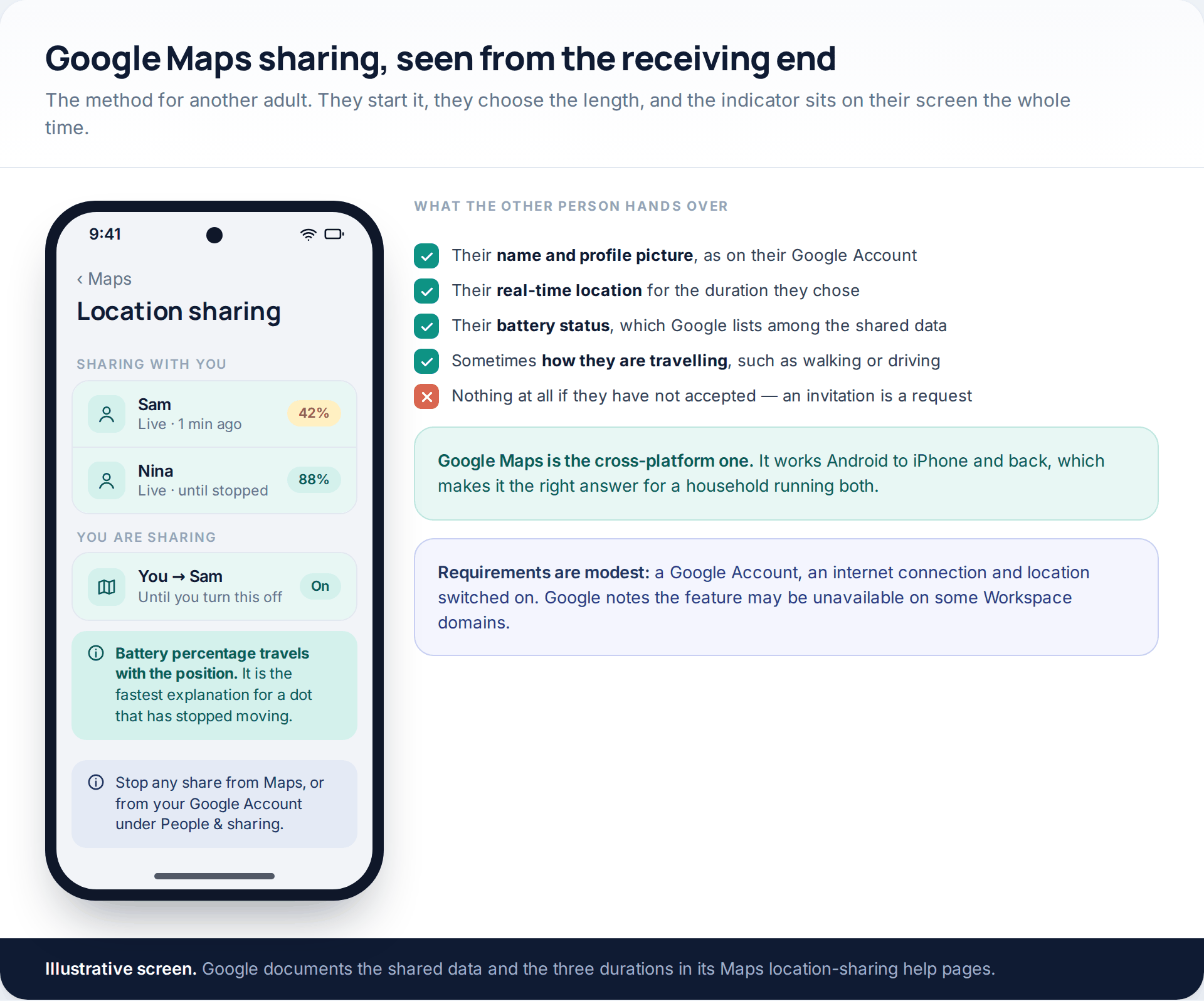
Google lists what the other person is handing over: name, profile picture, real-time location and battery status, and sometimes how they are travelling. Duration is their choice from the same three options Google offers everywhere — an hour, the rest of the day, or until they turn it off. Requirements are a Google Account, an internet connection and location switched on, and Google notes the feature may not be available on some Workspace domains.
Two things make Maps the default recommendation over Find Hub for people. It is cross-platform, so it works to an iPhone and back, and shares can be reviewed and stopped from a Google Account page as well as from inside the app — useful when someone has forgotten which share they started a year ago.
Method 3 · Family Link, for a child’s phone
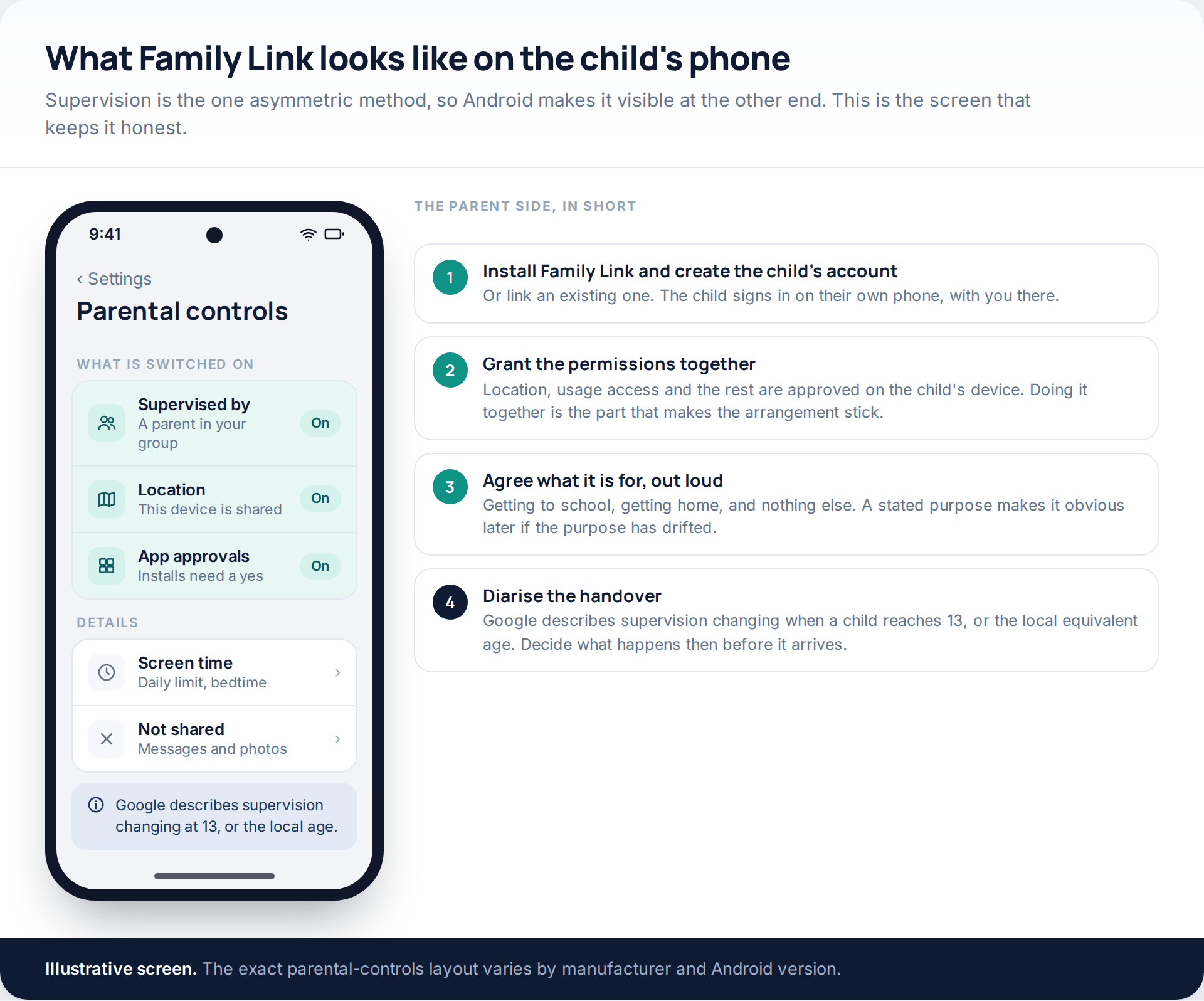
Family Link gives a parent the location of a supervised child’s Android device, alongside app approvals and screen-time controls. Google describes it as applying to children under 13, or the applicable age in the country concerned, with the account changing hands at that point — a date worth putting in a calendar rather than discovering by surprise.
Set it up with the child present. Every mainstream supervision tool shows itself on the device, so there is nothing to be gained by doing it quietly and a good deal to lose. Our step-by-step walkthrough is in the guide to setting up Google Family Link, including the permissions that have to be granted on the child’s handset.
The settings that decide whether any of it works
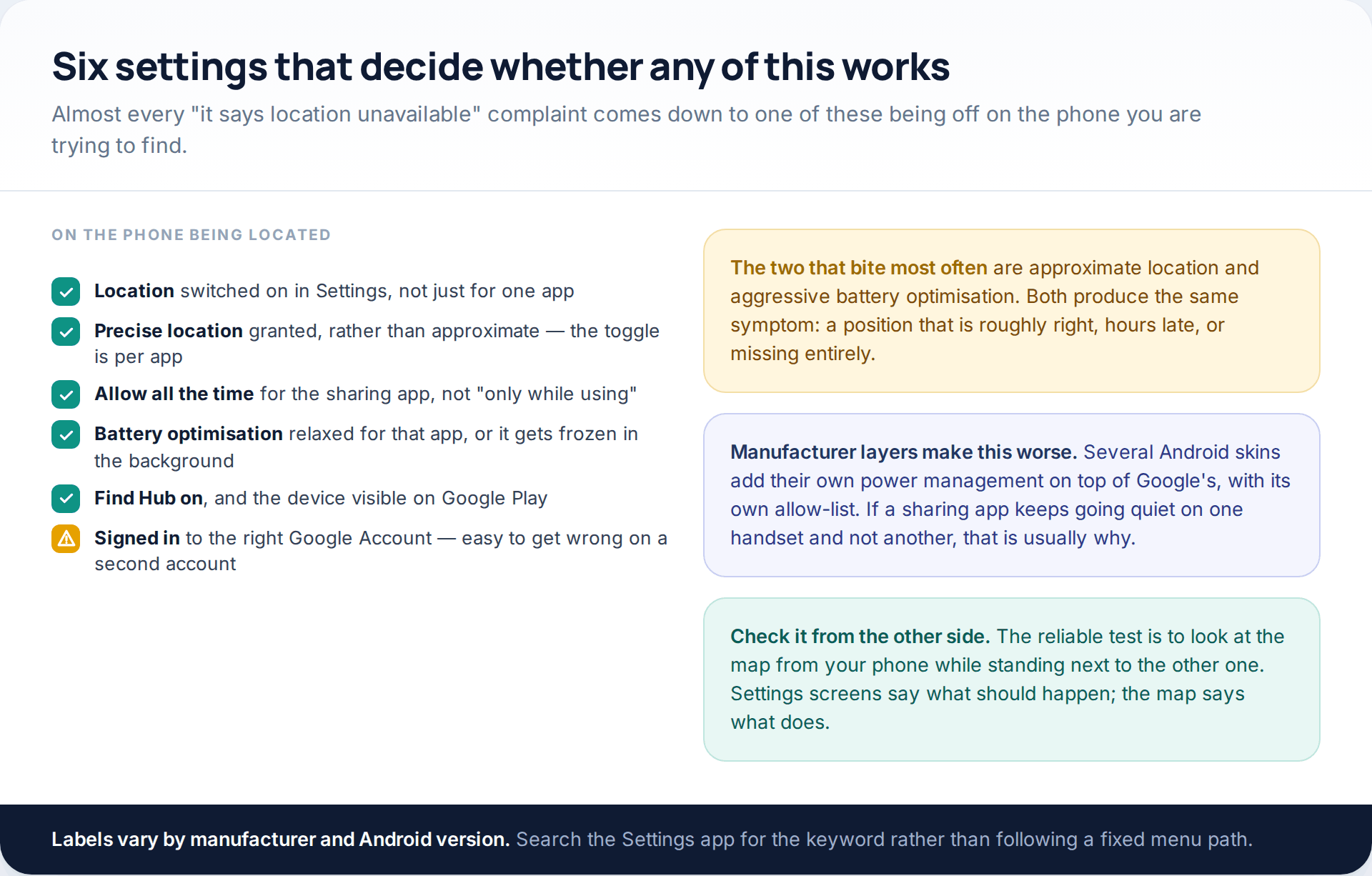
Android has tightened location permissions steadily, and the tightening is good for privacy and awkward for family setups. The two that matter most are the precise-versus-approximate toggle, which is set per app, and background access: an app granted “only while using” will report nothing once the screen is off. On top of that, several manufacturers add their own battery management with a separate allow-list, which is why the same app behaves differently on two handsets.
When the dot is wrong, stale or missing
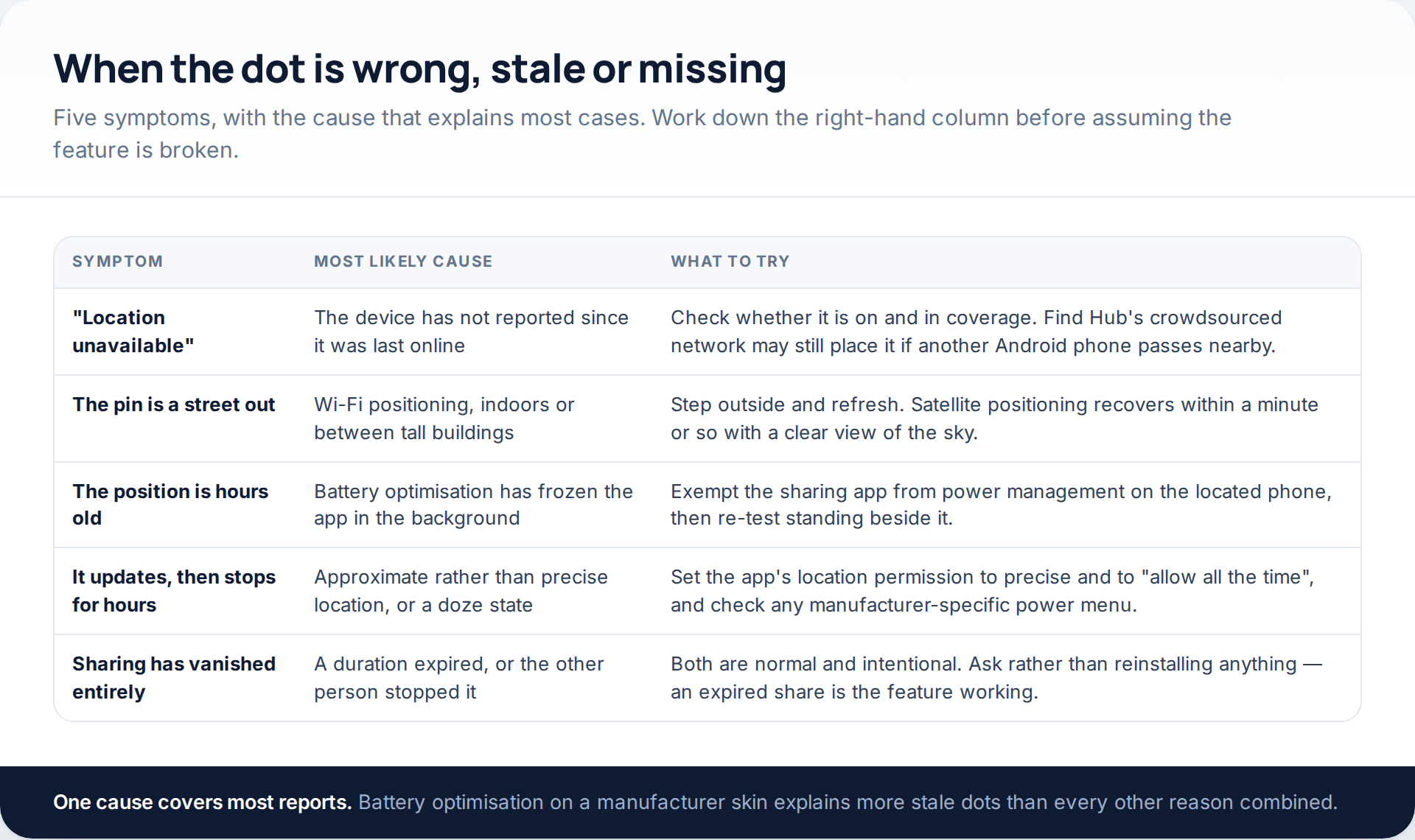
One habit saves most of this trouble: read the time stamp before the pin. A position from four minutes ago and a position from yesterday evening look identical on a map, and the difference between them is the whole of the information. Every Android sharing surface prints the age of the reading somewhere, usually in small grey text immediately beneath the name.
The household mistake: two phones, one Google Account
A surprising number of families sign a child’s handset into a parent’s Google Account, usually because it was quicker during setup. It produces a confusing result. Find Hub lists both phones as “your devices” and locates them happily, which looks like success — but Family Link cannot supervise a device that is signed in as you, screen-time reporting lumps both phones together, and the child inherits access to the parent’s mail, photos and payment methods. The fix is to give the child their own account, supervised through Family Link, and sign the parent’s account out of their handset. It is thirty minutes of work, best done before a phone goes missing rather than during the search.
Shared phones and second profiles
If a tablet is genuinely shared, Android’s multiple-user support is a cleaner answer than one account for everybody: each profile has its own apps, its own permissions and its own location settings. Location sharing follows the signed-in user, so a tablet handed between two people will report whichever profile is active — which is worth knowing before concluding that a position is wrong.
What Android-to-Android cannot do
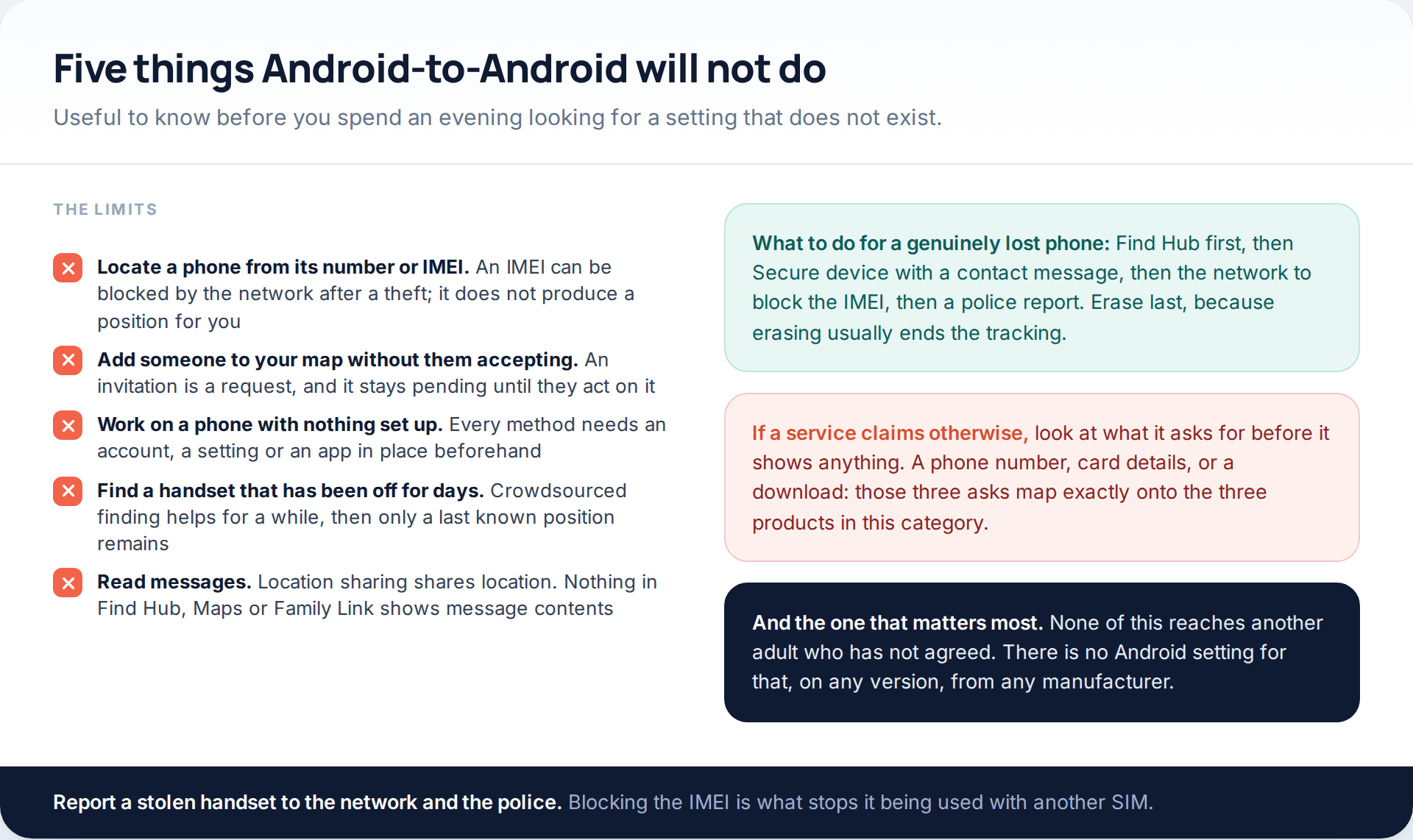
The IMEI question comes up constantly. An IMEI identifies the handset, and your network can block one after a theft so the device cannot be used with another SIM — which is worth doing, with a police report. What an IMEI will not do is produce a position for a member of the public, and services offering IMEI tracking are running the same text-a-link routine under a more technical name.
Third-party family apps, and the test to apply
Dedicated services add what the platform tools are weakest at: saved places with arrival alerts, longer history, and one view across several children’s devices. The test for any of them is whether the app on the located phone will tell its user what it collects.
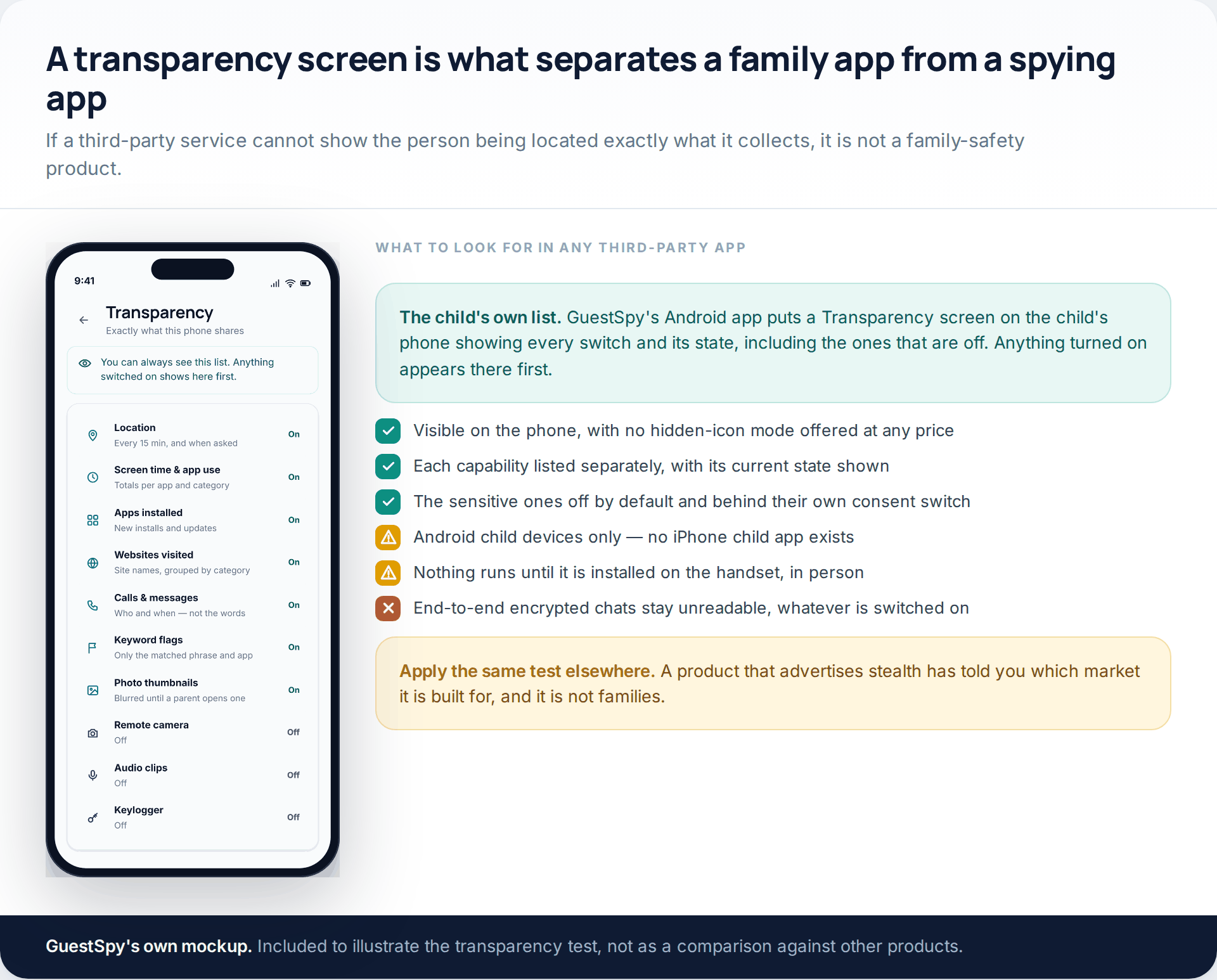
GuestSpy is ours, and the limits are the important half. It is an Android location tracking app for a child’s phone — there is no iPhone child app, and nothing runs until it is installed on the handset with the phone in your hands. The child sees the app and a Transparency screen listing every capability and its state. Message contents sit behind a separate consent switch that is off until you deliberately turn it on, and end-to-end encrypted chats stay unreadable regardless. For an adult’s location, mutual sharing in Google Maps is the right tool and this is not.
How this page was put together
Everything describing a product was checked against the provider’s own documentation in October 2026: Google’s Find Hub help pages for the four requirements, the five-minute full-volume ring, Mark as lost and the crowdsourced network; Google’s Maps location-sharing pages for the shared data, the three durations and the Workspace caveat; Google’s Family Link disclosure for the age at which supervision changes; and Samsung’s Find support pages for the Devices, Items and People tabs, the account requirement and the family-group limits. The detection figures are AV-Comparatives’ published stalkerware test from 2025, covering thirteen security products against seventeen monitoring apps on a Galaxy A36 in September that year.
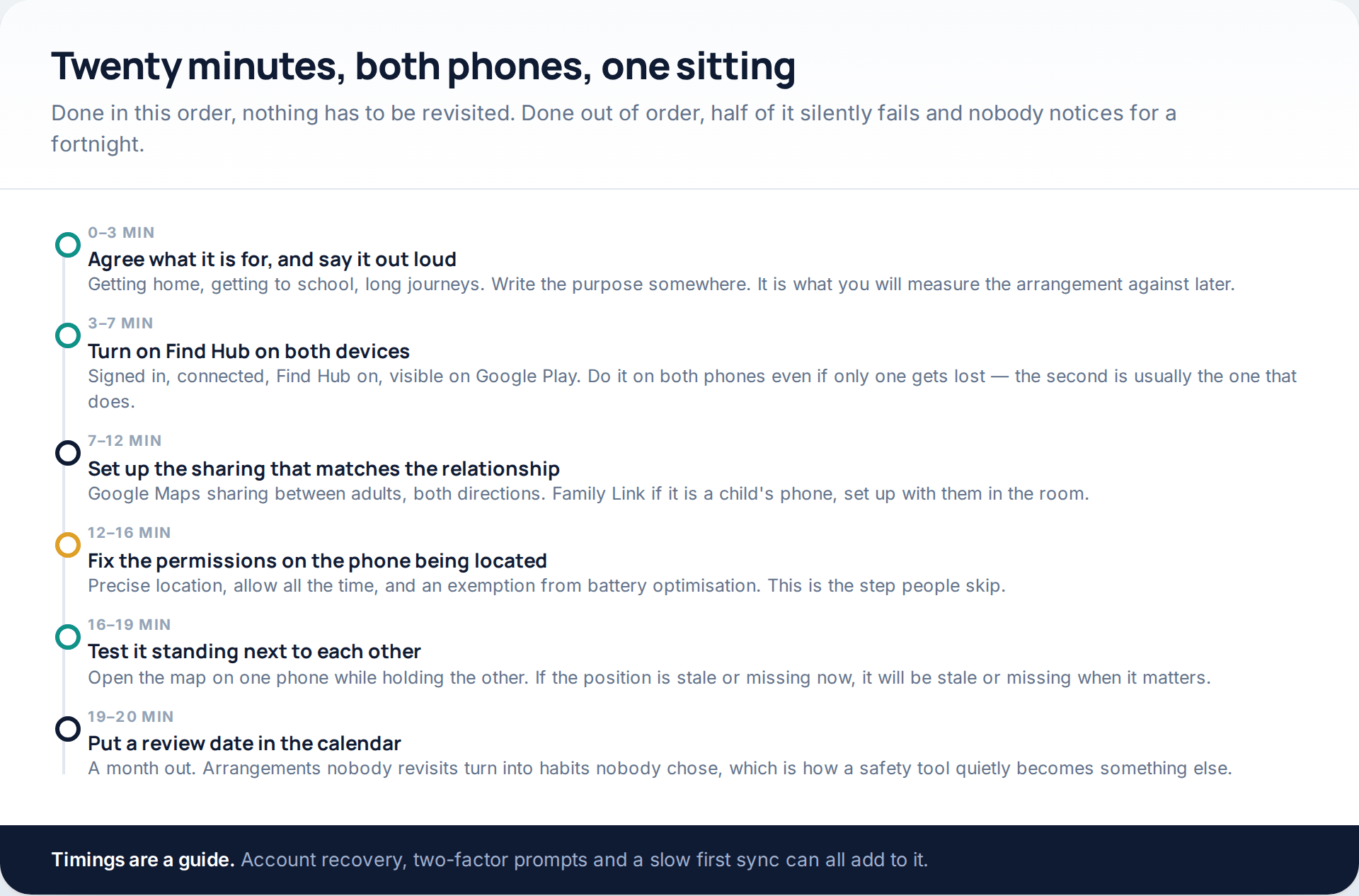
We have not lab-tested any of these services, measured accuracy on any handset or timed a real setup; the twenty-minute figure is a guide, not a measurement. Android labels differ substantially between manufacturers and versions, and Find My Device became Find Hub partway through 2025, so screens here are drawn as illustrations rather than captured, and the advice throughout is to search the Settings app for a keyword rather than follow a fixed menu path.
No covert product is named, and nothing here explains how any of them is installed or configured. The one product we mention is our own, described with its limits attached.
Common questions
Can I track another Android phone without installing anything on it?
Only if it is already signed in to your own Google Account, in which case Find Hub covers it. For someone else’s phone, there is always a setup step: they start a share from their own device, or the phone is a supervised child’s device you configured. No Android feature locates a handset that has had nothing done to it.
Does Find Hub work if the phone is offline?
Often, for a while. Google runs a crowdsourced network of Android devices that relay end-to-end encrypted location data, so a phone with no connection of its own can still be placed when another Android device passes nearby. A handset that has been powered off for days will usually show only its last known position.
What is the difference between Find Hub and Google Maps sharing?
Find Hub is for devices you own, with actions like ringing, locking and erasing. Maps sharing is for people, who start and stop it themselves. Find Hub now also has a People tab, and the two use the same durations — an hour, the rest of the day, or until stopped.
Why does the location keep going stale?
Usually battery optimisation freezing the app in the background, especially on manufacturer skins with their own power management. Check that the app has precise location, is allowed to use location all the time, and is exempt from power saving on the phone being located, then test the map while standing next to it.
Can I see a child’s messages through Family Link?
No. Family Link covers app approvals, screen time, content filters and device location. Message contents are not part of it, and no mainstream Android supervision tool reads end-to-end encrypted chats.
What happens when my child turns 13?
Google describes supervision as changing at 13, or the applicable age in your country, with the account becoming the child’s to manage. It is worth deciding in advance what the arrangement becomes at that point, rather than treating the change as a loss of control to be worked around.
Can I track an Android phone from an iPhone?
Yes, through Google Maps location sharing, which runs on both platforms. Find Hub and Family Link both have iOS apps for the parent or owner side as well, though the device being supervised still needs to be an Android handset.
Using a monitoring app for this? GuestSpy is parental monitoring for Android that stays visible on the child's phone and runs from any browser. If it fits your family, see the Location & Places feature.
Related guides
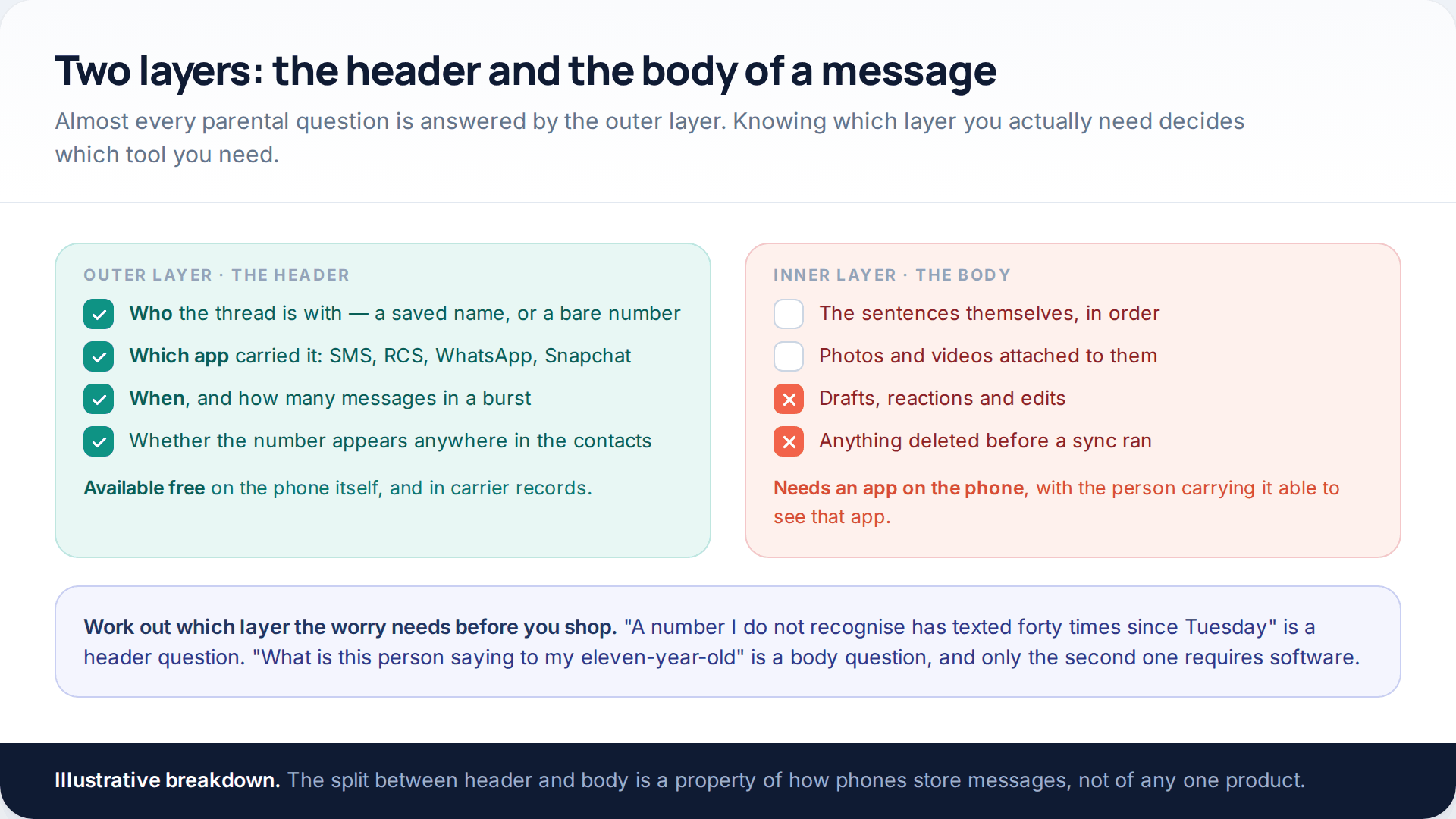
Track SMS Messages: Free SMS Monitoring Apps for Parents, Compared
You cannot track SMS messages on a child’s phone from your own phone alone, and no free app changes that.…
Best 10 Free SMS Tracker for Android and iPhone
Earlier, when there we no messenger apps, people used to rely on text messages. Although time and technology are changing,…
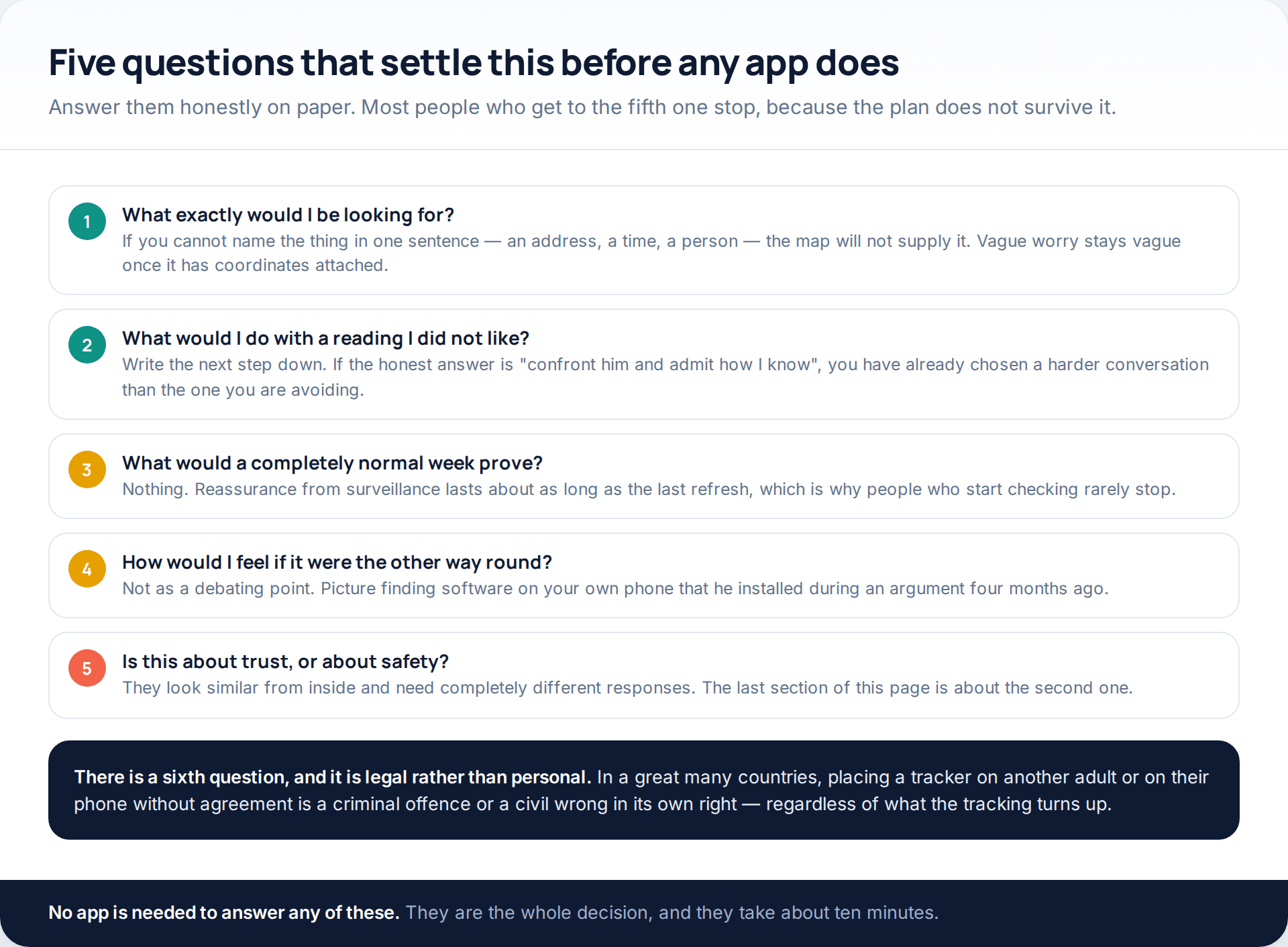
Worried About Your Boyfriend? Why Secret Tracking Backfires, and What to Do
People searching for a way to track my boyfriend’s phone are usually after one of two completely different things: reassurance,…
Monitoring your child can see.
Location, screen-time budgets, routines, app and website blocking and the alerts that matter, run from any browser and visible on the phone. Pair an Android phone in about fifteen minutes.