One email on Sunday, per child
The weekly report is the part of GuestSpy that most parents end up using more than the panel. It arrives by email on Sunday morning, one per child, and tells you in five sections whether the week went the way you thought it did. It is a summary, not a log, and it is built to be read in the time it takes to drink a coffee.
Google Play build · Sent Sunday 08:00 local time · Kept under Reports for 90 days
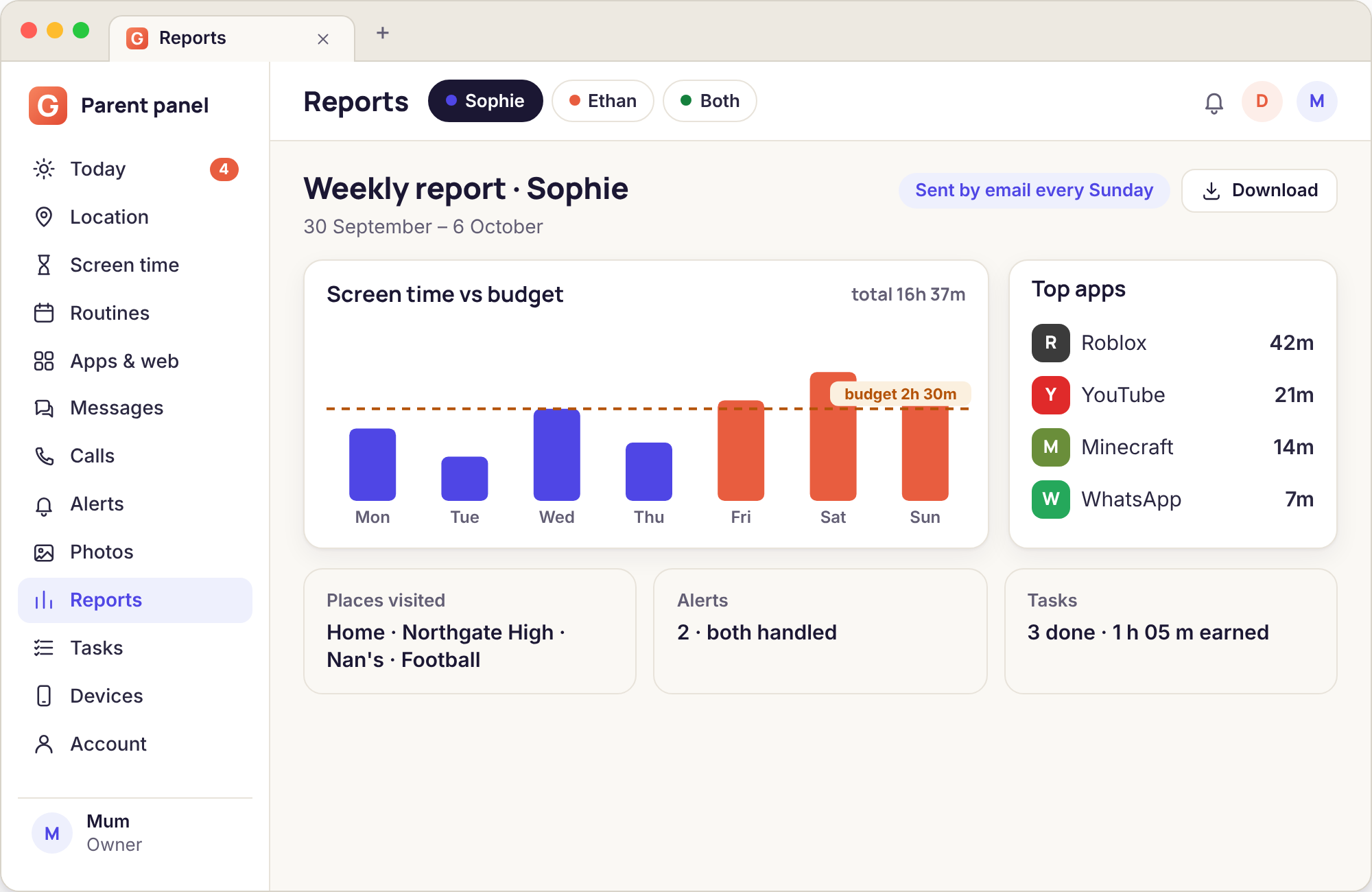
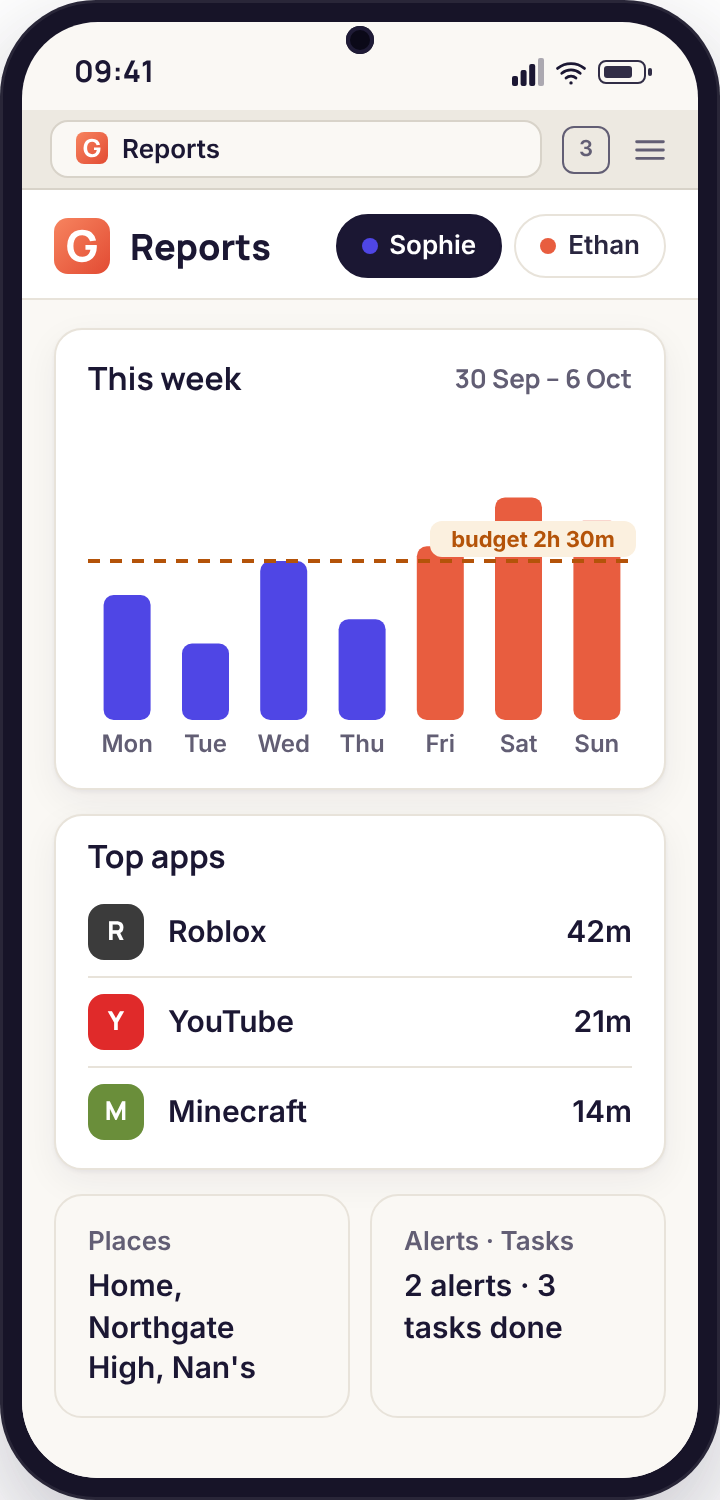
- Five sections, same order every week: screen time against budget, top apps, places visited, alerts raised, tasks completed.
- Only what you switched on. A child with no location switch gets a report with no places section, not an empty one.
- It compares, it does not judge. Every number sits next to last week's and next to the budget you set, and the email never tells you what to feel about it.
- What it cannot do: show you a conversation, a photo or a route. The report counts things; the panel holds the detail, and only for the categories you enabled.
- Both parents get it, and the panel keeps a copy for 90 days so you can line up a term's worth side by side.
What is in the Sunday report
Each section is a small table with this week, last week and the budget or rule it relates to. The design rule was that a parent should be able to see the one number that changed without reading the others.
Screen time against the budget, and the top apps
The first block is a bar for each day, Monday to Sunday, with the minutes used drawn against the budget line you set. Weekdays and weekend days are coloured differently because they have different budgets. Underneath is the split across games, video, social and web, and then the five apps that took the most time, each with its minutes and whether it is set to allow, limit or block.
Two smaller figures sit in the corner of this block and tend to be the ones parents actually look at: how many times the child asked for more time, and how many of those asks were answered with "Give 20 minutes". A week with nine asks and nine yeses is a budget that is set too low for the week you actually had, or a parent who finds it easier to say yes at 20:45. Either is worth knowing, and the report does not tell you which.
- Seven daily bars with the budget line drawn across them
- Category split and top five apps by minutes
- Extra-time asks, and how each one was answered
- Last week's figures in grey beside this week's
Places visited and alerts raised
The places block is not a map. It is a list of the Places you have saved (Home, School, Nan's, Football) with the number of visits this week, the usual arrival time and any arrive, leave or left-early alerts that fired. If the phone spent time somewhere that is not a saved Place, the report says "3 h 20 at unsaved locations" and leaves the detail to the 30-day history in the panel. We deliberately keep routes out of an email, because email is the least private place anything lives.
The alerts block lists each flag from the week in one line: the day, the group or rule, the app, and the name of the parent who marked it handled. Anything still open is at the top in bold. On a normal week this block is two or three lines long and mostly says "handled by Mum" and "handled by Dad" in some combination.
- Visit counts and usual times for each saved Place
- Total time at places you have not named
- Every alert, one line each, open ones first
- Handled-by names so you both know who looked
Tasks completed and minutes earned
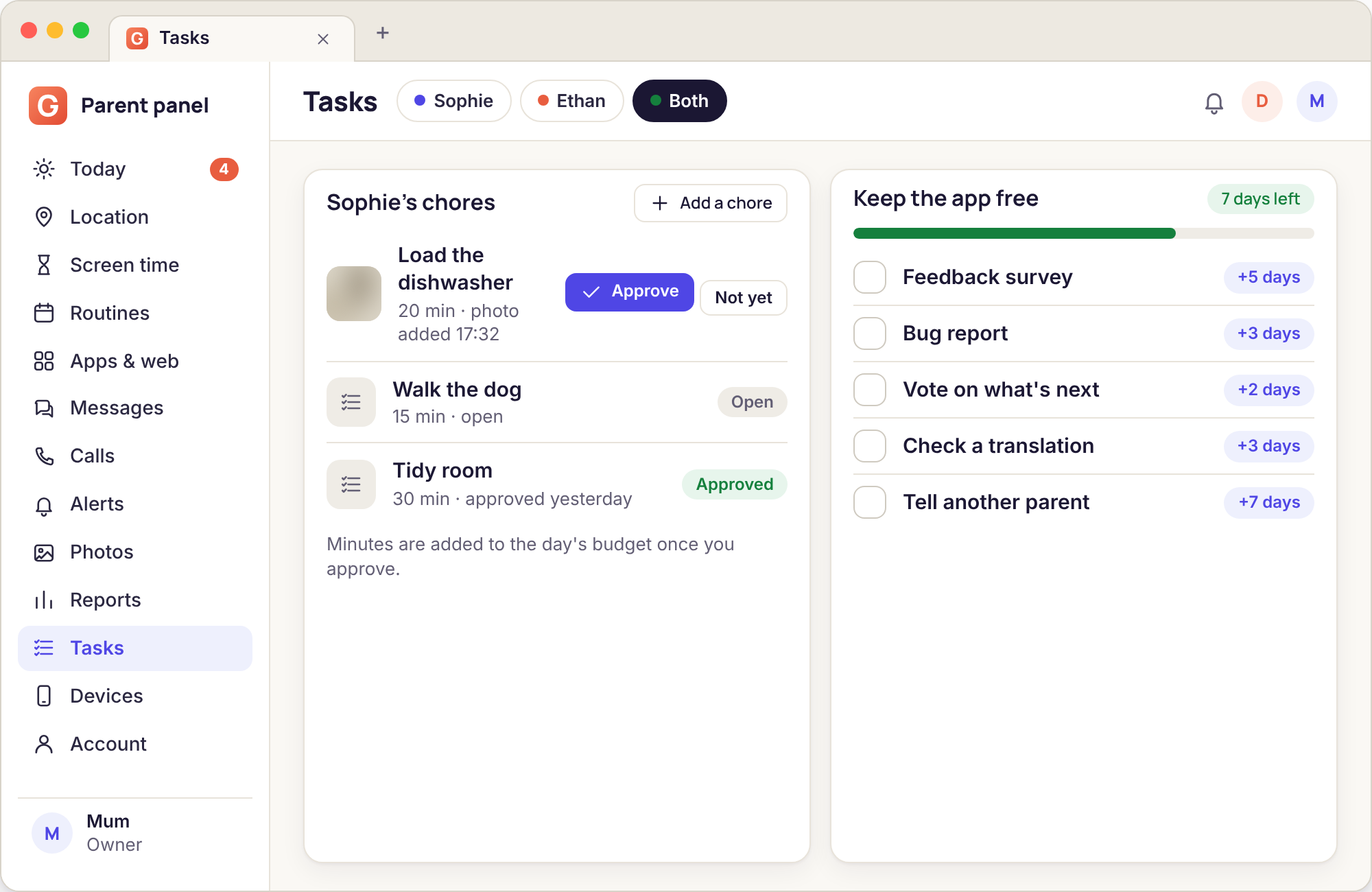
The last block belongs to the child as much as to you. It lists each task set during the week, whether the child completed it, whether a parent approved the photo, and how many minutes it earned. The total earned is set against the total spent, which is where the arithmetic of a reward system becomes visible: a child who earns 80 minutes a week and spends them all on Friday night is running the system exactly as designed, and the report shows it in two numbers.
Tasks waiting for approval on Sunday morning are listed with a reminder, because a photo of a loaded dishwasher that nobody has approved by Monday teaches a child that proof does not matter. The report cannot approve anything itself; that is a button on the Tasks page, and it shows on the child's phone when it is pressed.
- Each task with its status and minutes
- Minutes earned against minutes spent
- Anything still waiting for a parent's approval
- The child sees the same totals in their own app
The number, what it usually means, what to do
A report is a set of numbers and numbers are easy to misread at 08:15 on a Sunday. These are the ones we are asked about most, with the boring explanation that is true more often than the alarming one.
| The number | What it usually means | What to do |
|---|---|---|
| Screen time over budget on four of five weekdays | The budget is wrong for this term, not that the child is sneaking time. Enforcement happens on the phone, so "over" almost always means extra time was granted by a parent after an ask. | Look at the asks figure. If most were granted, raise the weekday budget by the average overrun and stop granting; the number will settle within a fortnight. |
| Top app is something you have never heard of | A game or video app that spread through the year group this week. New installs are flagged on the Apps page with "ask me first" if you turned it on. | Ask what it is before deciding. Set it to limit rather than block if the only problem is time; limit shows on the child's phone as a plain minute count. |
| Zero minutes on a day that was not a camping trip | The phone was off, flat, or the child app was stopped. Counting happens on the phone, so no phone means no count. | Check the Devices page for the last time the phone reported in. A gap of a whole day is worth a question; a gap of two hours is a flat battery. |
| "2 h 40 at unsaved locations" | Time somewhere you have not named: a friend's house, the high street, the bus. On its own it is not a finding. | If the same unsaved spot shows up weekly, open the 30-day history, find it, and save it as a Place so next week's report names it. |
| Left-early alert fired at 14:50 on Thursday | A sports fixture, a dentist, an early finish you forgot, or the school Wi-Fi placing the phone across the road. Far more often than truancy. | Match it against the family calendar first. If it repeats on the same weekday, widen the School circle or adjust the end time for that day. |
| Alerts raised: 6, handled: 2 | Four flags nobody opened. Usually a bullying group on the digest during a week when a group chat got lively, and parents who stopped reading the digest. | Open the four in the panel, mark them, and move the noisy rule to a repeat-count condition. Unhandled alerts are a sign the rules need tuning, not that the week was dangerous. |
| Tasks completed: 5, minutes earned: 0 | Nobody approved the photos. The child did the work; the parent did not press the button. | Approve them Sunday morning. If this keeps happening, agree a fixed approval time (after dinner) so the system stays fair. |
| Weekend total three times the weekday total | Normal for a child with a weekday routine and a free Saturday. The weekend budget is a separate number for exactly this reason. | Compare it with last weekend rather than with Tuesday. If the climb is steady over a month, that is the trend worth a conversation. |
A Sunday read, twice over
Two reports from the Bennett family demo, read the way a parent actually reads them: quickly, and looking for the one thing that changed.
The week the budget was wrong
08:10, Sunday. Mum opens the email on her iPhone. The screen-time bars show Monday to Thursday each a little over the 2 h 30 weekday line, Friday well over, Saturday under the 4 h weekend line. The asks figure says seven asks, six granted. Top apps are the usual three plus a revision app she had not seen before, at 55 minutes. Places: School five visits, arriving 08:21 on average, no alerts. Alerts: one bullying match, handled by Dad with the note "netball chat, banter". Tasks: two set, two done, 40 minutes earned.
The one thing that changed is the asks. Six granted out of seven, every one between 20:30 and 21:00, every one during mock exam week. The revision app explains the overruns, and so does the fact that both parents said yes each evening. Nothing was hidden and nothing was wrong, except that the budget was not the budget the family had actually been keeping.
The week a Place needed saving
Same Sunday, second email. Ethan's bars are all under budget, which with an eleven-year-old and a bedtime routine at 20:00 is the normal shape. Top app is a block-building game at 3 h 10 for the week. Places: School, Home, Football on Saturday as expected, and then "1 h 45 at unsaved locations" spread over Tuesday and Thursday afternoons, 15:40 to 16:30 both days. Alerts: none. Tasks: one set (bins out), done, photo approved, 20 minutes.
Dad opens the 30-day history in the panel from the link in the email, picks Tuesday, and the unsaved location is a house four streets from school. He already knows which house: a friend whose mum does the school run on those days. The report could not know that, so it reported what it saw. Nobody was anywhere unexpected.
Report, panel or alert: when to use which
GuestSpy shows you the same facts three ways, and families get on best when each parent knows which one they are reaching for and why.
The Sunday report
For trends. Did the budget hold, did the asks climb, did a new app appear, did the same unsaved location keep showing up. Read it once a week, decide one thing, and close it. If you are opening the report to find out what happened on Thursday at 16:00, you are using the wrong tool and it will frustrate you.
The web panel
For detail and for action. The history for a given day, the full alert card, the call log, the Apps page where you change a setting. It is also the only place where you can do something: give 20 minutes, approve a task, save a Place, lock the phone. Open it when the report or an alert has given you a reason to, and otherwise leave it alone.
An alert
For the handful of things that cannot wait until Sunday: a crisis-group match, a left-early at school, an extra-time ask on a school night. Keep these few, because every alert you ignore makes the next one easier to ignore. If your alerts are arriving more than once a day, move most of them to the digest and let the report carry the rest.
A reasonable rhythm for a family with two children looks like this: alerts on push for two or three rules, the daily digest at 19:30 for the rest, the report on Sunday morning, and the panel opened perhaps twice a week when one of those has prompted it. Families who open the panel every evening tend to stop within a month, not because anything went wrong but because most evenings there is nothing to see, and that is precisely the information the report was designed to deliver in one line instead of thirty minutes of scrolling.
Reports, answered
Can I change the day or time the report arrives?
Yes. Account settings has a report schedule per child: any day of the week and any hour, in your local time. Sunday 08:00 is the default because it gives you the whole week and a quiet moment to read it. Some families with a Friday-night routine move it to Friday 17:00.
Does the child see the report?
The child does not receive the email, but their own app shows the same screen-time totals, the same tasks and the same places list for the week, and the Transparency screen says that a weekly summary is sent to their parents. There is nothing in the report that the child cannot already see about themselves.
Why is a section missing from my report?
Because that category is not switched on for that child. A child with no location switch gets no places section; a child with no tasks gets no tasks block. The report only summarises what you chose to collect, and it says at the top which categories were included.
Can I get one report for both children?
The email is per child, because the budgets, rules and ages differ and a combined table was hard to read in testing. The Reports page in the panel can show two children side by side for the same week, which is the better place to compare them.
How far back are reports kept?
Ninety days, the same as other logs, on the Reports page. Each one can be exported as a file before it ages out. Location history underneath a report is kept for 30 days, so a report from eight weeks ago will still have its places counts but the day-by-day routes behind them will be gone.
Does the report include message or call content?
No. Even on the direct-download build with the consent switches accepted, the report carries counts only: messages per app, calls by direction and duration, unknown-number flags. Bodies, recordings and photos never go into an email, because an email is the easiest thing in the world to forward by mistake.
The report only has something to summarise once a rule exists, so it is worth reading alongside screen time budgets, location tracking and Places and alerts and keyword flags.
Setting this up is the same fifteen-minute pairing as everything else, done once with your child in the room; the weekly report switches on from the panel afterwards. The download page covers pairing step by step.
Get your first Sunday email next weekend
Pair the phone this week, set one budget and one Place, and the report that arrives on Sunday will already have something to say. The core features, including reports, stay free for good.
Android child app · Runs in any browser · Visible on the phone