Who is messaging your child, and how often
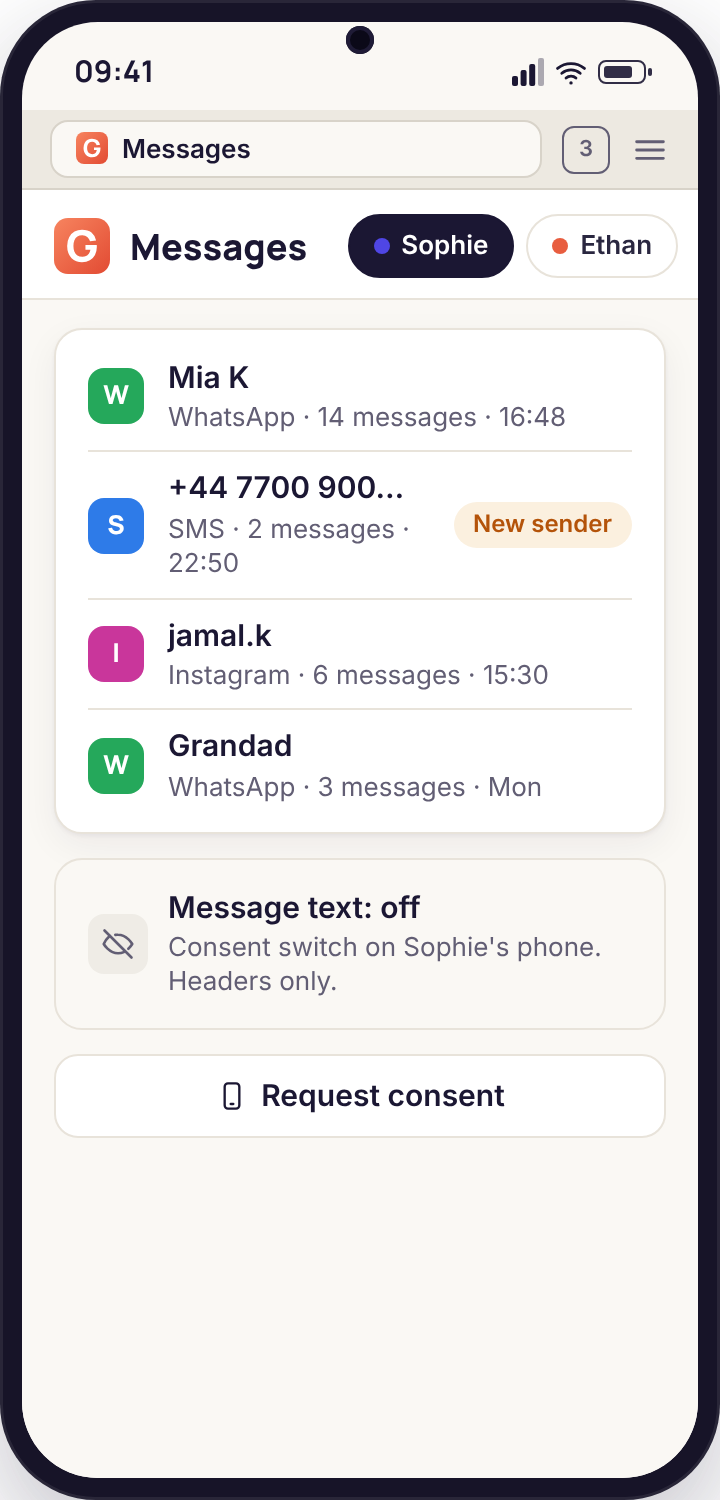
A list of senders, apps, times and counts for SMS and for the chat apps that post notifications. Not a transcript. The words of a message stay off until your child accepts a consent switch on their own phone, and the app says so on its first screen.
Android 9 or newer · works with the Google Play build for headers · logs kept 90 days
Straight answers, in the order people ask them
Messaging is the feature parents have the most questions about, and the one where a vague answer does the most harm. So this page is the questions, each with a one-line answer first and the fuller picture underneath.
Can I see who my child is texting?
Yes. The Messages tab lists every contact or number, the app it came through, the time, and how many messages went each way.Open the panel, pick a child, and the Messages tab shows a list of conversations. Each row is one person in one app: "Priya · SMS · 14 messages today · last at 16:42", or "Unknown · +44 7700 900123 · SMS · 3 today · new sender". Tap a row and you get the timeline for that contact: a line per message with the direction, the time and the app, so you can see that the conversation with Priya was busy between four and six and quiet after. What you do not get in that row is the text of any message. That is a separate decision, covered two questions down.
Names come from the phone's own contacts. If your child has saved a number as "Jay football", that is what you see. If they have not saved it at all, you see the number and a flag. Group chats show as the group name with a count of how many people posted, and individual members only appear when the phone's notification named them.
Most parents find the list is more useful than they expected, and in a different way. It is not about reading. It is about shape: who turns up every day, who appeared this week for the first time, which app has moved from occasional to constant, and whether anyone is messaging at two in the morning. Those patterns are what a parent needs in order to ask a good question at dinner, and they are available without anybody's private words leaving the phone.
Does it show the words of the messages?
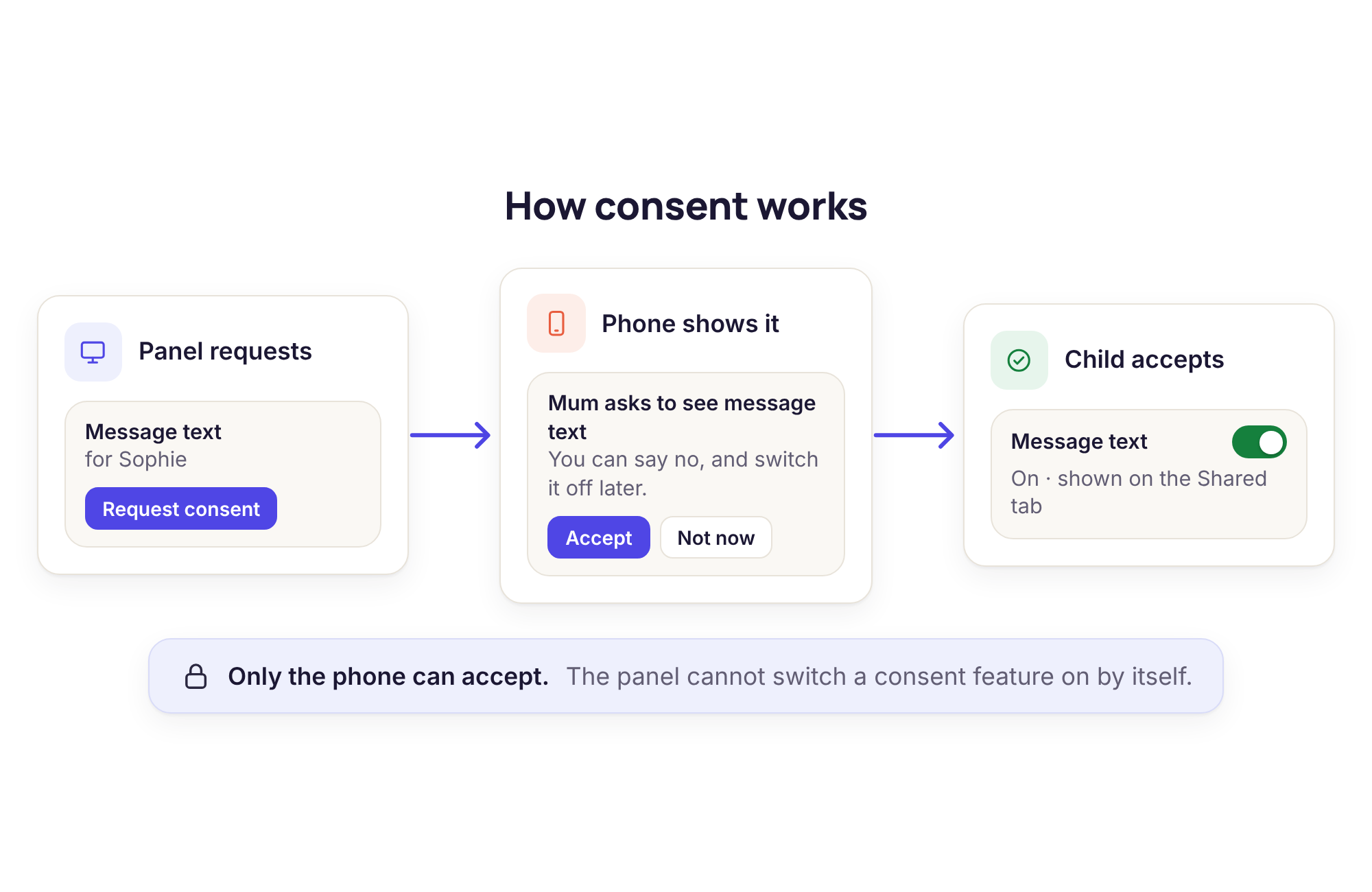
Not by default. Message text appears only after your child accepts the "Message text" consent switch on their own phone, and only in the direct-download build.A freshly paired phone shares headers and nothing else. The sender, the app, the time and the count are the whole of it. To see the text of an SMS you need two more things to be true. First, the child app must be the direct-download build, because Google Play does not allow an app in this category to read message content. Second, the person holding the phone must open the Transparency screen, find the "Message text" row, read what it says, and switch it on. The panel can send a request that appears on the phone; it cannot accept it.
Once the switch is on, the text of SMS messages appears in the panel beneath each header, and the Transparency screen on the phone shows "Message text: on" at all times. If your child turns it off again, the panel stops receiving text from that moment and shows a line saying when it was switched off. Nothing is retrieved retrospectively: the app does not scoop up the last six months of messages the day the switch is accepted. It starts from then.
We built it this way on purpose. Reading a child's messages is a serious thing to do, and the only version of it we are comfortable shipping is one the child has agreed to and can see. Plenty of families never turn it on. Plenty turn it on for an eleven-year-old's first phone and turn it off at thirteen. Both are reasonable, and both are decisions a family makes together rather than something the software does quietly.
What about WhatsApp, Snapchat and Instagram?
Chat apps are covered through the notification lines Android shows. You get the sender, the app and the time, and whatever preview text the app itself puts in the notification.WhatsApp, Snapchat, Instagram, Messenger, TikTok and Discord all keep their messages inside their own apps, and several of them encrypt the messages end to end. No parental tool can read inside those apps, and any product claiming otherwise is either reading the notifications, as we do, or doing something that will not survive the next update. What Android does expose is the notification: when a message arrives, the app posts a line to the notification shade that says who sent it and, depending on the app and its settings, a preview of what they said.
GuestSpy reads that line and files it as a header: "Instagram · @maya.k · 19:05". If the app included preview text in the notification, and the consent switch is on, that preview appears too. If your child has turned previews off inside WhatsApp, or Snapchat has only said "New snap from Leo", that is all there is. We show exactly what the phone showed and nothing more.
Two practical consequences follow. Messages your child sends from inside an app generate no notification, so for chat apps you see incoming traffic far more reliably than outgoing. And a message read inside the app before the notification was posted, which happens when the app is already open on screen, may never post a notification at all. The headers list is therefore a good picture of who is reaching your child and how often, and a patchy one of the full conversation. Treat it as the former.
Will my child know?
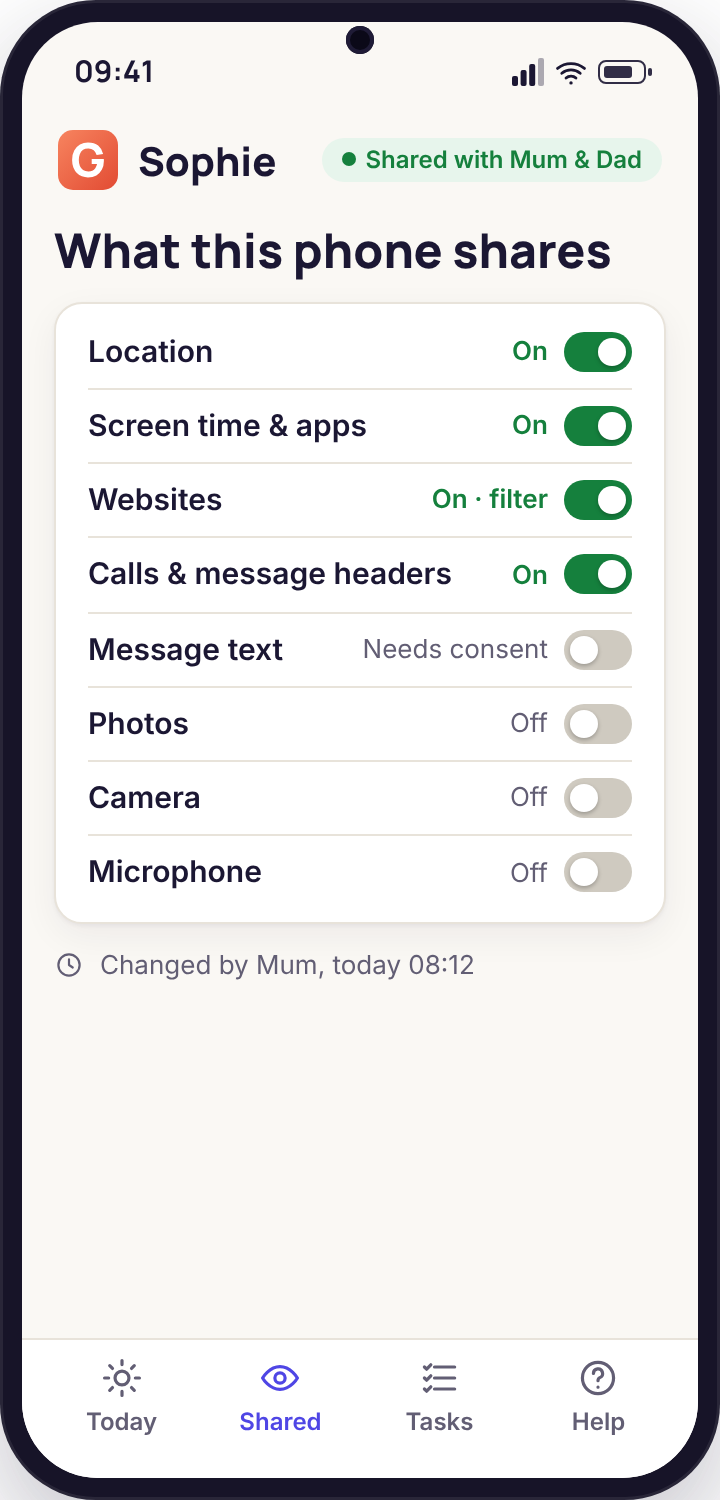
Yes, always. The app icon is on the phone, the Transparency screen lists "Messages: on", and the message-text switch cannot be accepted by anyone but the person holding the phone.There is no hidden mode in GuestSpy and we will not build one. The child app sits in the app drawer with its name and icon like any other. Opening it shows the Transparency screen first: a plain list of every category the phone shares with the panel and whether each one is currently on. Message headers is one row. Message text is a separate row, off by default, with a sentence under it explaining what switching it on would mean.
When you change a messaging rule in the panel, the phone shows a notice as it happens: "Mum turned on new-sender flags" or "Dad asked to turn on message text". Your child sees the request and decides on their own screen. If they ignore it, nothing changes and the panel shows the request as pending.
Parents sometimes ask whether this defeats the point. In our experience it does the opposite. A child who knows their headers are visible behaves like a child who knows a parent is in the room: mostly the same, slightly more careful about who they give their number to. A child who discovers covert reading, which they nearly always do, stops trusting the parent and moves everything to an app the parent has never heard of. Openness is the version that still works in six months.
One row per person per app, sorted by what moved today
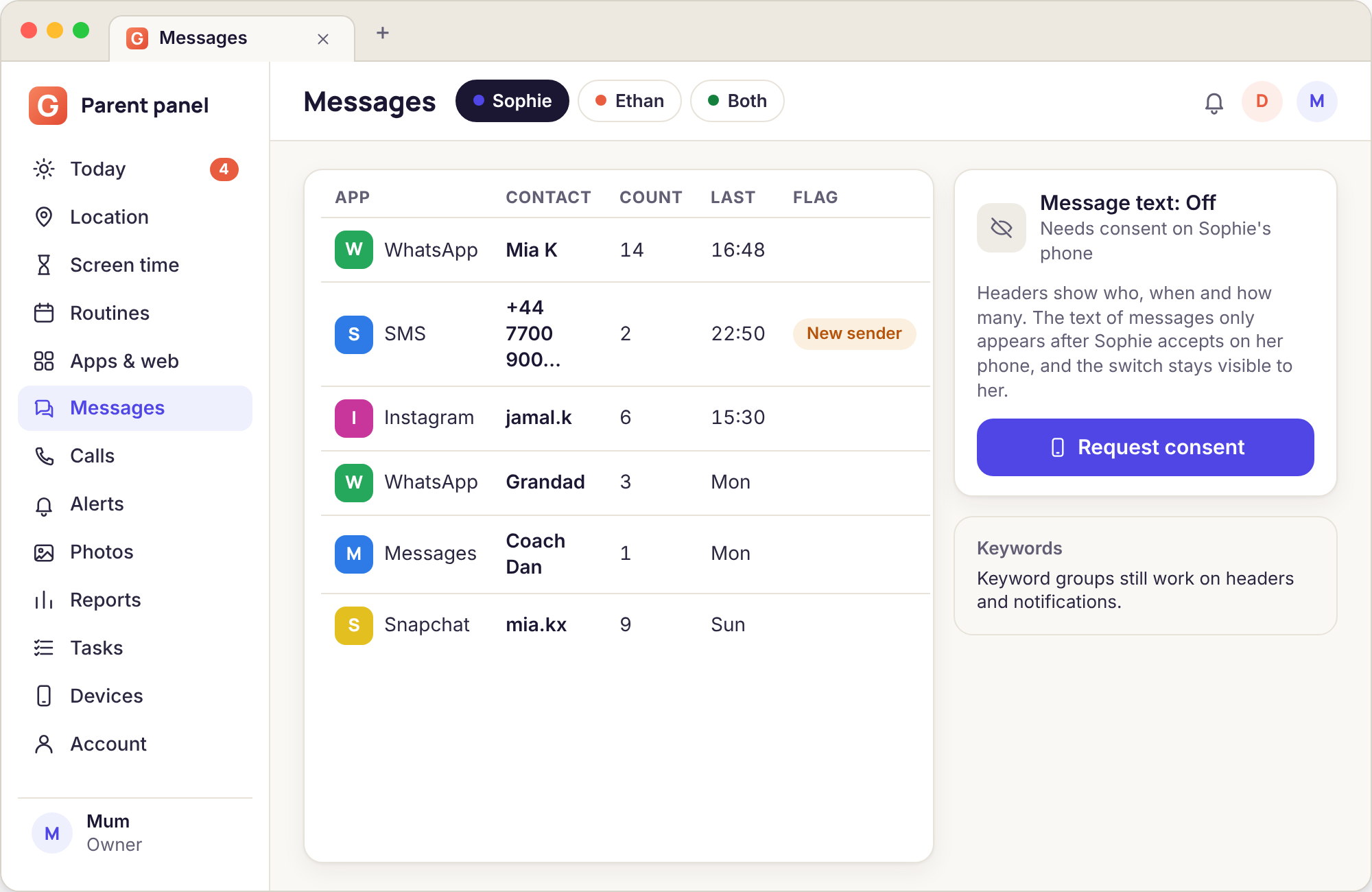
The Messages tab in the full-size panel is a table rather than a chat window, and that is deliberate. Columns run Contact, App, Today, This week, Last message and Flags. The default sort is by activity today, so the person your child spent the afternoon messaging is at the top, and the contact who sent one message three weeks ago is near the bottom. A filter row above lets you narrow to one app, to unknown senders only, or to messages between a start and end time, which is how most parents check what happened after lights out.
Clicking a contact opens the timeline for that conversation on the right: a vertical list of in and out arrows with times. If the message-text switch is on, each arrow has the text beneath it. If it is off, each arrow is just an arrow, and a grey line at the top of the timeline says so. Either way, every row has a "Mark as seen" button so that two parents on one account can tell what the other has already looked at.
What is a new-sender flag?
A small mark on any contact or number that messaged your child for the first time in the last seven days, plus an alert if you want one.Most of the people messaging a child are the same dozen people every week: friends, a parent, a grandparent, a coach, a group chat for a class. The ones worth a second look are the ones who were not there last week. The new-sender flag picks those out. Any contact, number or chat-app username that first appears in the headers list gets a "new" tag for seven days, and the Today dashboard's Needs you list carries a line reading "Ethan: 2 new senders this week" with the names.
A separate "unknown number" flag applies to SMS from numbers the phone has no contact entry for. A saved contact who is new gets the new tag only. An unsaved number gets both, because it is both new and unnamed. Short codes from delivery firms and two-factor texts from banks are recognised and marked "service" rather than "unknown", so the list is not full of parcel updates.
You can make either flag raise an alert in the Alerts tab: push notification, immediate email, or a line in the daily digest. We suggest the digest for the new-sender flag and push for unknown numbers on a younger child's phone. The flag is also, deliberately, something your child can see. Their own Today screen in the app lists "3 new people messaged you this week" with the same names, and a gentle line asking whether they know them. More than one parent has told us their child came to them first because of that line, before the parent had even opened the panel.
Can I see messages my child has deleted?
Only if the header, or the text with consent, reached the panel before the deletion. Nothing is recovered from the phone afterwards.The app records a message when it arrives or is sent, and uploads the header the next time it has a connection, usually within a minute. If your child deletes the conversation an hour later, the header is already in the panel and stays there for the normal 90 days. If they delete it within seconds of it arriving while the phone is offline, it may never be recorded. For chat apps, which we see through notifications, deletion inside the app changes nothing we have, because we never looked inside the app in the first place.
What GuestSpy will not do is go hunting through the phone's storage for traces of removed messages. That is forensic recovery, it is unreliable, and it is not something a visible, consent-based family tool should attempt. A parent who reaches the point of wanting it has a conversation to have rather than a feature to switch on.
Worth knowing in practice: a deleted conversation shows up in the headers as a normal conversation that simply stops. There is no "deleted" marker, because the phone does not tell us. If you notice a busy thread with a stranger that ends abruptly, the sensible reading is that something changed, not that the software has exposed your child. Ask.
Does any of this work with the Google Play build?
Headers, counts, new-sender flags and chat-app notification lines all work in the Play build. Message text does not; that needs the direct-download build.Google's rules for parental apps on the Play Store allow notification-based monitoring but not reading SMS content, so the two builds differ at exactly that line. If you installed from Google Play you have the complete Messages tab with everything described on this page except the words of SMS messages. The consent switch for message text does not appear on the Transparency screen in that build, because there is nothing it could turn on.
The direct-download build, which you install from a file on our site, is the same app with the SMS content permission added. On that build the switch appears, off, with the explanation under it. Switching builds later is possible, but it means unpairing, installing the other one and pairing again with a fresh six-digit code, and the headers history carries across because it lives in the panel, not the phone.
If you are not sure which to choose, we suggest starting with the Play build. Many families find the headers list answers every question they had and never miss the text. If after a month you want the words, and your child agrees, moving builds takes a quarter of an hour.
What a notification line shows for each app
The same four columns for the seven apps parents ask about most. "Preview text" assumes the message-text consent switch is on and the app's own notification previews are at their defaults; with the switch off, that column is empty for every app.
| App | Sender | Preview text | Count | Keyword flags |
|---|---|---|---|---|
| SMS | Name or number, both directions | Full text on the direct build with consent | In and out, per contact, per day | Run on full text |
| Contact name or group, incoming | Preview line, unless previews are off in WhatsApp | Incoming only; replies are not counted | Run on the preview line | |
| Username, incoming DMs | Short preview; "sent a photo" for media | Incoming only | Run on the preview line | |
| Snapchat | Display name, incoming | Usually "New chat" or "New snap"; no words | Incoming only | Nothing to run on |
| Messenger | Contact name or group, incoming | Preview line, unless hidden in Messenger settings | Incoming only | Run on the preview line |
| TikTok | Username for DMs; "TikTok" for everything else | Short preview for DMs; none for likes and follows | Incoming DMs only | Run on the preview line |
| Discord | Username and server or channel, incoming | Preview line; often truncated in busy servers | Incoming only; muted channels post nothing | Run on the preview line |
Apps change their notification formats without warning. When one does, the Sender column keeps working and the Preview column may go blank until we adjust. That is a limit of reading notifications, and it applies to every tool that does so.
The same facts, on their own screen
Open the child app and the first thing on screen is the Transparency list. For messaging it has two rows. "Message headers" shows whether the panel receives sender, app, time and count, and who switched it on and when. "Message text" shows whether the words of SMS messages are shared, and in the Play build it says "Not available in this version" so the child is not left wondering. Under each row is a sentence in plain language: "Your parents can see who messaged you and when, but not what was said."
Below the list is a history: "Mum asked to turn on message text, Tuesday 18:10 · You accepted, Tuesday 18:12". If a request is waiting, it sits at the top with Accept and Not now buttons. Not now is not a trick. It leaves the switch off, tells the panel the request was declined, and the parent can ask again another day. We designed that screen for a fourteen-year-old to read in thirty seconds and understand completely, because a consent step the child does not understand is not consent.
What does the consent switch actually change?
It is the only thing standing between headers and words. On, the panel receives SMS text and chat-app preview lines. Off, it receives neither, and it is off until the child turns it on.The switch is a real control, not a notice. Inside the app, the code that reads the body of a text message does not run at all while the switch is off. It is not read and discarded, not stored locally for later, not uploaded and hidden from the panel. The permission to read SMS may be granted to the app by Android, because that is how the direct build is installed, but the app does not exercise it until the switch is on. We say this plainly because parents have been burnt by products where "off" meant "collected but not shown".
The switch is per child and per phone. Accepting it on one device does nothing for a sibling's phone. It is also per category: accepting message text does not accept call recording, photo scanning or anything else. Each of the sensitive features has its own row on the Transparency screen, its own explanation and its own Accept button, so a child is never asked to agree to a bundle.
In the panel, the switch shows as a status next to the Messages heading: "Message text: off", "Requested, waiting", or "On since 14 March, accepted by Sophie". Both parents on the account can see it and either can send a request. Neither can turn it on. When your child switches it off, the panel line changes within a minute and the text stops at that moment. Previously received text stays in the panel for its normal 90 days, since it was shared with consent at the time, and you can delete any conversation from the panel by hand if you would rather not keep it.
Can I turn it on from the panel without my child?
No. The panel can only send a request. Acceptance happens on the phone, by the person holding it.This is the question we are asked most often by email, usually phrased as "my child will never agree, is there a workaround?" There is not, and the honest answer is that if your child will never agree, the feature is not for your family right now, and that is information worth having. The rest of the product keeps working: headers, flags, the pattern of who and when, and all the screen-time, location and filtering tools, none of which require the switch.
For families where the answer is "my child is nine and I set the phone up", the consent step still runs on the phone, and you will probably be the one tapping Accept while they watch. That is fine. The point of the step is not to put a legal hurdle in a parent's way. It is to make sure that the words-on-or-off decision is taken on the device, in the open, with the explanation on screen, and that the status is visible to the child every time they open the app. A nine-year-old who grows into a thirteen-year-old will know exactly where the switch is and what it does, and the conversation about turning it off will happen on time rather than never.
One more thing the panel cannot do: it cannot re-request every hour until the child gives in. A request stays pending until it is answered, and a declined request cannot be re-sent for 24 hours. We added that after a parent described, in a support ticket, exactly how they intended to use it.
Request in the panel, accept on the phone, status on both
The diagram follows one request from start to finish. A parent presses "Request message text" in the panel. The panel records the request with the parent's name and time and sends it to the phone. The phone shows a notice and adds a pending item to the Transparency screen. Whoever holds the phone reads the explanation and taps Accept or Not now. The phone sends the answer back, and only then does the app begin reading message bodies, or not. The panel updates its status line and the Transparency screen updates its history.
Nothing in that loop happens silently and nothing happens without the phone. If the phone is offline, the request queues and the notice appears the moment it reconnects. If the child app is uninstalled, the request expires and the panel says so. Unpairing from the Devices page clears every consent switch on that phone at once, which also means a phone handed down to a younger sibling starts from off, not from whatever the older one agreed to.
What can it never show?
The inside of an encrypted chat, messages sent from within an app, anything typed but not sent, and anything at all on an iPhone.Start with the chat apps. WhatsApp, Signal, Messenger's end-to-end mode and the rest encrypt between the two phones. The app on your child's phone can decrypt them; nothing else on the phone can, and GuestSpy does not try. What we have is the notification line, which is why the table above has so many "incoming only" cells. If your child replies to Maya on Instagram, there is no notification for that reply, and so there is no record of it in the panel. The headers list will show that Maya messaged twelve times today and will say nothing about the twelve replies.
There is no keylogger. Words typed into a message box and deleted before sending, searches inside an app, captions on a photo that was never posted: none of that exists outside the phone's screen and we do not capture the screen. Photos sent as attachments show as "sent a photo" in the header, never as the image; image review is a different feature with its own consent switch. Voice notes show as "sent a voice message" with no audio.
And there is no iPhone child app yet. A child with an iPhone cannot be paired, so there is nothing to show. If your child has an iPhone, the panel will still work for a sibling's Android phone and nothing on this page applies to the iPhone. We say this on every feature page because the question arrives daily and the answer is the same each time.
Is this appropriate for a teenager?
Headers and flags, generally yes, and openly. Message text, usually no for an older teenager, and the design makes that an easy line to hold.Our own view, for what it is worth, is that the headers list is a reasonable thing for a parent of a thirteen-year-old to see and talk about, in the same way a parent of a thirteen-year-old knows who they walked home with. It becomes less reasonable each year after that, and by sixteen or seventeen most families we hear from have either turned it off or kept it on purely for the new-sender and late-night flags, with the understanding of the teenager involved.
Message text is a different matter. For a young child with a first phone, where the main risk is an adult stranger, a parent reading SMS for a year is defensible, and the child knows it is happening. For a fifteen-year-old, reading their messages is reading their private life, and the risk you are guarding against is usually better handled by the keyword groups, which flag a conversation that mentions meeting alone or uses grooming language without you reading everything else. Because the switch is on the teenager's phone and they can turn it off, the product itself leans towards the honest version: either they agree and you both know, or they do not and you fall back to headers.
The practical advice we give is to decide the rules before pairing and write them down with the child: what is shared, for how long, and what would make you look at the text. Then set the panel to match. A teenager who helped write the rule complains about it a great deal less than one who found out later.
How does this connect to keyword alerts?
The keyword groups run on whatever text the panel receives, so with the switch off they run on preview lines only, and with it on they run on full SMS text too.Keyword matching is its own feature with its own page, but parents reasonably ask where it gets the words from. The answer is this page. The built-in groups, which cover meeting alone, grooming language, bullying and crisis words, scan every line of text that arrives through the messaging pipeline: the preview line of a WhatsApp notification, the body of an SMS if consent is on, the sender name if someone has given themselves an alarming one. They do not and cannot scan anything that never reached the panel, which is why the keyword flags column in the table above says "nothing to run on" for an app that posts no preview.
A keyword hit creates a line in the Needs you list and, if you have set it so, a push or an email. The alert card shows the matching line with the matched phrase highlighted, the sender, the app and the time, and a button to open that contact's timeline. It does not show the rest of the conversation unless the text switch is on, so with headers only you will see the preview line that matched and nothing around it. That is less context than some parents want, and it is honest about what the phone gave us.
One deliberate choice: a crisis-words match also shows a helpline card on the child's own phone, whether or not you have opened the alert. We would rather the child saw a number to call than depend on a parent checking the panel that evening.
What should I do when something worrying appears?
Read it twice, check the timeline for context, then talk to your child before you act on anything in the panel.The panel is designed to raise a question, not to settle one. A new unknown number that sent six messages at 23:40 is a reason to ask "who was texting you last night?", not evidence of anything. The most common answers in our support inbox are a friend's new phone, a cousin, a group project and a pizza delivery. The worst thing a parent can do with the headers list is treat a flag as a verdict.
So the order we suggest is this. Open the contact's timeline and look at the pattern over a week rather than the single line that caught your eye. Check the Alerts tab for any keyword hit on the same sender. If both parents are on the account, mark it "seen" and leave a note so the other does not raise it separately. Then bring it up with your child in a calm moment, using the thing you actually saw: "the app says someone new messaged you a lot on Tuesday night". Children generally respond far better to a specific, honest question than to a vague suspicion, and because they know the headers are visible, the question is not an ambush.
If what you learn is genuinely alarming, an adult stranger, a threat, something sexual, the panel's export button on that contact's timeline produces a dated file you can take to the school, the police or a helpline. Blocking the number on the phone is a two-tap job in the child's Messages app, and blocking the chat app entirely can be done in the Apps tab. For anything involving a child's safety, the organisations who do this every day are better placed than a monitoring tool, and we would rather you called them early than relied on us.
What the Messages tab looks like in real weeks
The same tool, two different settings, two different conversations at home.
Amara, 14, Play build, no text switch
Amara's mum paired the phone in September with headers and new-sender flags on, and the daily digest email. For six weeks the digest said the same thing: four friends on WhatsApp, a netball group on Messenger, a grandmother on SMS. Then, on a Thursday, the digest listed two new senders on Instagram: a username neither parent recognised, with nineteen incoming messages between 21:00 and midnight, and no preview text because Amara has Instagram previews switched off.
Her mum opened the timeline, saw the messages were all incoming and clustered late, and asked at breakfast who the new account was. It was a boy from a neighbouring school, met through the netball group, and Amara was slightly embarrassed but not alarmed. They agreed a no-messaging-after-ten rule, which the Bedtime routine already enforces for the app, and nothing else changed.
Outcome: a question asked within twelve hours, no private words read, one routine tightened, and Amara still trusts the phone.
Ben, 10, direct build, switch accepted together
Ben's first phone came with a conversation at the kitchen table: Dad would be able to see his texts for the first year, Ben would see that on the app's first screen, and they would talk about turning it off on his eleventh birthday. They installed the direct build, Dad pressed "Request message text" in the panel, and Ben tapped Accept himself, reading the explanation out loud.
In March a keyword in the meeting-alone group matched an SMS from an unsaved number: "dont tell ur dad, meet me at the park gate after school". The push alert arrived at 15:08 with the line highlighted. Dad read the full thread, which was available because the switch was on, and found three earlier messages from the same number over two days. He rang the school from the car park, collected Ben himself, exported the thread from the panel that evening, and handed it to the police the next morning.
Outcome: a real risk spotted the afternoon it escalated, with a record the police could use, and Ben had agreed to the sharing that made it possible.
What this feature does not do
Everything below is a limit of reading notifications on a visible, consent-based app. We would rather you knew before pairing than discovered it afterwards.
- Does not read inside encrypted chat apps; it sees only the notification line Android posts, and only for incoming messages
- Does not show message text in the Google Play build, and never shows it in either build until the child accepts the switch on the phone
- Does not recover deleted messages, capture typing, record the screen or show images sent as attachments
- Does not count or show replies your child sends from inside a chat app, so counts for those apps are incoming only
- Does not work on an iPhone, because there is no iPhone child app yet
- Does not keep a transcript forever: headers and any consented text expire after 90 days, and unpairing stops collection at once
- Does not name members of a group chat unless the notification named them, and shows muted channels as nothing at all
Everything else in GuestSpy runs from the same panel, so this sits beside call monitoring, alerts and keyword flags and photos, videos and recordings.
If the person messaging your child is also ringing them, the two lists share the same contact names and unknown-number flags, so a stranger who texts and then calls shows up in both places under one entry. Networks the phone has joined are kept separately, under Wi-Fi history, which occasionally explains a late-night burst of messages better than the messages do: the phone was at a friend's house.
Pair the phone once and message headers is ready to switch on from your browser. Pairing takes about fifteen minutes with your child present, and the setup walkthrough shows each screen as it appears.
See who is in your child's inbox, with the words left to them
Pair an Android phone in about fifteen minutes and the headers list fills by this evening. The text stays off until your child says otherwise, on their own screen.
Android child app · Runs in any browser · Visible on the phone