Decide what opens on your child's phone
Every installed app gets one of three states, allow, limit or block, and a website filter on the handset itself checks each site against the categories you have switched on. Both are enforced on the phone, so they hold on mobile data and on somebody else's Wi-Fi. Both are visible to your child, who can ask you to change a rule from the blocked page without leaving it.
Android 9 or newer · Phone, Messages, Maps, Camera and Settings can never be blocked · Off until you switch a rule on
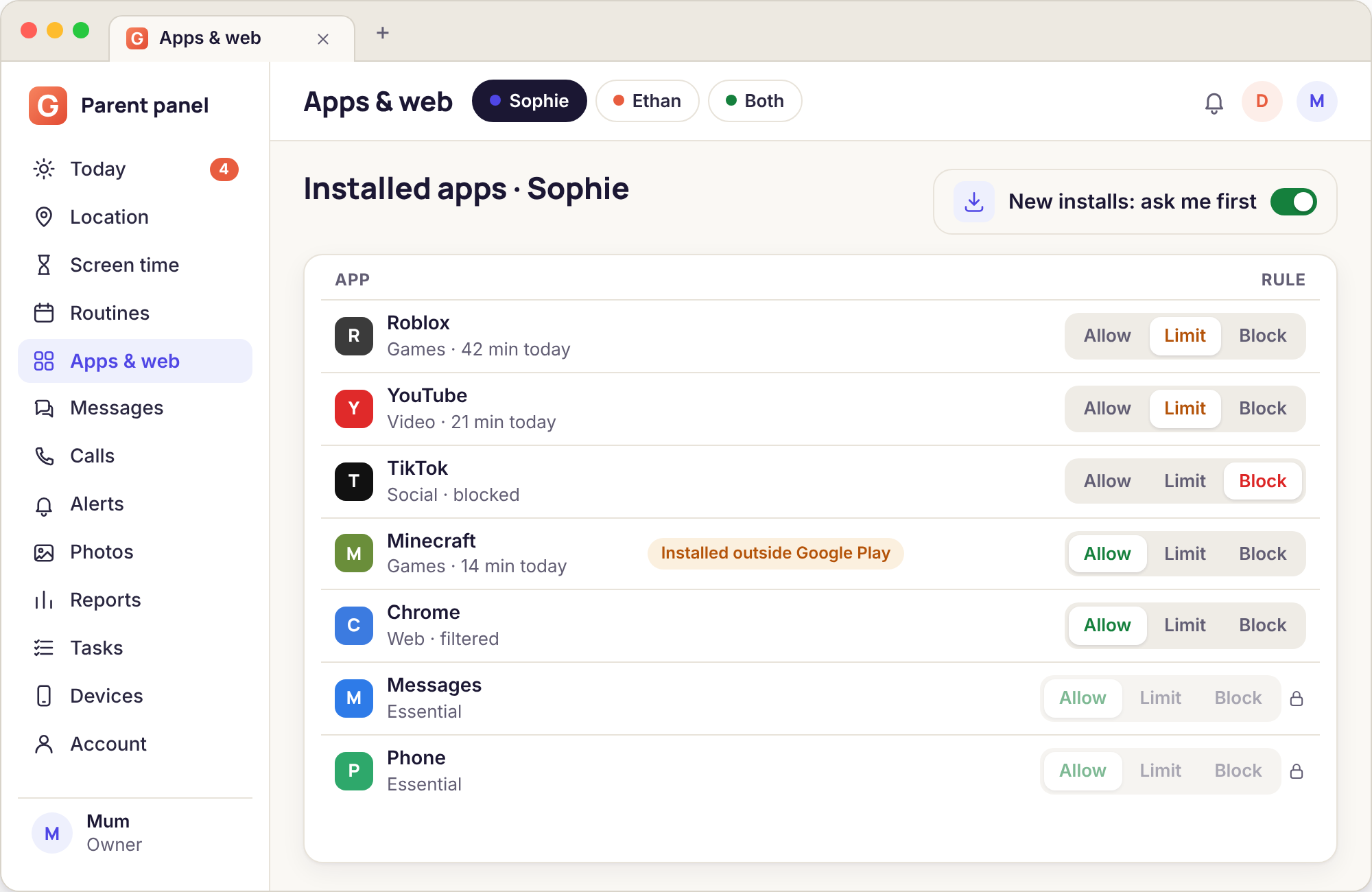
- Allow, limit, block. One state per app, per child, set on the Apps page of the panel. A limit is a minute count for that app alone; a block is a closed door with an "ask" button on it.
- Five essentials are protected and the panel will not accept a rule against them: Phone, Messages, Maps, Camera and Settings.
- "Ask me first" holds any newly installed app until you answer, and anything installed from outside Google Play carries a flag until you look at it.
- The website filter is on the phone, not your router. Categories, SafeSearch, allow and block lists, a blocked-site log, and "Ask to allow" from the blocked page.
- It has limits, and they are listed below. A VPN, a second browser or a determined teenager can get round parts of it, and the table says which parts.
Every app gets one of three states
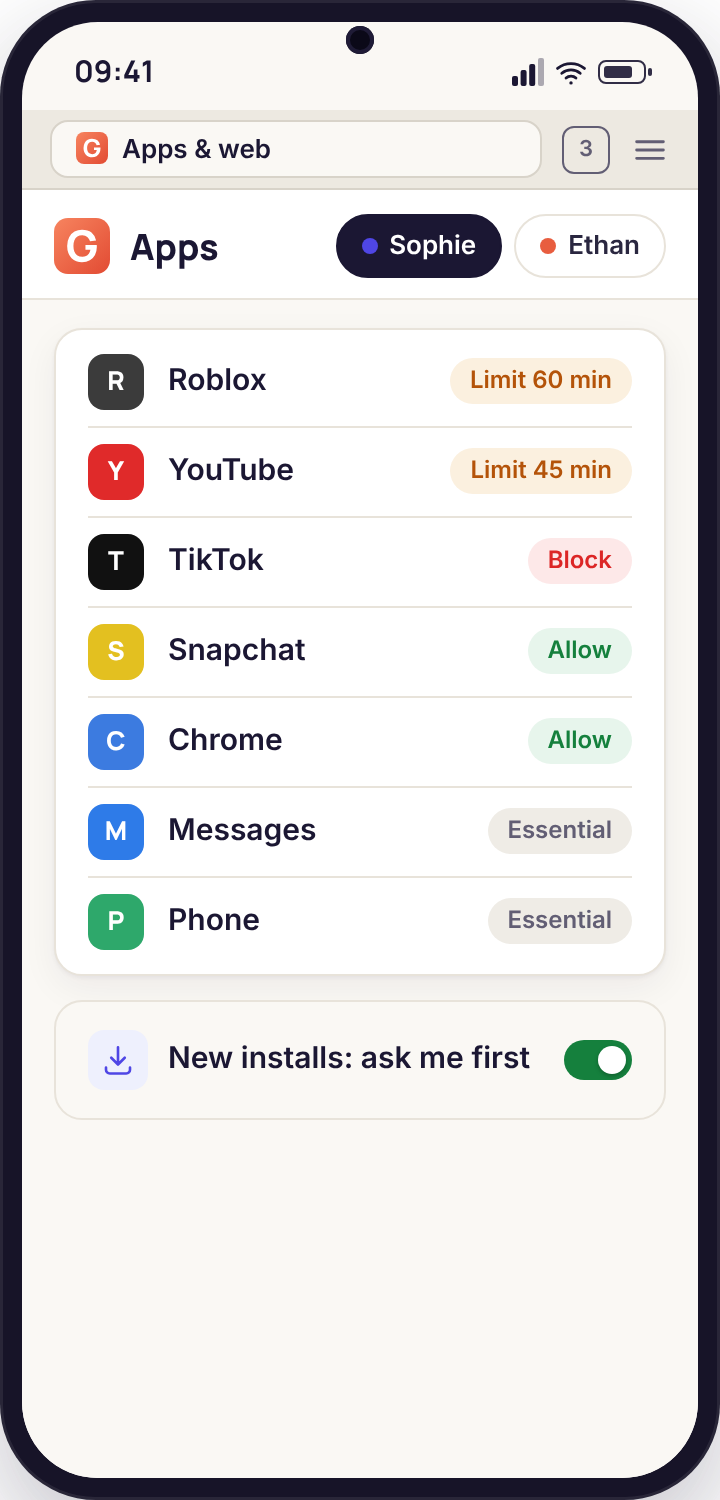
The Apps page lists what is on each child's phone with a three-way control beside each name. Most apps you will never touch. The handful you do are usually the same ones every family in the playground is talking about.
Allow, limit or block, per app and per child
A newly paired phone has every app on allow, which is identical to having no rule. The phone behaves as it did yesterday, and the child can confirm that on the Transparency screen. From there you change one state at a time, and each change appears on the phone with your name as it lands.
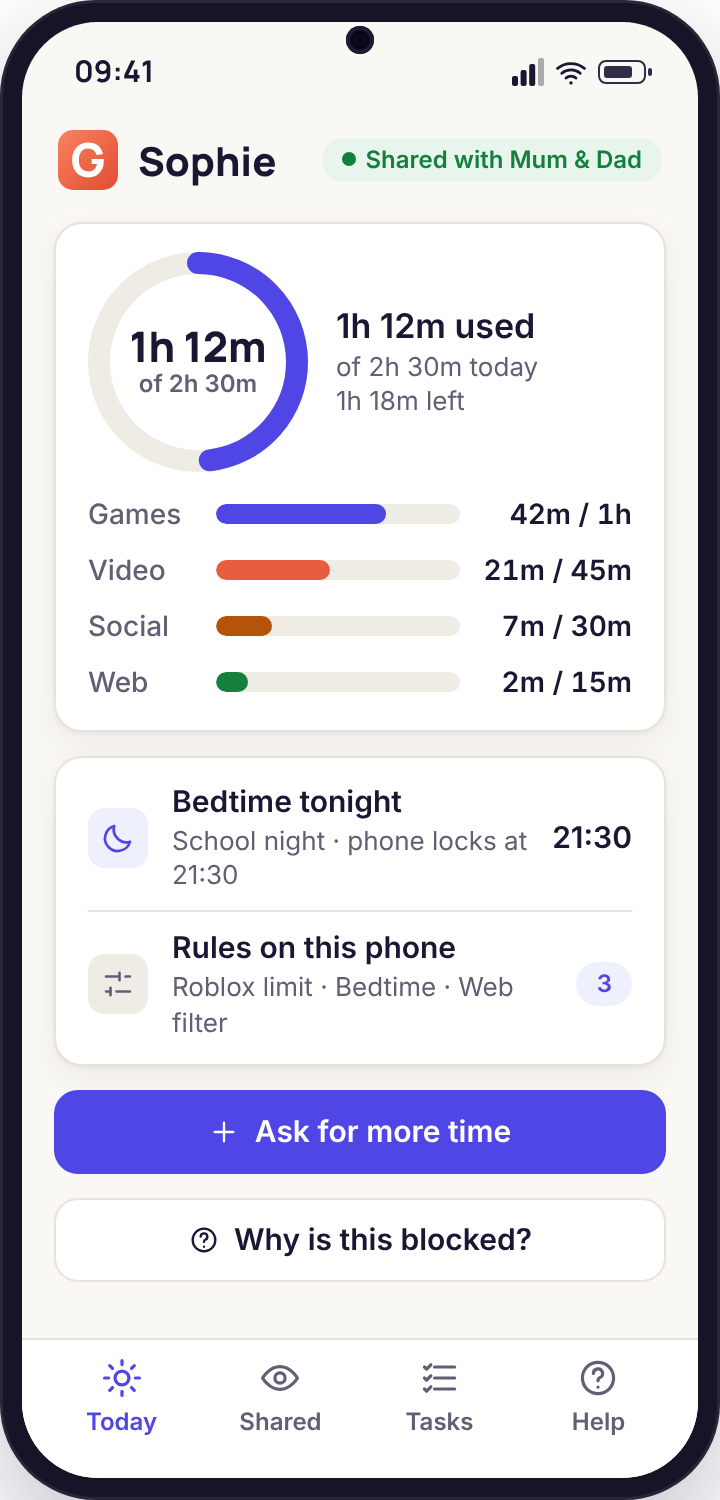
Limit hands an app its own clock for the day, with a weekday figure and a weekend figure. That clock sits inside the daily budget rather than on top of it: fifteen minutes of a short-video app inside a ninety-minute day means the app stops at fifteen even when an hour of the day remains. Only time with the app on screen counts, so a game left paused in the background costs nothing.
Block keeps the icon exactly where it was, because hiding things is not what this product does, but tapping it opens a card that says who blocked it and when, with "Ask to allow" underneath. The block is enforced by the phone, so it holds with no signal and no Wi-Fi. If you ever want to know how often that card was shown, the Sunday report lists blocked opens by app alongside everything else.
- A state applies to one child's phone; the same app can be allowed for a sibling
- Changes queue while a phone is offline and land the moment it reconnects
- A limited app also inside a routine follows whichever rule is stricter at that moment
- Every state change is shown on the phone, named, as it happens
Five essentials you cannot block, by design
A rule that could stop a ten-year-old ringing home after a missed bus would be a bug in the only place that matters. So the Apps page simply has no block option for the dialler, the default SMS app, the maps app, the camera or Android's Settings. If a rule somehow arrived on the phone naming one of them, the child app would ignore it. The five are the same for every child and every account, and we have turned down requests to make the list configurable.
The reasoning for each is short. The phone and SMS app are how a child reaches you, and how school reaches a child. Maps is how a lost child stops being lost. The camera is how chores are proved and how a flat tyre gets shown to a parent. Settings is how a child joins the Wi-Fi at a friend's house, and also how they can read which permissions the child app holds, which is part of being honest with them.
Third-party versions of these are ordinary apps. A second messaging app, a different browser or a camera app with filters can each be limited or blocked. The protection covers the system's own essentials and nothing else, and that distinction is written on the Apps page beside each one.
- Protected at every hour, in every routine, under every budget
- Calls to parents and emergency numbers go through even when the rest of the phone is locked
- Uninstalling the child app from Settings is possible and shows in the panel as "unpaired" within minutes
Ask me first for new installs, and a flag for anything from outside Google Play
The apps already on the phone are rarely the surprise. The surprise is the one that turns up on a Wednesday because the whole of Year 8 installed it over lunch. "Ask me first" is one switch per child. With it on, an app installed after that moment is held: its icon appears, but opening it shows a card saying a parent has been asked. You get a Needs you item in the panel with the app's name and its store listing, and you answer allow, limit or block from there. The child can nudge once more from the card, and the second nudge carries a reason box.
Separately, and whether or not "ask me first" is on, an app that did not come from Google Play is flagged on the Apps page with an amber mark. Apps installed that way are not automatically bad; our own direct-download build is one of them. But they skip the store's age rating and review, so they deserve a look. The flag stays until you set a state for that app, and the child's Today screen shows the same flag so there is no mystery about why you asked.
- Held apps are paused, not deleted, hidden or uninstalled
- Updates to an already-allowed app do not ask again
- Apps that arrive with a manufacturer update are listed as allowed, not held
- You can turn "ask me first" off for an older teen and keep the outside-store flag
The website filter runs on the phone
A router filter is excellent at your kitchen table and does nothing at the bus stop. This one is a small component inside the child app that checks each site the phone asks for, so the same rules apply on 4G, on school Wi-Fi and at a sleepover.
Seven categories, SafeSearch, and two plain lists
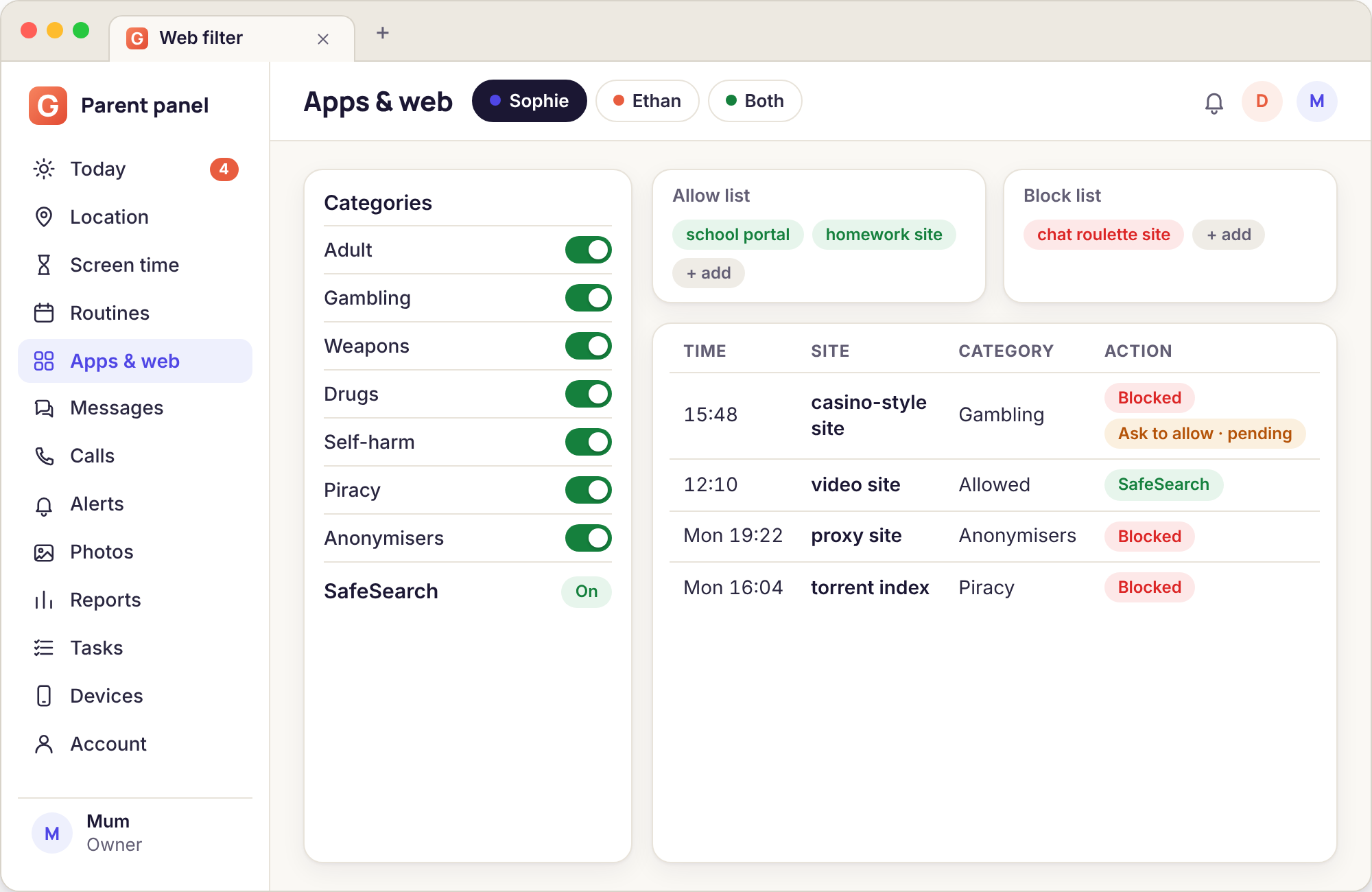
The Web filter page has a switch per category with a one-line description of what each covers, and all seven start off. Turn on the ones you want; most parents of a child under thirteen turn on all seven and most parents of a sixteen-year-old turn on four. The category lists are maintained by us and refreshed without an app update, so a site that moved domains last week is caught this week.
SafeSearch is a separate switch. With it on, the phone forces the safe mode on Google, Bing and YouTube regardless of what the child sets inside those services, which removes most explicit results from searches and most age-restricted videos from YouTube. It is not a filter on its own; it is a setting on three other companies' services that the phone keeps pinned.
Below the categories sit Always allow and Always block. Type a domain in either and it applies within a minute. Always allow beats every category, which is how a sexual-health charity's site gets through on a fifteen-year-old's phone with the adult category on. Always block beats everything, and a domain listed there shows no "Ask to allow" button.
- Checks the domain, not the page content, so a page loads at full speed or not at all
- Works in Chrome, Samsung Internet, Firefox and the other browsers we have tested on Android 9 to 15
- Listed on the child's Transparency screen as "Website filter: on" the moment the first category is switched on
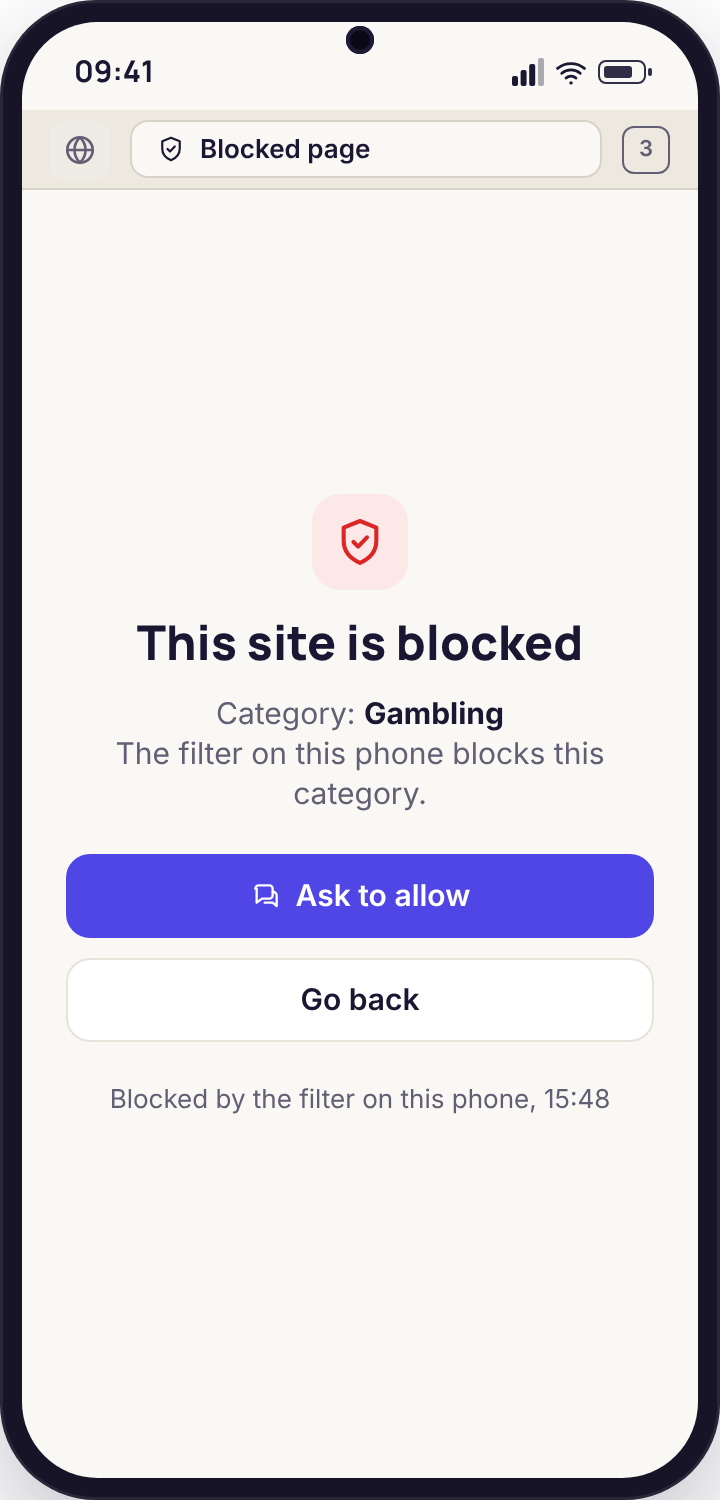
The blocked page says why, and offers Ask to allow
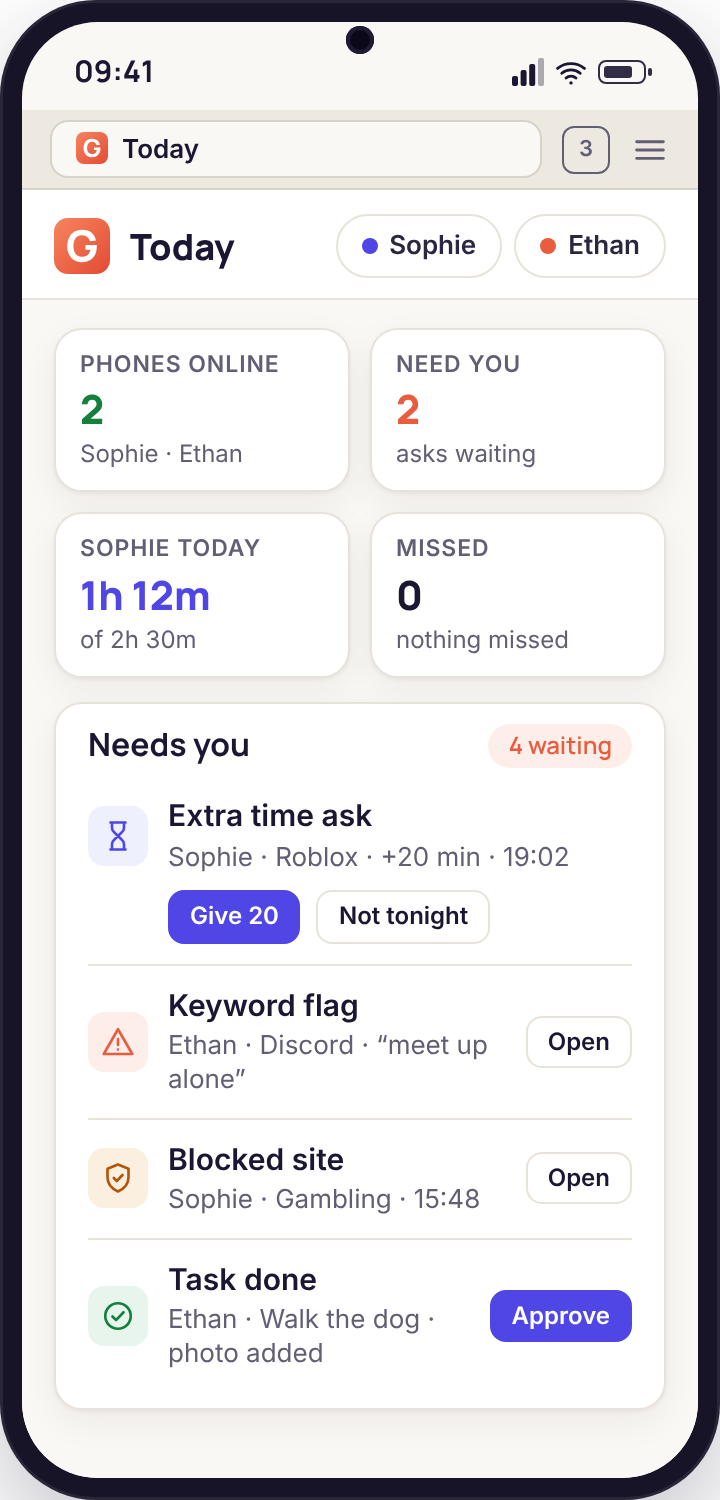
When the filter steps in, the browser shows a plain page instead of the site. It names the category, names the parent whose rule it was, and has one button: Ask to allow. Pressing it opens a short reason box and sends you a Needs you item with the domain, the category and the reason. You answer allow, which adds the domain to Always allow for that child, or keep blocked, which the child sees as a reply on the same page.
We put the button there because an overblock is a certainty, not a possibility. A history site about Prohibition trips the drugs category; a sports news site with a betting banner trips gambling; a lyrics site trips something most weeks. A child who can ask in one tap is a child who does not go looking for a way round. In the Bennett demo, Sophie's ask for a revision site caught by the piracy list is sitting in the Needs you list waiting for an answer.
What the blocked page does not do is pretend. It does not show a fake error, a spinning wheel or a blank screen. The child knows the site was blocked and by whom, and that is the deal the product is built on.
The blocked-site log
Every time the filter intervenes it writes a line: time, domain, the category that caught it, and whether the child asked. The log lives at the foot of the Web filter page and is kept for 90 days with the rest of the logs. It is the part of this feature that parents find most useful after week one, because the pattern matters more than any single line.
One gambling block on a Tuesday is an advert. Seven different betting domains between 22:10 and 22:40 is a conversation. Three blocks on the same homework site, each followed by an ask, is an overblock you should fix. The log does not record sites that were allowed, searched for or merely visited, and it does not record page titles or what was on the page. It is a list of doors that were closed, not a diary.
The same log feeds the Sunday report, which shows blocked sites by category for the week, and the Today dashboard, where a block shows up in the Needs you list only if the child pressed Ask to allow. A quiet log is the normal state.
What the filter catches, and what it cannot
A filter on a phone is a strong tool with real edges. This table is the one we would want to read before relying on it, so here it is in full.
| Situation | What happens | Needs | Honest limit |
|---|---|---|---|
| Adult sites | Blocked by the Adult category in every browser we have tested, on Wi-Fi and on mobile data. The blocked page is shown and logged. | Adult category on | New or obscure domains can be missed for a few days until the list catches up. Images inside social apps are not websites and are not covered here. |
| Gambling and betting | Blocked by the Gambling category, including the apps' own web pages and most affiliate sites. | Gambling category on | Loot boxes and in-game purchases inside a game are not web traffic. Use a limit or a block on the game itself. |
| In-app browsers (links opened inside Instagram, Discord, TikTok) | Filtered. The in-app browser uses the same system web component, and the filter sees the domain. | Nothing extra | A few apps bundle their own browser engine and bypass the system one. Those are rare, and the blocked-site log will show a suspicious absence rather than a block. |
| VPN apps | A VPN hides the destination from the filter. The Anonymisers category blocks the websites of most VPN services, and "ask me first" holds a newly installed VPN app until you answer. | Anonymisers on, ask me first on | A VPN app already installed and allowed before you set rules will tunnel past the filter. Check the Apps page for one, then block it. |
| Incognito or private tabs | Filtered exactly like a normal tab. The filter works on the request, not on the browser history. | Nothing extra | No limit we know of. Incognito only stops the browser keeping history; it does not change where the request goes. |
| Changing DNS by hand (Private DNS) | The filter does not depend on DNS, so a changed Private DNS setting does not disable it. | Nothing extra | Settings cannot be blocked, so the child can change the setting. It will not help them, but the panel does not alert you that they tried. |
| A second browser | Filtered. The filter is not tied to one browser, and a newly installed browser is held by "ask me first" anyway. | Ask me first on, ideally | An unusual browser with its own engine, often installed from outside the store, can bypass the filter. It is flagged as an outside-store install; block it from the Apps page. |
| Mobile data instead of Wi-Fi | No difference. The filter is on the phone, so 4G and 5G are covered the same as home Wi-Fi. | Nothing extra | This is the case router-based filters fail and this one does not. |
| Shared hotspot from a friend's phone | Covered. The child's phone still runs its own filter whatever network it joins, and the Wi-Fi history shows the hotspot as a new network. | Nothing extra | The friend's phone is not covered at all. A child using somebody else's handset is outside anything this product can see. |
| HTTPS and encrypted sites | Filtered. The domain is visible even when the page content is encrypted, and the domain is all the filter needs. | Nothing extra | The filter cannot see what is on the page, only where it is. A permitted site hosting something unsuitable is not caught. |
The pattern across the table is simple. Anything that goes through the phone's own networking is covered, including private tabs, in-app links and mobile data. Anything that hides the destination (a VPN) or moves the activity to another device (a friend's phone) is not. The Apps page and "ask me first" close most of the first gap; nothing closes the second, and we would rather say so than imply otherwise.
What this looks like in a real week
Three situations from families on the feedback survey, with the setting that was involved and how it went.
The game that eats the evening
Ethan, 11, found a building game in October and by November it was taking two hours a night. Blocking it outright would have started a war, and the game was not the problem; the hours were. His dad set a limit of 30 minutes on school days and 90 at the weekend, from the Apps page, while Ethan watched the Today screen update on his own phone.
The first week produced an extra-time ask most nights at about 19:20. Dad answered "Offer a task" twice and "Not tonight" the rest. By the second week the asks had stopped, and the Sunday report showed the game at 32 minutes a night and reading time, which nobody had set a rule for, back up.
What did the work: a limit, not a block, and the ask button giving him a say.
The site that got through
Sophie, 15, mentioned a forum she had been reading, and her mum recognised the name as one that had been in the news for self-harm content. The Self-harm category was on, and the blocked-site log showed nothing for that domain. The site had moved to a new address three days earlier, and the category list had not yet caught up.
Mum added the new domain to Always block, which took a minute and applied to Sophie's phone before she had finished her tea. She then reported the domain with the bug-report task, which earned the account access days and got the domain into the shared list for everyone. More importantly, she talked to Sophie about why she had been reading it, which no filter could have done.
What did the work: the block list for the immediate fix, and a conversation for the real one.
The friend's phone
A sleepover on Saturday. The Wi-Fi history on Sunday morning showed Ethan's phone joining a new network at 19:00 and the blocked-site log showed three gambling blocks at 23:15, each followed by an ask. His mum answered "keep blocked" to each from her own phone and went back to sleep.
What the log did not show was what happened on the friend's phone, which has no filter at all. Ethan said on Sunday that they had watched "a video" on it. There is no setting for that. His mum rang the friend's parent, compared notes, and the two families agreed a bedtime for phones at each other's houses.
What did the work: the filter on his own phone, and honesty about where it stops.
When a rule is not doing what you expected
Eight things that get reported to [email protected] most weeks, with the cause and the fix. Most take under five minutes with the phone in hand.
A blocked app still opens
The rule has not reached the phone yet. States are sent when you save, but a phone that is off, out of signal or in battery-saver mode may not pick them up for a while. The Apps page shows a small clock icon next to a state that is still queued.
Fix: Open the Devices page and press Re-send rules. If the clock stays, open the child app on the phone; it fetches rules on launch.
The filter blocks a site my child needs
Category lists are broad on purpose, and a homework site about the Prohibition era or a sports page with a betting advert will trip one. The child's Ask to allow lands in your Needs you list with the domain and the reason.
Fix: Answer allow, which adds the domain to Always allow for that child. If the site keeps tripping on a different address each time, allow the main domain; subdomains of an allowed domain are allowed with it.
A site I expected to be blocked loaded
Either the category is off for that child, the domain is new to the list, or the site is on the Always allow list from an earlier ask that was answered in a hurry. The blocked-site log will have no entry, which is itself the clue.
Fix: Check the category switches for the right child first; they are per child. Then search Always allow for the domain. If neither explains it, add the domain to Always block and report it with the bug-report task so the list catches up.
SafeSearch is on but explicit results appear
SafeSearch is pinned on Google, Bing and YouTube only. A different search engine, a search inside another app, or an image search on a site that is not one of those three is not covered by the SafeSearch switch.
Fix: Keep the Adult category on, which catches the destinations rather than the search. Add the search engine your child is using to Always block if it offers no safe mode of its own.
"Ask me first" is on but a new app opened without asking
Three causes, in order of likelihood: the app arrived in a manufacturer update and was listed as allowed; the app was installed before you turned the switch on; or the phone was offline when the switch was saved and installed the app before it synced.
Fix: Check the Apps page for the app and set its state by hand. The switch applies to installs from the moment it reaches the phone, and the Devices page shows when that was.
My child says the blocked page appears on a site that loads for me
The rule is per child and per phone. The same site on your own laptop goes through nothing. A site may also be caught by one category on the child's phone and not on a sibling's because their switches differ.
Fix: Open the blocked-site log for that child; the line names the category that caught it. Turn that category off for the child, or allow the domain, depending on which is the wrong one.
A limit ran out an hour earlier than the number I set
The limit sits inside the daily budget, and the budget's category (games, video, social or web) may have run out first. A thirty-minute game limit inside a budget that gives games twenty minutes stops at twenty, and the card on the phone says which rule it was.
Fix: Read the card. If it names the budget, the budget is the thing to change on the Screen time page. If it names the app limit, check the weekday and weekend figures, which are easy to swap by mistake.
The Transparency screen on the phone says the filter is off, but I turned it on
The filter needs a local filtering permission that Android asks for on the phone the first time a category is enabled. If that prompt was dismissed on the phone, the categories are saved in the panel but the phone cannot enforce them, and it says so honestly on the Transparency screen.
Fix: Open the child app on the phone and accept the permission; the screen explains that no traffic leaves the phone through it. The panel's Devices page shows "needs attention" until this is done.
Blocking, limiting, or just talking
Three tools, and the mistake we see most is reaching for the biggest one first. A block is the right answer for a small number of things: apps rated well above the child's age, a site in the self-harm category, a VPN app that appeared on a Tuesday. It is a poor answer for the things a child actually enjoys, because a blocked game is a game the child now wants twice as much and will find on a friend's phone.
A limit is the workhorse. It says "this is fine, and this much of it", which is a sentence a child can accept. It leaves the choice of when inside the day to them, and the ask button gives them a voice when the number is wrong. Most of the time, a limit set a little too generously and reduced over a term works better than a tight one imposed on day one.
And a conversation is the thing neither can replace. The blocked-site log and the Sunday report give you something specific to talk about: not "you are always on that phone" but "there were seven gambling blocks on Saturday night, what was that?" Parents tell us that the single most useful thing about a visible tool is that it makes those conversations ordinary rather than confrontational, because the child already knows what you can see.
We built the product to make the smaller tools easy and the bigger ones honest. It cannot read a page, cannot see a friend's phone, and cannot tell you why a child looked something up. It can close a door, count the minutes behind another, and tell you plainly where each door is.
Reach for a block when
- An app is rated well above your child's age and there is no version of "a little" that works
- A site sits in the self-harm, adult or anonymiser lists and no ask should get through
- An app was installed from outside the store and nobody can explain what it is
- You have agreed together to take a break from one app for a set time
Do not block when
- The real problem is how long, not whether; that is a limit's job
- The app is how your child talks to friends who are not in trouble
- You have not yet said anything to the child about it
- You are hoping a rule will replace a conversation you are dreading
What tends to work at each age
Starting points from parents on the survey, not instructions. Your child, your call.
Mostly allow lists, few limits
A first phone or a hand-me-down tablet. The web filter is usually on with all seven categories and SafeSearch, "ask me first" is on, and the child's browser is one of the few apps with a block on it until the family has agreed what the web is for.
- All seven categories and SafeSearch on
- Ask me first on, answered together at first
- One or two limits on the apps that cause tears at bedtime
Limits do the work
The age of the group chat and the first short-video habit. Blocks are rare and talked about; limits are common and adjusted every half-term. The blocked-site log gets read once a week with the Sunday report, usually with the child in the room.
- Five or six categories on; piracy and anonymisers always
- Limits on video, one game and one chat app
- Ask me first still on, answered within the hour
Fewer rules, more honesty
By now the rules should be ones the young person helped write. The filter narrows to the categories that matter most, "ask me first" often comes off, and the Apps page becomes a place to look rather than a place to act. The Transparency screen is the thing that keeps it fair.
- Self-harm, anonymisers and gambling kept on
- One or two limits, agreed, with a review date
- The outside-store flag kept on, "ask me first" usually off
What parents ask before switching on a filter
Does the website filter slow the phone down?
No measurable difference in our testing. The filter checks the domain of each request against a list kept on the phone, which takes a fraction of a millisecond, and the page then loads normally. It does not send browsing to our servers for inspection; the only thing that leaves the phone is a line in the blocked-site log when a site is actually blocked.
Can my child see which sites are blocked?
They can see that the filter is on and which categories, from the Transparency screen in the child app, and they see the category name on any blocked page. They do not see the full category lists, which are large and change weekly, but nothing is blocked without the phone saying so.
Does blocking an app uninstall it?
No. The icon stays, the data stays, and tapping it shows a card saying who blocked it and offering Ask to allow. Unblocking it later returns the app exactly as it was, including saved games and logins.
Can I block the browser entirely?
Chrome and other browsers are ordinary apps and can be blocked or limited. For a younger child a blocked browser plus an allowed homework app is a common first setting. The exception is that nothing on the protected list can be blocked, and the browser is not on it.
What about apps that have their own browser inside them?
Links opened inside Instagram, Discord, TikTok and most other apps use the phone's shared web component, and the filter sees them. A handful of apps bundle their own engine and bypass it; the blocked-site log will show no entries from that app, which is your signal to limit the app instead.
Will a VPN get round the filter?
A working VPN hides the destination, so yes, it would. That is why the Anonymisers category blocks VPN providers' websites, "ask me first" holds a newly installed VPN app, and any VPN app already on the phone appears on the Apps page for you to block. If a child installs one from outside the store, it is flagged.
Does the filter read what my child types or sees?
No. It sees the domain of each request and nothing else: not the page, not the search terms, not form entries. There is no keylogger in the product and there will not be one. The blocked-site log records a closed door, not what was behind it.
Is any of this hidden from my child?
None of it. The app icon is visible, the Transparency screen lists the filter and the app rules, every state change is shown on the phone with the parent's name, and the blocked page names who set the rule. We do not build a hidden mode, and we turn down requests for one.
Everything else in GuestSpy runs from the same panel, so this sits beside screen time budgets, routines and bedtime and alerts and keyword flags.
There is nothing extra to install for this: app and website blocking comes with the paired phone, and pairing is a fifteen-minute job with your child beside you. Each screen of it is shown in the setup guide.
Close the doors that matter, and leave the rest open
Pair the phone, switch on the categories you want and limit the one app that eats the evening. The child sees every rule, and you see every ask.
Android child app · Runs in any browser · Visible on the phone