A bedtime the phone keeps for you
A routine is a window of time when the phone goes quiet on its own: Bedtime, School hours, Homework hour, Dinner pause. You set the window once in the panel, the phone follows it every night whether or not it has signal, and calls to you and to emergency numbers go through regardless. Your child can see tonight's bedtime in their own app, so the clock is not a surprise.
Android 9 or newer · Enforced on the phone, no signal needed · Nothing runs until you switch a routine on
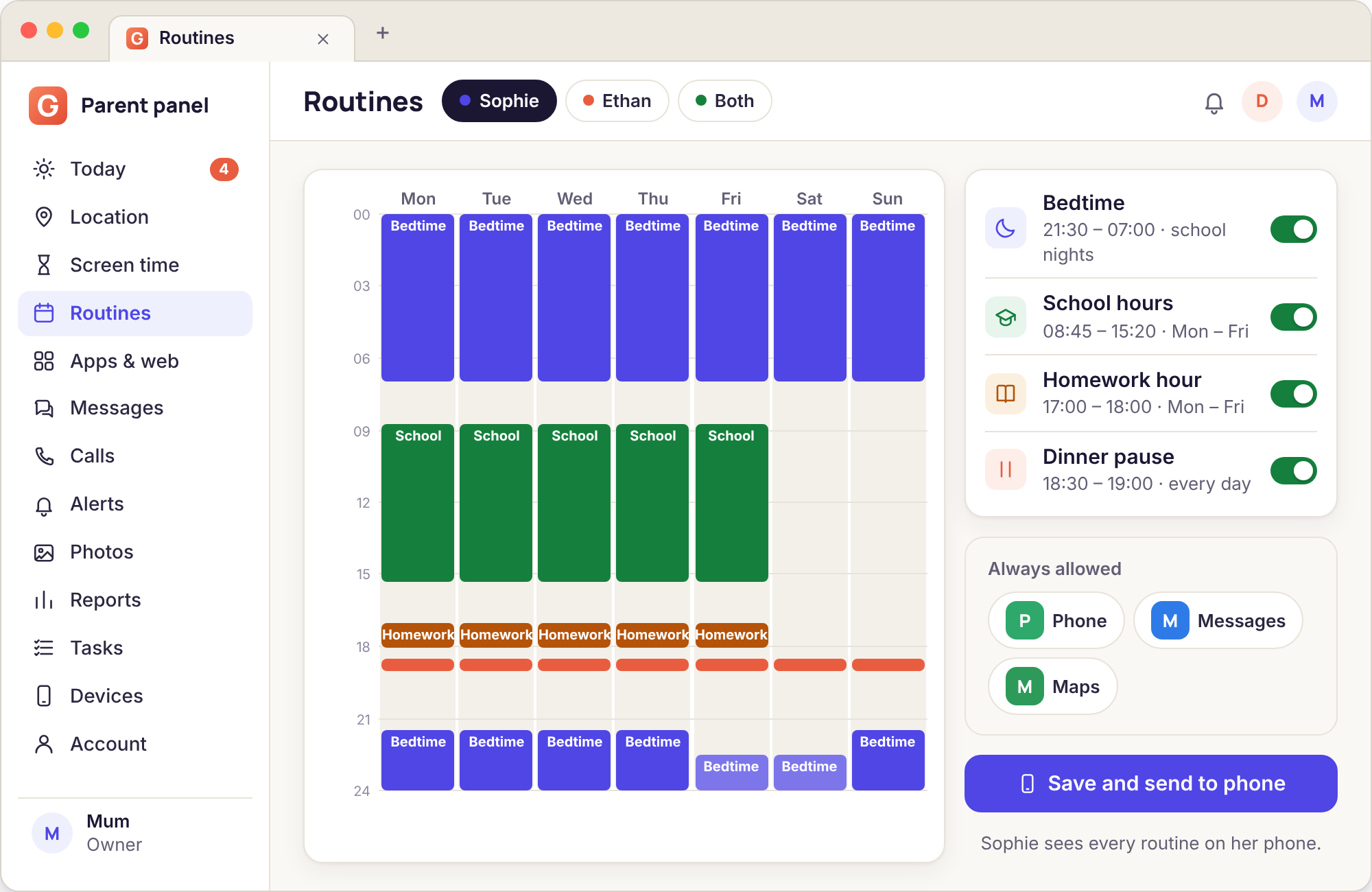
- Four named routines per child: Bedtime, School hours, Homework hour and Dinner pause. Each has its own days, start and end, and its own list of what stays usable.
- The phone keeps the clock itself. Once the rule has reached the handset it works in a basement, on a plane, and on a farm with one bar of signal.
- Calls to parents and to emergency numbers always connect, and the alarm clock always rings. There is no setting that can change that.
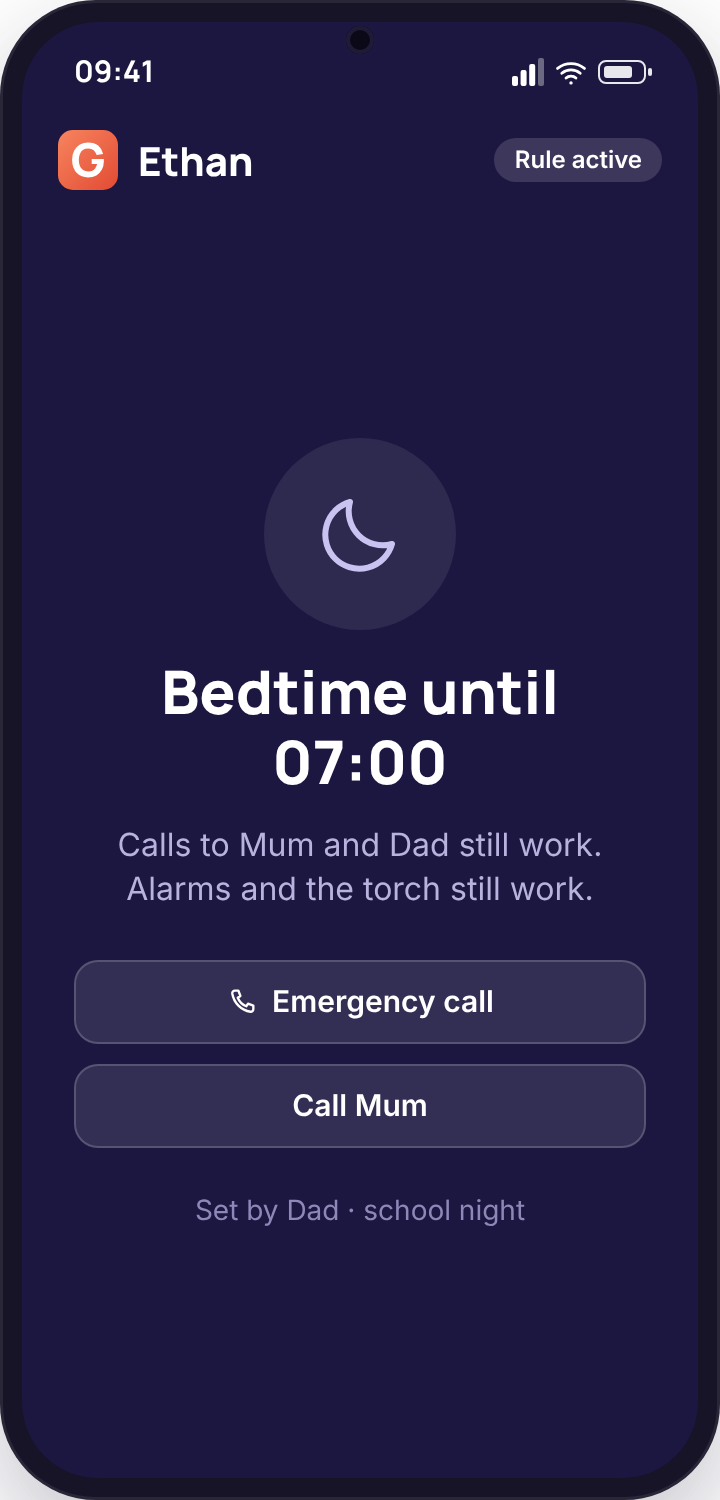
- It is visible. The child's Today screen shows tonight's bedtime before it happens, and the lock screen says who set it.
- You will meet four decisions in setting one up. This page takes them in the order they arrive.
What time, and on which nights?
The first thing the Routines page asks for is a window. Most parents pick a start time quickly and then spend ten minutes arguing with themselves about Friday.
The Routines page in the panel is a seven-day grid for each child. Down the side are the four routines; across the top are the days. You drag a bar across the hours you want each routine to cover, or type the start and end into the two boxes beside it. A Bedtime bar that runs from 21:00 to 07:00 on a school night wraps across midnight without you doing anything special, and the end time is the moment the phone wakes up again, not the moment the child does.
Pick the start time by working backwards from when you actually want the room dark. If lights-out is half past nine, a 21:00 bedtime routine gives thirty minutes for the last message, the charger hunt and the "one more thing" that every child has. The phone shows a wind-down note ten minutes before the routine begins, the same way the daily budget does, so a 21:00 start feels like 20:50 to the child. Setting it to the second you want silence tends to produce a nightly argument about the last two minutes of a video.
Nights are where families differ, and the grid is built for that. The usual pattern is five school nights at one time and Friday and Saturday an hour later, which you draw as two bars rather than one. Some parents leave Sunday night at the weekend time because homework is being finished; others treat Sunday as a school night because Monday morning is the hardest wake of the week. Both are a single drag of the bar. Term-time and holiday settings are not separate profiles, so the honest way to handle a half-term is to shift the bar for the week and shift it back, which takes under a minute and shows on the child's phone as a changed bedtime for that night.
Two things to know before you save. A routine with no days ticked is saved but inactive, which is useful for a Homework hour you only want during exam season. And a routine's start applies to the phone's own clock, so a phone that has been set to a different time zone by hand will keep that time zone's bedtime; the panel shows the phone's reported time next to its name on the Devices page so you can spot that.
If you are unsure, start later than you think and bring it earlier a week at a time. Children accept a bedtime that was negotiated once and then moved by fifteen minutes far more easily than one that landed an hour early on the first night.
| Age | School nights | Friday and Saturday | Wake time | What parents tell us works |
|---|---|---|---|---|
| Under 10 | 19:30 to 07:00 | 20:00 to 07:30 | Same as the end of the routine | The phone or tablet often sleeps outside the bedroom entirely, so the routine is a backstop rather than the main rule. Keep the window wide. |
| 10 to 12 | 20:30 to 07:00 | 21:30 to 08:00 | 15 minutes before the child needs to be up | This is the age at which the bedtime routine does the most work. A charger in the hall plus a 20:30 routine removes most of the night-time scrolling without a nightly conversation. |
| 13 to 14 | 21:30 to 06:45 | 22:30 to 08:30 | Set to the alarm time | Agree it together and write the agreed time into the child's Today screen note. Expect to move it by half an hour across the year. |
| 15 to 16 | 22:30 to 06:30 | Often none | Alarm time | Many families keep only the school-night routine and let weekends run on the daily budget instead. Sophie Bennett, 15, has exactly that set-up in the demo. |
| 17 and over | Optional | None | Not applicable | At this age a routine is something the young person usually asks for themselves during exams, and switches off afterwards. It works best as a tool they own. |
The times are the ranges parents on our feedback survey reported using, not medical guidance. Your child's school start, commute and sleep needs come first.
What stays allowed while the routine is on?
A bedtime that cuts a child off from help is worse than no bedtime at all. Some of this list is fixed by us. The rest is a short set of choices you make per routine.
When a routine starts, the phone shows a full-screen card instead of the home screen. The card names the routine, shows when it ends, and says which parent set it. Underneath are the things the child can still open. Some of those are there no matter what you choose, because we decided a parental tool should never be the reason a child could not reach a parent. Phone calls to the numbers on the parent account, calls to the emergency number for the country the phone is in, and the alarm clock all work from the locked card. There is no switch in the panel that turns any of those off, and the child can see that promise on the Transparency screen.
Everything else is a choice. Beside each routine in the panel is an "Allowed during this routine" list. For Bedtime most families leave it empty, which means the card and the three fixed items are all there is. For Homework hour the list tends to be longer: a dictionary app, the school's homework portal, a calculator, the music app that helps them concentrate. Anything you add here opens normally while the routine is on; anything you do not add shows the card when tapped. The list is per routine, so the music app allowed during Homework hour is not allowed at Bedtime unless you add it there too.
Two choices come up often enough to deserve a straight answer. Incoming calls from anyone other than a parent: by default these still ring, because a grandparent ringing at 21:15 is not a problem you want to engineer away, but you can narrow it to parents only for a younger child. Messages: the default SMS app is an essential and cannot be blocked at any hour, so a text from you or from school can be read and answered during any routine without the rest of the phone waking up. Chat apps like WhatsApp are ordinary apps and are closed by a routine unless you list them.
The alarm deserves its own line because it is the thing parents worry about most. The routine does not touch Android's clock app, so an alarm set for 06:45 rings at 06:45 and can be snoozed or dismissed from the card. Many parents set the end of Bedtime to the alarm time so the phone simply wakes up as the child does. If your child uses a third-party alarm app, add it to the allowed list for Bedtime, or it will behave like any other app.
Essentials, always
Phone, Messages, Maps, Camera and Settings are protected on every page of the product, and a routine is no exception. The child can read a text, find their way home from a late bus and photograph a broken window at 23:00. What they cannot do is open the game that lives next to those icons.
Calls to parents
Both parents on the account are listed on the locked card by name, and one tap rings them. Add a second number for a parent who has a work phone from the Children page, and it appears on the card too. These calls bypass every routine and every budget, and we will not add a way to change that.
Emergency numbers
The emergency call button is Android's own and sits at the bottom of the card, exactly where it sits on an ordinary lock screen. It dials the local emergency number for wherever the phone is, including abroad. The routine never covers it and the child app never sees the call.
The alarm
Android's clock keeps running underneath the card. Alarms ring, snooze and dismiss as usual, and the wake-up alarm is a sensible time to end the Bedtime routine so the two line up. If a routine ends before the alarm, the phone simply unlocks a little early.
School hours and Homework hour: block or limit?
Bedtime is easy to reason about because nothing useful happens on a phone at 23:40. The daytime routines are harder, because the same phone is a distraction at 11:00 and a revision tool at 17:00.
There are two ways to handle the school day and the hour after it, and they are not the same thing. A routine closes the phone to everything except its allowed list for a fixed window. A limit, which lives on the Apps page rather than here, gives one app a number of minutes for the whole day and does not care when those minutes happen. The question for each window is whether you want to decide what the phone can do, or how much.
For School hours, most parents end up with a routine, because the school has already decided the phone should be away and the routine simply makes the handset agree. A School hours routine running 08:45 to 15:15 on weekdays leaves the essentials and the bus app open and closes everything else. The child can still ring you from the office if they are unwell and can still see a message from you about who is collecting them. If the school allows phones at lunch, draw two bars with a gap between them; the grid accepts that without complaint.
Homework hour is the one where a limit often wins. A child doing a geography project needs the browser, the school portal, the camera for a worksheet photo, and quite possibly a music app, and the list of what they need changes with the subject. A routine with a long allowed list works, but you end up maintaining that list. The alternative is no routine at all for that hour and a tight daily limit on the three or four apps that actually eat the time: games, short-form video, one chat app. The child can then use the phone freely for homework and the distractions are rationed whatever the clock says.
A third pattern, which the Bennetts use for Ethan, 11, is a short Dinner pause from 18:00 to 18:45 and no Homework hour at all. The pause is long enough to eat and talk, short enough that nobody minds, and it removes the phone from the table without a word being said. His homework is done with the phone on the kitchen counter, where the daily budget handles anything that drifts.
Whichever you choose, the rules combine sensibly. If an app is limited to twenty minutes and a routine is on, the routine wins and the app is closed. When the routine ends, the twenty minutes are still there. If an app is blocked outright, no routine's allowed list can open it. The strictest rule in force at that moment is the one the phone follows, and the Today screen on the phone tells the child which rule it is.
Thursday, 10:20, and a text from school
Ethan's School hours routine has been on since 08:45. The phone is in his bag with the routine card showing. At 10:20 the school texts both parents to say the afternoon football fixture is cancelled and pick-up is at 15:15, not 17:00. Mum replies to Ethan from the panel's Messages page, a plain text message, so he knows to come out of the main gate.
At break he looks at his phone. The card is still up, but Messages is an essential, so Mum's text is there to read without anything else on the phone opening. He taps her name on the card and rings to check which gate. The call connects, the routine stays on, and at 15:15 the phone opens as usual when the bar in the grid ends.
Outcome: The routine blocked the game he would otherwise have opened at break, and did not block the message that mattered.
Monday, 16:30, revision with a limit instead
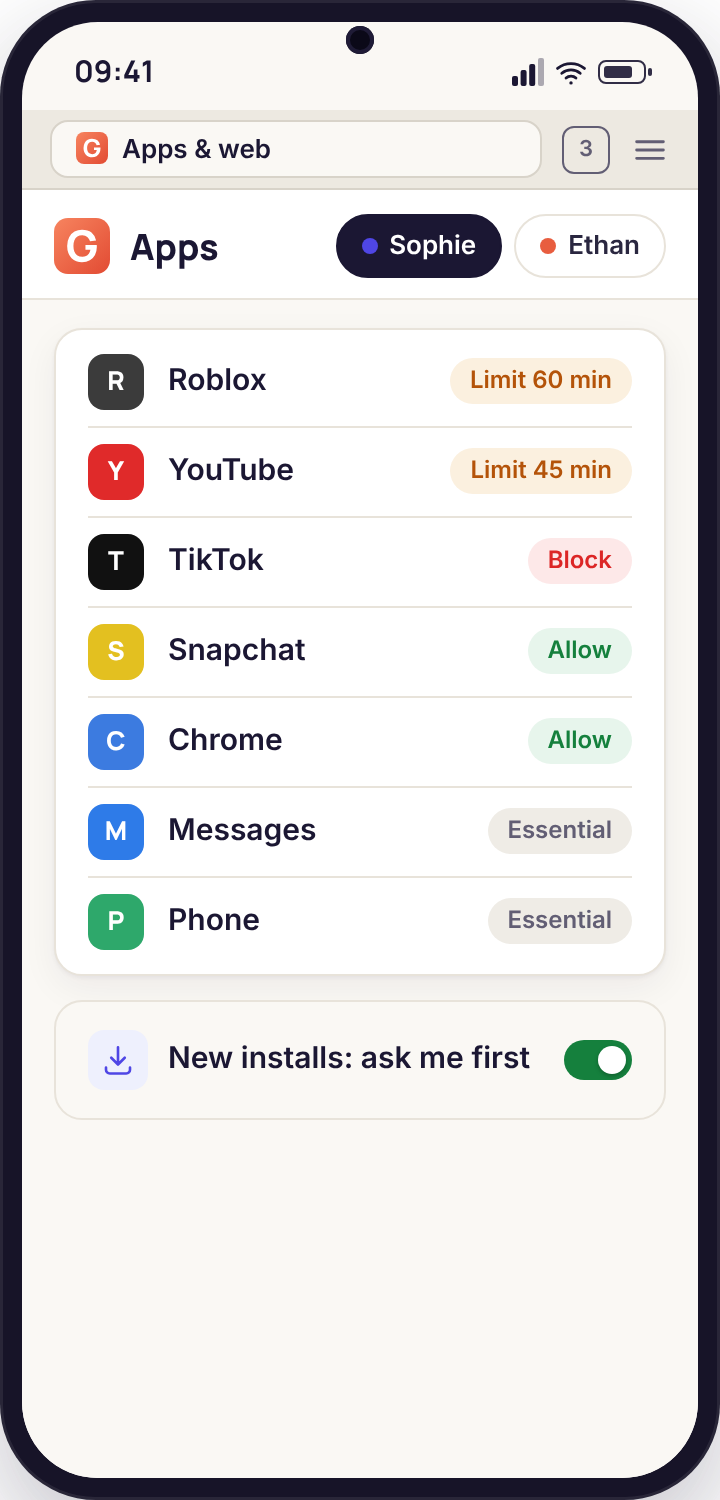
Sophie, 15, has no Homework hour routine. Instead her Apps page has three limits: 20 minutes of short-form video, 30 minutes of one game and 45 minutes of her main chat app, each counted across the whole day. She sits down at 16:30 with the browser, the school portal and a revision app, none of which have a limit, and works for an hour.
At 17:35 she opens the video app and the ten-minute wind-down note appears because she used most of today's allowance on the bus. She asks for more with the reason "finished chemistry, need a break". Dad sees the request in the Needs you list on his phone and answers "Give 20 minutes". She never hit a wall during the actual homework, and the one app that would have eaten the evening was the one with the clock.
Outcome: No allowed list to maintain, and the pressure landed on the distraction rather than on the work.
How do you introduce it without a fight?
The feature is the easy part. The conversation that goes with it decides whether the routine lasts a term or a weekend.
Because the app is visible on the child's phone, a routine cannot be slipped in quietly, and that is a help rather than a hindrance. The child's Today screen shows the bedtime for tonight the moment you save it, with your name beside it. That means the first your child hears of a bedtime routine should not be the lock card at 21:00. It should be a conversation at the kitchen table where the phone is on the table too, and the Today screen is open on it.
Parents who have done this well tell us the same few things. They set the first bedtime later than they wanted and tightened it later. They let the child choose something: the exact minute, which night is the late one, which app goes on the allowed list. They explained the fixed parts honestly, especially that calls to parents and emergency calls always work, because a child who knows that is far less anxious about being locked out. And they did the first week's routine themselves as well, charging their own phone in the hall at the same hour, which did more for compliance than any setting.
The thing to avoid is treating the routine as the whole answer. It takes the phone out of the equation at a set hour; it does not change what a tired child feels about being sent to bed. Expect the first few nights to produce extra-time requests at 20:58, and answer them from the panel with a word rather than a lecture. "Not tonight" with a note that says "school night, same time tomorrow" lands better than silence, and the child sees the note on the lock card.
Finally, agree how the routine will be reviewed. A routine that was set in September and never looked at again is the kind that children learn to resent. Half a term, then a look at the weekly report together, then a decision to loosen or keep it, gives the child a reason to keep to it and gives you a reason to notice when it is no longer needed.
Open the Today screen together before you set anything
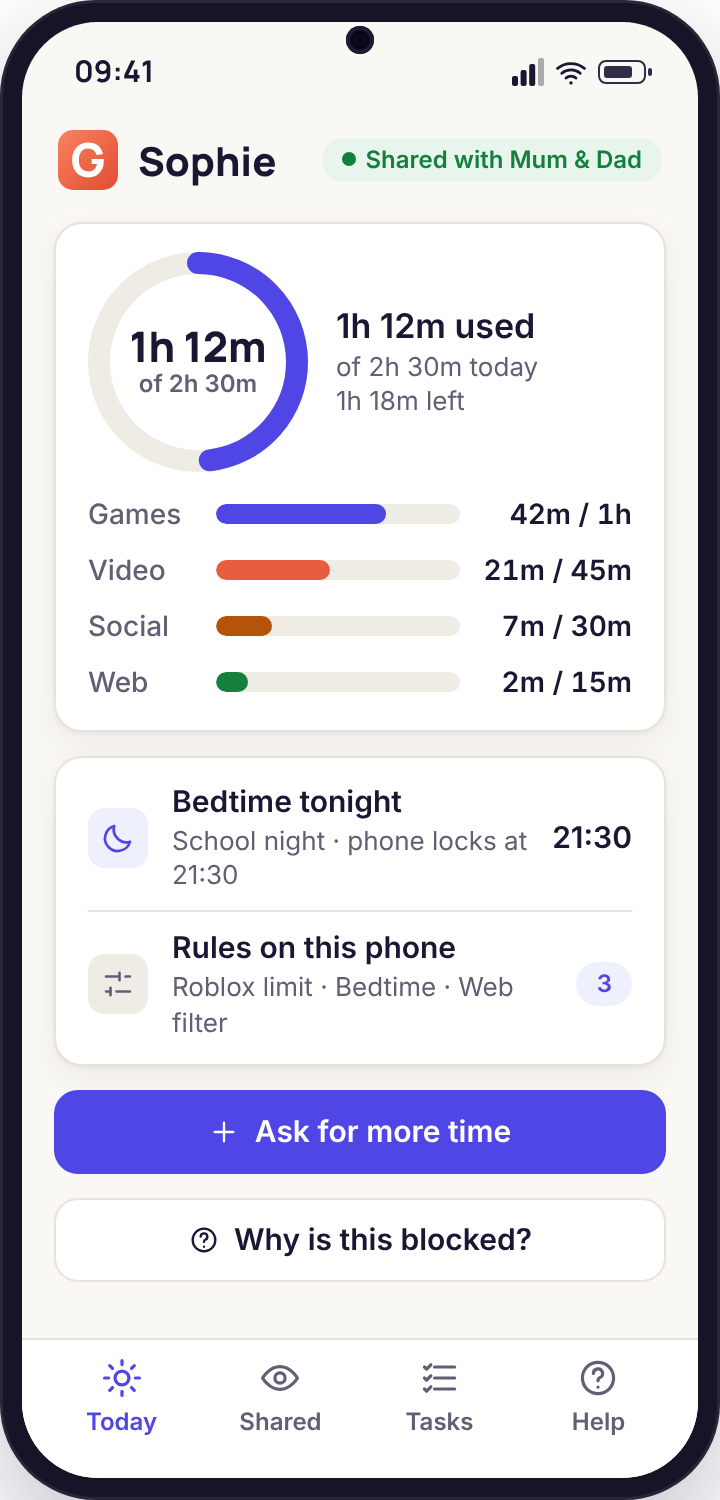
Sit with the child's phone and show them the Today screen in the child app. It lists what the phone shares and which rules are on, and right now that list is short. Say what you are about to add and why: "I want the phone asleep at half nine on school nights so you are not tired at eight." Ask when they think it should start. You will usually get a later time than yours and a reasonable argument for it.
Save the routine while they watch, and let them read the card
Set the window in the panel on your laptop with the child's phone beside it. Within a few seconds the Today screen updates with tonight's bedtime and your name. Then hand them the phone and let them read what stays allowed. The point of this step is that there is nothing to discover later; the first lock card is one they have already seen.
Answer the first week's asks quickly and plainly
There will be requests. A child who asks for ten more minutes at 20:55 with the reason "finishing a chat" is testing whether the routine is real, not plotting. Answer within a few minutes from wherever you are, give the twenty minutes once or twice in the first week if the reason is fair, and say no with a note the rest of the time. Consistency in week one buys quiet in week four.
Review it at half-term with the weekly report open
The Sunday report shows how often the routine held and how many extra-time asks there were. Look at it with the child. If asks dropped to nothing, offer to move the bedtime fifteen minutes later as recognition. If they rose, ask what changed rather than tightening. The aim is for the child to see the routine as something the family adjusts, not something that was done to them.
Routines versus budgets: which does what
Both live on the same phone and both are enforced there. They answer different questions, and most families use both without noticing.
| Question | Routine | Daily budget | App limit |
|---|---|---|---|
| What does it control? | A window on the clock | Total minutes per day, split across games, video, social and web | Minutes for one named app |
| Does it care about the time of day? | Yes, that is its whole job | No, only the total | No, only the total for that app |
| Weekday and weekend differ? | Any pattern of days | Two figures | Two figures |
| Can the child ask for more? | They can ask for the routine to end early; you answer from the panel | Ask with a reason, answered with Give 20 minutes, Not tonight or Offer a task | Same three answers |
| Wind-down warning? | Ten minutes before it starts | Ten minutes before it runs out | Ten minutes before it runs out |
| Works without signal? | Yes, once the rule has reached the phone | Yes | Yes |
| What always works? | Calls to parents, emergency, alarm, essentials, your allowed list | Phone, Messages, Maps and the other essentials | Everything except that one app |
| Best for | Bedtime, the school day, the dinner table | The overall shape of a day | The one game or feed that eats evenings |
| Where it is set | Routines page | Screen time page | Apps page |
When two rules apply at once the phone follows the stricter one, and the lock card says which. A budget that ran out at 19:00 does not come back when Bedtime ends at 07:00; it comes back at midnight, as budgets do. A routine that ends at 07:00 does not hand back any minutes, because it never took any. The Places feature is separate again: a routine never changes where the phone reports from, and a missed arrival is raised whether or not a routine is on.
When a routine does not hold
A routine runs on a phone, and phones get switched off, swapped, updated and carried across time zones. These are the cases we are asked about, with what actually happens and what to do.
The phone was switched off at bedtime and on again at 02:00
A routine is a rule the phone enforces, so a phone that is off is not enforcing anything, and the child app has no way to stop a power-off. When it comes back on inside the window, the routine resumes immediately because the rule and the clock are both on the handset.
What to do: Nothing in the product can prevent the restart gap. The weekly report shows a phone that went offline at 21:00 and reappeared at 02:00, which is a conversation rather than a setting.
Travelling, and the bedtime fired at the wrong hour
Routines follow the phone's own clock. On a trip where the phone's time zone changes automatically, Bedtime moves with it, which is usually what you want. If the phone's time zone has been set by hand, or the family has crossed several zones and would rather keep home time, the routine will seem early or late.
What to do: Check the reported time next to the device on the Devices page, then either shift the bar for the week or pause the routine by unticking its days until you are home.
The children swapped phones for the evening
A rule belongs to a device, not to a person. If Ethan's locked phone is on the bedside table and he is using Sophie's, whose Bedtime starts an hour later, the routine on his phone is holding perfectly and he is still on a screen.
What to do: Give the sibling's phone the same bedtime, or accept that a routine controls a handset and the rest is house rules. The Today dashboard shows both phones online with their time used, which is usually enough to notice.
An Android update removed a permission
Some system updates reset the accessibility or app-usage permission the child app uses to show the lock card. The routine is still saved and still reaches the phone, but the card cannot appear over other apps, so the window passes with nothing enforced. The panel shows the device as "needs attention" with the missing permission named.
What to do: Open the child app on the phone; it asks for the permission again with the reason beside it. Re-send rules from the Devices page afterwards. The fix takes a minute and needs the phone in hand.
The 06:59 workaround
A child who knows the routine ends at 07:00 may be awake and waiting at 06:59, or may learn that moving the clock forward by hand ends it early. Automatic time is on by default and a manual change is logged, but a determined fourteen-year-old can still try.
What to do: The Devices page shows a phone whose reported time disagrees with the server by more than a few minutes, and a routine on a phone with manual time shows a warning. Mention that you can see it; that usually ends it.
Two homes, two bedtimes
Both parents on an account can edit routines, and every change carries a name. In a split household that can mean a bedtime that moves on Thursday when the child moves, which is fine, or a bedtime that one parent keeps undoing, which is not something software can settle.
What to do: Agree one weekday routine and one weekend routine and leave them alone. The change history on the Routines page shows who moved what and when, and the Sunday report goes to both parents, so there is a shared record to talk from.
A routine cannot stop a child using a second device, a games console or the family television. It governs one paired Android phone or tablet, visibly, and nothing else.
What parents ask about routines
Can my child see when bedtime is before it happens?
Yes. The child app's Today screen shows tonight's bedtime, the name of the parent who set it and the ten-minute wind-down note before it starts. There is no version of a routine that arrives unannounced, and we would not build one.
What happens if my child needs me during Bedtime?
The lock card lists both parents by name and one tap calls either of you. Emergency calls use Android's own button at the foot of the card. Neither can be removed by any setting, and the Transparency screen on the phone states that plainly.
Does a routine work if the phone has no signal?
Once a routine has reached the phone it is enforced by the phone's own clock, so it holds on a flight, in a tent and in a bedroom with no Wi-Fi. A brand-new routine saved while the phone is offline queues in the panel and applies the moment the phone reconnects.
Can I end a routine early for one night?
Yes. The Routines page has an "End tonight's Bedtime early" action that lifts the current window until it would next start, and the child's phone shows that you did it. The routine itself is unchanged for tomorrow.
Can I set different routines for each child?
Every child on the account has their own grid, so Sophie's 22:30 and Ethan's 20:30 live side by side and are edited separately. Rules are per device, not per account.
Will a routine stop the alarm clock?
No. Android's clock app runs underneath the lock card and alarms ring as normal. If your child uses a third-party alarm app, add it to Bedtime's allowed list. Most parents set the end of Bedtime to the alarm time so the phone wakes with the child.
Is there an iPhone version of the routines?
Not yet. The child app runs on Android 9 or newer and an iPhone child app is in development. The parent side is a website, so a parent with an iPhone can set and edit routines from Safari without installing anything.
Everything else in GuestSpy runs from the same panel, so this sits beside screen time budgets, app and website blocking and activity reports.
There is nothing extra to install for this: the bedtime routine comes with the paired phone, and pairing is a fifteen-minute job with your child beside you. Each screen of it is shown in the setup guide.
Set tonight's bedtime in under a minute
Draw one bar on the week grid, save it with your child watching, and the phone takes it from there. Calls to you always get through, and nothing is charged for it.
Android child app · Runs in any browser · Visible on the phone