The parent side is a website, on purpose
There is no parent app to install. You sign in to the panel from whatever browser is nearest, on a laptop, a work PC, an Android phone or an iPhone, and everything about your children's phones is there. This page explains why we built it that way and what it changes about how you use it.
Any browser · Two parents per account · Two-factor authentication
Why there is no parent app
Most parental monitoring products ship two apps: one for the child's phone and one for yours. We ship one, for the child, and the parent side lives at a web address. That was a decision made early and argued over, so it is worth setting out the reasoning rather than presenting it as a fact of nature.
The first reason is the one parents notice immediately: it works on an iPhone. The child app is Android only for now, but a great many Android-owning children have a parent with an iPhone, and a parent app would have meant building and maintaining two of them. A website in Safari does the job on the day you sign up, with no waiting for an iOS version.
The second reason is about where the rules live. A screen-time budget or a bedtime routine is a property of your account, not of your phone. If the rules were kept inside a parent app, losing or changing that phone would mean re-creating them, and a second parent would need the app installed and signed in before they could so much as approve a task. With the rules on the account, any browser that can reach the panel can change them, and the change is pushed to the child's phone from the account, not from your handset.
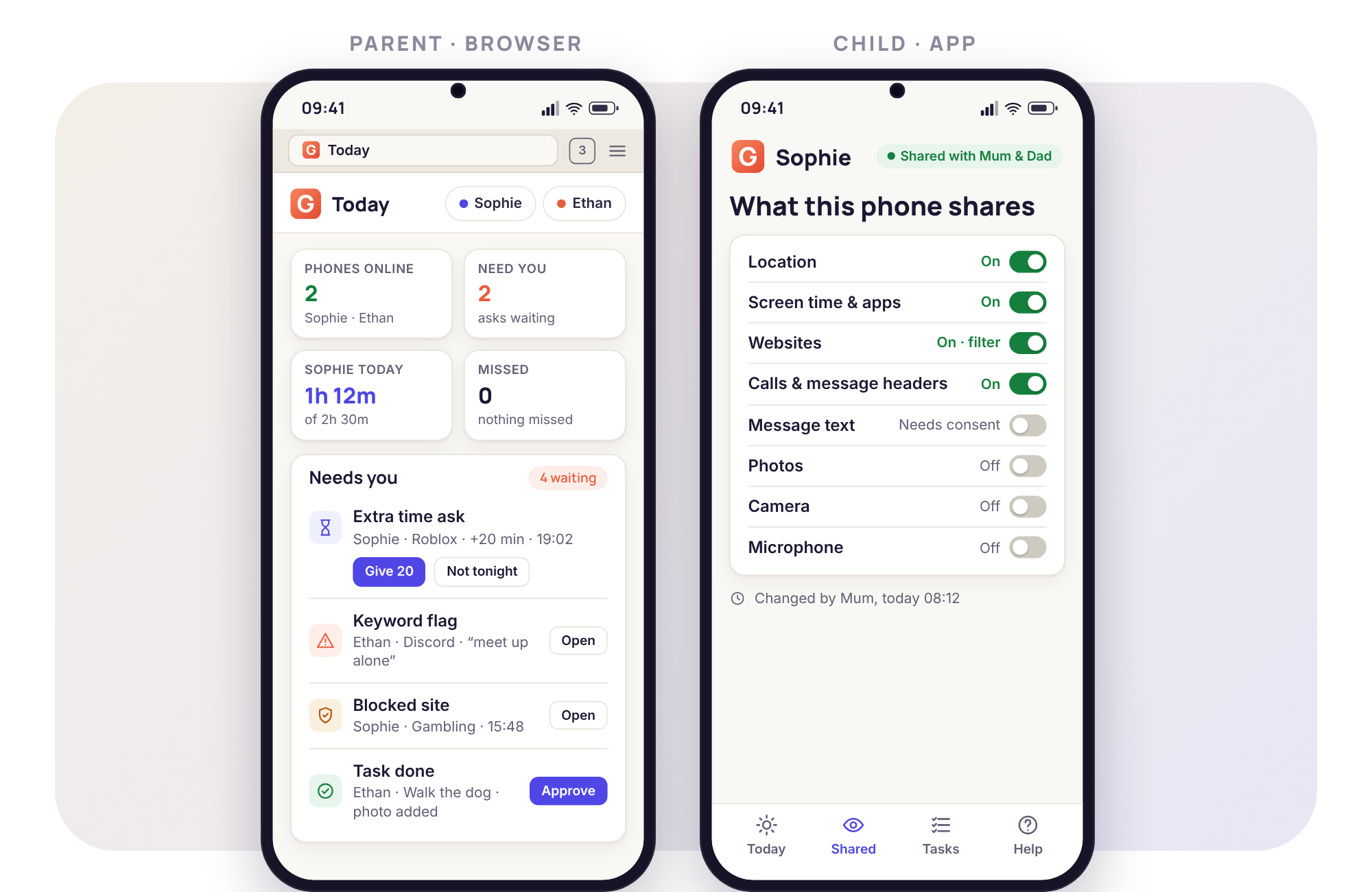
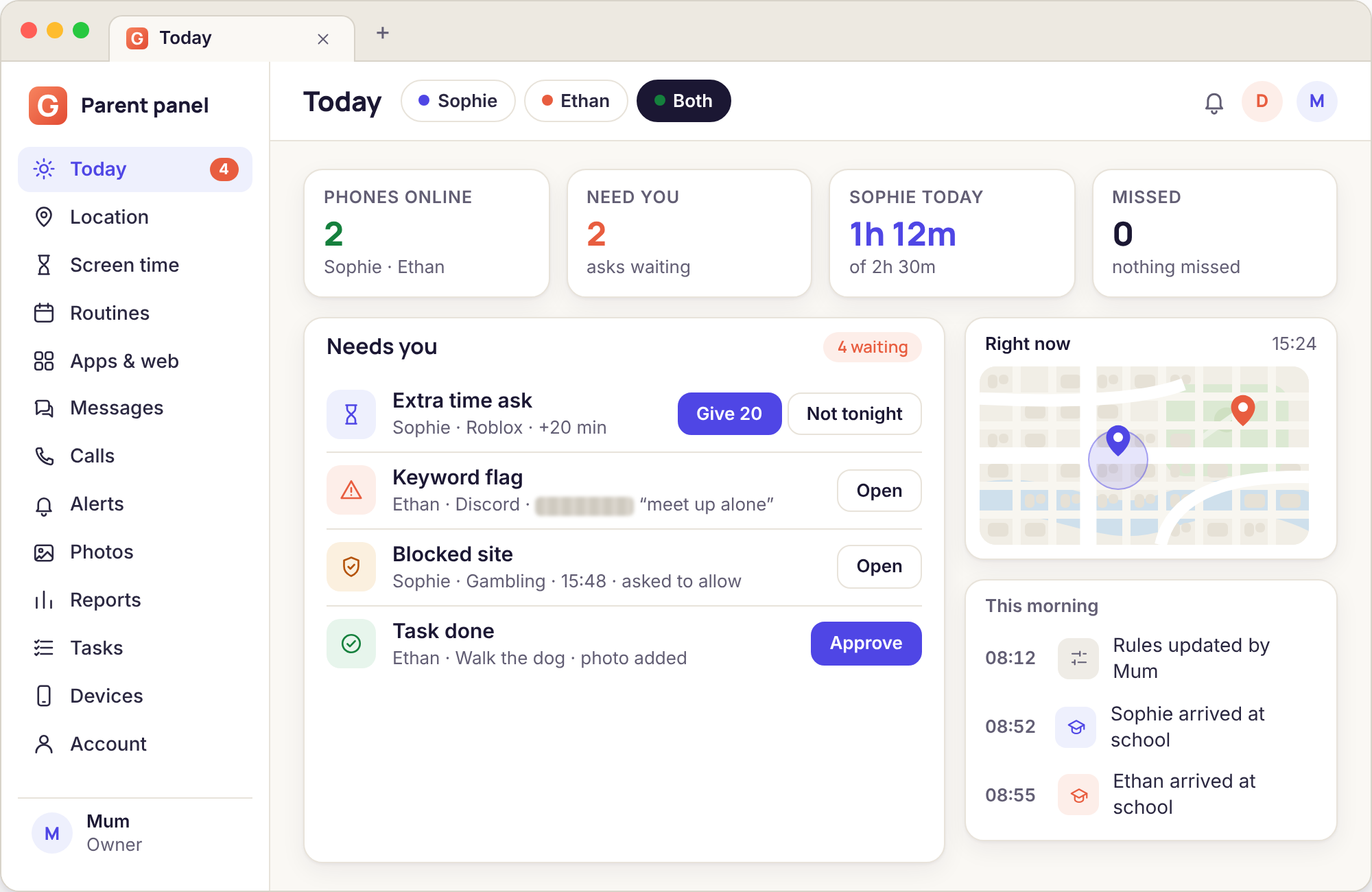
The third reason is the one we care about most, and it is about transparency. A product with a parent app has an incentive to make that app feel powerful: a live feed here, a hidden mode there, a button that does something the child cannot see. A website is a plainer thing. It shows the same data that the child's Transparency screen lists, it sends the same remote actions that appear on the child's phone as they happen, and it has no access to anything on your own device. Nothing about a browser tab makes a parent feel like they are running surveillance, and we think that is the right feeling for supervising your own child openly.
There are costs, and we should say what they are. Push notifications from a website are slightly more awkward to set up than from an app, and on an iPhone they only work once the panel has been added to the home screen. There is no app icon on your phone unless you put one there. And the panel is only as good as the browser it is open in: an old browser on a locked-down work laptop can occasionally render a table badly. We think those are small prices for a parent side that works everywhere, keeps the rules in one place and gives us nothing to hide behind.
One last clarification, because the word "panel" confuses people: it is not a separate product and it is not a paid tier. Every account has it, it is where you add a child and see the six-digit pairing code, and the Devices, Places, Screen time, Apps, Alerts, Reports and Account pages are all tabs within it. If you have ever used GuestSpy at all, you have used the panel.
What that means day to day
Four consequences of the website decision that you will feel within the first week.
It works on whatever device is nearest
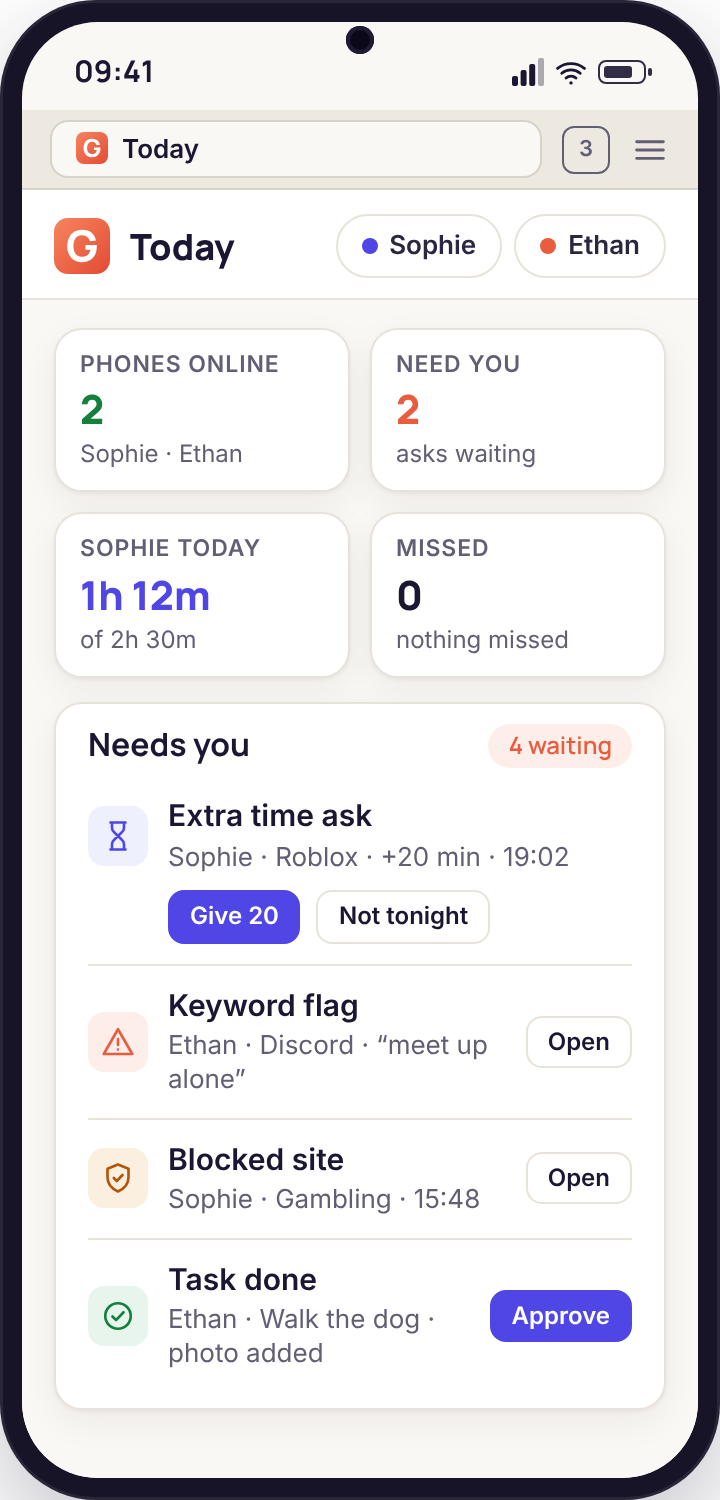
The panel is laid out for a phone screen first, because that is where most parents open it: the Today dashboard fits a phone browser with its four tiles stacked and the Needs you list underneath. On a laptop the same page spreads out into columns and the map gets room to breathe. You do not choose a version; the page rearranges itself.
In the course of an ordinary week a parent might answer an extra-time ask from a work PC at 16:05, check the map on an iPhone at the bus stop, and set a bedtime for the holidays from the family tablet on Sunday evening. Each of those is the same account, the same sign-in, and the same rules, and none of them needed anything installed first.
- Phone layout first, columns on wider screens
- Nothing to install on the parent's side, ever
- Sign in from a borrowed device and sign out again from Security
- Works in Safari, Chrome, Firefox and Edge
Two parents, one account, named actions
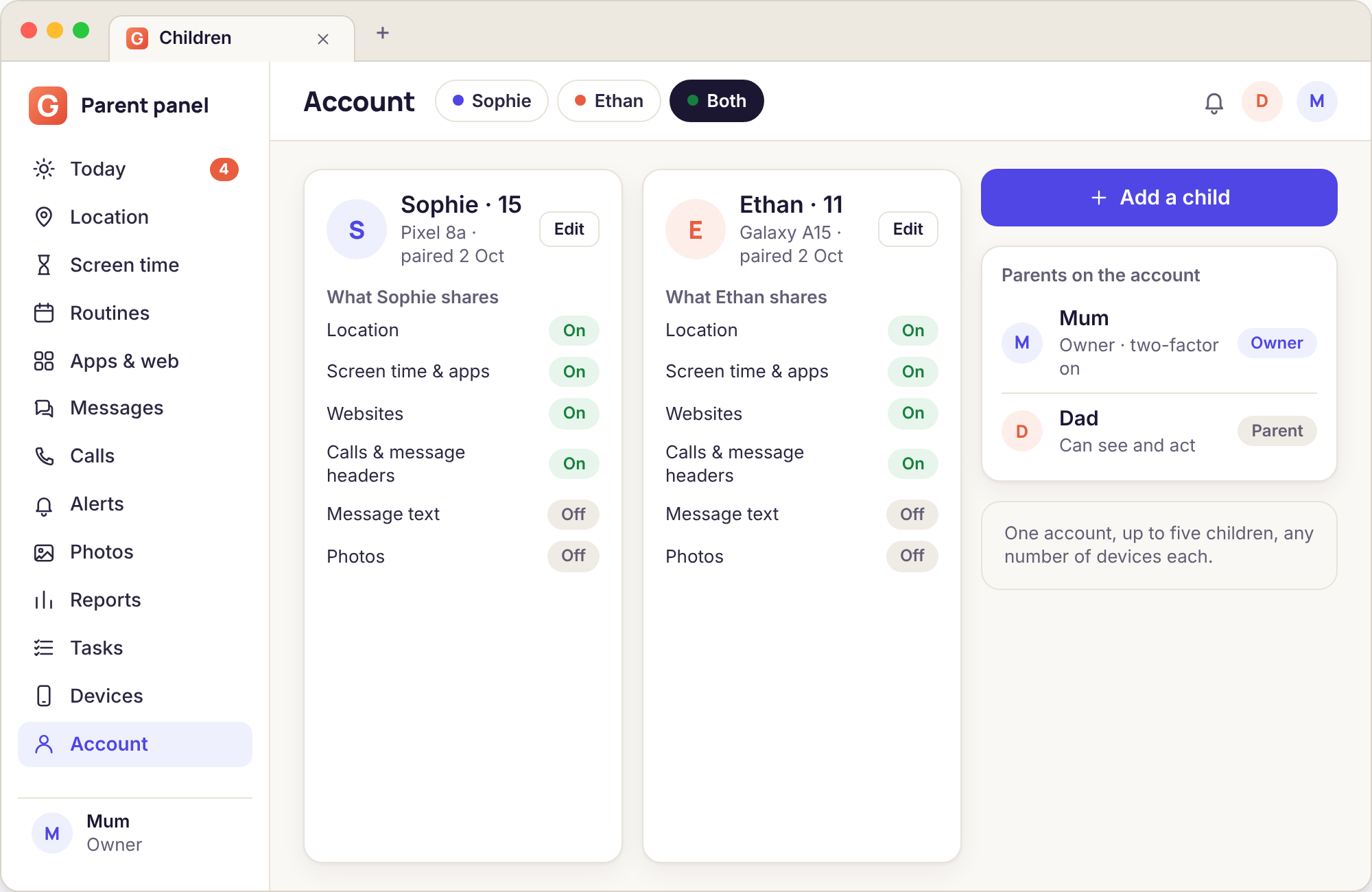
An account has room for two parents, each with their own email, password and two-factor setup. Both see the same children and the same rules. The difference a second sign-in makes is attribution: when Dad gives 20 minutes, the child's phone says "Dad gave 20 minutes", the alert history says "handled by Dad", and Mum's Needs you list clears without her having to ask what happened.
That turns out to matter in separated households more than anywhere. Two parents who do not share a kitchen can share a panel, see the same bedtime, and know which of them answered the Tuesday ask, with no group chat required. Adding the second parent is a button on the Children page, the invitation arrives by email, and either parent can remove the other from the Account page if things change.
- Separate credentials for each parent
- Every rule change and remote action carries a name
- The child's phone shows which parent acted
- Invite and remove from the Children and Account pages
Security: two-factor sign-in and a sessions list
An account that can see where a child is and lock their phone deserves more than a password. Two-factor authentication uses an authenticator app or a backup code, and the Security page nags both parents until it is on. The Security page also lists every browser currently signed in, with the device type, the rough location of the sign-in and the last time it was used, and a button beside each to sign it out.
The sessions list is the answer to the question "did I leave this open on the work computer?" Yes, probably; sign it out from your phone. It is also the first place to look if a child has worked out a parent's password: an unexpected session from a phone at 23:40 is hard to miss. Sign it out, change the password, turn on two-factor if it was not already.
- Authenticator app or backup codes
- Every active session with device and last use
- Sign out one session or all of them
- Email when a new device signs in
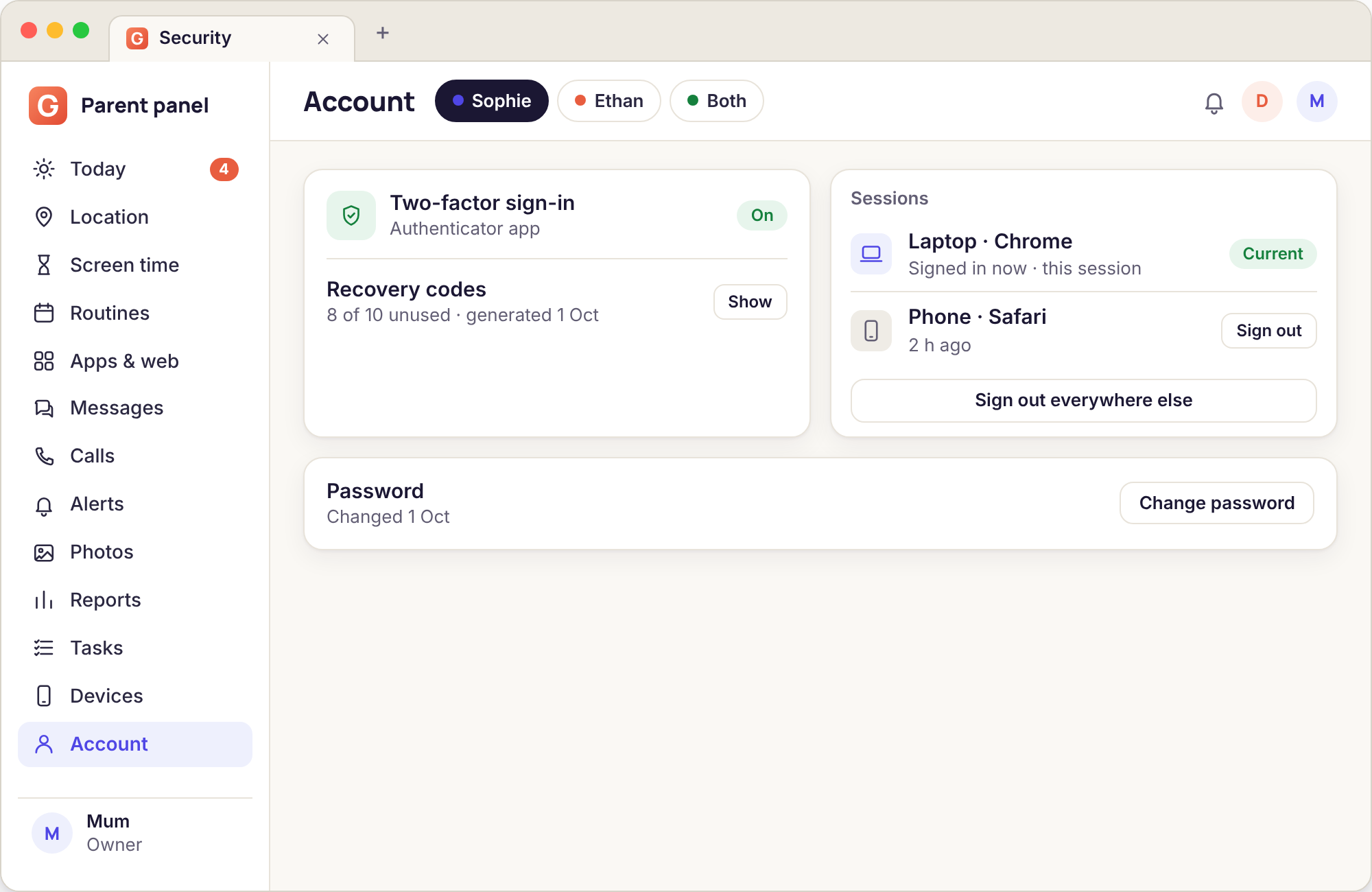
Rules live on the account, not on your phone
The structure underneath the panel is four layers. An account holds children. A child has one or more paired devices. A device carries rules. When you change a weekday budget from 2 h to 2 h 30, you are editing the child, and every device paired to that child receives the change the next time it checks in. Nothing about the browser you used is remembered, because the browser was only ever a window on the account.
The practical upshot: lose your phone, get a new one, sign in, and every rule is exactly as you left it. Pair a second tablet for the same child and it inherits the same bedtime without being set up again. Unpair a device and the rules stay on the child, ready for the replacement phone. The one thing that does live on the device is enforcement: budgets and routines are counted and applied on the child's phone, so they keep working with no signal and no panel open anywhere.
- Change a rule once, every paired device gets it
- A new parent phone needs only a sign-in
- Enforcement stays on the child's phone, online or not
- Re-send rules from Devices if a phone looks stale
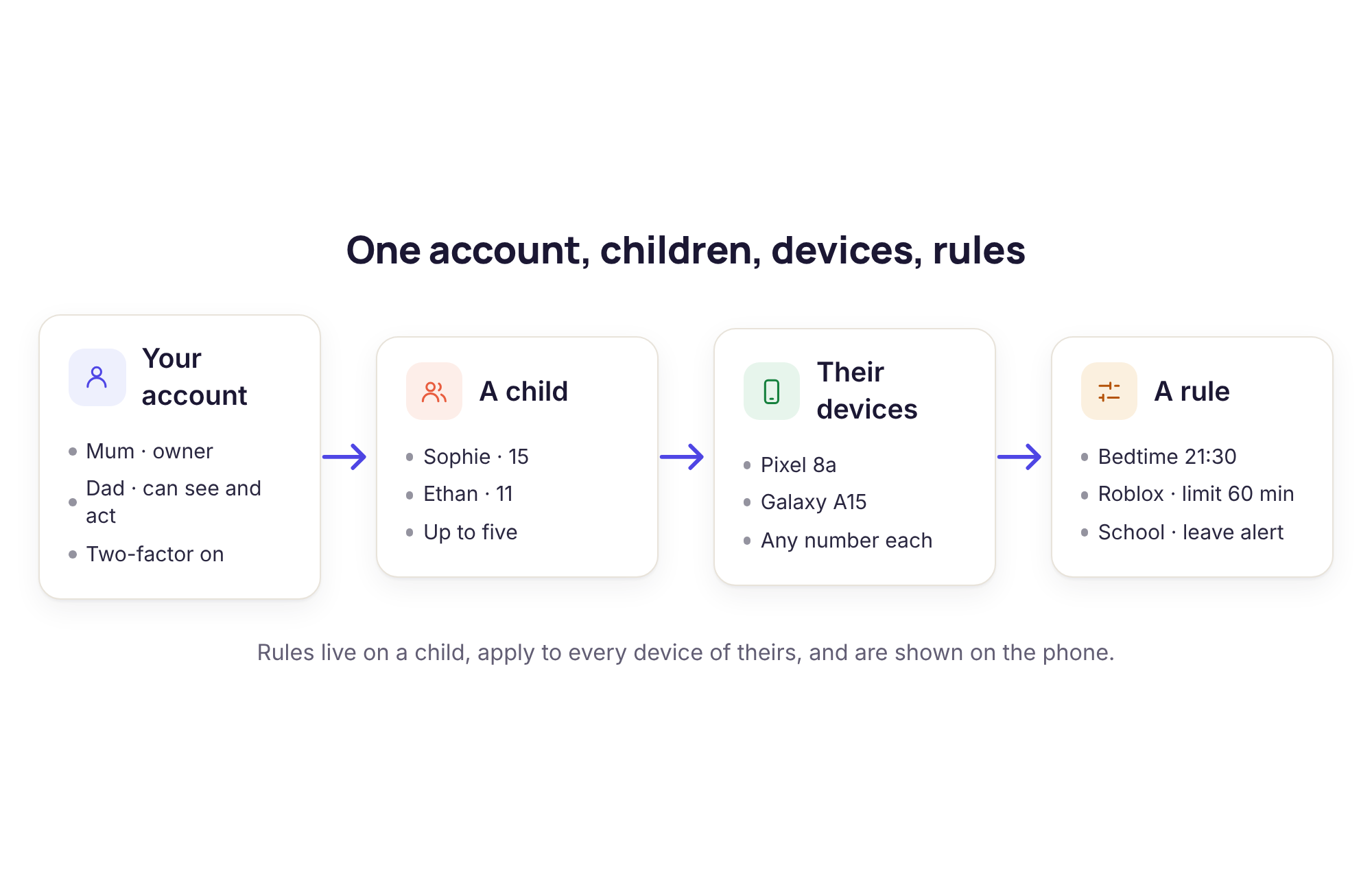
A parent app against a browser panel
This is the comparison we made before building, with the answers as honest as we can make them. A browser panel does not win every row.
| What you want | A typical parent app | The GuestSpy browser panel |
|---|---|---|
| Use it on an iPhone | Only if the vendor built an iOS app | Yes, in Safari, from day one |
| Use it on a work computer | Rarely; installs are usually blocked | Yes, any browser |
| Nothing to install for the parent | An app on each parent's phone | A sign-in and nothing else |
| Push notifications | Built in, immediate | Yes, after allowing them in the browser; on iPhone, after adding to the home screen |
| An icon on your home screen | Automatically | Yes, if you add it (three steps below) |
| Second parent | Usually a second install and sign-in, sometimes a higher tier | An invitation by email, no cost, named actions |
| Rules survive a lost parent phone | Depends where the vendor stores them | Always; rules belong to the account |
| Works offline for the parent | Some cached screens | No; the panel needs a connection to load |
| Can be hidden from the child | Often advertised as a feature | No, and we will not build it; every action shows on the child's phone |
| Reads anything on the parent's device | Depends on the app's permissions | Nothing; a browser tab has no access to your phone |
| Updates | When you update the app | The next time you load the page |
The two rows where a parent app genuinely does better, push and offline use, are the two we spend the most effort softening. Push works well once set up, and the steps below take about a minute. Offline use we have not solved and will not pretend to have: if your own phone has no signal, the panel will not load, though the rules on your child's phone carry on being enforced exactly as before, because they never depended on your connection in the first place.
Add the panel to your home screen
An installed shortcut opens the panel full-screen like an app, remembers your sign-in, and on an iPhone is what allows push notifications to arrive. Pick your device.
Android phone or tablet
Open the panel in Chrome and sign in. Tap the three-dot menu in the top corner and choose "Add to Home screen" (some phones say "Install app"). Confirm the name, and the icon appears beside your other apps. Open it from there once and, when the panel asks, allow notifications. Samsung Internet and Firefox have the same option under their own menus.
iPhone or iPad
Open the panel in Safari, not inside another app's browser, and sign in. Tap the Share button (the square with an arrow), scroll the lower list and choose "Add to Home Screen", then Add. Open the new icon, go to Account, and press "Turn on push". iOS only offers notification permission to a site that has been added this way, so the shortcut is not optional on an iPhone if you want push alerts rather than email.
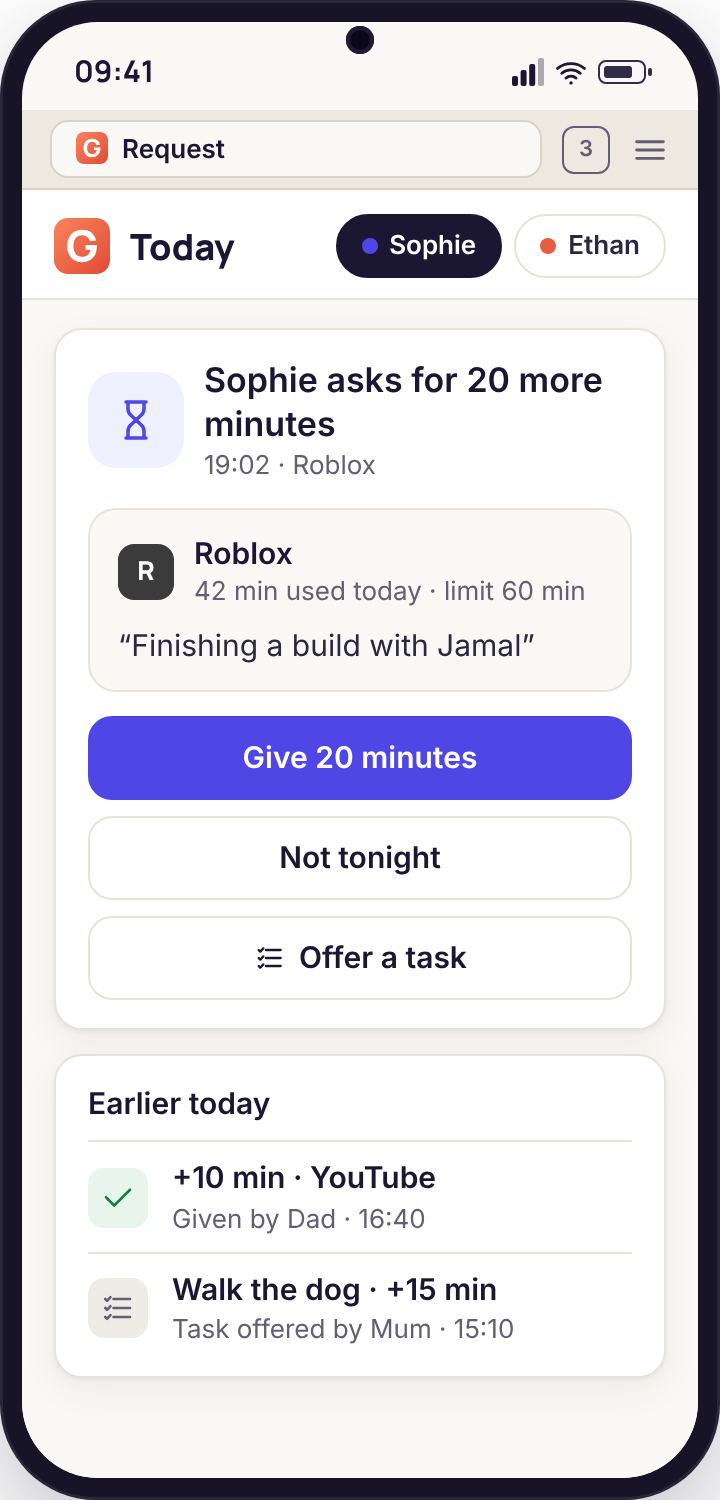
Laptop or desktop
In Chrome or Edge, an install icon appears at the right end of the address bar when you are on the panel; click it and choose Install, and the panel gets its own window and a place in your start menu or dock. In Firefox or Safari, bookmark the page or pin the tab. Allow notifications when prompted and the desktop will show alerts even when the window is in the background, which for a parent working from home is the most useful place for a left-early alert to appear.
Four common problems and what fixes them
The panel keeps asking me to sign in again
A browser set to clear cookies on close, a private window, or a content blocker that strips the session cookie. The panel keeps you signed in for 30 days by default, but only if the browser keeps the cookie.
Fix: add the panel to your home screen, which uses its own storage, or allow cookies for the panel's address in the browser's site settings. Check the Security page afterwards; each failed re-sign-in shows up as a new session you can tidy away.
A remote action shows "queued" and nothing happens
The child's phone is offline, in a dead spot or switched off. Lock now, Ring loudly, Locate now and Re-send rules all wait on the server until the phone next checks in.
Fix: nothing to fix on your side. The Devices page shows the phone's last check-in time; the action will run and appear on the phone the moment it reconnects, and you get a notice in the panel when it does.
The map or a table looks broken on a work computer
A corporate browser several versions old, or a proxy that blocks the map tiles. The panel uses current web standards and supports the last two major versions of each browser.
Fix: open the same page on your phone to confirm the data is fine, then ask IT whether the browser can be updated. The Reports page and the Needs you list are plain tables and render on almost anything, so they are the fallback at work.
I lost my authenticator and cannot get past two-factor
Two-factor is tied to the authenticator app on the old phone, and the backup codes shown when it was set up were not saved anywhere.
Fix: the second parent can sign in and reset your two-factor from the Account page. If you are the only parent, write to [email protected] from the account email; we verify identity before resetting, which takes a working day, and we will not shortcut it.
The panel, answered
Is there really no parent app, even for Android?
Really none. The only app we ship installs on the child's phone. On your own Android phone the panel in Chrome, added to the home screen, behaves like an app in every way you would notice, including push notifications and a full-screen window.
Can my child open the panel?
Only with a parent's email, password and two-factor code. The child app has no link to the panel and no stored credentials. If you suspect a child has your password, the sessions list on the Security page shows every signed-in browser, and signing them all out takes one button.
How many devices can I be signed in on?
As many as you like. Each one appears in the sessions list with its type and last use. We suggest signing out of shared computers when you are done, and the panel emails you whenever a new device signs in so a surprise is noticed quickly.
Does the panel work on a phone with a small screen?
Yes. The layout was designed for a phone first. Tables scroll sideways where they must, the map takes the full width, and the Needs you list is the first thing on the Today page so that answering an extra-time ask takes two taps.
What does the demo show?
The same panel with the Bennett family loaded: Sophie, 15, and Ethan, 11, and a realistic week of screen time, places, alerts and tasks. It is read-only, so you can click everything without changing anything, and a banner reminds you it is not your account.
Can a grandparent or childminder have access?
An account holds two parents. If a third adult needs to answer asks during the day, the simplest arrangement is for one parent to sign in on that person's device and sign it out from the Security page afterwards. Every action they take carries the parent's name, so decide together first.
Once you are signed in, the pages you will open most often are activity reports, location tracking and Places and screen time budgets.
The panel is available as soon as the child's phone is paired with your account, which takes about fifteen minutes done together. The download and setup guide walks through every screen.
Open the panel in the browser you are using right now
No download for you, no card, no subscription. Sign in, add a child, and the six-digit code for the phone is waiting on the Devices page.
Android child app · Runs in any browser · Visible on the phone