The parent panel is a web page, not an app
Everything a parent does happens in a browser tab: approving an extra-time request at the school gate from your phone, setting a bedtime from the laptop, ringing a lost handset from a tablet. This is where you sign in, where a new account begins, where the demo lives, and a tour of what you will find once you are inside.
Any browser, including an iPhone · Two parents on one account · Two-factor authentication
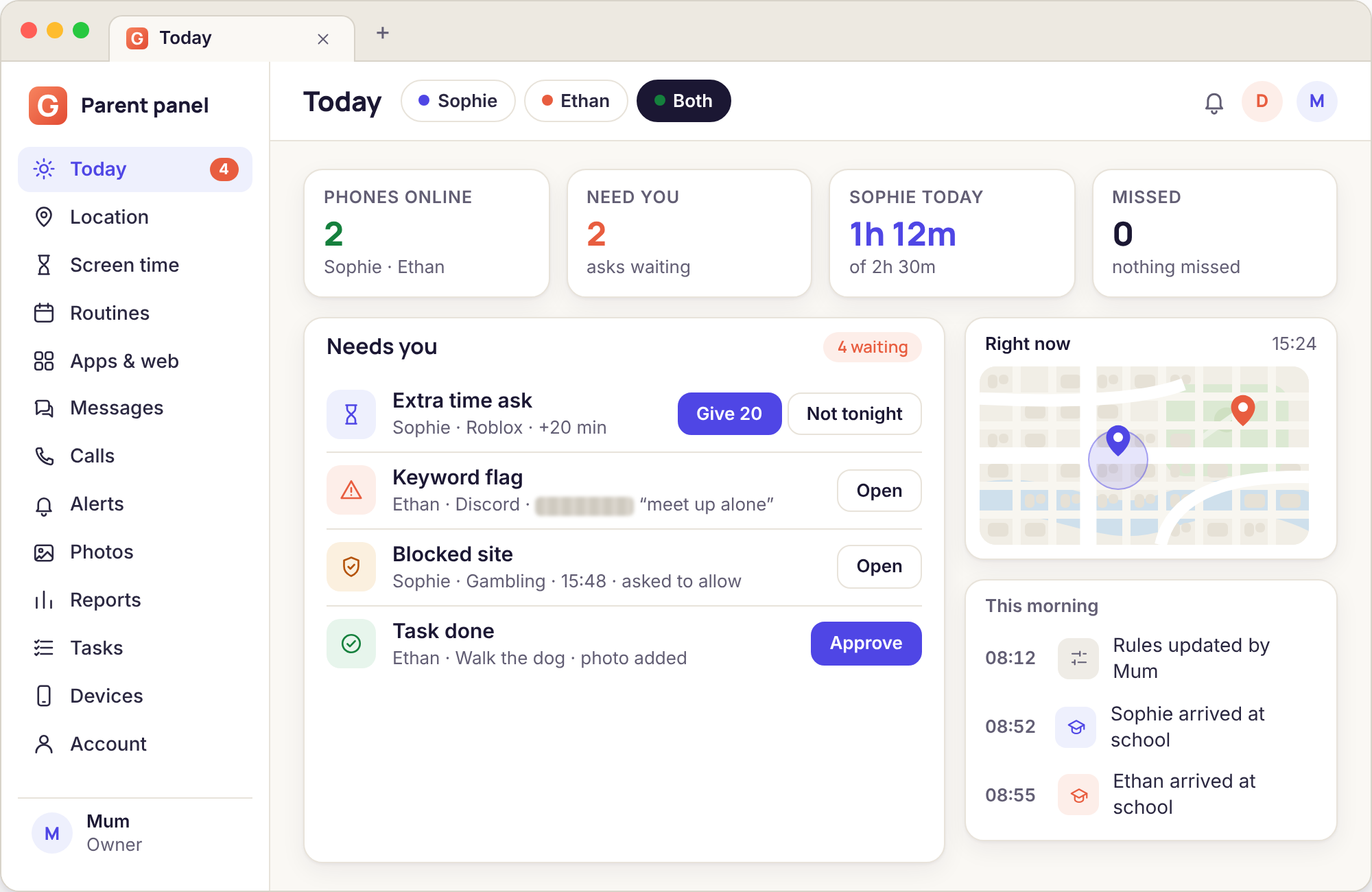
Email, password, and a code if you asked for one
The sign-in page wants two things, the email on the account and your password, and a third only if you have switched on two-factor authentication, in which case it waits for the six digits from your authenticator app. That is the whole door. There is no separate login for the second parent, who has their own email and password on the same account, and there is no login at all for the child's phone, which joined your family with a pairing code and never learns your password.
On a laptop you share with the family, or a work machine, you may not want to type a password. The sign-in page offers an emailed link instead: enter your address, open the message on a device you trust, and the panel opens already signed in. The link works once and expires after ten minutes, so an old message in an inbox cannot be used later.
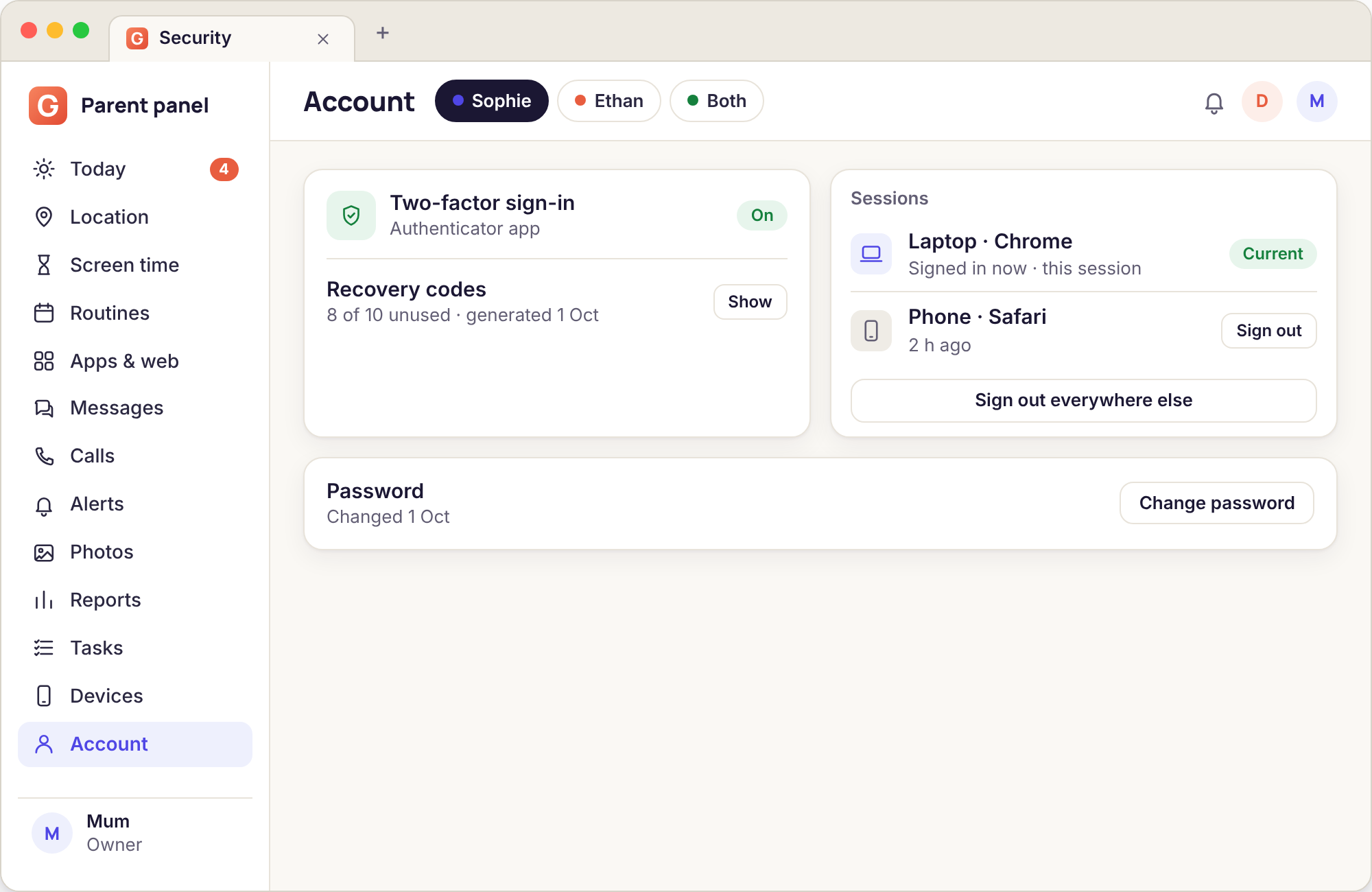
Every browser you sign in from appears on the Security page, with the device type and when it was last used, and a Sign out button beside each. Signing out a borrowed laptop you forgot about takes one click from your own phone. If you lose your password, the reset runs through the account email, and through the authenticator too if you turned it on, because an inbox on its own should not be enough to open a family's location history. A second parent on the account can always sign in normally and clear a lost second factor for you.
New here? Creating an account takes about a minute.
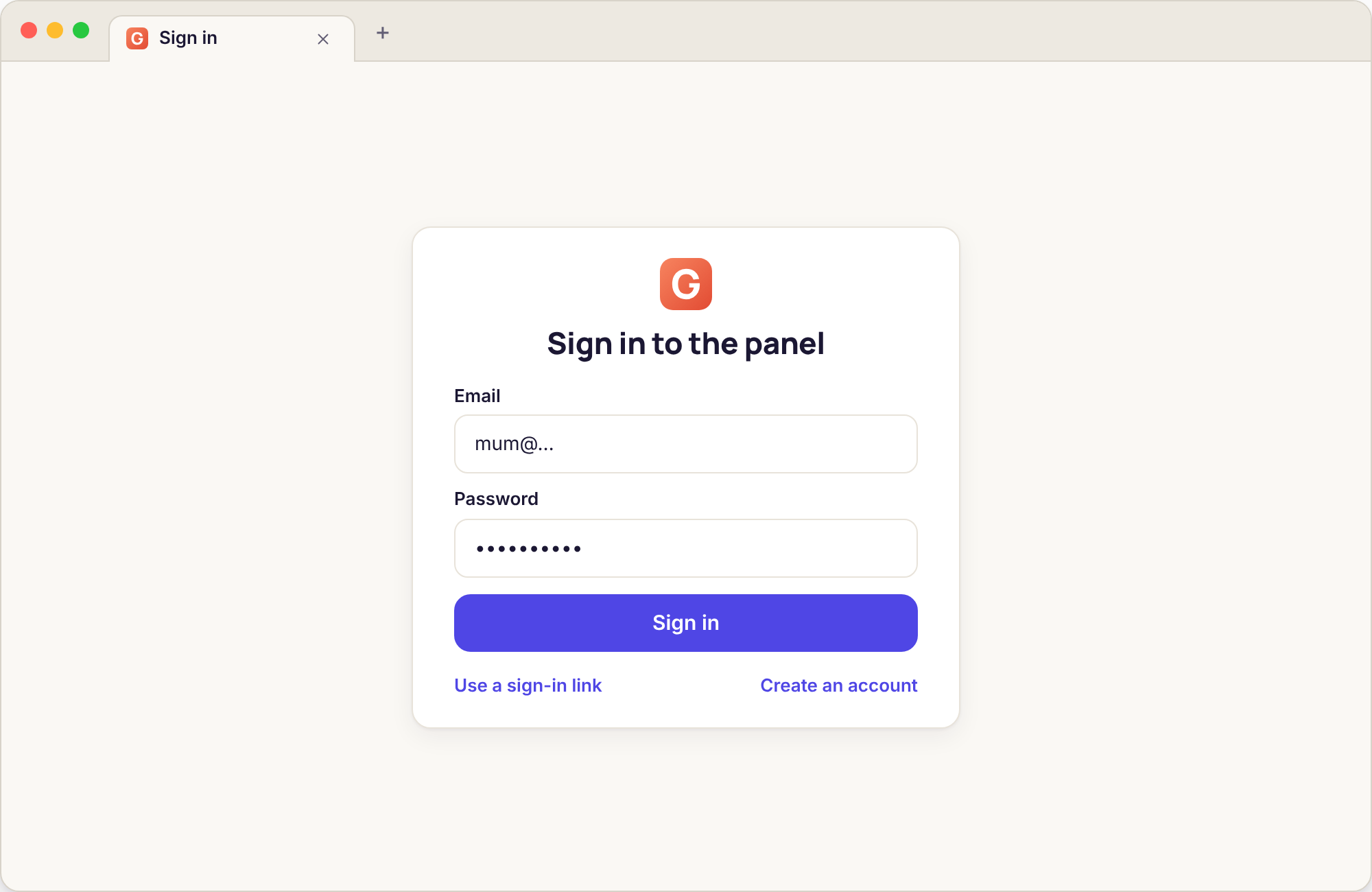
A free account, with one sentence you have to agree to
Creating an account is an email address, a password and a checkbox. No card, because there is nothing to pay for: every account begins with 10 days of full access and the core, location, screen time, routines, app and website blocking, alerts and the weekly report, stays free after that. No phone number, because nothing is sent by text. No waiting for a confirmation email before you can continue; the message arrives in the background and proves the address is yours for a reset later.
The checkbox says, in short, that you will only monitor a child you are responsible for, and that the child will know. It is the one condition of using the panel and it is enforced: an account found to be watching another adult is closed. If that sentence describes your family, tick it, and the panel opens on an empty Today page with a single prompt to add a child.
From there the order is: add a child, which takes a name and an optional year of birth; open their Devices page, which shows a six-digit pairing code that lasts fifteen minutes; install the app on the child's phone and type the code in. The setup guide has every screen of that, including the Android permissions and which build to choose. The panel part is two or three minutes; the phone part, done together, is the rest of a quarter of an hour.
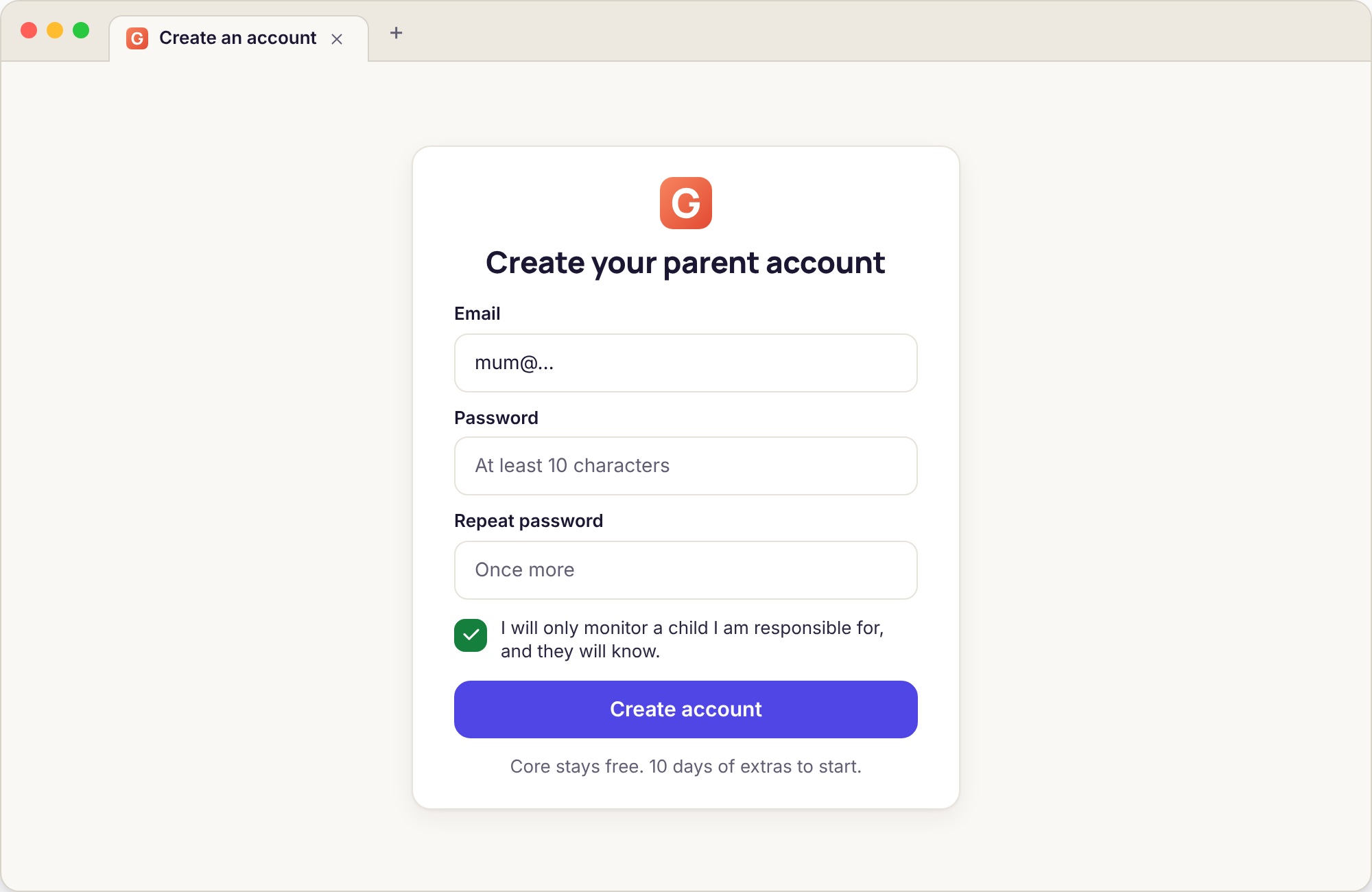
A read-only week with the Bennett family
The demo signs you into a complete panel for a family that does not exist. Sophie Bennett is 15, with a phone that goes everywhere; Ethan is 11, with a tablet that mostly lives on the sofa. Their week has already happened: a Monday school run that arrived at 08:21, a Thursday where Sophie left school early for the dentist, a Saturday afternoon when Ethan's budget ran out and he asked for twenty minutes more with the reason "finishing a level", a gambling site his tablet refused to open, a keyword flag that turned out to be a joke between friends, and a photo of a loaded dishwasher waiting for approval.
Every screen opens and every button presses. Change Sophie's weekend budget and the form takes it; press Lock now on her phone and watch the action sit as pending; open the alert history and read the "handled by" column. Nothing is saved, a banner across the top reminds you of that, and it all resets when you close the tab.
With five minutes, look at three things. Today, where the Needs you list holds two items rather than twenty, because that is a normal week. Sophie's Places, where the School arrive and leave times line up against a timetable. And Devices, where pressing Ring loudly shows you that the action will be announced on the phone, which says more about how this treats children than any paragraph here.
No account needed · Nothing can be changed · Resets when you close it
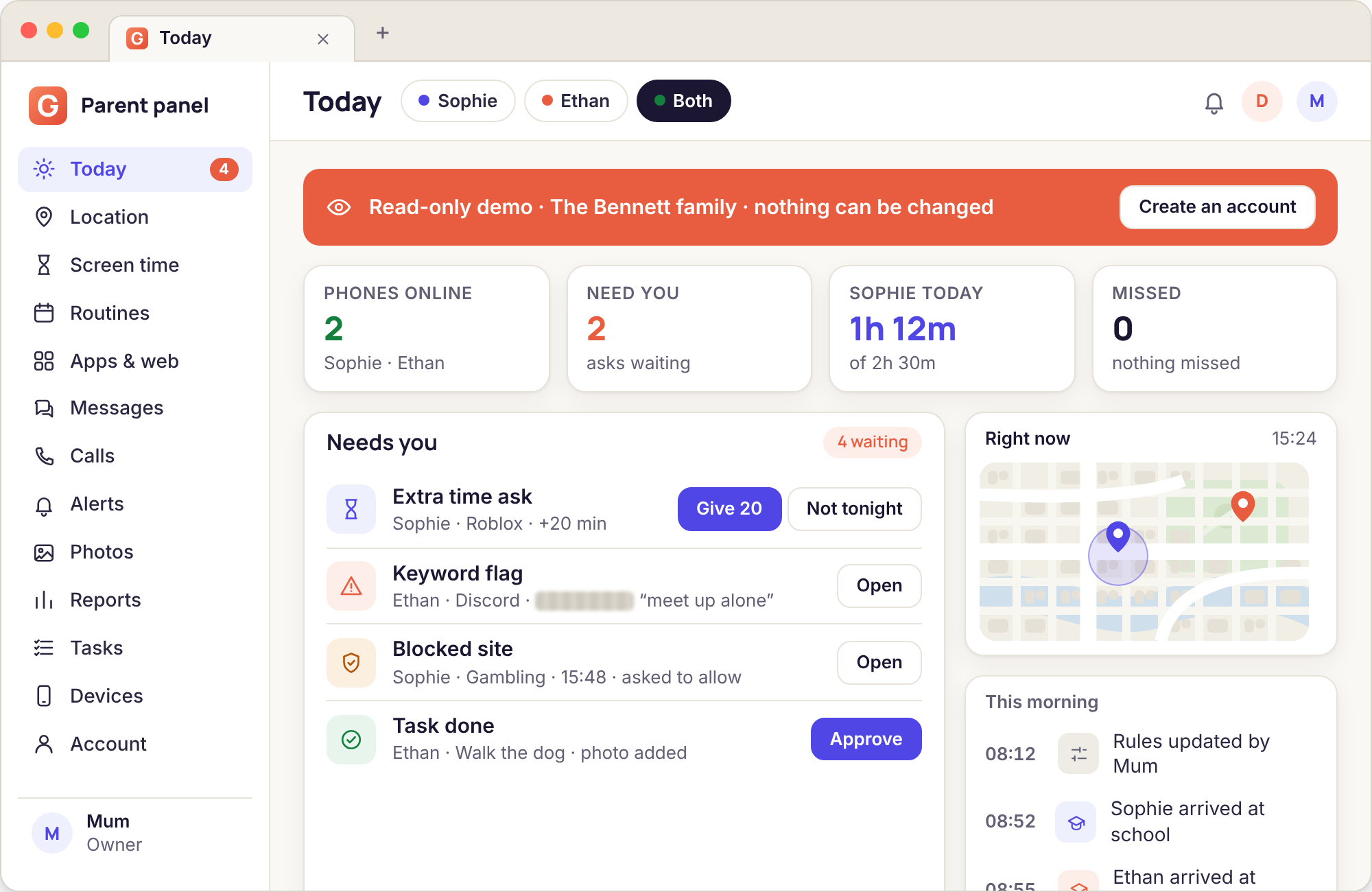
Today is built to answer one question: is there anything I need to do?
Most days the answer is no, and the screen says so. Here is what each part of it means, so the first time you sign in you are reading rather than guessing.
The four tiles across the top
Phones online counts paired devices that have checked in within the last few minutes; a "1 of 2" on a school morning is usually a tablet left at home with a flat battery. Needs you is the number of items in the list beneath. Screen time vs budget shows today's minutes against today's allowance for the selected child and turns amber once the wind-down warning has gone out. Missed arrivals counts Places where an expected arrival has not happened; it reads zero nearly every day, and on the day it does not, it is the tile to press first.
The Needs you list
The middle of Today is a short list of decisions waiting for a parent. An extra-time ask with the reason your child typed. A keyword flag with the notification line that set it off. A blocked site your child pressed Ask to allow on. A chore photo waiting for approval. A missed arrival. The answer buttons sit on each item, so an ask is settled with one press without leaving the page. When the list is empty, the panel says "Nothing needs you" and shows when it last heard from each phone instead of filling the gap with charts.
What the colours mean
Green means as expected. Amber means nearly: a budget at ninety per cent, a phone last seen twenty minutes ago, a permission that an Android update knocked down a level. Coral means a person in your house is waiting for a reply. That is the entire palette. There are no reds for drama, no counters that climb to make you feel busy, and nothing pulses. A coral tile is a child who asked you something, not software asking for attention.
The left menu and the child switcher
Down the left of every screen is a list that never changes: Today, Location, Screen time, Routines, Apps, Web filter, Messages, Calls, Alerts, Photos, Wi-Fi, Tasks, Reports, Devices, Account. That list is the whole product; there is no advanced tab behind a cog. Entries you have not unlocked, such as Photos on a Google Play phone, stay visible but greyed, with a line saying what would unlock them. Above the content is a row of your children's names. Pick one and every page below switches to that child; Today is the exception and shows all of them, because Ethan's ask and Sophie's missed arrival belong on one list.
Switching children, and what travels with them
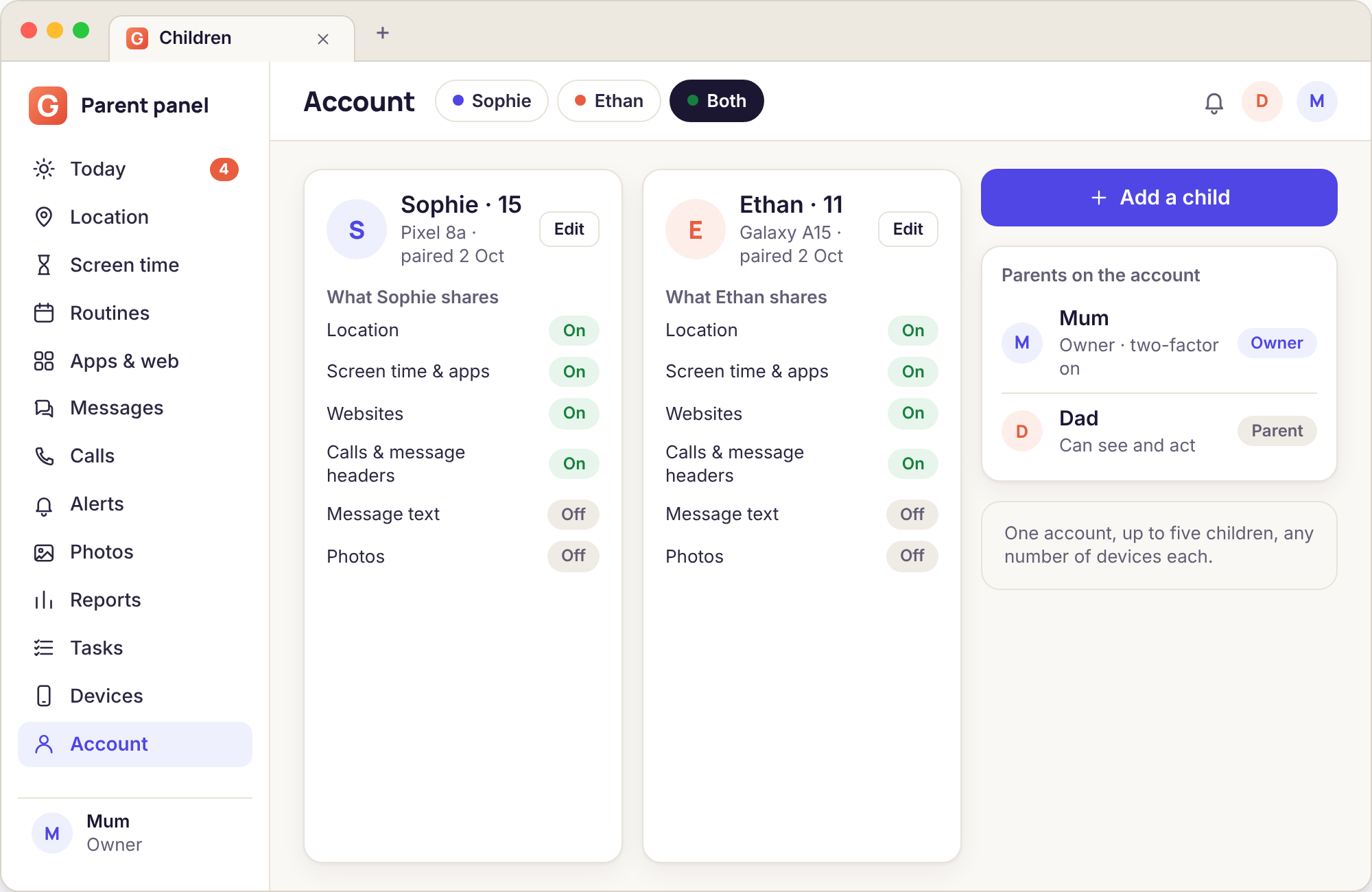
Each name in the switcher carries a small device count, and the count turns amber when one of that child's devices has not reported for more than an hour, so you notice before you go looking for a position that is not there. Click a name and the budget, the Places, the alert rules, the app list and the report history all change together, because all of them belong to the child.
That last point matters more than it sounds. Rules are attached to a child, not to a handset, so when Ethan's tablet and the old phone he keeps for music are both paired to him, the bedtime you set once covers both. If you want a rule narrowed to a single device, you can, from the rule itself, but the default is the one that stops you setting everything twice. The Children page pictured here is also where a child is renamed, given a year of birth for sensible routine defaults, or removed along with their history.
Account, child, device, rule: how the panel is organised
Once you can see the four levels, every screen in the panel makes sense, because each one lives at exactly one of them.
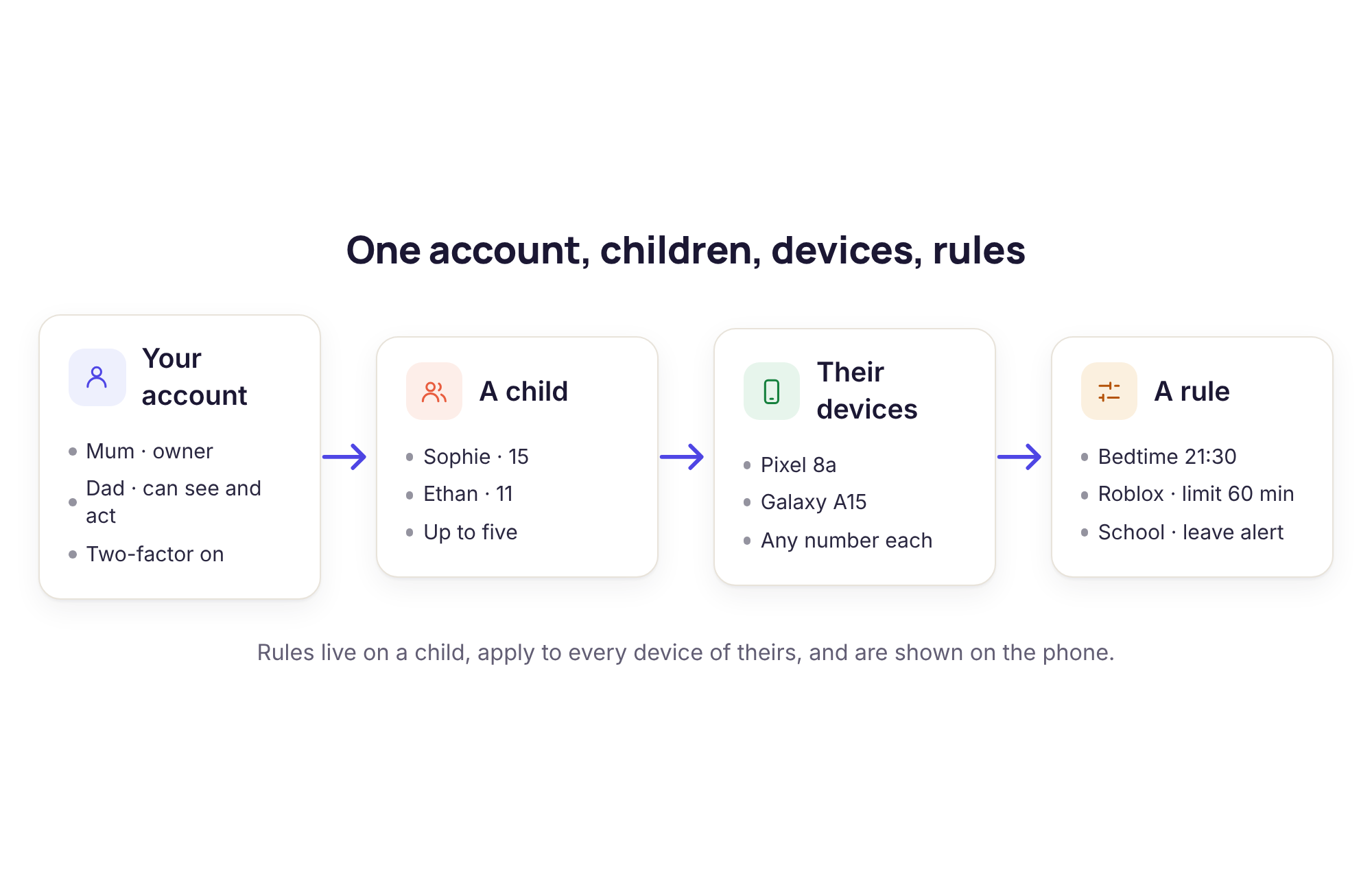
The account
The account is the family: up to two parents, each with their own email, password and two-factor setup, plus the Security page with its sessions list, the Reports archive, the access days and the parent tasks that earn more of them. Deleting the account deletes everything beneath it. Nothing at this level is visible on a child's phone, because a phone belongs to a child, not to the account.
The child
A child is a name, an optional year of birth, and everything that is theirs: a weekday and a weekend budget, a set of routines, saved Places, keyword groups, alert rules, the task list and the Sunday report. The child switcher at the top of the panel is a switch between these. Removing a child removes their devices and their history in one go, with a confirmation that spells that out.
The device
A device is one Android phone or tablet paired to a child with its own six-digit code. Each has a last-seen time, a battery level, an Android version, a build (Google Play or direct download), a permission health row and the five remote actions. A child can have several; the panel shows them side by side on the Devices page. Unpairing a device stops its reporting at once and leaves the child and their rules in place.
The rule
A rule is one thing you switched on: a budget, a routine window, an app set to limit or block, a filter category, an alert sentence, a Place with its arrive and leave alerts. Rules belong to a child and reach every device that child has, unless you narrow one to a single device. A freshly paired phone has no rules, so it counts nothing and blocks nothing until you add the first one.
Five buttons, each one announced on the phone
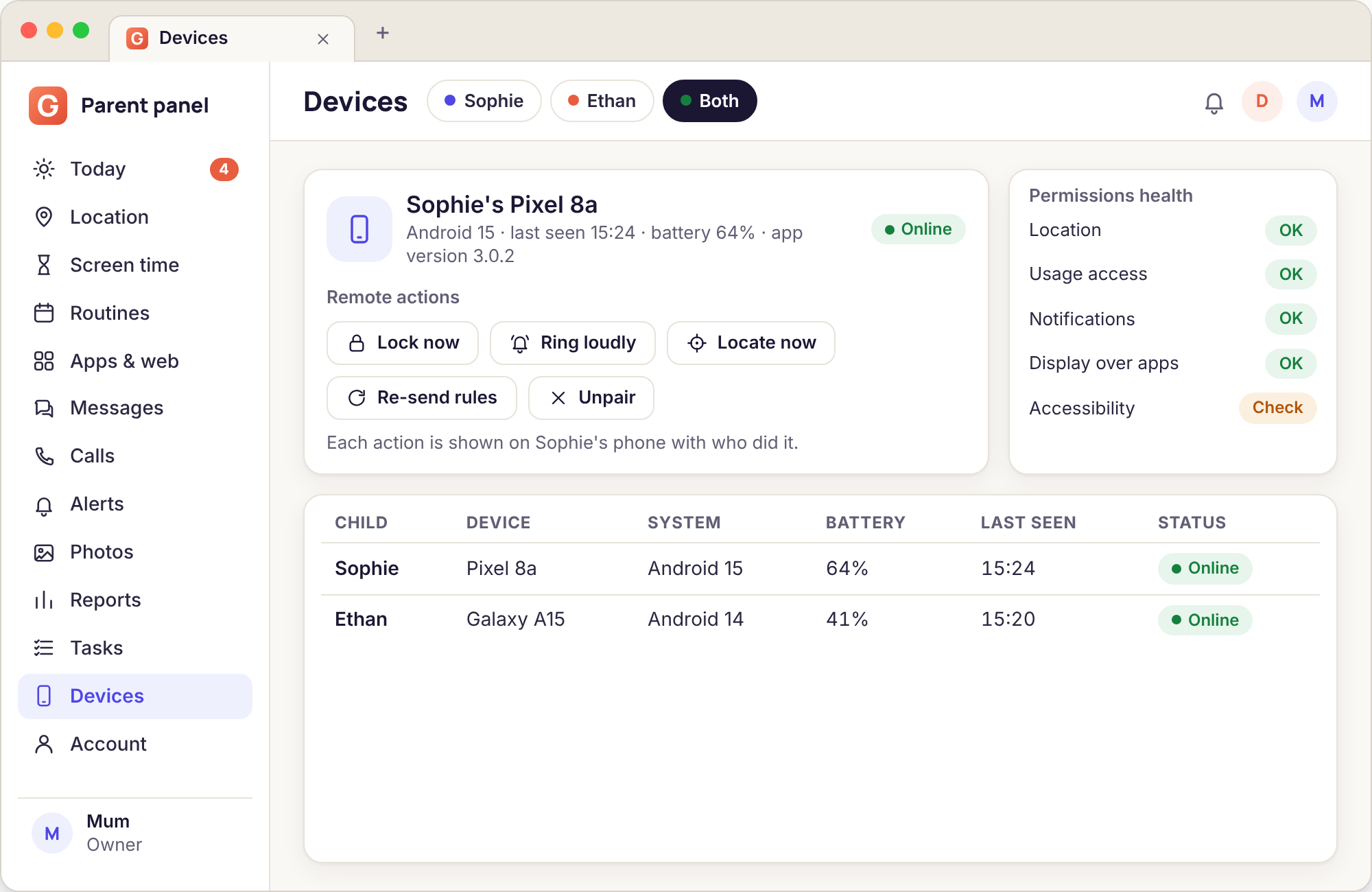
The Devices page lists every paired phone and tablet, and beside each sits a short row of actions. Lock now locks the screen immediately and puts a message you type on it; the child can still call you or an emergency number from the lock screen, and the lock lifts when you release it or when the time you set runs out. Ring loudly plays a loud tone for 30 seconds and ignores silent mode. It is the action most parents use most, generally at 08:10 when the phone is under a sofa cushion. Locate now asks the phone for one fresh position fix rather than relying on the last scheduled one; it does not open a live stream, because there is none. Re-send rules pushes the current budgets, routines, app settings and filter to the phone again, and is the first thing to try when a change you made has not shown up. Unpair removes the device and stops collection on the spot.
All five queue when the phone is offline. The panel marks the action as pending with the time you pressed it, and the phone carries it out the moment it has a connection, in the order you sent them. All five also show on the phone as they happen and appear afterwards in the app's activity list with the parent's name against them. There is no quiet version of any of them. A child who can see what you did is a child who can ask you about it, which is the point.
What the actions cannot do: a lock cannot stop the phone being switched off or factory-reset, a ring cannot sound on a phone that is off, and a locate cannot conjure a position from a basement with no signal. The panel shows pending honestly in each case rather than pretending it worked.
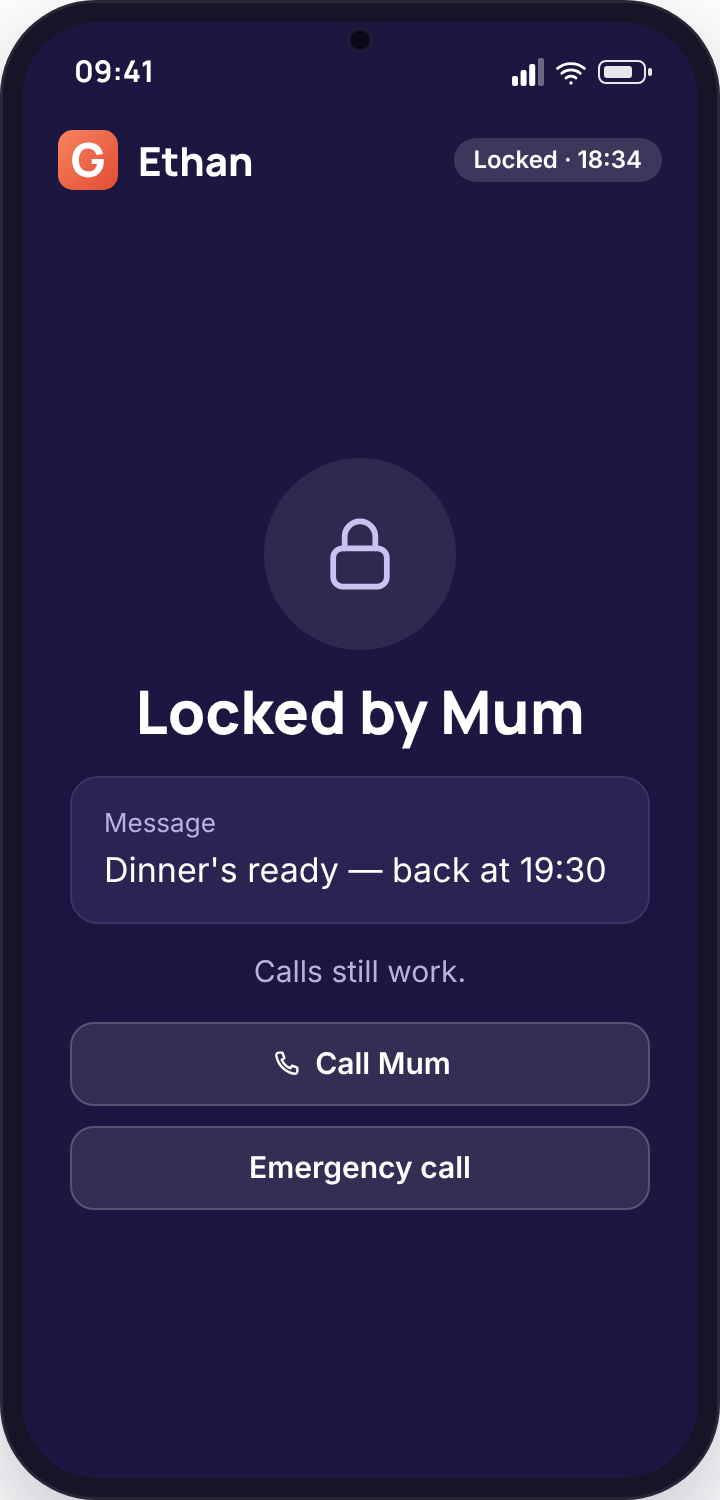
A Wednesday lock, and what Sophie sees
Wednesday, 21:40. Sophie's bedtime routine normally starts at 21:30, but she has coursework due and you paused it for an hour; she has drifted from the document to TikTok. You open Devices on your own phone, press Lock now, type "Coursework or bed, your choice. Love you", and press send. Two seconds later her screen goes to the plain page pictured here: your sentence, your name, the time, and two buttons, one to call you and one for emergency calls. No countdown, no graphic, nothing designed to embarrass.
When you release the lock, or when the hour you set expires, the phone returns to exactly where it was. Both the lock and the release are listed in her app's activity with the time, so if she wants to argue the point at breakfast she can at least see the record. Most families use Lock now a handful of times in the first month and then rarely, because once a routine has been agreed, the routine does the work and the button stays unpressed.
The three screens where rules are made
Nothing on a paired phone is counted, filtered or locked until you switch something on. These are the pages where that happens, and what each one looks like in use.
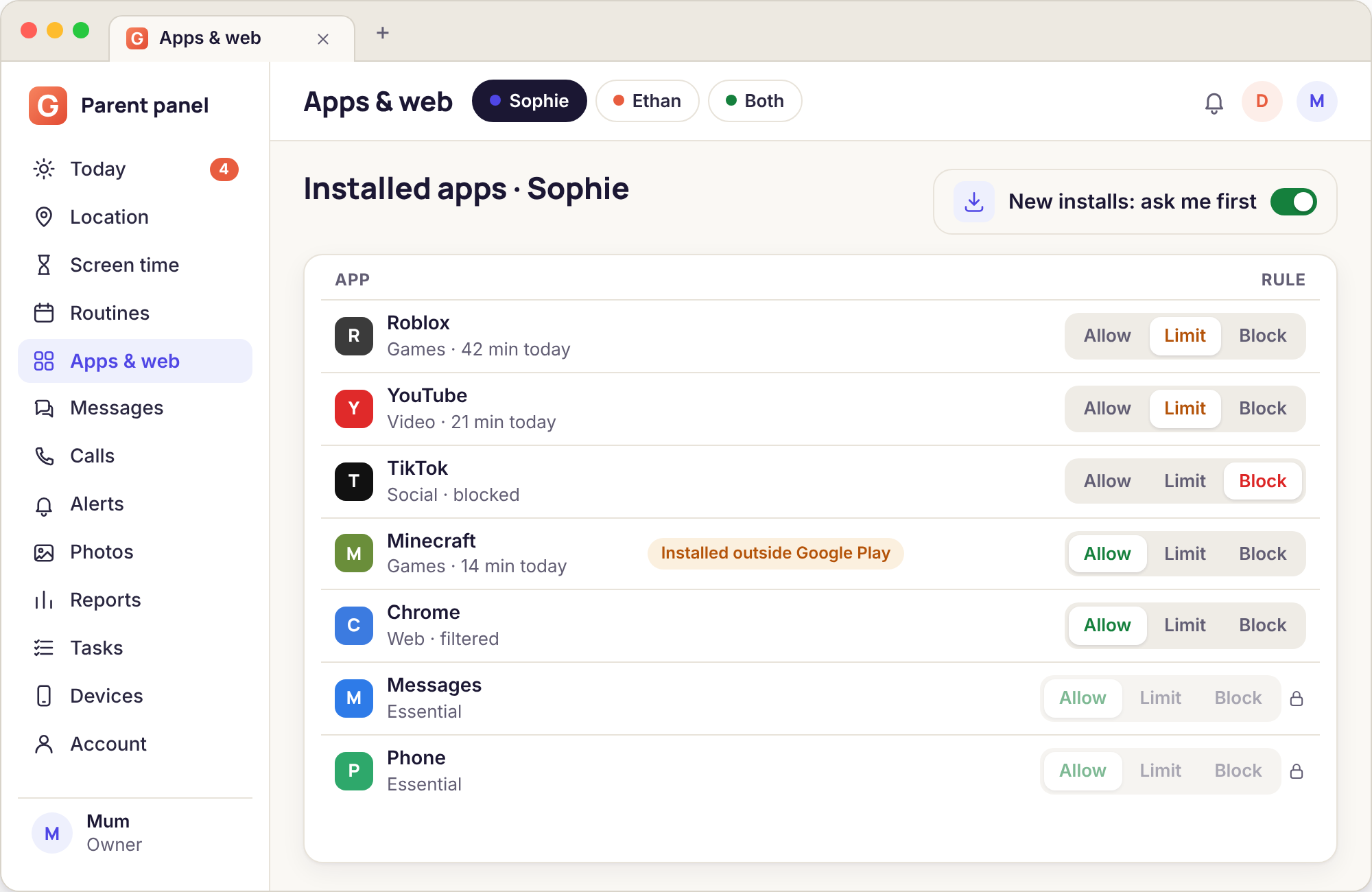
Apps: allow, limit or block, one row each
The Apps page is a list of everything installed on the selected child's device, with three choices on each row. Allow is the default and means the app is simply counted toward the day's total. Limit opens a minutes field and a category, games, video, social or web, so the app draws down that slice of the budget. Block greys the icon on the phone and shows a short page naming who blocked it if it is opened. Phone, Messages, Maps, Camera and Settings do not offer the block option at all, so a hasty change at 23:00 can never leave a child unable to call home.
Two switches at the top of the list do more than the rows. "Ask me first" routes any newly installed app to your Needs you list before it can be opened, with Approve and Block buttons on the item. "Flag installs from outside Google Play" marks apps that arrived as a file rather than from the store, which with a younger child is worth leaving on. The app and website blocking page covers the filter categories and the blocked-site log, which live on the next menu entry down.
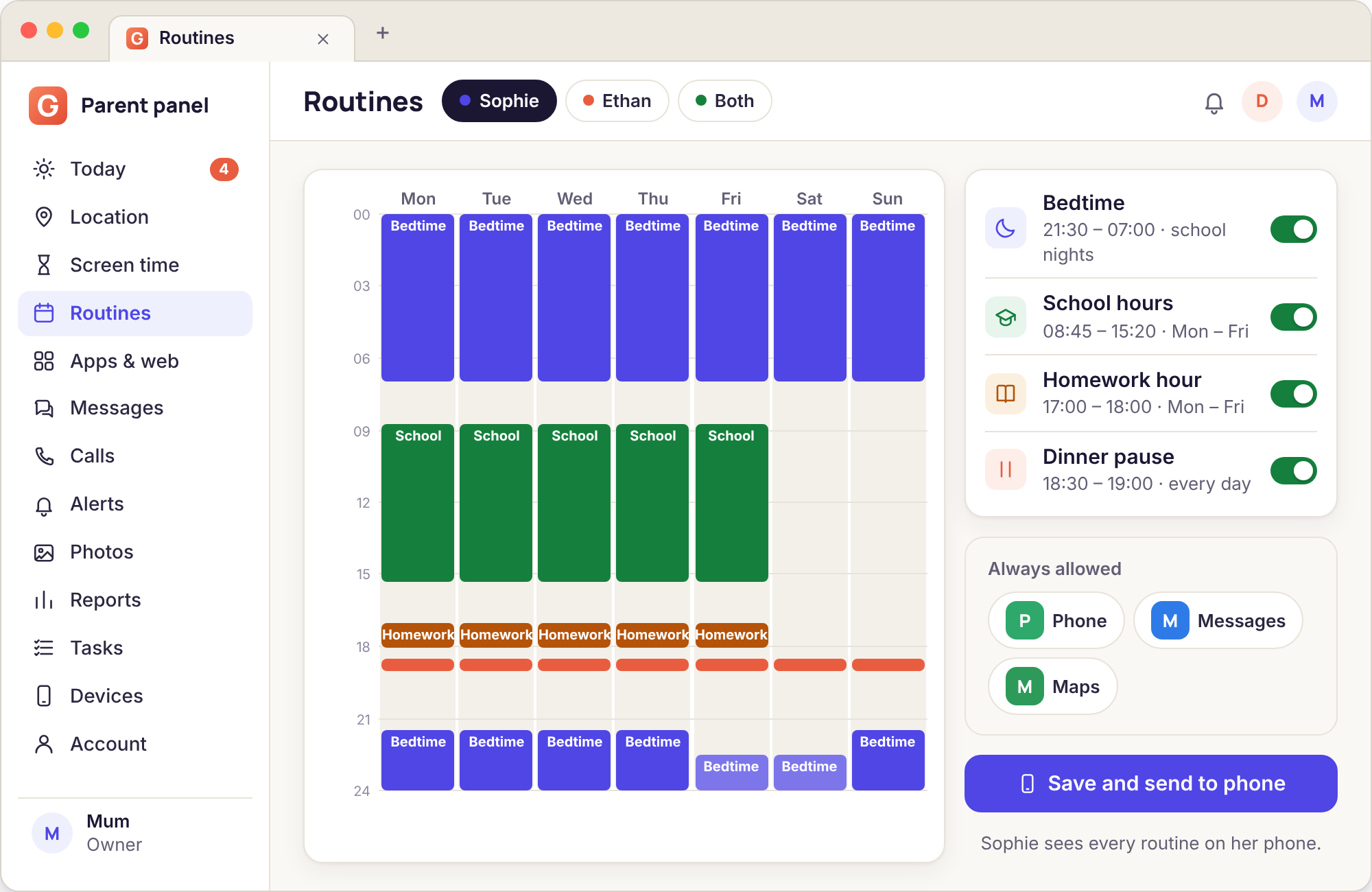
Routines: windows the phone keeps to
The Routines page is a weekly grid. Four templates sit ready, Bedtime, School hours, Homework hour and Dinner pause, each with a sensible default for the child's age that you drag to fit your house. During a window the phone shows a calm screen with the time the window ends, and calls to parents and to emergency numbers always go through. Your child can see tonight's bedtime in their own app, so the first time the screen dims at 21:00 it is not a surprise.
Budgets live on the neighbouring Screen time page: one number of minutes for weekdays and one for weekends, split across the four categories, counted and enforced on the phone so it holds on a bus with no signal. Ten minutes before the budget ends the phone gives a wind-down warning; when it runs out, the child can ask for more with a reason, and the ask arrives on your Today page with three answers: Give 20 minutes, Not tonight, or Offer a task. Both screen-time budgets and routines and bedtime have worked examples by age.
The limit worth knowing: a routine covers the devices paired to that child. A second phone the panel has never met is outside it, and the panel does not pretend otherwise.
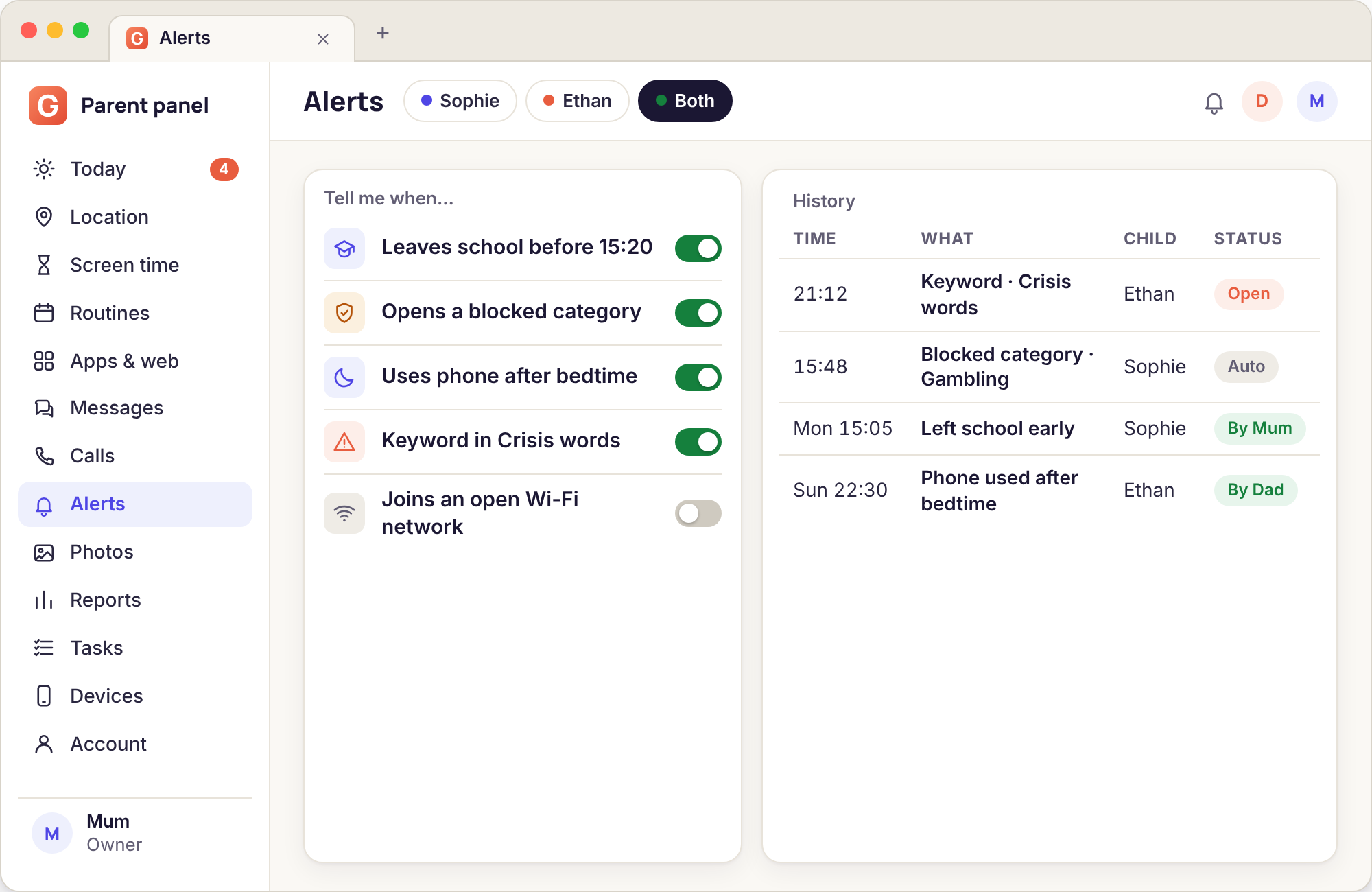
Alerts: written as sentences, delivered your way
The Alerts page has two halves. On the left are the keyword groups: four built-in ones that we keep current, meeting alone, grooming language, bullying and crisis words, each with a switch, and a box for your own list. The crisis group does one thing the others do not: when it fires, the child's phone shows a helpline as well, because a flag that only reaches the parent is half an answer. On the right are alert rules, each built from menus into a sentence you can read back: "Sophie leaves School before 15:20", "Ethan joins an open Wi-Fi network", "any child is called by an unknown number after 22:00".
Each rule carries its own delivery: a push to your browser, a line in the daily email digest, or an immediate email. Beneath both halves is the history, with a "handled by" column recording which parent opened each alert and what they chose. That column exists so two parents do not both ring the school about the same thing. What the groups cannot do is read inside end-to-end encrypted chats; they see the notification lines Android shows, which is true of every app, and the alerts and keywords page says so at length.
Knowing when a phone stopped reporting, and keeping the account itself safe
A monitoring tool that fails quietly is worse than none, because you stop looking. So every device line in the panel carries a health row: last seen, with the exact time; battery, with a warning under fifteen per cent; and one dot per Android permission the app depends on, green when granted and amber when it has been revoked or knocked down a level. The usual culprit is location dropping from Allow all the time to While using after a system update, and the panel flags it the same evening instead of leaving you to wonder why the map froze at lunchtime.
"Last seen" is the number to trust. Online means a check-in within the last few minutes; anything older shows the actual time, so you can tell a position from 14:02 from one from yesterday. A stale pin is never dressed up as a fresh one. If a child uninstalls the app or switches a permission off, the line says so with the time it happened, and the app does nothing to resist: it does not reinstall itself, does not re-grant anything, does not disguise itself in the app list. You get a fact and a timestamp, and the rest is a conversation.
The other half of health is your own account, on the Security page pictured here. Two-factor authentication takes a minute with any authenticator app and is worth doing on day one. Below it is the sessions list: every browser signed in, the device type, the last time it was used, and a Sign out beside each. Below that, the second parent, if you have added one, with the date they joined. Between them, those three things mean a lost phone or a forgotten library computer cannot become a way into your family's location history.
A phone reading "last seen 3 hours ago" during the school day is nearly always a flat battery or a locker with no signal. Press Locate now once. If the request is still pending at home time, it is worth asking about; if it clears at 15:30, it was the locker.
Who can see what, and who can press what
One account, two parents, and a child who can read the same list of categories you can. There is no hierarchy of logins to manage, and one kind of access people ask for does not exist, on purpose.
Owner
The parent who created the account, which in practice means the email address the account hangs from. Password recovery, account notices and the Sunday report all go to that address, and the second parent is added from here. The owner has no extra switches over the children or the rules; the one thing that runs through the owner's email alone is closing the whole account, so that it cannot happen from a borrowed laptop.
Can see and act
The second parent. Their own email, password and two-factor setup, and the same panel: every child, every screen, every rule, every remote action. Both of you see an ask and either can answer it, and the panel records a name against each answer, each alert handled, each rule changed and each lock sent. Nothing is split into a watered-down "viewer" role, because a parent who can see a problem should be able to act on it.
Location only
This one we are asked for and do not offer. A login for Nan, or a childminder, that shows the map and nothing else. We have not built it because a third person watching a child's location, without the Transparency screen naming them to the child, breaks the openness the whole thing rests on. If someone else collects on Thursdays, show them the map from your own phone, or share a Place alert by forwarding the email.
The child has a view as well, and it is not a children's version. The app on their phone opens to the Transparency screen, which lists every category the phone can share with the account and whether it is on. It is the same set of categories the panel's left menu shows, worded for the person holding the phone. A fifteen-year-old can open it and confirm that location is on, that message bodies are off, and that photo scanning has never been switched on, and the screen will not disagree with your panel. Every remote action you send appears there too, with your name. That screen is why it is reasonable to call this monitoring rather than surveillance, and in our experience it is why the rules get kept.
Which side does the job: your panel or the child's phone?
Some things can only happen in the panel, some can only happen on the phone in your child's hand, and a few need both. Knowing which saves a lot of looking in the wrong place.
| Task | In the panel | On the child's phone | Note |
|---|---|---|---|
| Set a budget, routine, filter or app rule | Panel | No | Rules are made in the browser and pushed to the phone; the child sees them in their app but cannot change them. |
| Pair a new device | Partly | Partly | The code appears on the Devices page; it is typed on the phone. |
| Grant an Android permission | No | Phone | Only Android, on the phone, can grant one. The panel shows whether it has been. |
| Accept a consent switch for a sensitive tool | Request only | Phone | The panel asks; the person holding the phone accepts or declines. |
| Answer an extra-time ask | Panel | No | Three buttons on the Today page. The child sees the answer in their app within seconds. |
| Ask for more time, with a reason | No | Phone | Comes from the child's app when the budget runs out, and lands in Needs you. |
| Lock, ring, locate or re-send rules | Panel | No | Each action shows on the phone as it happens and in the app's activity list. |
| Complete a chore with photo proof | Approve only | Phone | The child takes the photo in their app; approval is a button on your Today page. |
| Unpair a device | Panel | Partly | Unpair from Devices, or the child can uninstall the app; either way the panel shows the time. |
| Read the Sunday report | Panel | No | Under Reports, and in your inbox every Sunday. The child's app shows their own totals, not the report. |
On your own phone, add the panel to the home screen from the browser menu and it opens like an app, with nothing to update.
Four things the panel shows that are usually not what they look like
An action has said "pending" for an hour
The phone is offline: switched off, out of signal, or flat. Remote actions queue rather than fail, and the panel shows pending until the phone next connects.
Fix: leave it. The action is delivered the moment the phone finds a connection, in the order you sent it. If it is still pending at home time, the phone is probably off, and that is a conversation rather than a setting.
A rule you changed is not showing on the phone
Rules are pushed when the phone checks in, and a phone in battery saver can wait a while before it does. Occasionally a change made while the phone was offline is sitting behind a queued action.
Fix: press Re-send rules on the Devices page. If the phone is online it updates within a minute, and the child's Today screen shows the new budget or bedtime straight away.
The screen-time tile shows zero all day
Usage access has been revoked on the phone, often by a system update, so the app cannot count which app is in front. The device line will show an amber permission dot.
Fix: on the phone, open the app; the Transparency screen shows usage access as off with a button to the right Settings page. The count restarts from the moment it is granted and cannot fill in the gap.
The second parent cannot see a child
Almost always a second account rather than a second parent: they created their own account from the sign-up page instead of being added under yours.
Fix: from your Account page, add them by email as the second parent. They can delete the empty account they made, or leave it; it holds nothing. Both of you then see the same children and the same history.
Things parents ask about the panel
Do I need a separate account for the panel?
No. There is only one account, and it lives in the panel. The child app signs in to your family with the pairing code and never needs your password.
Can I use the panel on my phone?
Yes, and many parents mostly do. The layout reflows for a small screen, and everything, approving an ask, reading an alert, locking a device, works the same as on a laptop.
Do the remote actions work if the phone is offline?
They queue. Lock, ring, locate and re-send rules are delivered the moment the phone has a connection again, and the panel shows the action as pending until then. Rules already on the phone keep being enforced offline regardless.
Will my child know when I lock or locate the phone?
Yes. Every remote action shows on the phone as it happens and appears in the app’s activity list afterwards. There is no silent remote control, by design.
Can two parents use one panel?
Yes. Add a second parent under Account and they get their own login with the same view and the same permissions. Both of you see an ask, either can answer it, and the panel records who did.
Can I try the panel before creating an account?
Yes. The read-only demo is a full panel for a made-up family with a realistic week in it. Open every screen, press every button, change nothing.
What if I forget my password?
Use the reset link on the sign-in page. Recovery runs through the email on the account, and through two-factor authentication if you turned it on. A second parent keeps full access throughout.
Is there a limit on children or devices?
No. One account holds as many children as you have, and each child can have more than one device. Each device pairs with its own six-digit code.
The panel is the front door to everything, so it is worth also reading about the web panel, activity reports and call monitoring.
Your side is a browser tab. Theirs is one visible app.
Create a free account in about a minute, add a child, and pair their Android phone together in a quarter of an hour. No card, no parent app, and nothing hidden from the person holding the phone.
Android child app · Runs in any browser · Visible on the phone