The Complete Guide to Detecting Spyware
The real symptoms worth worrying about, what usually turns out to be nothing, and the exact settings to check on iPhone and Android before you do anything drastic.
 By GuestSpy Editor · Founder and editorPublished September 11, 2026Updated September 14, 202612 min read
Someone messages a phone forum every day with some version of the same fear: my battery is dying overnight, my data usage jumped, and I think someone is reading my messages. Sometimes they’re right. Far more often, it’s an old battery, a stuck backup, or an app they forgot they installed two years ago.
This guide is for working out which one you’re dealing with. It walks through how to detect spyware on your phone properly — the symptoms actually worth checking, the ones that mean nothing, the exact settings screens on iPhone and Android where spyware has to show itself, and what to do once you know either way. None of it requires downloading a “spyware scanner” app, which on both platforms can see far less than the settings you already have.
- What actually counts as phone spyware
- The symptoms worth taking seriously
- What usually turns out to be nothing
- Checking an iPhone, step by step
- Checking an Android phone, step by step
- Device admin, accessibility and profiles, explained
- The check people skip: your account, not your device
- If you find something: cleaning up safely
- If this involves someone who controls or has hurt you
- Questions people actually ask
What actually counts as phone spyware
Strip away the marketing and “spyware” on a phone is one of a small number of things: an app hiding on the device with broad permissions to read messages, location or notifications; a management profile that gives someone else remote control; or, less dramatically but more commonly, someone who simply knows your account passwords and is reading your messages and location from their own device, without touching yours at all.
That last one matters because it changes where you look. Plenty of people spend an evening scrolling through their app list when the actual problem is a Google or Apple account signed in on someone else’s laptop. Both are worth checking — neither shows up if you only check the other.
The symptoms worth taking seriously
Not every odd thing your phone does is a clue. The symptoms that genuinely correlate with something running in the background, uninvited, share one property: they cost resources the phone can’t hide. Software that reads location, listens for notifications, or uploads data has to use battery, data and processing power to do it, and those costs leave a trail even when the app itself is well hidden.
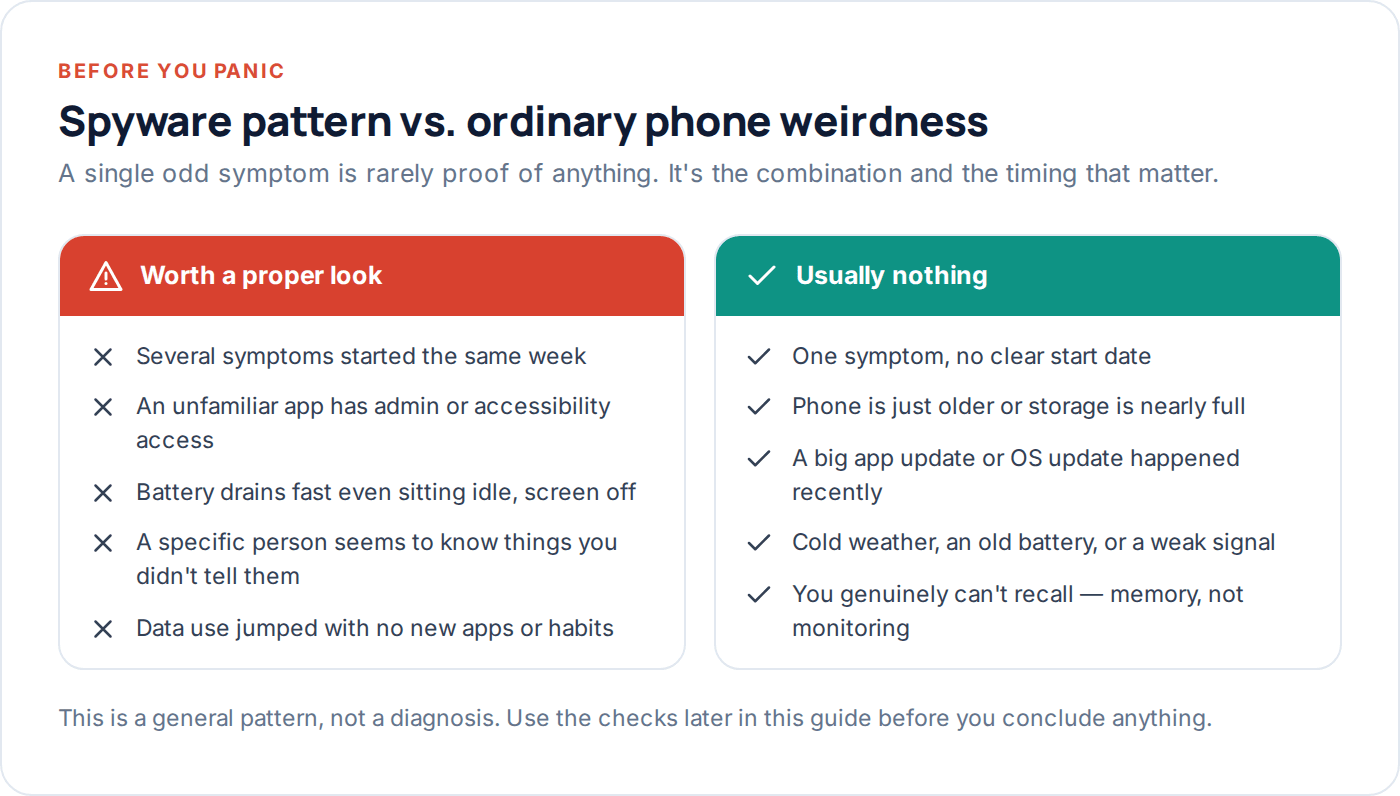
The clearest single signal is battery drain with no obvious cause: the phone is sitting on a desk, screen off, not being used, and losing charge noticeably faster than it did a month ago. The second is data use — specifically uploads, not downloads, since spyware has to send what it collects somewhere. The third is heat with the phone idle, which usually means the GPS, camera or microphone has been switched on by something other than you.
None of these prove anything alone. What makes them worth acting on is combination and timing: two or three starting within the same week, especially if that week lines up with something specific — a phone left unattended for an hour, a link you clicked, an app you installed from outside the usual app store.
What usually turns out to be nothing
Most worried checks end in relief, and it’s worth knowing why before you spend an evening convinced something is wrong. Phones get slower and hungrier for power as they age — not because anything malicious is running, but because batteries genuinely lose capacity and storage that’s nearly full makes every app work harder. A big iOS or Android update can spike battery and data use for a day or two while the system reindexes everything in the background; that settles on its own.
Cloud photo and video backup is the single biggest cause of “mystery” data use people bring to a phone shop. If you take video, it has to go somewhere, and it goes there in the background, often overnight, often on the same schedule someone might imagine spyware would use. A weak signal makes a phone burn more battery searching for a connection, which looks identical to “something draining my battery” from the outside.
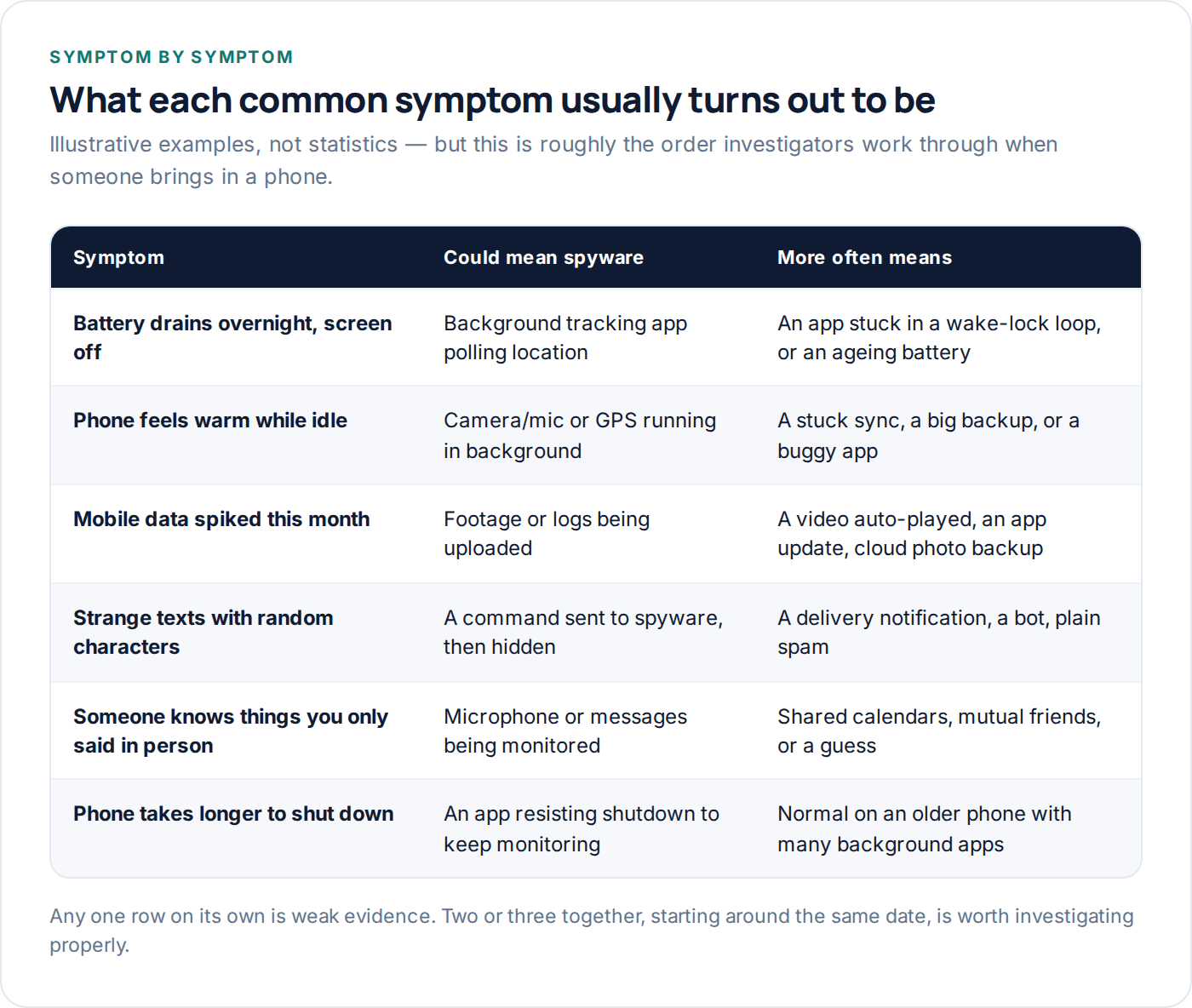
And then there’s the explanation nobody wants to hear: sometimes the person who “knows things they shouldn’t” found out from a mutual friend, a shared calendar, an old social media post, or a reasonable guess — not surveillance. It’s worth genuinely ruling that out before you assume a technical explanation, because it changes what fixing the problem actually requires.
Battery
Check age and health first (iPhone: Settings → Battery → Battery Health). Below roughly 80% capacity, drain is expected, not suspicious.
Data
Check for a recent OS update, a new backup setting, or auto-play video before assuming an upload you didn’t authorise.
Knowledge
Ask yourself honestly whether the information could have come from a shared account, a mutual contact, or something you posted and forgot.
Checking an iPhone, step by step
Apple’s sandboxing means one app genuinely cannot read another app’s messages or freely access the camera and microphone without a permission prompt you’d have seen. That doesn’t make iPhones immune — it means the places to check are narrower and more reliable than on Android.
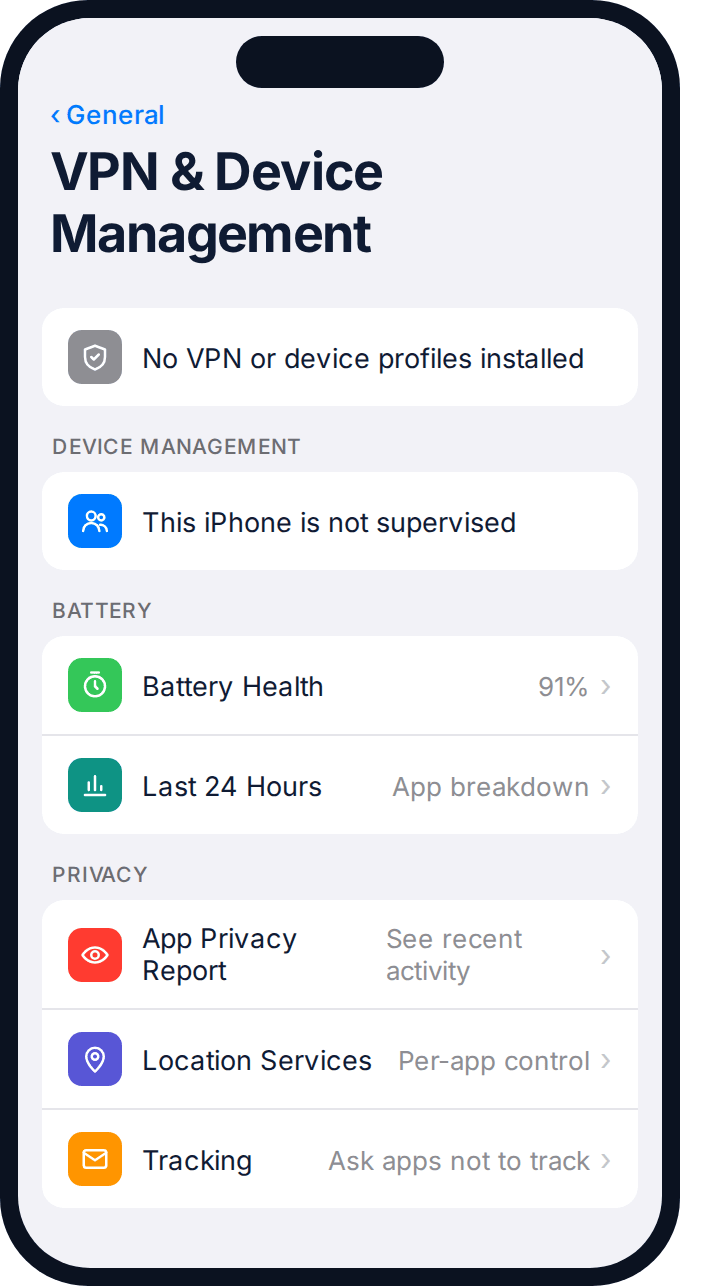
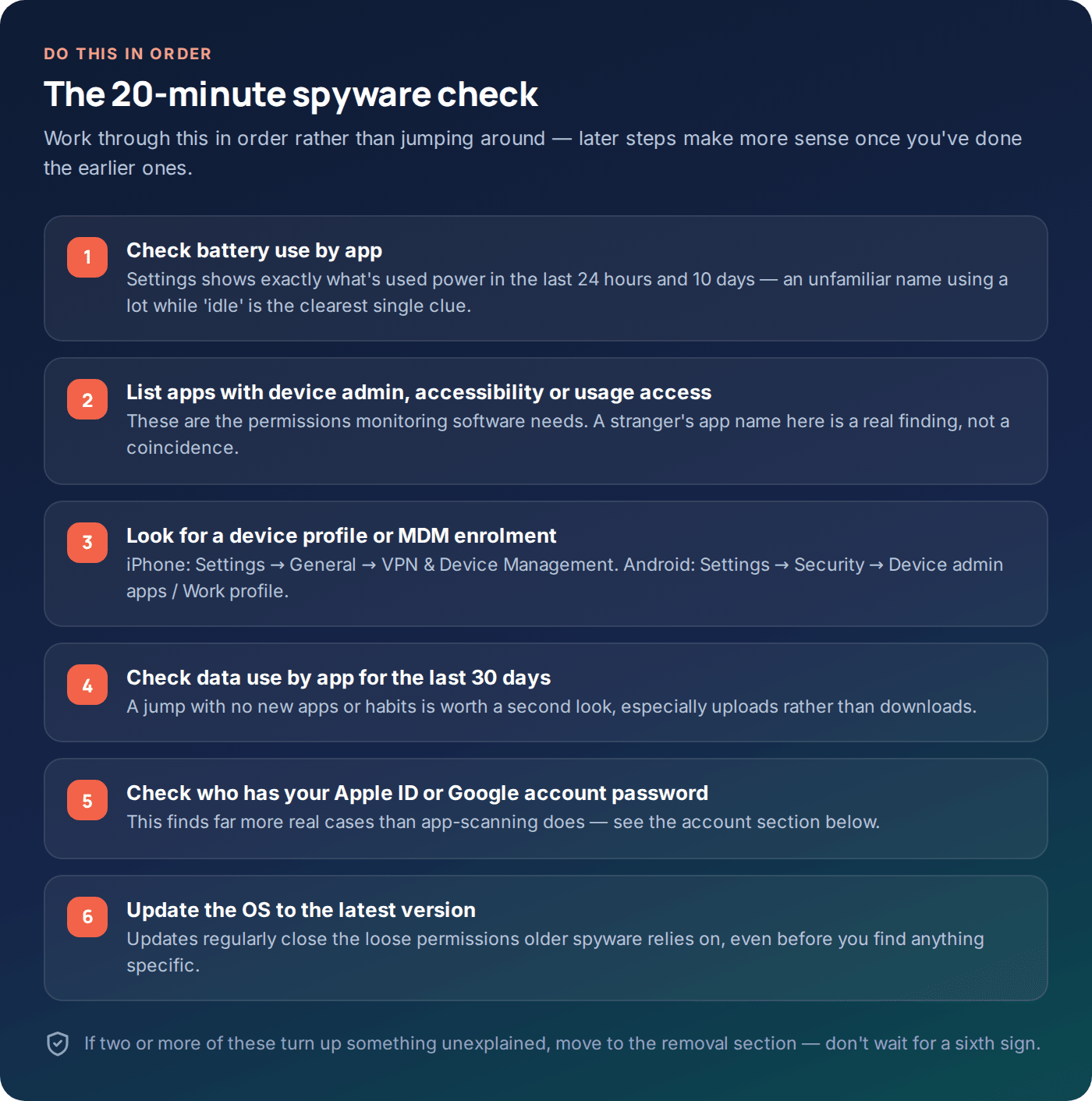
- Settings → General → VPN & Device Management. This is where a configuration profile or mobile device management (MDM) enrolment shows up. A profile you didn’t install — especially one that isn’t from your employer or school — is a genuine finding.
- Settings → Privacy & Security → App Privacy Report. If it’s been switched on, this shows exactly which apps have accessed your location, camera, microphone and contacts recently, and how often. Turn it on now even if it’s empty today; it’s the single most useful screen for the next time you’re unsure.
- Settings → Battery. Look at the last 24 hours and last 10 days, broken down by app. An app using significant battery in the background that you don’t recognise, or rarely open, deserves a closer look.
- Settings → General → iPhone Storage. Scroll the full app list — not just your home screen — for anything you don’t remember installing.
- Check for jailbreak signs. A jailbroken iPhone can run software Apple’s rules would normally block, including some hidden monitoring tools. Apps like Cydia, or a phone that behaves oddly after a “free unlock” from someone else, are red flags.
Checking an Android phone, step by step
Android is more configurable than iOS, which is exactly why it’s the platform most consumer-grade spyware targets. The permissions it needs to function are visible if you know which screen to open.
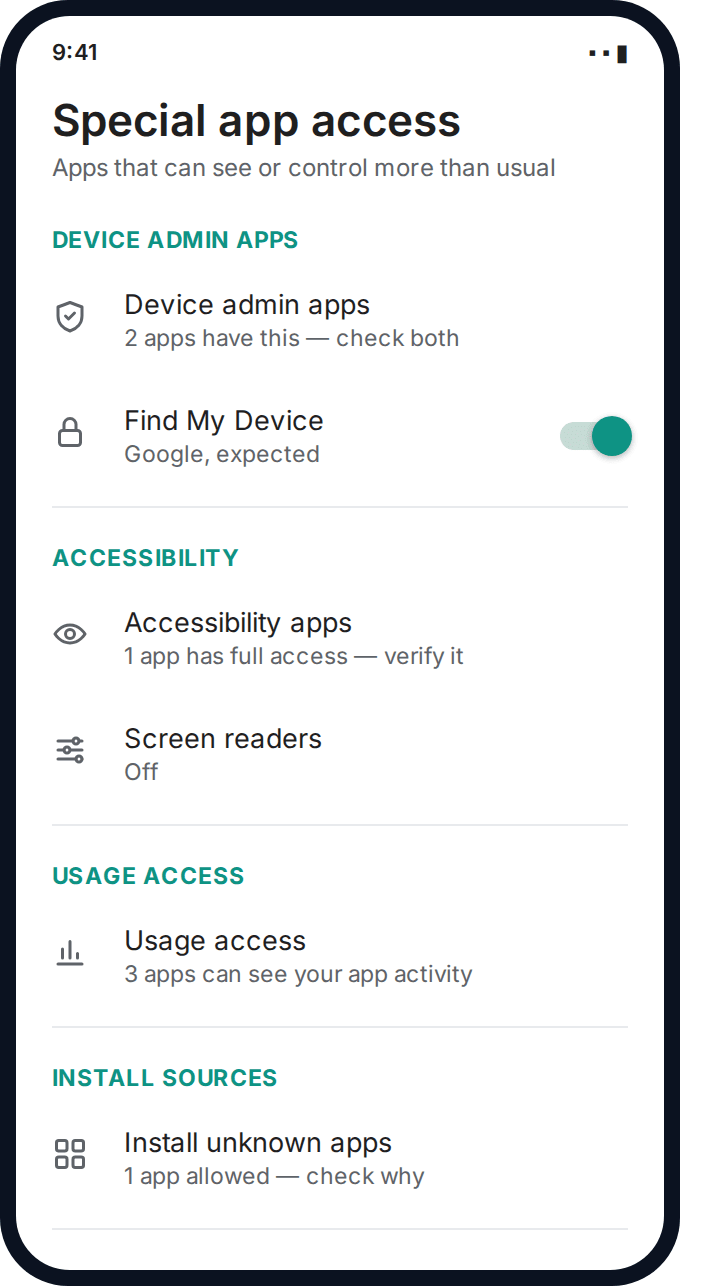
- Settings → Apps → Special app access → Device admin apps. Very few apps legitimately need this level of control. If something you don’t recognise — or don’t remember granting this to — is listed, that’s worth investigating.
- Settings → Accessibility. Built for genuine accessibility needs, but it’s also the permission most commonly abused, because it lets an app read what’s on screen. Anything unfamiliar here is significant.
- Settings → Apps → Special app access → Usage access. Shows which apps can see what other apps you’re using and for how long.
- Settings → Security → Install unknown apps. Lists which apps are allowed to install other apps outside the Play Store. If this is switched on for an app you don’t recognise, that’s how something arrived on the phone in the first place.
- Play Protect scan. Settings → Security → Google Play Protect → Scan. It won’t catch everything, but it’s a legitimate, free first pass and takes under a minute.
Device admin, accessibility and profiles, explained
These three permission categories deserve their own explanation because they’re what genuinely separates “an app that’s a bit nosy” from “an app that can see almost everything.” Device admin access, originally built for corporate phone management, lets an app prevent its own uninstallation, lock the screen, or wipe the device. Accessibility access lets an app read text displayed anywhere on screen — including inside other apps’ messages — which is precisely the capability screen readers need and precisely the one hidden monitoring tools want.
A configuration profile or MDM enrolment goes a step further: it can install a certificate, filter traffic, or hand remote management to whoever set it up. Employers and schools use this legitimately, disclosed in the settings for anyone to see. The version worth worrying about is one you don’t remember agreeing to, especially on a personal phone that had brief unsupervised access.
The check people skip: your account, not your device
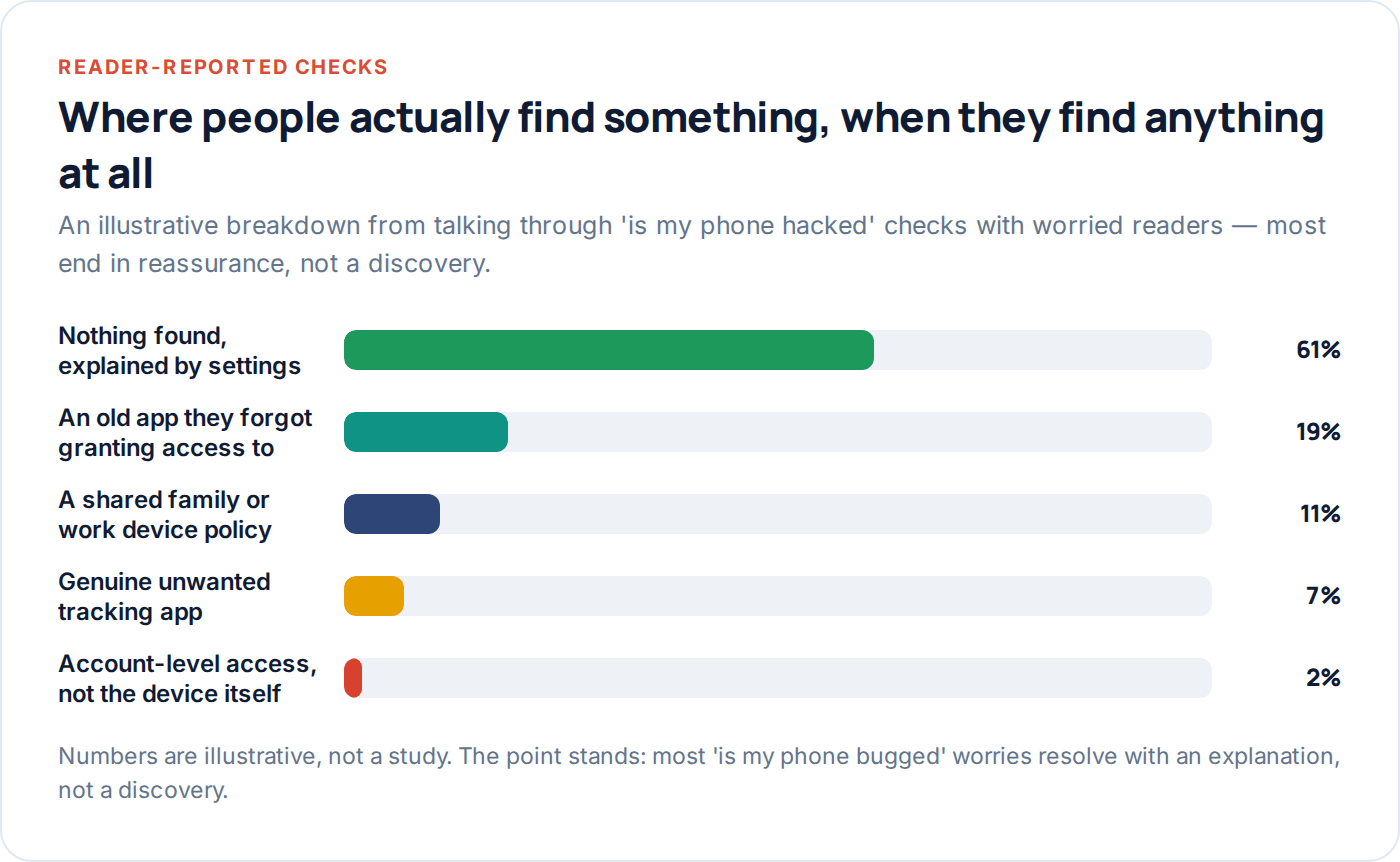
A huge share of “someone is reading my messages” turns out to have nothing to do with an app on the phone at all. If someone has your Apple ID or Google account password, they can see your location, photos and, on Android, often your messages, from any browser, anywhere, without ever touching your phone. This produces symptoms identical to spyware — the sense that someone always knows — while every check above comes back clean.
Check Settings → [your name] → Password & Security on iPhone, or your Google Account → Security → Your devices on Android, for sign-ins you don’t recognise. Change the password if there’s any doubt, and turn on two-factor authentication if it isn’t already on — it’s the single change that closes this door for good.
If you find something: cleaning up safely
Finding a genuine match — an unfamiliar device admin app, an unexplained profile — is unsettling, but the cleanup itself is usually mechanical once you know what you’re removing, and the order below is worth following exactly.
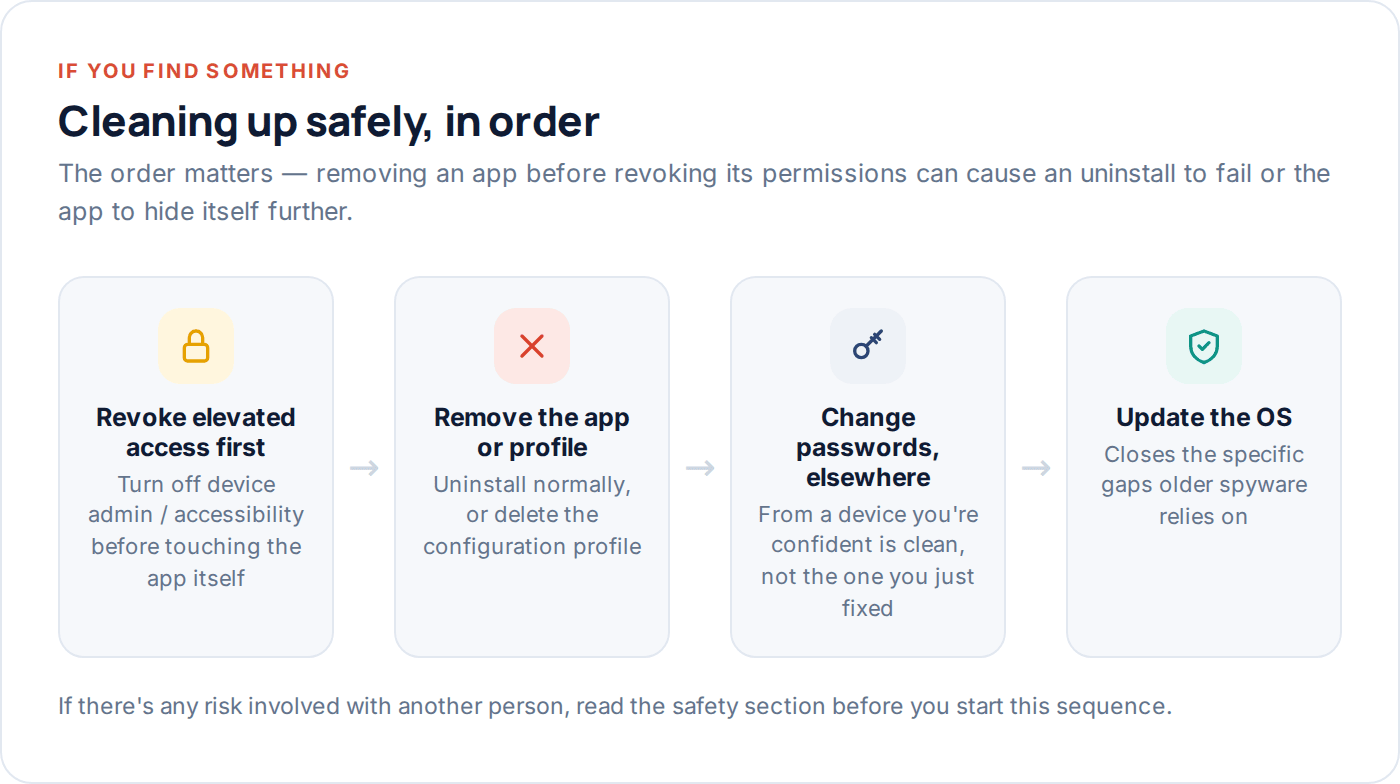
- Revoke elevated permissions first. Turn off device admin or accessibility access for the app before trying to uninstall it — otherwise the uninstall may be blocked or silently fail.
- Remove the app or profile. Uninstall it normally, or on iPhone, remove the configuration profile from VPN & Device Management.
- Change your account passwords, from a different device. Do this from a computer or phone you’re confident is clean, not the one you just cleaned — a compromised device can capture the new password as you type it.
- Turn on two-factor authentication on your email and any account that touches the phone, using an authenticator app rather than SMS where you can.
- Consider a full factory reset if you can’t identify exactly what you found or how it got there. It’s the only guaranteed clean slate, and worth the inconvenience of restoring apps from scratch rather than a backup that might carry the problem with it.
- Update the OS immediately after resetting, since updates regularly close the specific gaps older spyware relies on.
If this involves someone who controls or has hurt you
If the person you suspect has been abusive, controlling, or has hurt you before, read this section before you remove anything. Deleting spyware immediately can alert the person who installed it, and in a situation involving domestic abuse that moment of realisation can be genuinely dangerous — it can escalate exactly when the person feels they’re losing access and control.
Where it’s safe to do so, using a different, trusted device to look things up, screenshotting what you find (from a separate device, not the one in question) before changing anything, and telling someone you trust what’s happening are all reasonable, low-risk first steps that don’t require removing anything yet.
Questions people actually ask
Can spyware be installed remotely, without touching my phone?
Genuine device-level spyware almost always needs a few minutes of physical access to install, because both iOS and Android are designed to block silent remote installs. What can happen remotely is account-level access — if someone has your password, they can see a great deal without ever touching the device. That’s why the account check matters as much as the app check.
Do the free “spyware scanner” apps actually work?
They can catch some known, low-effort tools, but they run under the same permission restrictions as any other app, so they genuinely cannot inspect another app’s private data on either platform. The checks in this guide use the operating system’s own records instead, which see more than any third-party scanner is allowed to.
Will a factory reset definitely remove spyware?
A proper factory reset removes anything installed as an app or profile, yes. It won’t help if the actual issue is a compromised account password, since that isn’t stored on the device at all — you’ll need to change the password too, ideally before you even reset.
My battery is draining but I found nothing in the settings — am I safe?
Most likely, yes. Battery health below about 80% capacity, a recent OS update, or heavy cloud backup account for the overwhelming majority of unexplained drain. If it persists for more than a week with no other symptoms, it’s more likely a hardware or software issue than monitoring software.
Is it illegal for someone to put spyware on my phone?
In most countries, installing covert monitoring software on an adult’s device without their knowledge and consent is illegal, regardless of the relationship — including spouses and partners. The exception is a parent monitoring their own minor child’s device, which is legal in most places when done transparently.
What’s the difference between this and a legitimate family monitoring app?
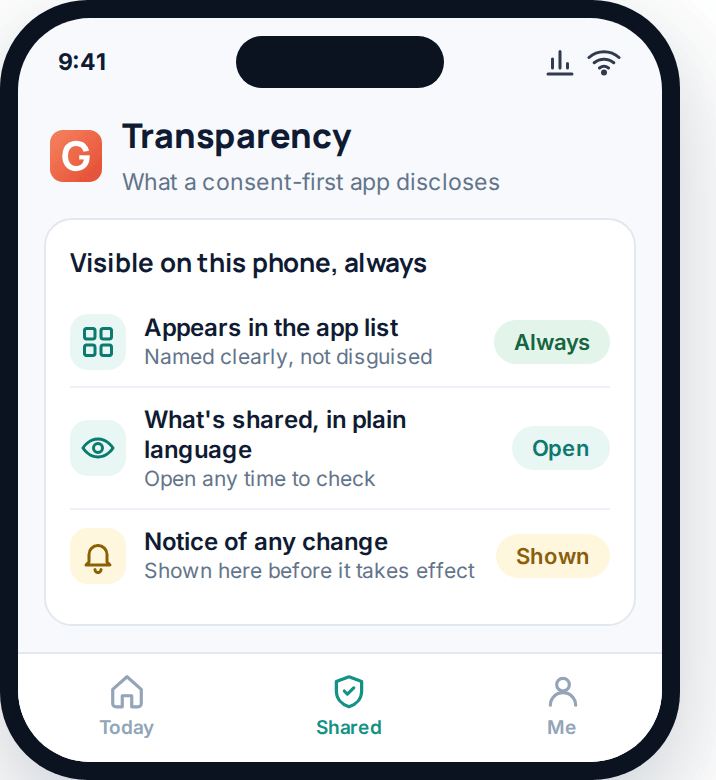
Visibility. A legitimate app like GuestSpy is installed openly, appears in the app list, and has a screen the phone’s user can open at any time to see exactly what is shared. If an app is hidden from the app drawer or disguised under a different name, that’s the defining feature of the kind of tool this guide is about — not a family monitoring app.
What to do next
If nothing in this guide turned up a match, that’s the likely outcome for most people who go looking, and it’s worth believing the evidence over the anxiety. If something did turn up, work through the cleanup steps in order, change your passwords from a separate device, and if there’s any risk involved with another person, get support before you act rather than after.
For the other side of this — what it looks like to monitor a device with full disclosure, rather than in secret — our acceptable use policy and privacy policy lay out exactly what a transparent app can and can’t do, and the FAQ covers the questions we get asked most about where that line sits.
Using a monitoring app for this? GuestSpy is parental monitoring for Android that stays visible on the child's phone and runs from any browser. If it fits your family, see what the app does.
Related guides
How to Check App Permissions on Your Phone
A ten-minute audit of what your apps can actually access — location, microphone, camera, accessibility and more — and how…
How to Protect Your Phone in an Abusive Situation (Safely)
If you think your phone is being used to monitor or control you, how you check matters as much as…
A Step-by-Step Guide to Securing a Hacked Account
Why email comes first, the exact settings that close the door behind an attacker, and the recovery steps most guides…
Monitoring your child can see.
Location, screen-time budgets, routines, app and website blocking and the alerts that matter, run from any browser and visible on the phone. Pair an Android phone in about fifteen minutes.