How to Check App Permissions on Your Phone
A ten-minute audit of what your apps can actually access — location, microphone, camera, accessibility and more — and how to trim it back safely.
 By GuestSpy Editor · Founder and editorPublished September 12, 2026Updated September 14, 202610 min read
Somewhere on your phone is a flashlight app that can see your location, a game that can read your contacts, and a shopping app that’s been listening for a wake word for two years. Not because anyone is doing anything sinister with them necessarily — but because you tapped “Allow” once, in a hurry, and never looked again.
Checking app permissions on your phone takes about ten minutes and needs no extra software — everything lives in settings you already have. This guide walks through which permissions actually matter, how to review and revoke them on iOS and Android, what the newer auto-reset features do for you automatically, and what a genuinely suspicious combination of permissions looks like.
Why this is worth ten minutes
Permissions are the gap between what an app is designed to do and what it’s technically allowed to do. A navigation app needs location — that’s the whole product. A puzzle game asking for location, microphone and contacts needs none of them to function; it’s asking because you might say yes, and because that data is worth something to someone, usually for advertising rather than anything more alarming.
Most people grant permissions in the moment an app first asks, under a prompt designed to get a quick yes, and never revisit the decision. Over a year or two of installing apps, that adds up to a phone where dozens of apps can technically see your location, hear your microphone, or read your notifications — most of which you’d say no to if asked today, with time to think about it.
The permissions that actually matter
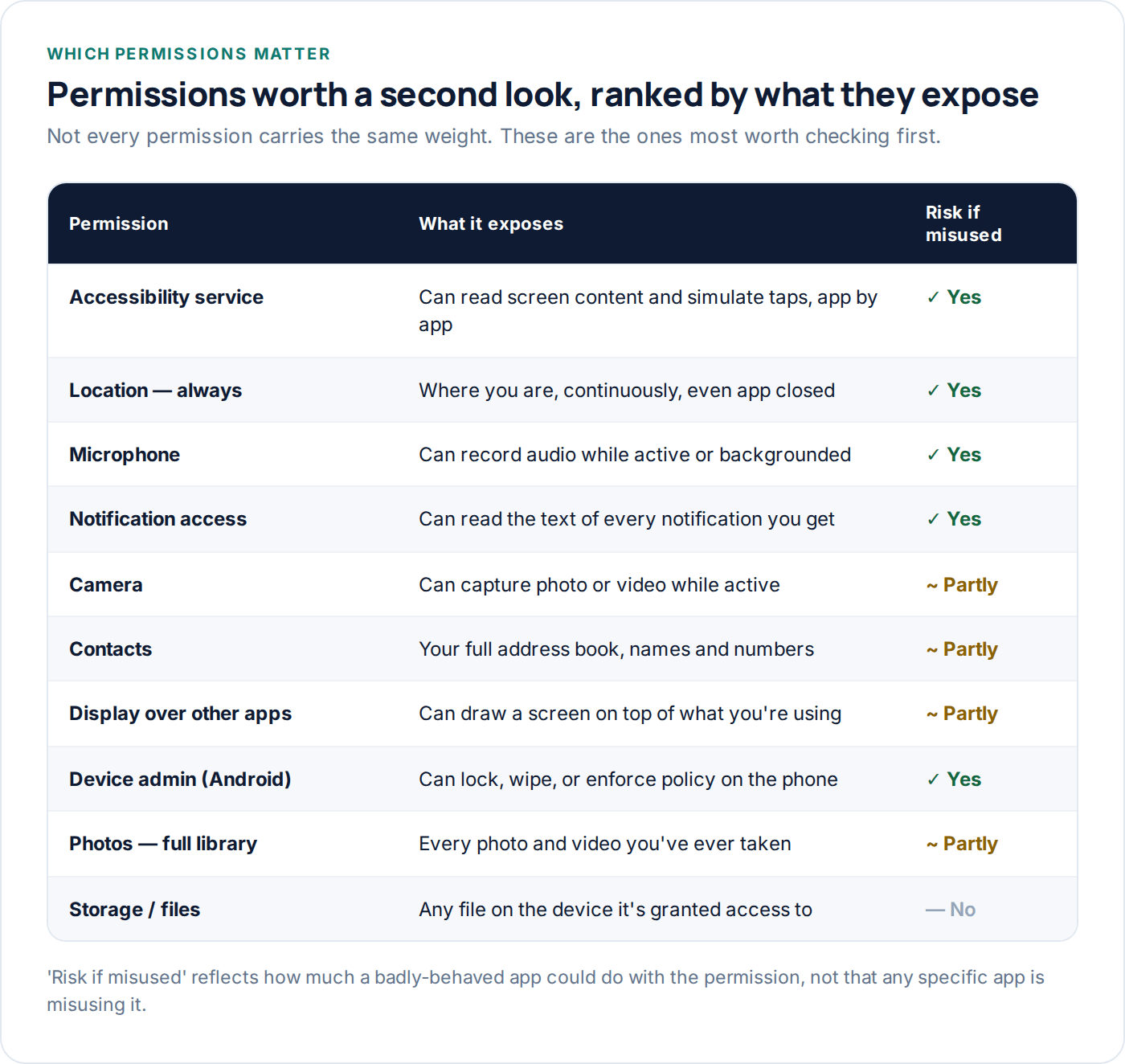
Not all permissions carry equal weight. Storage access on its own is fairly low-stakes. Accessibility access is close to total control of the phone. It helps to know which is which before you start clicking through settings.
Location
The permission worth checking first, because it’s the one most apps request and the one with the biggest gap between “while using” and “always.” An app with always-on location access can build a precise picture of where you sleep, work and spend time, continuously, whether you’re using the app or not. Very few apps genuinely need that — a family location-sharing app or a fitness tracker might; a shopping app almost never does.
Microphone and camera
Both are usually granted only while an app is actively open and in the foreground on modern phones, which limits the risk considerably. The exception is video calling and voice assistant apps, which legitimately need background access — worth confirming that’s actually what an app does before it holds either permission long-term.
Accessibility services (Android) and comparable iOS features
This is the one to take most seriously. Accessibility access was built for screen readers and other assistive tools, but it’s powerful enough to read what’s on screen and simulate taps across any app — which is also exactly what a small number of malicious or monitoring apps rely on. A near-empty accessibility list is normal for most phones; anything unfamiliar there deserves a closer look.
Notification access
An app with notification access can read the text of every notification that arrives, including one-time codes and message previews, regardless of which app sent them. Genuinely useful for a small category of apps — smartwatch companions, some automation tools — and worth being sparing with otherwise.
Device admin (Android) and its iOS equivalents
Device admin apps can enforce policies like forcing a lock screen, wiping the device remotely, or blocking uninstallation. Legitimate for a workplace-managed phone or a family safety app you set up deliberately; unexpected on a personal phone you don’t remember configuring that way.
Checking permissions on iPhone
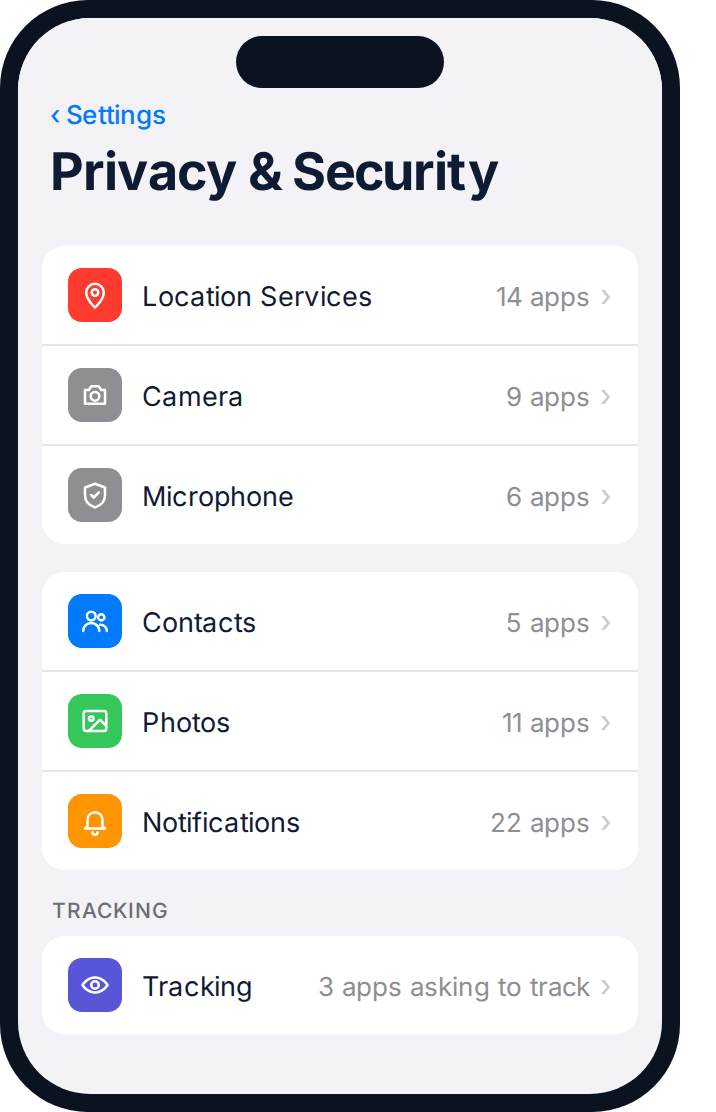
Everything lives in one place: Settings → Privacy & Security. Rather than listing every app, iOS lists every permission category, and tapping one shows every app that holds it — which is the faster way to audit.
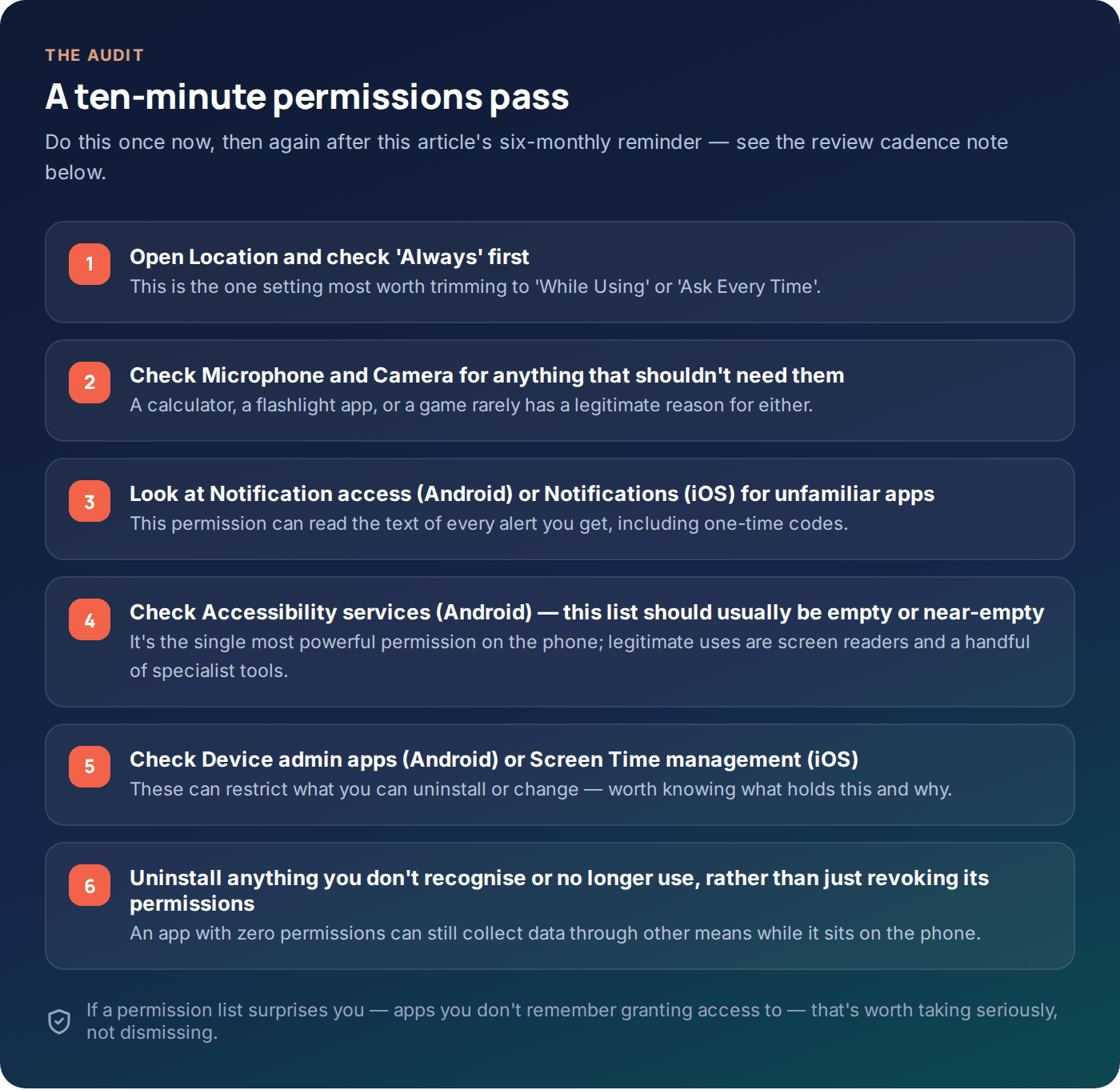
- Open Location Services and check which apps show “Always” rather than “While Using” or “Ask Next Time.” Change anything that doesn’t clearly need constant access.
- Open Microphone and Camera and toggle off anything that surprises you — a game, a note-taking app, a flashlight.
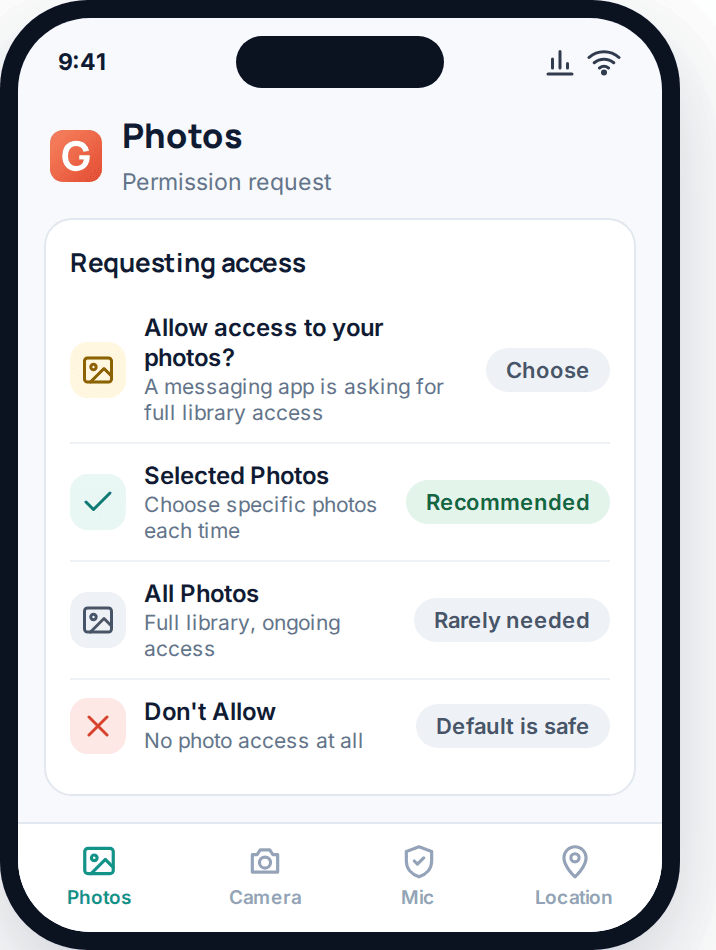
- Open Contacts and Photos and look for apps with no obvious reason to need either. For Photos, iOS offers a “Selected Photos” middle option worth using instead of full library access.
- Check Tracking, near the bottom of the same screen, which lists apps asking to track your activity across other companies’ apps and websites — this is separate from the other permissions and worth reviewing on its own.
- Scroll to Notifications in the main Settings app (not Privacy) to see which apps can show alert previews on your lock screen, which is a smaller but related privacy setting.
One iPhone quirk worth knowing: an app can hold a permission without ever actively using it, and iOS gives you a way to check which. A small orange or green dot near the top of the screen indicates the microphone or camera is in active use right now — if you see one appear with no obvious reason, that’s worth investigating immediately rather than waiting for your next scheduled audit.
Checking permissions on Android
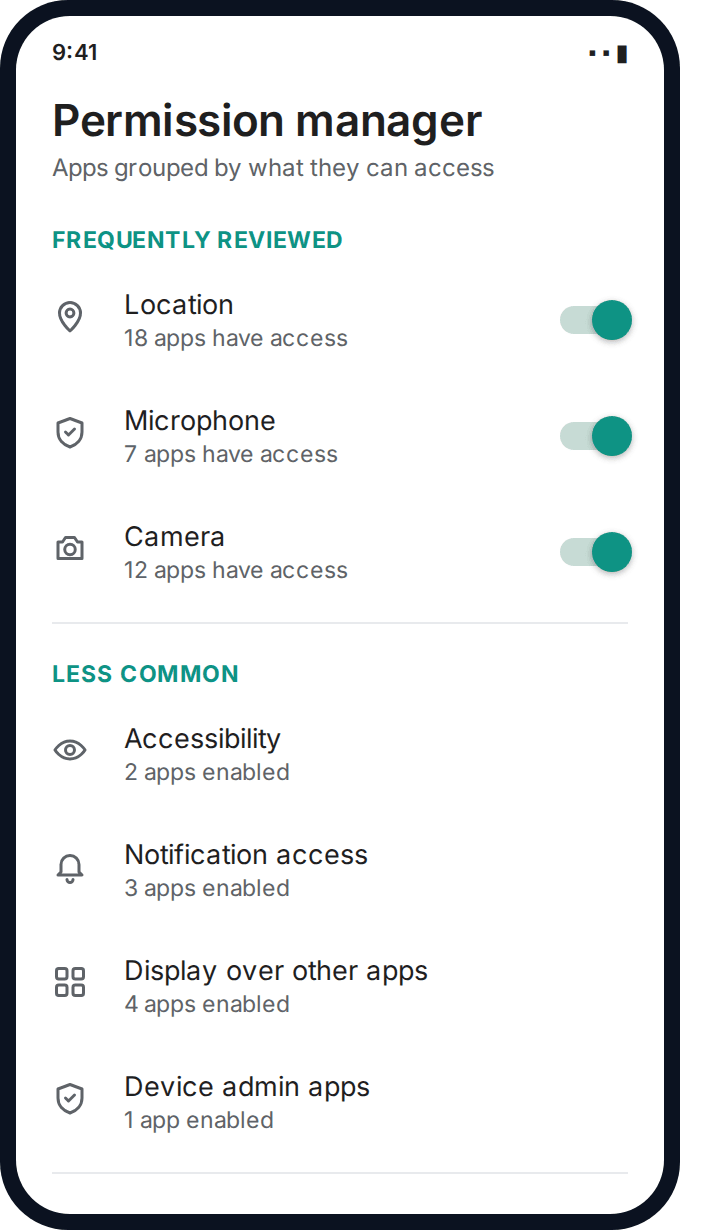
Android’s version lives under Settings → Privacy → Permission manager (the exact path varies slightly by manufacturer, but “Permission manager” is searchable in settings on nearly every phone). Like iOS, it’s organised by permission rather than by app.
- Start with Location, Microphone and Camera — the same big three as iOS, reviewed the same way, per app.
- Open Special app access (sometimes a separate menu) for the less common but more powerful permissions: Accessibility, Notification access, Display over other apps, and Device admin apps.
- Check Accessibility specifically. If anything is listed that you don’t recognise or didn’t deliberately enable, that’s worth investigating before anything else on this list.
- Check Display over other apps. This permission lets an app draw a screen on top of whatever you’re using — legitimate for things like call-screening apps, but also how some deceptive apps trick people into tapping the wrong thing.
- Check Device admin apps for anything you don’t remember setting up, particularly on a phone that was ever set up by someone else or bought second-hand.
Android also shows a small camera or microphone indicator in the status bar whenever either is actively in use, the same idea as iOS’s dot. It’s worth glancing at occasionally, particularly if the phone seems to be doing something in the background when you haven’t opened anything recently — that’s exactly the moment a status-bar indicator earns its keep.
Manufacturer skins sometimes add their own privacy dashboard on top of the stock Android one, occasionally with a slightly different name — “Privacy dashboard” or “App permissions” are common alternatives to search for if “Permission manager” doesn’t turn anything up on your specific phone.
Permission auto-reset, explained
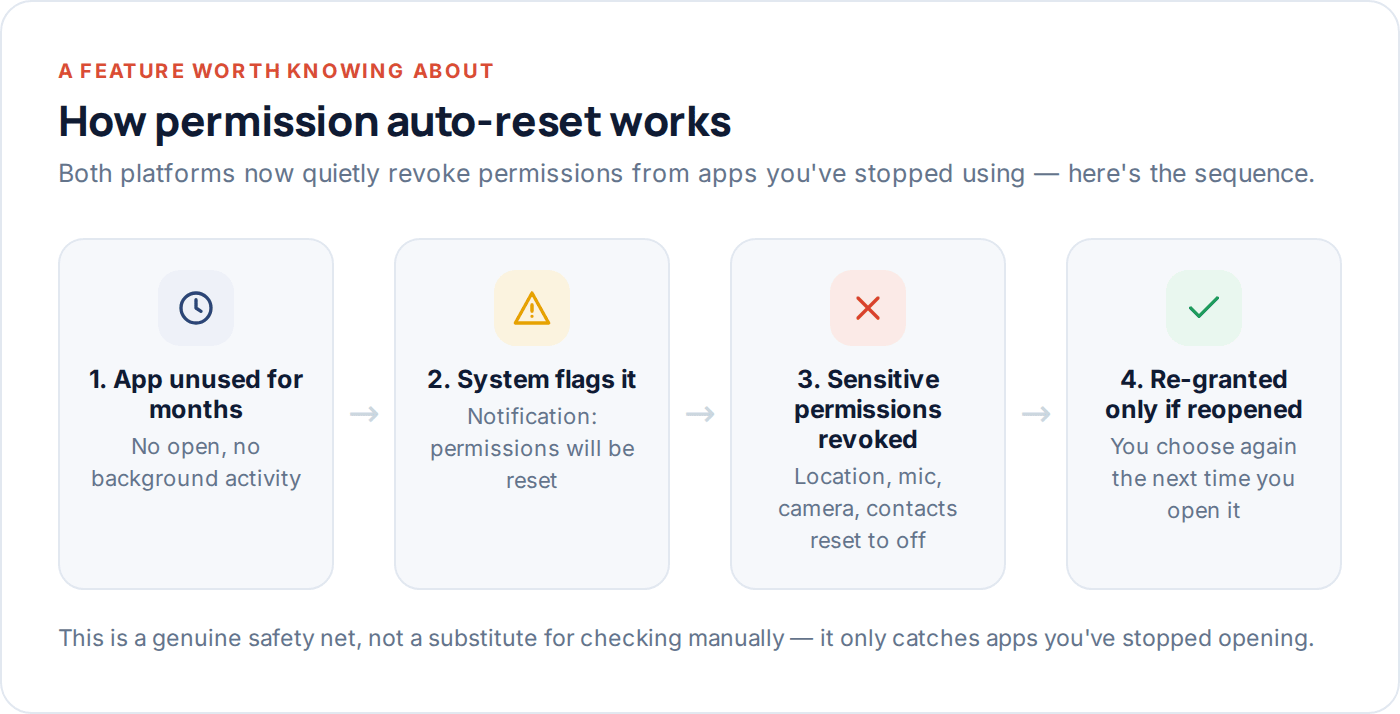
Both major platforms now include a quiet safety net: if you stop opening an app for an extended period, sensitive permissions it holds — location, microphone, camera, contacts and similar — get automatically reset to off. The next time you open the app, if it still needs one of those permissions, it has to ask again.
This genuinely helps with the “installed it once, forgot about it, never opens it” category of app, which is a meaningful share of what’s on most people’s phones. It does nothing, however, for apps you still use regularly — those hold onto whatever you granted until you change it yourself, which is the entire reason a manual pass still matters.
What a suspicious combination looks like
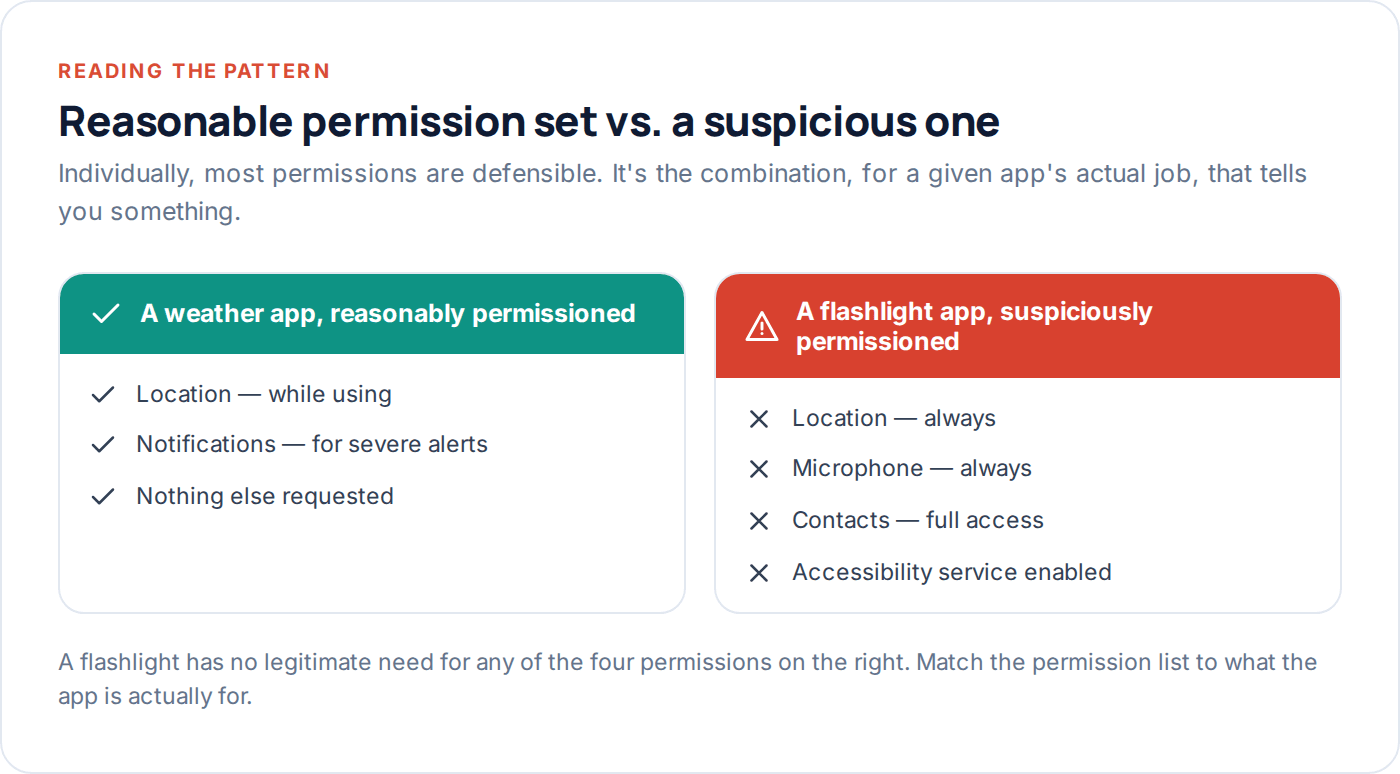
Almost every individual permission has a legitimate use somewhere. What’s worth noticing is when an app’s permission list doesn’t match its actual job. A calculator app has no legitimate need for location, microphone, or accessibility access — any one of those, on a calculator, is a reasonable prompt to uninstall it rather than dig deeper.
A few patterns worth specific attention, based on how monitoring and lower-quality apps commonly request access:
Accessibility + notification access
Together, these two can read almost everything happening on screen and in your alerts. Legitimate for screen readers and a handful of specialist tools — unusual for anything else.
Always-on location + always-on microphone
Very few apps need both, continuously. A family safety app you set up deliberately might; most apps asking for this combination don’t have a good reason.
Device admin + can’t be uninstalled normally
An app that requires you to first remove its admin status before you can uninstall it is worth understanding fully before you do anything else on the phone.
Revoking permissions without breaking apps
Revoking a permission an app genuinely needs will usually just prompt it to ask again next time it needs that feature, rather than breaking the app outright — modern iOS and Android are both designed around apps handling “no” gracefully. A map app denied location will still open; it’ll just ask you to search for a place manually or re-request access when you try to navigate.
If you’re not sure whether an app needs a permission, revoke it and use the app normally for a few days. If it asks again in a context that makes sense — a video call app asking for the microphone when you tap “call” — that’s a legitimate request you can grant in the moment rather than blanket-approving in advance.
How often to do this
A full pass roughly twice a year catches most drift — new apps installed, old permissions forgotten, and anything auto-reset has missed because you’re still using the app. Set a reminder for it the same way you’d set one for anything else routine; most people who do this once end up doing it again without being told, simply because the list they find the first time is usually more surprising than expected.
| When | What to check |
|---|---|
| After installing any new app | What it actually asked for, versus what it needed for the feature you were using |
| Every 6 months | Full permission-manager pass on both categories: the “big three” and the less common ones |
| After lending or selling a phone | Device admin apps and accessibility services, in case anything was added while it was out of your hands |
| After a phone is set up by someone else | Full pass, treating it as if it were new to you |
Questions people ask
Will revoking a permission delete my data in that app?
No. Revoking a permission stops future access to that data source — it doesn’t touch anything the app has already stored. If you want data deleted, that’s a separate step, usually inside the app’s own settings or account deletion process.
Why does my flashlight app want camera access?
Many flashlight apps use the camera’s flash hardware, which is a legitimate technical reason. Location, contacts or microphone access on a flashlight app has no such reason and is worth declining or uninstalling over.
What’s the difference between “While Using” and “Always” for location on iPhone?
“While Using” only shares location when the app is open and in front of you. “Always” continues in the background indefinitely. Almost every app works fine on “While Using”; reserve “Always” for apps where continuous tracking is the actual point, like family location sharing.
Can an app get around a permission I’ve denied?
Not through the normal permission system on a modern, un-modified phone — a denied permission genuinely blocks that access at the operating system level. It’s a different story on a phone with security features deliberately disabled (sometimes called “jailbroken” or “rooted”), where those protections can be bypassed.
I found an app with accessibility access I don’t remember enabling. What should I do?
Check what the app actually is first — some legitimate tools (password managers with autofill, some keyboard apps) use accessibility for real reasons and prompt you clearly when you install them. If you can’t account for it or don’t recognise the app at all, disabling the permission and then uninstalling the app is a reasonable next step.
Does checking permissions protect against everything?
No — it protects against apps overreaching within the normal permission system, which covers most everyday privacy concerns. It won’t catch data an app already collected before you revoked access, or issues with how a company handles data on its own servers, which is a separate question covered by that app’s privacy policy.
A reasonable place to stop
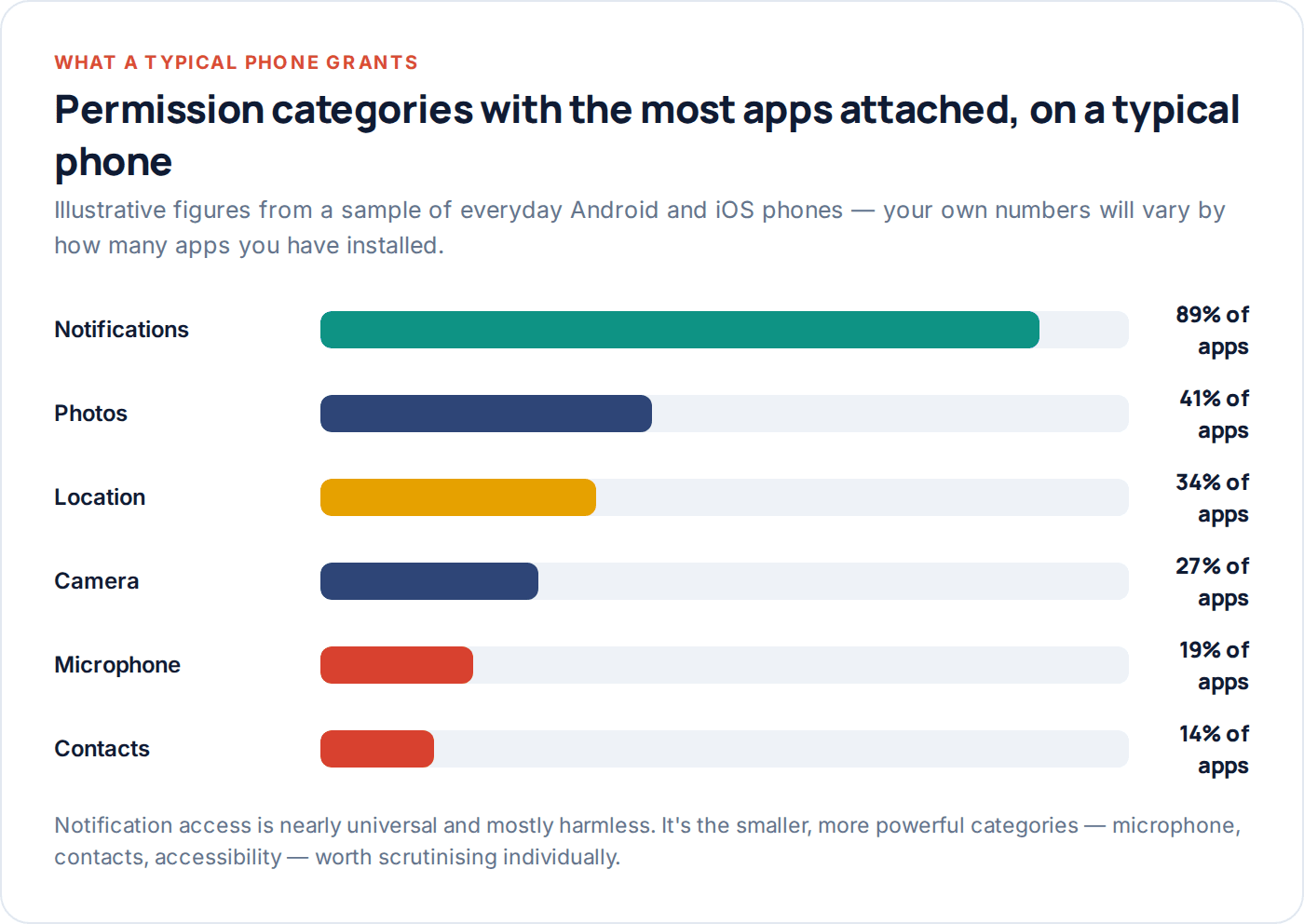
You don’t need to interrogate every permission on your phone to meaningfully improve your privacy — the big three (location, microphone, accessibility) and a scan for anything you don’t recognise cover most of the actual risk. Do that once now, and let auto-reset handle the apps you forget about in between.
If part of what brought you here is thinking about family device safety more broadly — what’s reasonable to see on a child’s phone, and how to keep that visible and agreed rather than hidden — our features page and acceptable use policy cover how GuestSpy approaches that differently from a typical monitoring app.
Using a monitoring app for this? GuestSpy is parental monitoring for Android that stays visible on the child's phone and runs from any browser. If it fits your family, see what the app does.
Related guides
How to Protect Your Phone in an Abusive Situation (Safely)
If you think your phone is being used to monitor or control you, how you check matters as much as…
A Step-by-Step Guide to Securing a Hacked Account
Why email comes first, the exact settings that close the door behind an attacker, and the recovery steps most guides…
How to Stop Someone From Tracking Your Location
The sharing settings people forget, the permission that matters most, how to check for a physical tracker, and a ten-minute…
Monitoring your child can see.
Location, screen-time budgets, routines, app and website blocking and the alerts that matter, run from any browser and visible on the phone. Pair an Android phone in about fifteen minutes.