A Step-by-Step Guide to Setting Up Family Location Sharing
Three ways to set up family location sharing on iPhone and Android, the settings that quietly break each one, and how to confirm it's actually working.
 By GuestSpy Editor · Founder and editorPublished September 9, 2026Updated September 14, 202610 min read
Family location sharing fails less often because of the setup itself and more often because of one setting, flipped weeks later without anyone noticing, that quietly turns “always” into “sometimes.” This guide walks through setting it up properly the first time — on Find My, on Google Maps, and on a dedicated family app — and, more importantly, how to check it is actually still working next month.
Each method below takes roughly five to ten minutes and works slightly differently, which matters when you’re choosing between them. Pick based on what phones your family actually uses, not which one sounds most sophisticated.
- Before you start
- Setting up Find My (iPhone to iPhone)
- Setting up Google Maps location sharing
- Setting up a dedicated family app
- The settings that quietly break each method
- How to confirm it’s actually working
- When sharing stops after it worked before
- Which method fits your family
- Questions people actually ask
Before you start
Every method below needs a step performed on the child’s phone, in their hands, with their account. That is not optional and it is not a workaround — sharing is set up from the device doing the sharing, which is exactly the design you want: nobody can quietly turn on location sharing from someone else’s phone without them knowing.
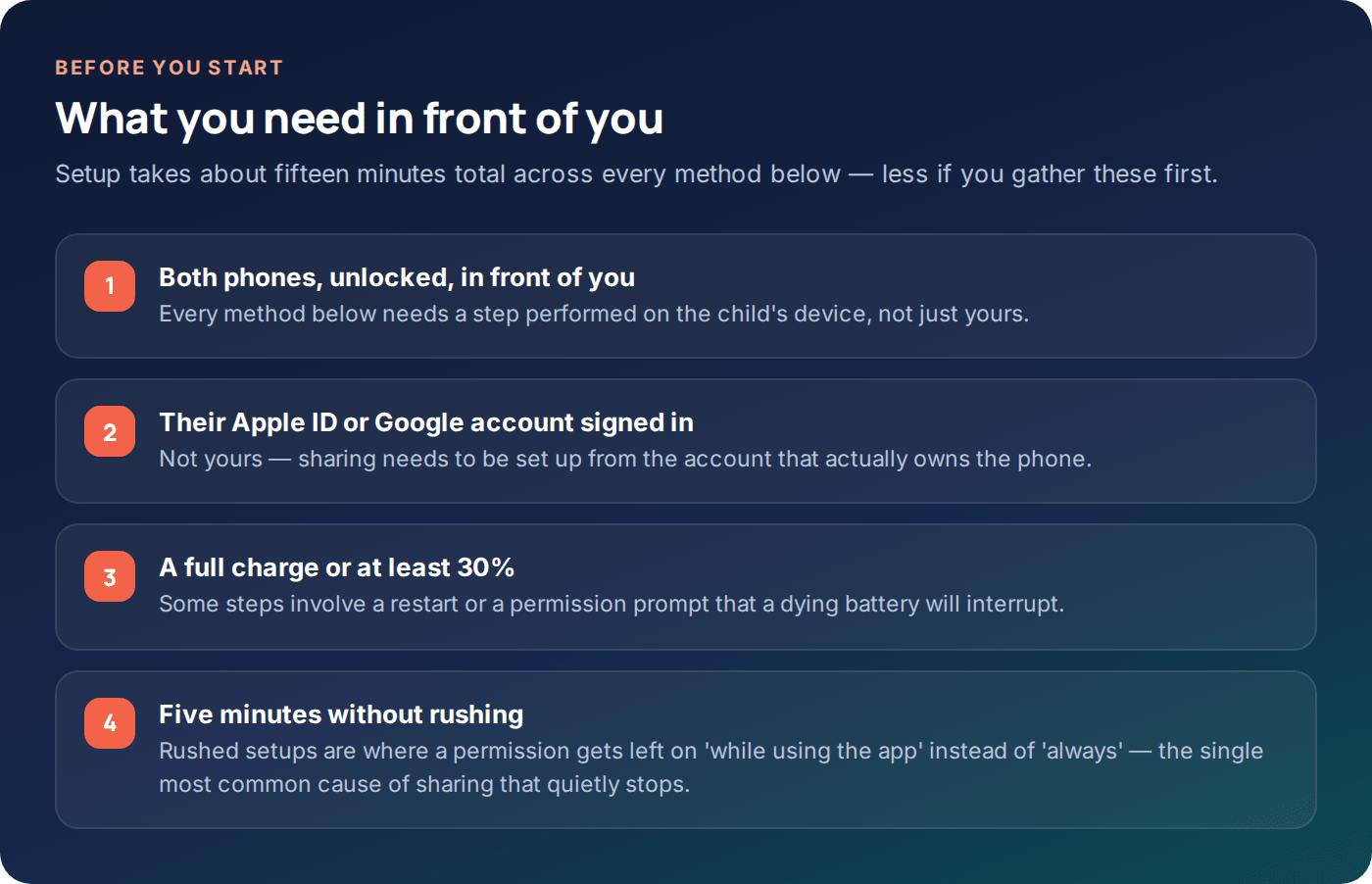
Gather both phones, make sure whoever’s device is being set up is signed into their own Apple ID or Google account (not a parent’s), and give yourself five uninterrupted minutes. Rushed setups are where a permission gets left at “while using the app” instead of “always” — the single most common reason sharing looks fine on day one and then goes stale a week later.
Setting up Find My (iPhone to iPhone)
Find My is Apple’s built-in option and the simplest choice if every phone in the family is an iPhone. It’s free, needs no extra app, and updates reliably as long as the settings below are correct.
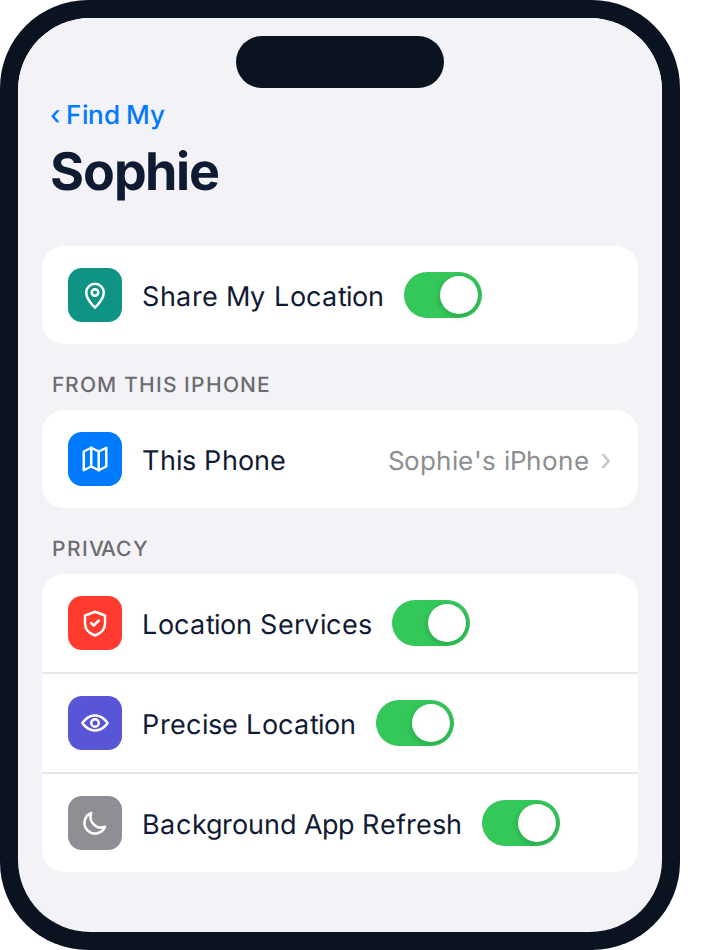
- On the child’s iPhone, open Find My and tap the “People” tab.
- Tap “Share My Location”, then choose the parent to share with from Contacts, or enter their Apple ID email.
- Choose “Share Indefinitely” rather than a time-limited option, unless you specifically want it to expire.
- On the parent’s iPhone, accept the request when it arrives — it appears as a notification and also under Find My → People.
- Go to Settings → Privacy & Security → Location Services on the child’s phone and confirm it’s on, then scroll to Find My and set it to “While Using or Widgets” at minimum — “Always” is more reliable for background updates.
- Check Precise Location is on for Find My specifically, further down that same settings screen — it’s a separate toggle from the main Location Services switch.
Setting up an arrival or departure alert in Find My
Once sharing is on, tap the shared contact’s name in Find My and choose “Notify Me.” You can ask to be told when they arrive at a saved location, when they leave one, or both. It’s a genuinely useful add-on for something predictable like “let me know when she gets to school,” though it’s worth knowing it fires off the same underlying location updates as the map view — if those have gone stale for one of the reasons further down this guide, the alert goes quiet along with everything else.
Setting up Google Maps location sharing
Google Maps is the one method that genuinely works in any direction — iPhone to Android, Android to iPhone, either way — because it depends on a Google account rather than the phone’s operating system.
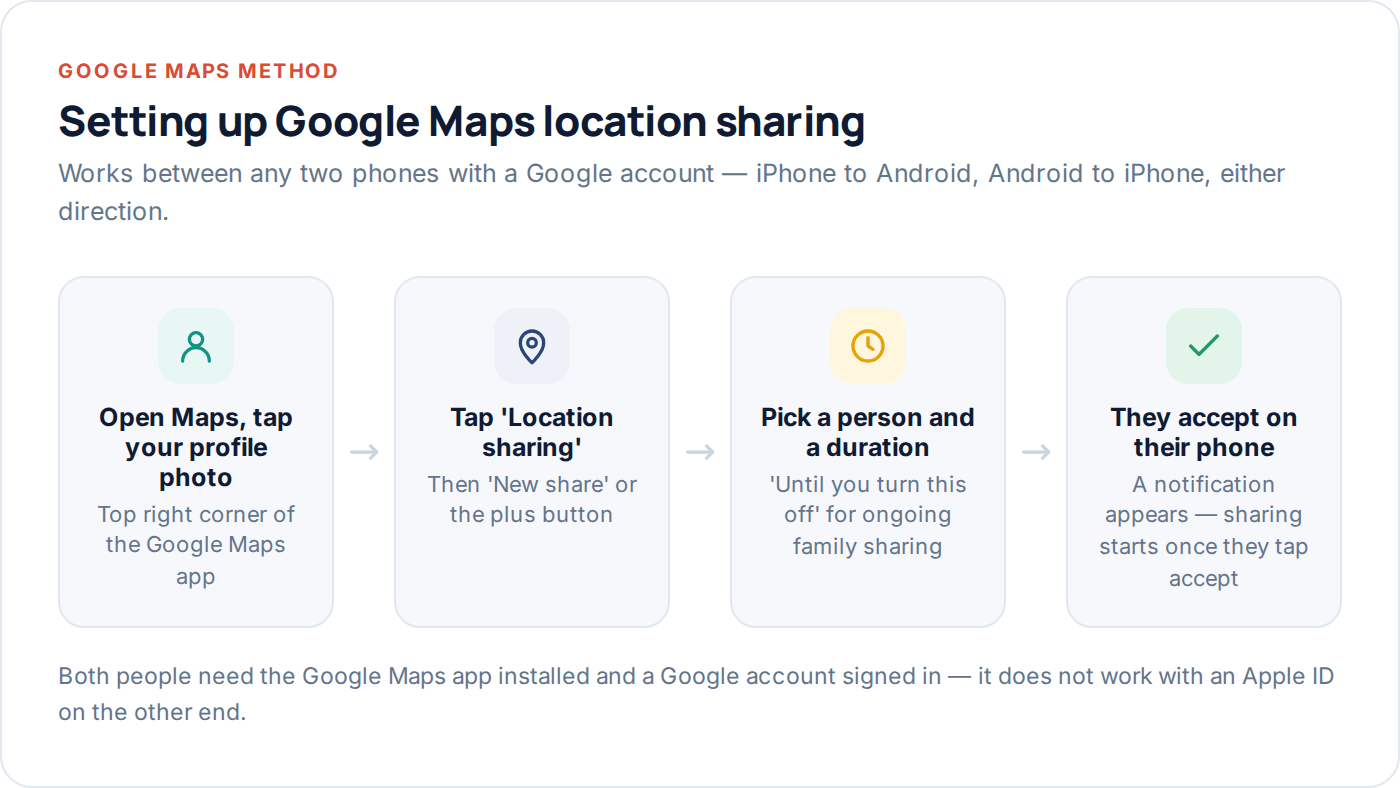
- Open Google Maps and tap your profile photo, top right.
- Tap “Location sharing,” then “Share location.”
- Choose who to share with — anyone with a Google account, even if they’ve never used Maps before.
- Set the duration. Choose “Until you turn this off” for ongoing family sharing rather than a fixed number of hours.
- The other person accepts from a notification or a link, and sharing starts immediately — no app install required if they’re on a computer, though the app gives a live, updating view.
The main limitation: Google Maps shows a live position but doesn’t keep a searchable history the way a dedicated tracking app does, and its arrival/leave alerts are more basic than purpose-built geofencing.
One detail worth double-checking during setup: the sharing duration. It’s easy to tap “for 1 hour” out of habit and then wonder three days later why the map has gone blank — that isn’t a fault, it’s the share expiring exactly as scheduled. Go back into Location sharing afterwards and confirm it says “sharing until you turn this off” rather than a countdown you’ve forgotten about.
Setting up a dedicated family app
A family app such as GuestSpy sits on top of both of the above: it still uses the phone’s own location services, but adds a single dashboard for several children, proper arrival and leave alerts for named places, and a location history you can actually look back through.
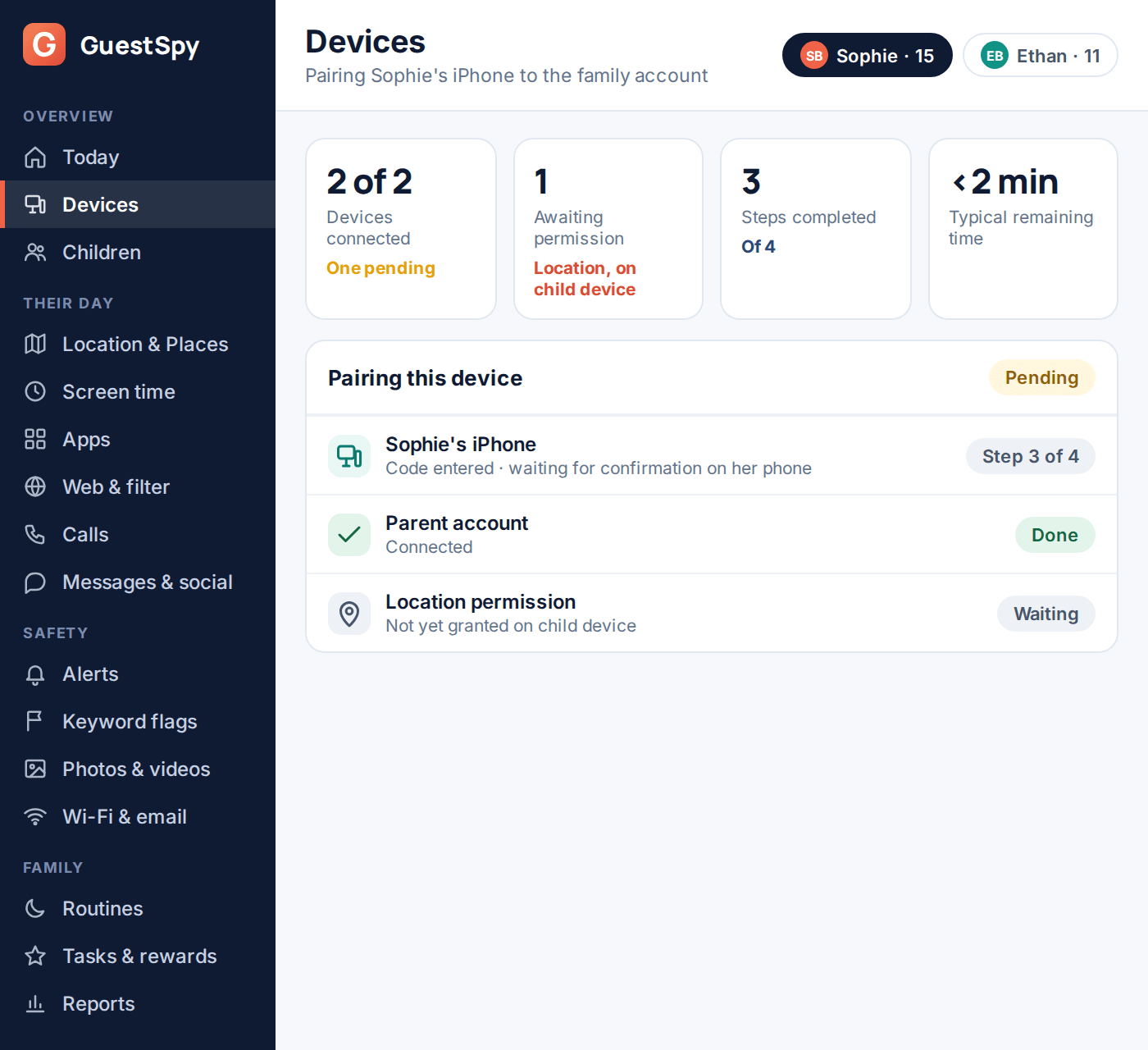
- Create the parent account on the web dashboard or in the app, on your own phone.
- Install the app on the child’s phone, with them present — this is not something to do covertly, and GuestSpy’s own design assumes it never is.
- Enter the pairing code shown on your dashboard into the child’s app to link the two.
- Grant location permission when prompted, choosing “Allow all the time,” not “only while using the app.”
- Open the transparency screen together so your child can see exactly what’s being shared, and confirm the pairing shows as complete on your dashboard.
This last step — checking the dashboard shows the device as fully connected, not “pending” — is the one people skip and then wonder why nothing updates for the first hour.
Pairing usually completes within a minute or two of the code being entered, but it does depend on the child’s phone having a working internet connection at that exact moment — a spotty Wi-Fi signal in a stairwell is enough to leave it sitting on “pending” indefinitely. If it hasn’t moved past that state after five minutes, the quickest fix is closing and reopening the app on the child’s phone rather than re-entering the code, which usually just queues a second pending request.
The settings that quietly break each method
The steps above are the easy part. What actually determines whether sharing survives past the first week is a short list of settings that have nothing to do with the sharing feature itself.
Location Services
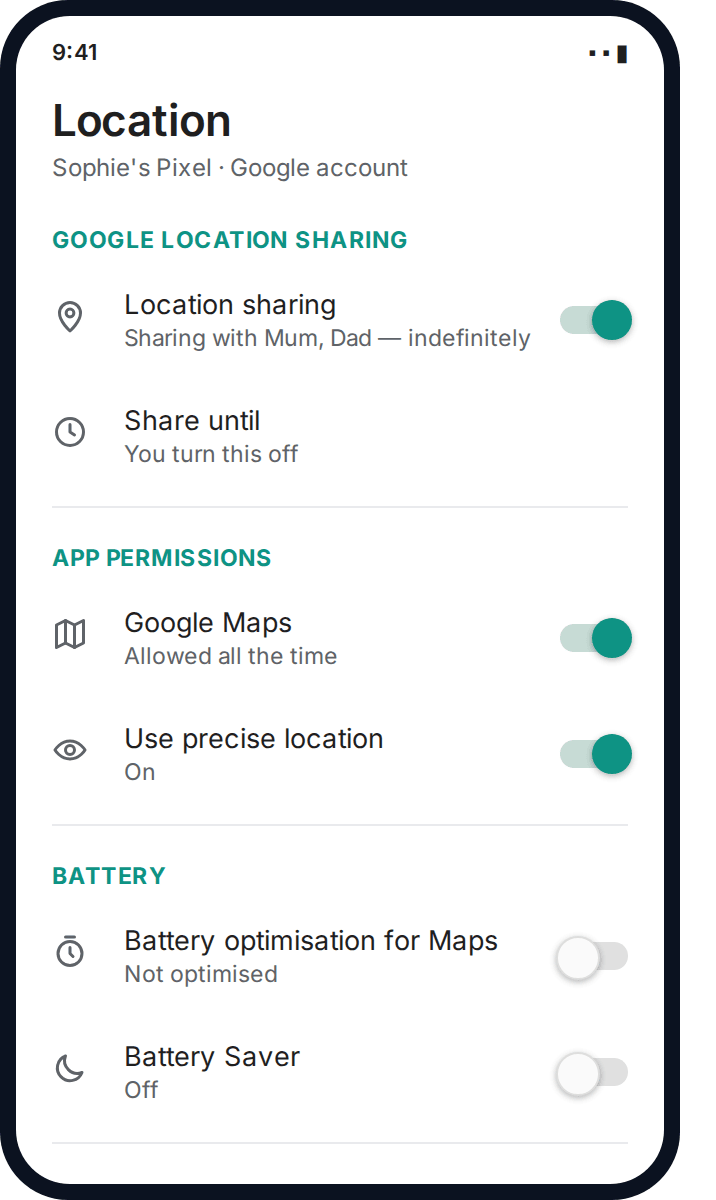
The master switch, on both platforms. If it’s off system-wide, no app — not Find My, not Maps, not a family app — can get a position at all.
Precise location
A separate toggle from the master switch. Left off, every reading is rounded to a wide area rather than a point, which looks identical to “not working.”
Battery optimisation / Low Power Mode
Both platforms restrict background activity to save power. The app itself is fine; the operating system is just pausing it to protect the battery.
On Android specifically, look for “battery optimisation” or “battery saver” for the app in question and set it to unrestricted or “not optimised.” On iPhone, Low Power Mode temporarily reduces background refresh across the board — it turns itself off again once the battery charges past 80%, but a phone that lives permanently in Low Power Mode will show stale locations permanently too.
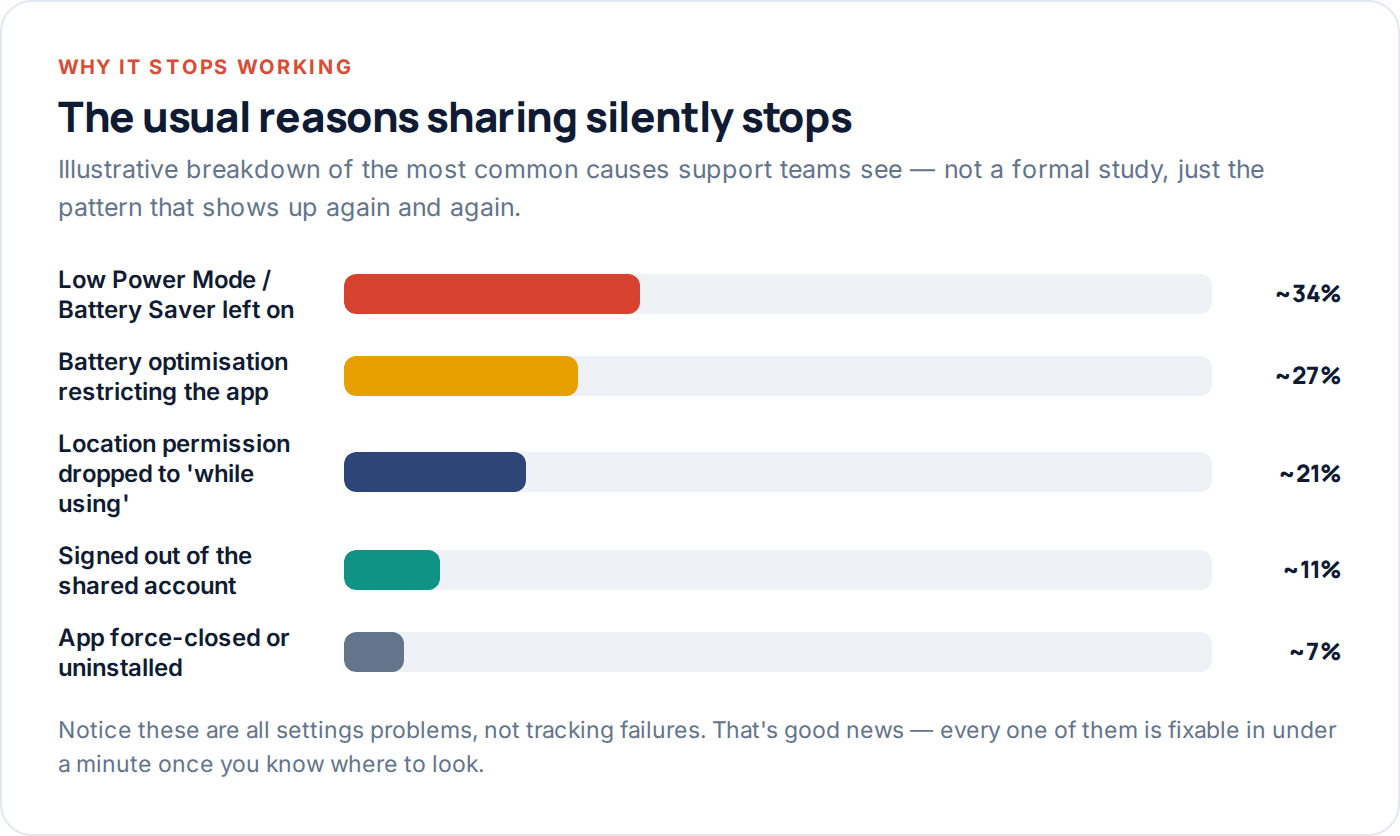
The pattern above is worth sitting with for a second: every one of the common failure causes is a battery-saving feature doing exactly its job, not a bug in the sharing itself. Knowing that turns “it’s broken” into a two-minute settings check.
How to confirm it’s actually working
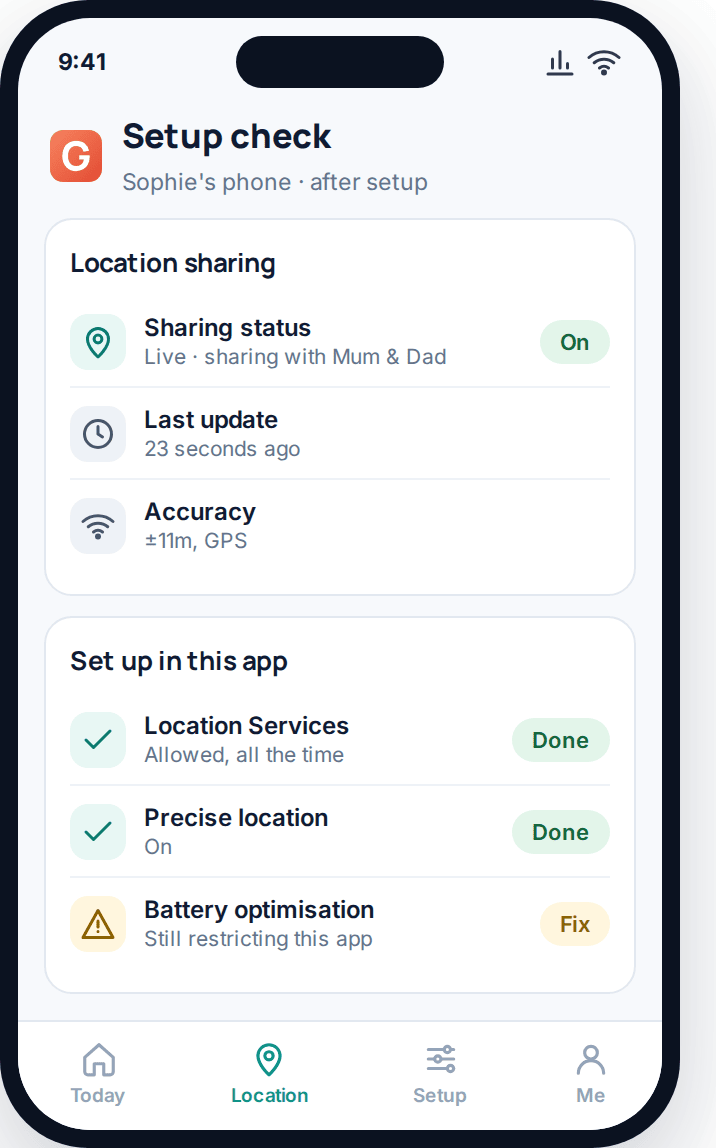
Don’t just trust that setup finished — check it, the same day, with a short test:
- Walk to another room or step outside and see whether the position updates within a couple of minutes.
- Turn the child’s Wi-Fi off briefly and confirm the position still updates over mobile data — a surprising number of setups only work on the home network and quietly fail the moment someone leaves it.
- Check the timestamp, not just the pin. “Live” should mean under a minute or two old; if it says twenty minutes and the phone hasn’t moved, that’s expected — if it’s twenty minutes and they have moved, something above needs revisiting.
- Lock the phone and wait five minutes, then check again. A location that updates while the screen is on but freezes the moment it locks almost always means “always” permission wasn’t actually granted.
When sharing stops after it worked before
This is the more common problem in practice — setup succeeded, and then a month later nobody’s sure when it stopped. A few things reliably cause this: an iOS update resets some permissions to their defaults, a phone factory reset or restore drops the pairing entirely, or a “clean up storage” app on Android disables background permissions it judges unnecessary.
| Symptom | Most likely cause | Fix |
|---|---|---|
| Position frozen at one spot for hours | Permission dropped to “while using,” or app was force-closed | Re-check permission is set to “always”/”all the time”; reopen the app once |
| Worked at home, stopped once they left | Was only ever tested on home Wi-Fi | Re-run the verification steps above away from home Wi-Fi |
| Stopped after an OS update | Update reset a permission to default | Re-check Location Services and precise location after every major update |
| Nothing since a phone reset or new phone | Pairing lost with the old device | Re-pair from scratch on the new device — old pairings do not transfer |
A habit worth building rather than a one-off fix: run the four verification steps from the previous section again after any major software update, and again whenever a phone changes hands — a hand-me-down device, a repair, or a swap under insurance. Each of those resets more settings than people expect, and location sharing is rarely the first thing anyone thinks to check.
Which method fits your family
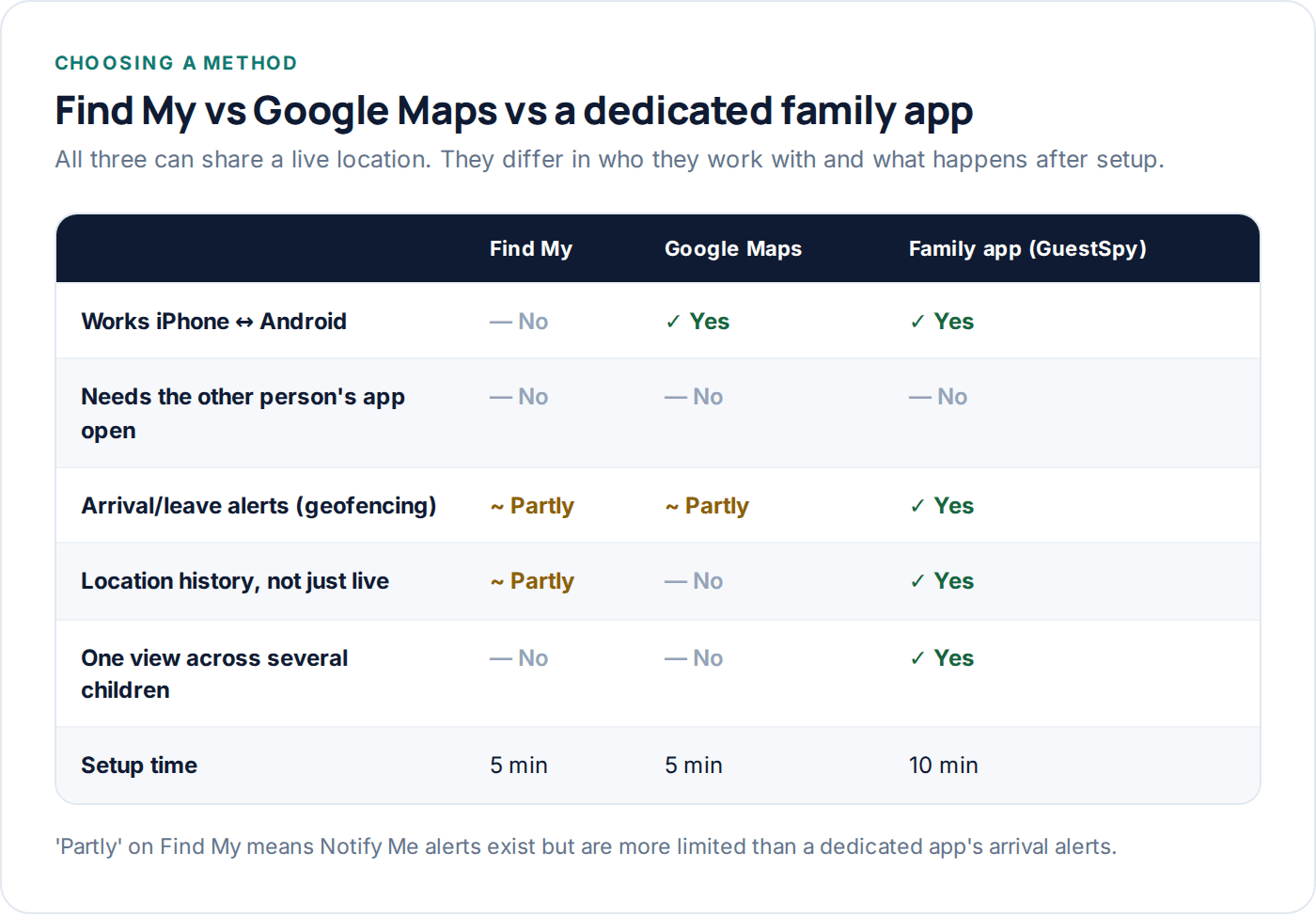
If everyone is on an iPhone and you don’t need arrival alerts or history, Find My genuinely does the job for free. If the family is mixed iPhone and Android, Google Maps is the only one of the free options that works both directions. If you want alerts when someone arrives or leaves a place, a history you can look back through, and one view covering more than one child, that’s the gap a dedicated app such as GuestSpy is built to fill — see the location tracking feature for what it adds on top of the free options, and pricing for what that costs.
Questions people actually ask
Can I set up sharing on my child’s phone without them knowing?
Technically the steps can be done quickly without much conversation, but doing it that way tends to backfire once it’s noticed — and on iPhone in particular, a share request still generates a visible notification. Setting it up together, openly, is both more honest and more reliable long-term.
Why does Find My show “Location Not Available”?
Usually Location Services or Find My’s own toggle is off on their end, the phone has no signal at all, or the battery is completely dead. It can also briefly appear right after they update iOS, while the phone re-establishes its background permissions.
Does Google Maps location sharing work without the app installed?
The person receiving the share can view it in a browser without installing anything. The person sharing does need the Google Maps app on their phone, since that’s what actually reports the position.
Will turning on location sharing drain the battery fast?
Some, but less than people expect for background sharing at normal update rates — the heavy cost comes from apps requesting continuous, high-precision updates. Ordinary family location sharing settings are a modest, not dramatic, addition to daily battery use.
Can I share my location back with my child, not just track theirs?
Yes, and it’s worth doing — all three methods here are two-way by design. Mutual sharing also tends to land better with teenagers, since it reads as “we can see each other” rather than “I’m watching you.”
What happens if they turn sharing off themselves?
On Find My and Google Maps, they can switch it off at any time — it’s their account. A dedicated family app like GuestSpy is different: because it’s set up as a supervised family device, turning it off from the child’s side isn’t a quiet, one-tap option, which is the point for younger children while still being fully visible to them via the transparency screen.
Next step
Pick the method that matches the phones you actually have, follow the steps once properly rather than rushing them, and run the four-step verification the same day — not next week, when it’s harder to tell what changed. If you outgrow what the free options offer, setting up GuestSpy takes about the same fifteen minutes and adds the alerts and history the built-in tools don’t cover.
Using a monitoring app for this? GuestSpy is parental monitoring for Android that stays visible on the child's phone and runs from any browser. If it fits your family, see the Location & Places feature.
Related guides
How to Track Elderly Parents’ Location (With Consent)
Capacity, dignity and consent come first. Then the practical part: what to set up, how to involve siblings, and when…
Location Sharing Etiquette for Families and Couples
The unwritten rules of sharing your location with a partner or family: consent, reciprocity, teenagers' right to some privacy, and…
How to Set Up a Family Safety Circle
Who belongs in a family safety circle, how mutual and one-way sharing differ, and how to set one up that…
Monitoring your child can see.
Location, screen-time budgets, routines, app and website blocking and the alerts that matter, run from any browser and visible on the phone. Pair an Android phone in about fifteen minutes.