How to use the GuestSpy control panel
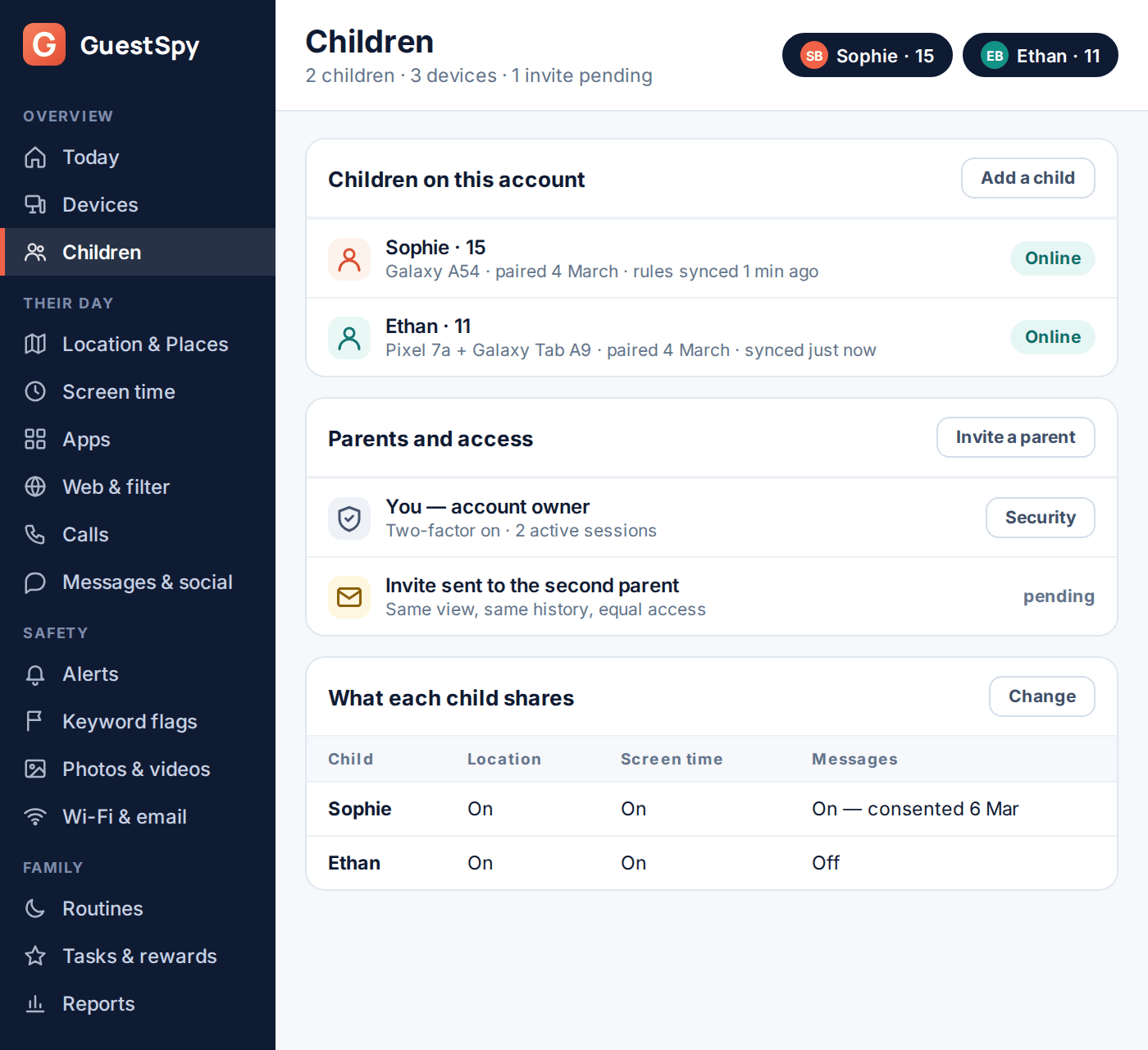
The control panel is the parent half of GuestSpy. It is a website, not an app: you sign in at guestspy.com, and from that one browser tab you read what happened today, change the rules, answer your child’s requests and — when it matters — reach the phone itself to lock it, ring it or ask it where it is. This page is the full tour, screen by screen, in the order you will actually meet them.
Nothing to install for parents
Visible to your child
What the control panel is, in one paragraph
One app runs on your child’s Android phone. Everything else — every rule, every report, every decision — happens in a browser. That browser page is the control panel, and it is the same page whether you open it on a laptop at the kitchen table or on your own phone while you are standing in a queue. There is no parent app to download, nothing to keep updated, and no second version of the dashboard with half the features missing.
That design has a practical consequence worth understanding before anything else: the rules do not live on the phone. They live on your account. The phone holds a copy and enforces it, which is why bedtime still works when the phone is in aeroplane mode, and why moving your child to a new handset keeps every budget, every saved place and every alert rule you have ever set. You pair the new phone, and it catches up within seconds.
Four levels: account, child, device, rule
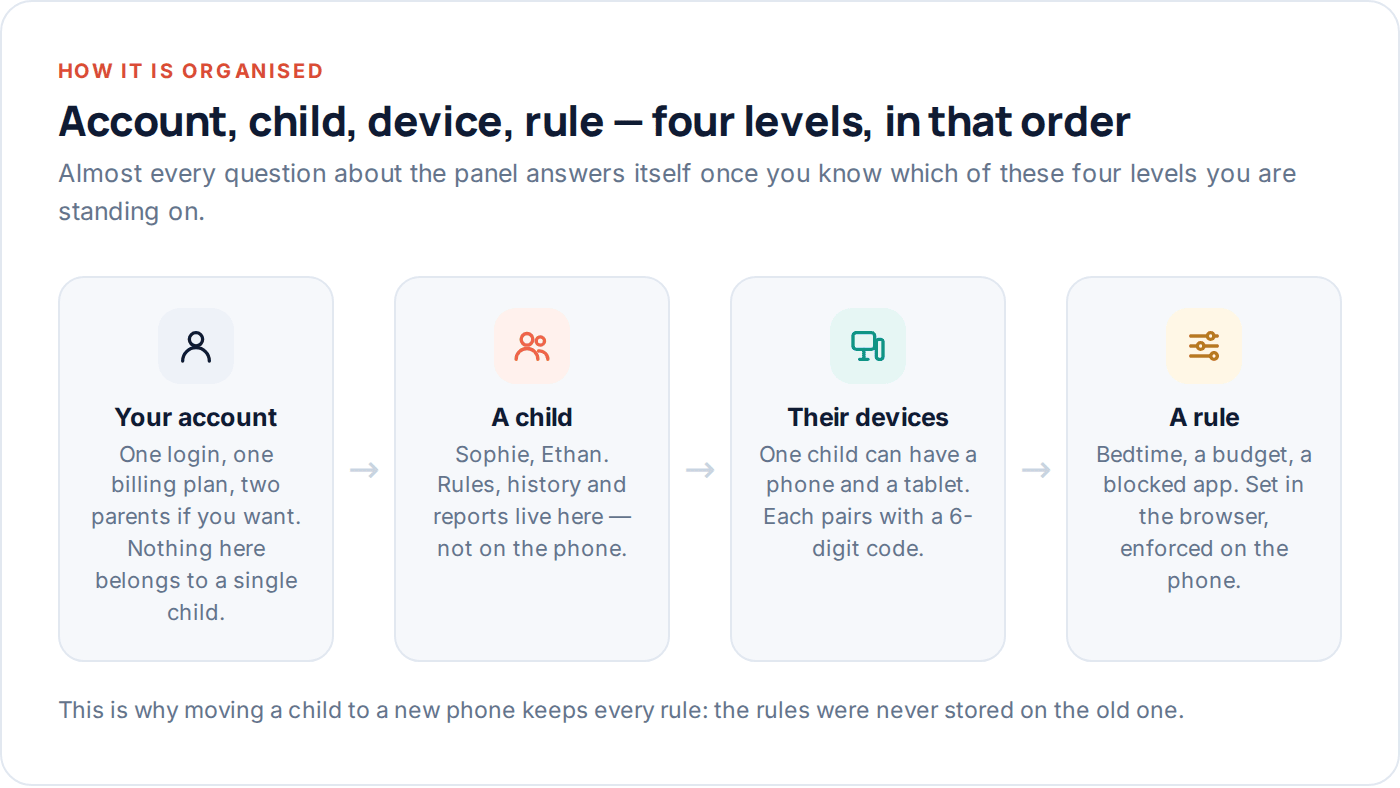
Almost every “where do I click for this?” question answers itself once you know which of four levels a setting belongs to. The panel’s whole navigation is built on them.
Your account
The login, the billing plan, the second parent, two-factor authentication and the list of active sessions. Nothing here belongs to one child. If you are changing something about you, it is in Account.
A child
Sophie, Ethan, whoever you have added. All the rules, all the history and all the reports hang off the child, not the handset. Delete a phone and the child’s history stays; delete the child and it goes.
Their devices
One child can have a phone and a tablet. Each pairs with a six-digit code shown in the panel. The Devices page is also where the remote actions live, because those act on a handset rather than on a person.
A rule
A budget, a bedtime, a blocked app, a saved place, a keyword list. Set in the browser, pushed to the phone, enforced there. Rules are the things you will change most often and the things that need the least explanation.
Signing in the first time
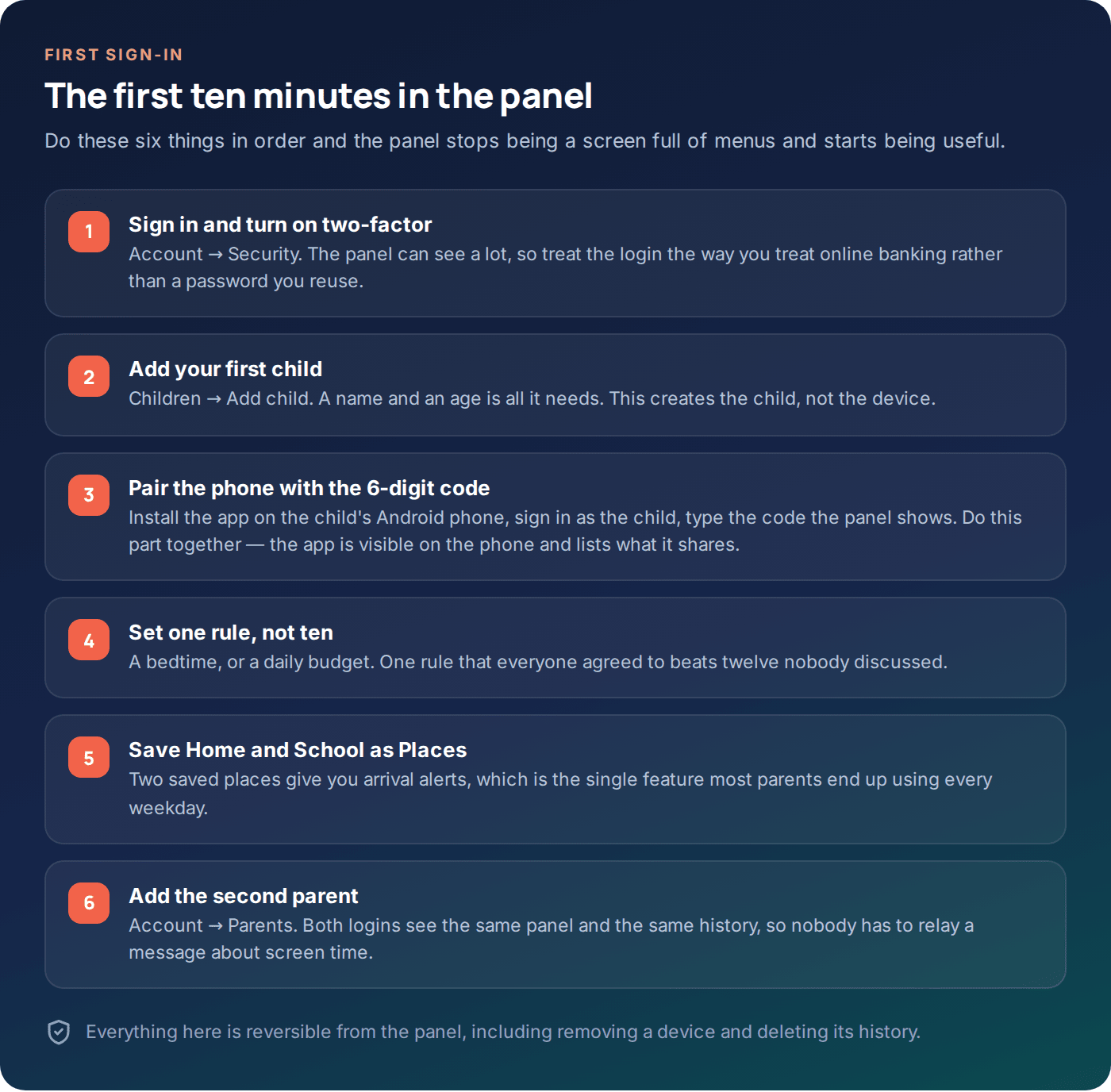
The first session is the only one with any admin in it. Ten minutes, six steps, and you can close the tab knowing the important things are on.
Do these six things, in this order
The order matters more than it looks. Two-factor first, because the panel can see a lot and you only get one chance to protect it before there is anything to protect. The child before the device, because a device with no child to attach to is a dead end. And one rule rather than ten, because the fastest way to make a monitoring tool fail is to arrive at dinner with a list of twelve new restrictions nobody discussed.
Pairing is the only part that needs both of you in the same room. The panel shows a six-digit code; you install the app on the child’s phone, sign in as the child, and type the code. While you are there, open the app’s Transparency screen together and read it — it lists precisely what this phone will share, and it is the single most useful two minutes you can spend on the whole setup.
Everything on that list is reversible from the browser afterwards, including unpairing the device and deleting its history. Nothing you do in the first ten minutes is permanent.
The Today dashboard and the “Needs you” list
Today is the page you land on, and on most days it is the only page you will open. It answers a single question — is there anything I actually have to do? — and it answers it in the first four lines.
Read it from the top down
Four tiles run across the top: how many children have a phone online, how many things need you, screen time used so far against the budget, and whether any expected arrival was missed. If those four numbers look ordinary, you are done. Most weekday mornings that is the entire interaction.
Underneath sits the Needs you list, which is the heart of the panel. It holds only things a person has to decide: an extra-time request, a keyword flag on a message, a site the filter blocked, a finished task waiting to be approved. Every item has a button that resolves it there and then — approve, refuse, open — so you are never sent hunting through a menu to answer a question your child asked six minutes ago. An empty Needs you list means nothing is waiting, and that is the normal state.
Below that, a plain timeline of the morning: arrivals, departures, unlocks. It is deliberately boring. You read it when something feels off, not every day.
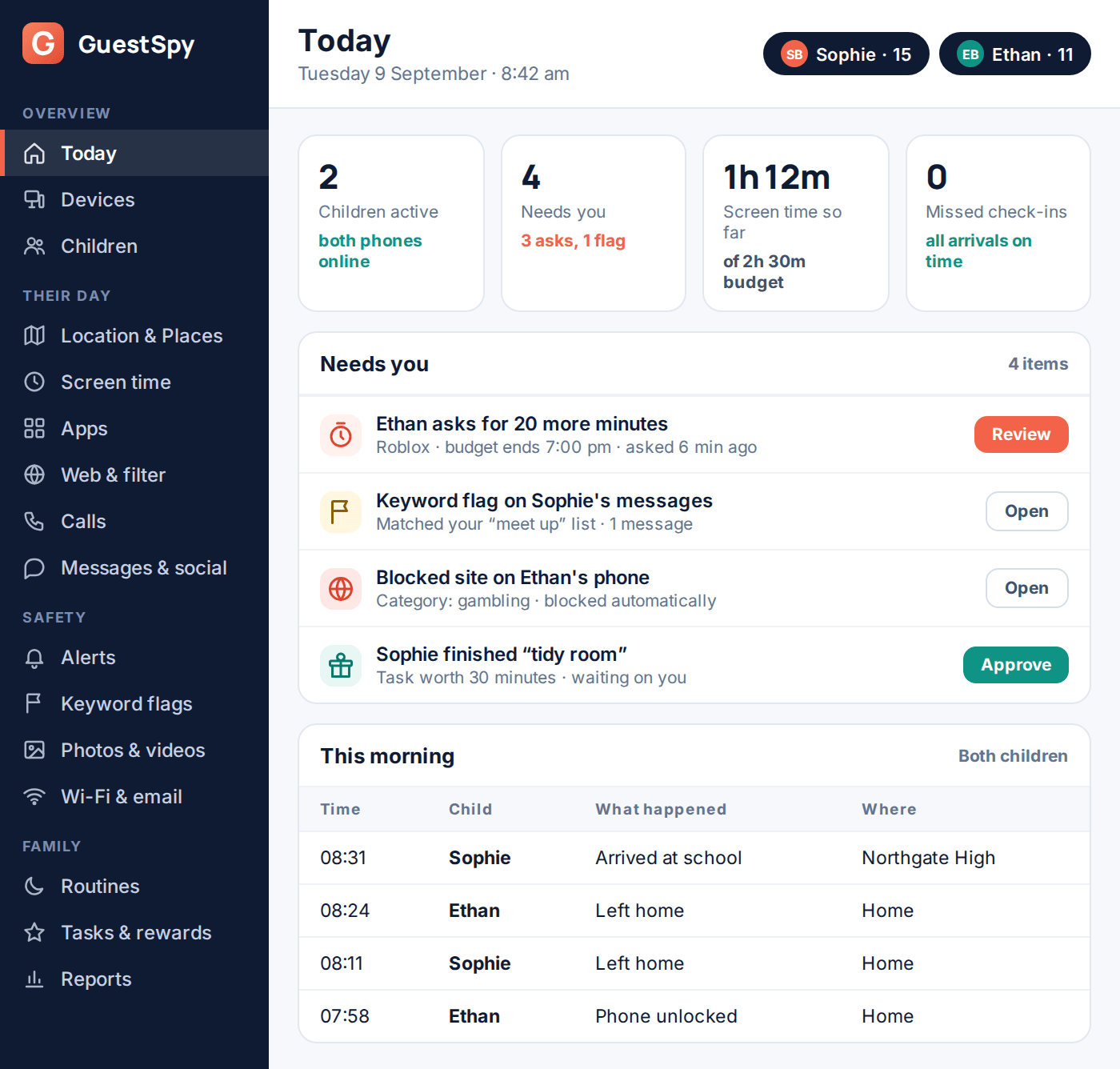
Switching children is the pair of name chips at the top right. One tap moves the whole panel — every page, every chart — from Sophie to Ethan without a re-login and without losing your place. If you have both selected, Today shows the family view; select one and every page narrows to that child.
Seeing where the phone is
Location & Places
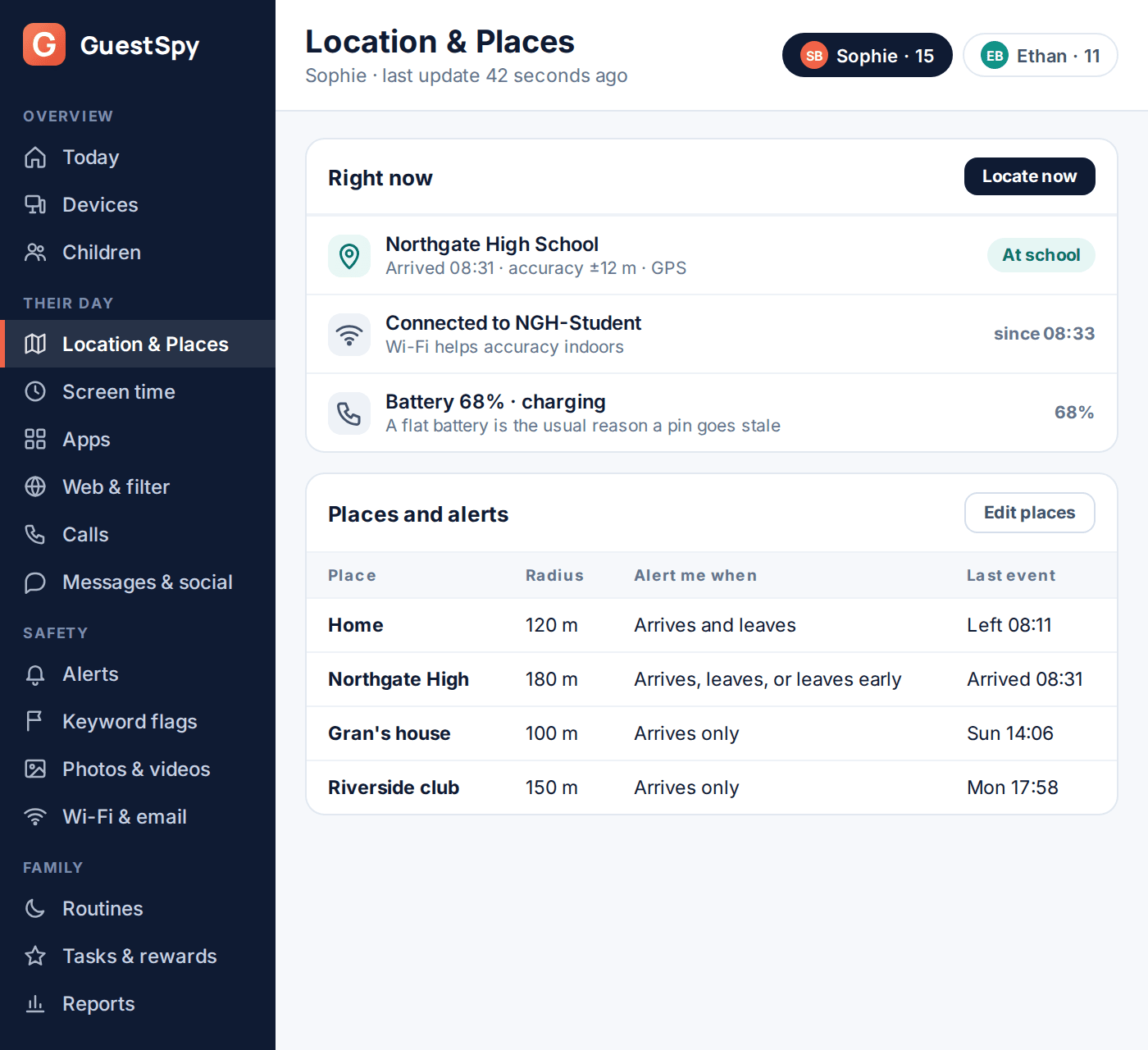
The map page shows the phone’s last known position, when that position was recorded, and how accurate it is. Accuracy matters and the panel does not hide it: a pin with ±12 m next to it is a GPS fix outdoors; a pin with ±90 m is a phone in a building working from Wi-Fi and cell towers. If the timestamp looks old, the row underneath usually explains why — battery flat, phone off, or no signal in a lesson.
Locate now is the button people reach for first. It wakes the phone and asks for one fresh position, which arrives in a few seconds when there is signal. It is a request, not a live feed: the phone answers, reports once and goes quiet again. That is deliberate, and it is why the feature does not flatten a battery.
The half of this page that actually saves you time is Places. Save Home, save School, save wherever football happens, choose a radius, and pick which events you want to hear about — arrives, leaves, or leaves early. From then on the phone tells you your child got to school instead of you texting to ask. Two saved places cover most families completely.
Answering an extra-time request
Screen time, and the ask
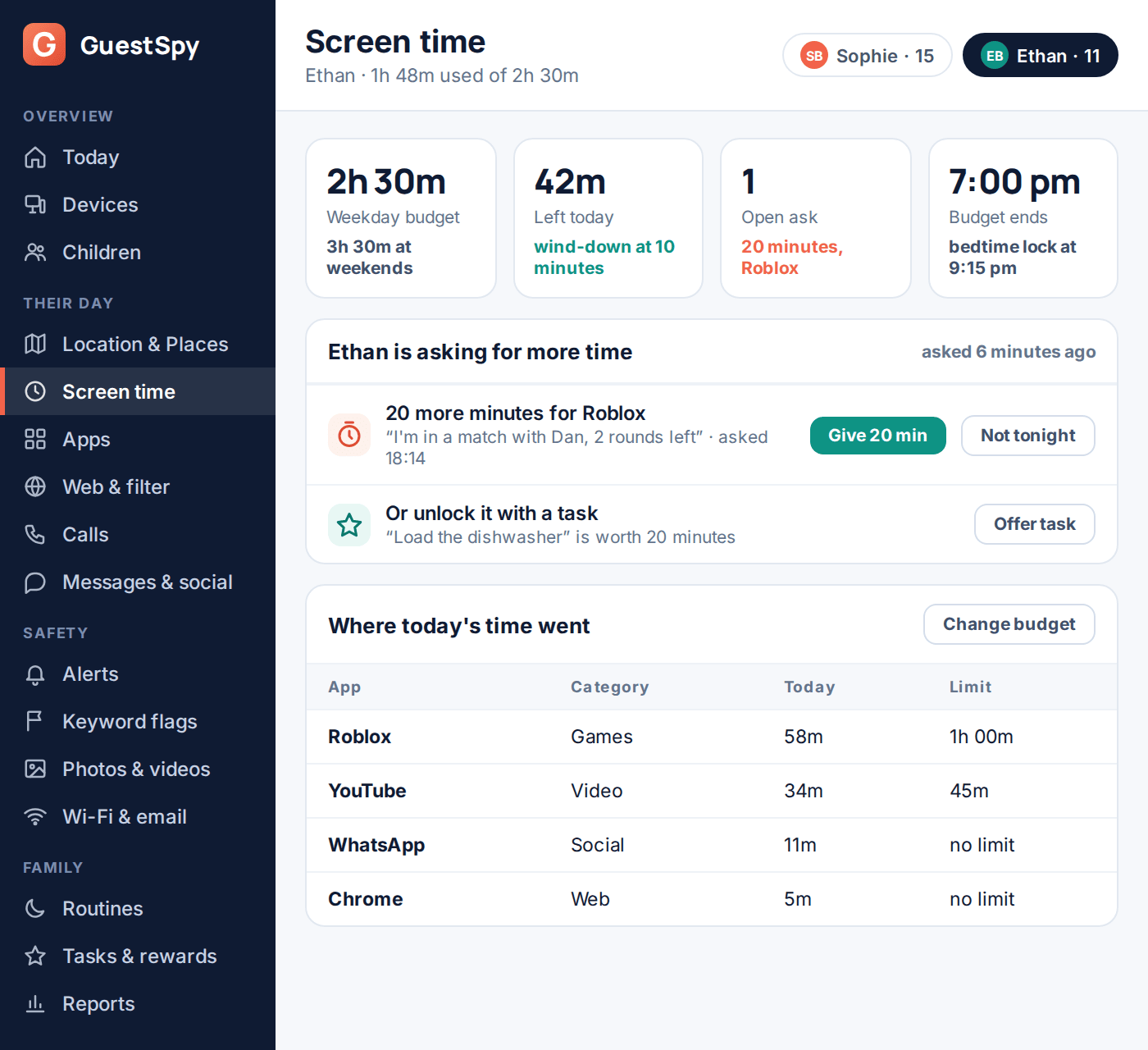
The screen-time page shows the day’s budget, how much of it is gone, when it runs out and where it went, app by app. You can change any of those numbers from the browser and the phone picks the change up in seconds — no need to touch the handset, no need to be at home.
The part you will use most is the ask. When the budget runs low, your child can request more time from the app, and the request appears here with the reason attached. You get two useful buttons and one better option. Give 20 minutes grants it once, without changing the standing budget. Not tonight declines it, and the phone says so plainly rather than just going quiet. And Offer task answers with a job — load the dishwasher, worth twenty minutes — which turns an argument into a transaction.
Whatever you choose, the phone tells your child the answer and who gave it. A rule that arrives with a name on it lands very differently from one that just happens.
Reaching the phone itself: the remote actions
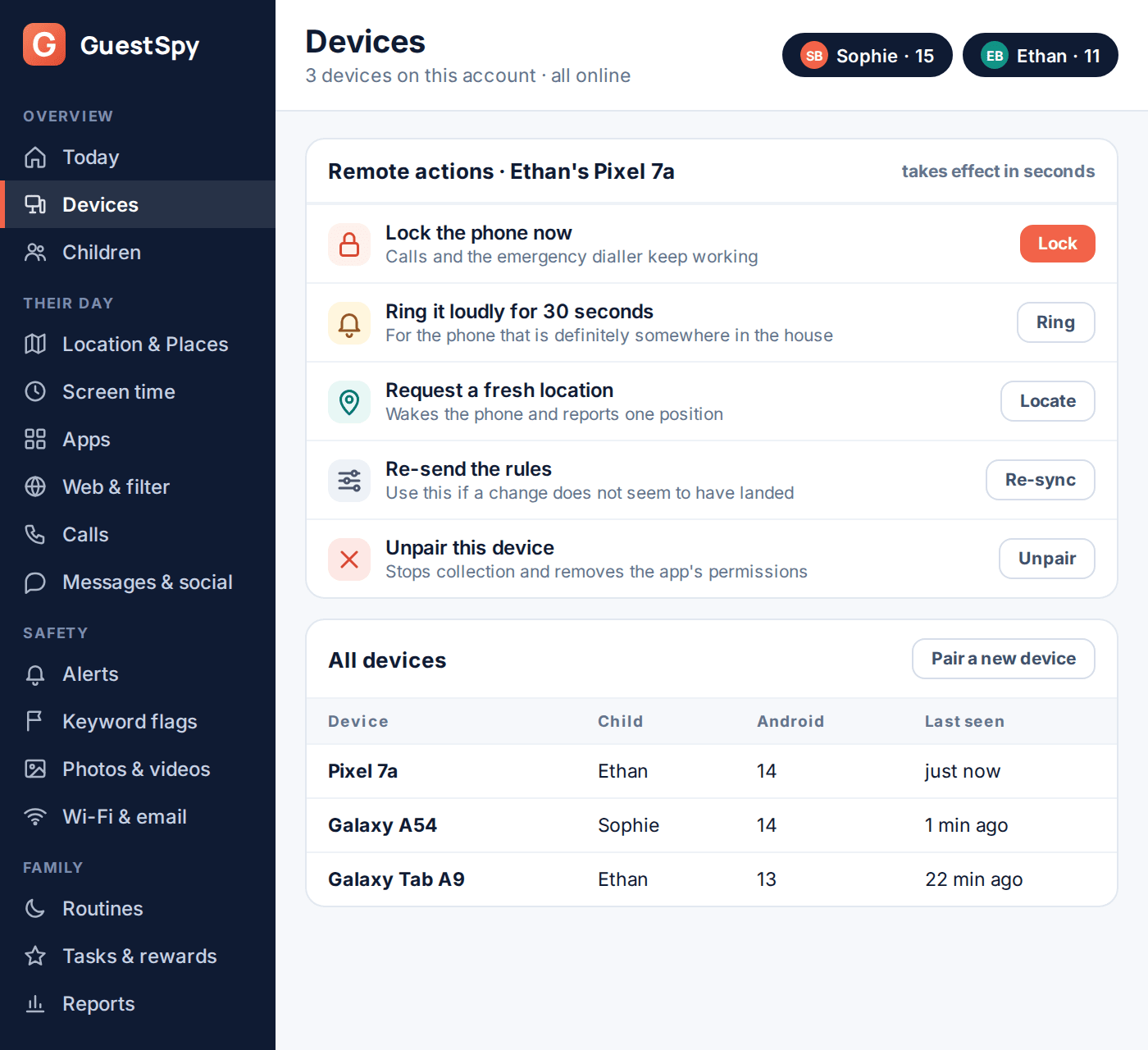
Everything above changes a rule. Sometimes you need to change the phone. The Devices page is where the panel stops describing the handset and starts talking to it.
Five buttons, and what each one really does
Lock the phone now ends whatever is happening on the screen immediately. Calls and the emergency dialler keep working — a locked phone your child cannot use to call you would be a worse outcome than no lock at all. Unlock from the same button.
Ring it loudly plays a tone for thirty seconds at full volume, ignoring silent mode. This is the button for the phone that is definitely somewhere in the house, and it resolves more evenings than any other feature on the page.
Request a fresh location is the same locate-now action as the map page, kept here so you do not have to change pages when you are already looking at devices.
Re-send the rules pushes your entire configuration to the phone again. If you changed a bedtime and it does not seem to have taken effect, this is the fix, and it is almost always the answer to “why is it not working?”.
Unpair this device stops all collection, drops the app’s permissions and detaches the handset from the child. Use it when a phone is sold, handed down, or when you are finished with monitoring altogether.
Every one of these appears on the child’s phone as it happens. There is no silent remote control in GuestSpy, by design.
What your child sees when you act
The other side of the same dashboard
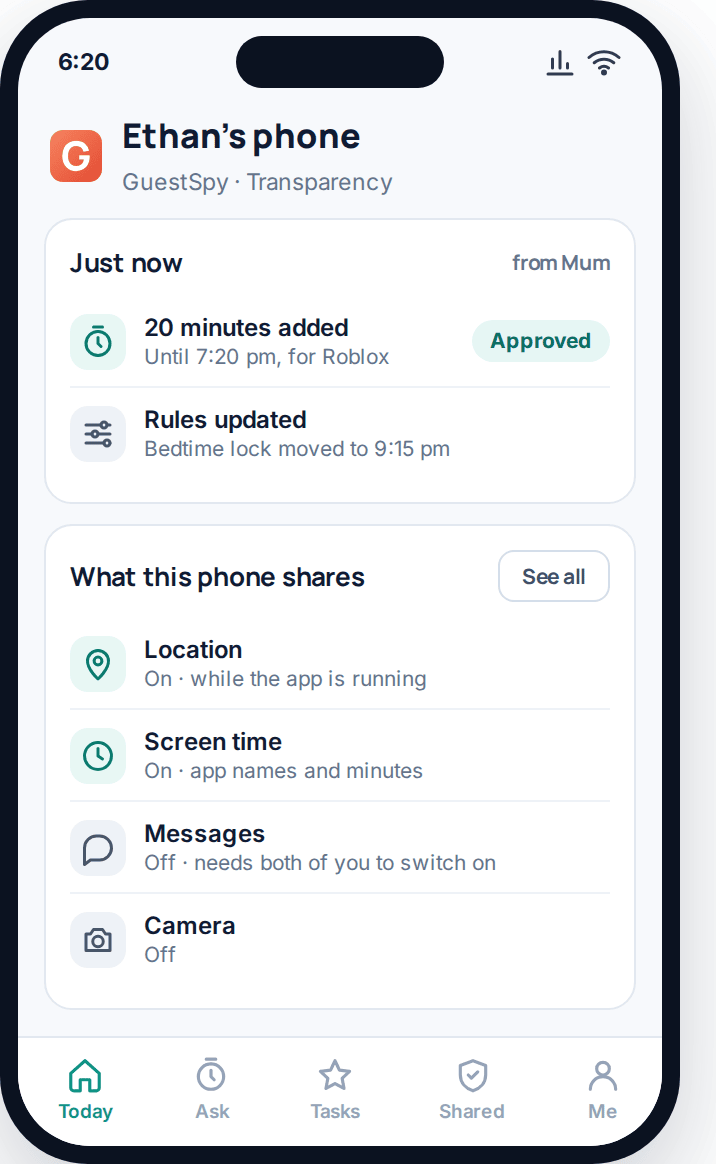
It is worth opening the app on your child’s phone once, after you have used the panel a few times, so you can see how your decisions land. Approvals arrive with your name on them. Rule changes show up as a line in the day’s activity. Remote actions announce themselves.
The Transparency screen is the part to look at together. It lists every category of data the phone shares and its current state — location on, screen time on, messages off, camera off — and the sensitive categories cannot be switched on from the browser alone. They need a consent step taken on the phone, by the person holding it. That is the one thing the control panel deliberately cannot do by itself.
Parents sometimes read that as a limitation. In practice it is what keeps the whole arrangement workable: a teenager who can check what is shared, at any moment, without asking you, has far less reason to go looking for ways around it.
Browser or phone? The short list of exceptions
The honest answer to “can I do this without the phone?” is almost always yes. There are five exceptions, and four of them only ever happen once.
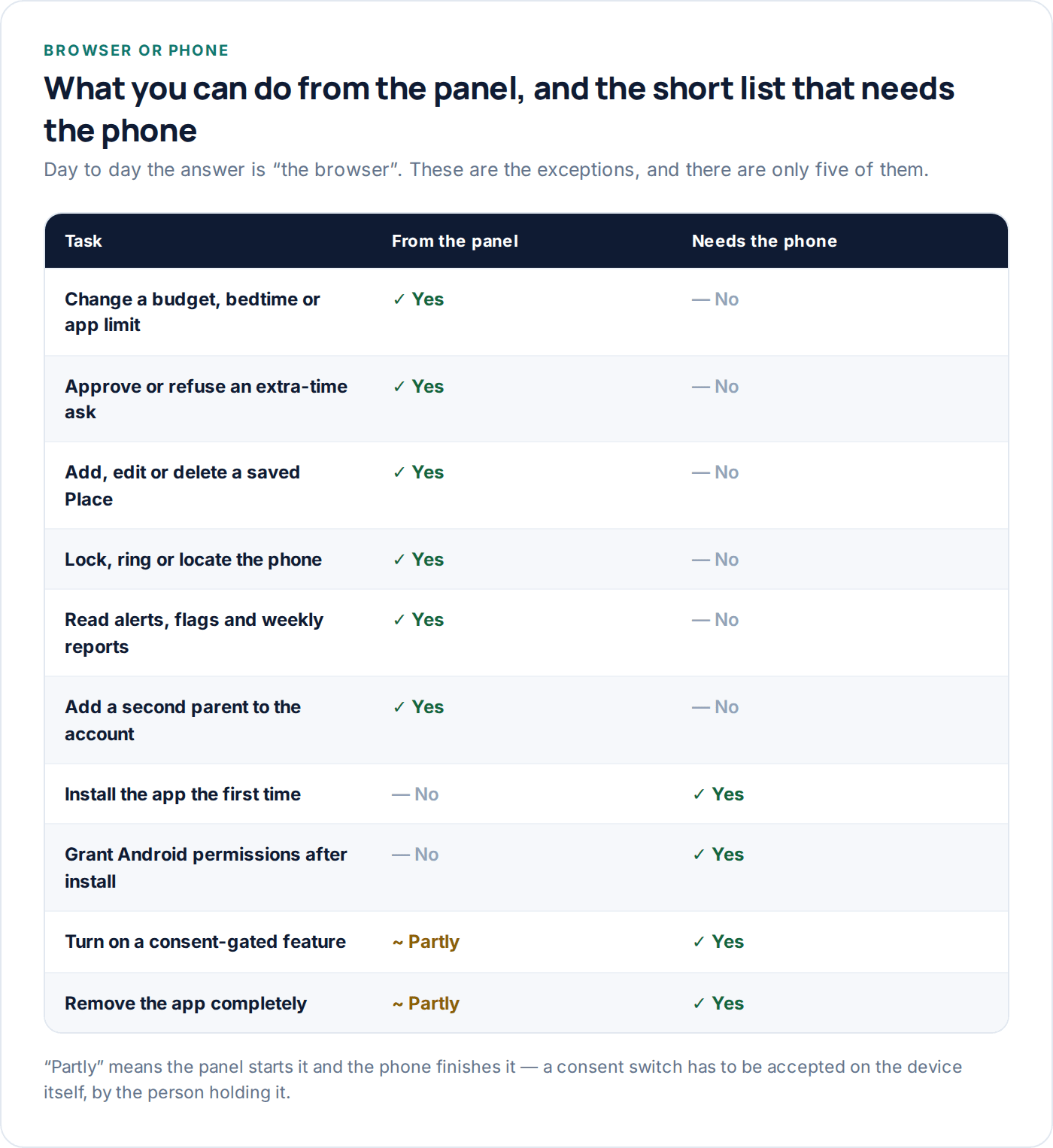
“Partly” in that table means the panel starts the job and the phone finishes it. Turning on a consent-gated feature is the clearest example: you request it in the browser, and it stays inactive until somebody accepts it on the device. Removing the app works the same way round — the panel can unpair and stop collection instantly, but the last step, dragging the app off the phone, happens on the phone.
Alerts, rules and the weekly report
Decide once, then stop checking
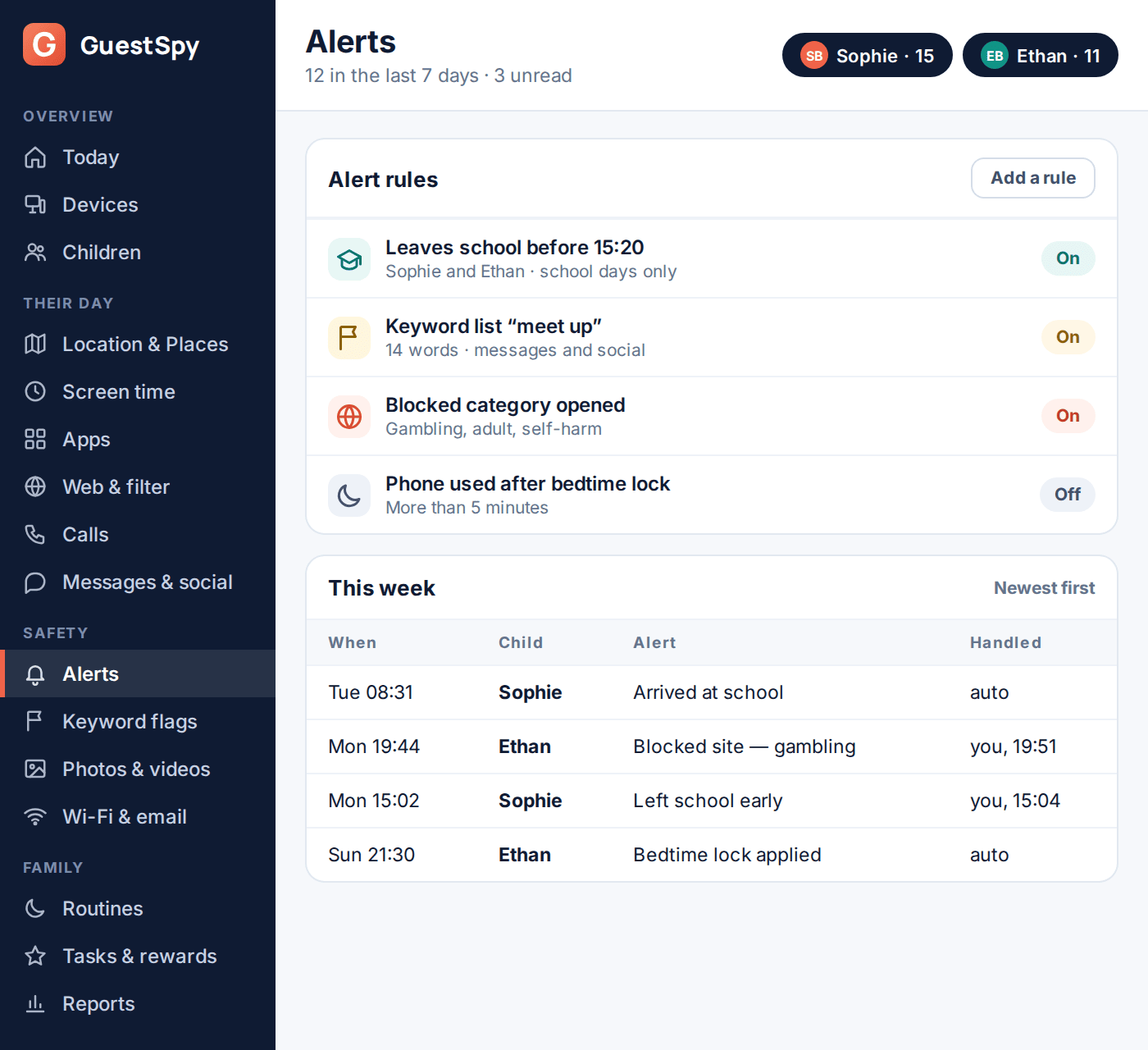
The Alerts page is where you tell the panel what is worth interrupting you for. Each rule is a plain sentence — leaves school before 15:20, opens a blocked category, uses the phone more than five minutes after the bedtime lock — with a switch and the children it applies to. Turn on the two or three that match a real worry and leave the rest off. A dashboard that pings you eleven times a day is a dashboard you will start ignoring by Thursday.
Underneath is the history: what fired, when, for which child, and whether it was handled automatically or by you. It is the page to open when you want the pattern rather than the moment — three late finishes in a fortnight is a conversation, one is a Tuesday.
Then there is the weekly report, which arrives by email and lives under Reports. It is the same information with the urgency removed: screen time against the budget, the places visited, alerts raised, tasks completed. Reading it on a Sunday is a much better use of ten minutes than checking the panel on a Wednesday.
When something looks wrong
Three problems account for nearly every support message about the panel, and all three have a quick answer.
The data looks old
Check the “last seen” time on the Devices page first. A phone that is off, flat or out of signal cannot report, and the panel shows the last thing it knew rather than pretending. If the phone is clearly online and the panel disagrees, press Re-sync.
A rule did not take effect
Almost always a sync that has not landed. Re-send the rules from Devices, then check the phone’s app once. If a permission was revoked on the handset — Android sometimes does this after an update — the app will say which one.
You cannot sign in
Use the reset link on the login page; recovery runs through the email on the account, and through two-factor if you turned it on. If a second parent is on the account they keep full access the whole time, so the family’s rules are never locked away behind one login.
You want to check who is signed in
Account → Security lists every active session with its device and location, and lets you sign any of them out individually. Worth a glance now and then, particularly after using a shared computer.
Questions about the control panel
What is the address of the control panel?
It is at guestspy.com — sign in and you land on the Today dashboard. There is nothing to download for the parent side, and the same address works on a computer, a tablet or a phone browser.
Can I use the panel from my phone?
Yes, and a lot of parents mostly do. The layout reflows for a small screen, and every action — approving an ask, reading an alert, locking a device — works exactly as it does on a laptop. It is the same login and the same data.
Do the remote actions work if the phone is offline?
They queue. Lock, ring, locate and re-sync are delivered the moment the phone has a connection again, and the panel shows the action as pending until then. Rules already on the phone keep being enforced offline regardless.
Will my child know when I lock or locate the phone?
Yes. Every remote action shows on the phone as it happens, and appears in the app’s activity list afterwards. GuestSpy has no silent remote control, and that is a deliberate design decision rather than a missing feature.
Can two parents use the same panel?
Yes. Add a second parent under Account and they get their own login with the same view, the same history and the same permissions. Both of you see an ask, either of you can answer it, and the panel records who did.
Can I try the panel before creating an account?
Yes — there is a read-only demo loaded with a sample family. Every page is populated with a realistic week, so you can click through Today, the map, screen time and alerts before deciding whether to set anything up.
Is there a limit on children or devices?
As many as you need; child devices are unlimited on one account with no per-device charge. Each device pairs with its own six-digit code and appears on the Devices page.
More: Why there is no parent app · Location & Places · Screen time · Alerts & keyword flags · Download · Pricing