Securing a Snapchat Account: Sessions, Logins and Who Can Reach You

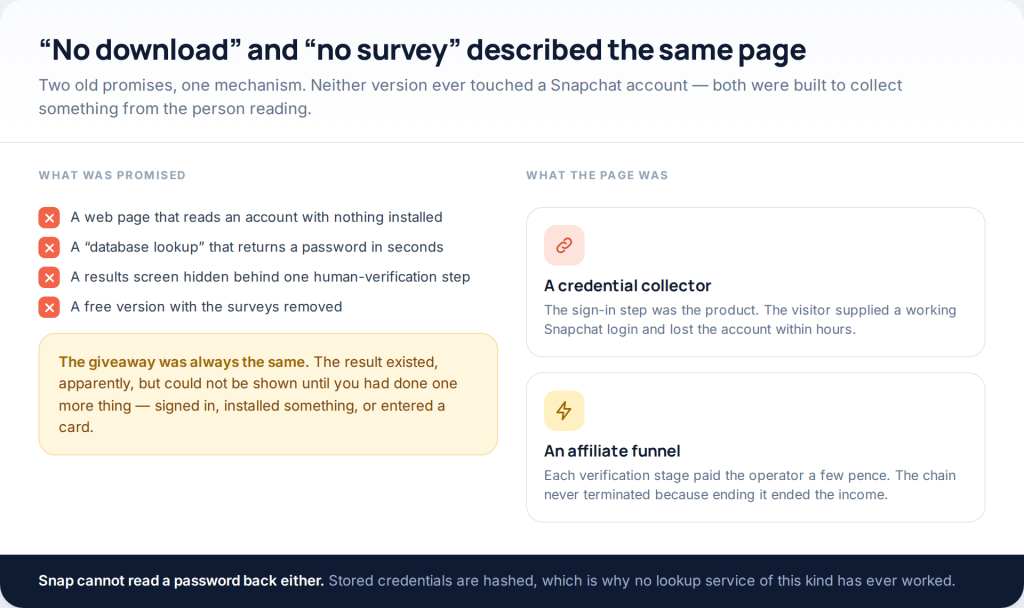
There is no way to read a Snapchat account from a browser, which is what this page used to promise. There is a short, specific list of settings that secure a Snapchat account properly: a passkey or authenticator app instead of SMS, a recovery code stored off the phone, an empty session list, no third-party clients, and a deliberate answer to who can contact you and see you on the Map.
Two old URLs land here. One promised to read a Snapchat account “with no download”, the other promised the same thing “without surveys”. They described the same page, and neither version ever worked. What follows is the useful inverse: the settings that make an account hard to take, in the order worth doing them.
Why neither version of that promise worked
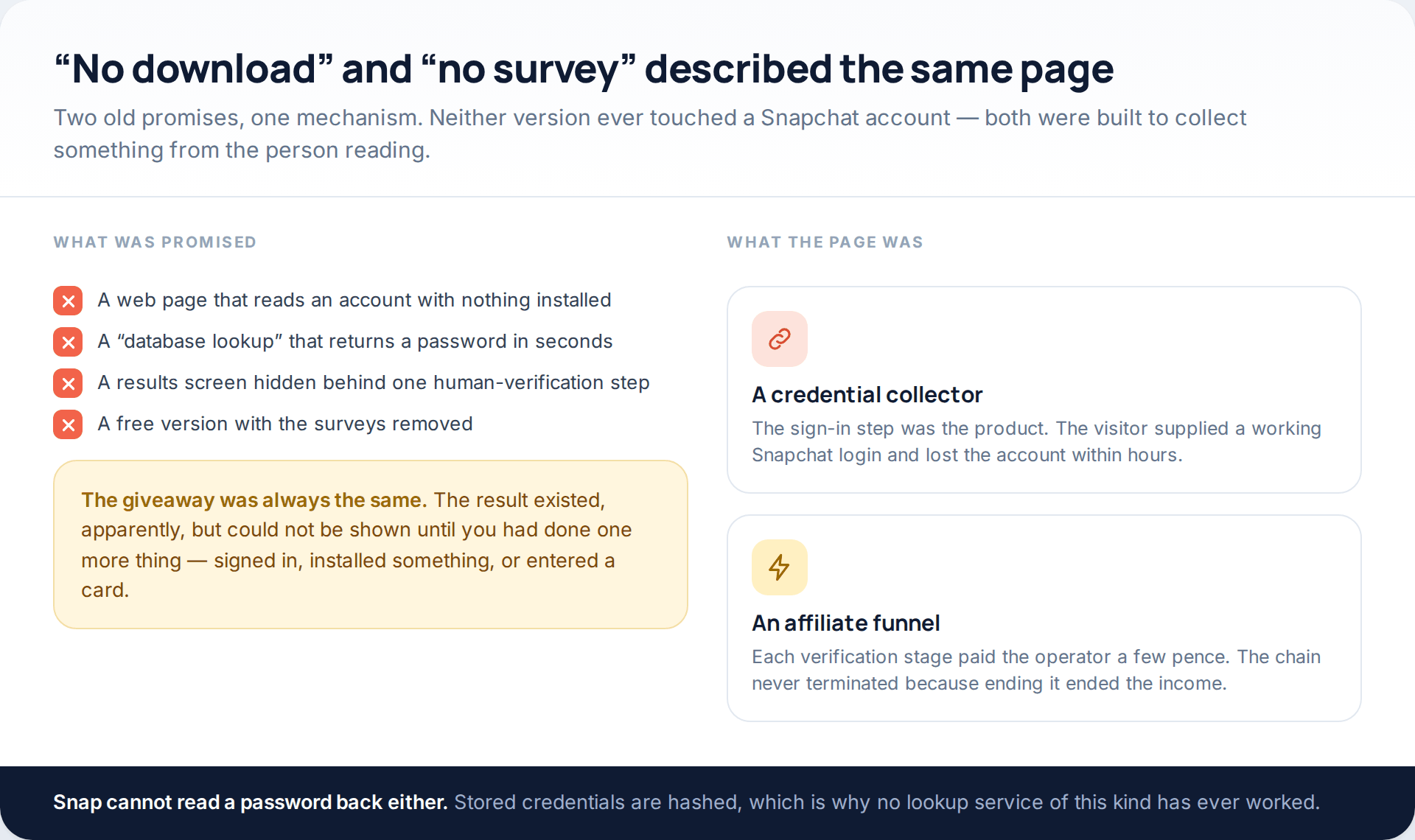
The “no download” framing was clever because it answered the obvious objection. People had worked out that an app asking to be installed was the risk, so the pitch moved to a web page instead. Nothing changed underneath. A website with no credentials cannot query a Snapchat account, and Snap stores passwords in a form that cannot be read back by anyone, including Snap.
So the page had to get its credentials from somewhere, and the only person present was you. Hence the sign-in step dressed up as verification, or the endless chain of offers in the “no survey” version, each one paying the operator a fraction of a penny while the promised result stayed one click away. Accounts do get taken on Snapchat, routinely — but through reused passwords, convincing links, forwarded login codes and unofficial apps, which is exactly the list this page is about closing.
The login stack, in order of strength
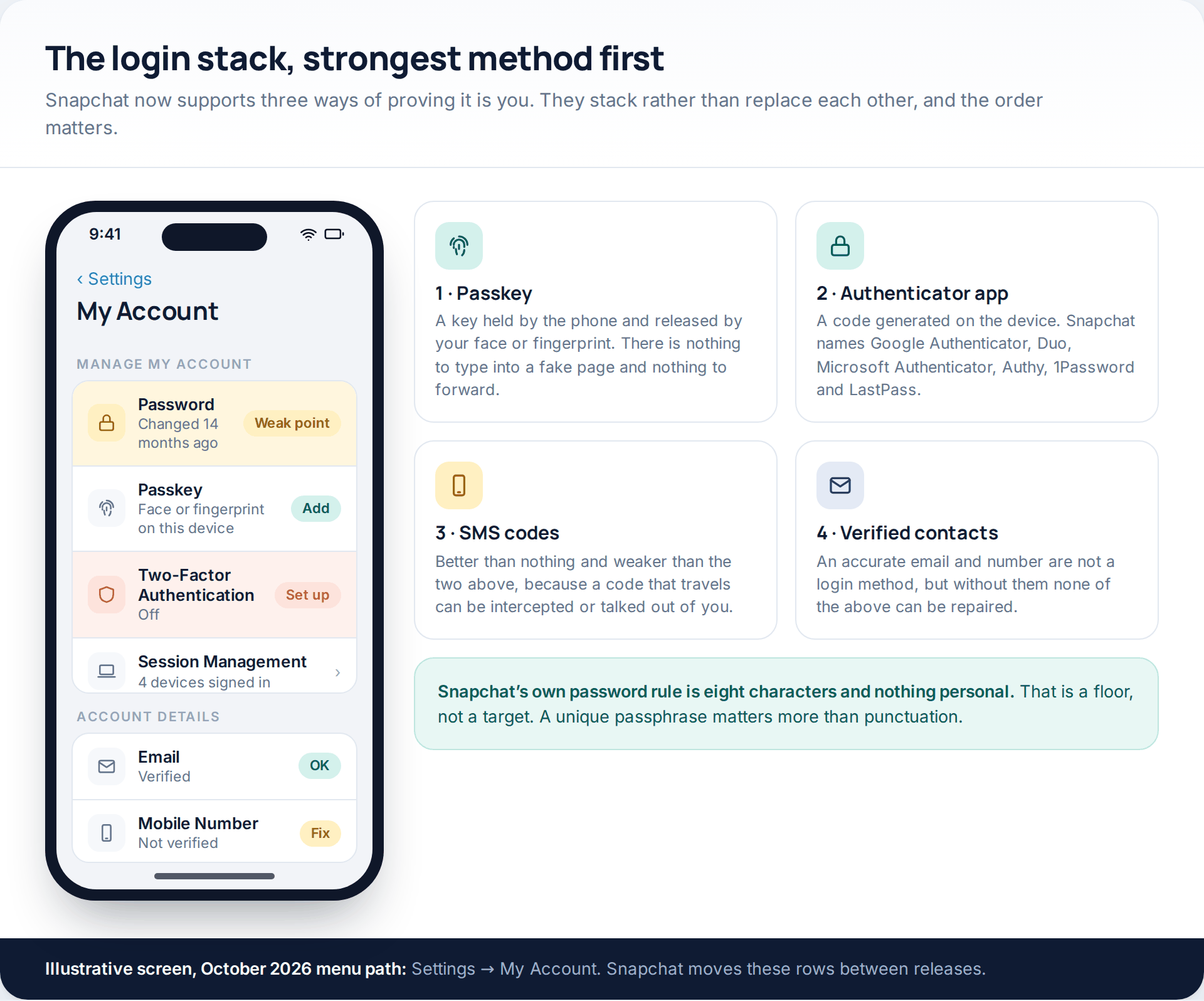
Snapchat supports three ways of proving who you are, and they layer rather than replace one another.
A passkey is the strongest. The key lives on the device and is released by your face or fingerprint, so there is no secret to steal, mistype into a lookalike page, or be talked into forwarding. Add one from Settings, then My Account, then Passkey, then Add Passkey. Snapchat’s own troubleshooting notes cover both Google Password Manager on Android and Apple’s passkey storage, so the feature is present on both platforms.
An authenticator app is next. Snapchat names Google Authenticator, Duo, Microsoft Authenticator, Authy, 1Password and LastPass as examples. The code is generated on your device and never travels, which removes the interception problem that SMS has. Set it up from Settings, then My Account, then Two-Factor Authentication, then Continue, then Authentication App.
SMS codes come third. They are considerably better than no second factor and considerably worse than the two above, because a code that arrives as a text can be read from a lock screen, redirected by a number takeover, or simply asked for by someone pretending to be a friend in trouble.
Verify the contact details while you are there. Snapchat advises checking that the email address and mobile number on the account are accurate at least once a year, and avoiding temporary or virtual numbers, because a recycled number becomes someone else’s recovery route. Everything else on this page depends on those two fields being right.
The recovery code, and the way it behaves
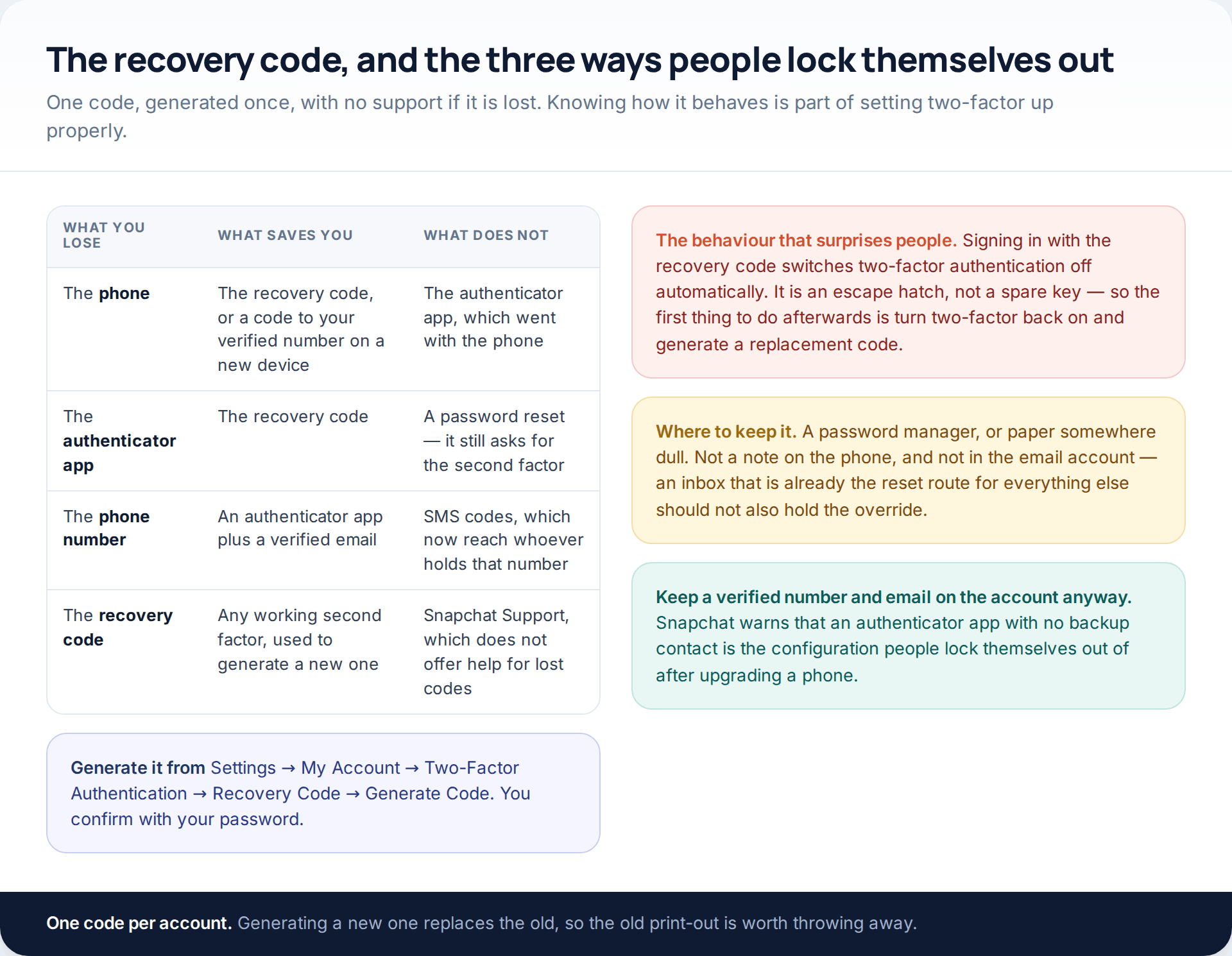
Snapchat’s recovery code is a single code you generate yourself, from Settings, then My Account, then Two-Factor Authentication, then Recovery Code, then Generate Code. It exists so that losing a phone does not mean losing the account.
Two things about it are worth knowing before you need it. First, Snapchat states that it does not offer support for lost recovery codes — there is no second route if the code and the second factor both go. Second, and less obviously, signing in with the recovery code automatically turns two-factor authentication off. It is an escape hatch rather than a spare key, so after using one, switch two-factor back on and generate a replacement.
Where to keep it: a password manager, or printed and filed somewhere unremarkable. Not in the email account, which is already the reset route for everything else, and not as a note on the phone the code exists to replace.
Sessions, and the separate list of trusted devices
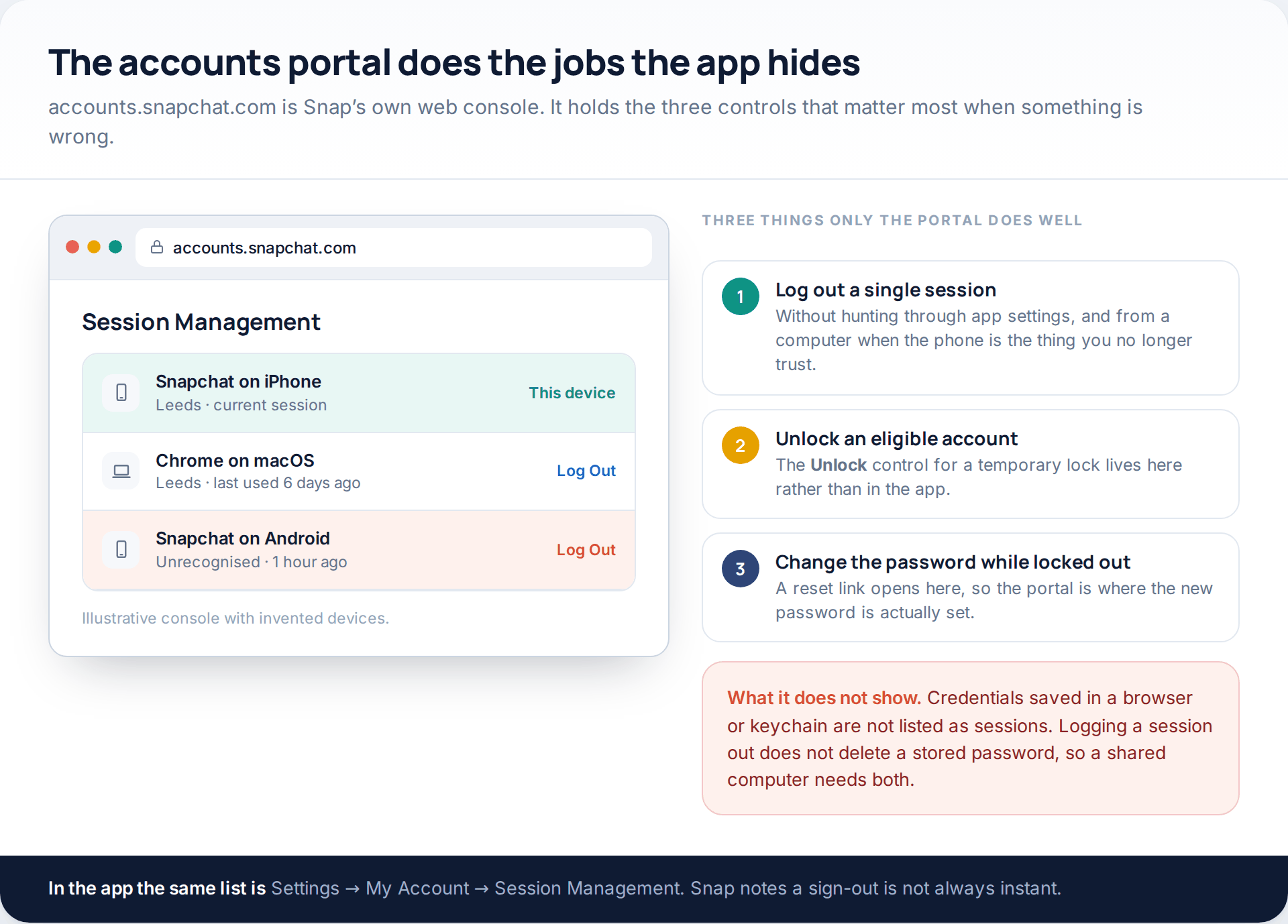
Session Management lists every device and browser currently signed into the account, and lets you sign any of them out. In the app it is Settings, then My Account, then Session Management; on the web it is at accounts.snapchat.com. Snap notes that a sign-out does not always take effect immediately, so refresh rather than tapping repeatedly.
Two limits are worth holding on to. Session Management does not show credentials saved in a browser or a keychain, so signing a session out of a shared computer does not remove the saved password that recreates it. And the list of devices trusted to skip the two-factor prompt is separate, under Two-Factor Authentication as Forget Devices. A proper clean-up clears both. If you are doing this because something has already gone wrong, the full sequence is in our guide to getting a hacked Snapchat account back.
Who can reach you, and who can find you
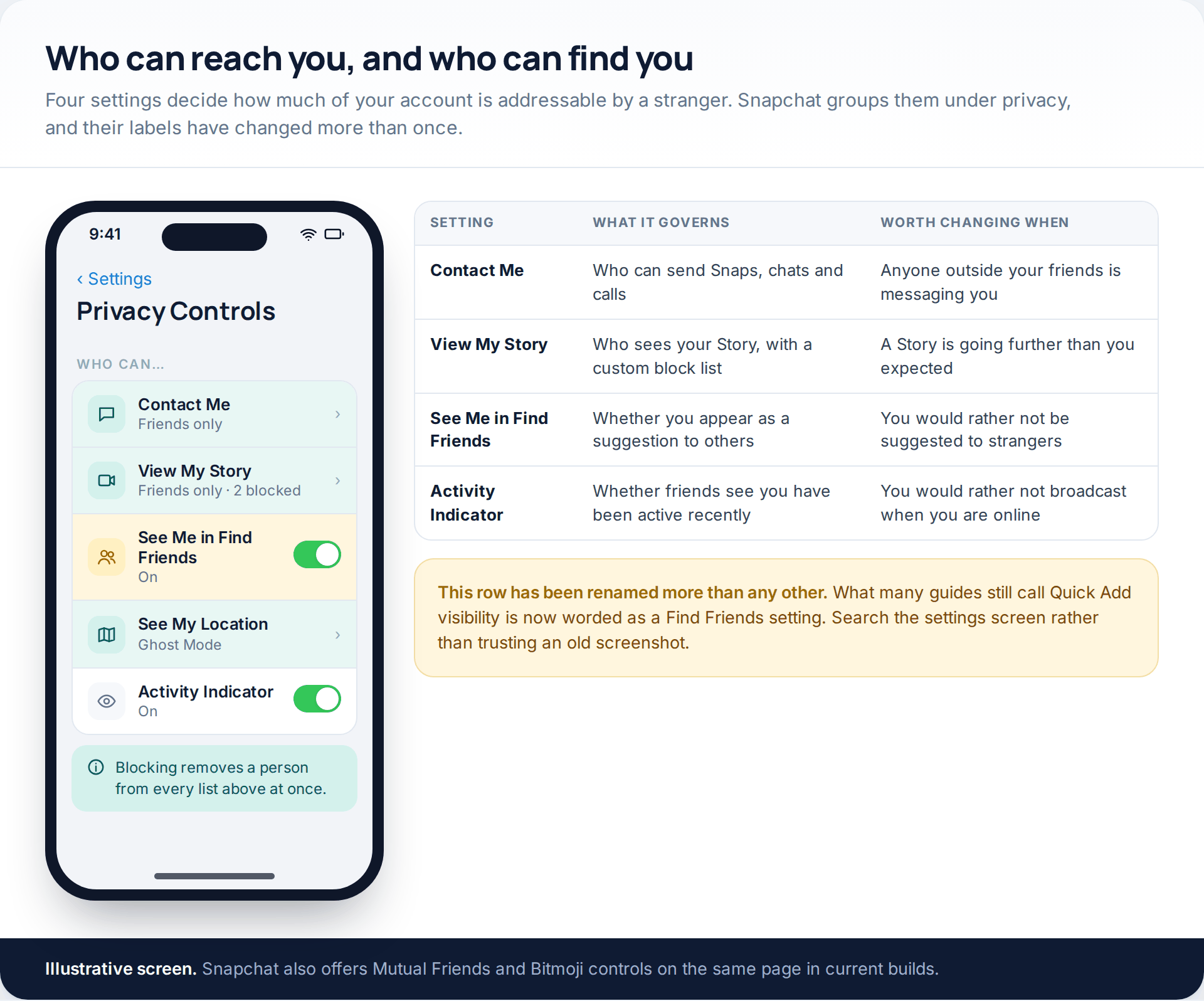
Snapchat’s privacy settings sit together under Settings, in the privacy section, and they answer four separate questions. Contact Me controls who can send you Snaps, chats and calls. View My Story controls who sees your Story, with a custom list you can block individually. The setting governing whether you appear as a friend suggestion to other people — the one older guides call Quick Add — is now worded around Find Friends. And Activity Indicator governs whether friends can see that you have used the app recently.
Friends-only is the sensible default for the first two. The third is a judgement call: appearing in suggestions is how people find you, and also how strangers do. Snapchat’s own safety advice is blunter than most platforms’ — only add people you know in real life — and that single habit does more than any of these switches.
My Eyes Only is a one-way door
Snaps moved into My Eyes Only are protected by a passcode you set, either four digits or an alphanumeric passphrase. The warning you acknowledge during setup is real: Snapchat states that if you forget the passcode, Team Snapchat cannot help you access or recover those Snaps. There is no reset, no identity check, no appeal. Treat it like an encrypted folder, because functionally that is what it is — and if you turn on the option to save to My Eyes Only by default, make sure the passcode is somewhere you will still have in a year.
Snap Map, and what Ghost Mode does not hide
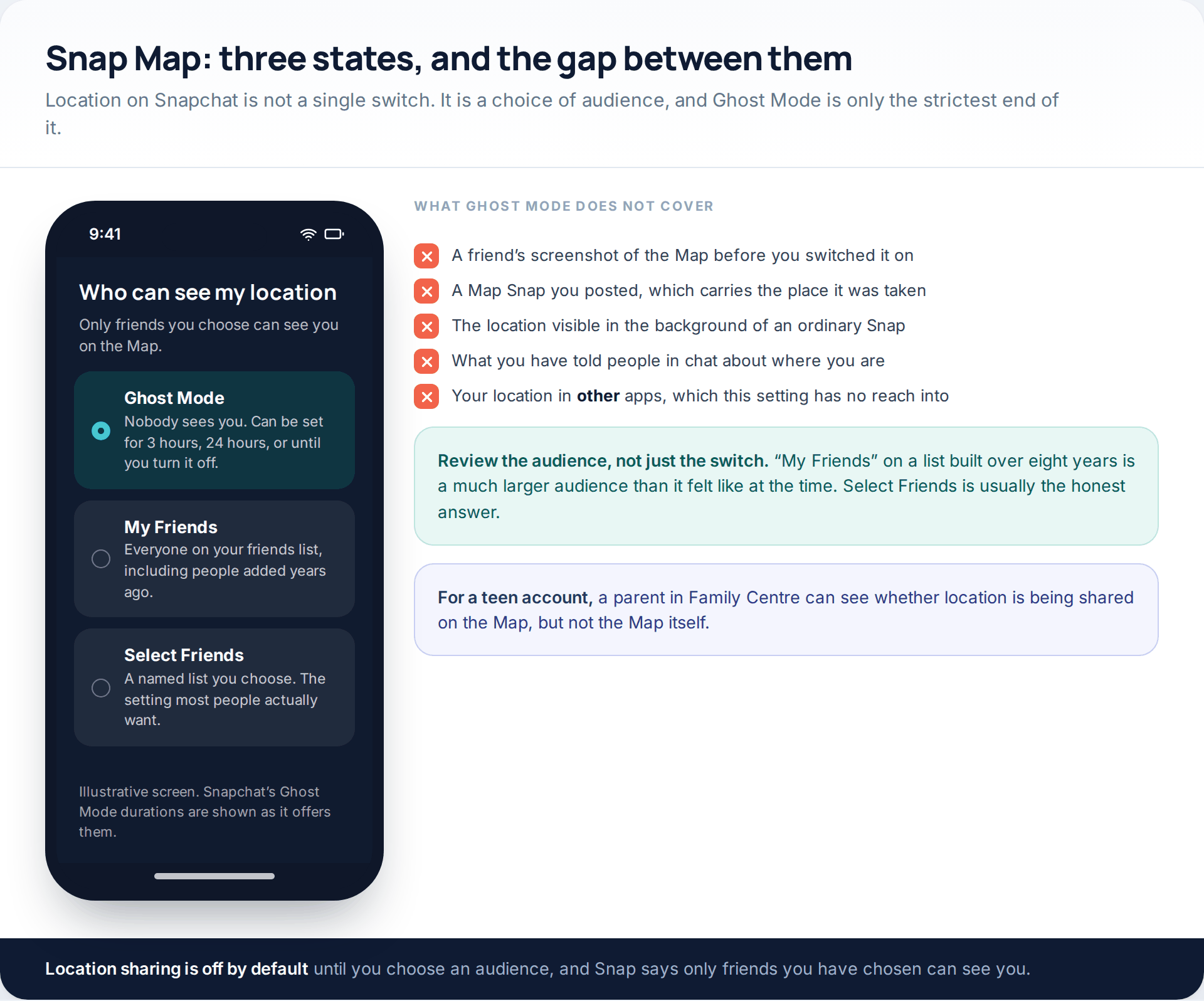
Location on Snapchat is an audience setting rather than a switch. Snap says only friends you have chosen to share with can see you on the Map, and the choices are Ghost Mode, My Friends, or a named list of Select Friends. Ghost Mode itself can be set for three hours, twenty-four hours, or until you turn it off.
For most people the honest answer is Select Friends. “My Friends” sounds narrow and is not: a list built up over several years contains people you no longer speak to, and the Map does not distinguish. Snapchat also notes that your location can reach people through a friend’s screenshot of the Map or through a Map Snap, neither of which a privacy setting can retract. If location is a problem beyond Snapchat, our guide on cutting off the ways a phone shares where you are covers the operating-system layer underneath.
Third-party Snapchat apps are the common leak
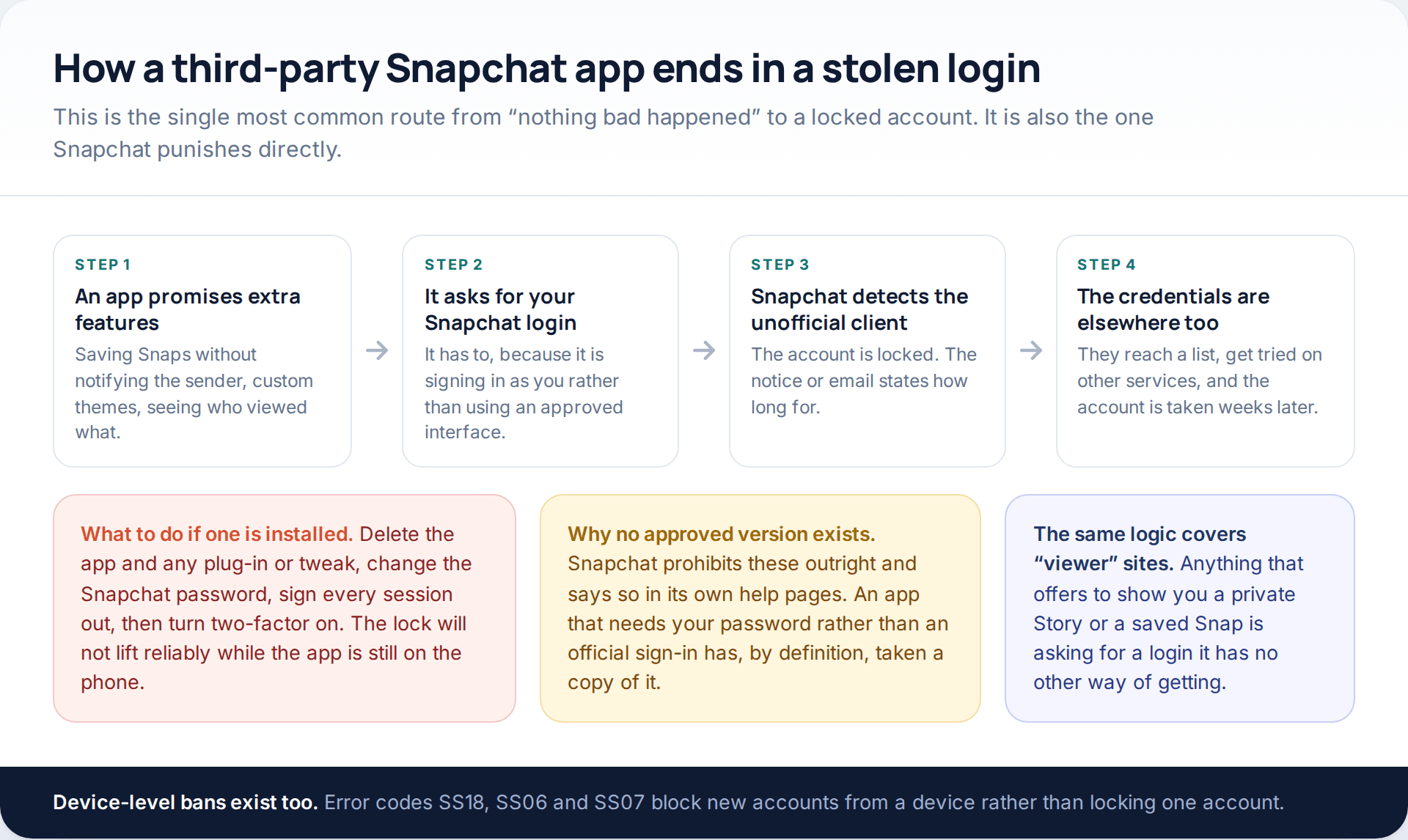
Apps and plug-ins that add features Snapchat does not offer — saving Snaps quietly, custom themes, extra information about who viewed what — have to sign in as you, using your real password. That is the whole problem. Snapchat prohibits them, locks accounts that use them, and states that the lock will keep returning until the app or tweak is deleted from the phone.
The account lock is the visible consequence. The invisible one is that your password now exists outside Snap’s systems, on infrastructure you know nothing about, and it will be tried against your email and everything else. If one is installed: delete it and any associated plug-in, change the Snapchat password, sign every session out, then turn two-factor on, in that order. While you are there, it is worth looking at what else on the phone has asked for an account login rather than using an official sign-in button.
When Snapchat writes to you
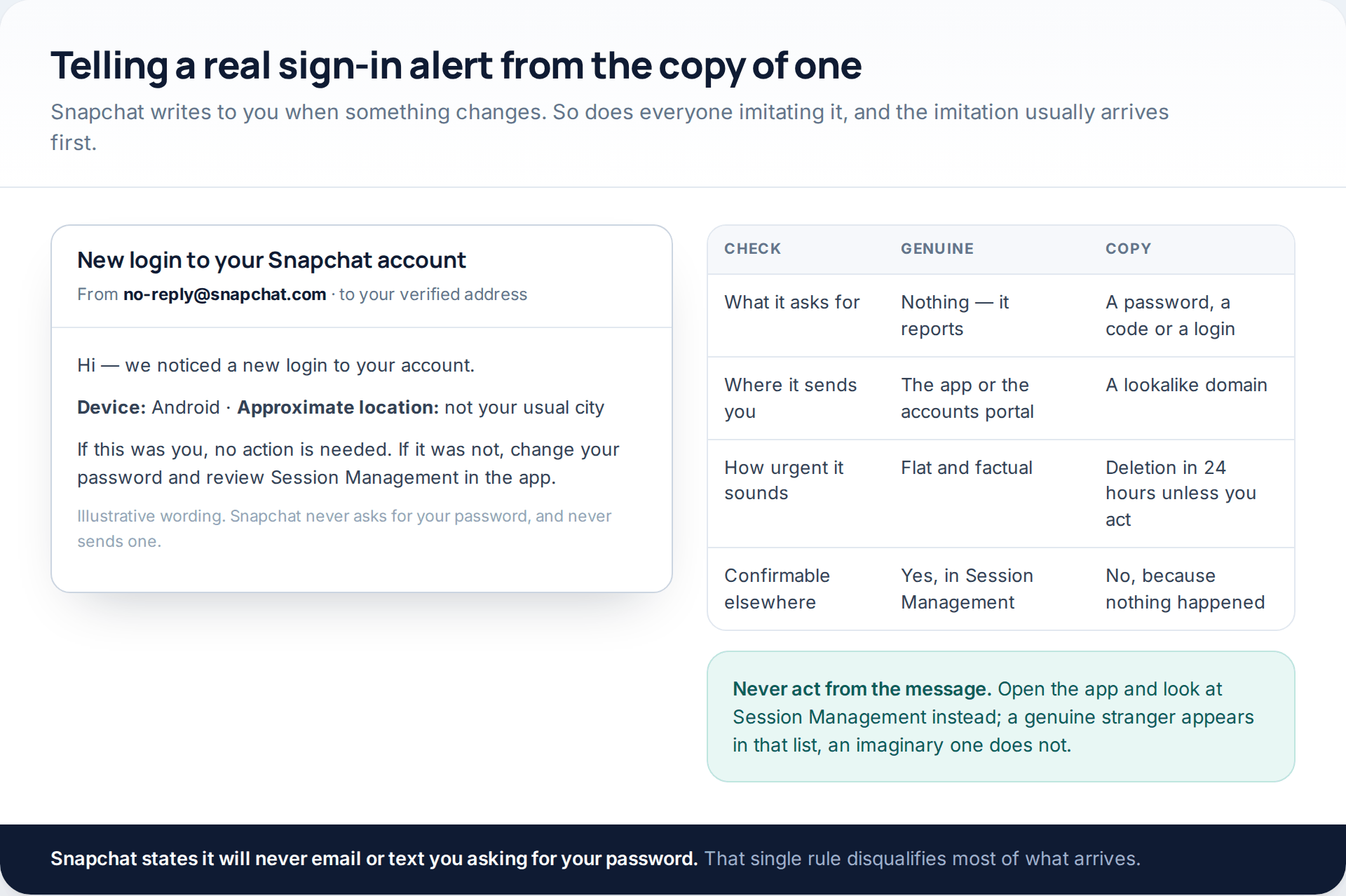
Snapchat sends sign-in alerts, and it sends login codes you did not ask for when someone is trying your password. Both are useful signals and both are heavily imitated, usually with an invented deadline attached.
One rule removes the guesswork: never act from the message. Open the app, go to Session Management, and look. A genuine new login appears in that list; an imaginary one does not. Snapchat states that it will never email or text you asking for your password, so any message that does is finished before you read the rest of it. And a login code arriving unprompted is not a nuisance — it means somebody already has your password and is one step from the account.
What each setting actually stops
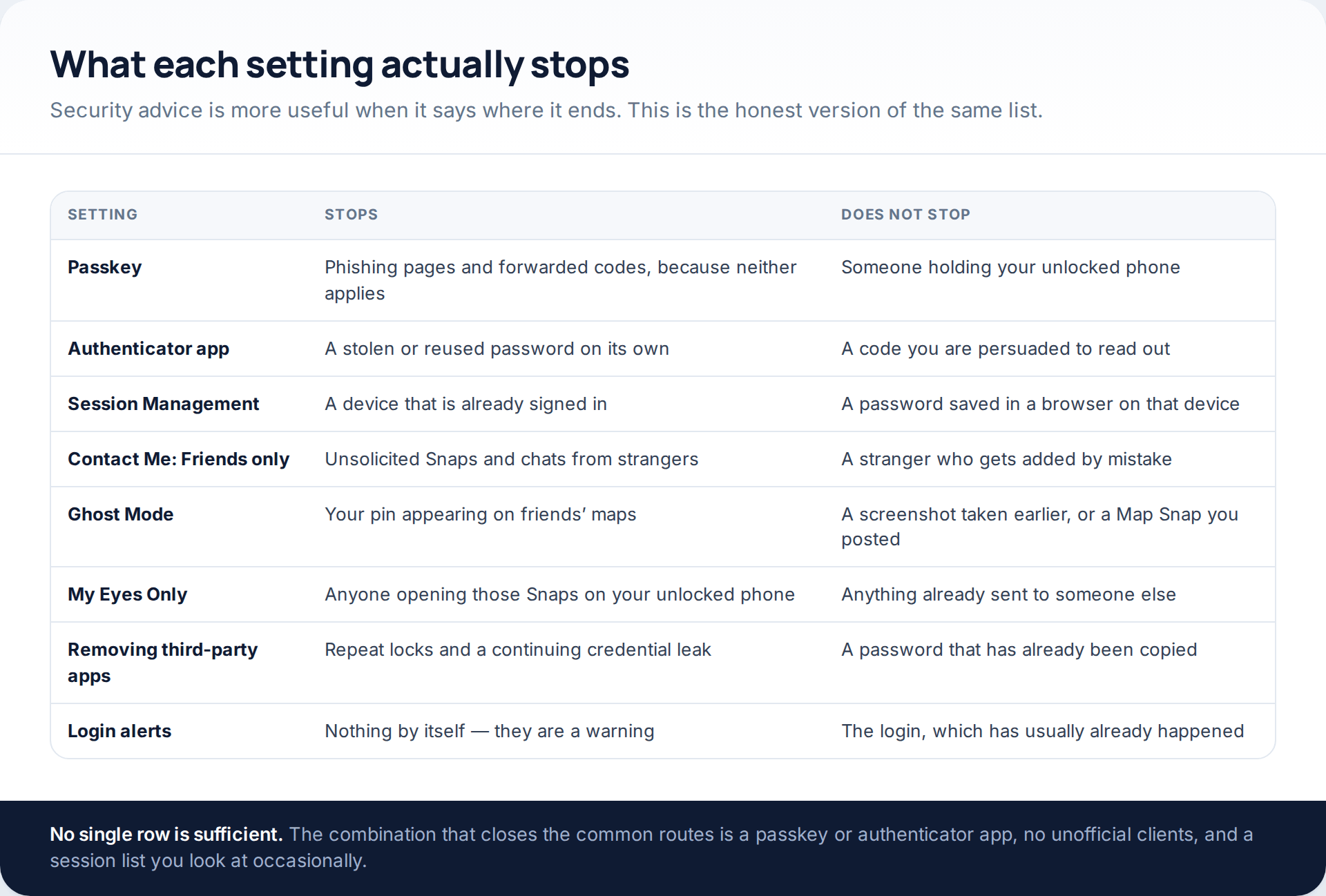
Read down the right-hand column rather than the left. A passkey is excellent and does nothing about an unlocked phone in someone else’s hand. Ghost Mode hides your pin and cannot retract a screenshot somebody already took. My Eyes Only protects what is on your device and has no bearing on what you have already sent.
The useful conclusion is that a short yearly pass beats a long one-off effort: confirm the email and number, look at the session list, check the privacy section still says what you meant, and make sure the recovery code is somewhere you could actually find it. Twenty minutes, once a year, closes almost everything that realistically happens.
How this page was put together
Every setting name, menu path and claim here was checked against Snapchat’s own help articles in October 2026 — the security and safety overview, the pages on passkeys, two-factor authentication with an authenticator app and with SMS, recovery codes, Session Management, forgetting a linked device, privacy settings, Snap Map visibility, My Eyes Only and locked accounts. Where Snapchat states a rule in its own words, such as never asking for your password or being unable to recover My Eyes Only content, we have used its wording rather than paraphrasing it into something stronger.
We have not tested any third-party Snapchat client, and we do not name one: the point is that they are prohibited and that they require your password, which is enough to settle the question. No statistics appear on this page, because there are no reliable public figures for how Snapchat accounts are lost by cause, and inventing a percentage would be worse than describing the mechanism. Snapchat renames these screens frequently — Login Verification became Two-Factor Authentication, and Quick Add visibility is now framed as a Find Friends setting — so treat the paths above as current rather than permanent, and search the settings screen for the same word if a row has moved.
If you are reading this on behalf of a teenager rather than for yourself, the parent-facing tools are a different set entirely, and we have covered them in what Family Centre shows a parent and what it does not.
Common questions
Does a passkey replace my Snapchat password?
In practice it gives you a second way in rather than removing the first. Snapchat describes passkeys as a safer login method and does not present them as deleting the password, so keep the password unique and keep a second factor as well.
Is SMS two-factor worth turning on if I cannot use an app?
Yes. It is weaker than an authenticator app because the code travels and can be intercepted or talked out of you, but it still defeats a stolen password used on its own, which is the most common attack by a wide margin.
Someone is signed in on a device I do not recognise. What do I do first?
Change the password first, then sign that session out in Session Management, then clear trusted devices with Forget Devices. Doing it in the other order can let the session re-establish itself from a saved credential.
Can I see who viewed my location on Snap Map?
No. Snapchat shows you who you share with, not who has looked. If that matters, the control you have is the audience: Select Friends, or Ghost Mode, rather than a viewing log that does not exist.
Will Snapchat tell me if someone screenshots my Snap?
Usually, yes, for Snaps and chats. Snapchat’s own safety guidance still warns that screenshot notifications are not a guarantee and that anything you send can be captured another way, including by a second device photographing the screen.
Are third-party Snapchat apps ever safe to use?
No. They require your real password because they sign in as you, which puts your credentials on someone else’s infrastructure, and Snapchat locks accounts that use them until the app is removed. There is no approved version of this category.
I forgot my My Eyes Only passcode. Can Snapchat reset it?
No. Snapchat states that if you forget the passcode, it cannot help you access or recover those Snaps. This is the one place on the platform where there is genuinely no recovery route, which is worth remembering before you move anything irreplaceable into it.
How often should I actually check all this?
Once a year is enough for most accounts: verify the email and number, scan the session list, confirm the privacy settings still say what you intended, and check you could find the recovery code. Do it sooner if you get a login code you did not request.
Using a monitoring app for this? GuestSpy is parental monitoring for Android that stays visible on the child's phone and runs from any browser. If it fits your family, see the Text messages & social feature.
Related guides
5 Best Security and Network-Testing Apps for Android (Rooted and Not)
The useful security apps for Android are not the ones with “hack” in the title. They are a network scanner,…
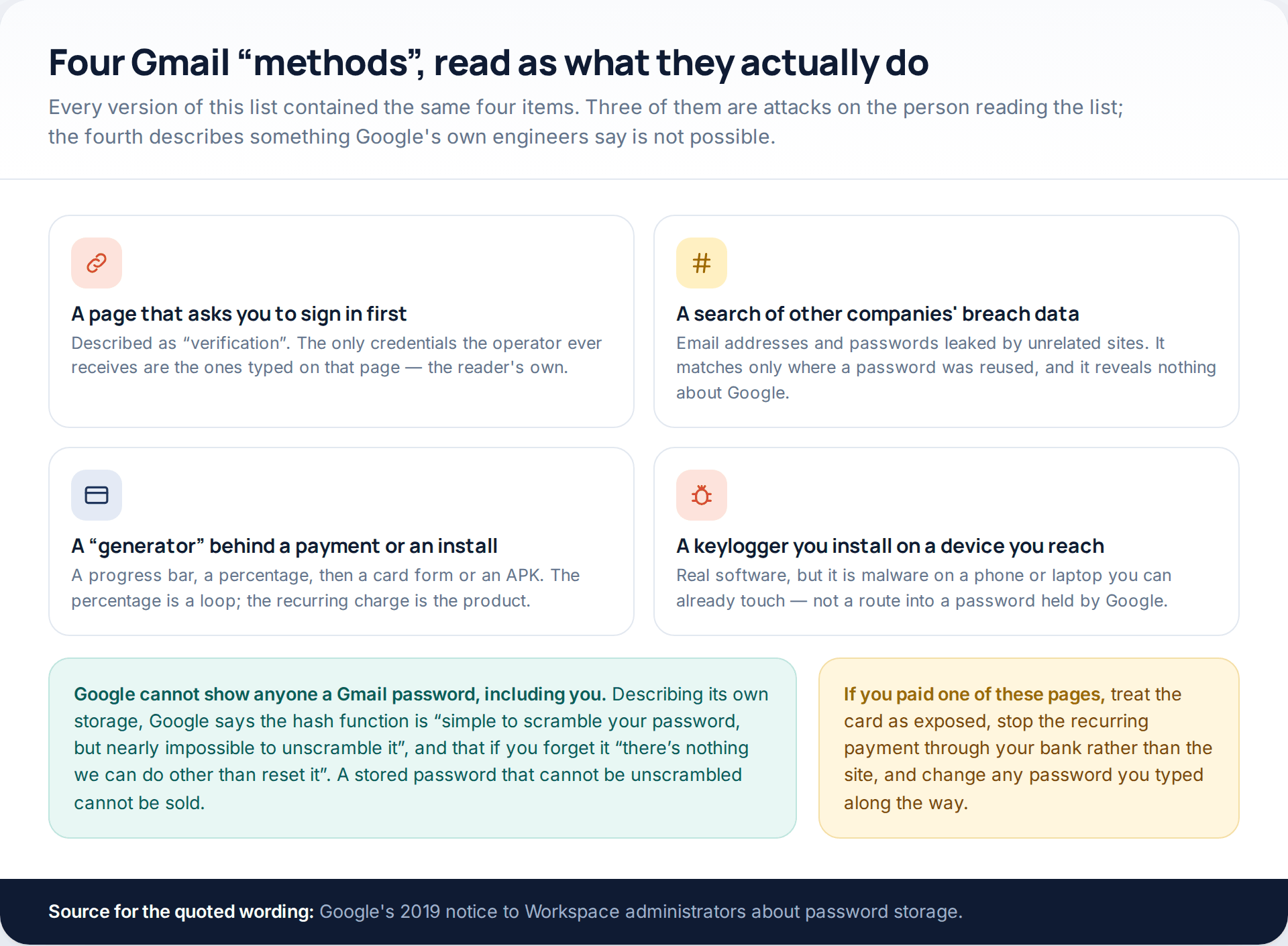
Gmail Password Compromised? Four Recovery Routes Google Accepts
If your Gmail password was hacked, there are four routes back and the one that is open to you depends…
Facebook Account Hacked? Every Free Route Back In
If your Facebook account was hacked, five routes lead back in and all of them are free: a device of…
Monitoring your child can see.
Location, screen-time budgets, routines, app and website blocking and the alerts that matter, run from any browser and visible on the phone. Pair an Android phone in about fifteen minutes.