Someone in Your Gmail Without the Password? How Session and App Access Works

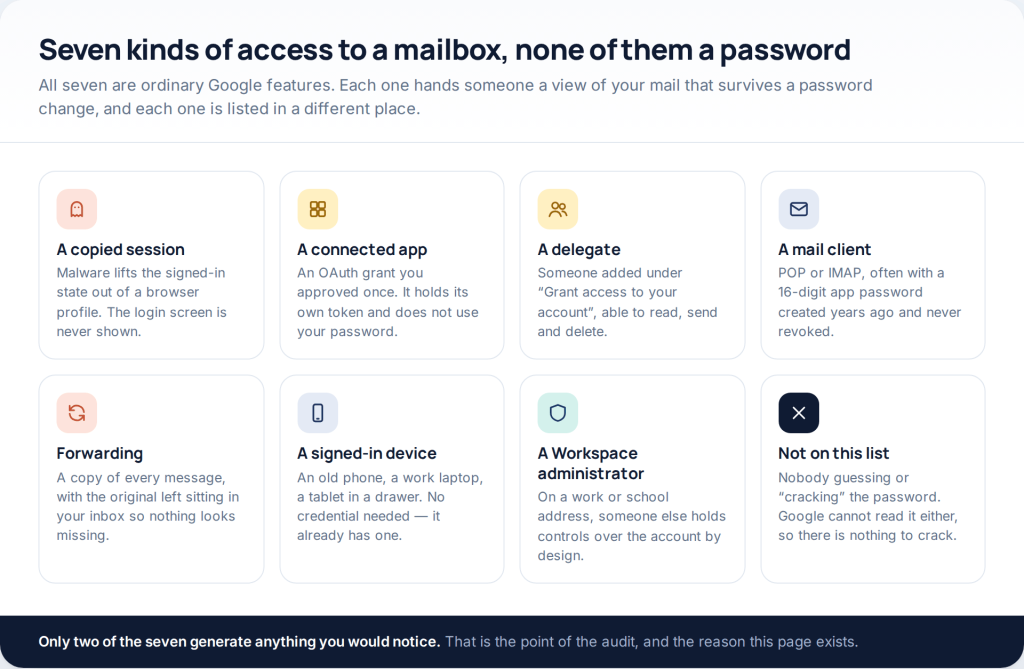
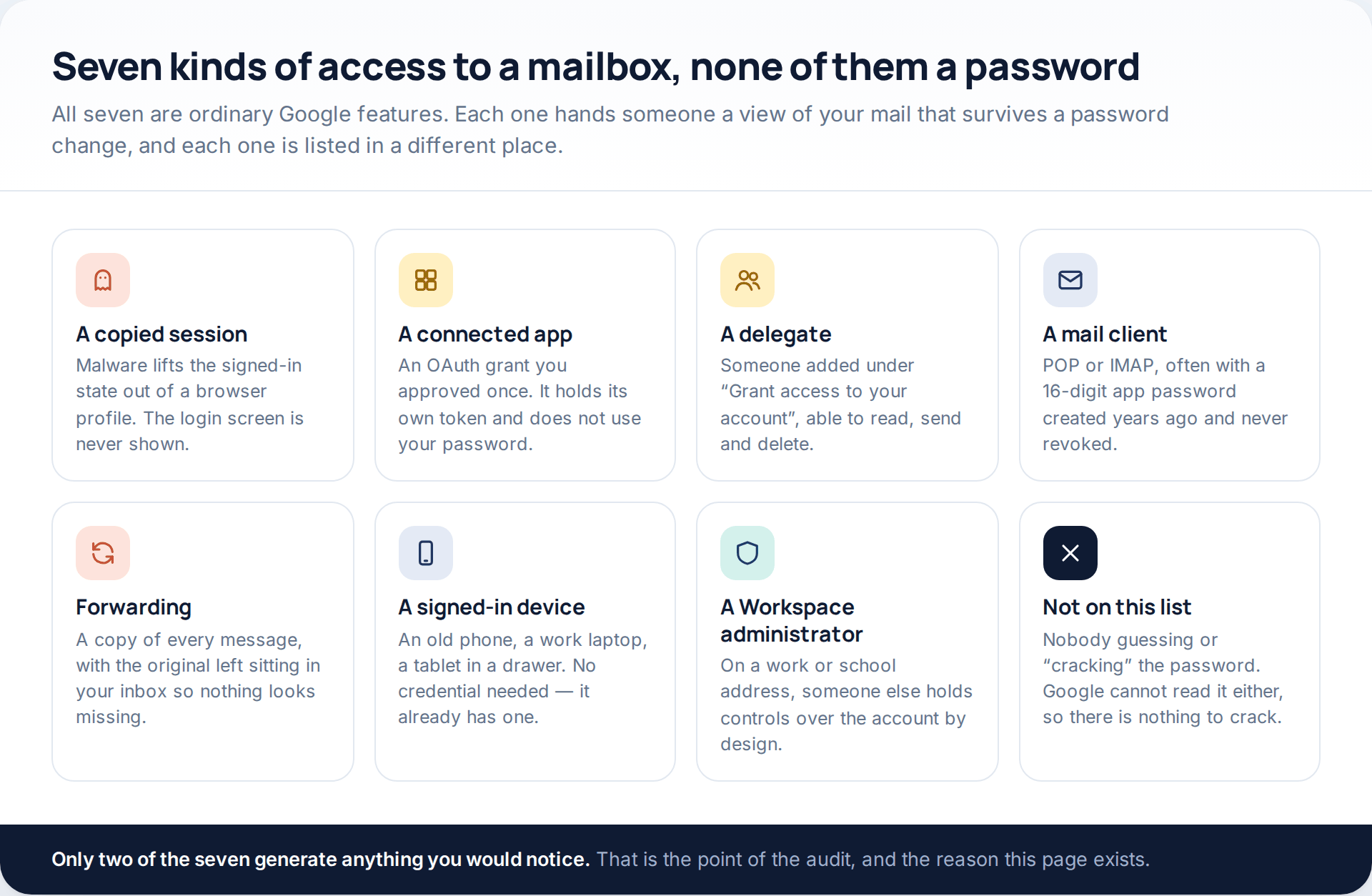
A Gmail account accessed without the password is almost always access that was switched on, not broken into. A copied session, a connected app, a delegate, a mail client, a forwarding rule, a device still signed in, or an administrator on a work account. All seven skip the login screen, and six of the seven survive a password change.
This page used to promise a way into someone else’s Gmail with no password and no software. There is no such method — but the phrase describes something real, pointed the other way. Access to a mailbox that needs no password exists in abundance; it just has to be configured first, usually by the account owner. This is the guide to finding it on your own account and closing it.
What “without the password” actually means
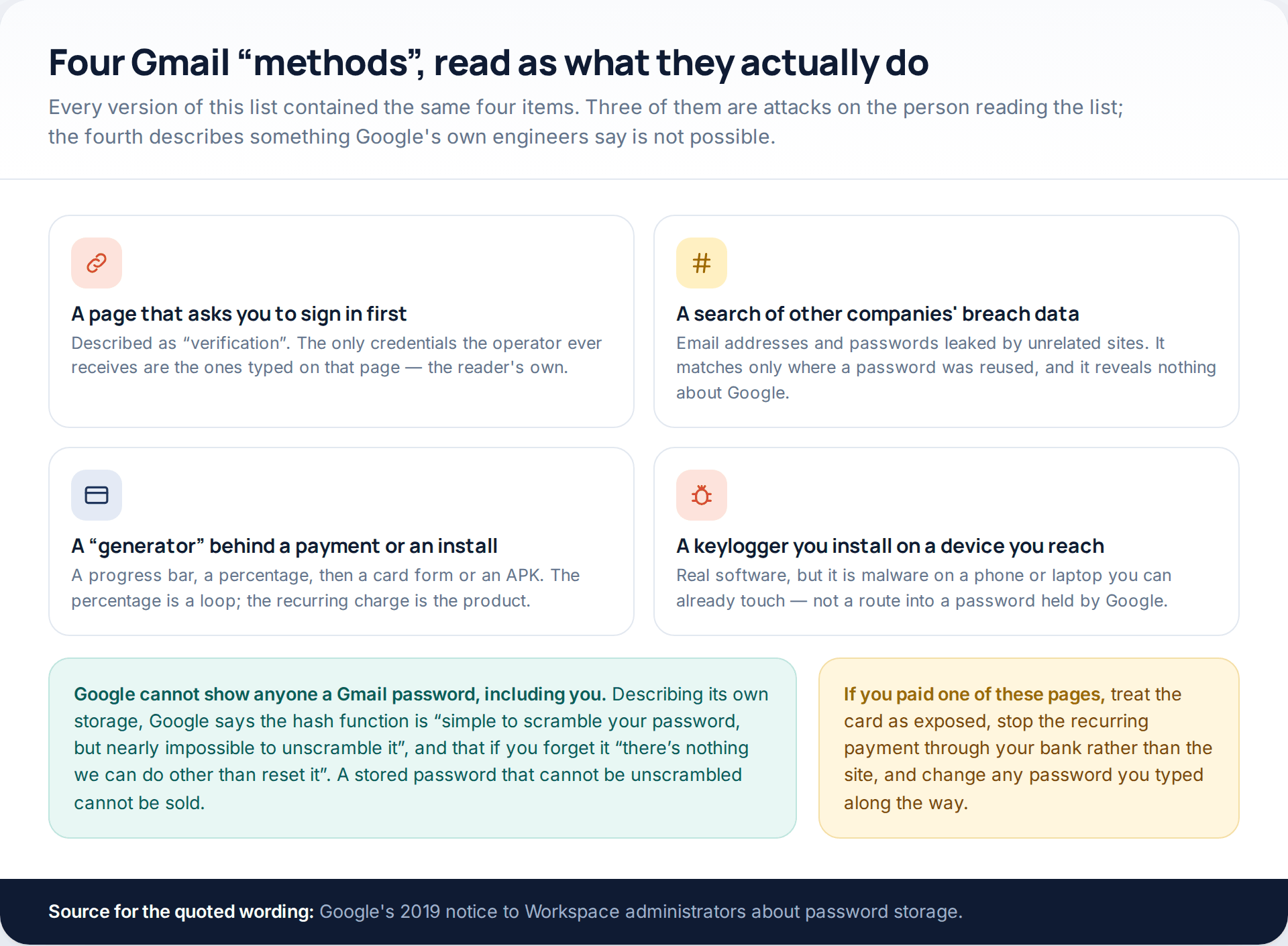
Start with the thing that is not happening. Nobody is guessing or cracking your Gmail password, because Google does not hold it in a readable form — its own description of its storage says the hash is “simple to scramble your password, but nearly impossible to unscramble it”. If you want the recovery side of that story, it is in our companion guide to the four recovery routes Google accepts when a Gmail password is compromised.
What does happen is this: a credential that is not your password already exists, somewhere, and it still works. A session token in a browser profile. An OAuth grant from an app you tried once. A delegate added for a colleague who left. Each one is a legitimate Google feature doing exactly what it was built to do.
One sentence to keep in mind for the rest of this page. Google states that changing your password signs you out “everywhere except” devices used to verify it is you, some devices with third-party apps you have given account access, and linked home devices. The reset you have probably already done did not close most of what follows.
Door one: a session someone copied
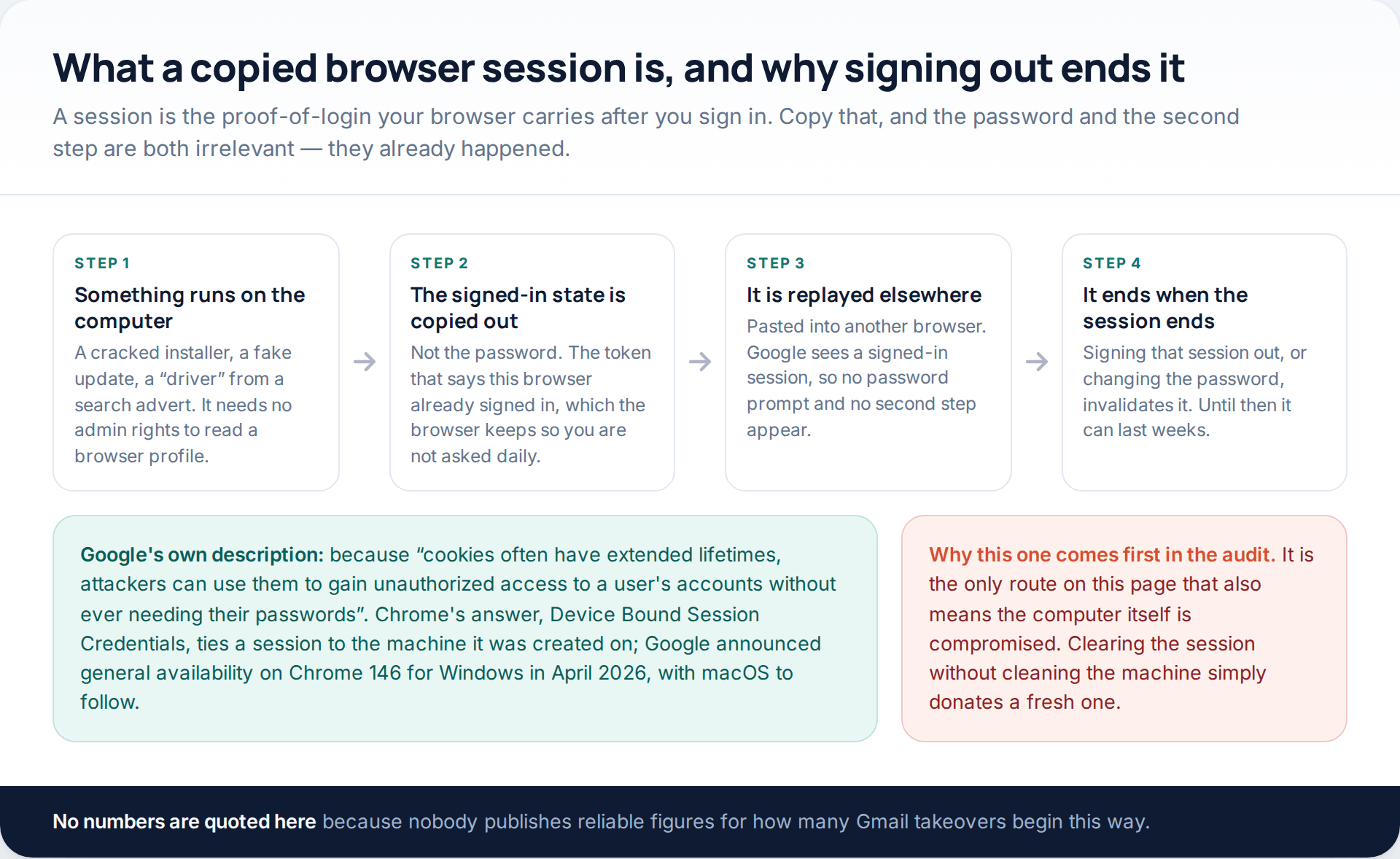
When you sign in, your browser is handed a token that says so, and keeps it so you are not challenged every morning. Malware on the computer can read that token out of the browser profile and paste it into a different browser somewhere else. Google puts it plainly: because “cookies often have extended lifetimes, attackers can use them to gain unauthorized access to a user’s accounts without ever needing their passwords”.
Two consequences follow. 2-Step Verification does not help, because the second step was completed by you, earlier, on your machine. And the account is the symptom rather than the problem — the computer is compromised, and clearing the session without cleaning the machine just hands over a fresh one. Our walkthrough for checking a device for spyware is the companion job to this section.
Chrome’s answer is Device Bound Session Credentials, which ties a session cryptographically to the machine that created it so that an exported cookie expires quickly elsewhere. Google announced general availability on Chrome 146 for Windows in April 2026, with macOS following in a later release — useful to know, and not yet a reason to skip the audit.
Door two: the apps you connected and forgot
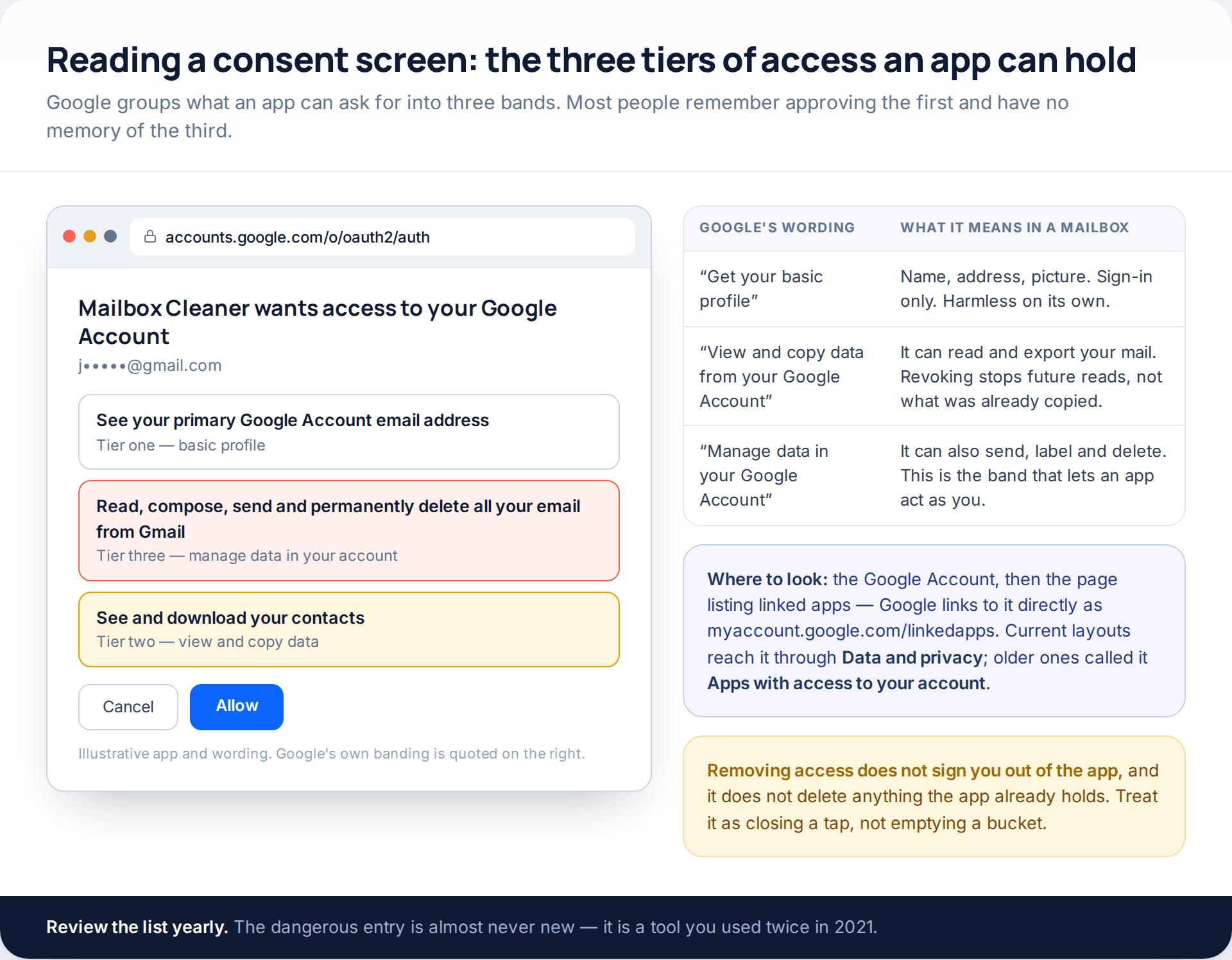
Every “Sign in with Google” and every mail tool you have ever tried holds a grant. Google sorts what an app can ask for into three bands: “Get your basic profile”, “View and copy data from your Google Account”, and “Manage data in your Google Account”. The first is sign-in only. The second reads your mail. The third reads, sends and deletes it.
Google links directly to the list at myaccount.google.com/linkedapps. Current layouts reach the same page through Data and privacy; older ones called the section Apps with access to your account, and both wordings are still in circulation, so search the settings page for the word “apps” if the label has moved again.
- Removing access does not sign you out of the app itself
- It does not delete data the app has already copied
- It does not tell you what the app read while it had access
- And it does not stop the app asking again next time you open it
Doors three and four: a delegate, and a mail client
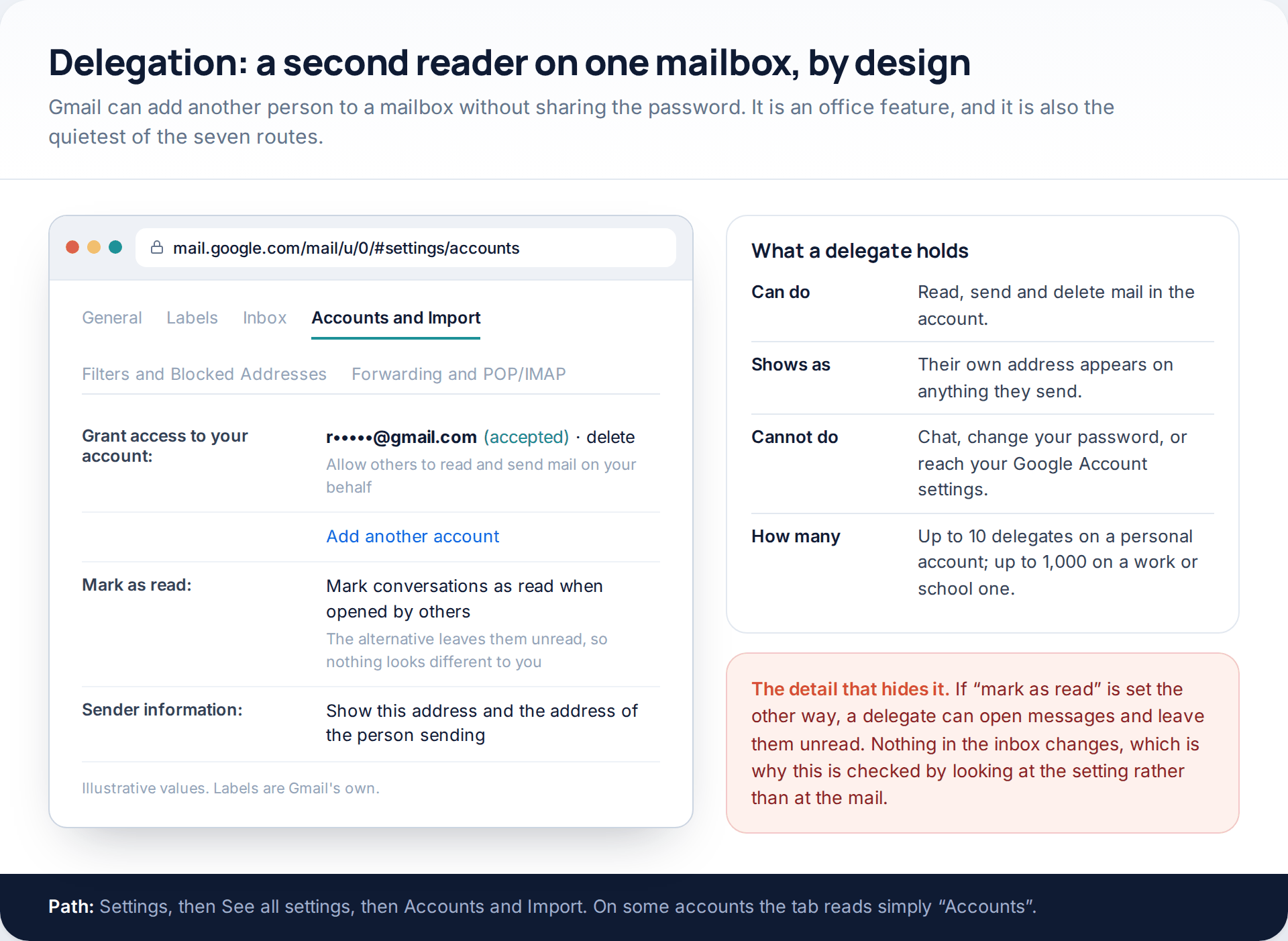
Delegation: a second reader on the same mailbox
Gmail lets you add someone to your mailbox without sharing the password, under Settings, then See all settings, then Accounts and Import, then Grant access to your account. A delegate can read, send and delete mail; their own address appears on anything they send. They cannot chat, cannot change your password and cannot reach your Google Account settings. Personal accounts allow up to ten delegates; work and school accounts allow far more.
The setting that makes this quiet sits immediately below it. “Mark conversations as read when opened by others” can be turned the other way, so a delegate reads messages and leaves them unread. Nothing in the inbox changes. You find this by reading the setting, not by watching the mail.
Mail clients, POP, and app passwords
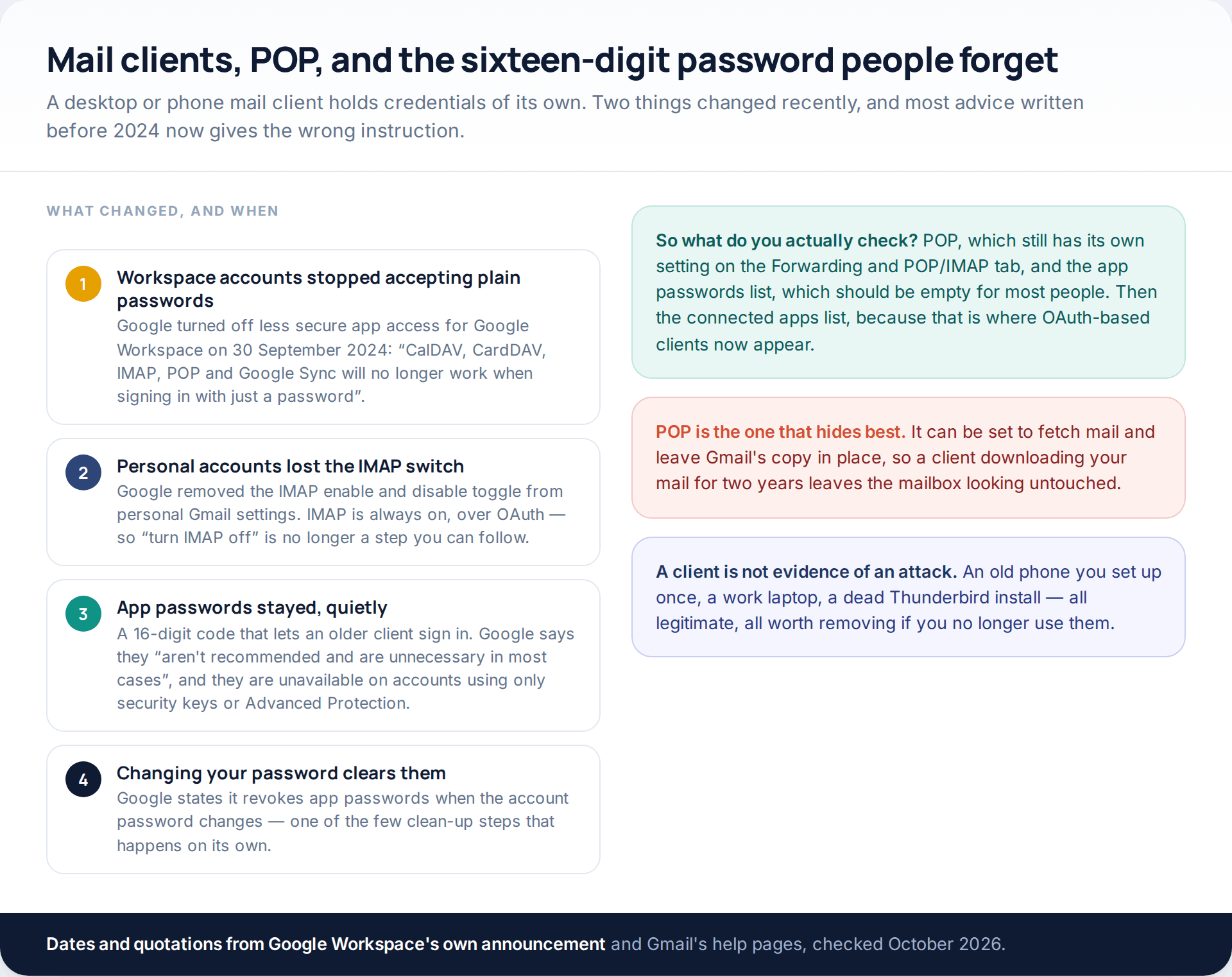
This is where most published advice is now wrong, so it is worth being precise. Google turned off less secure app access for Google Workspace on 30 September 2024, after which “CalDAV, CardDAV, IMAP, POP and Google Sync will no longer work when signing in with just a password”. Separately, Google removed the IMAP enable and disable toggle from personal Gmail settings: IMAP is always on, over OAuth, and the old instruction to switch it off cannot be followed.
What remains checkable is POP, which still has its own setting on the Forwarding and POP/IMAP tab, and the app passwords list. An app password is a 16-digit code for older clients; Google says they “aren’t recommended and are unnecessary in most cases”, and that it revokes them when the account password changes. For most people that list should simply be empty.
Door five: forwarding and filters
Forwarding is the blunt version: Settings, See all settings, Forwarding and POP/IMAP, and the option to disable it, followed by Save Changes. It can be set to keep Gmail’s copy in the inbox, so every message arrives normally and a duplicate goes elsewhere.
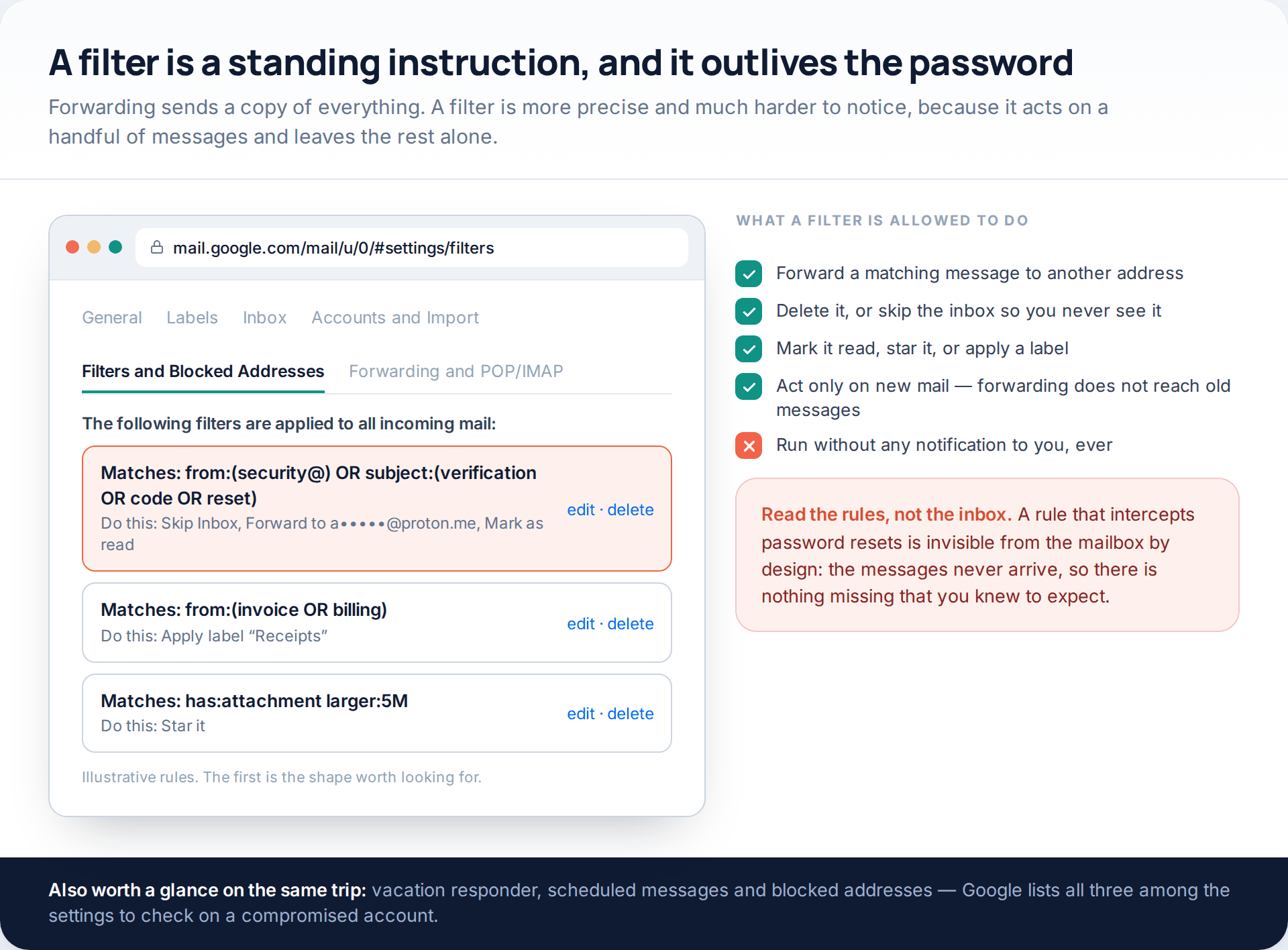
Filters are the precise version, on the Filters and Blocked Addresses tab. A filter can forward, delete, archive, star or label, and it acts automatically on new mail. A rule matching “code”, “verification” or “reset”, set to skip the inbox and forward, intercepts exactly the messages that would let you take the account back — and because those messages never arrive, nothing looks missing.
While you are there, Google also names the vacation responder, scheduled messages and blocked addresses among the settings worth checking on an account someone else has touched. All three can be used to shape what reaches you.
Door six: a device that is still signed in, and the two logs
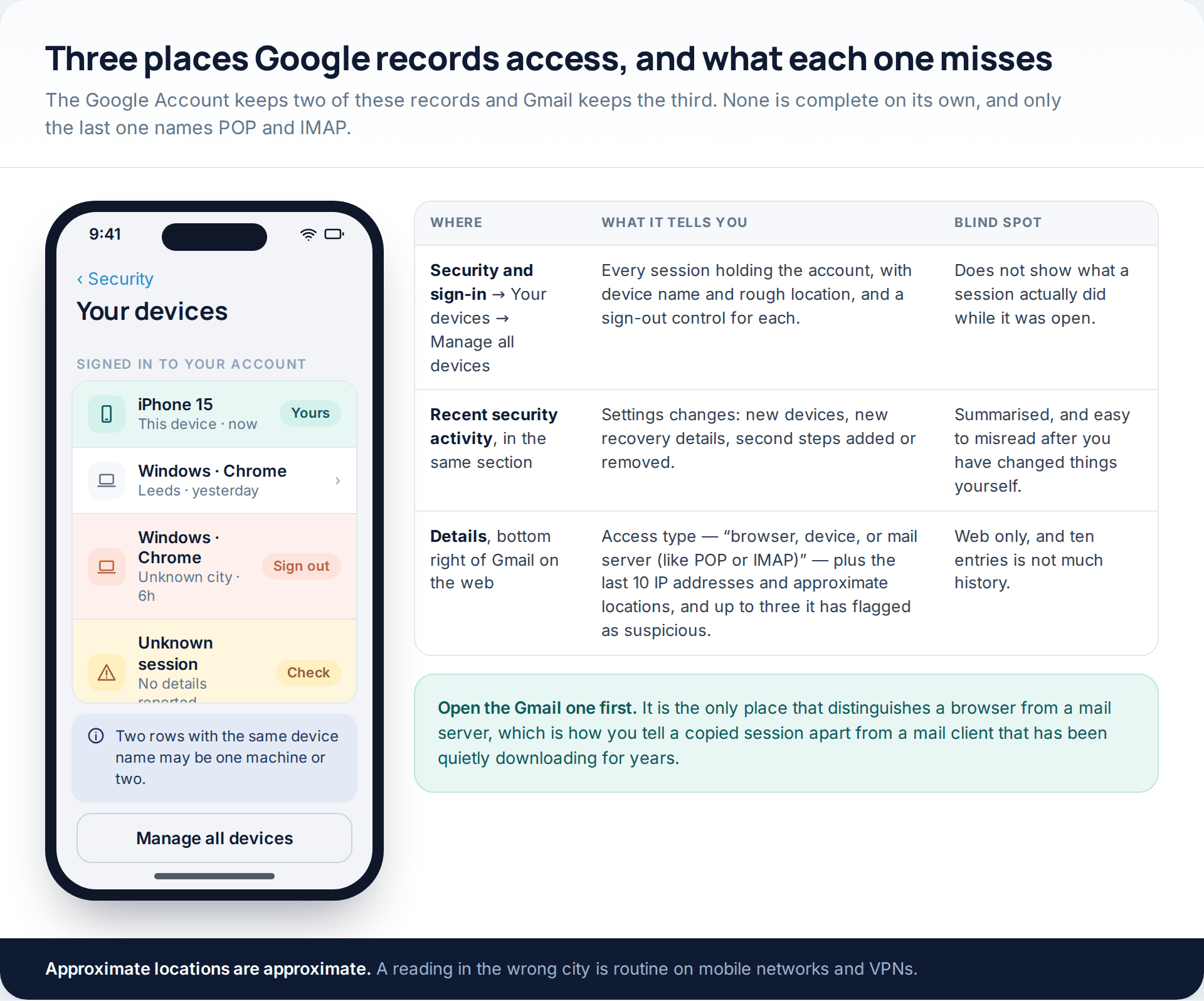
Three records exist and none is complete. Security and sign-in, then Your devices, then Manage all devices lists every session holding the account; Google warns that two entries with the same device name may be one machine or two. Recent security activity, in the same section, lists settings changes rather than access.
The third is the useful one, and almost nobody opens it: Details, at the bottom right of Gmail on the web. It shows the access type — Google’s wording is “the browser, device, or mail server (like POP or IMAP)” — along with the last ten IP addresses and approximate locations, and up to three more it has flagged as suspicious. That distinction between a browser and a mail server is the single most informative line in the whole audit.
Door seven: a work or school account
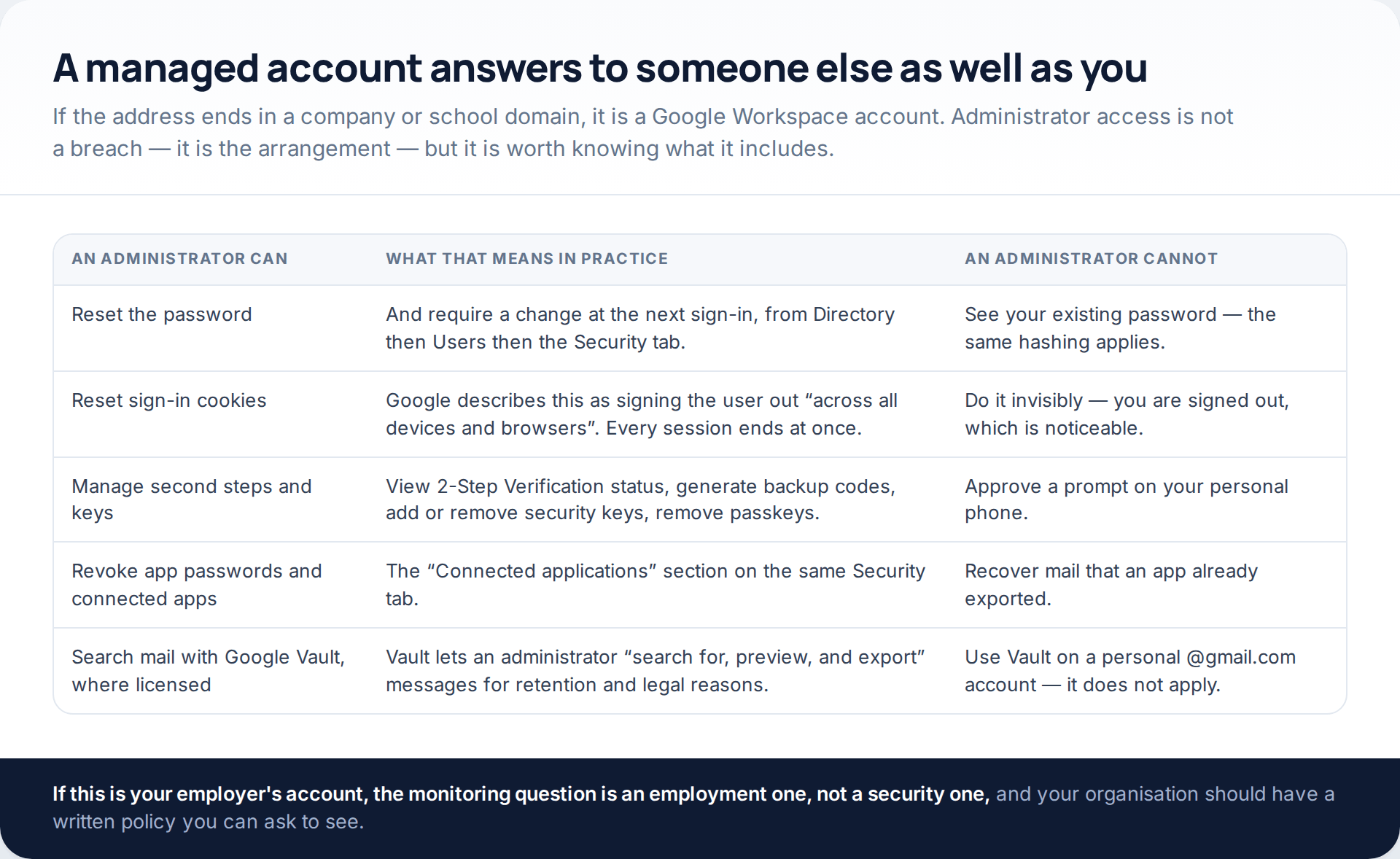
If the address ends in an employer’s or a school’s domain, the account is managed. An administrator can reset the password, reset sign-in cookies — which Google describes as signing the user out “across all devices and browsers” — view and reset second steps, remove passkeys and security keys, and revoke app passwords and connected applications, all from the user’s Security tab in the Admin console. Where the organisation is licensed for Google Vault, an administrator with those privileges can “search for, preview, and export” messages.
None of that applies to a personal @gmail.com address, and none of it is hacking. If it is your employer’s account and the question is how far the monitoring goes, that is an employment matter with a written policy behind it, not something to solve in the settings.
The twenty-minute audit, in order
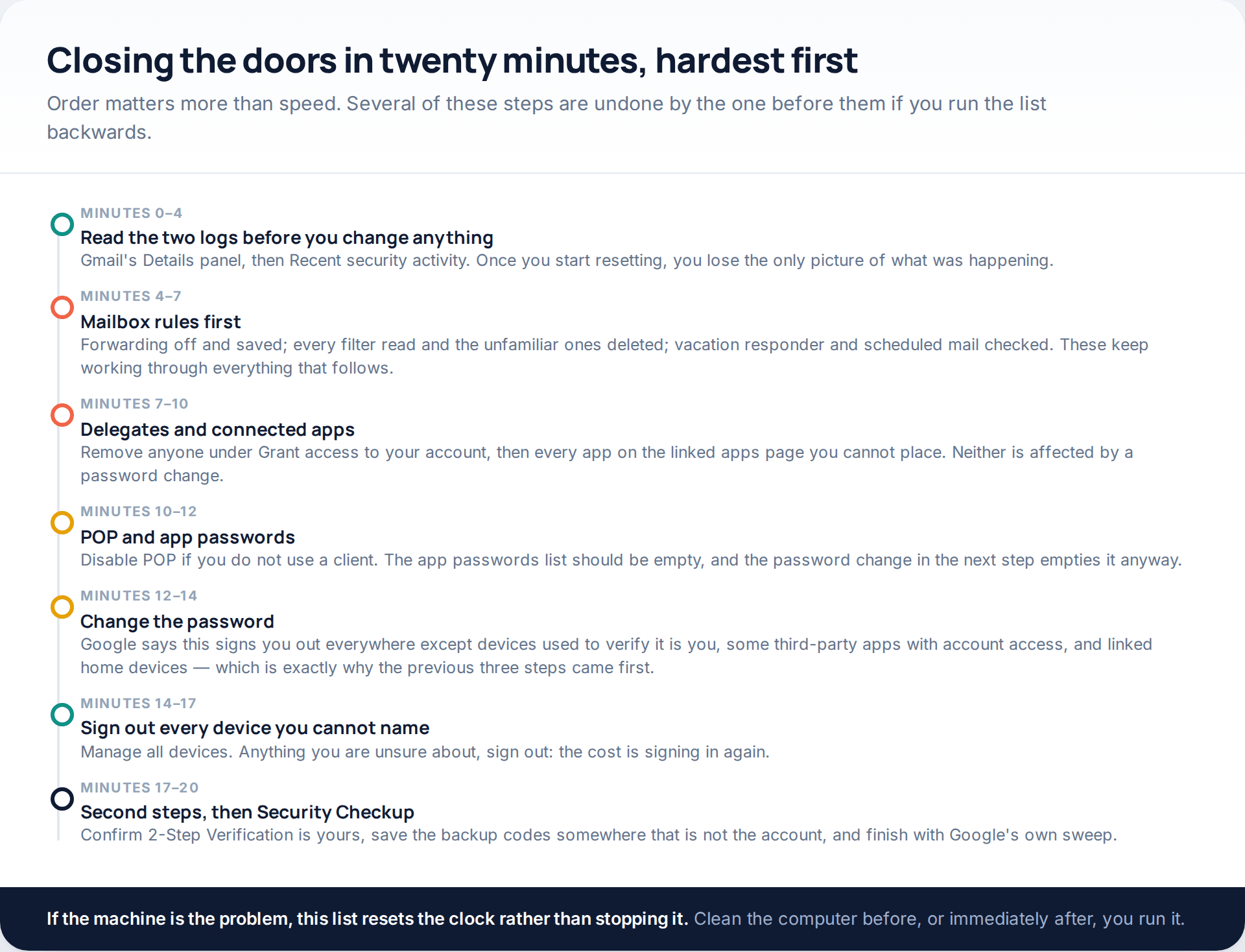
Two rules make this work. Read before you reset — once you start changing settings, the logs stop telling you what happened. And clear the things a password change cannot touch before you change the password, not after, because those are the routes that otherwise stay open while you congratulate yourself.
If you would rather follow a general version of this sequence that is not specific to Gmail, we have written one up in the order to secure an account after someone else has been in it.
What closing all seven does not fix
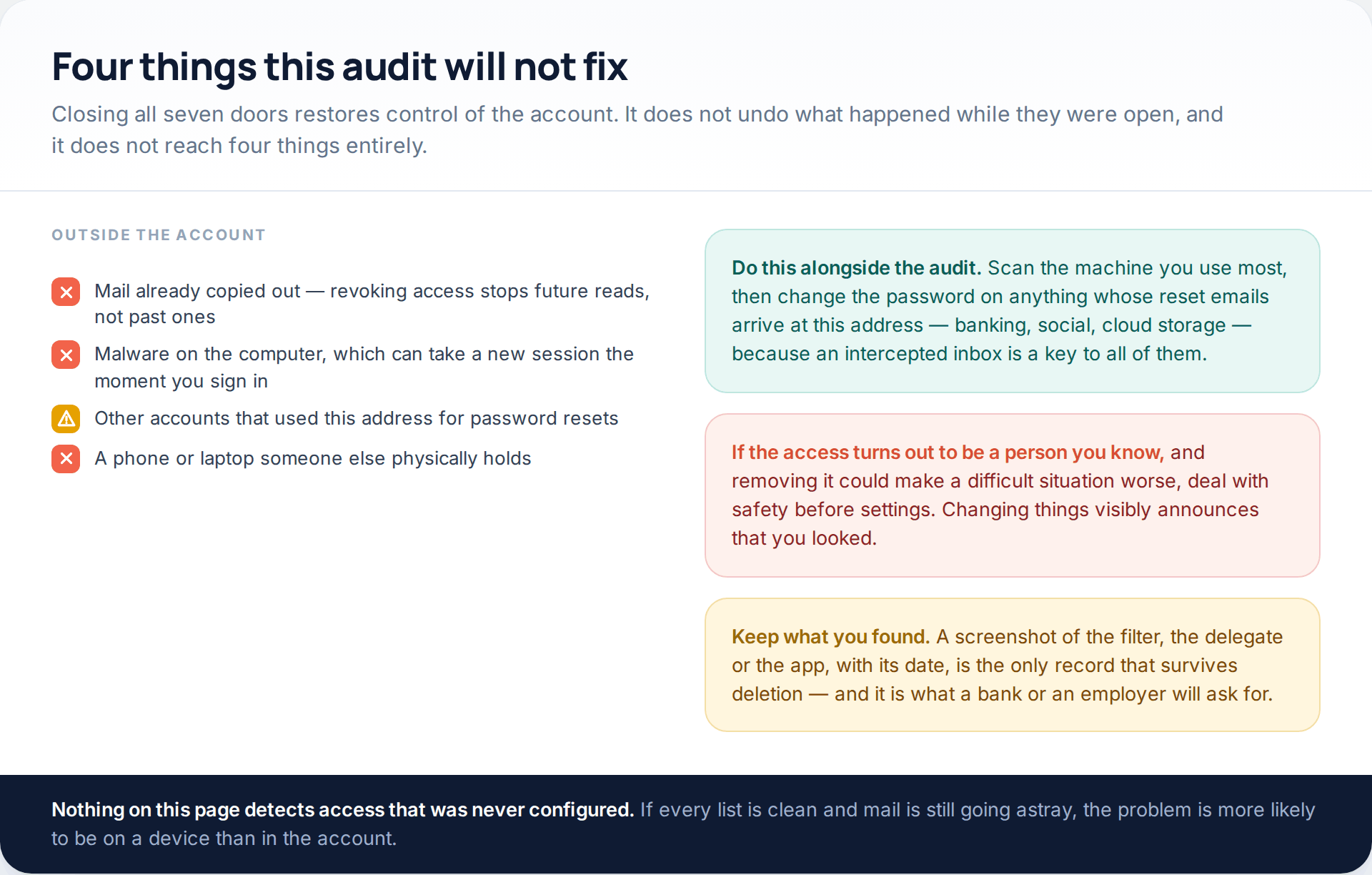
Revoking access stops future reads; it does not retrieve what was copied. And the most common reason an account is taken twice is that the audit was done perfectly on a computer that was still infected.
How this page was put together
Every path, label, limit and date here was checked in October 2026 against Google’s own documentation: the Gmail help pages for delegation, forwarding, filters and the activity Details panel; the Google Account pages for devices, third-party access, app passwords and the sign-out exceptions on a password change; Google Workspace’s September 2024 announcement about less secure app access; the Workspace admin guidance on a user’s security settings; the Google Vault overview; and Google’s own April 2026 post on Device Bound Session Credentials for the cookie-theft description.
Labels move constantly in these products — the Google Account panel appears as both “Security” and “Security and sign-in” in current help pages, and the third-party access list has had three names — so treat the wording here as a guide to the right screen rather than an exact transcript, and search the settings page for the same word if something is not where we say. We have quoted no statistics about how often each route is used, because Google publishes none and the figures circulating elsewhere are unsourced. We did not test any of this against a compromised account.
Common questions
Can someone read my Gmail without knowing my password?
Yes, through any of the routes on this page — a copied session, a connected app, a delegate, a mail client, a forwarding rule, a signed-in device, or an administrator on a work account. None of them involves discovering the password, and six of the seven keep working after you change it.
I changed my password. Am I safe now?
Partly. Google says a password change signs you out everywhere except devices used to verify it is you, some third-party apps with account access, and linked home devices — and it does nothing at all to forwarding, filters or delegation, which live in Gmail rather than in the Google Account.
How do I tell a mail client apart from someone reading my mail?
Open Details at the bottom right of Gmail on the web. It labels the access type as a browser, a device or a mail server such as POP or IMAP. A mail-server entry you cannot account for is a client with stored credentials; a browser entry from somewhere unexpected is a session.
Does Gmail notify me when a filter or forwarding is set up?
Not reliably, and not in a way you should depend on. Google sends security alerts for some changes, but a filter created from inside an already-signed-in session can be unremarkable. Reading the rules is the only dependable check.
Can I see what someone read while they had access?
No. Gmail keeps a record of access, not of individual messages opened. The activity panel shows ten IP addresses and the type of access; it does not log which conversations were viewed, so the honest answer is to assume everything in the mailbox was readable.
My work account is managed. Can my employer read my email?
An administrator can reset your password and, where the organisation licenses Google Vault, search and export messages. That is a feature of Google Workspace, not a compromise. What it may be used for is governed by your employer’s policy and by local law, and you can ask to see the policy.
Is there software that gets into a Gmail account with no password?
No. Everything described here is access someone configured, or a session stolen from an infected machine by ordinary malware. Downloads advertising password-free entry to an arbitrary account are, in practice, how the person downloading them loses their own.
Using a monitoring app for this? GuestSpy is parental monitoring for Android that stays visible on the child's phone and runs from any browser. If it fits your family, see what the app does.
Related guides
5 Best Security and Network-Testing Apps for Android (Rooted and Not)
The useful security apps for Android are not the ones with “hack” in the title. They are a network scanner,…
Gmail Password Compromised? Four Recovery Routes Google Accepts
If your Gmail password was hacked, there are four routes back and the one that is open to you depends…
Facebook Account Hacked? Every Free Route Back In
If your Facebook account was hacked, five routes lead back in and all of them are free: a device of…
Monitoring your child can see.
Location, screen-time budgets, routines, app and website blocking and the alerts that matter, run from any browser and visible on the phone. Pair an Android phone in about fifteen minutes.