Three Settings That Secure an Instagram Account in Ten Minutes

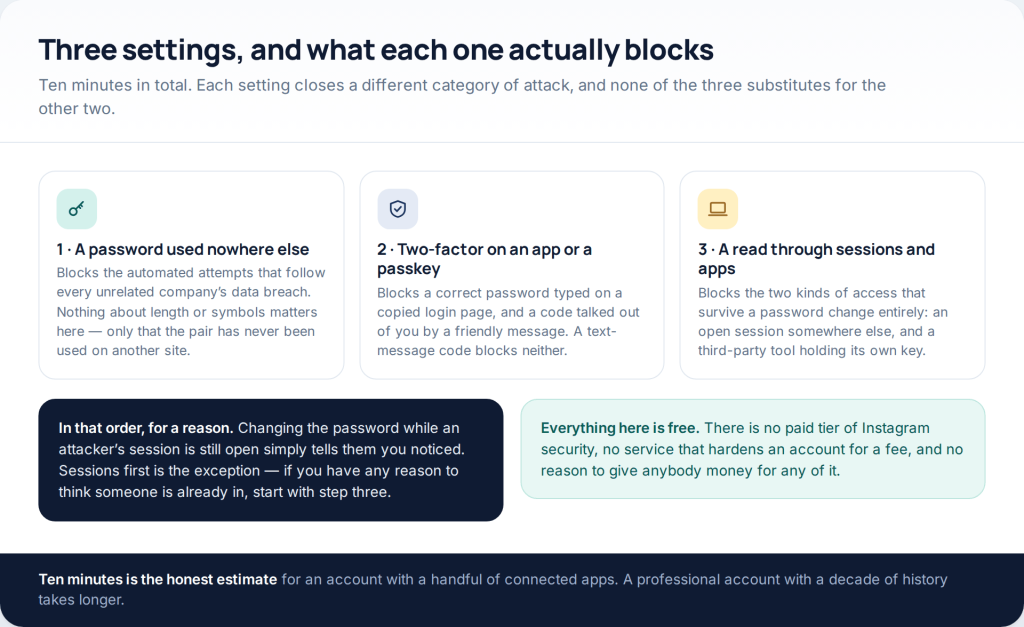
Three changes secure an Instagram account against almost everything that realistically happens to one: a password that has never been used on another site, two-factor authentication on an app or a passkey rather than a text message, and a single read through the list of open sessions and connected apps. Ten minutes, no cost, no third-party tool.
This page used to be called “3 ways to hack an Instagram account without surveys”. The survey was never the obstacle those pages implied — it was the product. A short section below explains the mechanics, because understanding them is the quickest cure for ever typing a password into one. The rest of the page is the defensive version.
The three settings, and what each one blocks
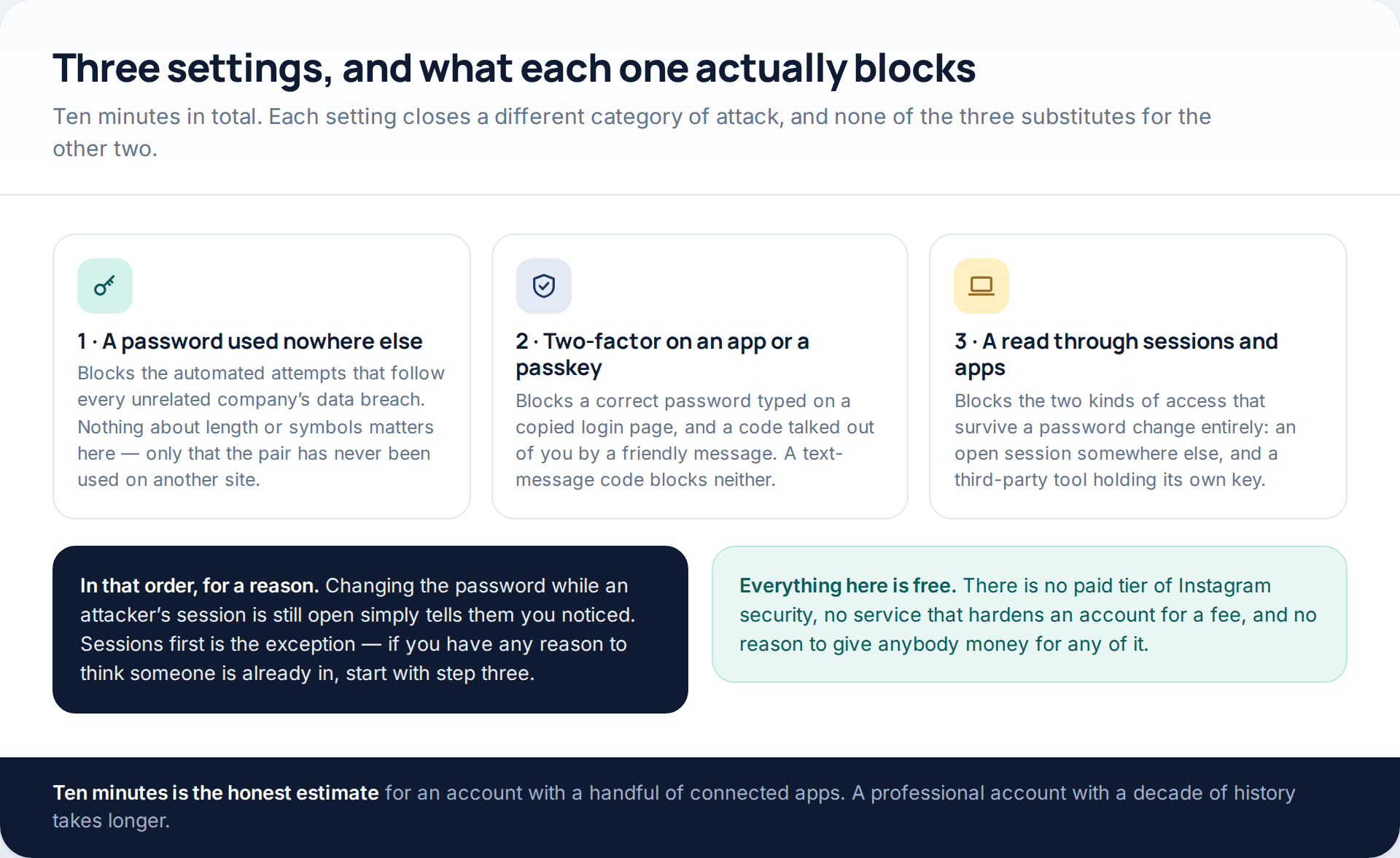
It is worth being clear about why these three and not others. A unique password blocks the automated attempts that follow every unrelated company’s data breach, which is the quietest and probably the commonest route into a personal account. Two-factor on an app or a passkey blocks a correct password being used on a copied login page, and blocks a code being talked out of you. The audit blocks the two kinds of access that survive a password change entirely: a session someone else already has open, and a third-party tool holding its own independent key.
Everything else — a longer password, a changed username, a private account — is either a smaller version of one of these or addresses a different problem altogether.
What the “no survey” pages were actually running
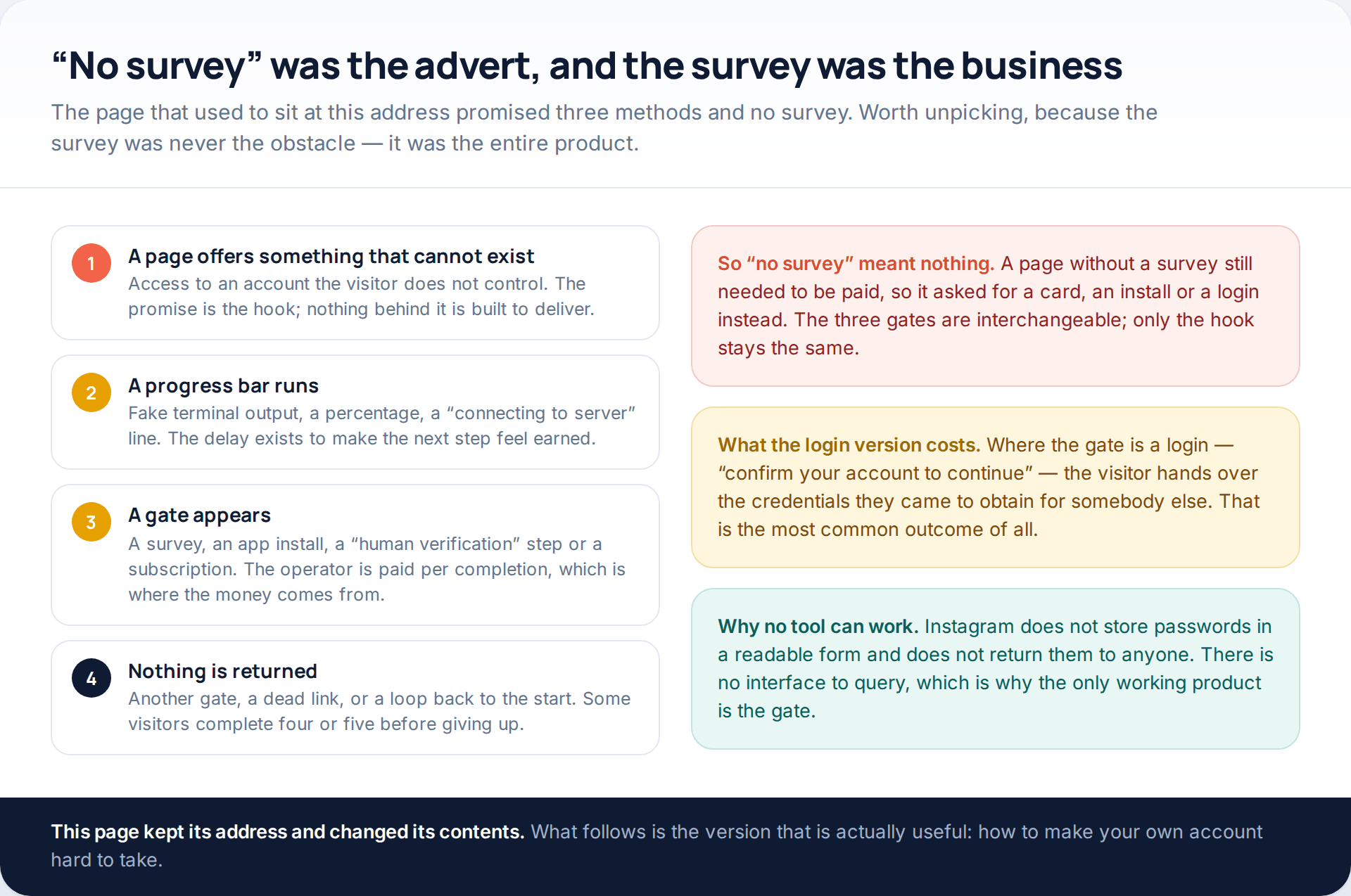
The structure was always the same. A page promises access to an account the visitor does not control. A progress animation runs for long enough to feel like work. Then a gate appears: a survey, an app install, a “human verification” step, a subscription. The operator is paid for each completion, which is where the money comes from, and then nothing is returned — another gate, a dead link, or a loop back to the beginning.
So “no survey” meant very little. A page that did not run a survey still had to be paid for somehow, so it asked for a card, an install or a login instead. Where the gate was a login — “confirm your own account to continue” — the visitor handed over exactly the kind of credentials they had arrived hoping to obtain for somebody else. That is the most common outcome of the entire genre.
None of it could have worked anyway. Instagram does not store passwords in a form anyone can read back, and offers no way to ask for one. There is no interface to query, which is why the gate is the only functioning part of the machine.
Setting one: a password used nowhere else
The property that matters is uniqueness, not complexity. A twenty-character passphrase leaked by a hotel booking site protects you no better than something obvious, because it is already in the file being tried against every major service. A short, unremarkable password that exists on exactly one account is in no file at all.
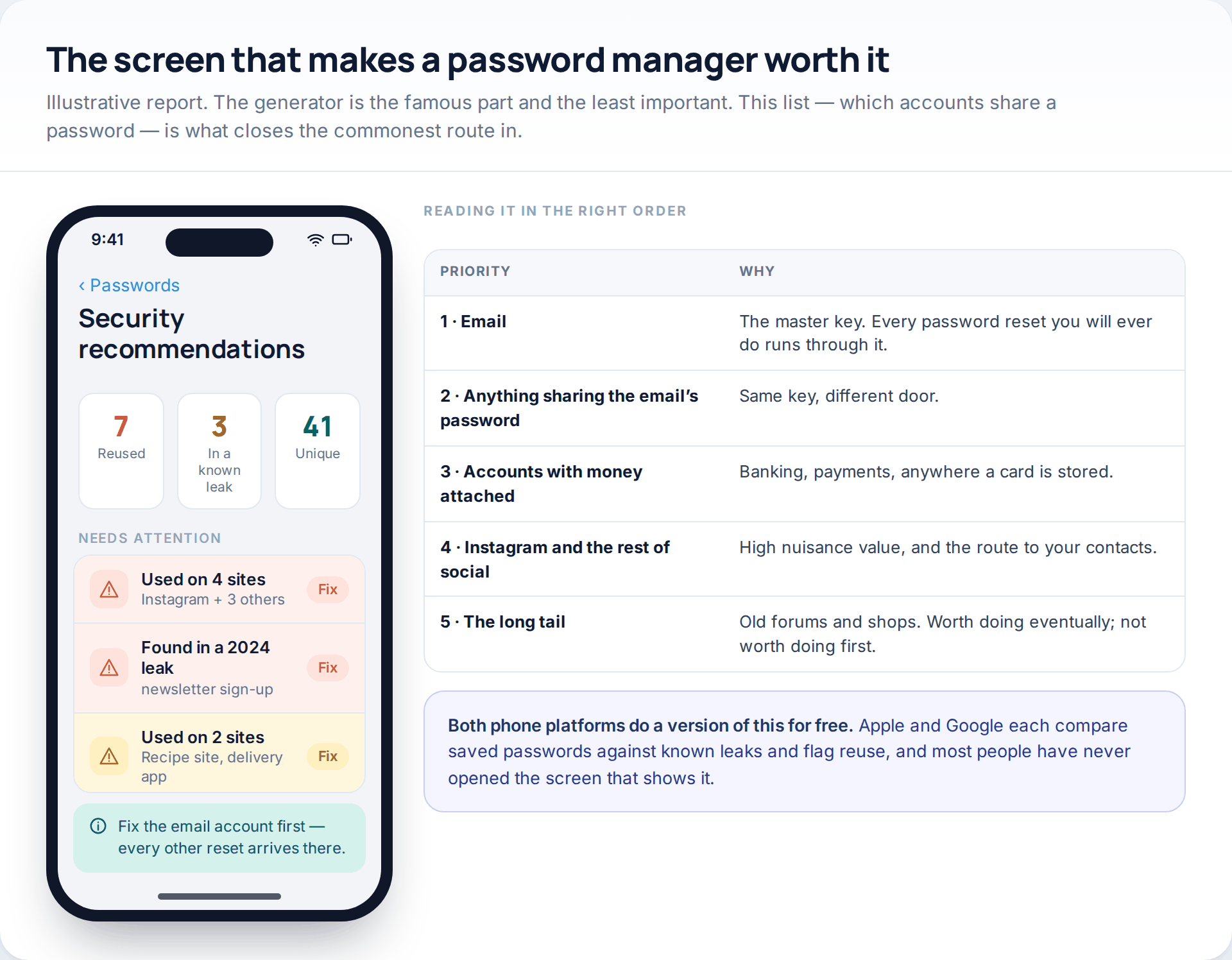
Which is why a password manager earns its place through its audit screen rather than its generator. The list of accounts currently sharing a password is information you cannot get any other way, and it is almost always longer than people expect. Both phone platforms do a free version of this: Apple and Google each compare your saved passwords against known leaks and flag reuse.
Fix in priority order. Email first, because every reset you will ever do arrives there. Then anything sharing the email’s password. Then accounts with money attached. Then Instagram and the rest of social. The long tail of old forums can wait — doing it first is how people run out of patience before reaching the account that mattered.
Setting two: two-factor, and which kind
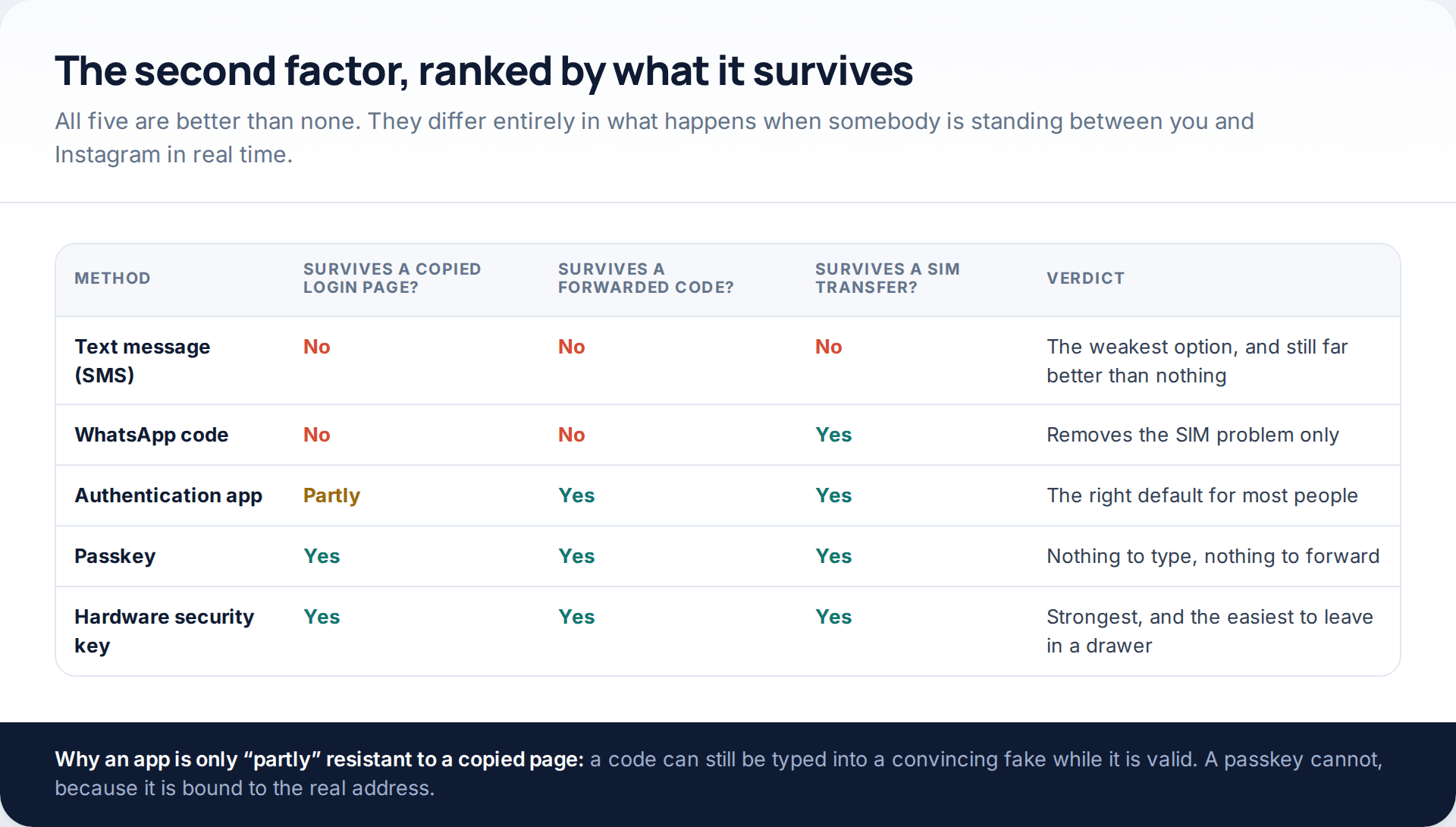
Instagram offers a text message, a WhatsApp message or an authentication app, and Meta has been extending passkey sign-in across its apps since 2025, so a passkey option may or may not appear on your build yet. The order of preference is the reverse of the order of convenience.
Text message is the weakest, and still much better than nothing. It fails in three distinct ways: the code can be typed into a copied login page while it is valid, it can be forwarded by someone who talks you into it, and it can be delivered to somebody else entirely after a SIM transfer. The US Federal Trade Commission’s advice on SIM swap scams specifically recommends moving off text codes for this reason.
An authentication app removes two of those three. Nothing is delivered anywhere, so there is nothing to intercept and nothing to forward. A code can still be typed into a convincing fake page while it is live, which is the one remaining gap.
A passkey closes that gap too, because it is bound to the real web address and simply will not offer itself on a copy. If your phone offers it, take it. A hardware security key is stronger still and, realistically, the one most people leave in a drawer.
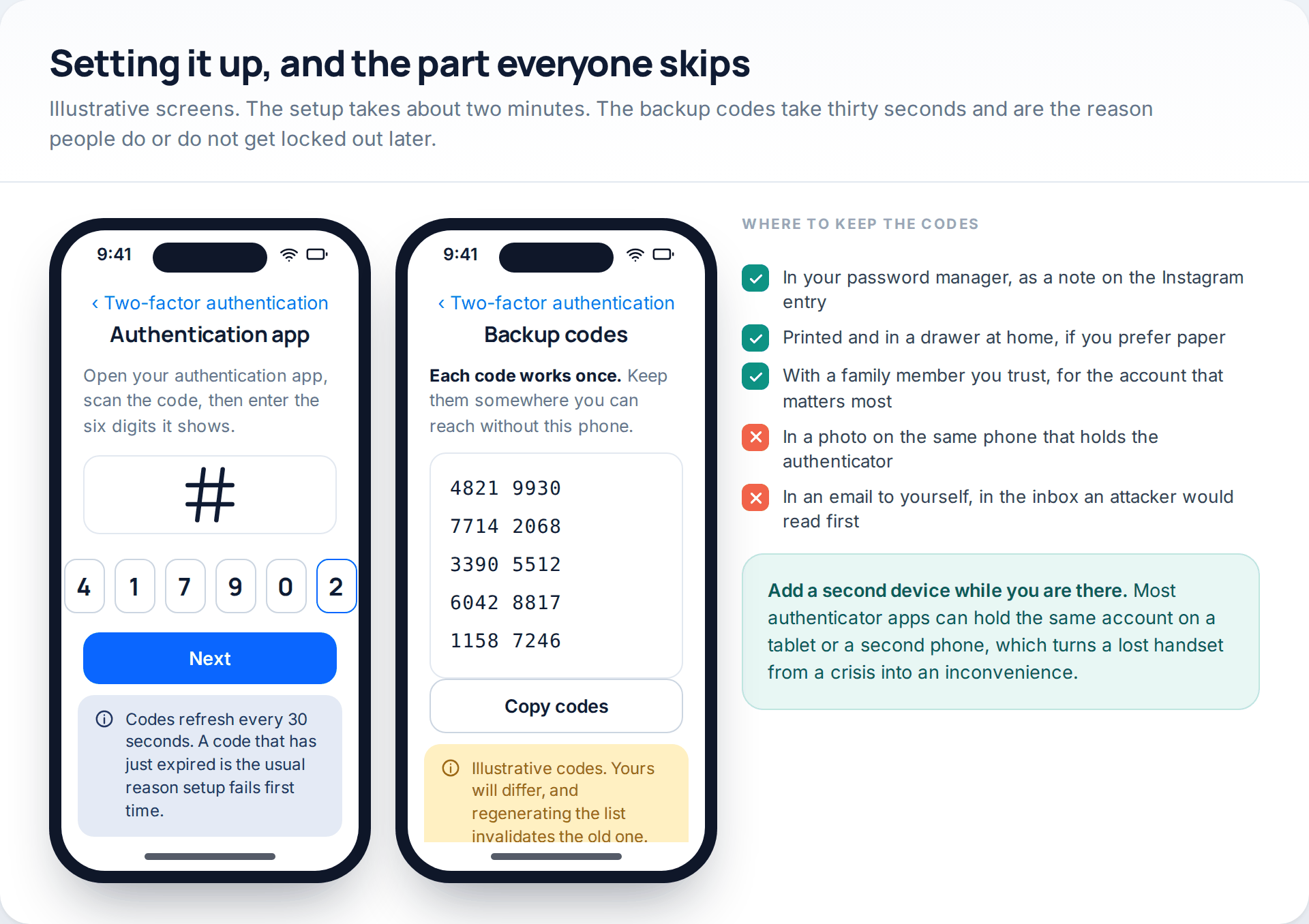
Save the backup codes. Each one works once, and they are the difference between a lost handset being an inconvenience and being a fortnight of identity checks. Put them in the password manager or on paper, not in a photo on the same phone and not in an email to yourself. While you are there, add the account to a second device if your authenticator supports it.
Setting three: the sessions and connected-apps audit
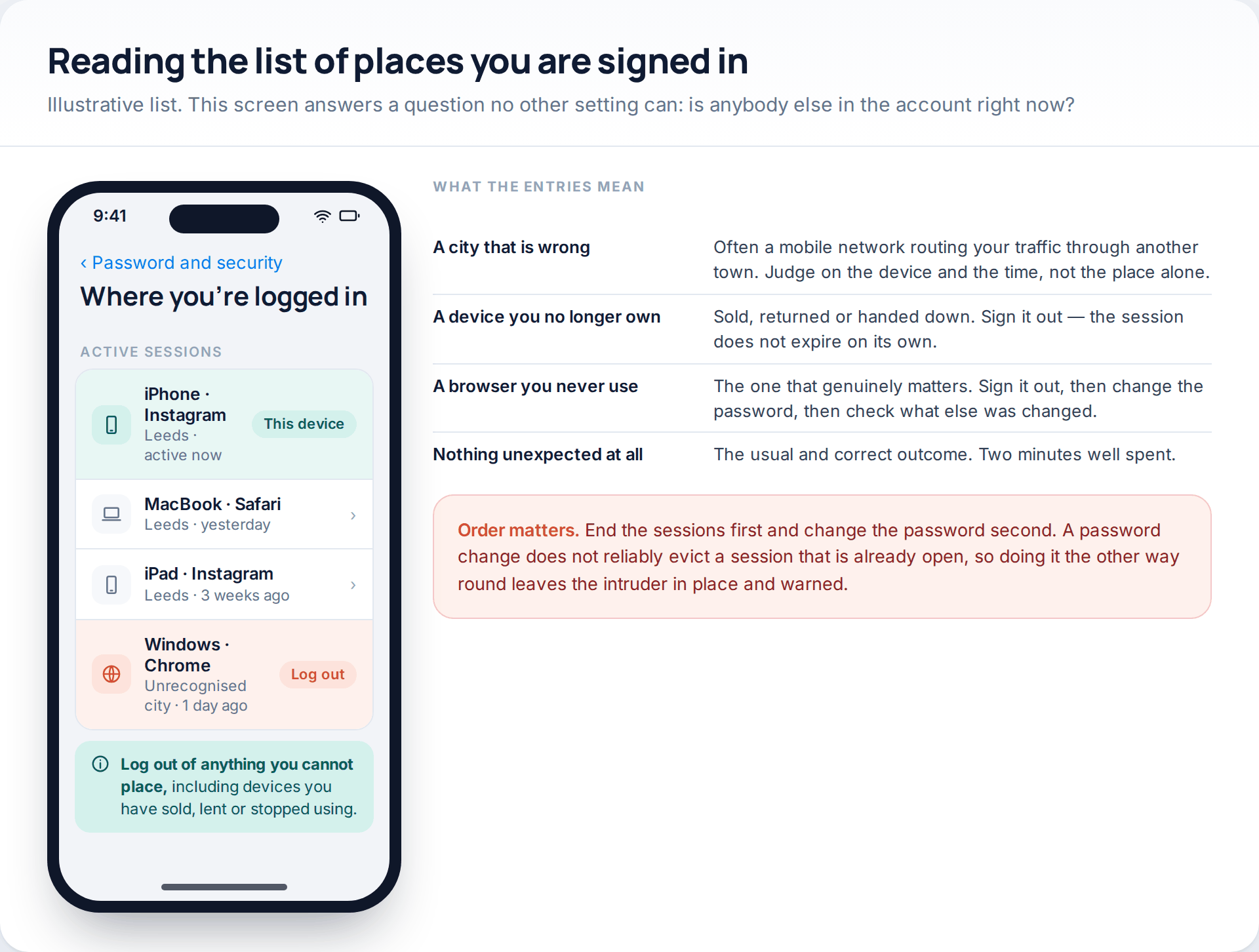
The sessions list is the only place Instagram will tell you, plainly, whether somebody else is signed in. Read it on device and time rather than on city — mobile networks route traffic through odd places and a wrong town on your own phone means very little. A device you sold last year, or a browser you have never used, means a great deal.
If you end up removing something unfamiliar, change the order of operations: end the session first, then change the password, then check what else was altered while they had access. Doing it the other way round leaves the session alive and tells the other person you have noticed.
Then the connected-apps list, which is the half everybody forgets. Scheduling tools, analytics dashboards, print shops and follower trackers hold access granted separately from your password, and changing the password does not revoke it. Remove anything you cannot place; a service you still use will simply ask again next time you open it. The full set of routes that bypass a password is covered in how accounts fall without the password being guessed.
Where all of this lives in 2026
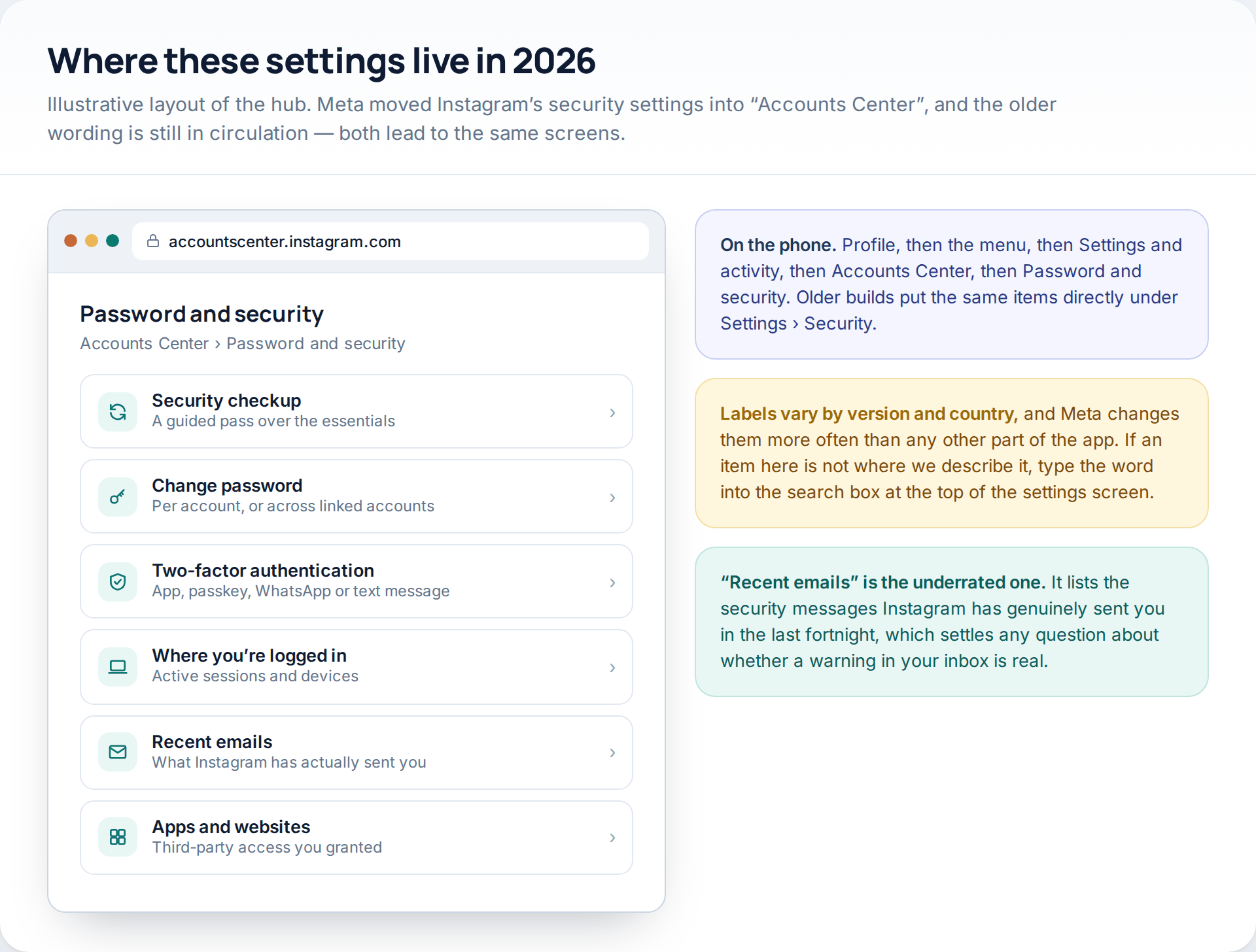
On the phone: your profile, the menu, Settings and activity, Accounts Center, then Password and security. Older builds still put the same items directly under Settings and then Security, and both routes end in the same place. On the web, Accounts Center is reachable from the settings menu on instagram.com.
One item there deserves more attention than it gets. The list of recent emails Instagram has sent you settles, in two seconds, whether a security warning sitting in your inbox is genuine. If it is not in that list, Instagram did not send it.
Security Checkup and login alerts
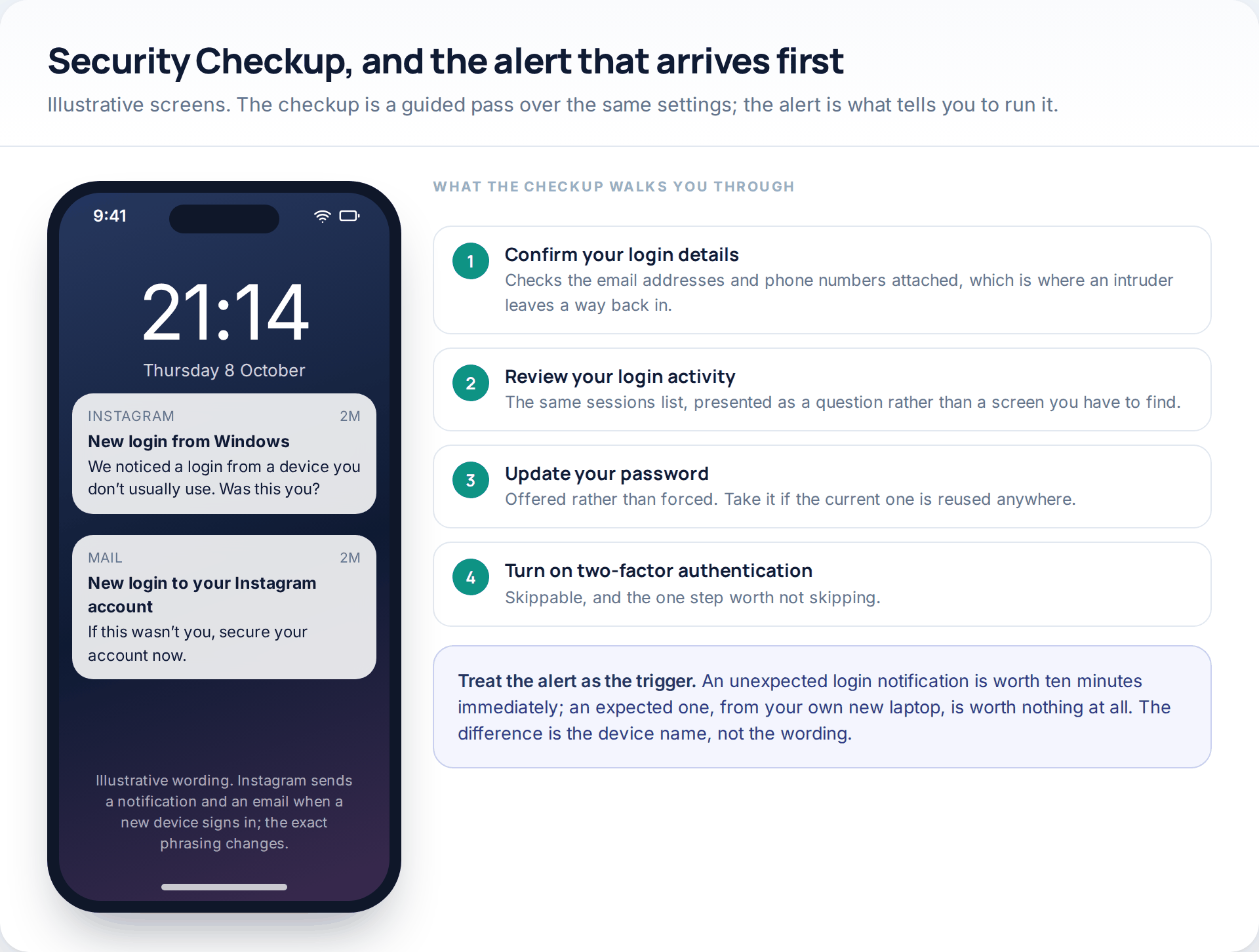
Security Checkup is a guided pass over the same settings, which is useful if you would rather answer questions than hunt through menus. It walks through the contact details on the account, the login activity, the password and two-factor, and it is the fastest way to do this on behalf of a parent or a teenager sitting next to you.
Login alerts are sent by default: Instagram raises a notification and an email when a new device signs in. The useful discipline is to actually read the device name. An alert that names a laptop you bought yesterday is noise. An alert naming a platform you do not own is the one moment where ten minutes spent immediately is worth more than any setting.
The run, timed
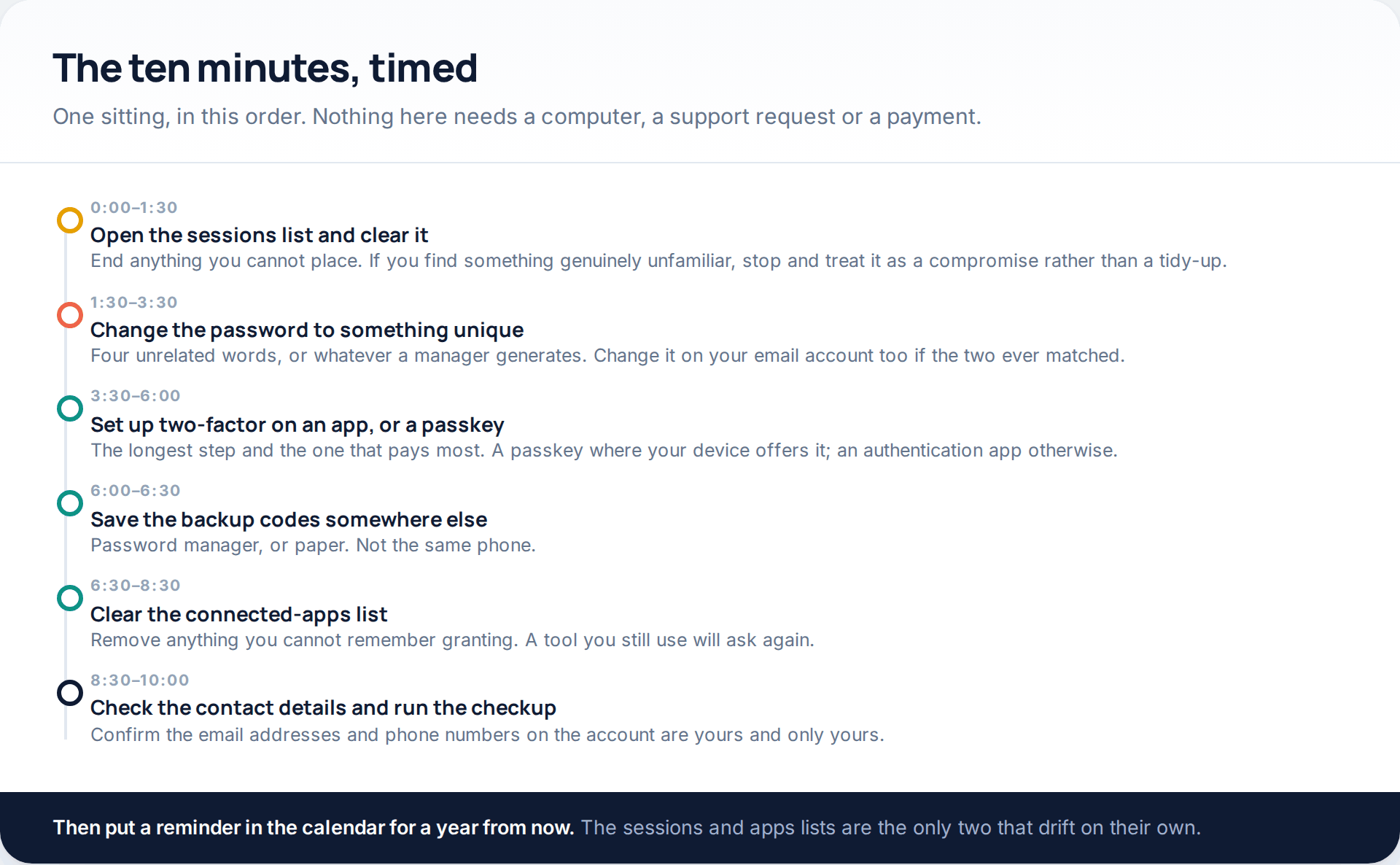
Do them in this sequence and nothing has to be repeated. The only variation is if the sessions list turns up something genuinely unfamiliar at step one — in that case this stops being maintenance and becomes a recovery, which has its own order of operations in our guide to securing an account after a compromise.
What ten minutes does not buy
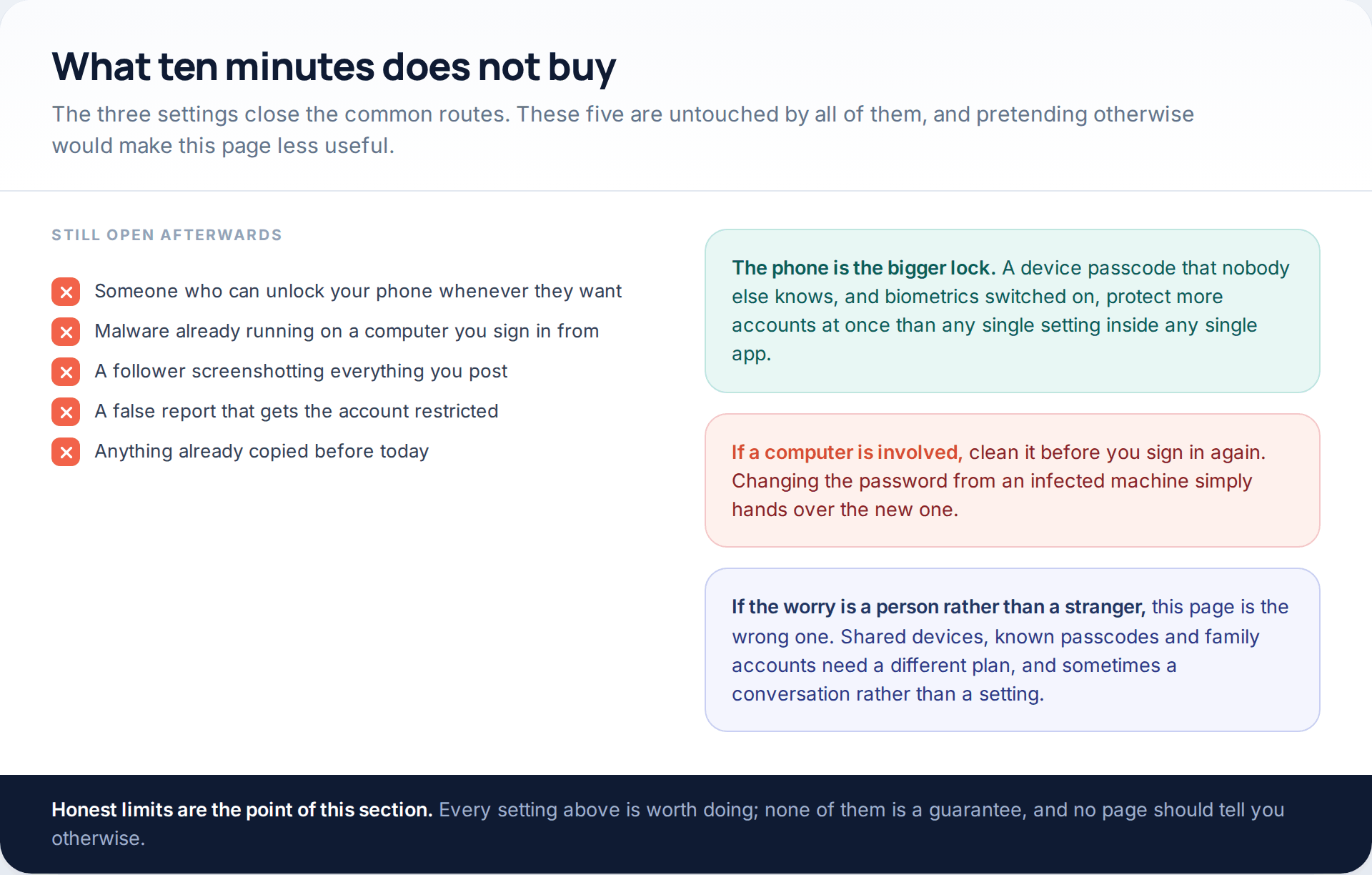
Three in particular. Somebody who can unlock your phone whenever they like does not need any of the routes these settings close — the device passcode is the bigger lock, and it protects every account at once. Malware already running on a computer you sign in from will collect the new password as readily as the old one, so clean the machine before you use it again. And a follower screenshotting your posts is not a security problem at all; what a private account does and does not hide is covered in what strangers can still see of a private account.
How this page was put together
The settings, paths and method names here were checked in October 2026 against the current Instagram app and against Meta’s published help material on two-factor authentication, login activity and Accounts Center. The two-factor comparison reflects the methods Instagram currently offers — text message, WhatsApp and an authentication app — plus passkeys, which Meta began rolling out across its apps during 2025 and which appear on some accounts and not others. The point about moving away from text codes follows the US Federal Trade Commission’s consumer guidance on SIM swap scams.
We have put no numbers on how much each setting reduces risk. Vendors publish such figures routinely; they come from different populations, measure different things and are not comparable, so quoting them would add authority without adding accuracy. The ten-minute estimate is our own and assumes a personal account with a handful of connected apps — a professional account with a decade of history and a linked Facebook Page will take longer.
We did not test, visit or name any “hack without surveys” site. The description of how those pages work comes from how security researchers and consumer bodies have documented the pattern, and the mechanism has been stable long enough that naming individual domains would be pointless: they are rebuilt constantly.
Common questions
Which two-factor method should I choose on Instagram?
A passkey if your device offers one, an authentication app otherwise. Use a text message only if neither is possible — it is the weakest of the options because the code can be phished, forwarded or redirected after a SIM transfer.
What happens if I lose the phone with my authenticator on it?
You use a backup code, which is why saving them matters. Failing that, a device still signed in lets you remove and re-add the method, and failing that you are into Instagram’s identity-verification route, which takes days rather than minutes.
Does changing my password log everyone else out?
Not reliably. Sessions often survive a password change, which is why the sessions list comes first in the order above. End them explicitly rather than assuming.
Is a password manager safe to trust with everything?
It concentrates risk in one place, and it removes a much larger risk — reuse across dozens of sites. For almost everyone that is a clearly favourable trade. Protect the manager itself with a long unique passphrase and its own second factor.
How often should I repeat this?
The password and two-factor are set-and-forget. The sessions and connected-apps lists drift on their own, so once a year is a sensible rhythm, plus immediately after any login alert you cannot explain.
Should I remove my phone number from the account?
Remove it as a two-factor method once you have an app or a passkey. Leaving it attached as a contact detail is still useful, because it gives Instagram something to match against if you ever need to prove the account is yours.
Does any of this help if my account has already been taken?
Only afterwards. While an attacker is in control the relevant work is recovery, and these three settings are what you apply the moment you are back in, in the order given above.
Using a monitoring app for this? GuestSpy is parental monitoring for Android that stays visible on the child's phone and runs from any browser. If it fits your family, see the Text messages & social feature.
Related guides
5 Best Security and Network-Testing Apps for Android (Rooted and Not)
The useful security apps for Android are not the ones with “hack” in the title. They are a network scanner,…
Gmail Password Compromised? Four Recovery Routes Google Accepts
If your Gmail password was hacked, there are four routes back and the one that is open to you depends…
Facebook Account Hacked? Every Free Route Back In
If your Facebook account was hacked, five routes lead back in and all of them are free: a device of…
Monitoring your child can see.
Location, screen-time budgets, routines, app and website blocking and the alerts that matter, run from any browser and visible on the phone. Pair an Android phone in about fifteen minutes.