How to Block Adult Websites on Every Device at Home
No single setting blocks adult content everywhere. Here's the layer-by-layer setup — device, DNS, router, browser, console and TV — that between them actually does.
 By GuestSpy Editor · Founder and editorPublished September 11, 2026Updated September 14, 202611 min read
A filter switched on for one browser, on one phone, covers exactly that browser on that phone. It does nothing for the smart TV in the lounge, the games console upstairs, or the same phone the moment it switches from Wi-Fi to mobile data. Blocking adult content properly at home is not one setting — it’s four, stacked, each covering a gap the others leave open.
This is a technical setup guide. It covers where to find each setting, what it actually blocks, and — just as importantly — where each layer stops working, so you know what to add next rather than assuming one switch has solved it.
- The four layers, and why one alone isn’t enough
- Device-level filtering on iPhone
- Device-level filtering on Android
- DNS filtering: the whole-home layer
- Router-level settings
- Per-browser filtering
- Games consoles and smart TVs
- Why no filter is 100%, and what to pair it with
- Questions parents actually ask
The four layers, and why one alone isn’t enough
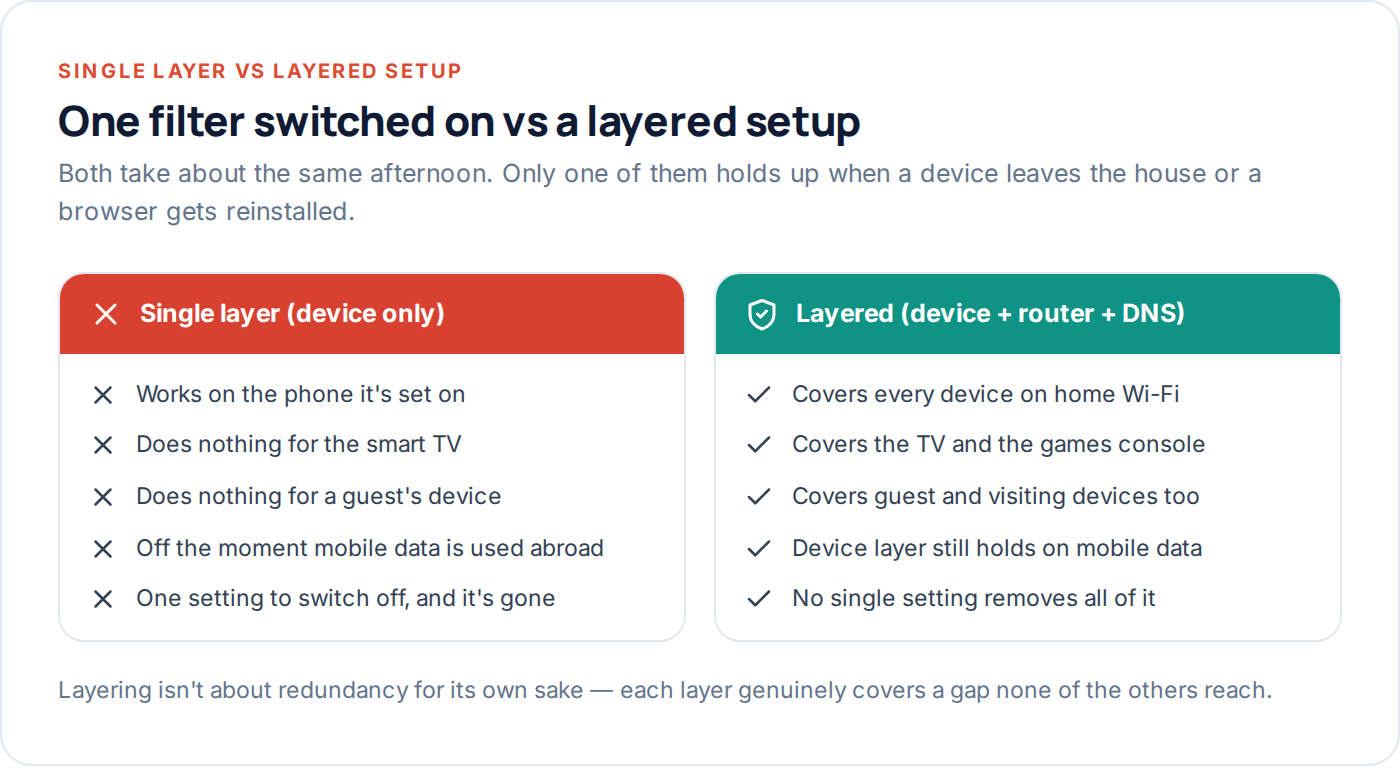
Content filtering sits at four possible checkpoints between a device and a website: the device itself, the home network (router and DNS), the browser, and — optionally — the internet provider. Each checkpoint sees traffic a different way, and each has a specific blind spot.
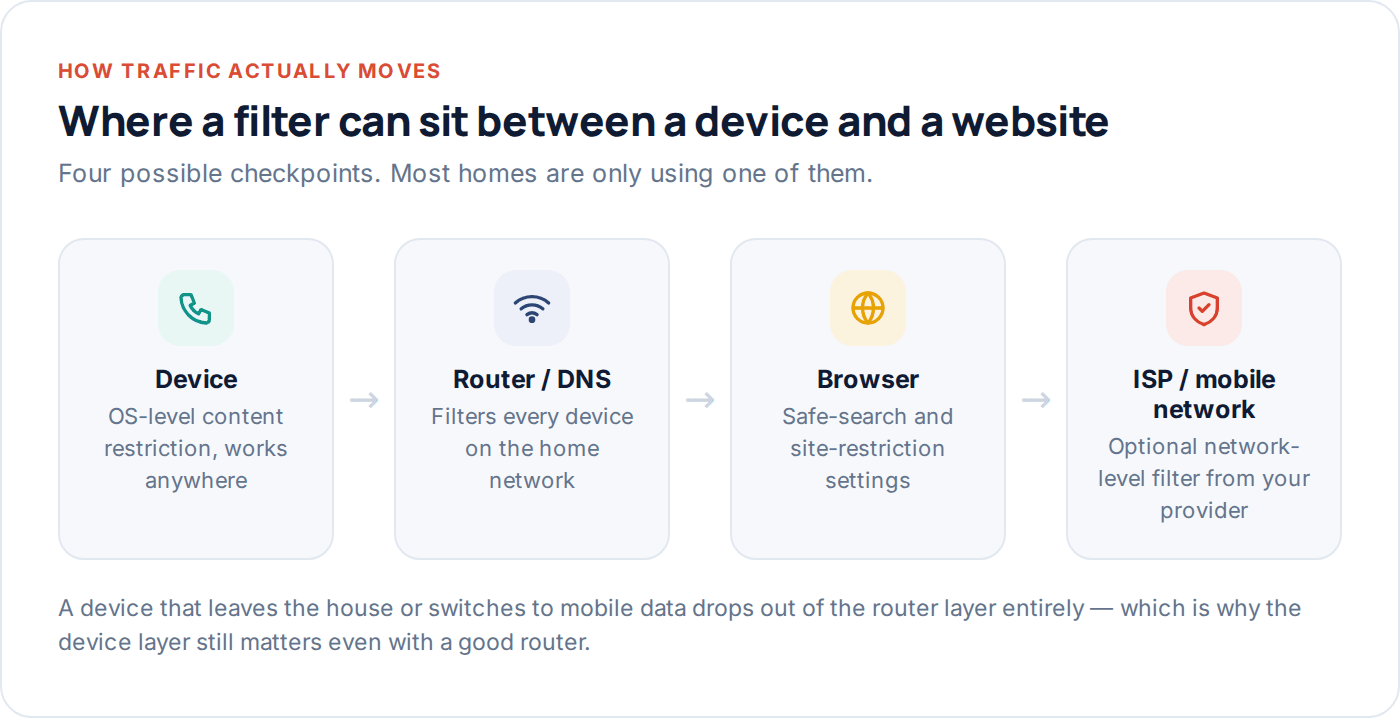
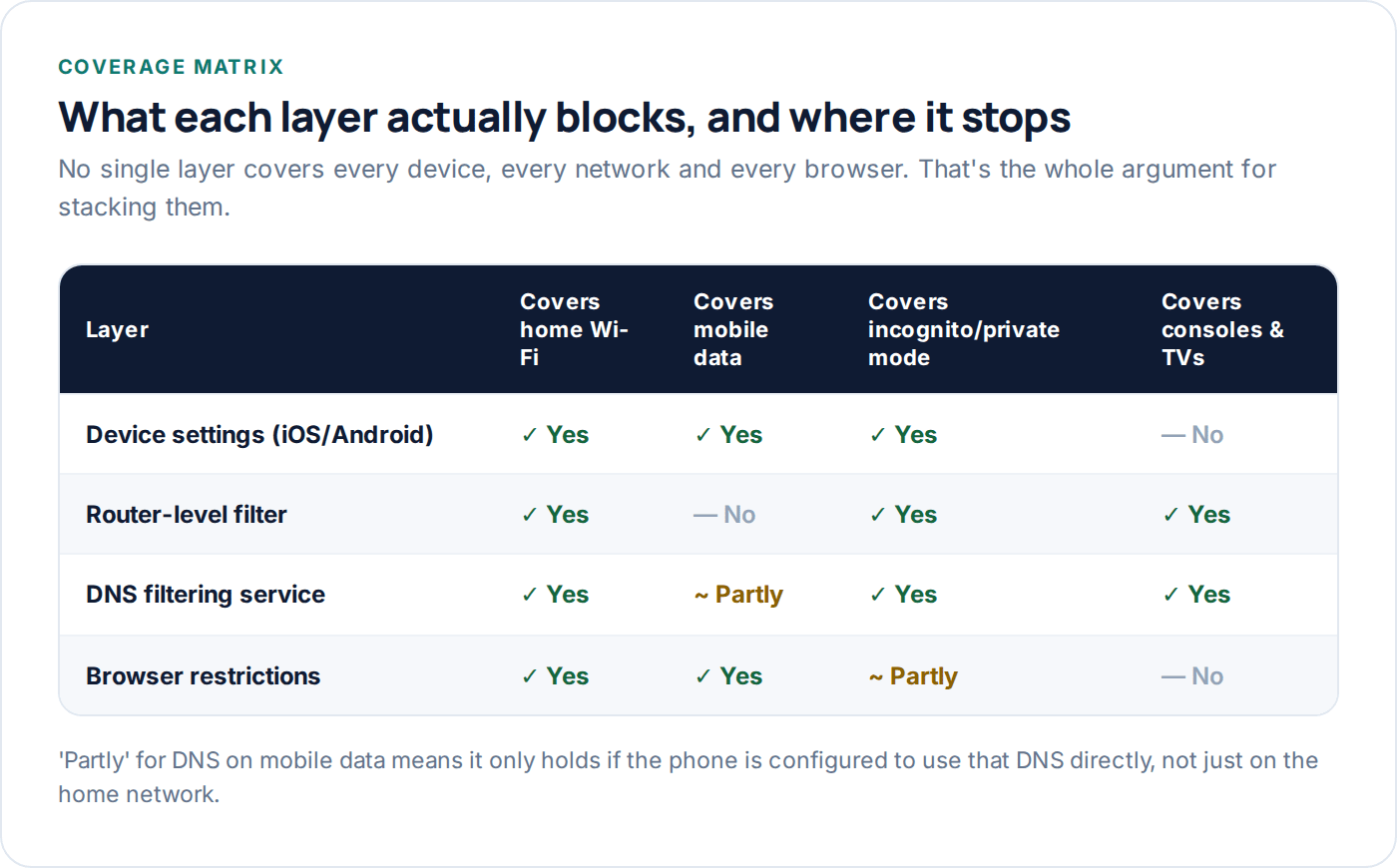
A device-level filter travels with the phone but has to be set up per device and does nothing for anything that isn’t a phone or tablet — a smart TV, say. A router or DNS filter covers every device on the home Wi-Fi at once, including devices with no filtering settings of their own, but stops working the second a device leaves the house or switches to mobile data. Understanding which gap each layer covers is what makes the difference between “we set up a filter” and “adult content is actually blocked.”
None of the four layers needs to be perfect on its own for the combination to work well. A device filter that misses a brand-new domain is backed up by a router filter that’s had time to update its list, and vice versa. Treat this as building redundancy into the system, the same way a house has both a lock on the front door and a lock on the windows — neither one is meant to be the whole plan by itself.
Device-level filtering on iPhone
On iOS, the relevant setting is Settings → Screen Time → Content & Privacy Restrictions → Web Content. Set it to “Limit Adult Websites.” This uses Apple’s own list of known adult domains and blocks them inside Safari and any browser using Apple’s underlying web engine.
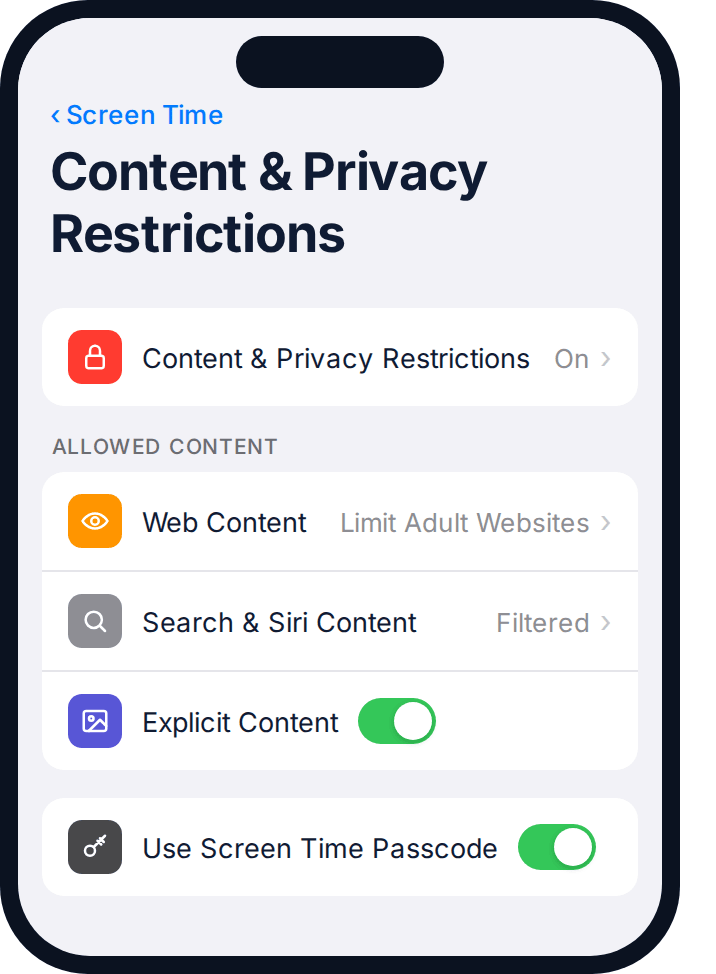
- Turn on Content & Privacy Restrictions if it isn’t already on.
- Set Web Content to “Limit Adult Websites.” There’s also an “Allowed Websites Only” mode, which is stricter — an allow-list rather than a block-list — and suits younger children better than teenagers who need to research things online.
- Set a Screen Time passcode different from the device passcode, or the whole restriction can be switched off in ten seconds.
- Check Search & Siri Content is also filtered — this stops explicit results surfacing through search or voice queries outside the browser.
The gap: this only filters Safari’s list-based blocking. A third-party browser that ignores Apple’s content restrictions, or an app with its own in-app browser, can sit outside this filter entirely. That gap is exactly what the router and DNS layers exist to close.
Device-level filtering on Android
Android’s equivalent lives in Google Family Link, under the supervised child’s Chrome and search settings, plus a device-wide content rating for app installs.
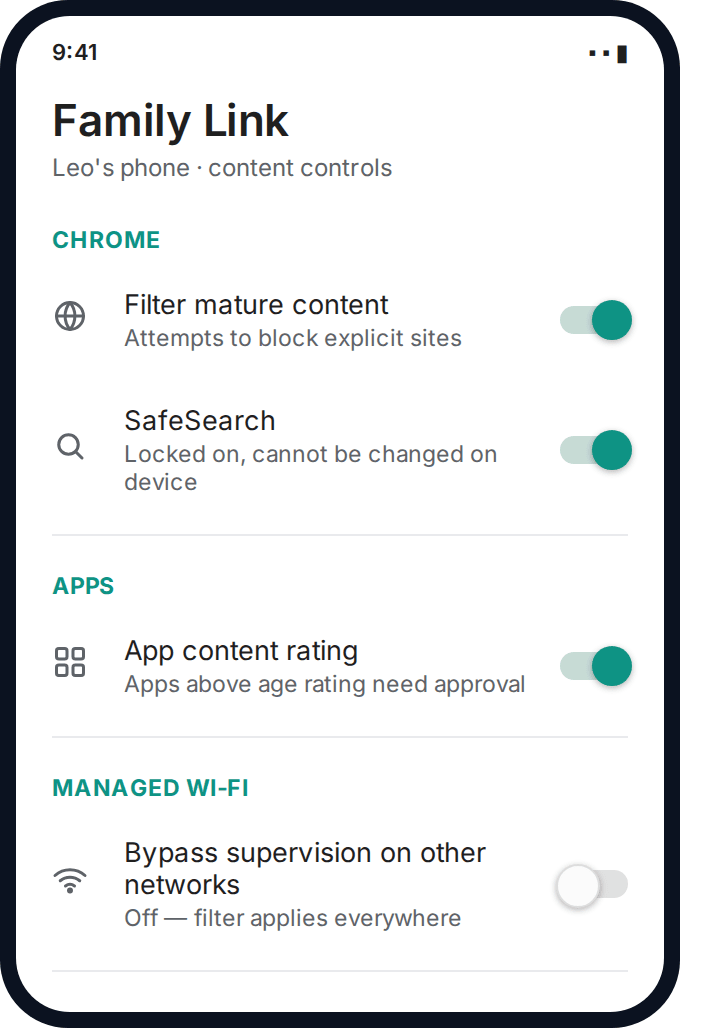
- Turn on “Filter mature content” in Chrome under Family Link’s Chrome controls.
- Lock SafeSearch on so it can’t be switched off from the device itself.
- Set an app content rating limit so apps above the chosen age rating need parental approval before installing.
- Check “bypass supervision on other networks” is off — some Android filtering can otherwise be configured to relax when off the home Wi-Fi, which defeats the point.
The gap: Chrome’s filter is list-based, same as Apple’s, so it doesn’t catch a brand-new domain the list hasn’t classified yet. It also only covers Chrome — a second browser installed from the Play Store with no restrictions of its own bypasses it completely unless app installs are also locked down.
DNS filtering: the whole-home layer
DNS is the system that turns a domain name into the address a device actually connects to. A filtering DNS service refuses to resolve known adult domains at all — the device never even reaches the site, regardless of which browser or app it used to try.
This is the layer most homes skip, and it’s also the one that covers the widest range of devices with the least effort, because it’s set once at the router and applies to everything connected to it — phones, tablets, laptops, consoles, smart TVs, a guest’s phone on the Wi-Fi.
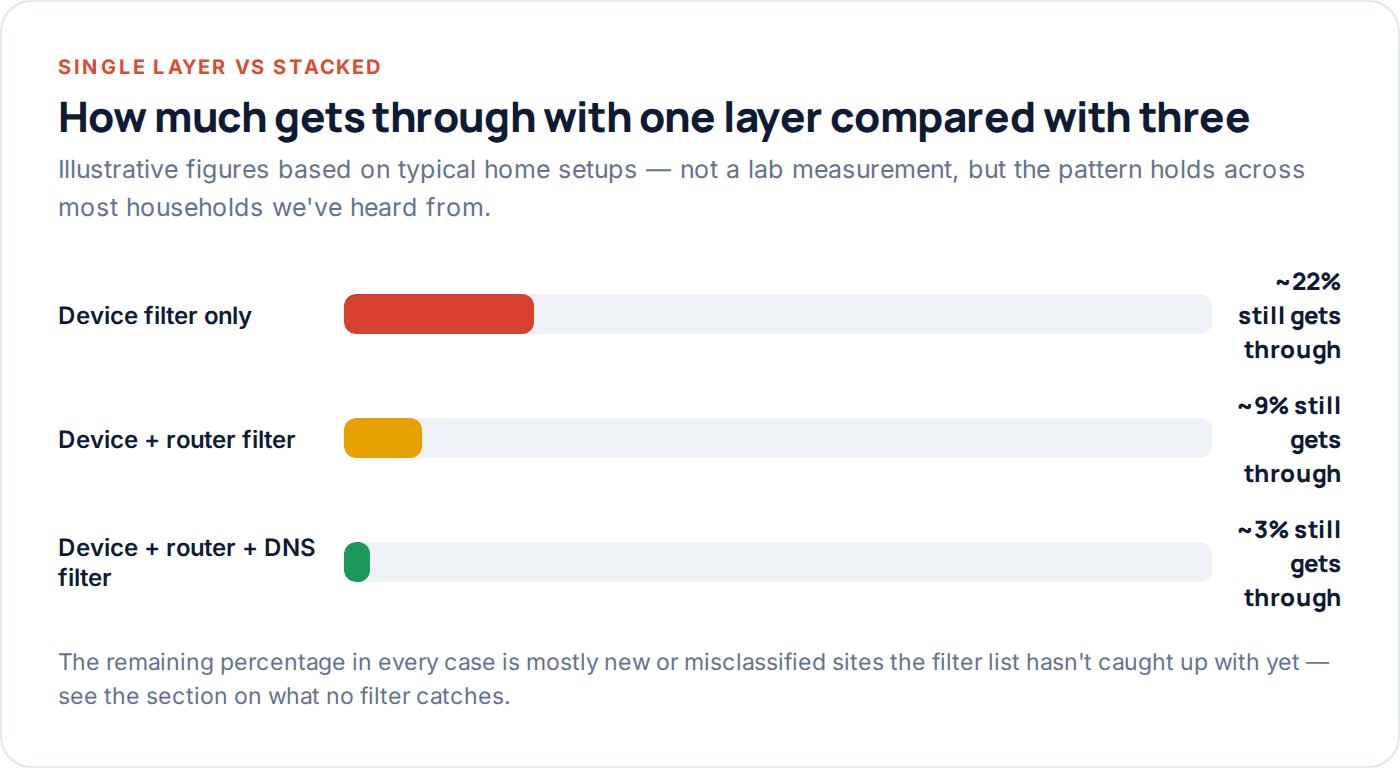
Setting it up means changing the DNS servers your router hands out to devices, either to a free filtering DNS provider’s addresses, or to your router manufacturer’s own built-in filtering option if it has one. Once set at the router, no individual device needs any configuration at all.
Some internet providers now offer a filtering option directly on their supplied router, sometimes under a name like “family protection” or “safe browsing” rather than DNS filtering explicitly — worth checking your provider’s own settings page before assuming you need a separate third-party service. Either route achieves the same outcome: filtering that applies at the network’s edge rather than needing to be repeated on every device.
Router-level settings
Most routers made in the last several years ship with some form of built-in content filtering, separate from DNS — often listed under Parental Controls, Content Filtering, or Security in the admin interface.
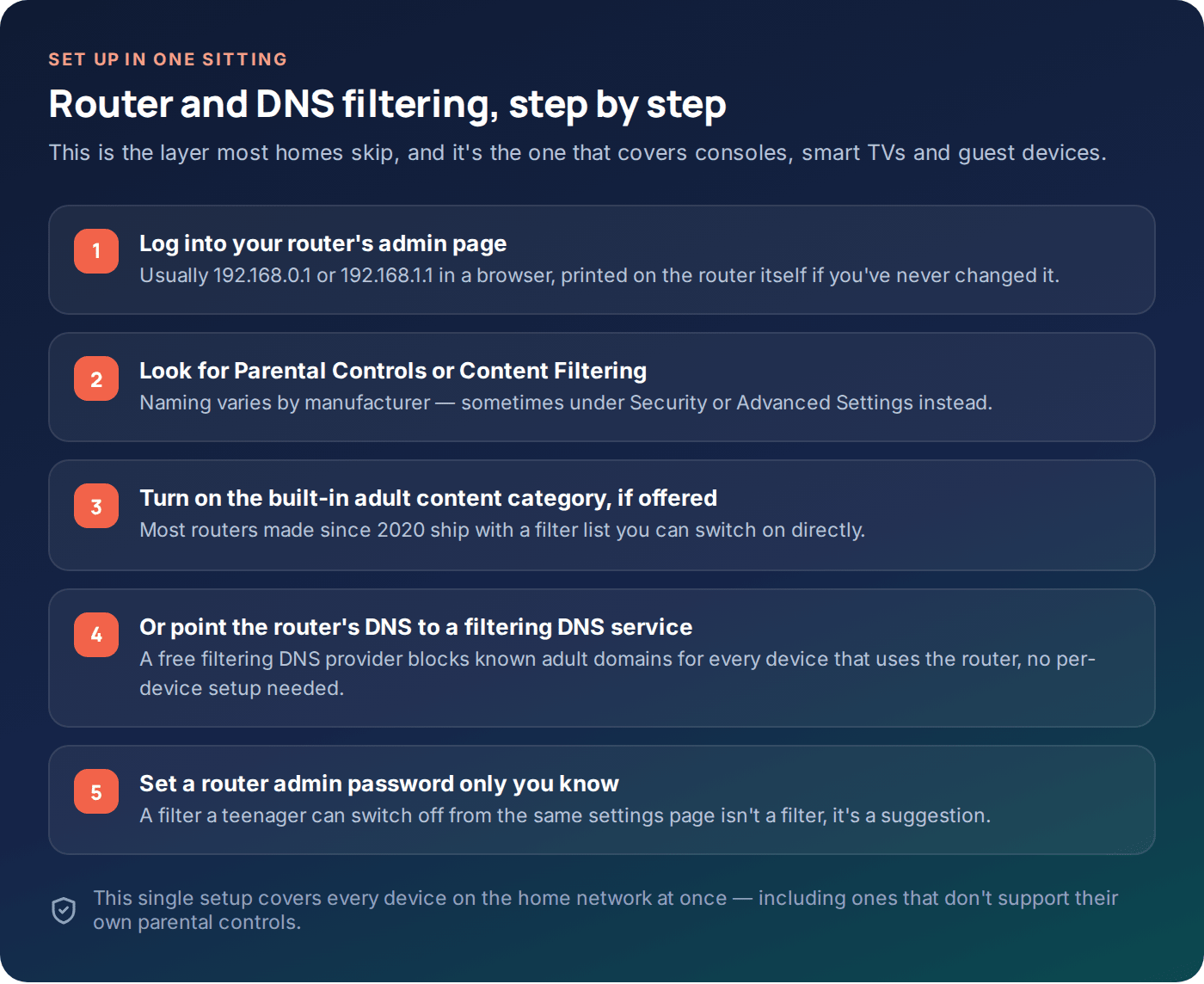
The setup is largely the same across manufacturers even though the exact menu names differ:
| Step | What you’re doing | Where it usually lives |
|---|---|---|
| 1 | Log into the router’s admin page | A browser, at the router’s local IP address — often printed on the device |
| 2 | Find the filtering or parental controls section | Sometimes under “Security,” sometimes “Advanced” |
| 3 | Enable the adult content category | Often a single toggle if the router has a built-in list |
| 4 | Or set the router’s DNS to a filtering provider | Under WAN or Internet settings, replacing the default DNS addresses |
| 5 | Set an admin password only the parent knows | Router login settings — this protects every other step |
The gap: router filtering only applies to devices connected to that specific router. A phone on mobile data, or connected to a neighbour’s or a friend’s Wi-Fi, drops out of this layer entirely — which is exactly why the device-level layer above still matters even with a well-configured router.
Per-browser filtering
Beyond the OS-level restriction, most browsers have their own settings worth checking independently, since a determined user can sometimes switch default browsers to sidestep an OS-level filter that isn’t fully enforced.
Chrome
Managed accounts under Family Link enforce SafeSearch and site restrictions at the account level, which follows the child’s Google sign-in across devices, not just one phone.
Safari
Controlled entirely through iOS Screen Time’s Web Content setting — there’s no separate in-browser toggle, which is actually simpler to manage than it sounds.
Any other browser
Check whether it respects the OS-level restriction. If not, either restrict app installs so it can’t be added, or block it directly by name under app limits.
Games consoles and smart TVs
Consoles and smart TVs rarely have meaningful content filtering of their own beyond age ratings for games and streaming apps — which is precisely why the router and DNS layers matter here. Neither device type supports installing supervision software, so network-level filtering is the only layer that reaches them at all.
Most consoles do have a separate “family settings” or “parental controls” menu worth setting up in parallel — mainly for purchase restrictions and communication with other players, rather than web filtering, since most consoles have no general-purpose browser worth restricting in the first place. Smart TVs with a built-in browser or streaming search function are the exception, and if yours has one, check its own settings menu for a content restriction option before relying on the network layer alone.
Streaming apps installed on a console or TV are a separate case again — most have their own content-maturity settings, usually tied to a profile PIN, that are worth setting independently of anything covered here. They sit outside general web filtering entirely, since they’re serving licensed content through an app rather than an open browser reaching arbitrary sites.
Why no filter is 100%, and what to pair it with
Every layer above is list-based or category-based in some form, and every list has a lag between a new site appearing and it being classified. No content filter, at any layer, catches everything — and any product claiming otherwise is overselling what filtering technology can do.
What closes that remaining gap is not a fifth technical layer — it’s the two things filtering can’t do on its own: a household conversation about what to do if something slips through, and periodic, honest checking that the filters set up months ago are still switched on. Kids update phones, reset routers, and get new devices, and any of those can quietly reset a filter without anyone noticing for weeks.
There’s also a structural reason a filter list is always slightly behind: new domains appear faster than any list can classify them, and a site can look entirely unrelated to adult content right up until the moment it isn’t. Filtering reduces the volume of accidental exposure enormously — it does not, and cannot, reduce it to zero, and setting that expectation correctly from the start avoids a false sense that the job is finished once the settings are switched on.
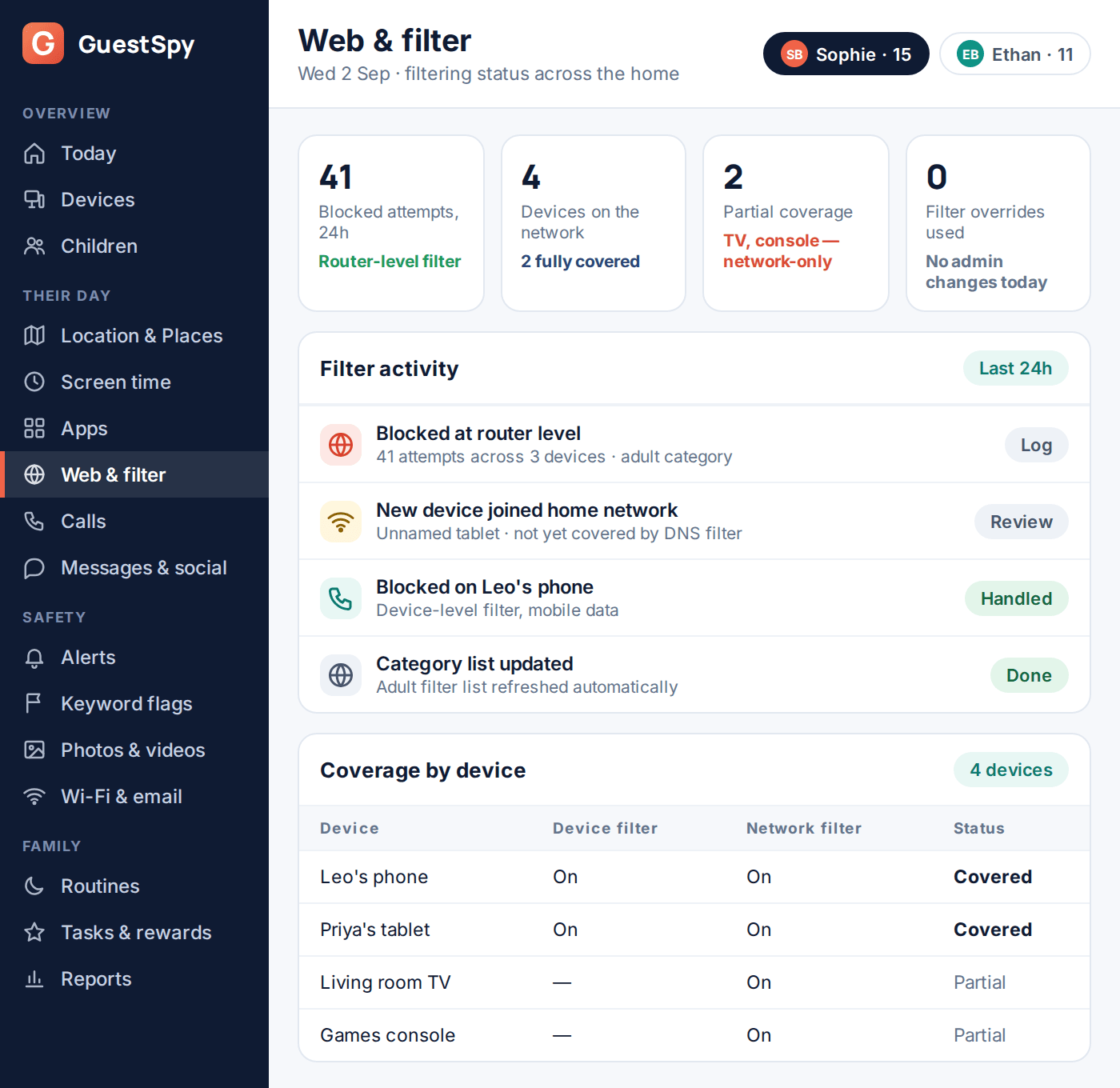
For families managing more than one child or device, a dashboard that shows filter status per device — rather than trusting that a setting checked once, months ago, is still on — closes the “we set it up and forgot” gap. GuestSpy’s web and filter tools sit on top of the layers above for exactly that reason: one view showing which devices are actually covered, not just which ones were covered on setup day.
Questions parents actually ask
Which single layer should I set up first if I only have ten minutes?
Router-level or DNS filtering, because it covers every device on the home network at once with no per-device setup — including devices like a smart TV that can’t be configured individually. Add the device-level filter afterwards for coverage on mobile data.
Does a VPN get around content filtering?
It can, if the VPN routes traffic through a different DNS or network path than the one you’ve filtered. Restricting app installs so a VPN app can’t be added without approval closes this on a supervised device; on an unsupervised one, filtering can’t fully account for it.
Do I need to filter incognito or private browsing mode separately?
No — router and DNS filtering apply to all traffic on the network regardless of browser mode, since they filter at the network level rather than reading browser history. Private mode hides history from the device, not traffic from the router.
Will filtering slow down the internet?
DNS filtering adds a negligible, generally unnoticeable delay — it’s simply checking a domain against a list before resolving it. Router-level content filtering can occasionally add a small amount of latency on very old router hardware, but on anything from the last several years it’s not noticeable in normal use.
What happens if my child uses a friend’s phone or a school device?
None of the four layers above reach a device you don’t control — this is a real and permanent limitation of filtering as a strategy, not a setup mistake. It’s one more reason the conversation layer matters as much as the technical one.
How do I know if my filtering setup is actually still working?
Test it occasionally from the actual device — not just the admin panel — by checking a known-blocked test category site loads a block page rather than the content. A dashboard showing blocked-attempt activity, like GuestSpy’s filter panel, also shows at a glance whether the filter is active rather than quietly switched off.
Building it up in layers, not all at once
You don’t need to set up all four layers in one sitting. Start with the device-level restriction on each phone this evening — it’s a five-minute setting — then add router or DNS filtering over the weekend, since that one covers the widest range of devices for the least ongoing effort. Browser and console checks can follow once the two big layers are in place.
If you’re managing this across several children and devices and want one place to check what’s actually covered, GuestSpy’s screen time and filtering tools are built to sit alongside the built-in settings above, not replace them — set up is a few minutes, and every device’s coverage status is visible on one screen rather than four separate settings menus.
Using a monitoring app for this? GuestSpy is parental monitoring for Android that stays visible on the child's phone and runs from any browser. If it fits your family, see the App & website blocking feature.
Related guides
How to Talk to Your Kid About Screen Time
The conversation decides whether a screen time rule holds or gets fought over daily. Scripts by age, how to involve…
How to Set App Time Limits That Actually Stick
Category limits beat per-app limits, warnings beat sudden cut-offs, and a limit set without a conversation gets bypassed within a…
How to Set Up Google Family Link
Every Family Link setting worth turning on, in order, plus what changes at 13 and the things it genuinely cannot…
Monitoring your child can see.
Location, screen-time budgets, routines, app and website blocking and the alerts that matter, run from any browser and visible on the phone. Pair an Android phone in about fifteen minutes.