A Beginner’s Guide to Geofencing for Parents
What a geofence actually is, how to choose a radius that doesn't misfire, and how to stop useful alerts turning into noise you start ignoring.
 By GuestSpy Editor · Founder and editorPublished September 9, 2026Updated September 14, 202610 min read
The first week of geofencing usually looks the same in every family: an alert for every arrival, every departure, every school run, every trip to the shop — and by day ten, a parent who has started silencing notifications from the app entirely, alerts and all. Geofencing for parents is a genuinely useful tool. It just needs tuning, the same way any alert system does, or it turns into noise you learn to ignore.
This guide covers what a geofence actually is under the hood, how to size one so it doesn’t fire constantly, where to put the handful that are actually worth having, and — because it happens to almost everyone — how to fix it once alert fatigue has already set in.
What a geofence actually is
A geofence is a circle drawn on a map, tied to a specific place — home, school, a grandparent’s house — with a radius chosen when you set it up. It isn’t a beam, a sensor, or anything physically present at that location. It’s purely software: every time the phone reports a new position, the app checks whether that point now falls inside or outside each saved circle, and if the answer has changed since the last check, it counts as an arrival or a leave.
That distinction matters because it explains almost every quirk you’ll run into. There’s no hardware at the school gate detecting your child walk through it — there’s a moving GPS dot, occasionally uncertain about its own exact position, being checked against a boundary you drew. Most of what feels like “the geofence being wrong” is really the underlying location reading being a little off, right at the one moment it matters most: the edge of the circle.
It’s also worth being clear about what a geofence is not. It isn’t a live camera, it doesn’t tell you what someone is doing at a place, and it can’t distinguish between “walked past the end of the road” and “went inside for an hour” if the two happen to sit at a similar distance from the centre point. It answers one narrow question — has this device crossed this boundary — and it answers that question well. Expecting more from it than that is where most of the frustration people report actually comes from.
How arrival and leave alerts fire, under the hood
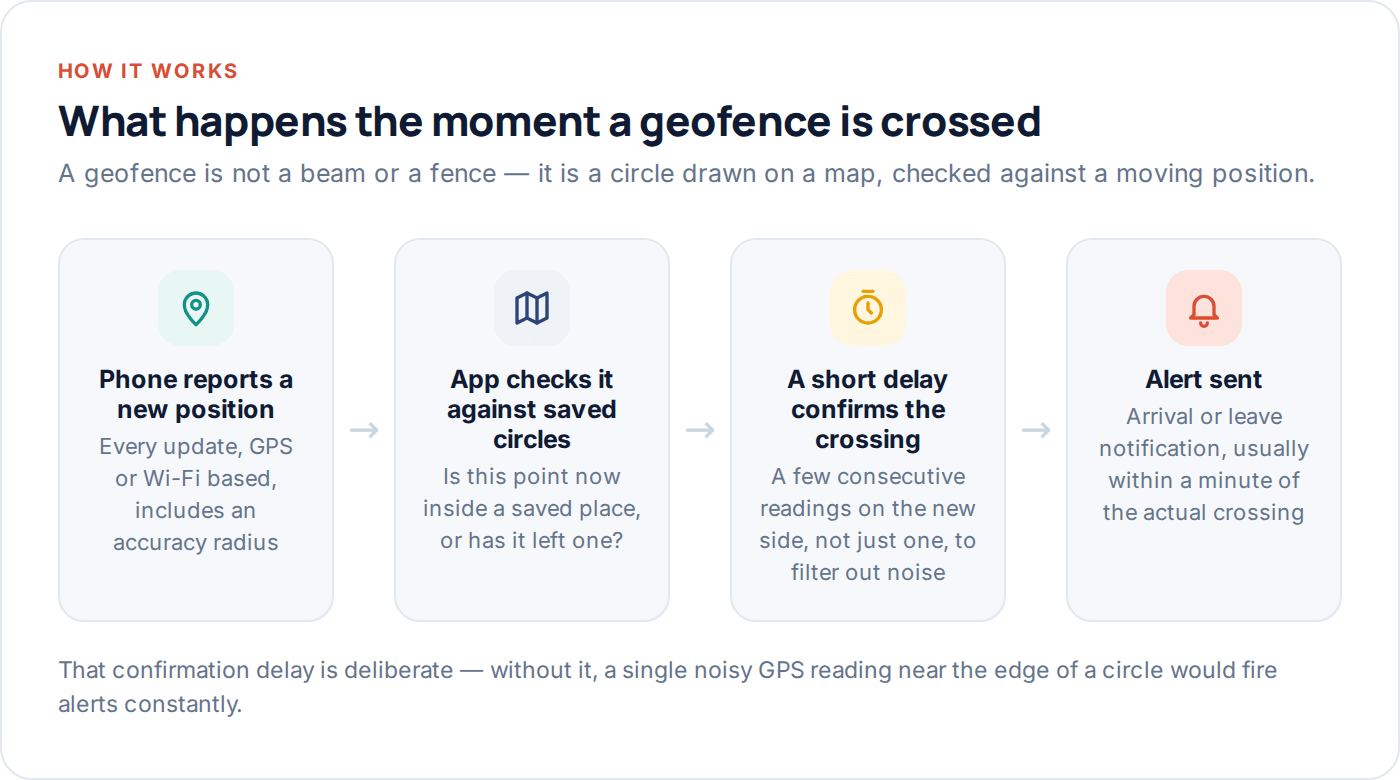
A single reading crossing the line isn’t usually enough to trigger an alert on its own — most systems wait for a short run of consecutive readings on the new side before confirming it, specifically to avoid a single noisy GPS point near the boundary setting off a false alarm. That confirmation step is why an alert sometimes lands thirty to ninety seconds after the actual crossing rather than instantly — it’s a deliberate trade-off between speed and accuracy, and it’s usually the right one.
It also explains why a phone that briefly loses signal near a boundary — walking into a building, going underground — can produce a delayed or occasionally missed alert. The system is waiting for confirmation it never quite gets until the signal returns.
Choosing a radius that doesn’t misfire
Radius is the single setting that determines whether geofencing works well or drives you mad, and it’s the one people get wrong most often by copying a number from somewhere else rather than thinking about the actual place.
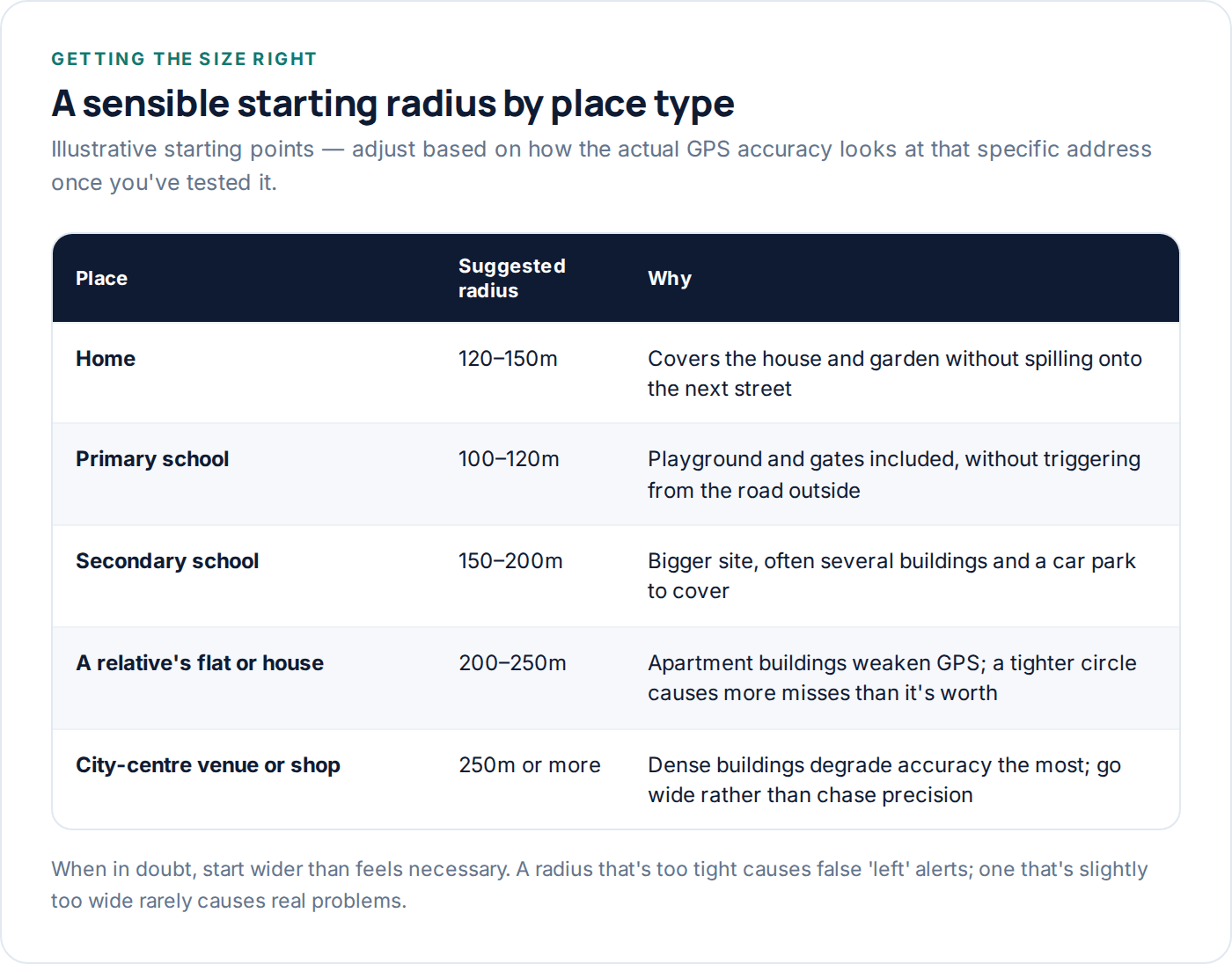
The rule of thumb: bigger sites and busier, denser areas need a wider radius, because GPS accuracy is worse there to begin with. A detached house on a quiet street can often use a tight 100–120m radius without issue. A flat in a block of apartments in a city centre needs considerably more room, sometimes 250m or beyond, simply because the surrounding buildings degrade the signal the app is working from. Setting the same tight radius for both gives you a reliable home alert and a constantly misfiring one at the flat.
Testing before you trust it
After setting a new geofence, walk (or have your child walk) the actual route in and out a couple of times over the following days, and watch what the alerts do. If a “left home” alert fires while they’re still visibly in the house, on the app’s own map, the radius is too tight for that location’s real-world accuracy — widen it and move on, rather than trying to find the theoretically perfect number.
Setting up your first three geofences
Most families never need more than three or four active geofences. Start with these and add more only if a specific, recurring need shows up.
- Home — the anchor. Arrival and leave alerts both on; this is the baseline everything else gets compared against.
- School — arrival alert on, confirming they got there; leave alert usually only needed around normal pickup time, which most apps let you schedule.
- One recurring activity or relative’s address — a grandparent’s house, a regular football club, a friend’s house that comes up often enough to be worth an alert rather than checking manually each time.
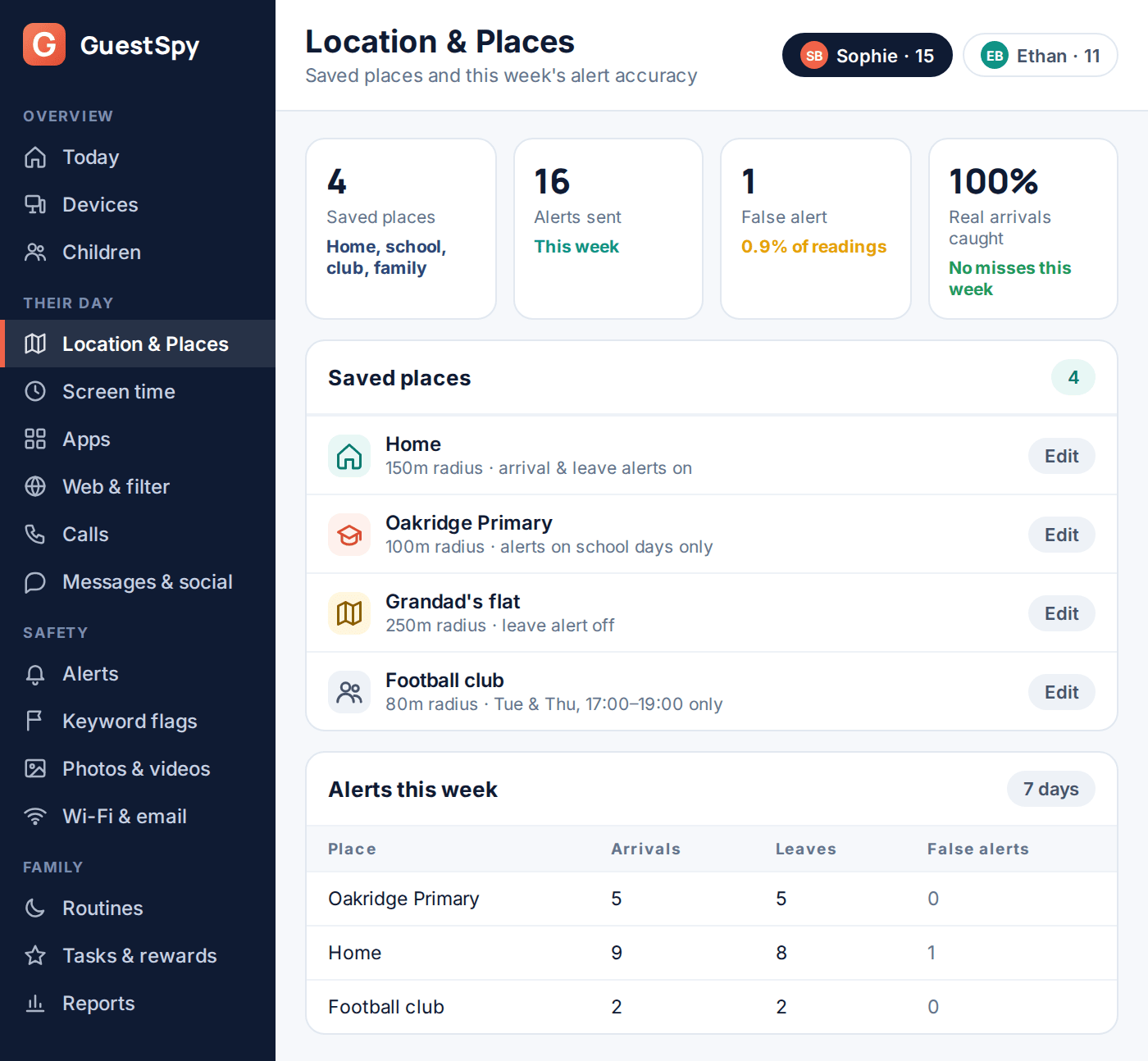
Resist the urge to add every place you can think of on day one. A geofence for the corner shop, the bus stop, and every friend’s house sounds thorough, but in practice it produces a wall of notifications that trains you to stop reading any of them — which defeats the purpose of the two or three that actually matter. The dashboard view above is worth checking against once things are running: it shows not just the places you’ve saved, but how many of that week’s alerts turned out to be false, which is the number that actually tells you whether a radius needs revisiting.
One setting decides whether any of this works reliably at all, and it’s easy to miss because it isn’t part of the geofence screen itself.
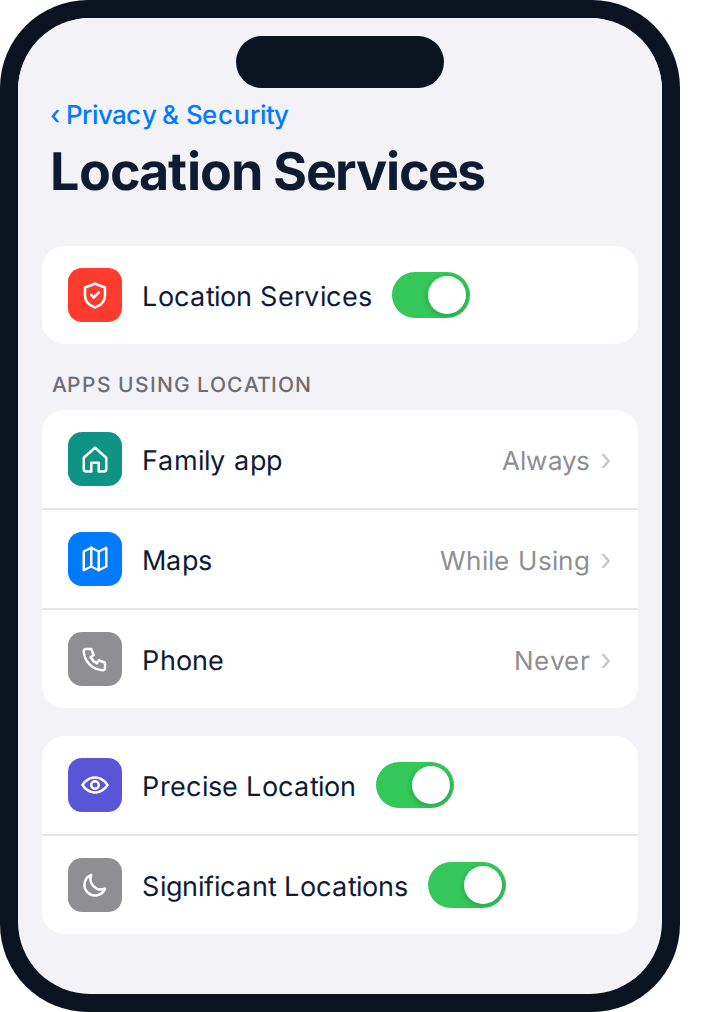
On iPhone, that’s Settings → Privacy & Security → Location Services → [the family app] → Always, plus Precise Location switched on for that same app, further down the same screen. On Android, it’s the equivalent “Allow all the time” permission plus an exemption from battery optimisation. Get this wrong and geofencing doesn’t fail loudly — it just goes quiet, updating only when the app happens to be open, which for most families is most of the day.
Why geofences misfire
Four causes account for nearly every false alert, and understanding them turns “this app is unreliable” into “this one setting needs adjusting.”
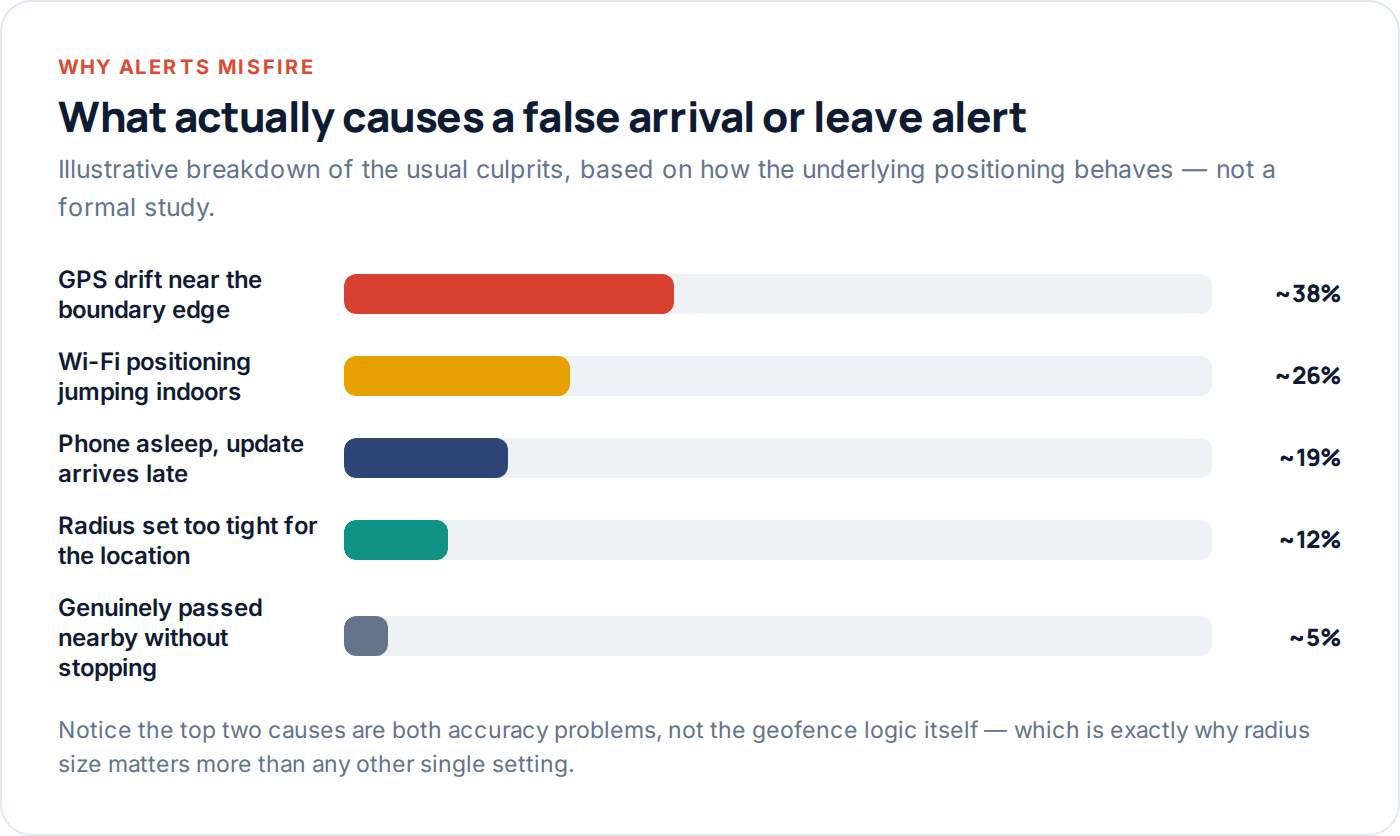
GPS drift at the edge
Right at a boundary, a normal few-metre wobble in the reading is enough to flip a reading from “inside” to “outside” and back, especially with a tight radius.
Wi-Fi positioning indoors
Stepping into a building can shift the position source from GPS to the much rougher Wi-Fi-based estimate, sometimes moving the reported point tens of metres in an instant.
Delayed updates
A phone that’s asleep or in a low-power state may only report a position every few minutes, so an alert can land well after the actual crossing.
The fix for all three is broadly the same: widen the radius slightly, keep the app exempt from battery optimisation so updates keep flowing in the background, and accept that an occasional late or slightly-off alert is a property of the technology, not a fault to keep chasing with ever-more-precise settings.
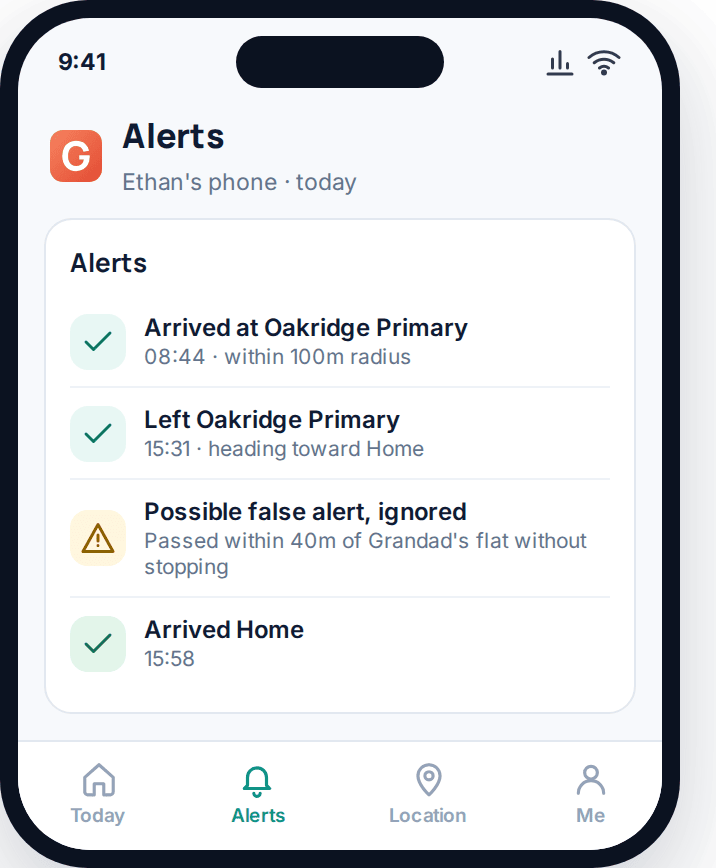
Notice the difference between a false alert and a missed one — they need different responses. A false “arrived at Grandad’s” when they only drove past is a radius problem, fixed by widening the circle. A missed alert, where they clearly arrived somewhere but nothing fired, is more often a background-permission problem than a radius one, and worth checking against the settings above before assuming the geofence itself is at fault.
Alert fatigue, and how to tune it out
This is the part most guides skip, and it’s the reason so many families quietly stop paying attention to a genuinely useful feature. The pattern is predictable: geofencing gets set up enthusiastically, every place gets an alert, and within a couple of weeks the phone is buzzing often enough that the alerts stop meaning anything.
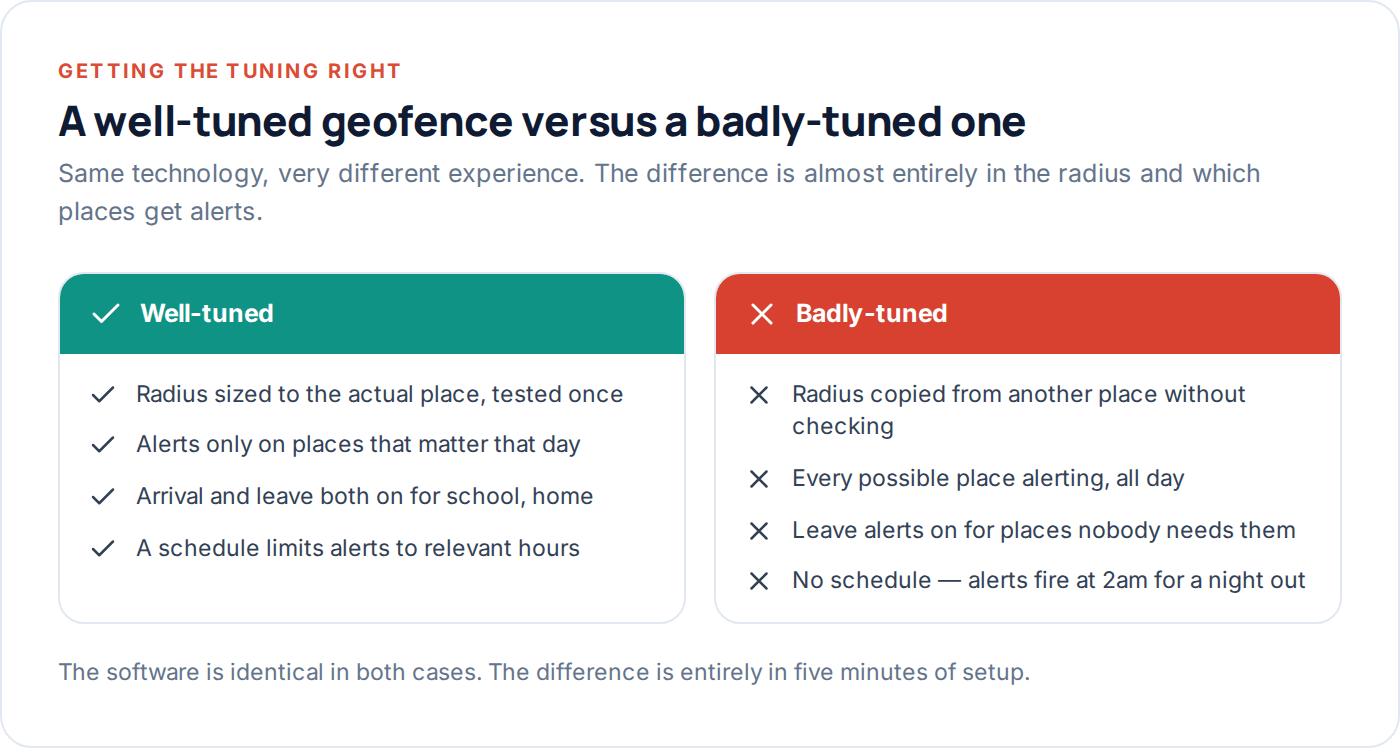
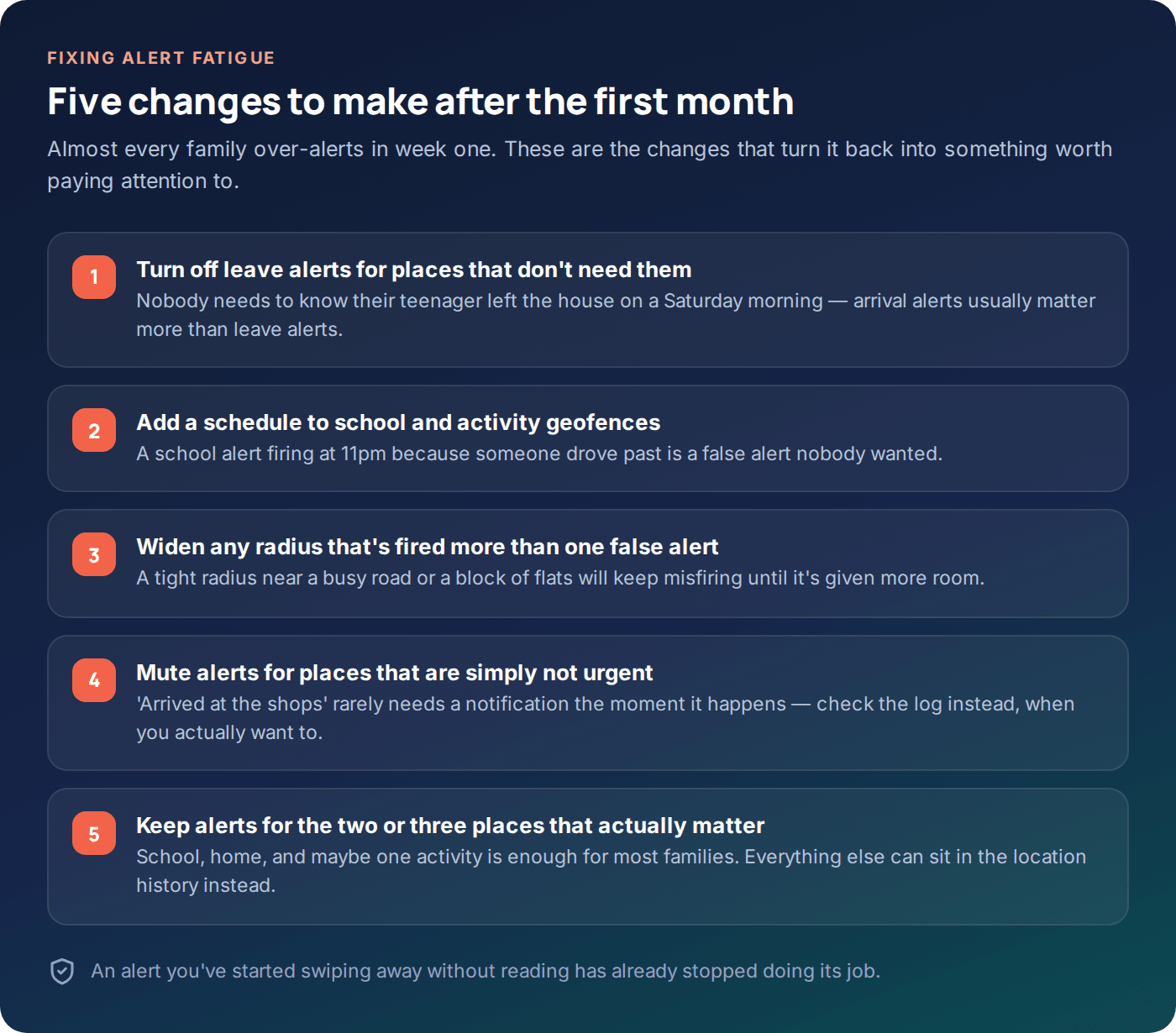
The fix isn’t turning geofencing off — it’s turning most of it down. Keep alerts for the handful of places where an unexpected result would actually change what you do that day, and quietly demote the rest to something you can check in the location history when you’re curious, rather than something that interrupts you.
Give it a proper month before deciding what to trim, not a week — the first few days always over-alert simply because everything is new and you’re paying close attention to all of it. Once the novelty wears off is when you can honestly tell which alerts you’re actually reading and which ones you’ve started swiping away without looking.
Geofencing for different situations
Not every family needs the same setup. A few common situations and what tends to work:
| Situation | What tends to work |
|---|---|
| Younger child, walks to school alone for the first time | Arrival alert on school, scheduled to the actual start time — a missed or late arrival is the thing worth knowing about immediately. |
| Teenager with a curfew | A “left home after 9pm” or “not home by 10pm” style alert, rather than tracking every movement through the evening. |
| Bus or public transport commute | Wide radius around the bus stop and school, since public transport routes rarely stay put to the metre and GPS on a moving bus drifts more than usual. |
| Regular activity with a fixed schedule | A time-boxed geofence — alerts only during the actual hours of the activity, silent the rest of the week. |
| Custody handovers between two households | Arrival alerts at both addresses, agreed between both parents, rather than one parent silently tracking the other’s home. |
A word on consent
Everything above assumes a geofence on a phone belonging to a child you’re responsible for, set up with them knowing it’s there. That distinction matters, and it’s worth restating here specifically because geofencing feels more passive than reading messages — it’s easy to convince yourself a quiet arrival alert doesn’t need the same conversation that, say, reading texts would. It does. A child who discovers a geofence they didn’t know about reacts to that discovery, not to the geofence itself, and it costs the same trust a covert install would.
Questions parents actually ask
What’s a sensible radius to start with?
Around 100–150m for a house or small school site, wider — 200m or more — for apartment blocks, city centres, or larger secondary school campuses. Test it for a few days and widen it if you see false “left” alerts while they’re clearly still there on the map.
Why did I get an alert that they left home when they were still in the garden?
Almost always GPS accuracy right at the boundary edge, especially if the radius is tight. A garden at the edge of a small radius is exactly where this kind of false alert shows up most.
Can I set a geofence for a moving vehicle, like a school bus?
Not usefully — geofences are fixed circles tied to a place, not a moving object. For a bus route, a wide geofence around the stop and the school works better than trying to track the route itself.
How many geofences should a family actually have?
Most families settle on two to four that they actually pay attention to — home, school, and maybe one activity or relative. More than that tends to create noise rather than useful information.
Do geofence alerts drain the battery more than regular tracking?
Not meaningfully more — the phone is already reporting its position at intervals for ordinary location sharing; checking that position against a few saved circles adds negligible extra cost.
Should I turn on leave alerts as well as arrival alerts?
For home, usually yes, since knowing when someone leaves can matter. For most other places — school, a friend’s house, a club — an arrival alert tells you what you actually need to know, and a leave alert on top is often the first thing worth switching off when alerts start to feel like too much.
Where to start
Set up two or three geofences, not ten. Test each one for a few days before trusting it, widen anything that misfires, and revisit the list after the first month to turn off whatever’s become noise rather than information. That short cycle — set up, test, tune — is what separates a geofence that’s actually useful from one that just gets silenced. You can see how this looks in practice with GuestSpy’s setup, and the FAQ covers the questions that tend to come up once it’s running day to day.
Using a monitoring app for this? GuestSpy is parental monitoring for Android that stays visible on the child's phone and runs from any browser. If it fits your family, see the Location & Places feature.
Related guides
How to Track Elderly Parents’ Location (With Consent)
Capacity, dignity and consent come first. Then the practical part: what to set up, how to involve siblings, and when…
Location Sharing Etiquette for Families and Couples
The unwritten rules of sharing your location with a partner or family: consent, reciprocity, teenagers' right to some privacy, and…
How to Set Up a Family Safety Circle
Who belongs in a family safety circle, how mutual and one-way sharing differ, and how to set one up that…
Monitoring your child can see.
Location, screen-time budgets, routines, app and website blocking and the alerts that matter, run from any browser and visible on the phone. Pair an Android phone in about fifteen minutes.