How to Stop Someone From Tracking Your Location
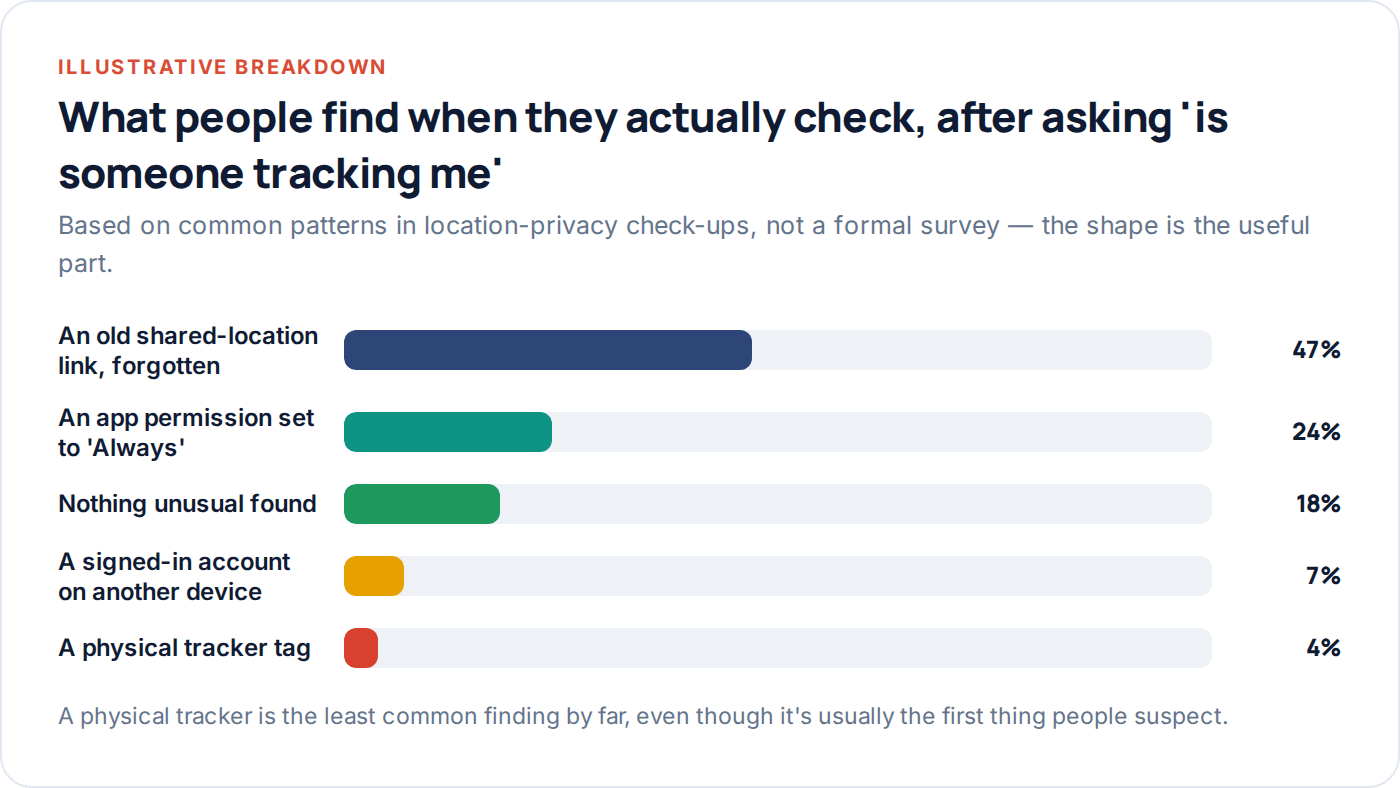
Somebody knows where you were on Tuesday, and you never told them. Before you assume the worst, it’s worth knowing that the most common cause isn’t a hidden tracker or spyware — it’s a location-sharing link you switched on eighteen months ago and never turned off.
This guide walks through how to stop someone tracking your location properly: which settings actually control it, the sharing you probably forgot was on, how to check for a physical tracker travelling with you, and a short lockdown routine that covers almost all of it in about ten minutes. It’s written to be practical rather than alarming — most of what turns up here has a boring, fixable explanation.
- The ways someone can actually see where you are
- Location permissions: precise, approximate, and per app
- Checking location sharing on iPhone
- Checking location sharing on Android
- The sharing links people forget they turned on
- Physical trackers: how to check, and what to do
- Your account, and what you post
- The ten-minute lockdown
- If this involves someone who has controlled or hurt you
- Questions people actually ask
The ways someone can actually see where you are
It helps to separate this into two genuinely different problems, because they need different fixes. The first is software you agreed to at some point — a location-sharing link, an app permission, an account someone else has access to. The second, much rarer, is something you never agreed to at all: a tracker tag slipped into a bag, or an app that somehow got location access without a clear prompt.
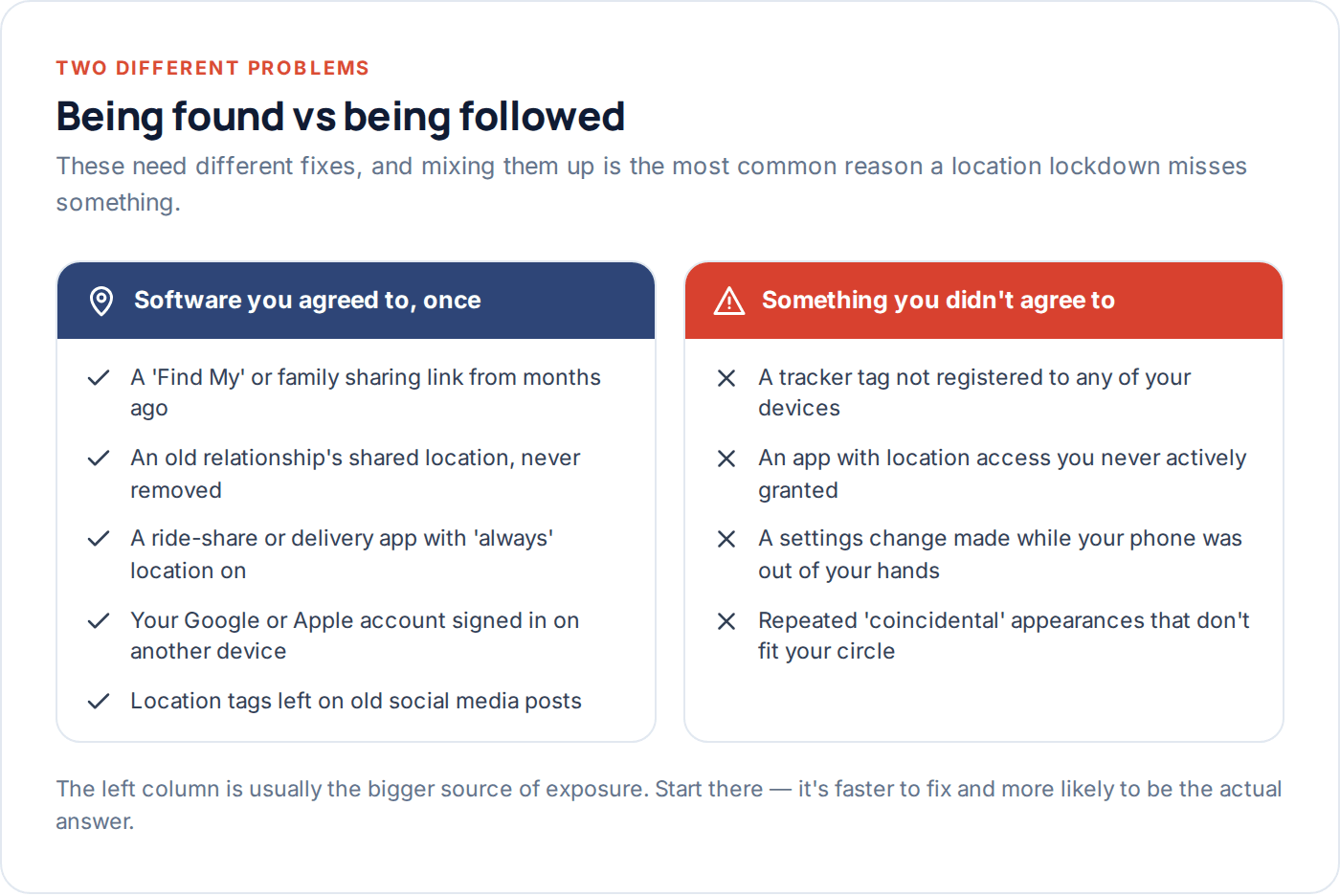
Most people who feel “tracked” are dealing with the first category, and the fix is mostly a matter of finding settings you forgot existed rather than hunting for something hidden. That’s genuinely good news — it means a methodical check, not a technical investigation, solves most of this.
There’s a third, less common route worth naming too: someone with brief physical access to your unlocked phone changing a setting directly, rather than using a link or an app. A minute alone with an unlocked phone is enough to switch an app’s location permission to “Always,” add a device to a shared account, or turn on a location share that then looks, from your side, exactly like something you set up yourself. The checks in this guide catch that route as well, since the settings themselves don’t care how they got changed — only that you go and look at them.
Location permissions: precise, approximate, and per app
Both iPhone and Android now let you grant an app approximate location — accurate to a few kilometres — instead of precise location, accurate to a few metres. Most apps that ask for location don’t actually need precision: a weather app, a shopping app, most social platforms work perfectly well knowing roughly which city you’re in.
The setting that matters even more than precise-versus-approximate is when an app can use it: “Always,” “While using,” or “Never” on iPhone; “Allow all the time,” “Allow only while using the app,” or “Ask every time” on Android. An app set to “Always” can report your location even when it’s closed, which is the setting that actually enables ongoing tracking — not the precision level.
Why this distinction gets missed
Most people set a permission once, at install, and never revisit it — the prompt appears mid-task, “Allow” is the fastest way past it, and the app rarely explains what “Always” actually costs you in ongoing exposure. That’s not a design accident so much as a default nobody circles back to fix. A location privacy check-up is really just circling back, app by app, and asking whether the original reason for “Always” still applies.
Checking location sharing on iPhone
Everything lives in one place: Settings → Privacy & Security → Location Services.
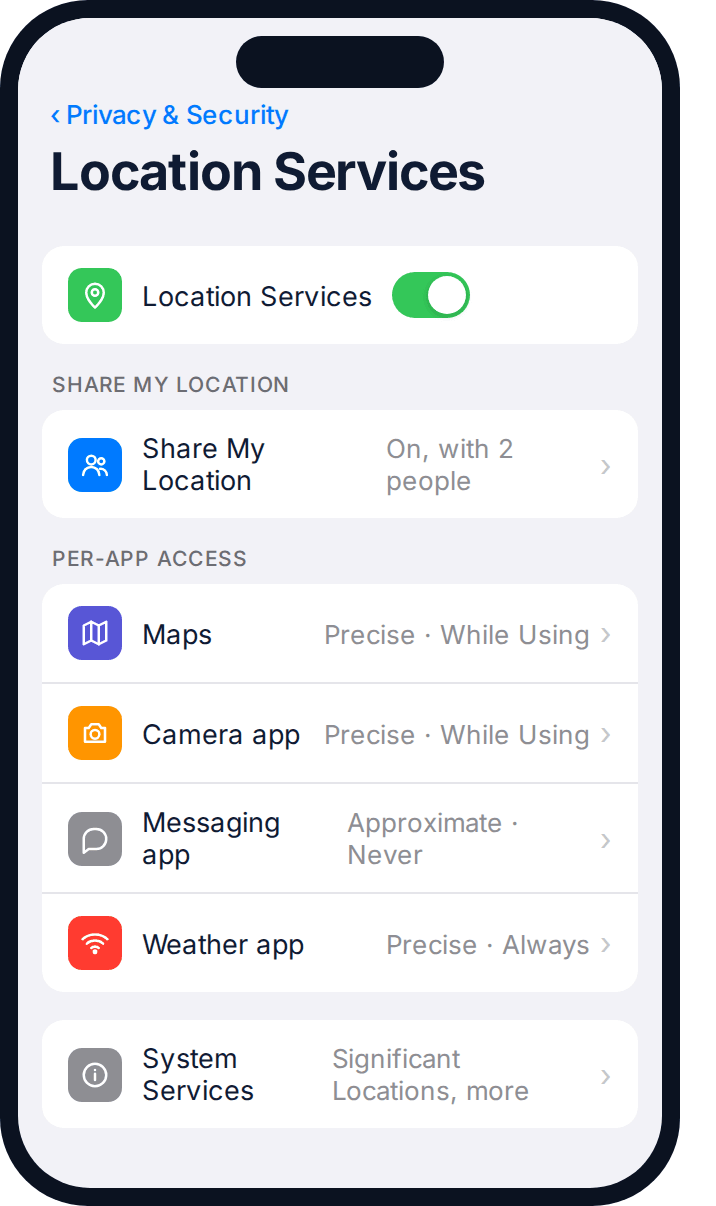
- Open Location Services and scroll the full app list — not just the apps you use daily. Anything with a purple arrow icon has used your location recently.
- Tap into each app that shows “Always” and ask honestly whether it needs that. Change it to “While Using” unless there’s a clear reason not to.
- Check Share My Location under the same menu, and separately in the Find My app’s People tab. This is the setting most often left on long after the reason for it has passed.
- Scroll to System Services at the bottom and review Significant Locations — a quiet log of places you visit often, stored on-device but worth knowing exists.
Checking location sharing on Android
Android’s version is under Settings → Location, with sharing handled separately inside Google Maps.
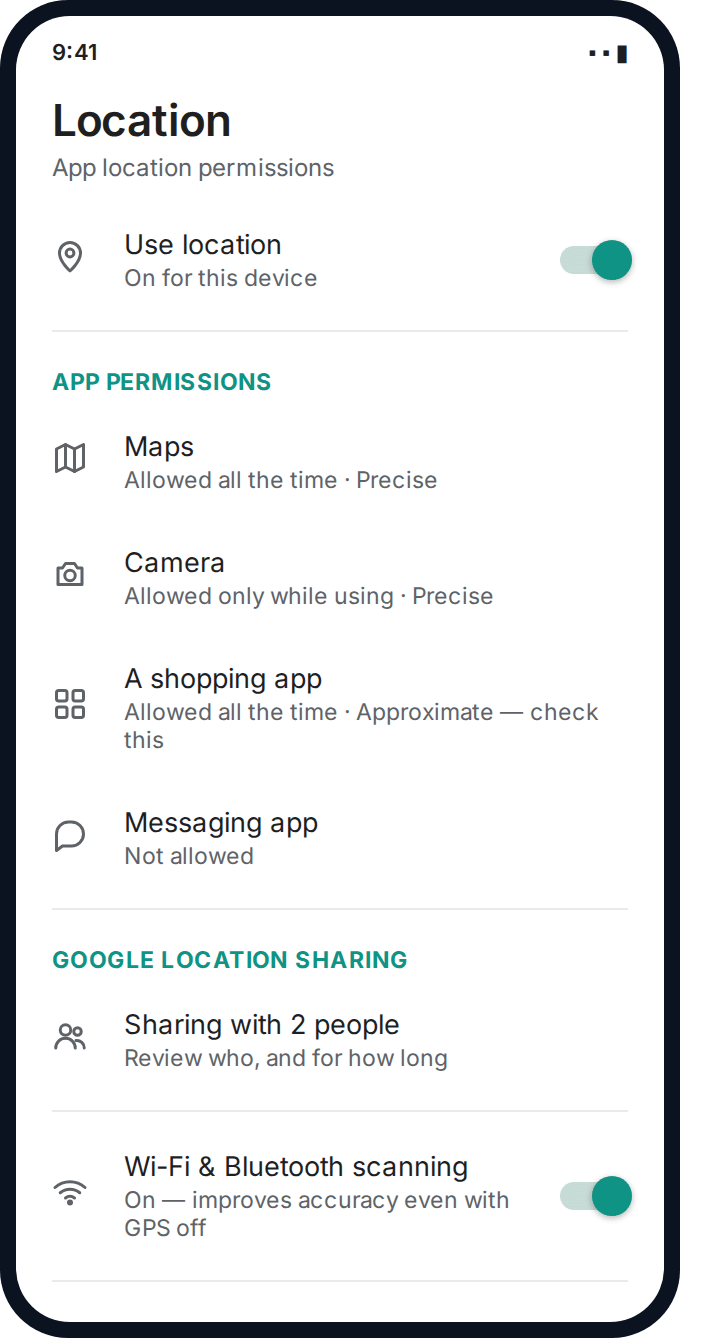
- Settings → Location → App permissions. Sort by “Allowed all the time” first — this is the group worth reviewing before anything else.
- Google Maps → Profile → Location sharing. Shows exactly who you’re sharing with and whether it’s set to expire — check both.
- Settings → Location → Wi-Fi & Bluetooth scanning. These can estimate location even with GPS switched off; worth knowing they exist, even if you leave them on.
- Google Account → People & sharing. A second, easily missed place location and other data can be shared from, separate from the Maps setting above.
The sharing links people forget they turned on
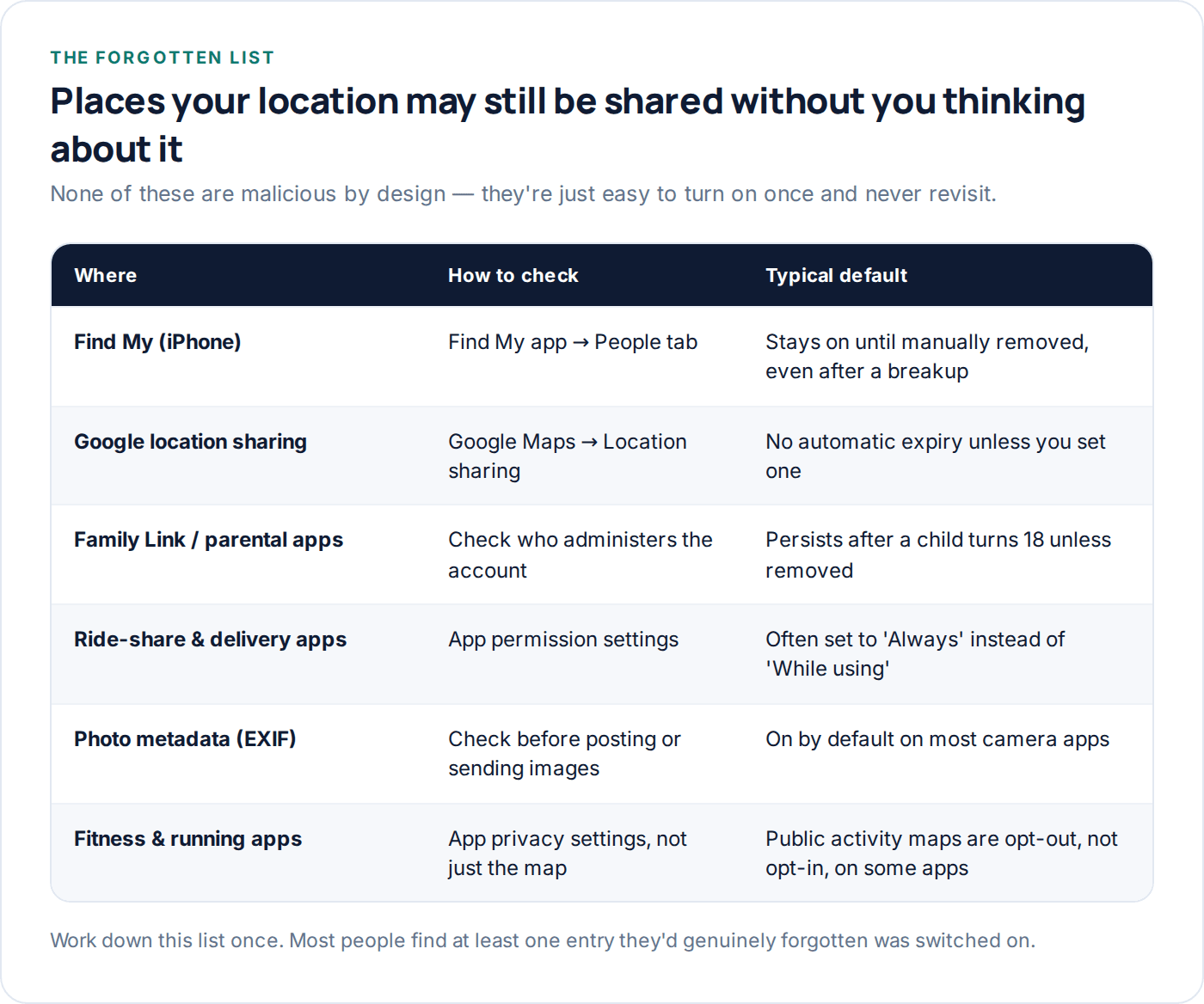
This is where most unwanted location exposure genuinely lives, and it’s rarely anyone’s fault — these settings are designed to be switched on once and forgotten, which is exactly the problem.
Old relationships
A “Find My” or Google location share set up during a relationship, never removed after it ended. Check the People list, not just your memory of what you meant to turn off.
Family & friend groups
A group location share started for one trip that quietly stayed on for everyone, indefinitely, afterwards.
Apps with “Always” on
Ride-share, delivery and fitness apps default to broader access than they need for their core function, and rarely prompt you to revisit it.
Physical trackers: how to check, and what to do
Bluetooth tracker tags are small enough to slip into a bag, coat pocket or car, and both iOS and Android now build in detection for exactly this: an alert reading something like “item detected moving with you” if an unfamiliar tag has been travelling alongside your phone for a while, separate from its owner.
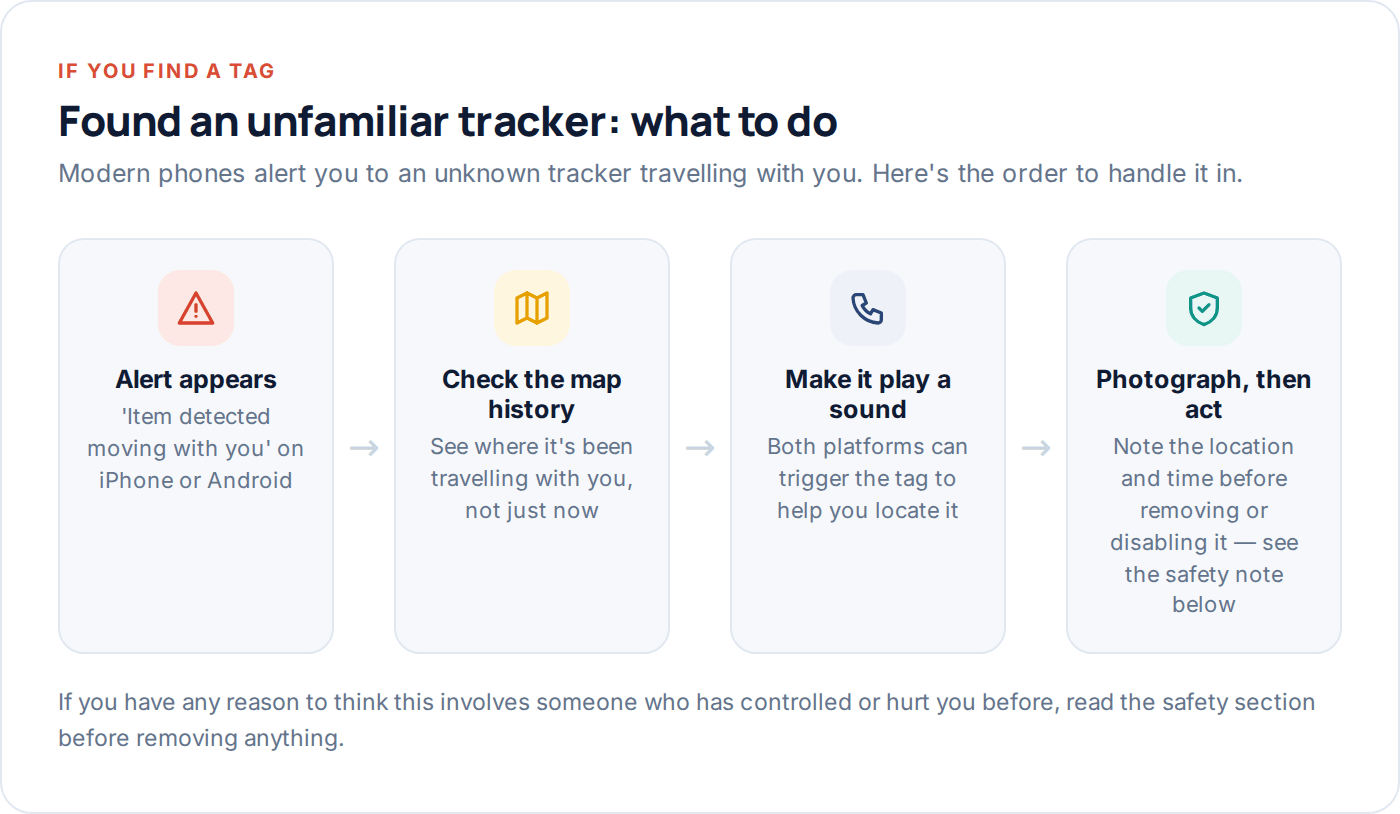
If you get that alert, the map history it shows you is more useful than panicking about the tag itself — it tells you roughly when and where the tag started travelling with you, which narrows down where to physically search. Both platforms can also make the tag play a sound to help you locate it once you know it’s nearby.
If you don’t have a smartphone alert but suspect a tag anyway, a manual Bluetooth scan using your phone’s own settings, or a dedicated scanner app, can reveal nearby tags even without one specifically alerting you. Check bags, coat linings, car boots and glove compartments, and under car bumpers if the concern involves a vehicle.
Vehicles need a separate check
A tag attached to a car rather than carried with you may not trigger a “travelling with you” alert in the same way, since the alert logic is built around a tag moving alongside your phone specifically. If you have a specific reason to suspect a vehicle rather than your phone or bag, a manual Bluetooth scan and a physical check of common hiding spots — wheel arches, under bumpers, inside the boot lining — is worth doing separately, ideally somewhere well-lit and with someone else present if you have any safety concerns at all.
Your account, and what you post
Location sharing set up deliberately is only part of the picture. If someone has your Google or Apple account password, they can see your location from any device, signed into your account, without needing any of the sharing settings above to be switched on at all. Check Settings → [name] → Password & Security on iPhone or your Google Account → Security → Your devices for sign-ins you don’t recognise, and change the password if there’s any doubt.
Separately, photos carry embedded location data (EXIF metadata) unless it’s stripped before sharing, and plenty of social platforms will show a precise pin under a post unless you turn that off in the app’s own settings — not your phone’s. Both are easy to check in a couple of minutes and easy to leave on for years without noticing.
Old posts are worth a pass too, not just new ones. A running route posted regularly from the same starting point, or a background detail that reveals a street sign or house number, can build up a surprisingly precise picture over months even without a single post containing an exact address. Most platforms let you review and edit location tags on past posts in bulk, which is worth doing once rather than trying to remember which individual posts might be an issue.
The ten-minute lockdown
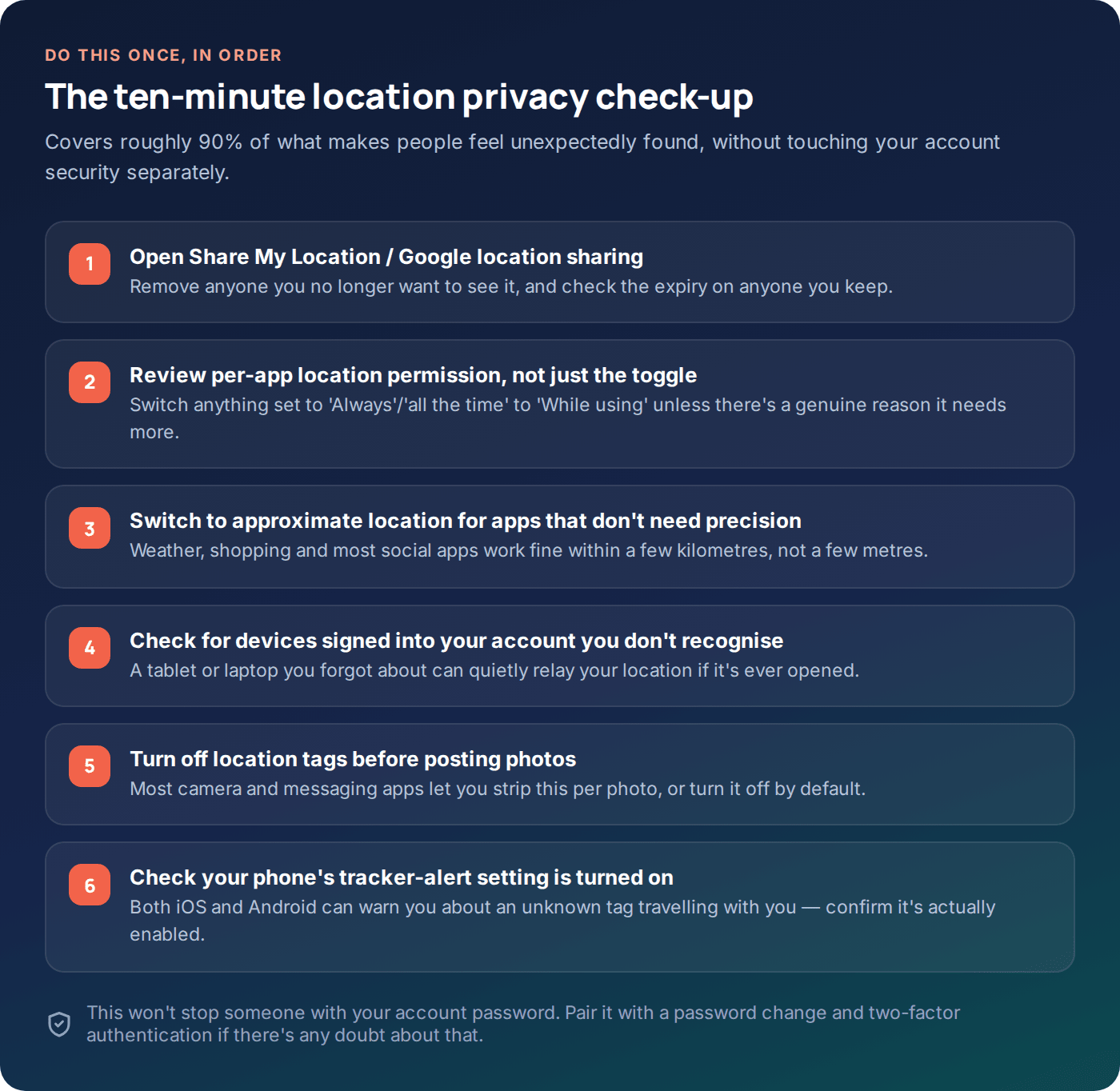
Put together, the checks above take about ten minutes and catch the overwhelming majority of unwanted location exposure — most of it explained by something you agreed to once, not something hidden.
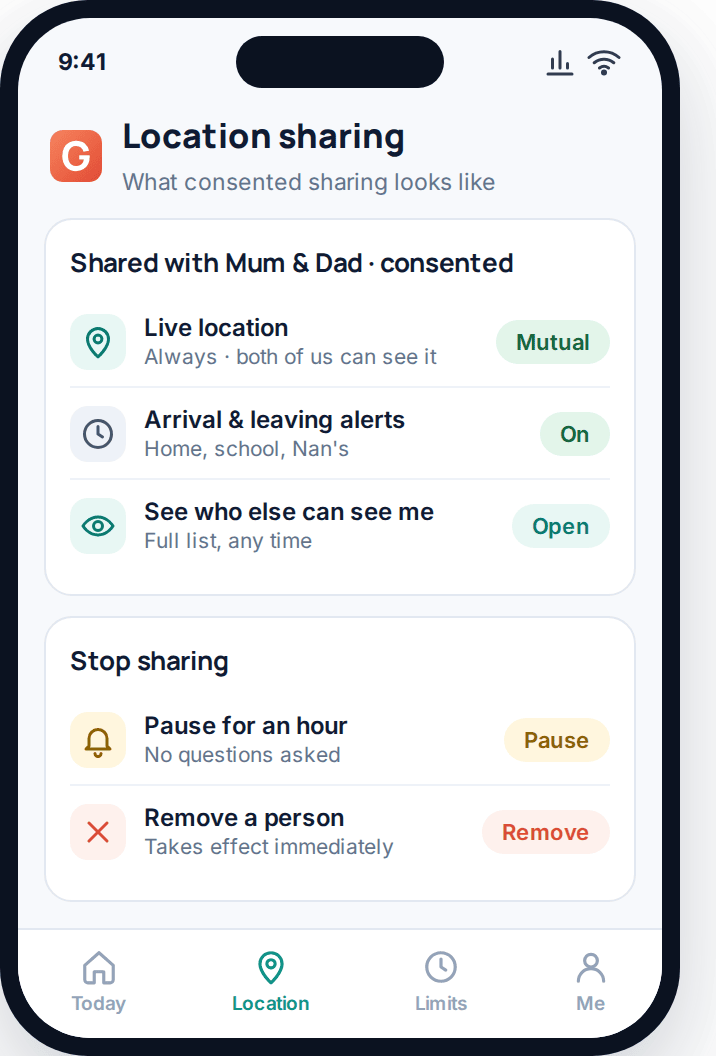
Legitimate, ongoing location sharing — the kind worth keeping, like a family safety arrangement or a couple sharing location by mutual agreement — should look like the opposite of everything this guide has been checking for: visible to both people, easy to pause, and easy to remove.
If this involves someone who has controlled or hurt you
If you suspect the tracking involves someone who has been controlling or abusive toward you, treat this section as more important than speed. Removing a tracker or a share can alert the person who set it up at the exact moment they realise they’re losing that access, which can escalate risk rather than end it.
Questions people actually ask
Can someone track my phone with just my number?
Not through any legitimate method. Real location tracking requires either an app with granted permissions on your device, access to your account, or a physical tracker travelling with you. A phone number alone doesn’t provide location access on its own.
Does turning off Location Services completely stop tracking?
It stops apps from actively reading GPS, but it doesn’t remove an existing “Share My Location” arrangement, and your phone can still be located roughly through the mobile network if it’s genuinely lost or stolen. Check sharing settings separately, not just the main toggle.
How do I know if a tracker tag alert is genuine and not a false positive?
Both platforms show map history alongside the alert — if it lines up with places you’ve actually been, and the tag isn’t one you or a travelling companion own, treat it as genuine and work through the steps in this guide rather than dismissing it.
Will turning off precise location make apps stop working properly?
For most apps, no — approximate location is enough for weather, shopping, and general content. Navigation and ride-share apps genuinely need precise location while you’re using them, which is a reasonable exception rather than a reason to leave every app on precise.
Is it illegal for someone to track my location without my consent?
In most countries, yes — placing a tracker on someone’s belongings or vehicle, or accessing their location through their accounts, without their knowledge and consent, is illegal for one adult to do to another. The common legal exception is a parent and their own minor child.
What’s the difference between this and a family location-sharing app?
Visibility and mutual agreement. A legitimate family location feature, including GuestSpy’s, is set up with everyone’s knowledge, shows up on the device sharing it, and can be paused or removed by the people involved — it isn’t something running silently that only one side can see or control. Repeating this check-up every few months, and straight after any relationship change or new phone, is enough to keep it that way.
Where to start
If you only do one thing from this guide, open your location-sharing list — Find My’s People tab on iPhone, Google Maps’ location sharing on Android — and remove anyone you no longer have a reason to be sharing with. It’s the single check that resolves the largest share of “how is this person finding me” questions, and it takes under a minute.
For families choosing to share location deliberately and openly, our location tracking page covers how that looks when it’s mutual and visible rather than one-sided, and the privacy policy and FAQ cover the consent questions that come up most.
Keep reading
Are ‘Free Phone Spy’ Apps a Scam? What They Really Do
What sites promising 'free, undetectable phone spy software' are actually selling — and why the ones that look most convincing…
The Complete Guide to Detecting Spyware
The real symptoms worth worrying about, what usually turns out to be nothing, and the exact settings to check on…
How to Check App Permissions on Your Phone
A ten-minute audit of what your apps can actually access — location, microphone, camera, accessibility and more — and how…