How to Set App Time Limits That Actually Stick
Maya’s parents set a one-hour Instagram limit on a Tuesday evening, felt very organised about it, and by Thursday she was back on the app for three hours — using the browser version, which nobody had restricted, because the limit only covered the app icon.
That is not a failure of willpower on anyone’s part. It is what happens when an app time limit is set as a technical setting instead of a household rule with a technical backstop. This guide covers both halves: the mechanics of setting a limit that actually holds — category caps, wind-down warnings, earned time — and the reasons a limit with no conversation behind it gets quietly routed around within a week.
- Why most app time limits fail within a month
- Category limits vs per-app limits
- Wind-down warnings, not sudden cut-offs
- The “one more episode” negotiation
- Earned time: the difference between a cage and a deal
- Putting the limit somewhere everyone can see it
- The common bypasses, and how to close each one
- Setting it up: iOS and Android side by side
- Questions parents actually ask
Why most app time limits fail within a month
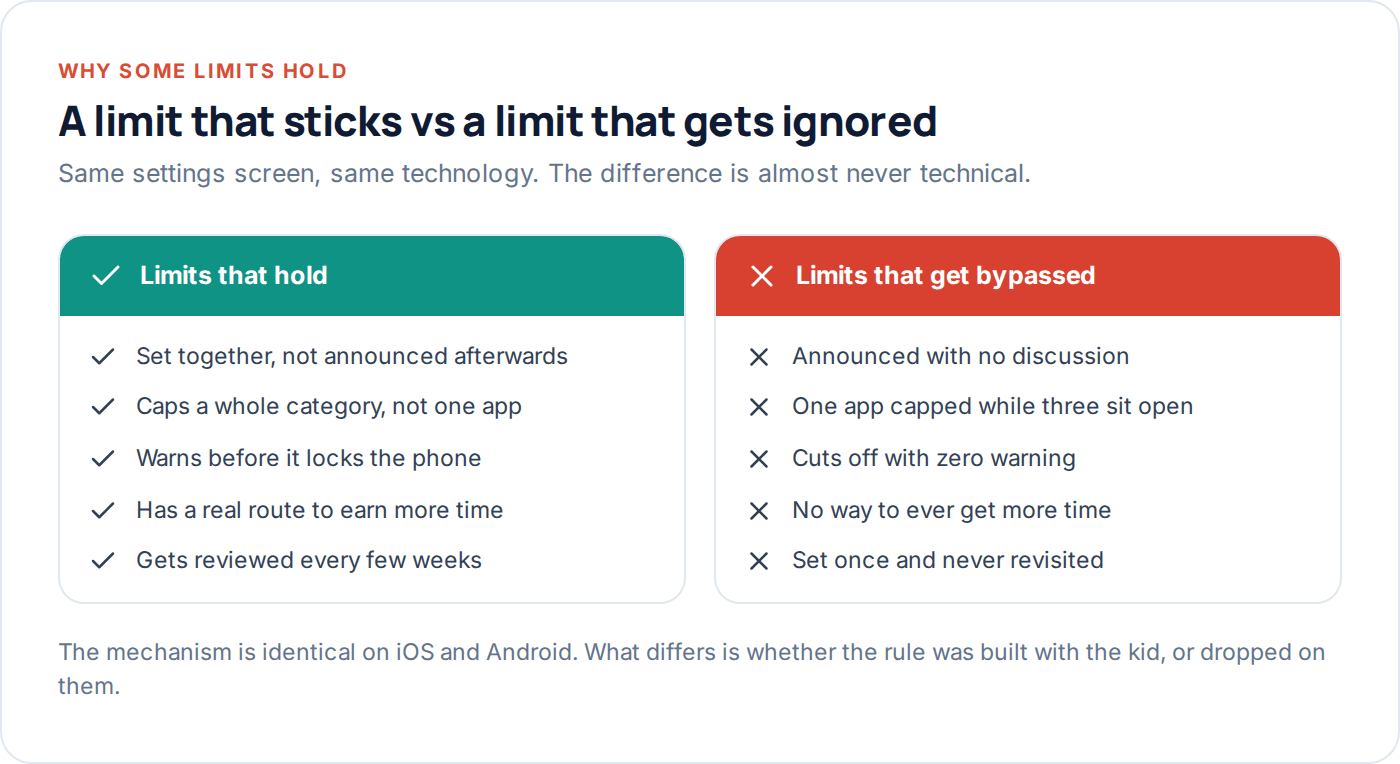
Ask a parent whether they have a screen time limit and most will say yes. Ask whether it is still being enforced eight weeks later and the answer is usually a sheepish “sort of.” The limit did not fail because the technology broke. It failed because it was announced rather than agreed, applied to one app while three near-identical ones sat open, or set with no way to ever get more time, so getting around it became the only interesting part of the rule.
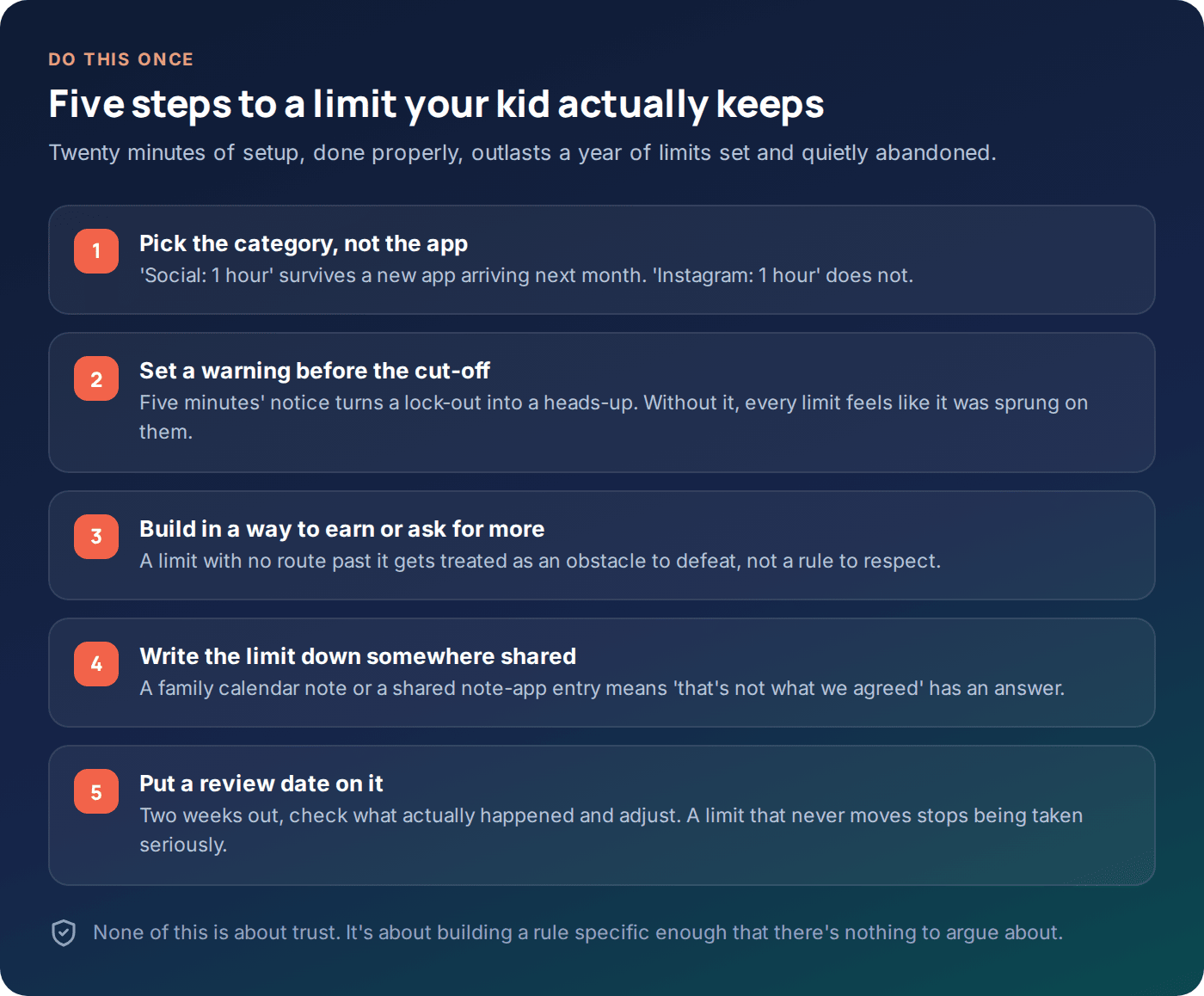
A time limit is really two things stacked on top of each other: a setting on a phone, and a decision the household has made about how time should be spent. Most guides only cover the setting. The setting is the easy 20% — the diagram below is the part most families skip.
There is also a quieter reason limits fail: they get set once, during a period of high motivation — a bad report card, a late night that worried you — and then never revisited. A limit built in a moment of frustration tends to be either too strict to survive contact with real life, or specific to a problem that has already passed by the time anyone checks it again. Treat the first version as a draft, not a verdict.
Category limits vs per-app limits
The single biggest technical mistake parents make is capping one app instead of a category. Cap Instagram and TikTok sits open. Cap TikTok and YouTube absorbs the traffic instead. Kids are not being sneaky when this happens — they are doing exactly what any of us would do when one door closes and three others are unlocked.
Both iOS and Android let you group apps into a category and set one combined limit across all of them. “Social: 1 hour” means the total time across every social app in that group, however it’s split between them. This is the setting that actually reduces total screen time, rather than just moving it sideways.
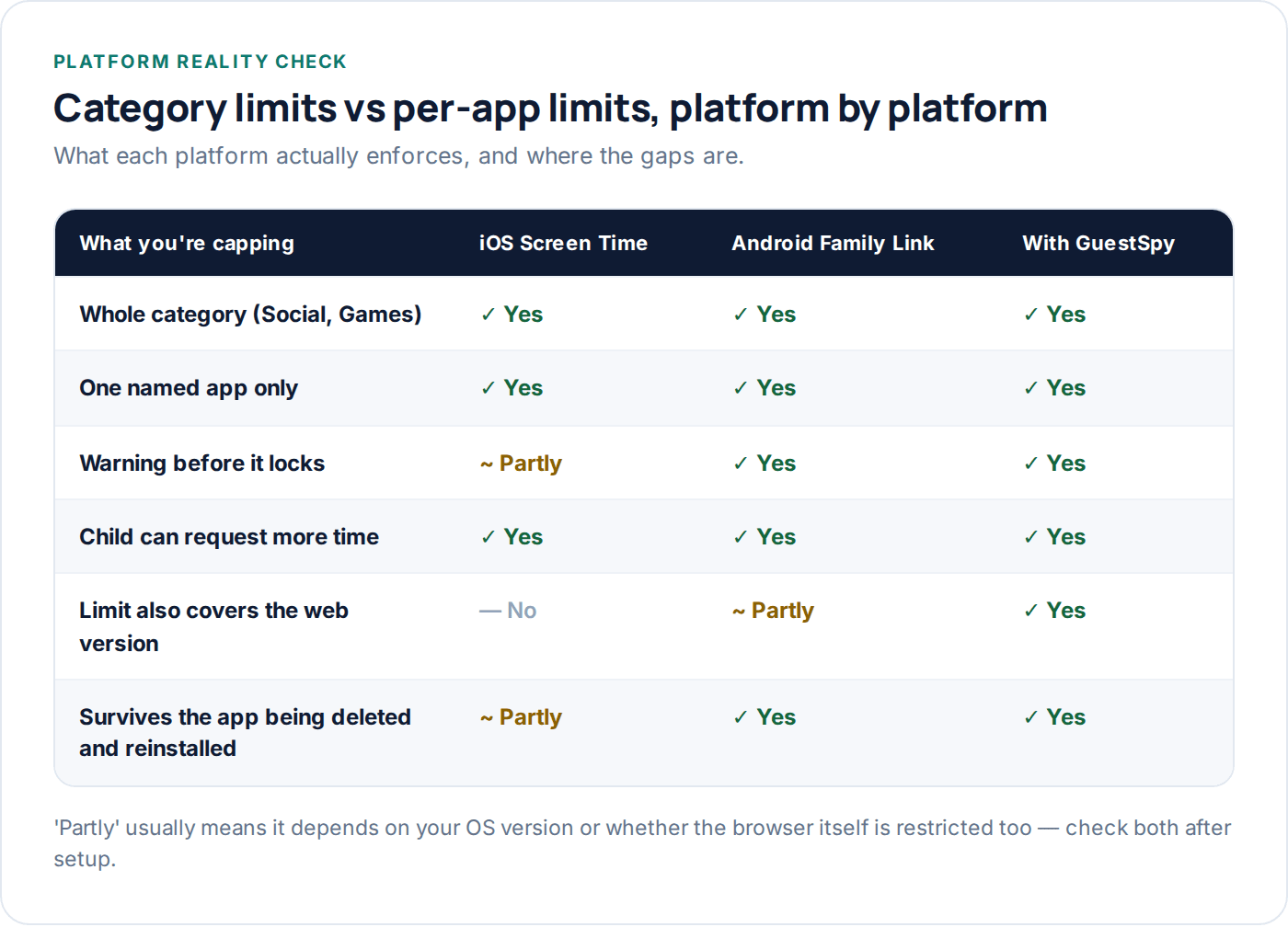
Per-app limits still have a place — a specific game that’s causing bedtime rows, say — but they should be the exception, layered on top of a category limit, not the whole strategy.
Wind-down warnings, not sudden cut-offs
A phone that locks with no warning mid-video feels like it broke, not like a rule kicked in. That distinction matters more than it sounds — a kid who feels the device malfunctioned gets angry at the phone and, by extension, at you for putting the limit there in the first place.
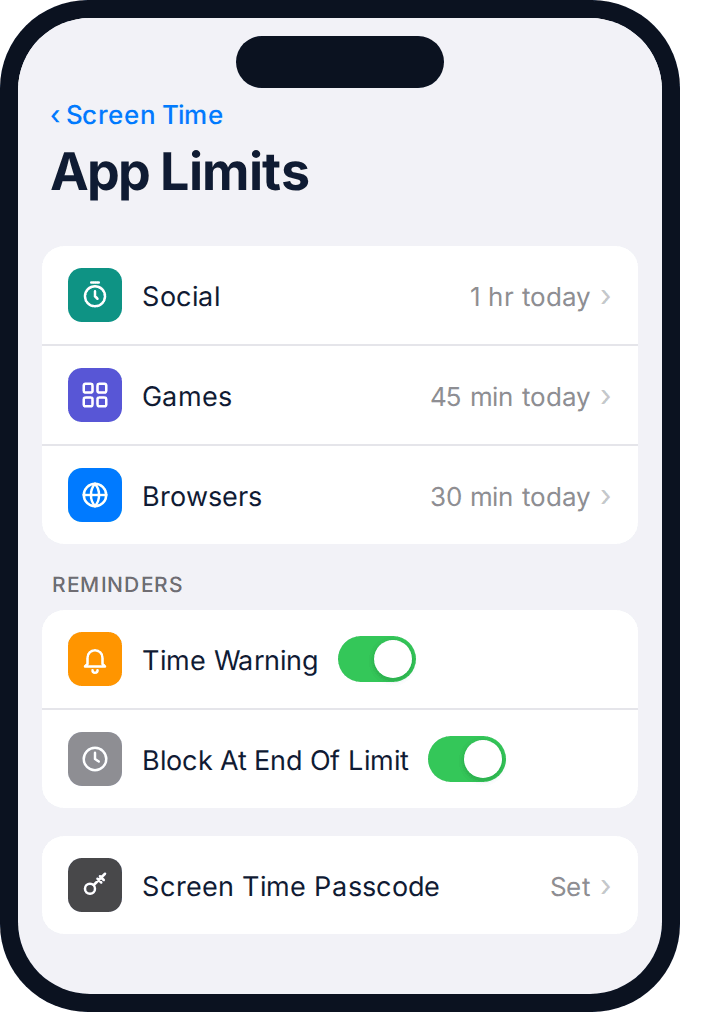
Both platforms support a warning a few minutes before the limit hits — a banner or a sound that says time is nearly up. Turn it on. It changes the emotional shape of the cut-off from “this suddenly stopped working” to “I knew this was coming and I’m annoyed anyway,” which is a much easier feeling to manage, for both of you.
Five minutes is usually enough to finish a level, send a last message, or get to a natural pause in a video, without being so long that it becomes its own extra allowance. If a specific activity genuinely needs longer — a video call with a grandparent, a group project — treat that as a manual exception on the day, rather than stretching the standard warning window to cover every edge case.
The “one more episode” negotiation
Every household with a time limit has some version of this exchange: the limit hits at an inconvenient moment — five minutes from the end of an episode, the middle of a match with friends — and the child asks for a bit more. Handled badly, this becomes the daily argument that eventually gets the whole limit abandoned. Handled well, it’s a two-line exchange that costs nothing.
The fix is deciding the policy in advance, not in the moment. Something like: requests for under fifteen minutes get approved without a discussion if the day’s other limits are on track; anything longer waits until tomorrow. Written down and agreed before the first request ever comes in, this stops being a negotiation and becomes a lookup — which is far less exhausting for everyone, including you.
What not to do
Do not decide case by case based on mood. A limit granted because you were tired and refused because you were busy teaches a kid that persistence works, not that the rule is fixed — and persistence is exactly what a determined nine-year-old has in unlimited supply.
Earned time: the difference between a cage and a deal
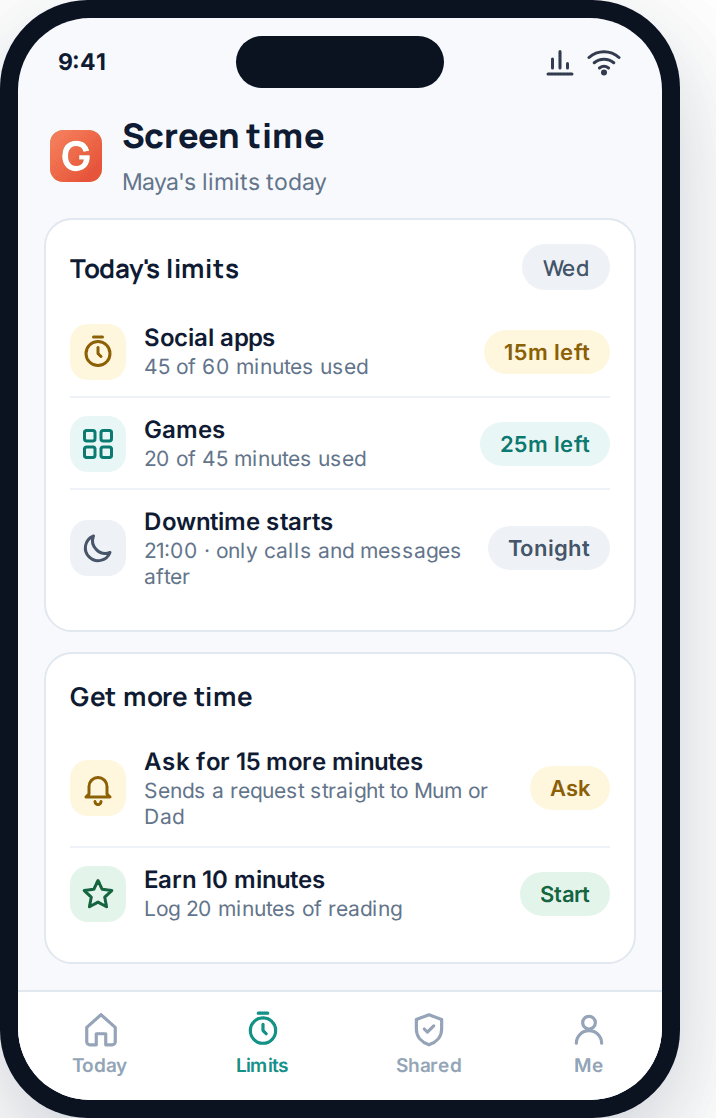
A limit that only ever subtracts feels like a cage. A limit with a way to earn extra minutes — for reading, chores, outdoor time, homework done before dinner — feels like a deal, and deals get cooperation in a way that ceilings don’t.
This does not need to be complicated. Ten minutes of screen time for twenty minutes of reading is a rate most families can run without a spreadsheet. The mechanism matters less than the principle: there has to be an “up” as well as a “down,” or the whole system reads as pure restriction.
A dashboard that shows both sides — time used and time earned — on the same screen the child can check themselves keeps this transparent. If they can see the balance without asking you, half the daily friction disappears on its own.
Putting the limit somewhere everyone can see it
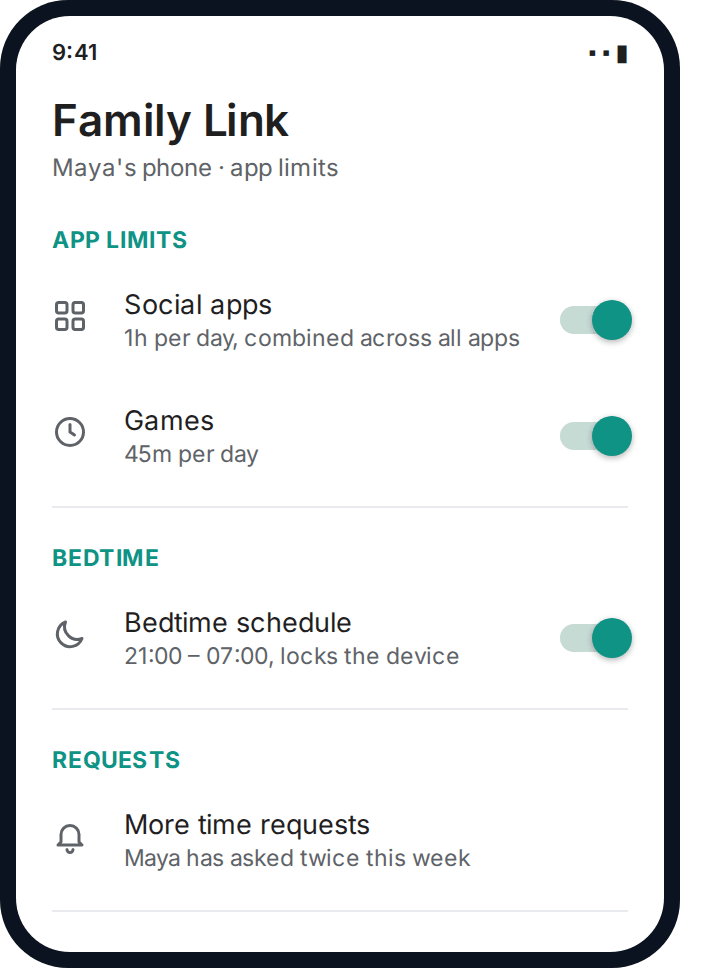
A verbal agreement made once in the kitchen gets remembered differently by each person a month later. Writing the actual numbers down — an hour of social, forty-five minutes of games, downtime from nine — in a shared family calendar entry or a note on the fridge removes the most common argument of all: “that’s not what we agreed.”
It also makes the limit visible to both parents, which matters more than it sounds. A kid who gets a firm no from one parent and immediately asks the other is testing whether the rule is a household rule or one person’s opinion. A written, shared version answers that question before it gets asked.
The common bypasses, and how to close each one
Once the conversation and the category limit are in place, a handful of specific technical gaps account for most of the times a limit quietly stops working. None of them need a harsher rule — they need a setting switched on.
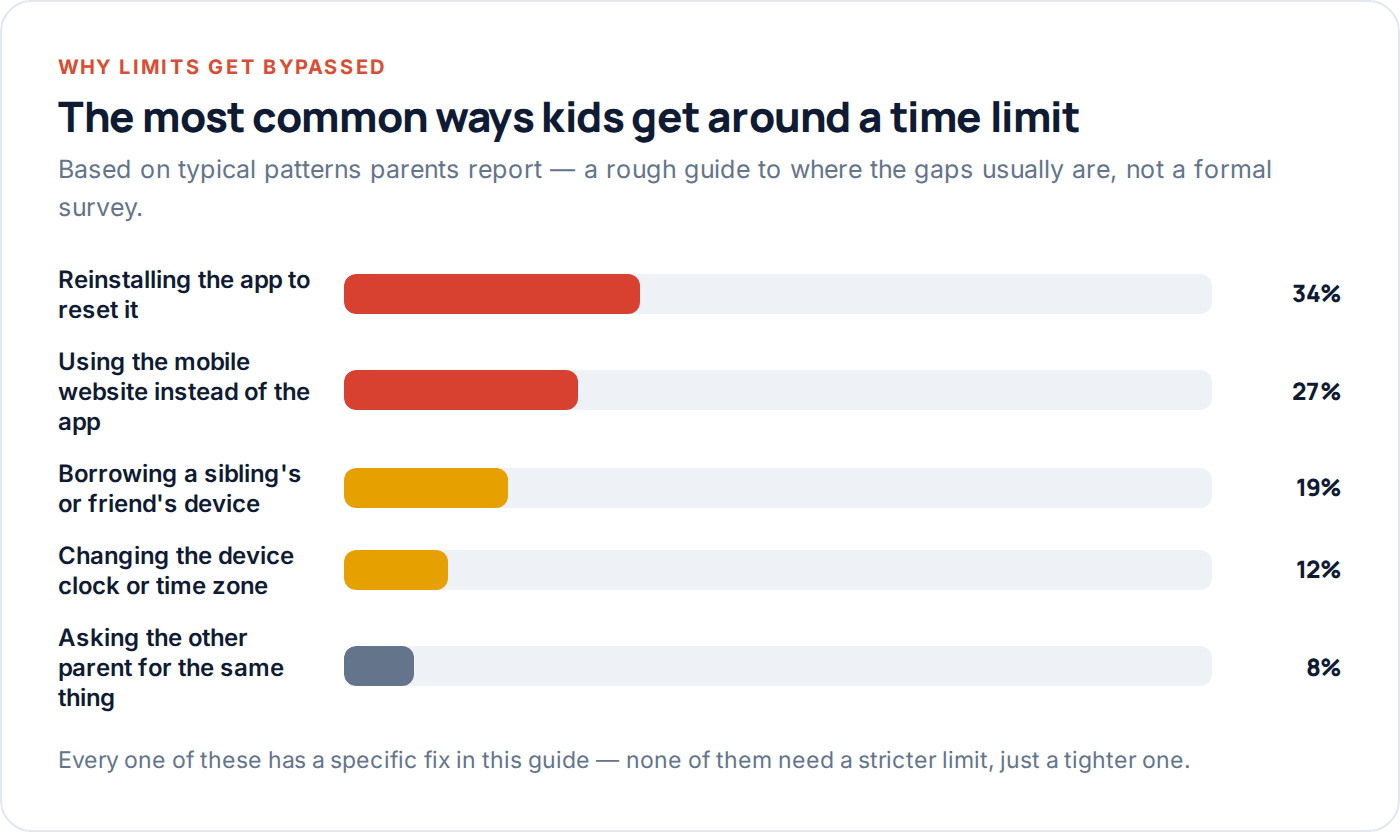
| Bypass | Why it works | How to close it |
|---|---|---|
| Deleting and reinstalling the app | On some older iOS versions, a fresh install can reset the day’s usage counter. | Turn on “Block At End Of Limit” and update iOS — this was patched in most recent releases. |
| Using the mobile website | A per-app limit on the Instagram app does nothing to instagram.com in Safari or Chrome. | Restrict the same category inside browser content settings, or block the sites directly. |
| Changing the device clock or region | Some limits key off local time, which shifts if the clock is changed manually. | Lock date and time settings inside the same restrictions screen as the app limit. |
| A second, less-restricted device | An old tablet or a sibling’s phone with no limit set becomes the workaround. | Apply the same category limit to every device the child actually uses, not just their main phone. |
None of these require suspicion or surveillance to close — just checking, once, that the rule you set in one place actually applies everywhere the same content lives.
Worth saying plainly: none of this is about assuming your child is deliberately scheming to defeat a limit. Most bypasses get discovered by accident, once, and then used because they work and nobody said not to. Closing them is routine maintenance, the same as checking a smoke alarm battery — not evidence of a trust problem.
Setting it up: iOS and Android side by side
The mechanics are similar enough on both platforms that most families with mixed devices can run the same policy across the house.
iPhone
Settings → Screen Time → App Limits. Choose a category, set the daily time, turn on the warning, then set “Block At End Of Limit” so it actually enforces rather than just nudging.
Android
Family Link → your child’s device → App limits. Set a combined limit per category, then set the daily device limit as a backstop in case a new app arrives outside every category you’ve built.
Both, at once
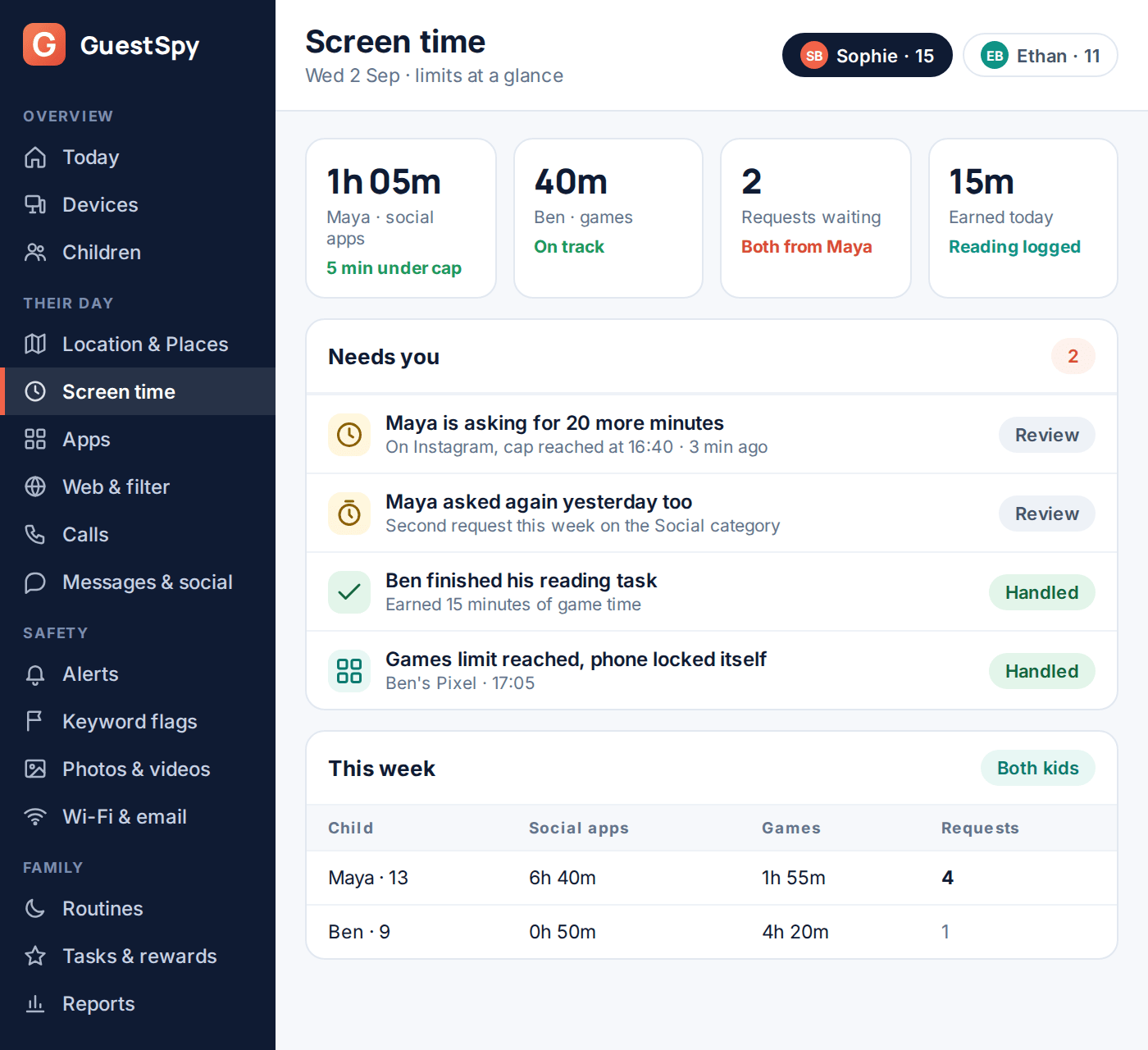
Where a limit needs to cover browser use, keyword-flagged apps, or several children from one screen, that’s where a layer like GuestSpy’s screen time tools sits on top of the built-in settings.
- Set the category limits first. This is the 80% that matters — social, games, entertainment, each with its own daily cap.
- Turn on the warning. Five minutes’ notice, every time, no exceptions.
- Decide the “ask for more” policy together and write it down before the first request comes in.
- Set up an earn-back mechanism, even a simple one, so the limit has a direction other than down.
- Check the gaps — browser version, second device, clock settings — the same week you set the limit, not months later when you notice it isn’t working.
- Put a review date in the calendar, two to four weeks out, and actually look at it then.
Questions parents actually ask
Should the limit be the same on weekends and school days?
Most families find two separate limits work better than one flat number — a shorter cap on school nights, a more generous one at weekends. Both platforms let you set different schedules per day, so there’s no need to compromise on a single average.
My child says the limit is unfair compared to their friends. Now what?
Ask what their friends’ limits actually are — it’s often exaggerated, and even when it isn’t, “our house, our rule” is a legitimate answer. What matters more is that your own limit is explainable in one sentence and applied consistently, not that it matches anyone else’s.
Does turning off Wi-Fi get around a time limit?
No — both iOS App Limits and Android Family Link enforce at the operating-system level, so the limit still applies on mobile data and even fully offline. What it won’t stop is a second, unrestricted device on the same Wi-Fi network.
What’s a reasonable daily limit for a young teenager?
There’s no single correct number, but many families land somewhere around one to two hours of recreational screen time on school days, more at weekends, with homework and reading apps excluded from the cap entirely. Start with what’s currently happening and trim gradually rather than picking a number out of thin air.
Can they just factory reset the phone to remove the limit?
On a supervised Android device tied to a Family Link account, a factory reset keeps the supervision attached to the Google account and reapplies it on setup. On iPhone, a Screen Time passcode different from the device passcode prevents a reset from wiping the restriction without your knowledge.
Should the limit apply to homework and learning apps too?
Generally no — exclude anything genuinely educational from the recreational cap, or you create an incentive to avoid using tools that actually help. Most platforms let you mark specific apps as unrestricted or “always allowed” for exactly this reason.
The version that lasts
The families whose limits are still working six months later did not find a stricter app or a cleverer setting. They set a category limit instead of a single-app one, added a warning before the cut-off, built in a real way to earn or ask for more, and wrote the whole thing down somewhere both parents and the kid could see it.
If you’re setting this up for the first time, start with the built-in tools on the device itself, then look at GuestSpy’s screen time controls if you need one view across more than one child or device. It’s quick to set up, and every limit it sets is visible to the child on their own transparency screen — which, per the rest of this guide, is exactly what makes it stick.
Keep reading

How to Talk to Your Kid About Screen Time
The conversation decides whether a screen time rule holds or gets fought over daily. Scripts by age, how to involve…
A Parent’s Guide to Screen Time by Age
What's generally reasonable at each age band, from toddlers to older teens, and what tends to matter more than the…
How to Block Adult Websites on Every Device at Home
No single setting blocks adult content everywhere. Here's the layer-by-layer setup — device, DNS, router, browser, console and TV —…