How to Set Up Google Family Link
Google Family Link is free, it comes from Google directly, and it is genuinely more configurable than Apple’s equivalent — but the settings are spread across a separate parent-side app, a handful of menus with near-identical names, and a rule change that quietly kicks in the moment your child turns 13. This is the walkthrough that puts it in order.
We’ll set up Google Family Link from a bare Android phone: creating the supervised account, pairing it to your own phone, setting daily limits and bedtime, turning on app approval, locking down Chrome, Search and Play, and switching on location sharing. At the end there’s an honest table of what Family Link genuinely cannot see, and a section on what changes — sometimes surprisingly — once your child turns 13.
The full Family Link picture, at a glance
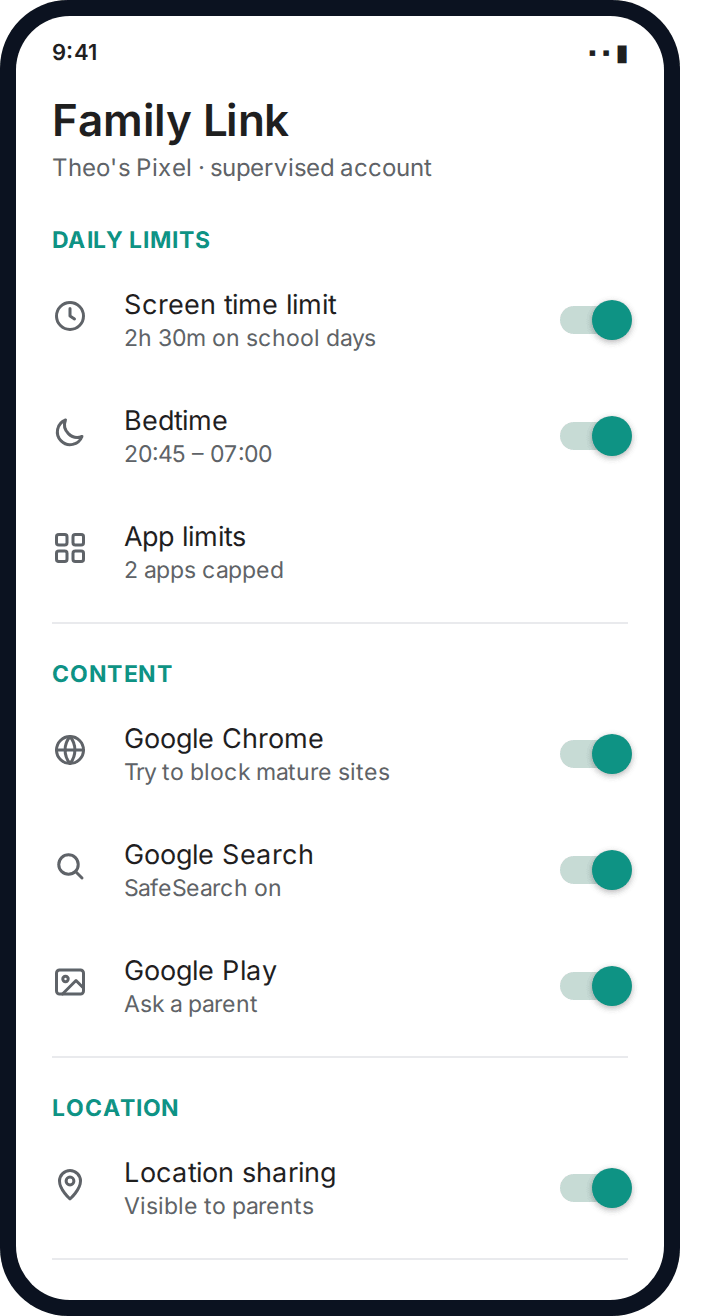
Family Link works differently to Apple’s Screen Time in one important structural way: it’s a separate app, installed on your phone, that manages a linked supervised account on your child’s device. You are not going into their settings directly — you’re managing them remotely, most of the time, from an app on your own phone.
Step 1: The supervised account and pairing
Everything else in this guide depends on this step working correctly. A supervised Google account is a real Google account with parental controls attached to it at the account level, not just the device level — which is why it follows your child even if they get a new phone.
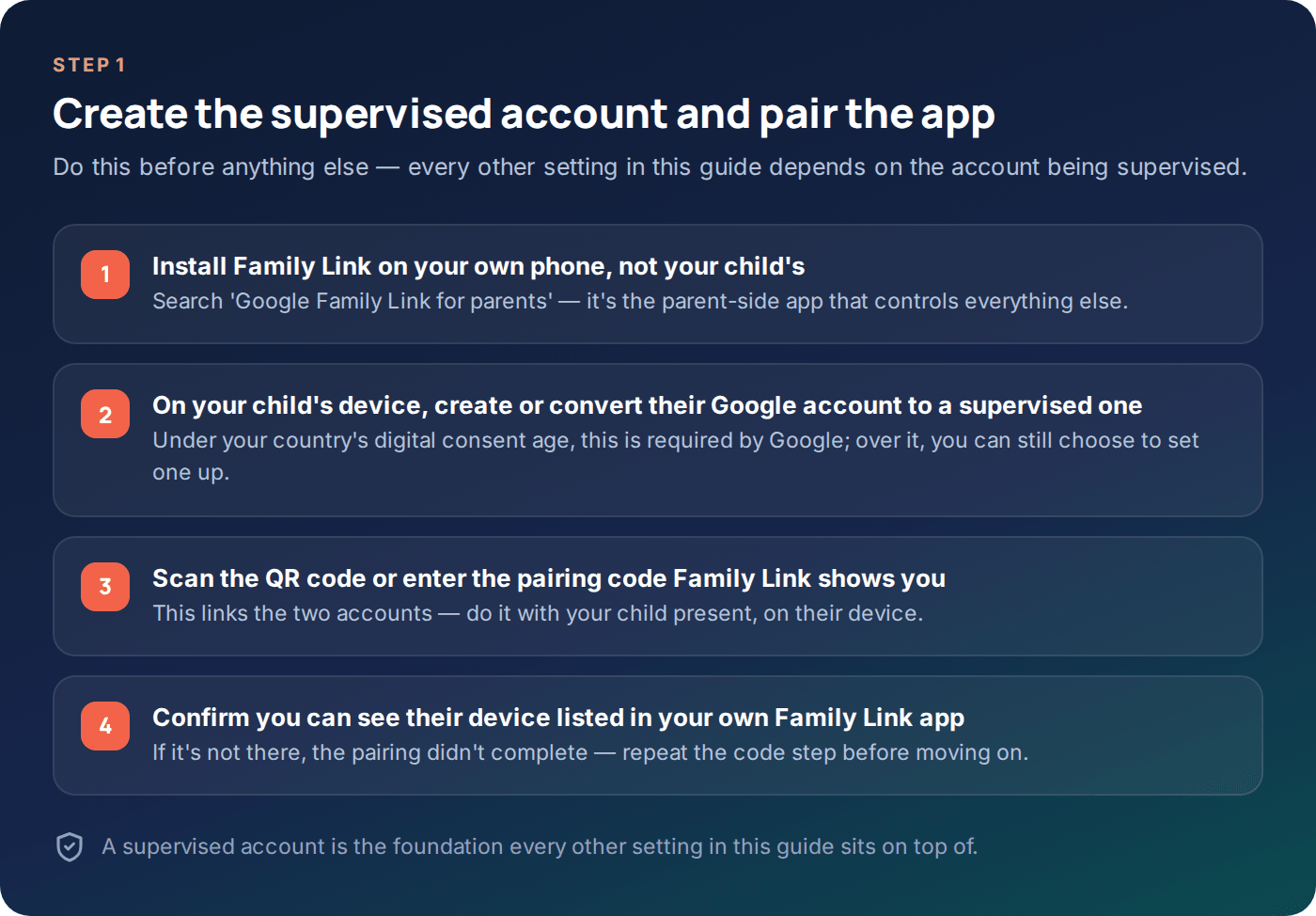
- Install “Google Family Link for parents” on your own phone from the Play Store or App Store. This is the app you’ll use for almost everything below.
- On your child’s device, go to Settings → Google → Set up Family Link, or create the account fresh during device setup. Under your country’s digital consent age — 13 in the US, varying between 13 and 16 across the EU — this is required by Google’s own policy.
- Follow the pairing flow: your child’s device shows a code, you enter it in your Family Link app. Do this together, not remotely — it’s a good moment to explain what’s being set up and why.
- Check the device appears under “Family” in your own Family Link app before moving on. If it’s missing, the pairing didn’t complete; repeat the code step rather than continuing.
Step 2: Daily limits and bedtime
Family Link splits time management into two related but separate settings, and understanding the difference matters more than it first appears. A daily total limit caps overall usage; a bedtime schedule locks the device during specific hours regardless of how much of the total has been used. Set both, because a child who has “saved up” their whole daily allowance for 11pm is technically within a total-hours limit and completely outside a reasonable bedtime.
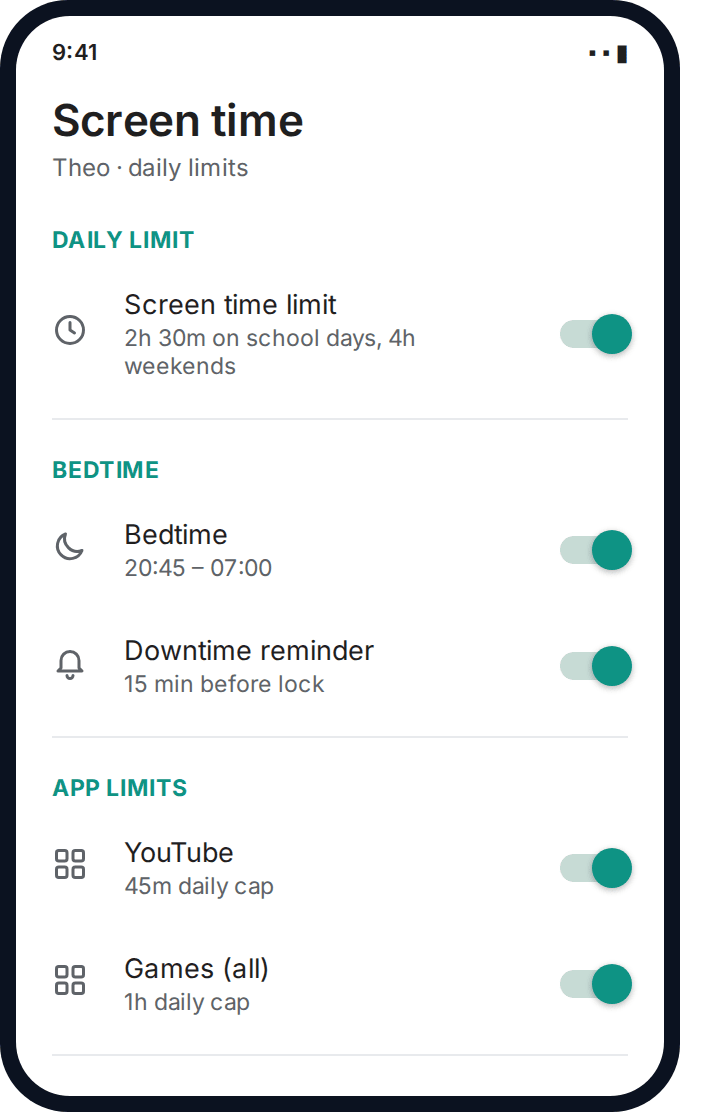
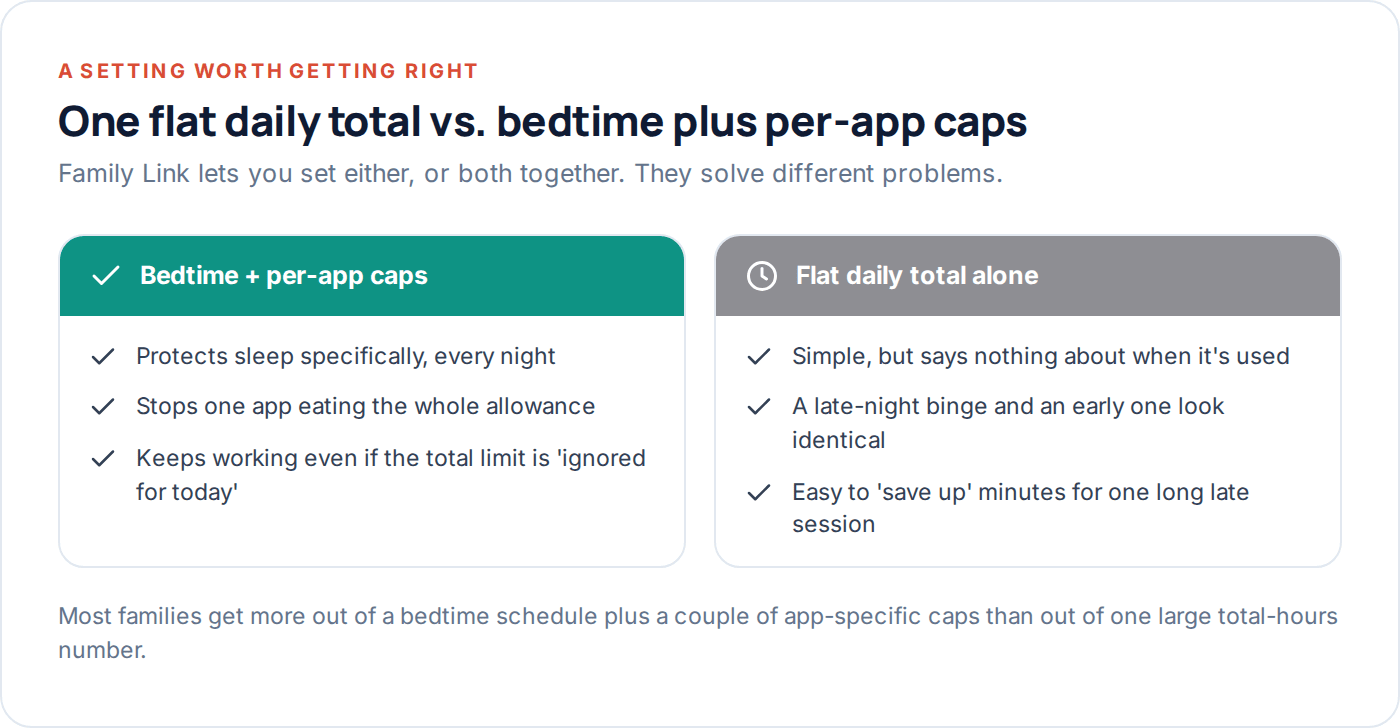
- Family Link app → your child’s name → Controls → Screen time → Daily limit. Set a school-day figure and, separately, a weekend one.
- Controls → Bedtime → set a start and end time. The device locks itself at the start time and unlocks at the end, independent of the daily total.
- Optional: Controls → Screen time → App limits → set a cap on a specific app. Useful for one clearly dominant app (often a single game or YouTube) without capping the whole device.
A detail worth knowing: Family Link’s enforcement is genuinely at the operating-system level, not just a polite reminder. When a limit or bedtime hits, the device actually locks, showing a simple “time’s up” screen rather than merely nudging with a notification the child can dismiss. That is one of the clearest practical differences from Apple’s equivalent, where some limits can still be worked around inside the allowed app itself.
Bonus time works the same way it does on iOS: a child can request extra minutes from the locked screen, and the request lands on your phone as a notification you approve or decline with one tap. Treat it as a pressure valve rather than a loophole to eliminate entirely — a household that never allows a single extra minute, ever, tends to see more arguing overall than one that occasionally says yes to a reasonable ask.
Step 3: App approval
App approval is, in practice, one of the most useful and most underused Family Link settings. Once switched on, every new app install — free or paid — sends a request to your phone with the app’s name, publisher, and age rating, and nothing installs until you approve it.
- Family Link app → child’s name → Controls → Manage apps → App approvals.
- Turn on “Approve apps a child wants to download.” This applies to the Play Store; some pre-installed system apps aren’t affected.
- When a request comes through, check the age rating and a quick description before approving. A minute spent here catches most of what would otherwise need discovering later.
- Review already-installed apps periodically via Manage apps → set app limits. This is also where you can retroactively cap or block something already on the device.
Respond to requests promptly. A child who submits a reasonable request and hears nothing for three days learns that the system is a black hole, not a conversation — and starts looking for accounts and devices where approval isn’t required at all.
It’s worth deciding in advance, roughly, what you will and won’t approve, rather than judging each request cold. A reasonable working rule for many families: age-appropriate rating, a recognisable publisher, and no in-app purchases enabled by default gets a quick yes; anything with open chat to strangers or an 18+ rating gets a conversation first, not an automatic no. Having a rough rule in your head before the first request arrives makes the whole system faster and feels less arbitrary to a child watching you decide.
Step 4: Chrome, Search and Play settings
Content filtering in the Google ecosystem isn’t one setting — it’s three, living in three different places, and missing one leaves an obvious gap. Chrome has its own filter, Google Search has SafeSearch, and Google Play has its own age-rating ceiling, and all three need switching on separately for a supervised account, even though they all belong to the same company.
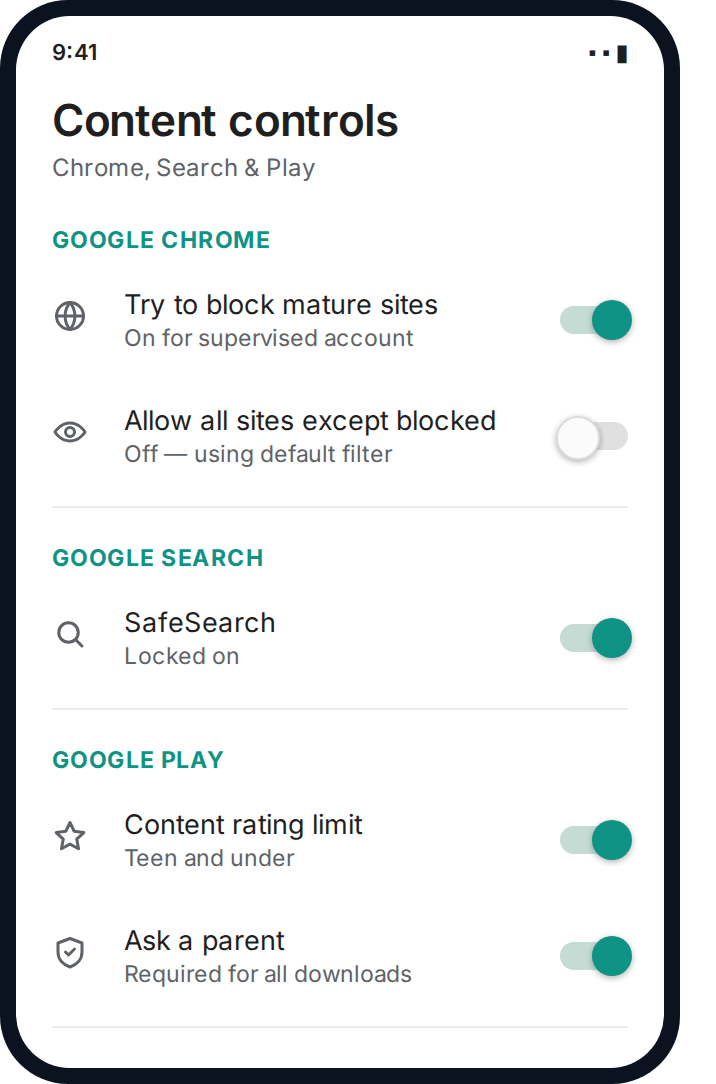
- Family Link → child’s name → Controls → Content restrictions → Google Chrome. Choose “Try to block mature sites” — imperfect, similar in spirit to Apple’s equivalent, but genuinely reduces accidental exposure.
- Content restrictions → Google Search → confirm SafeSearch is locked on. On a supervised account this is usually on by default, but it’s worth checking rather than assuming.
- Content restrictions → Google Play → set a content rating ceiling for apps, games, movies and books — this also filters what appears in Play Store search results, not only what can be downloaded.
Step 5: Device location
Location sharing is switched on separately from everything above, and it’s consistently the single most-used Family Link feature once families have been running it a while — more than the time limits, more than the content filters.
- Family Link app → child’s name → Location → turn on.
- Add saved places — home, school, a grandparent’s house — so arrivals are easy to recognise at a glance rather than reading raw coordinates.
- Leave it on. Unlike time limits, there’s very little downside to always-on location for a younger child, and it’s the setting parents most often say they wish they’d turned on sooner.
If you want arrival and departure alerts at specific places rather than checking location manually, that’s a step beyond what Family Link itself offers — our own location tracking feature is built specifically for that layer on top.
One caveat worth setting expectations for: location accuracy depends on the phone having a signal and, ideally, Wi-Fi or GPS enabled — a device switched to airplane mode or with location services manually disabled won’t report a position, and Family Link will simply show the last known location with a timestamp rather than pretending to know where the phone is now. That’s a reasonable behaviour, not a fault, but it’s worth knowing before you rely on it in a genuine emergency.
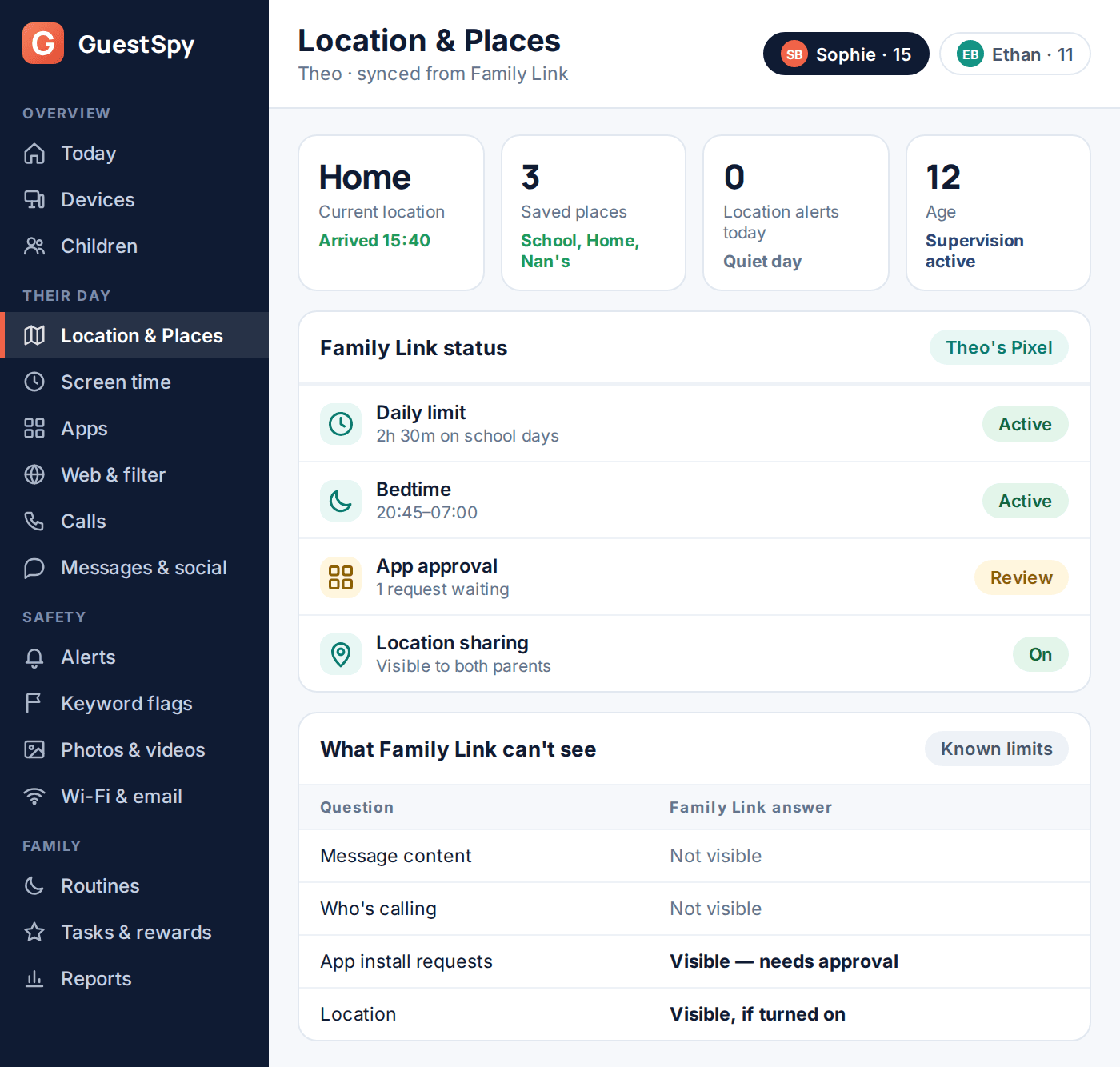
What Family Link can’t see
Family Link is genuinely capable within its scope, and it’s worth being precise about that scope rather than assuming it covers everything “parental controls” sounds like it should.
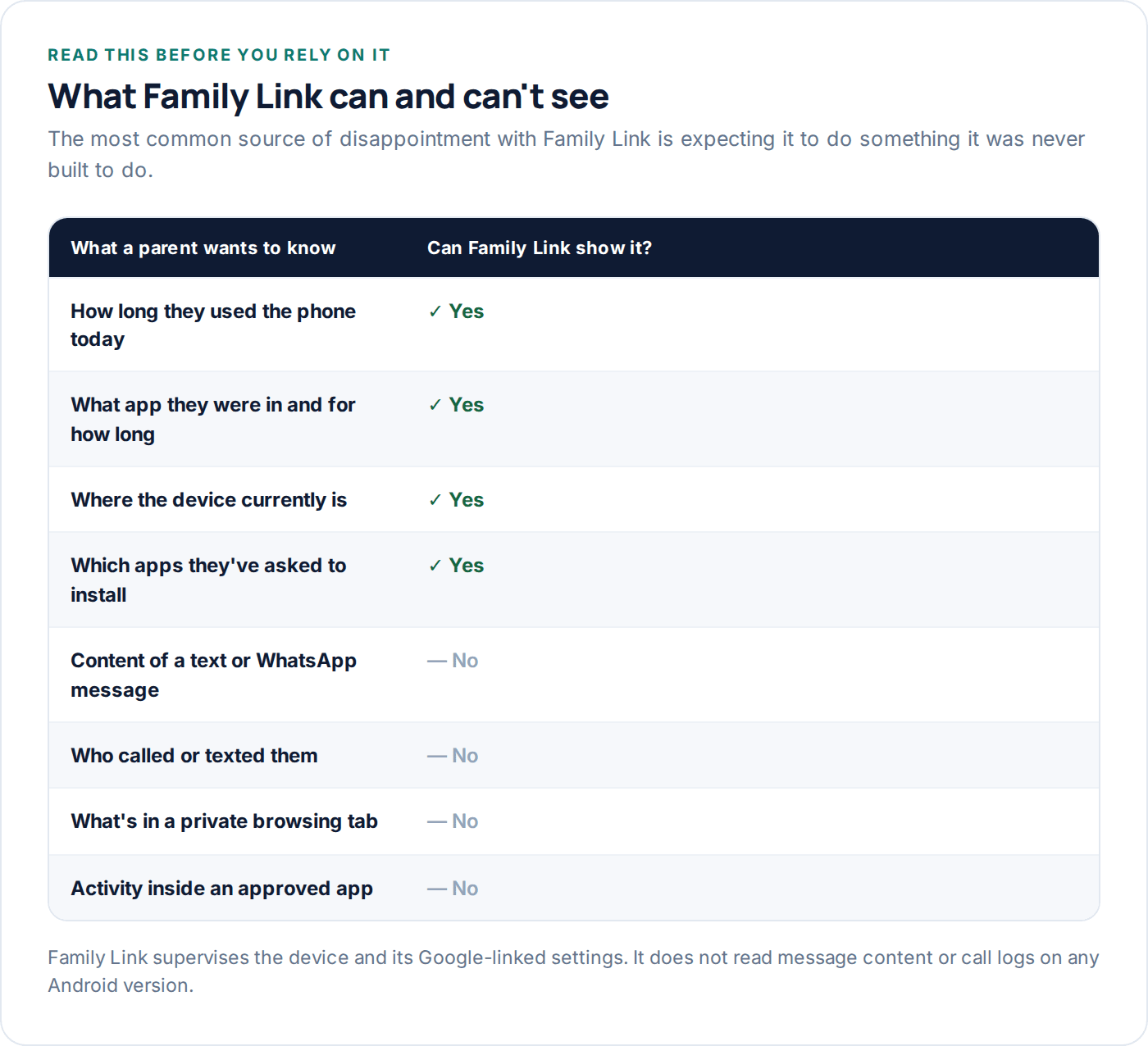
The pattern in that table is consistent: Family Link supervises the device, the account, and Google’s own apps and services. It does not read the content of WhatsApp, Messages, Snapchat or any third-party messaging app, and it does not show call logs. That’s not a bug or a setting you’ve missed — it’s a deliberate boundary, and any product claiming Family Link itself does more than this is describing something else.
This is worth internalising early, because it shapes what Family Link is actually good for. It is an excellent tool for managing time, access and purchases on a device you’re responsible for. It was never built to be a messaging-content monitor, and treating a gap in that coverage as a flaw misunderstands what the product is for in the first place.
What changes at 13
This is the part of Family Link least understood by parents, and it catches people out because nothing dramatic happens on the day itself — the shift is more that several controls quietly become optional rather than enforced.
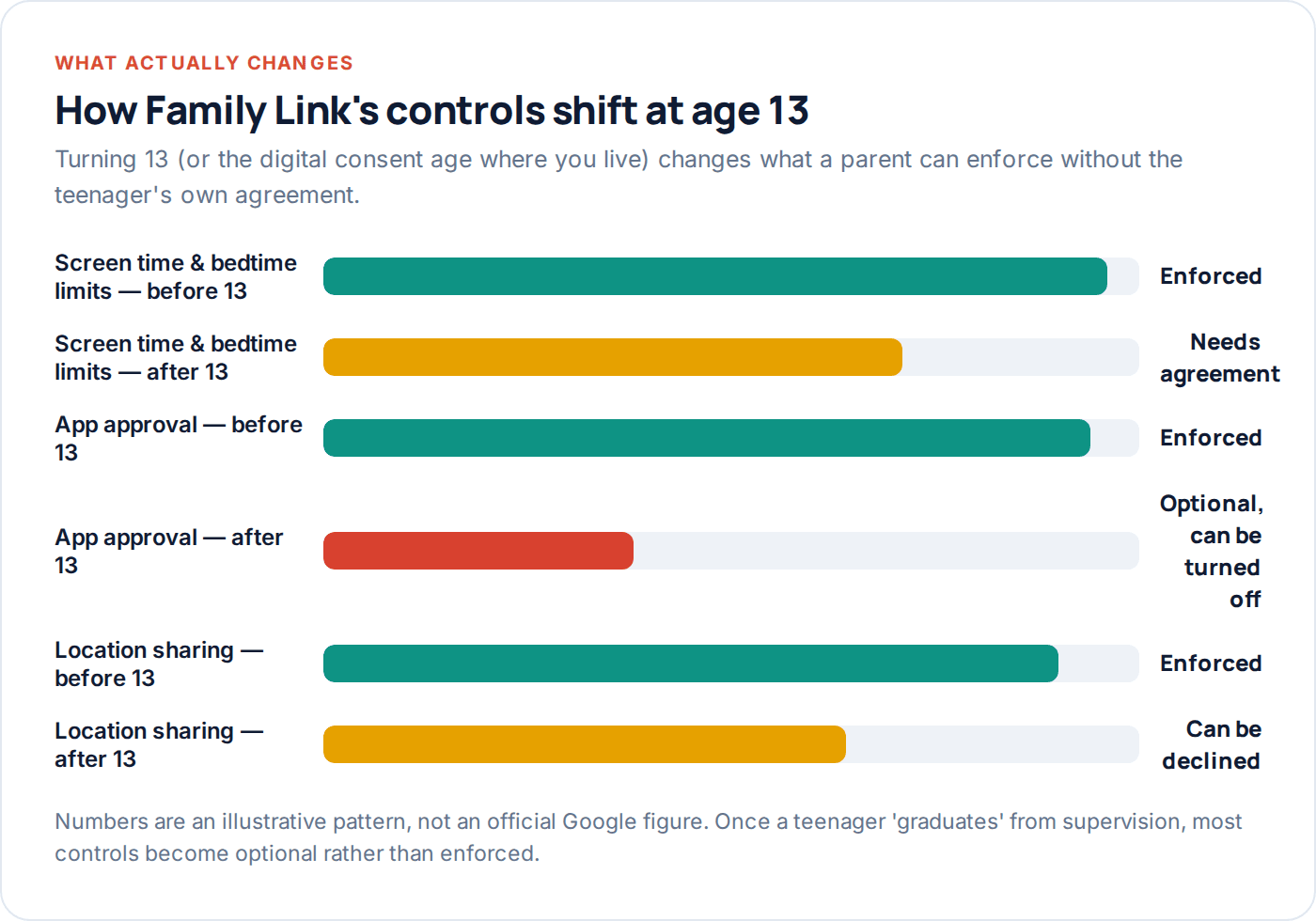
Once a child reaches the digital consent age for your country (commonly 13, but check your own jurisdiction — it varies), Google allows them to “graduate” from a fully supervised account to a lighter one, and depending on your region, some of that transition can happen with less parental involvement than families expect. Screen time limits, app approval and location sharing can all move from strictly enforced to something the teenager can adjust or decline. Nothing forces this to happen overnight, and you can generally keep supervision running past 13 with an ongoing agreement — but it’s worth knowing this shift exists well before your child’s thirteenth birthday, rather than discovering it that week.
What tends to help most through this transition is a combined view that keeps working the same way before and after 13 — location and a basic activity picture, even once some of Family Link’s own enforcement has loosened.
Questions parents actually ask
Does Family Link work if my child is on mobile data, not Wi-Fi?
Yes — screen time limits, bedtime and app approval are enforced at the account and device level, not the network, so they apply on any connection, anywhere the device has signal or power.
Can my child just delete or disable Family Link?
Not without your account PIN, provided you haven’t given them device admin access separately. Uninstalling or disabling the supervision requires parental approval through the linked account, and you’ll typically be notified if someone attempts it.
Does Family Link show me who my child is messaging?
No. It shows app usage time, location, and installed apps, but not message content or call logs on any Android version. That gap is what a dedicated monitoring layer exists to cover, not something Family Link was built to do.
What happens if I don’t set up Family Link before my child turns 13?
Nothing forces a change at the exact birthday — but if the account was never supervised, there’s nothing to “graduate” from either. It’s easier to set expectations with a younger child than to introduce supervision for the first time on a thirteen-year-old.
Is Family Link the same on every Android phone?
The core features are consistent across brands, since it’s a Google account-level service rather than a manufacturer one, though some phone makers add their own extra parental tools on top which work independently of Family Link.
Do I need a separate app if I already have Family Link set up?
Not necessarily — Family Link covers a lot on its own. Consider adding something else only for a specific, named gap: alerts on a risky word in a message, or knowing who’s calling, both of which sit outside what Family Link does by design.
Where to go from here
Fifteen minutes across the steps above covers daily limits, bedtime, app approval, content filtering and location — the large majority of what a supervised Android account can do, for free. If you find yourself wanting to know who’s calling, or want an alert the moment your child arrives somewhere specific, that’s the gap GuestSpy is built to sit in alongside Family Link, and setup takes about two minutes once the steps above are in place.
Keep reading
How to Set App Time Limits That Actually Stick
Category limits beat per-app limits, warnings beat sudden cut-offs, and a limit set without a conversation gets bypassed within a…
How to Block Adult Websites on Every Device at Home
No single setting blocks adult content everywhere. Here's the layer-by-layer setup — device, DNS, router, browser, console and TV —…
A Parent’s Guide to Screen Time by Age
What's generally reasonable at each age band, from toddlers to older teens, and what tends to matter more than the…